Translations:Online Video Meetings Custom Feature/12/da: Difference between revisions

From SimplyBook.me
Created page with ":3. Tilføj <span style="background-color:#d4f8e5; padding:5px; border-radius:5px;">Microsoft Teams</span> i <span style="background-color:#d4f8e5; padding:5px; border-radius:5px;">MS Azure</span> -> <span style="background-color:#d4f8e5; padding:5px; border-radius:5px;">Azure Active Directory</span> -> <span style="background-color:#d4f8e5; padding:5px; border-radius:5px;">Enterprise-applikationer.</span> border|center <br><b..."
 
(No difference)

Latest revision as of 15:31, 19 May 2025

Information about message (contribute)
This message has no documentation. If you know where or how this message is used, you can help other translators by adding documentation to this message.
Message definition (Online Video Meetings Custom Feature)
:3. Add <span style="background-color:#d4f8e5; padding:5px; border-radius:5px;">Microsoft Teams</span> in <span style="background-color:#d4f8e5; padding:5px; border-radius:5px;">MS Azure</span> -> <span style="background-color:#d4f8e5; padding:5px; border-radius:5px;">Azure Active Directory</span> -> <span style="background-color:#d4f8e5; padding:5px; border-radius:5px;">Enterprise applications.</span>
[[File:Ms azure connect ms teams.png|border|center]]
<br><br>
:And add your user(or the desired one that you need to connect to SimplyBook.me) in <span style="background-color:#d4f8e5; padding:5px; border-radius:5px;">Enterprise applications</span> -> <span style="background-color:#d4f8e5; padding:5px; border-radius:5px;">Microsoft Teams</span> -> <span style="background-color:#d4f8e5; padding:5px; border-radius:5px;">Users and Groups</span> on <span style="background-color:#d4f8e5; padding:5px; border-radius:5px;">MS Azure side.</span>
[[File:Ms azure teams users.png|border|center]]
<br><br>
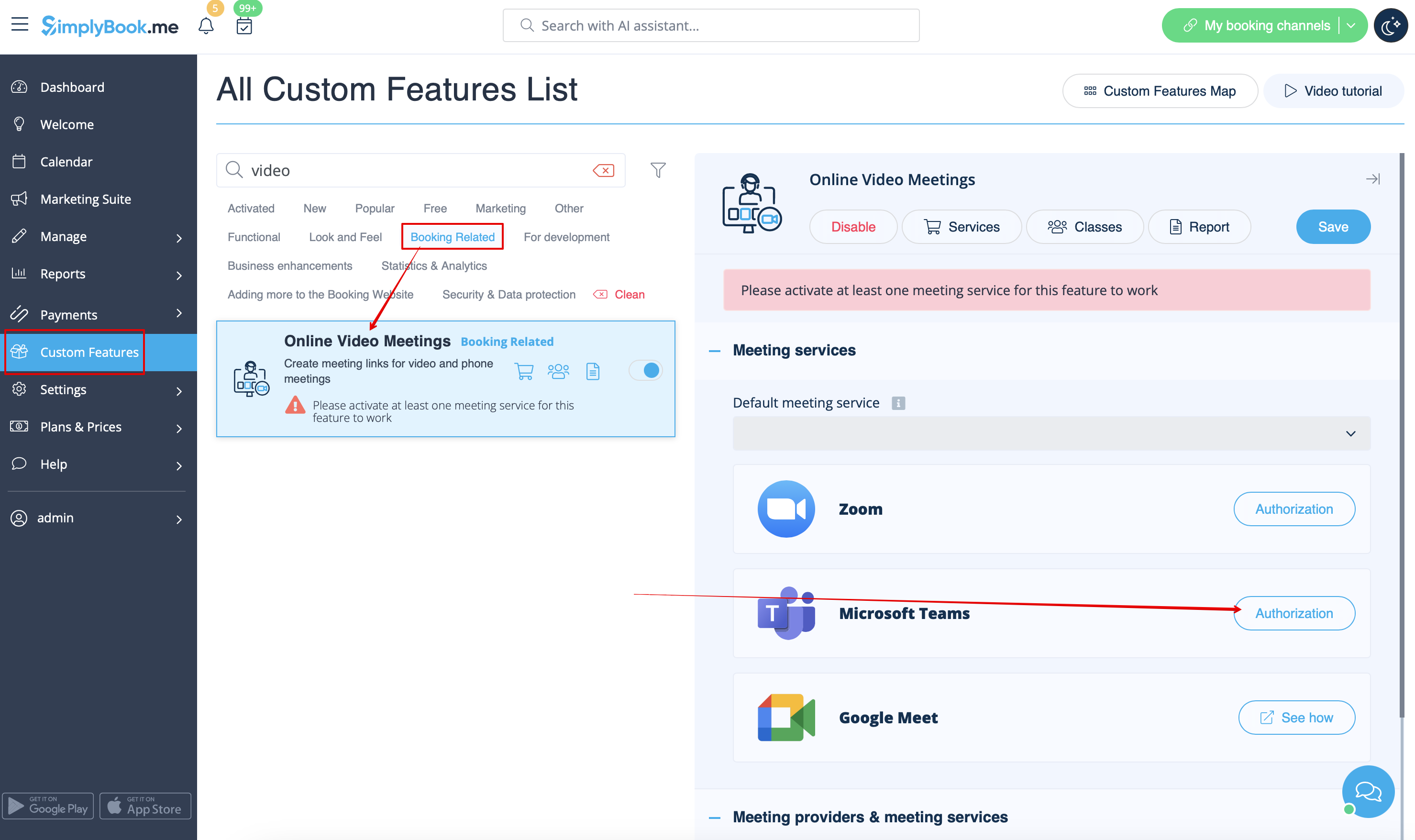
:4. On SimplyBook.me side please click on <span style="background-color:#d4f8e5; padding:5px; border-radius:5px;">Meeting services</span> block and choose <span style="background-color:#d4f8e5; padding:5px; border-radius:5px;">Authorization</span> near <span style="background-color:#d4f8e5; padding:5px; border-radius:5px;">Microsoft Teams”.</span>
:Connect your Microsoft account.
[[File:Ms teams enable for online meetings redesigned.png|1200px|border|center|link=https://help.simplybook.me/images/9/90/Ms_teams_enable_for_online_meetings_redesigned.png]]
<br><br>
3. Tilføj Microsoft Teams i MS Azure -> Azure Active Directory -> Enterprise-applikationer.


Og tilføj din bruger (eller den ønskede bruger, som du skal forbinde til SimplyBook.me) i Enterprise-applikationer -> Microsoft Teams -> Brugere og grupperMS Azure-siden.


4. På SimplyBook.me skal du klikke på blokken Mødetjenester og vælge Autorisation nær Microsoft Teams.
Forbind din Microsoft-konto.