Translations:Intake Forms custom feature/2/sv: Difference between revisions

From SimplyBook.me
Created page with "hur man använder :1. Aktivera den anpassade funktionen Intake Forms i Custom Feature//Adding more to the booking page. 1200px | center|link=https://help.simplybook.me/images/d/d7/Intake_forms_enable_path_redesigned.png <br><br> :2. Gå till dess hantering eller till Hantera//Intagsformulär-sidan. File:Intake forms settings path redesinged.png|1200px | center|link=https://help.simplybook.me/images/6/64/Intake_forms_sett..."
 
(No difference)

Latest revision as of 15:32, 19 May 2025

Information about message (contribute)
This message has no documentation. If you know where or how this message is used, you can help other translators by adding documentation to this message.
Message definition (Intake Forms custom feature)
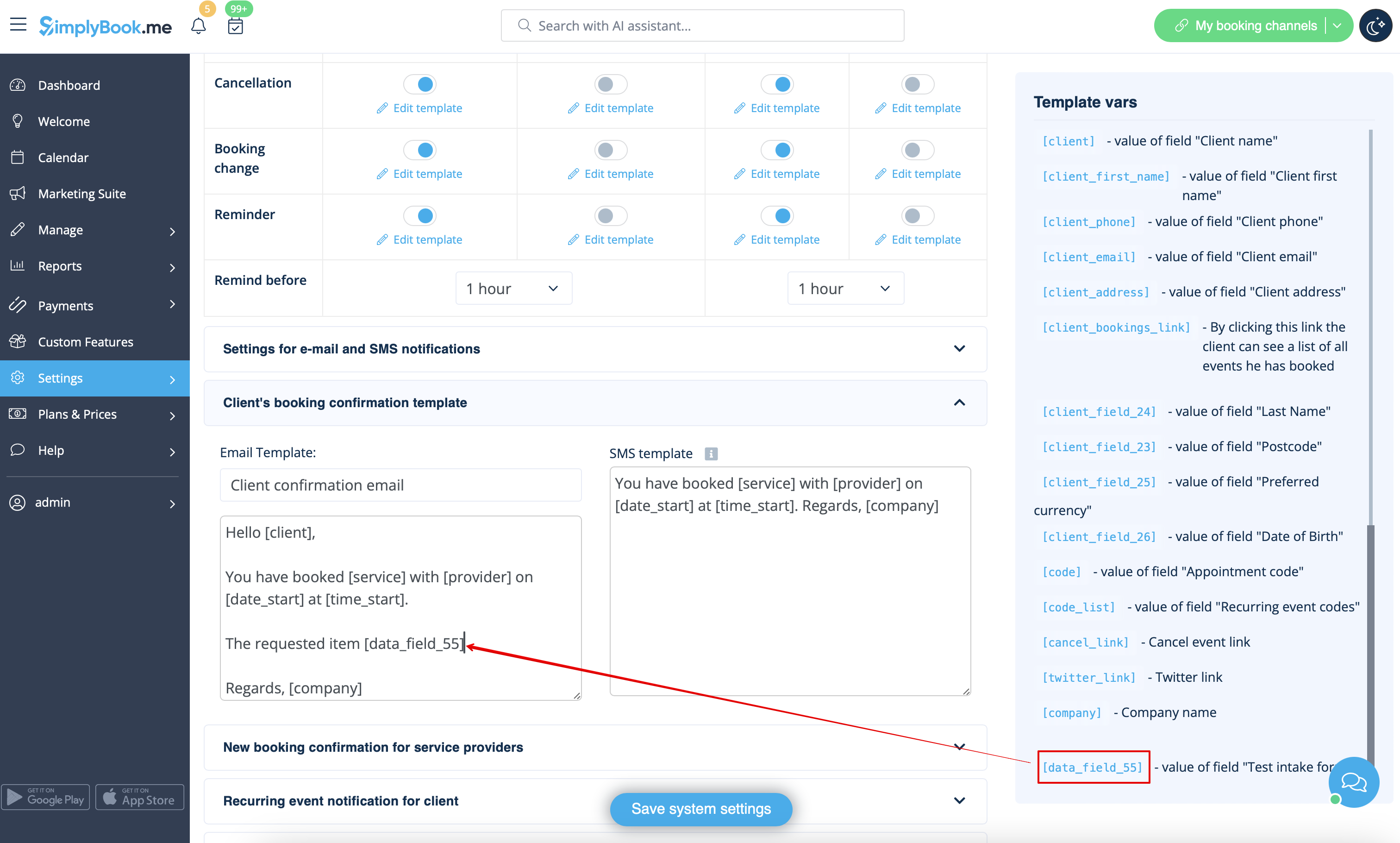
;How to use
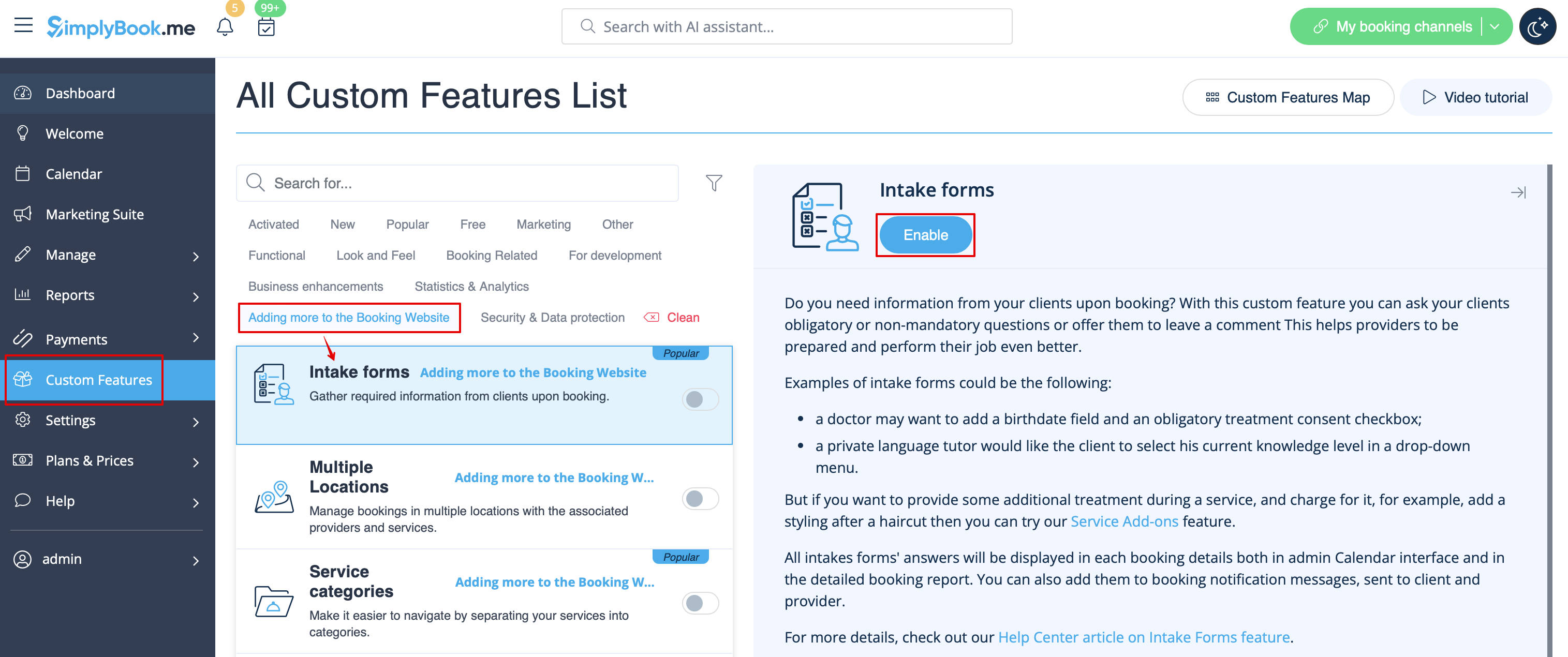
:1. Enable Intake Forms Custom Feature in the Custom Feature//Adding more to the booking page.
[[File:Intake forms enable path redesigned.png|1200px | center|link=https://help.simplybook.me/images/d/d7/Intake_forms_enable_path_redesigned.png]]
<br><br>
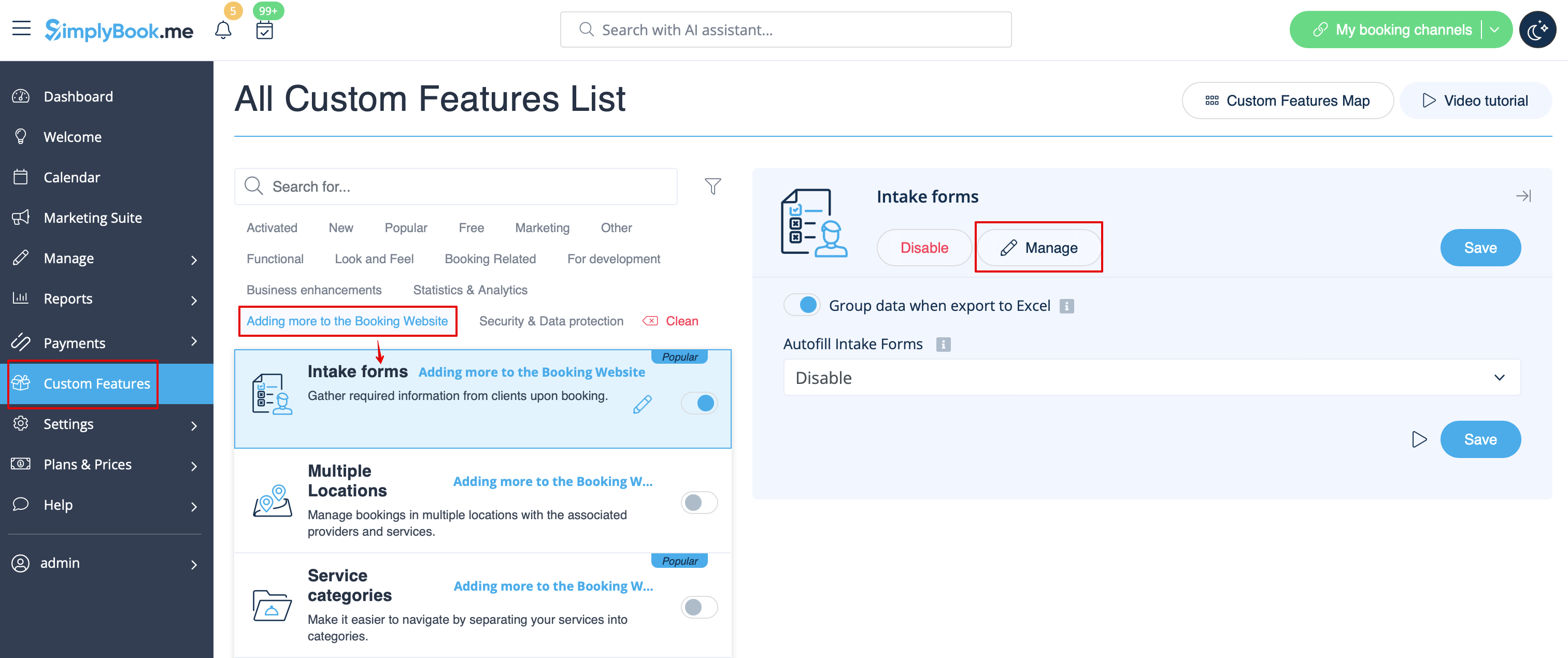
:2. Go to its management or to Manage//Intake forms page.
[[File:Intake forms settings path redesinged.png|1200px | center|link=https://help.simplybook.me/images/6/64/Intake_forms_settings_path_redesinged.png]]
<br><br>
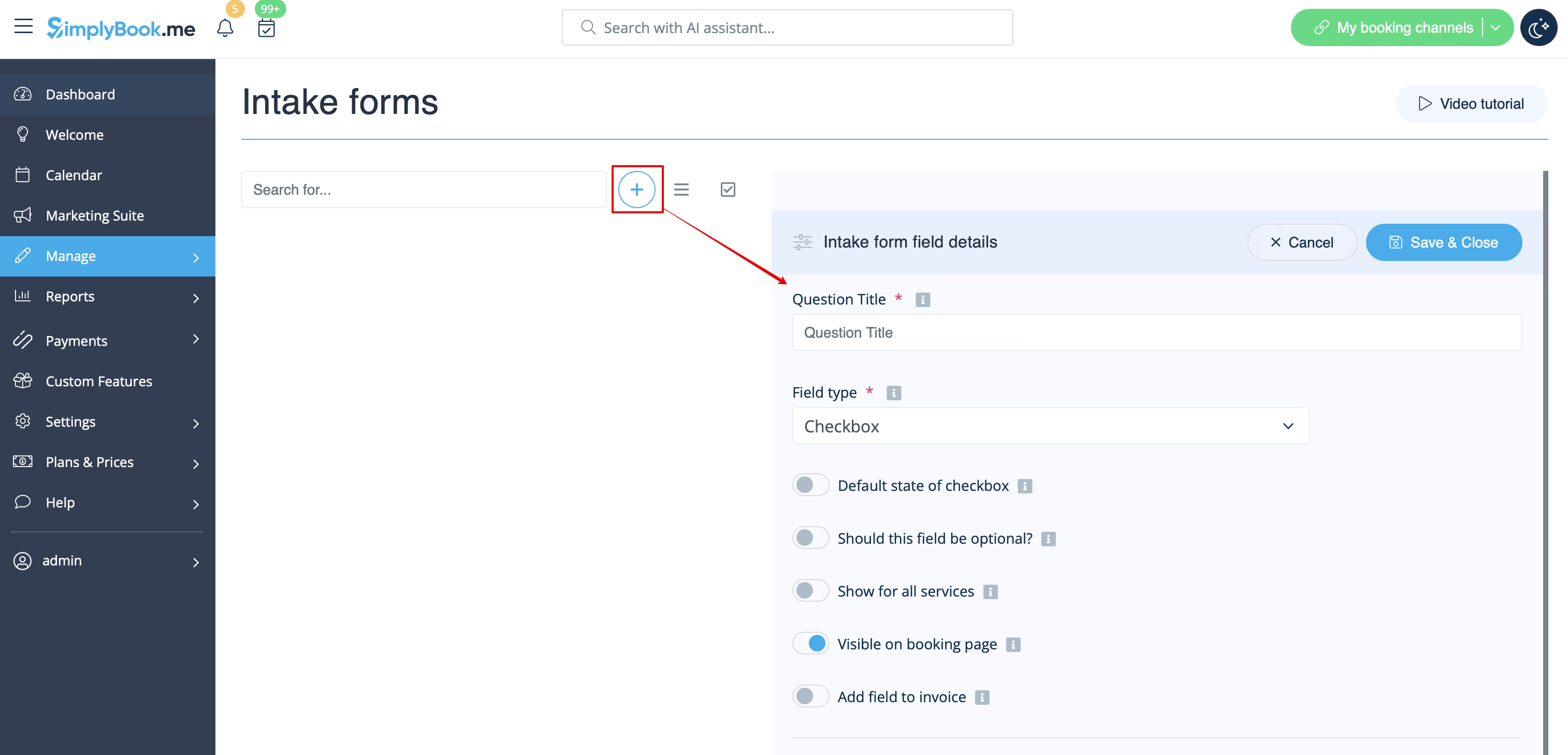
:3. Press "+" button in the settings of Custom Feature to create a new form.
[[File:New intake form form redesigned.png|1200px | center|link=https://help.simplybook.me/images/1/1c/New_intake_form_form_redesigned.png]]
<br><br>
:4. In the field "Question title" write the question you want your clients to answer. For example: Age, preferences, Do you have any health problems?, etc.
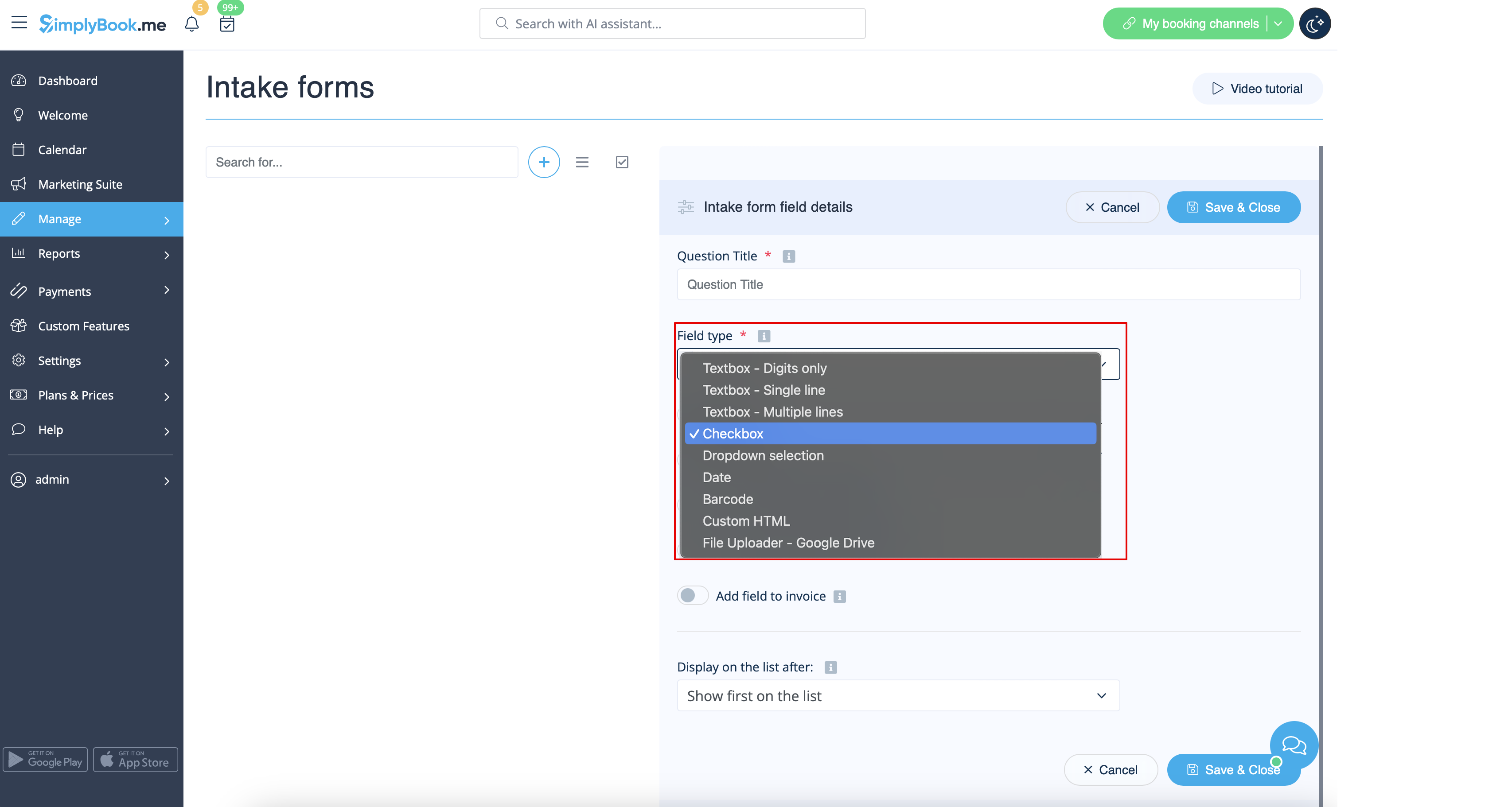
:5. Choose the field type:
:'''digits only''' - allows entering only numbers. Useful when you need to know the age, height or any other information that will require only digits.
:'''single line''' - usually used for short answers
:'''multiple lines''' - use this type of filed if you expect lengthy explanations from your clients
:'''checkbox''' - creates a checkbox that clients should either check or leave unchecked. Useful for questions that require binary answer, for example "I will need additional services".
:'''dropdown selection''' - creates a drop-down list with the ability to choose only 1 option. In order to create this field, you will need to create a list of values in the section "Dropdown options and default option". Also you can select the Default value that will be assigned if nothing is chosen from the list.
:'''date''' - creates date selection option with calendar.
:'''barcode''' - allows to scan barcodes via admin mobile application and get the values from scanning. Also allows simple text input like in single line intake forms.
:'''custom HTML''' - allows to add visual dividers or additional text near the intake form. Cannot be used for client input.
:'''file uploader - Google Drive''' - available if [[File Uploader - Google Drive custom feature]] is enabled. Allows file upload that you will be able to see in the dedicated folder on your Google Drive.
[[File:Intake forms types redesigned.png|1200px|border ‎|center|link=https://help.simplybook.me/images/1/1b/Intake_forms_types_redesigned.png]]
<br><br>
:6. Make it rather obligatory or not with the help of "optional" switcher.
:Include the field (both title and response will be included) to client invoices if you need and if you use [[Special:MyLanguage/Accept_payments_custom_feature|Accept payments]] custom feature.
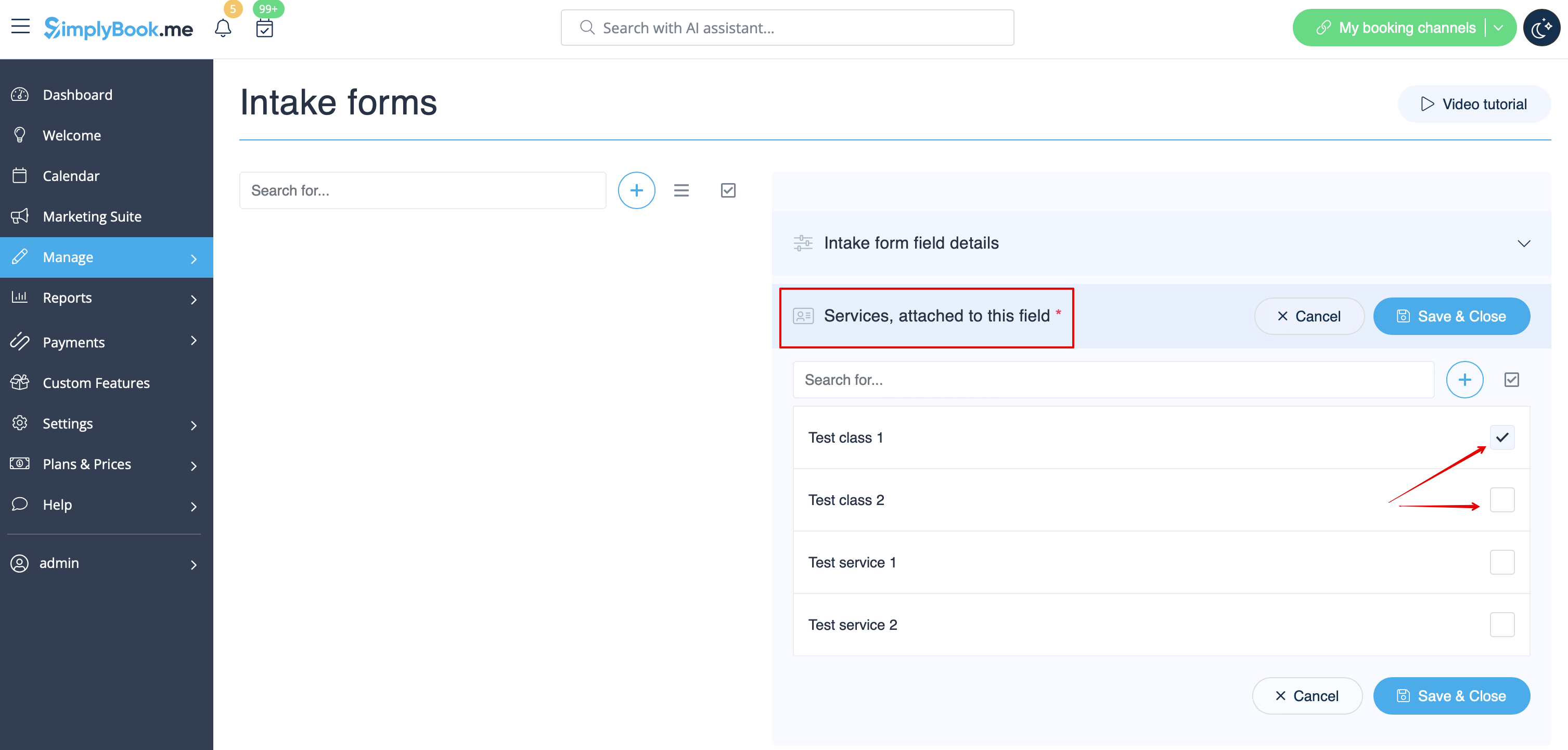
:7. If you wish to relate form with certain services, choose "Services, attached to this field" tab and check the boxes near corresponding services.
[[File:Connect intake form to services redesigned.png|1200px| center|link=https://help.simplybook.me/images/6/66/Connect_intake_form_to_services_redesigned.png]]
<br><br>
:8. If you want to include intake form information to email templates, find the intake forms variables and add them to templates in Settings//Email and SMS settings.
[[File:Add notification variable to template intake form redesigned.png|1200px | center|link=https://help.simplybook.me/images/5/59/Add_notification_variable_to_template_intake_form_redesigned.png]]
<br><br>

hur man använder

1. Aktivera den anpassade funktionen Intake Forms i Custom Feature//Adding more to the booking page.


2. Gå till dess hantering eller till Hantera//Intagsformulär-sidan.


3. Tryck på "+"-knappen i inställningarna för Anpassad funktion för att skapa ett nytt formulär.


4. I fältet "Frågans titel" skriver du den fråga du vill att dina kunder ska svara på. Till exempel: Ålder, preferenser, Har du några hälsoproblem? osv.
5. Välj fälttyp:
digits only – tillåter endast inmatning av siffror. Användbart när du behöver veta ålder, längd eller annan information som endast kräver siffror.
single line – används vanligtvis för korta svar
multiple lines – använd denna fälttyp om du förväntar dig långa förklaringar från dina kunder
checkbox – skapar en kryssruta som kunderna ska markera eller lämna omarkerad. Användbart för frågor som kräver ett ja- eller nej-svar, till exempel "Jag behöver ytterligare tjänster".
dropdown selection - skapar en rullgardinsmeny där endast ett alternativ kan väljas. För att skapa detta fält måste du skapa en lista med värden i avsnittet "Dropdown options and default option". Du kan också välja det standardvärde som ska tilldelas om inget väljs i listan.
date – skapar ett datumvalsalternativ med kalender.
barcode – gör det möjligt att skanna streckkoder via administratörens mobilapp och hämta värdena från skanningen. Möjliggör också enkel textinmatning som i enradiga intagsformulär.
custom HTML – gör det möjligt att lägga till visuella avdelare eller ytterligare text nära intagsformuläret. Kan inte användas för klientinmatning.
file uploader - Google Drive - tillgänglig om den anpassade funktionen File Uploader - Google Drive är aktiverad. Möjliggör uppladdning av filer som du kan se i den dedikerade mappen på din Google Drive.
border ‎
border ‎


6. Gör det obligatoriskt eller inte med hjälp av växlaren "valfritt".
Inkludera fältet (både titel och svar inkluderas) i kundfakturor om du behöver och om du använder den anpassade funktionen Acceptera betalningar.
7. Om du vill koppla formuläret till vissa tjänster väljer du fliken "Tjänster, kopplade till detta fält" och markerar rutorna bredvid motsvarande tjänster.


8. Om du vill inkludera information från intagsformuläret i e-postmallar letar du reda på variablerna för intagsformuläret och lägger till dem i mallarna under Inställningar//E-post- och SMS-inställningar.