Created page with "11. Gå tillbaka till LINE Login-kanalen, klicka på Developing status under kanalnamnet och ändra till Publish.<br> 1200px|center|link=https://help.simplybook.me/images/9/9a/Line_liff_publish_channel.png" Tags: Mobile edit Mobile web edit |
Created page with ":4. Gå sedan till Skapa en LINE Login-kanal. 1200px|center|link=https://help.simplybook.me/images/1/13/Create_line_login_channel.png" |
||
| Line 75: | Line 75: | ||
[[File:Line liff publish channel.png|1200px|center|link=https://help.simplybook.me/images/9/9a/Line_liff_publish_channel.png]] | [[File:Line liff publish channel.png|1200px|center|link=https://help.simplybook.me/images/9/9a/Line_liff_publish_channel.png]] | ||
:12. När du har publicerat måste du logga in på [https://manager.line.biz/ Line Official Account] med samma LINE-konto som Developers Console. | |||
:12. | :När du öppnar det klickar du på Rich Menu i navigeringen och skapar en Rich Menu där. | ||
: | |||
[[File:Create a rich menu line liff.png|1200px|center|link=https://help.simplybook.me/images/8/80/Create_a_rich_menu_line_liff.png]] | [[File:Create a rich menu line liff.png|1200px|center|link=https://help.simplybook.me/images/8/80/Create_a_rich_menu_line_liff.png]] | ||
:13. Fyll i de obligatoriska fälten. | |||
:13. | :I menyn Innehåll väljer du mallen och lägger till bilden. | ||
: | :Välj "Länk" i blocket Åtgärder och lägg till LIFF-url från utvecklarkonsolen//LINE Login-kanalen. | ||
: | |||
[[File:Action type link.png|1200px|center|link=https://help.simplybook.me/images/4/4b/Action_type_link.png]] | [[File:Action type link.png|1200px|center|link=https://help.simplybook.me/images/4/4b/Action_type_link.png]] | ||
[[File:Line liff url.png|1200px|center|link=https://help.simplybook.me/images/0/00/Line_liff_url.png]] | [[File:Line liff url.png|1200px|center|link=https://help.simplybook.me/images/0/00/Line_liff_url.png]] | ||
:14. För att länka LINE Official-kontot till LINE Developers-kontot, gå till Developer Console och klicka på LINE Login-kanalen. I Linked OA måste du välja Official-kontot för att koppla ihop de båda delarna. | |||
:14. | |||
[[File:Connect official account.png|1200px|center|link=https://help.simplybook.me/images/2/2e/Connect_official_account.png]] | [[File:Connect official account.png|1200px|center|link=https://help.simplybook.me/images/2/2e/Connect_official_account.png]] | ||
:15. När kunderna har öppnat den officiella LINE-kontosidan i LINE-appen kan de klicka på menyn för att starta bokningsprocessen. Under processen kan de välja de tjänster, datum och tider de vill boka, logga in med sitt LINE-konto och bekräfta bokningen. | |||
:15. | :Integrationen gör det också möjligt för kunderna att enkelt se sina bokningar i denna widget i appen. | ||
: | |||
[[File:Line app booking process.png|1200px|center|link=https://help.simplybook.me/images/0/0d/Line_app_booking_process.png]] | [[File:Line app booking process.png|1200px|center|link=https://help.simplybook.me/images/0/0d/Line_app_booking_process.png]] | ||
< | <span id="How_to_customize_LINE_Official_Account_notifications?"></span> | ||
== | == Hur anpassar jag aviseringar från LINE Official Account? == | ||
Gå till SimplyBook.me-adminpanelen, välj Inställningar → E-post- och SMS-inställningar. Texterna i LINE-bokningsmeddelandena kommer att överensstämma med innehållet i SMS-meddelandena. Om du vill justera informationen kan du redigera motsvarande mallar där. | |||
[[File:Sms templated path redesigned.png|1200px|center|link=https://help.simplybook.me/images/8/8d/Sms_templated_path_redesigned.png]] | [[File:Sms templated path redesigned.png|1200px|center|link=https://help.simplybook.me/images/8/8d/Sms_templated_path_redesigned.png]] | ||
'''Anmärkning:''' Om du inte markerar rutorna för SMS-aviseringar till kunder i Inställningar → E-post- och SMS-inställningar kommer systemet ändå automatiskt att skicka påminnelser om bokningar och andra aviseringar om bokningar via LINE.<br> | |||
''' | |||
Latest revision as of 15:32, 19 May 2025

Integrationen av LINE LIFF med SimplyBook.me ger företag en fantastisk möjlighet att förbättra sin bokningsprocess och kundengagemang. Genom att erbjuda en smidig och effektiv upplevelse direkt i Line-meddelandeappen kan företag attrahera och behålla kunder, effektivisera sin verksamhet och ligga steget före i den konkurrensutsatta marknaden.
Observera! Den anpassade funktionen Kundfält är inte kompatibel med funktionen LINE LIFF.
- Hur man använder
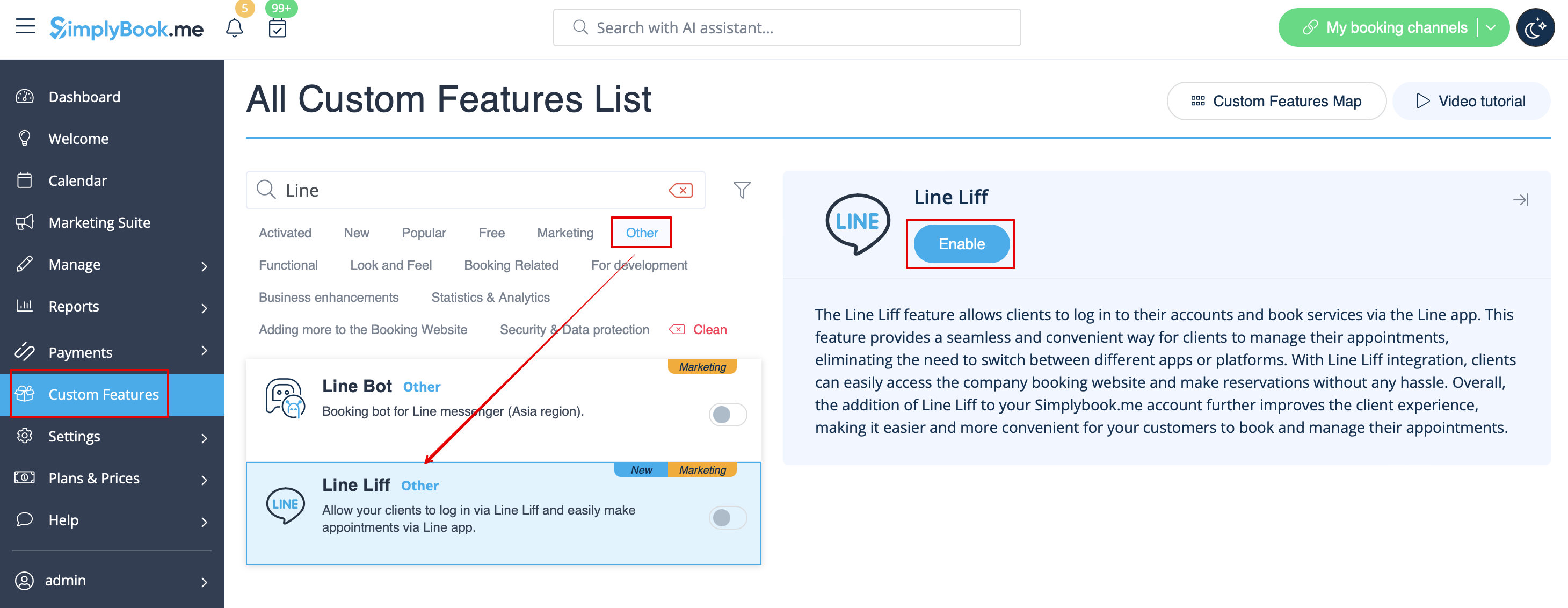
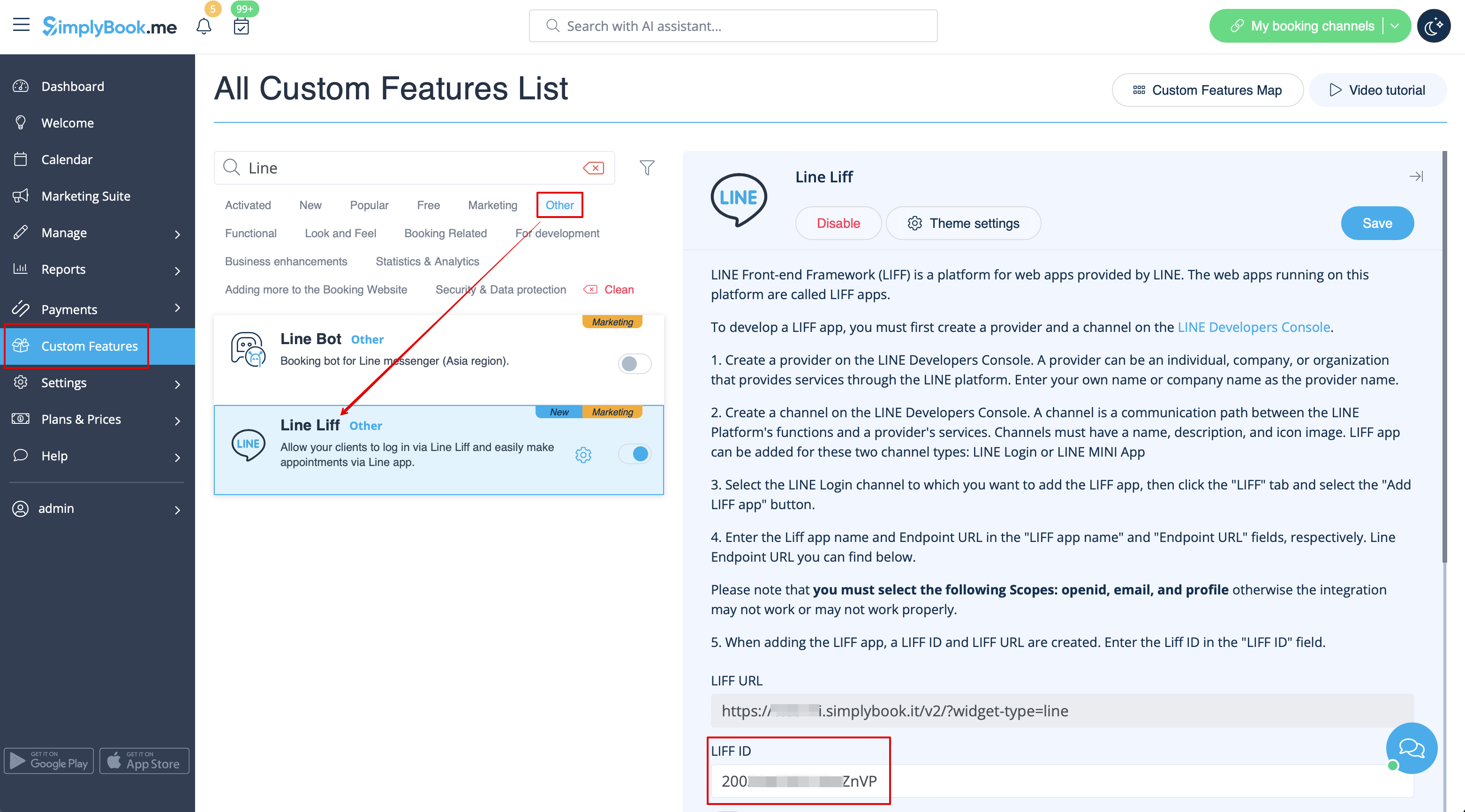
- 1. För att aktivera den här funktionen, gå till avsnittet Anpassade funktioner i menyn till vänster i administratörsgränssnittet, leta reda på LINE LIFF och klicka på knappen Aktivera eller använd växlarn.
- 2. För att integrera en LIFF-app måste du skapa en leverantör och en kanal på LINE Developers Console.
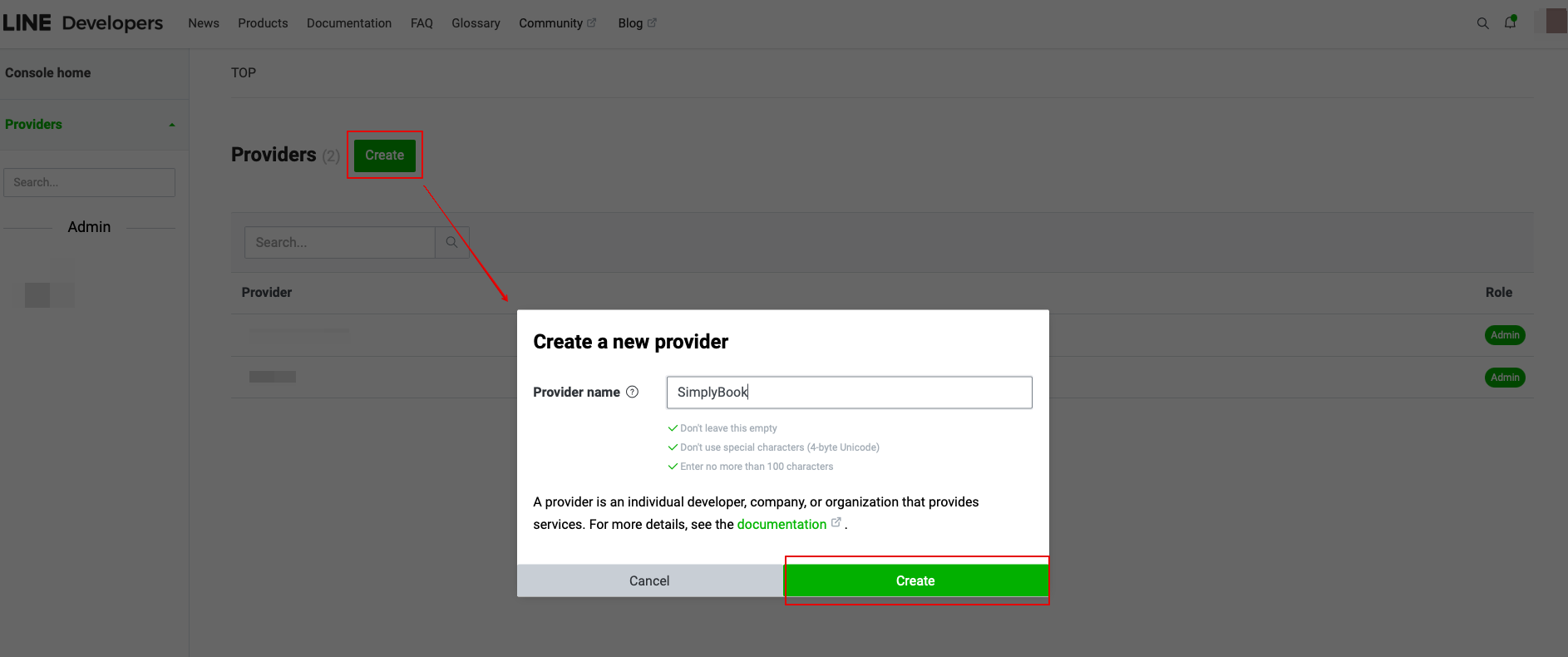
- 3. När du har registrerat dig där fortsätter du med att skapa en leverantörsinstans.
- (leverantören kan vara en enskild person, ett företag eller en organisation som tillhandahåller tjänster via LINE-plattformen)
- Ange önskat namn eller företagsnamn som leverantörsnamn i motsvarande formulär.
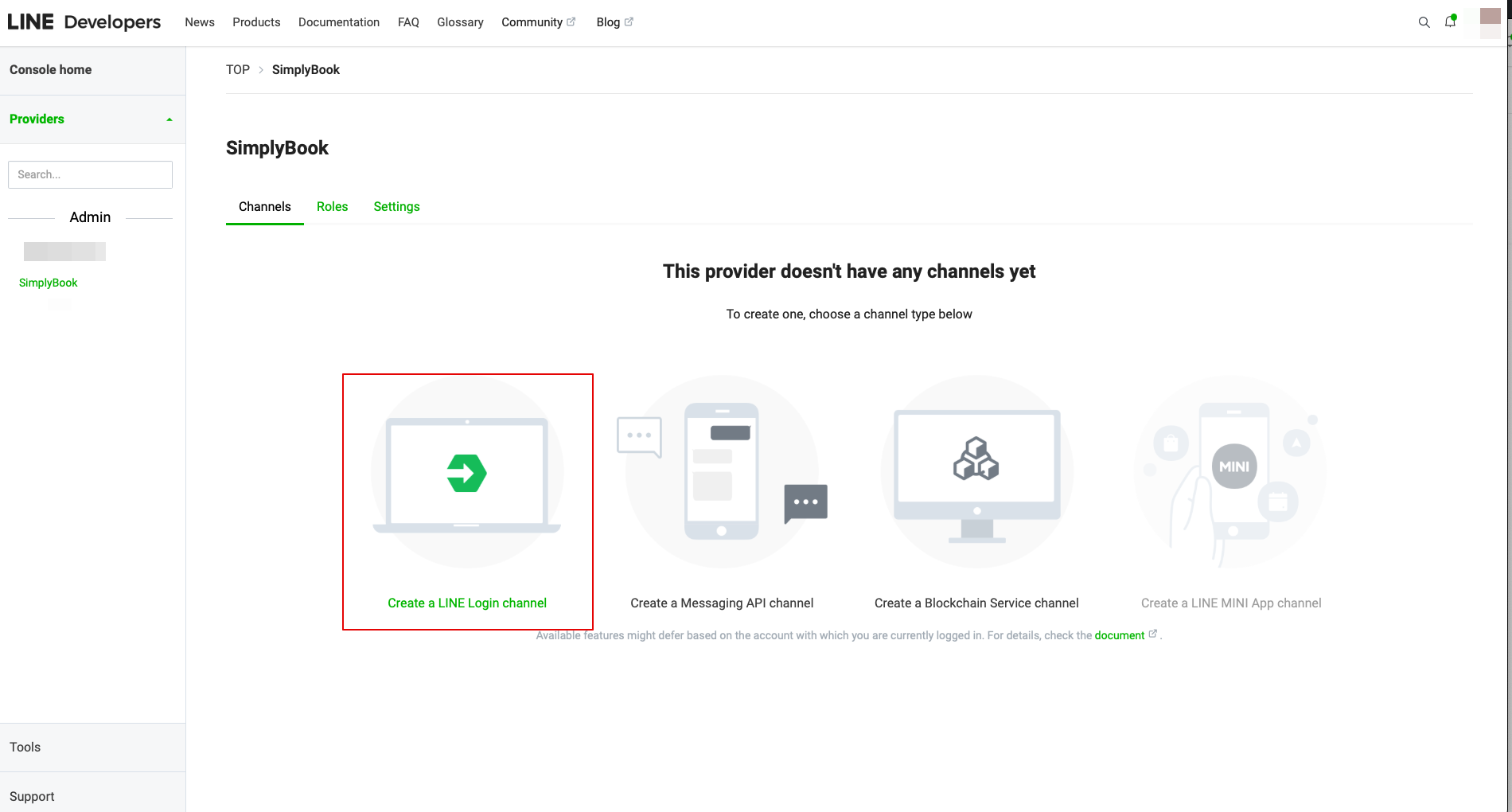
- 4. Gå sedan till Skapa en LINE Login-kanal.
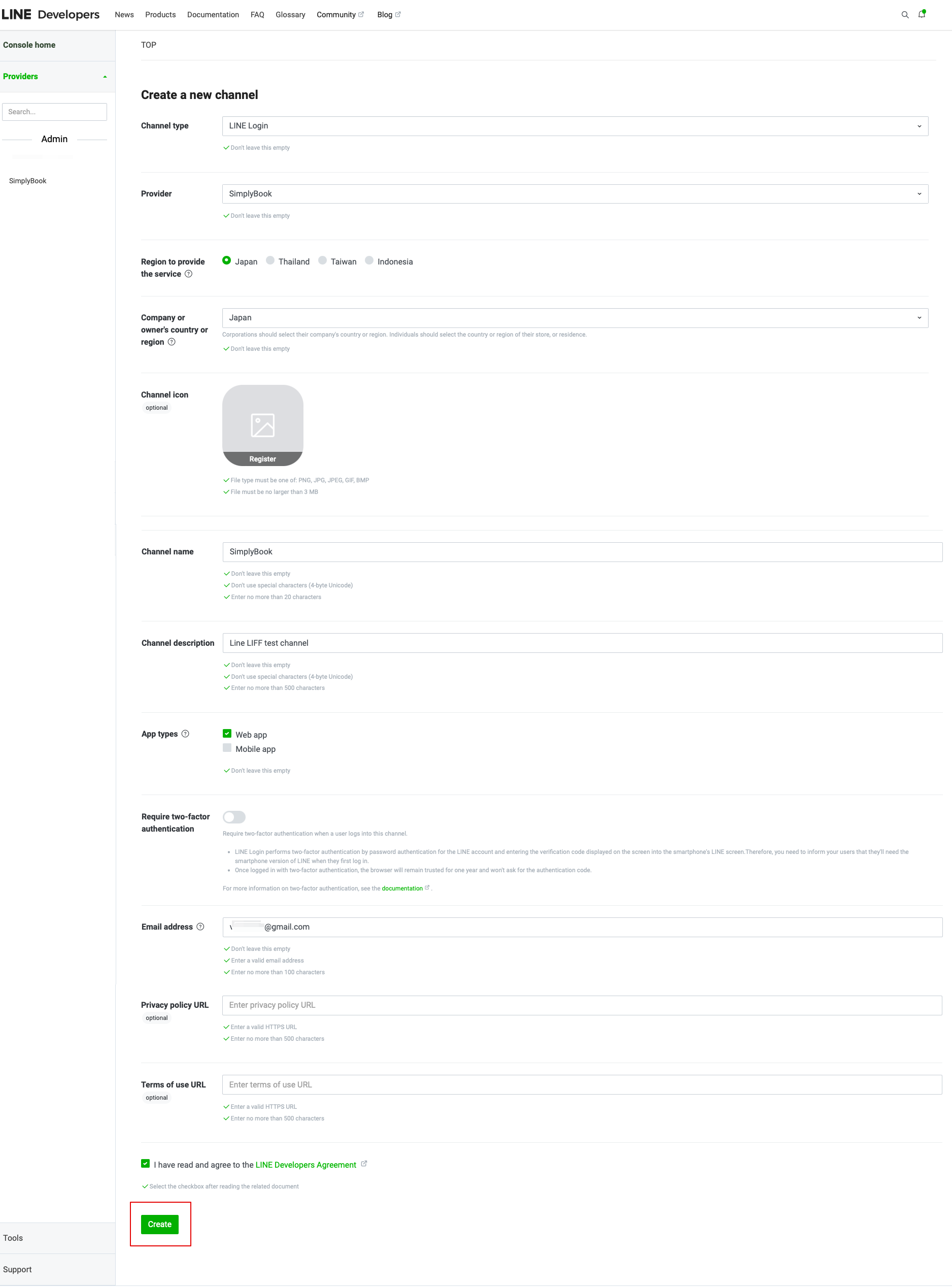
- 5. Fyll i informationen i de obligatoriska fälten.
- Se till att välja webbappen i avsnittet "Apptyper" och ange även e-postadressen.
- När du har accepterat "LINE Developers agreement" klickar du på knappen "Skapa" för att slutföra detta steg.
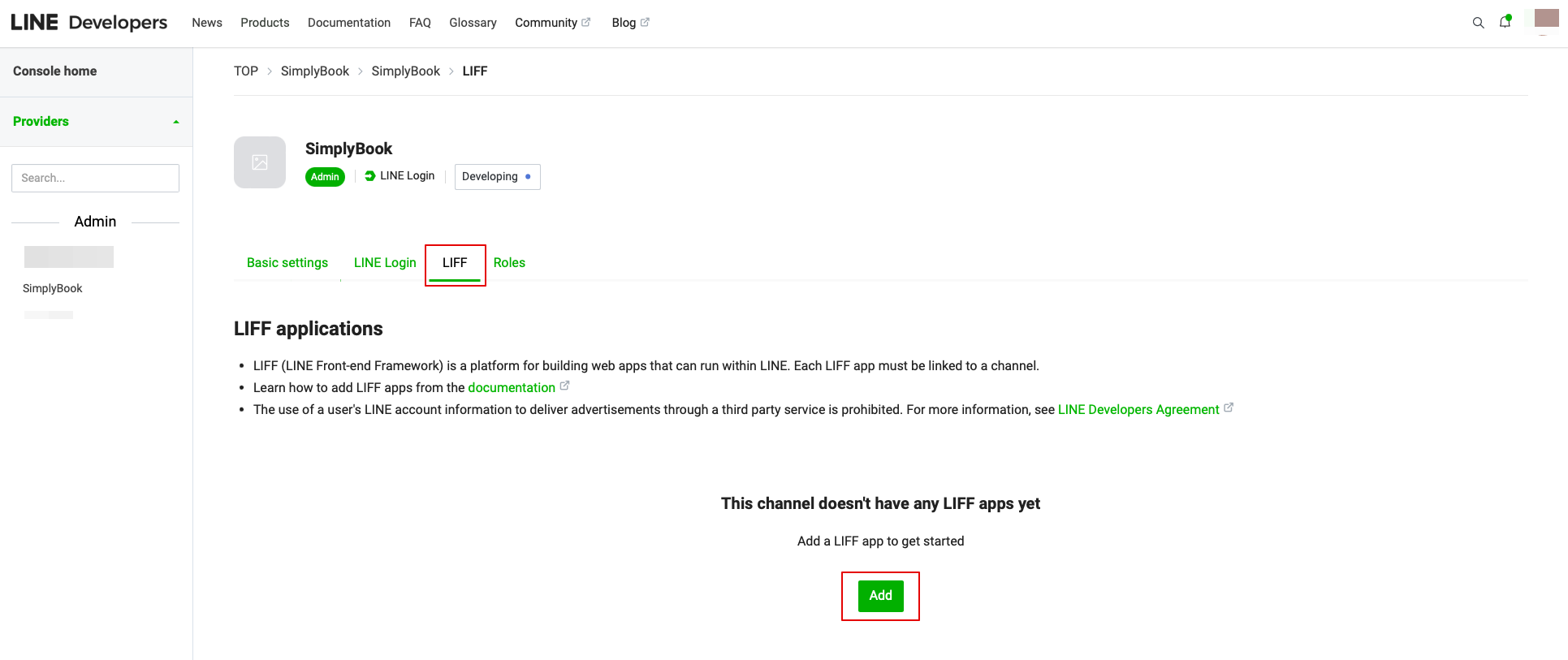
- 6. När LINE-inloggningen har skapats klickar du på fliken LIFF och lägger till LIFF-appen där.
Du måste ange följande uppgifter:
- LIFF-appens namn: ditt varumärke/företagsnamn;
- Välj appens storlek;
- Endpunkts-URL: ska kopieras från LIFF-URL (Simplybook.me LINE LIFF-inställningar);
- (obligatoriskt) Välj följande omfattningar: openid och profil, annars kanske integrationen inte fungerar eller inte fungerar korrekt;
- Bot Link-funktionen ska vara aktiverad.
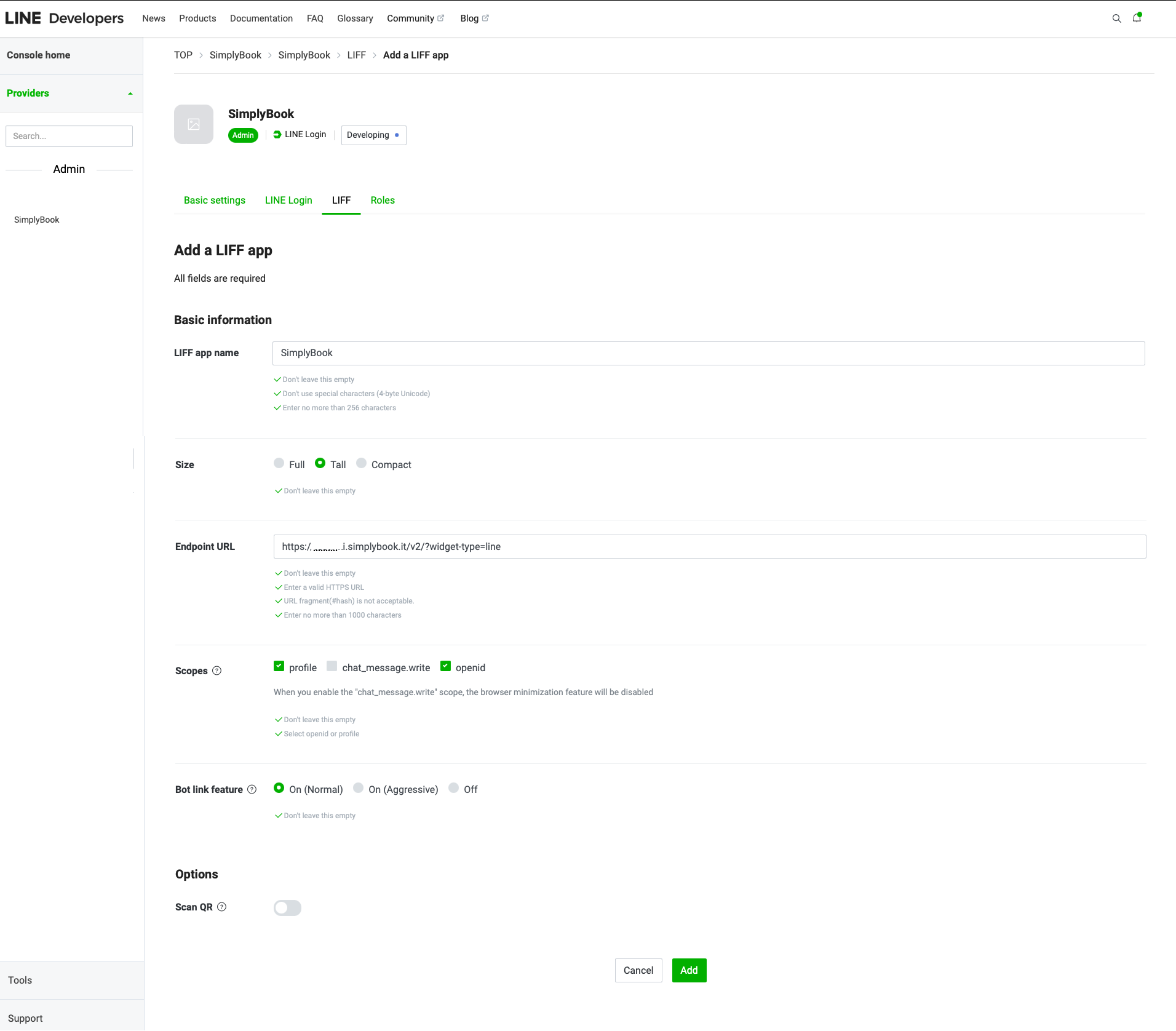
- När alla ovanstående inställningar är klara klickar du på den gröna knappen Lägg till för att lägga till LINE LIFF.
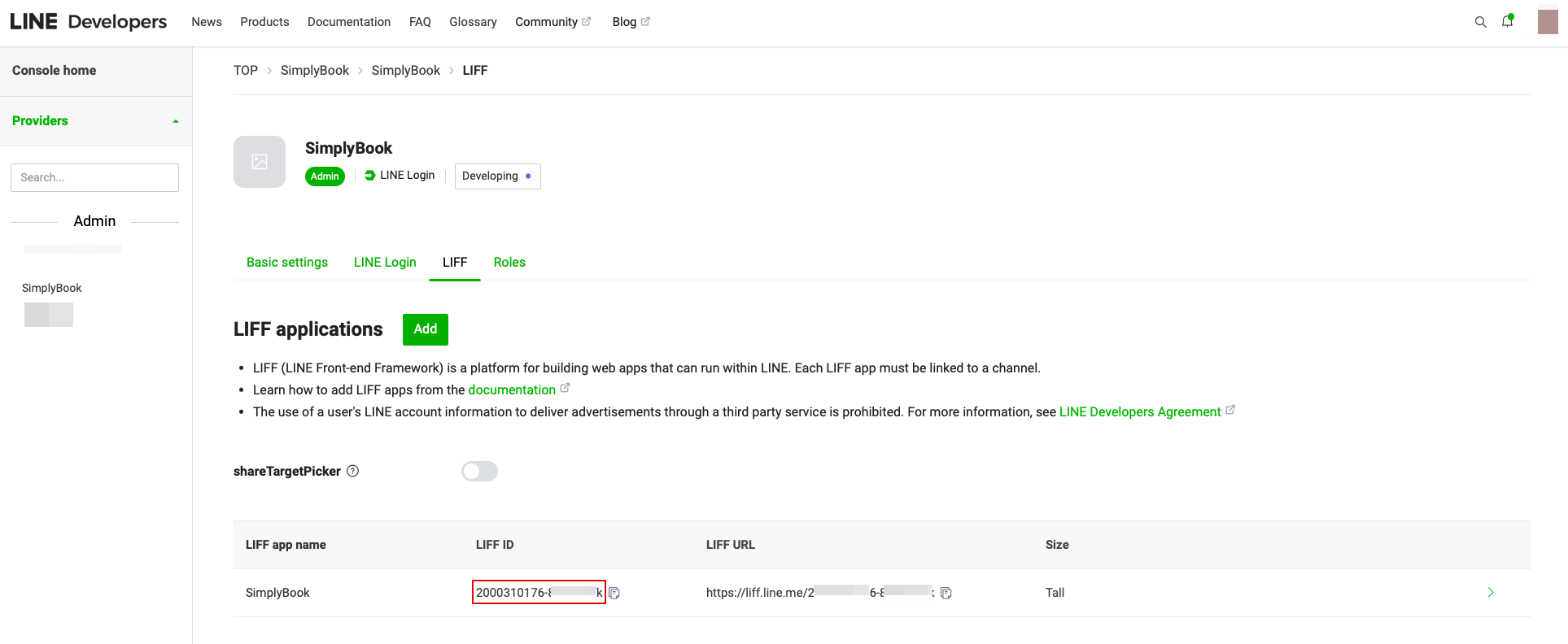
- 7. Du kommer då till sidan där du kan se ditt LIFF-ID.
- Kopiera LIFF-ID:t och ange det i motsvarande fält på Simplybook-sidan.
- 8. Om du vill att dina kunder ska få push-meddelanden om deras bokningsstatus eller andra påminnelser (liknande SMS) kan du aktivera alternativet "Aktivera vänförfrågan med din LINE-kanal" i Simplybook LINE LIFF Custom Feature och infoga "Channel access token".
- (information om hur du får Channel access token finns längre fram i guiden)
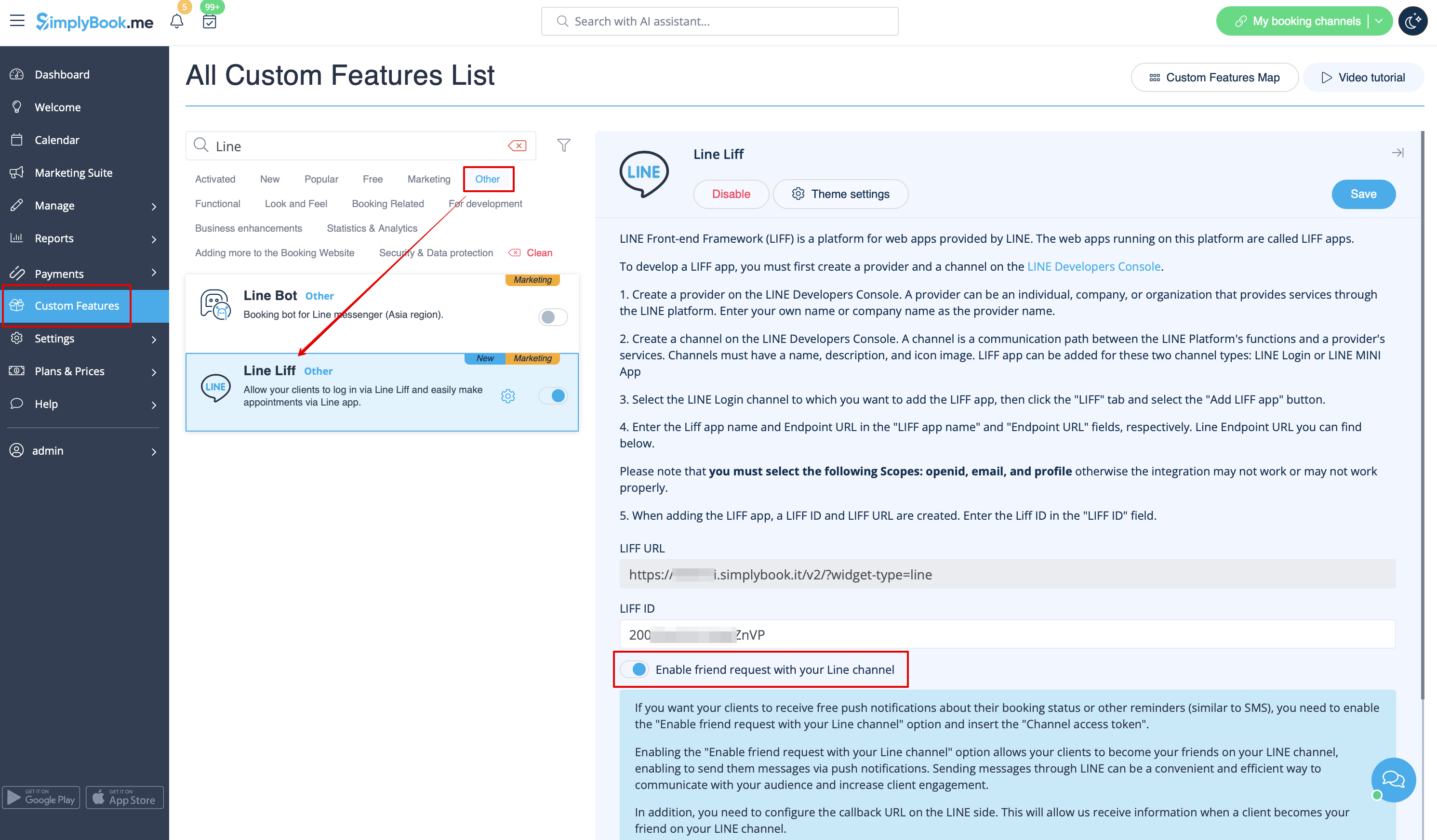
- Dessutom måste du konfigurera återuppringningsadressen på LINE-sidan. Detta gör att vi kan ta emot information när en kund blir din vän på din LINE-kanal.
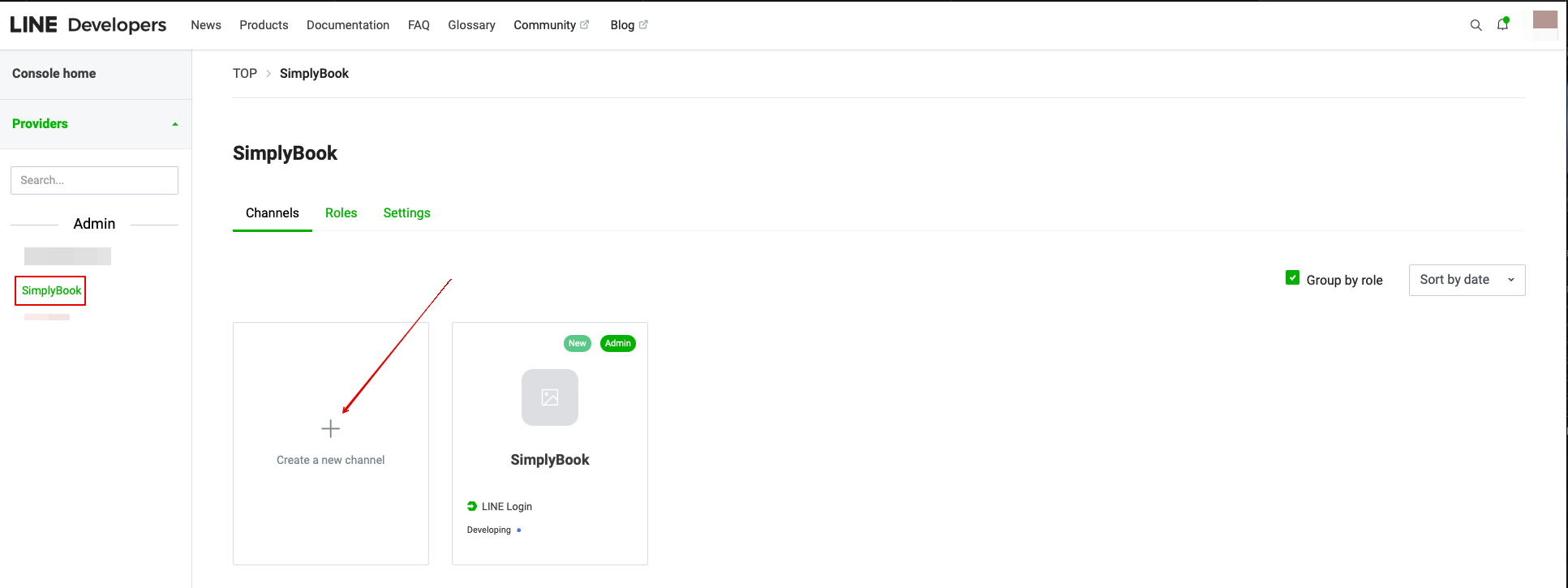
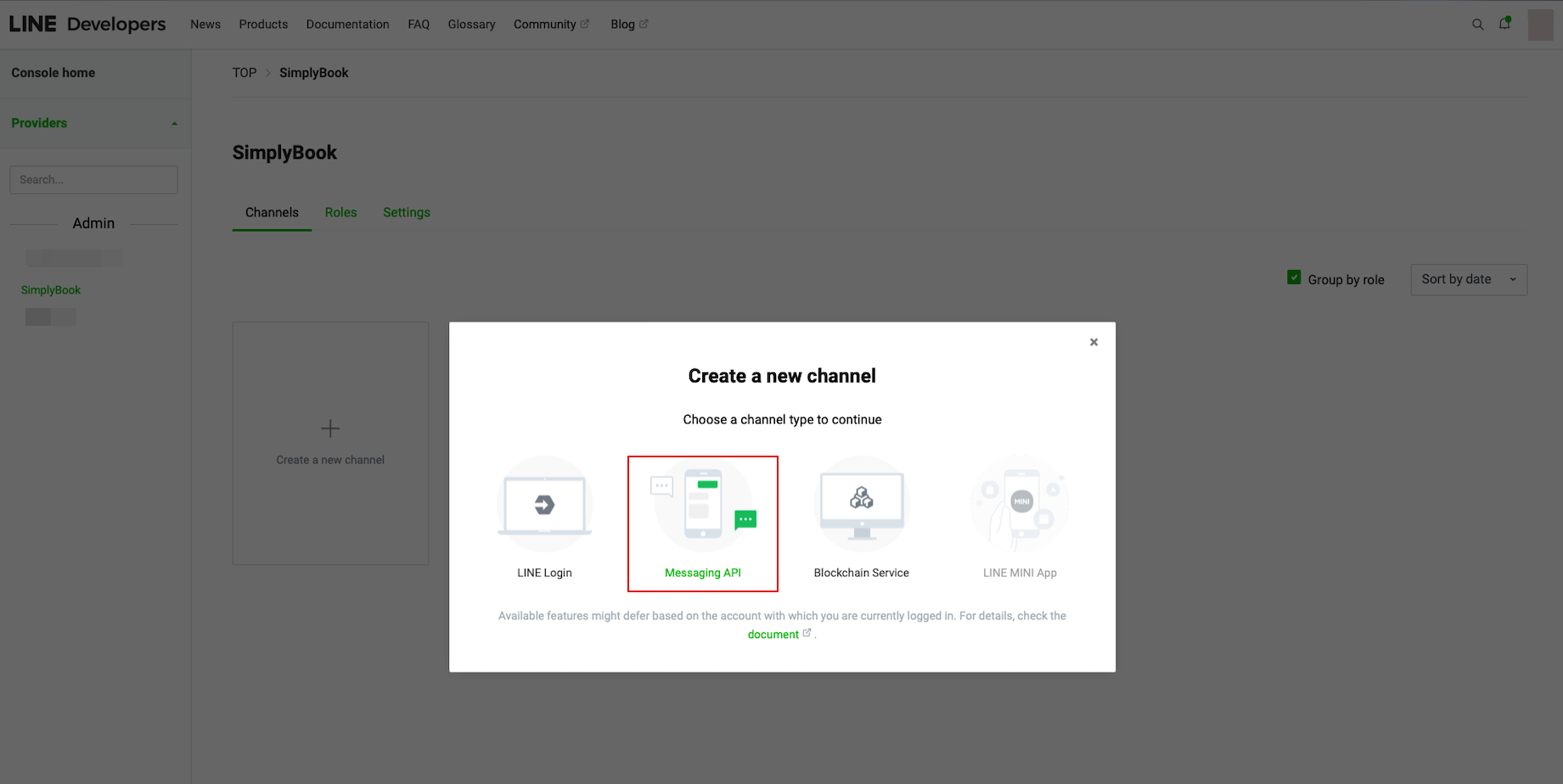
- För att göra det går du till din LINE LIFF Developers-konsol, väljer det tidigare tillagda leverantörskontot och skapar en ny kanal som heter "Messaging API"
- (båda kanalerna måste vara under samma leverantör för att alla anslutningar ska fungera)
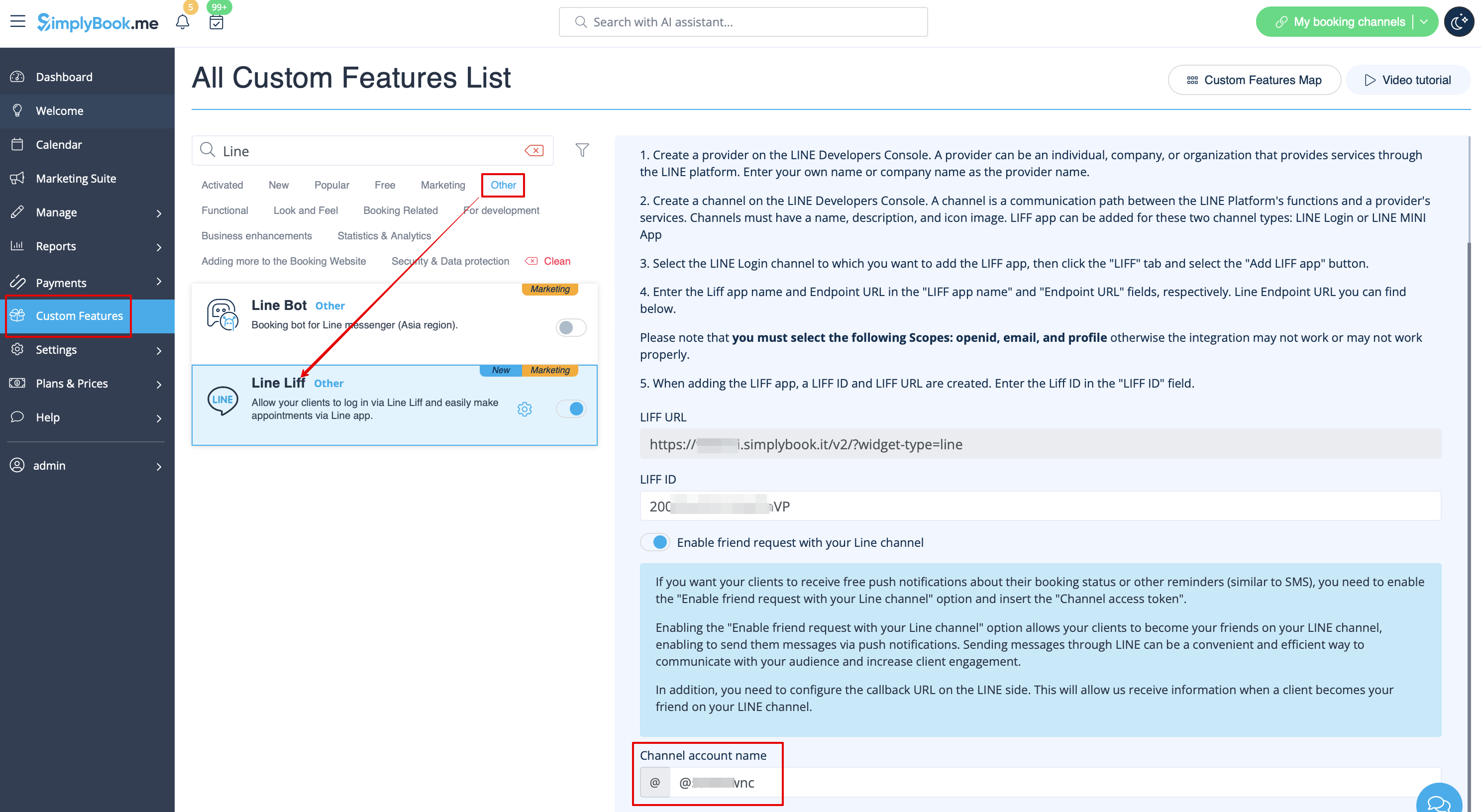
- 9. När du har gjort dessa inställningar väljer du fliken Meddelande-API för att få botens grund-ID. Kopiera och klistra in bot-ID:t i fältet Kanalens kontonamn i SimplyBook.me LINE LIFF Custom Feature.
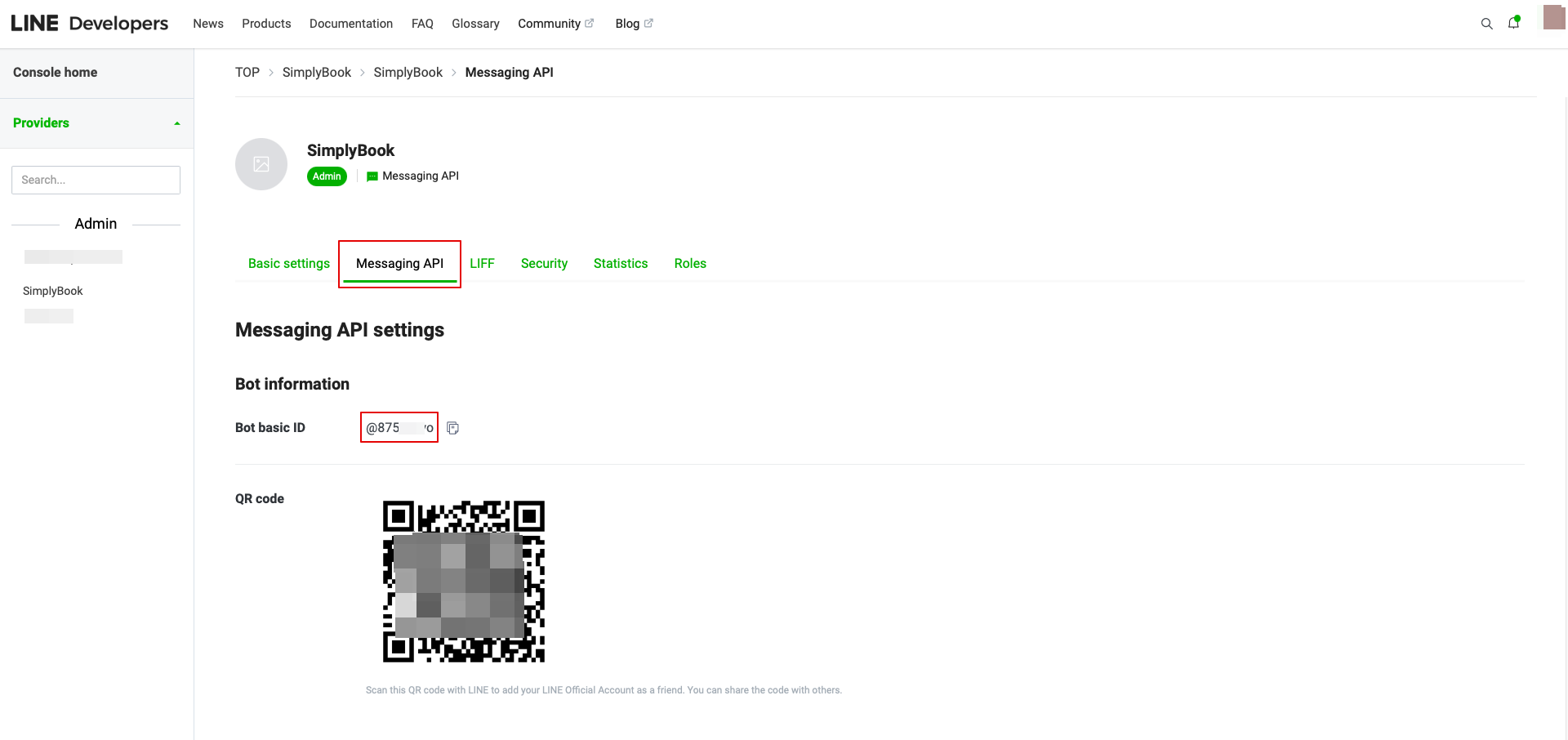
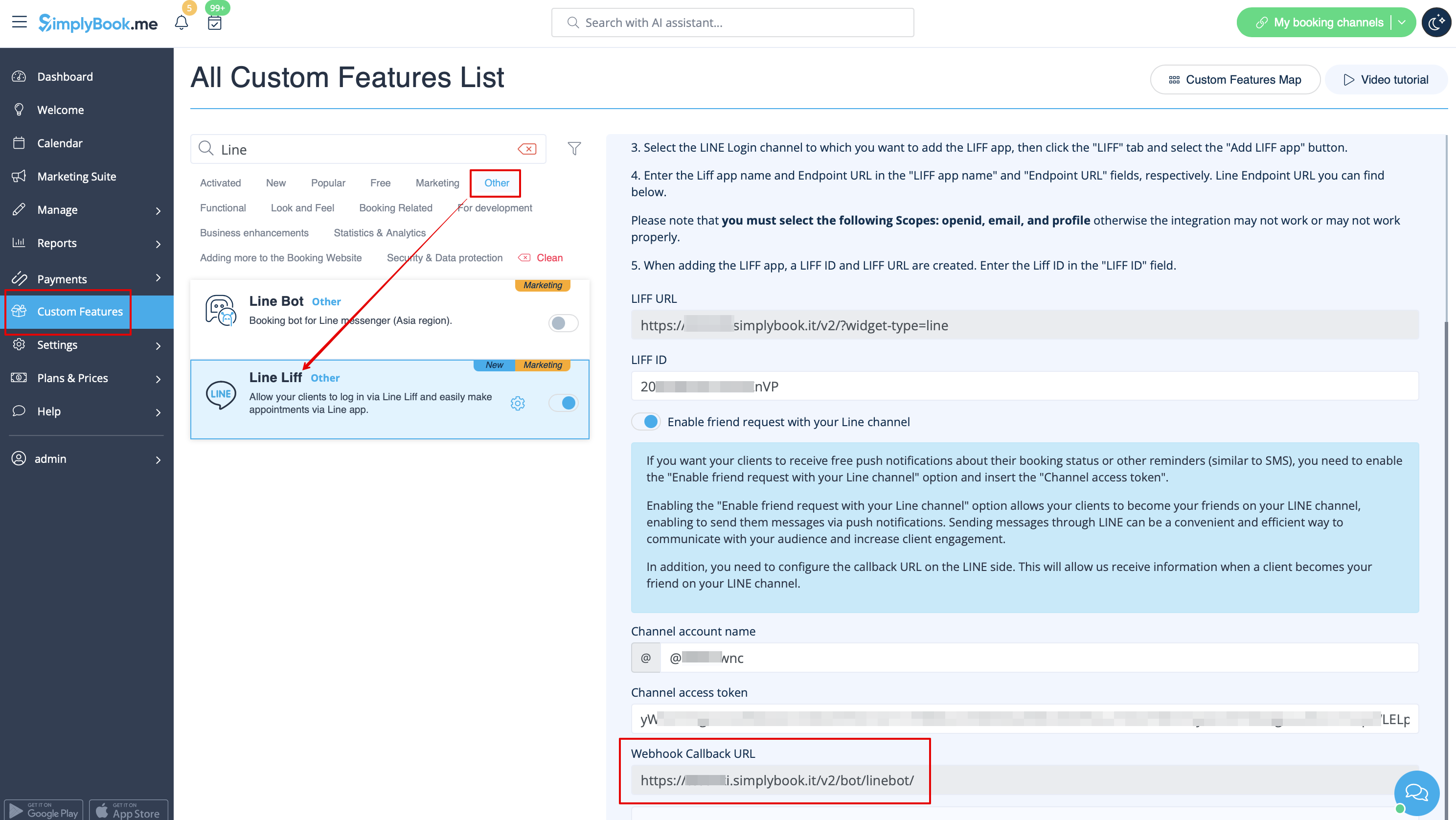
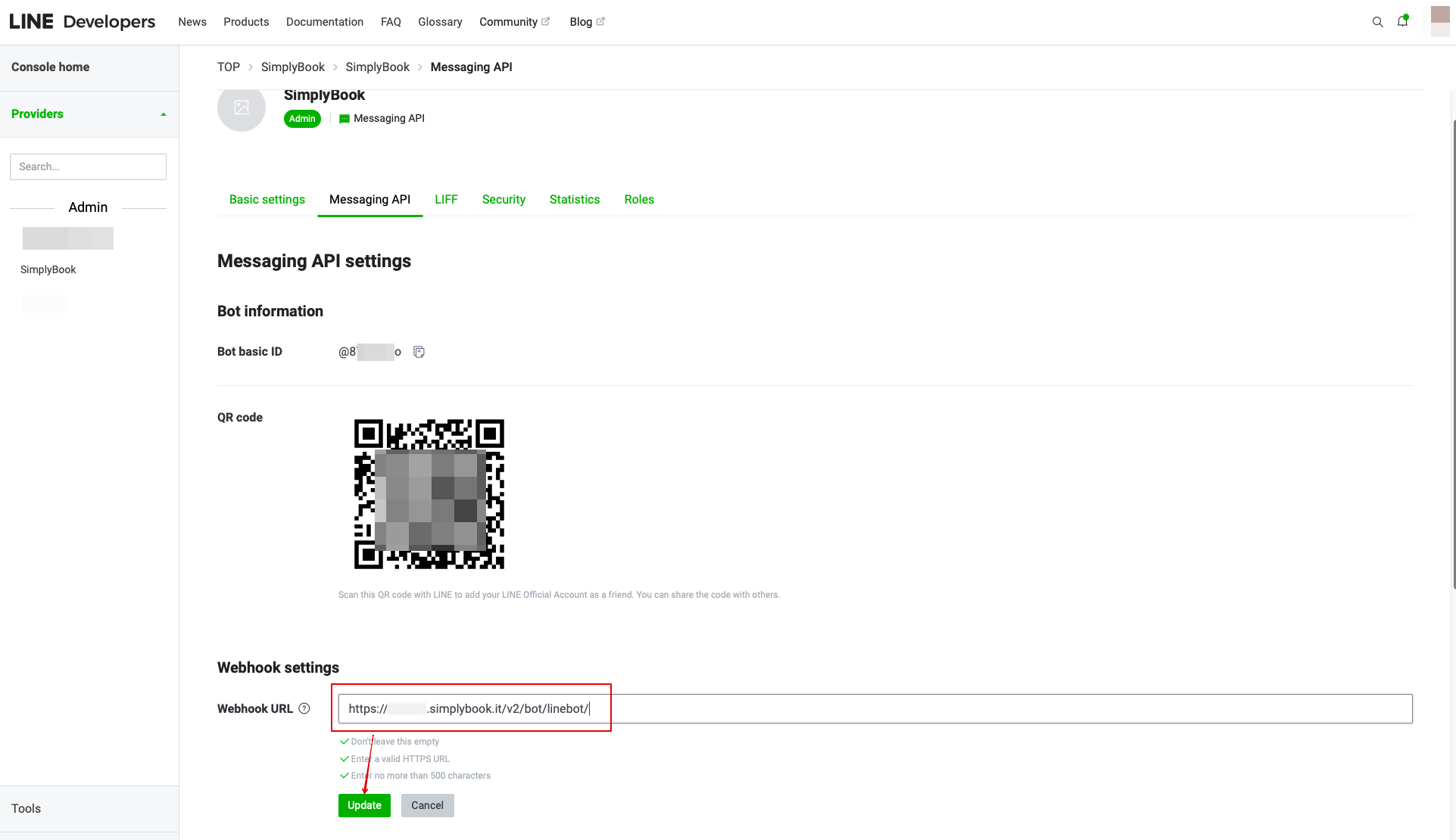
- I inställningen för anpassade funktioner kan du också se webbhook-återuppringningsadressen. Kopiera den och klistra in den i fältet för webbhook-URL på sidan Line//Messaging API.
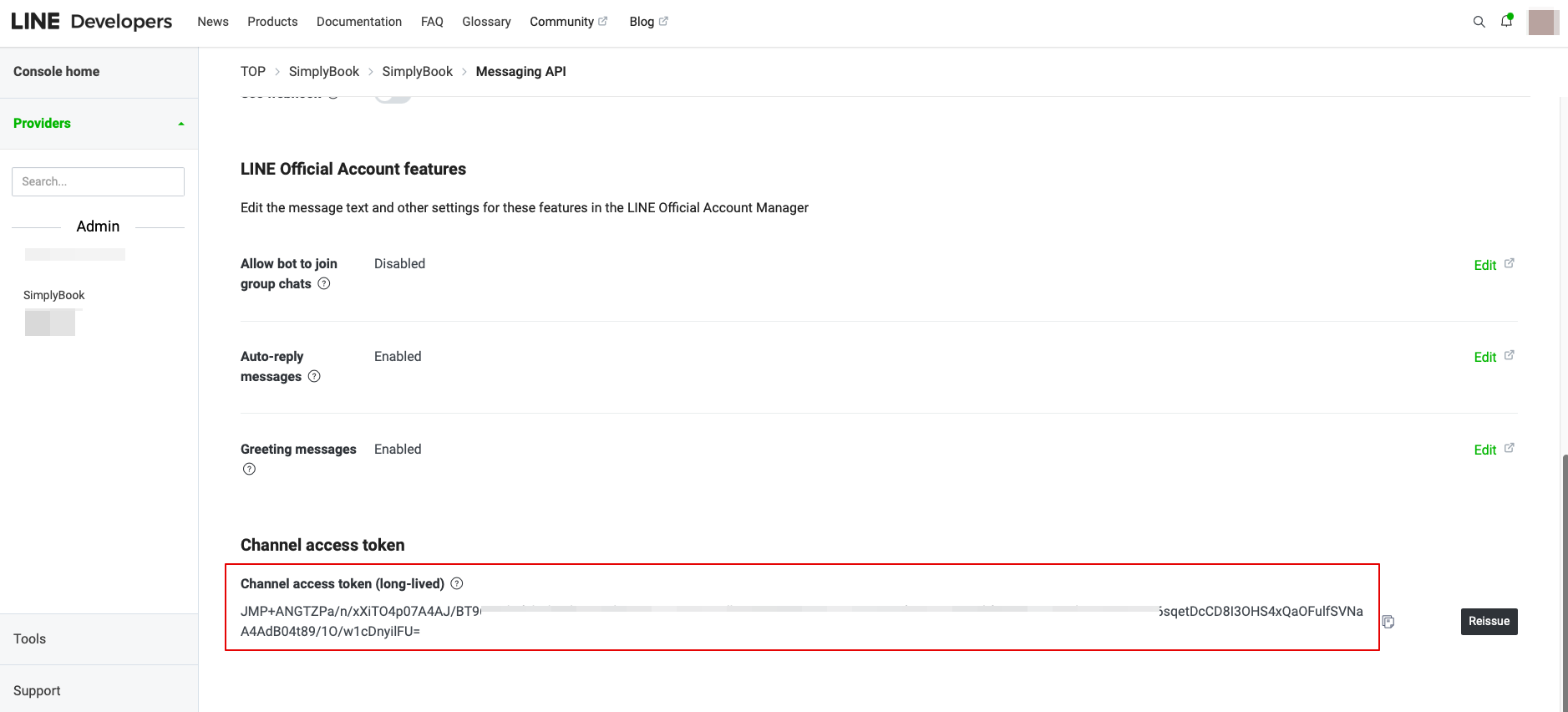
- 10. I Messaging API på LINE-sidan måste du bläddra ner till Channel access token, utfärda den, kopiera resultatvärdet och infoga det i Simplybook.me LINE LIFF-inställningarna.
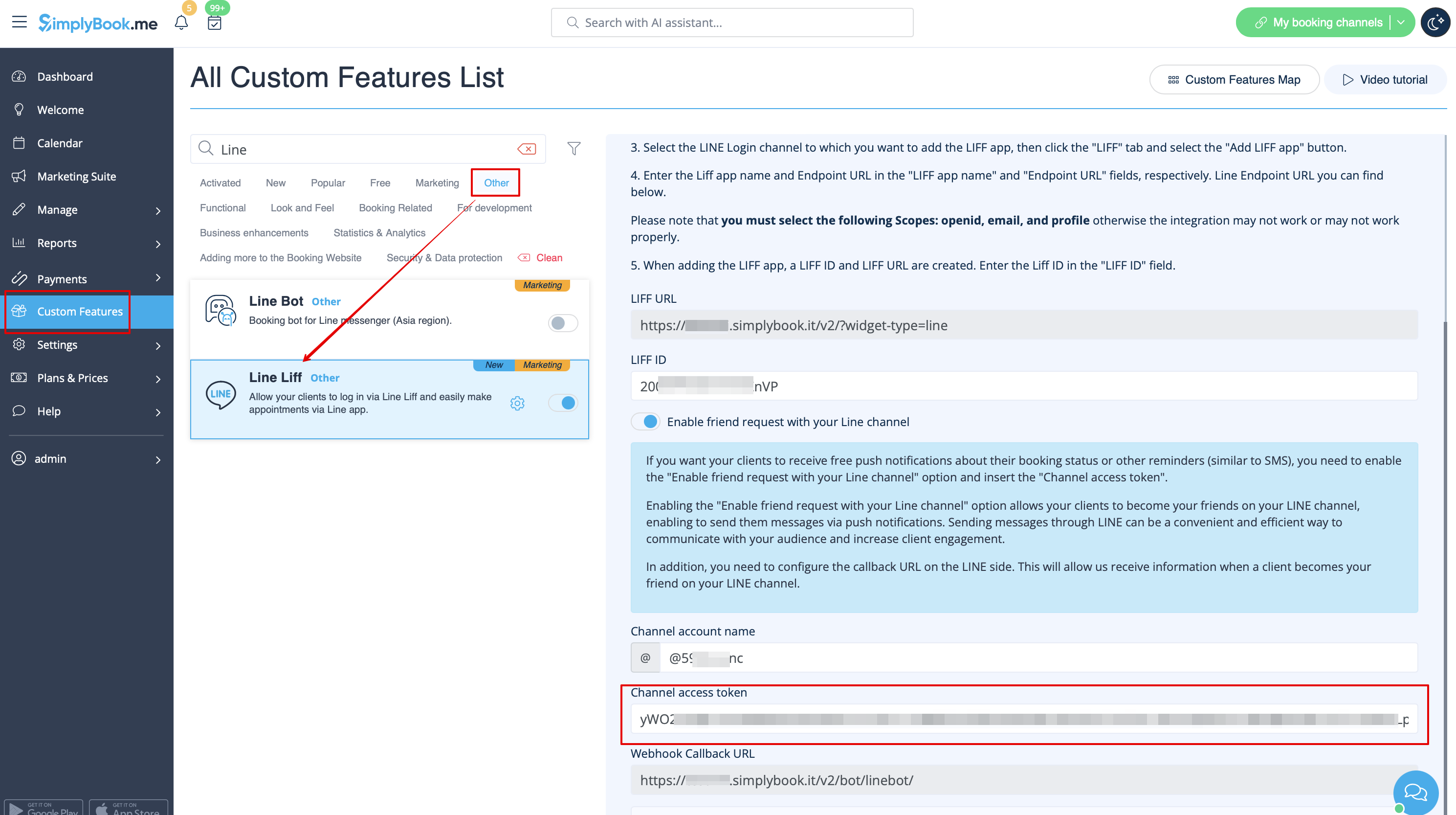
11. Gå tillbaka till LINE Login-kanalen, klicka på Developing status under kanalnamnet och ändra till Publish.
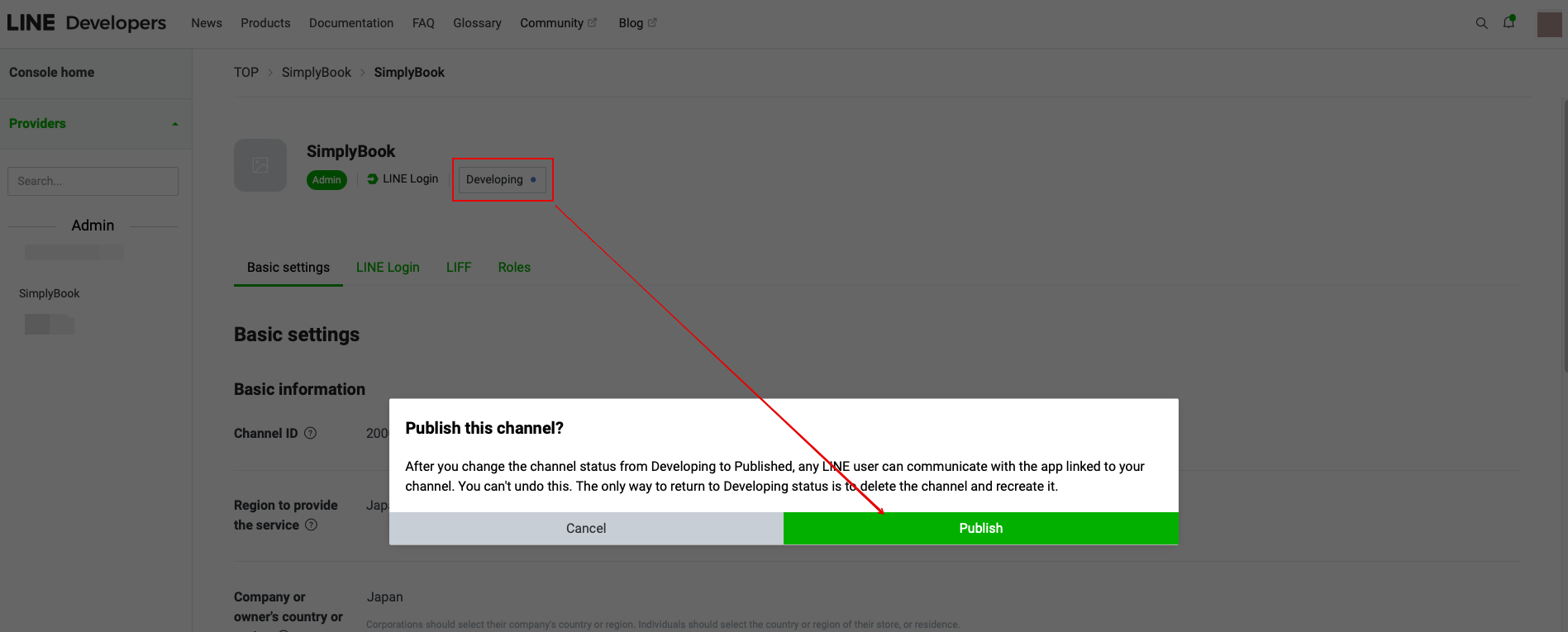
- 12. När du har publicerat måste du logga in på Line Official Account med samma LINE-konto som Developers Console.
- När du öppnar det klickar du på Rich Menu i navigeringen och skapar en Rich Menu där.
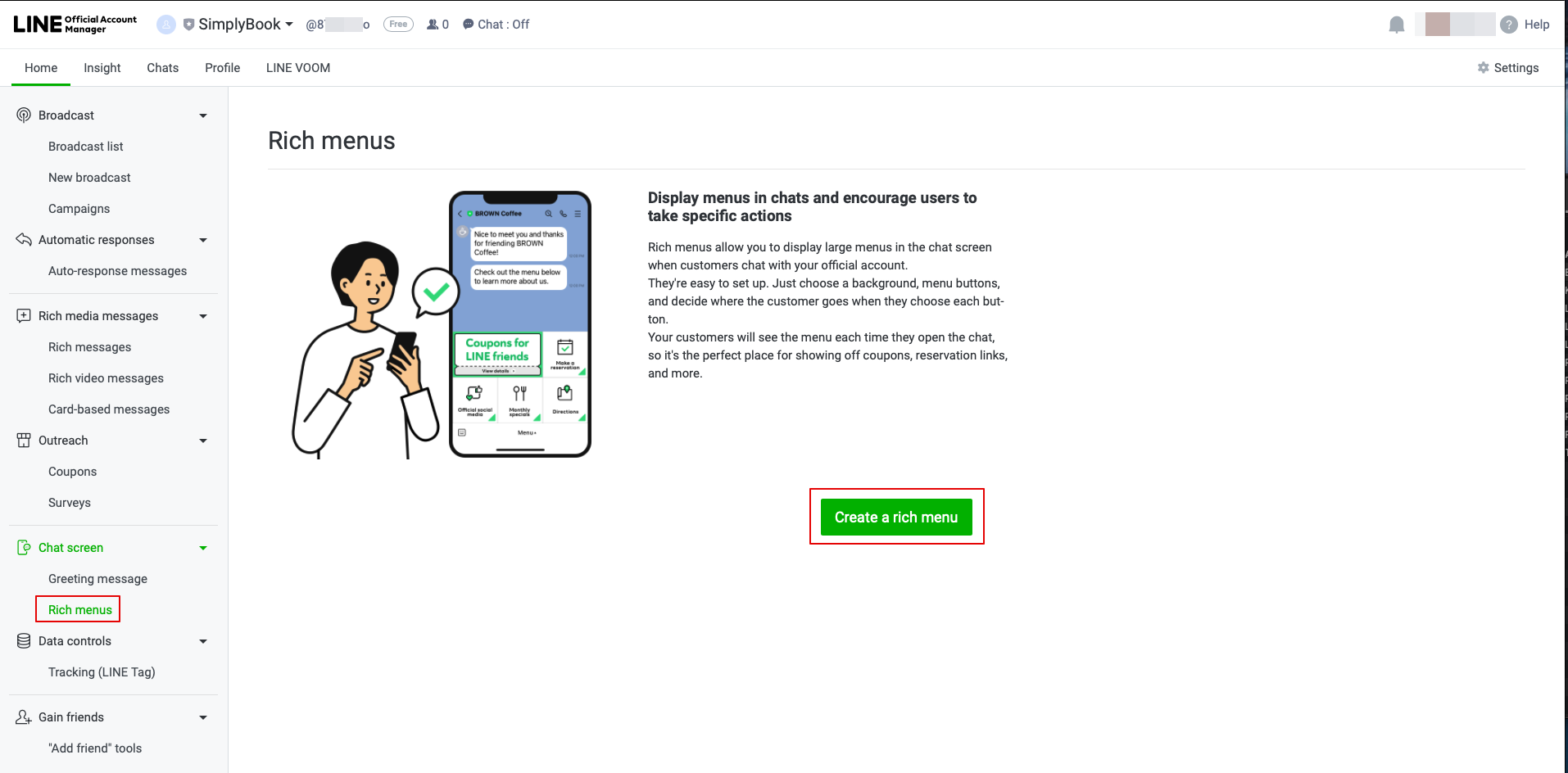
- 13. Fyll i de obligatoriska fälten.
- I menyn Innehåll väljer du mallen och lägger till bilden.
- Välj "Länk" i blocket Åtgärder och lägg till LIFF-url från utvecklarkonsolen//LINE Login-kanalen.
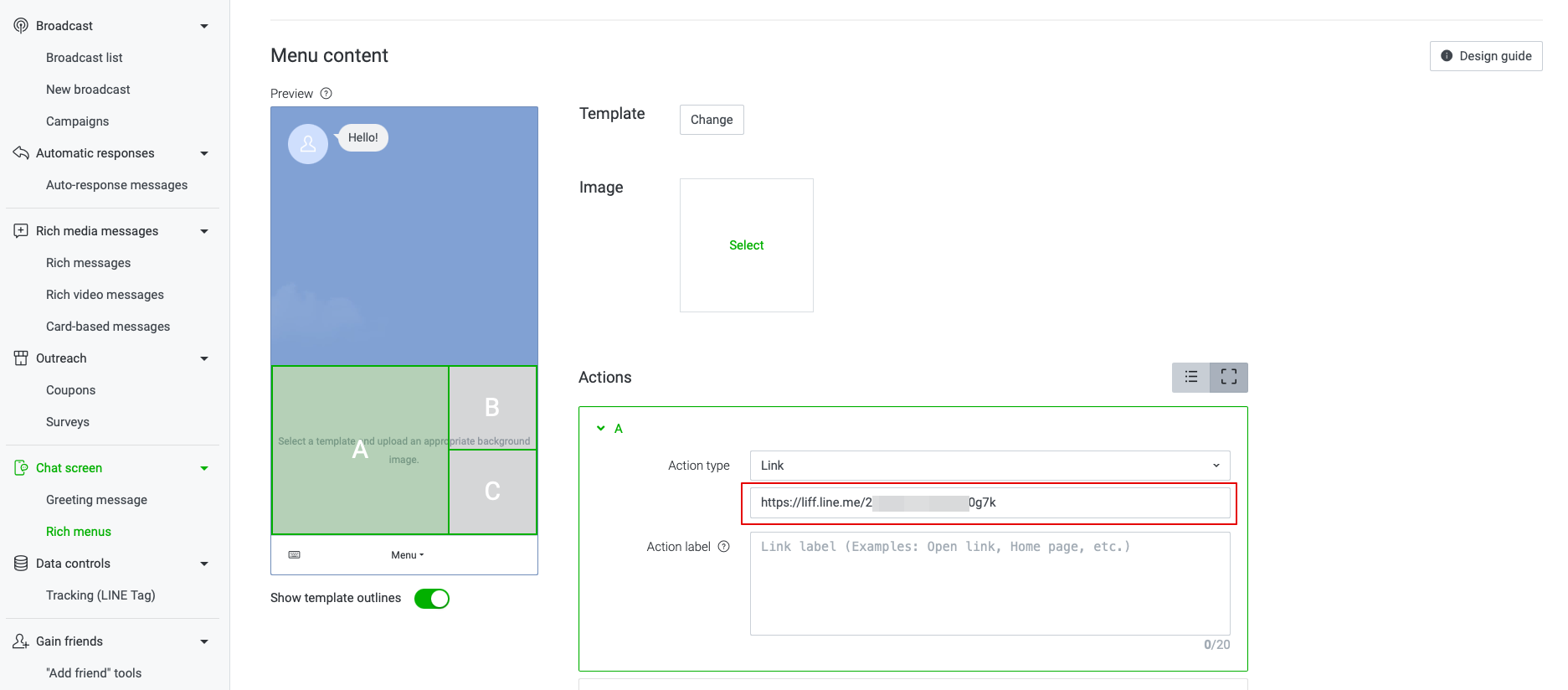
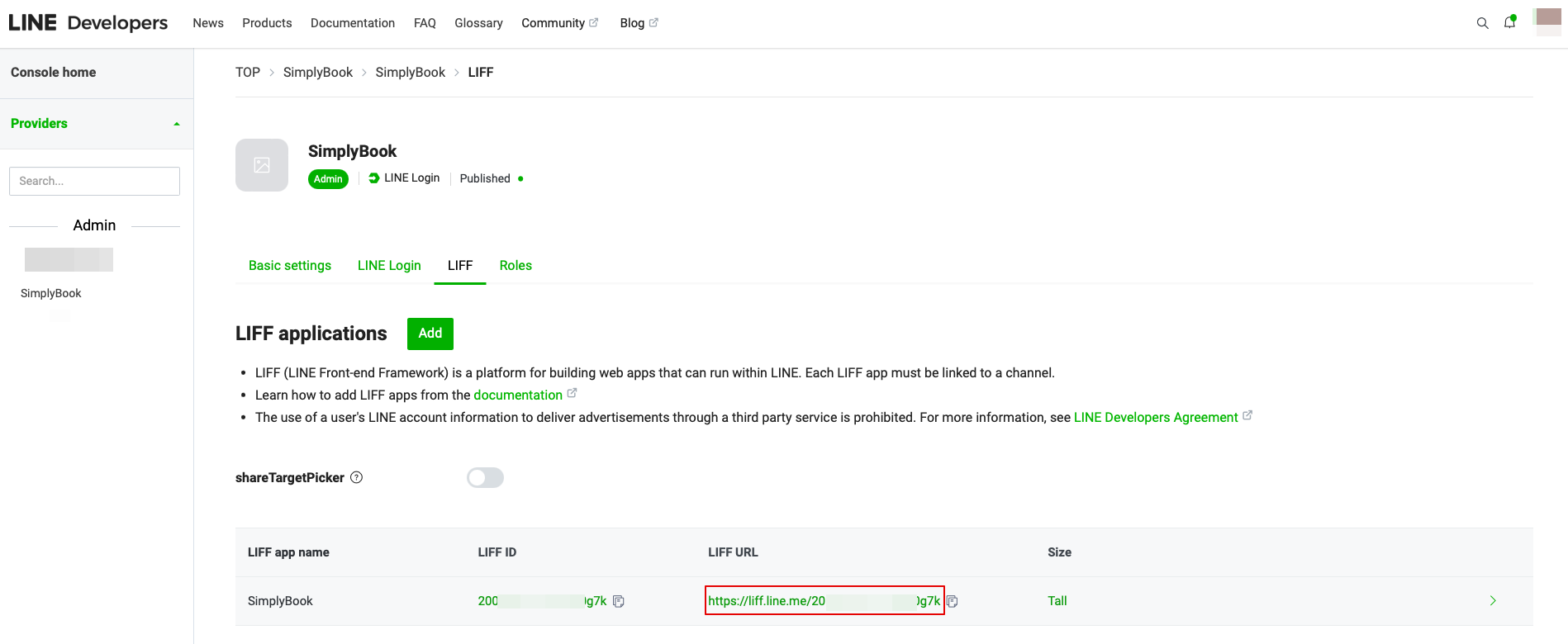
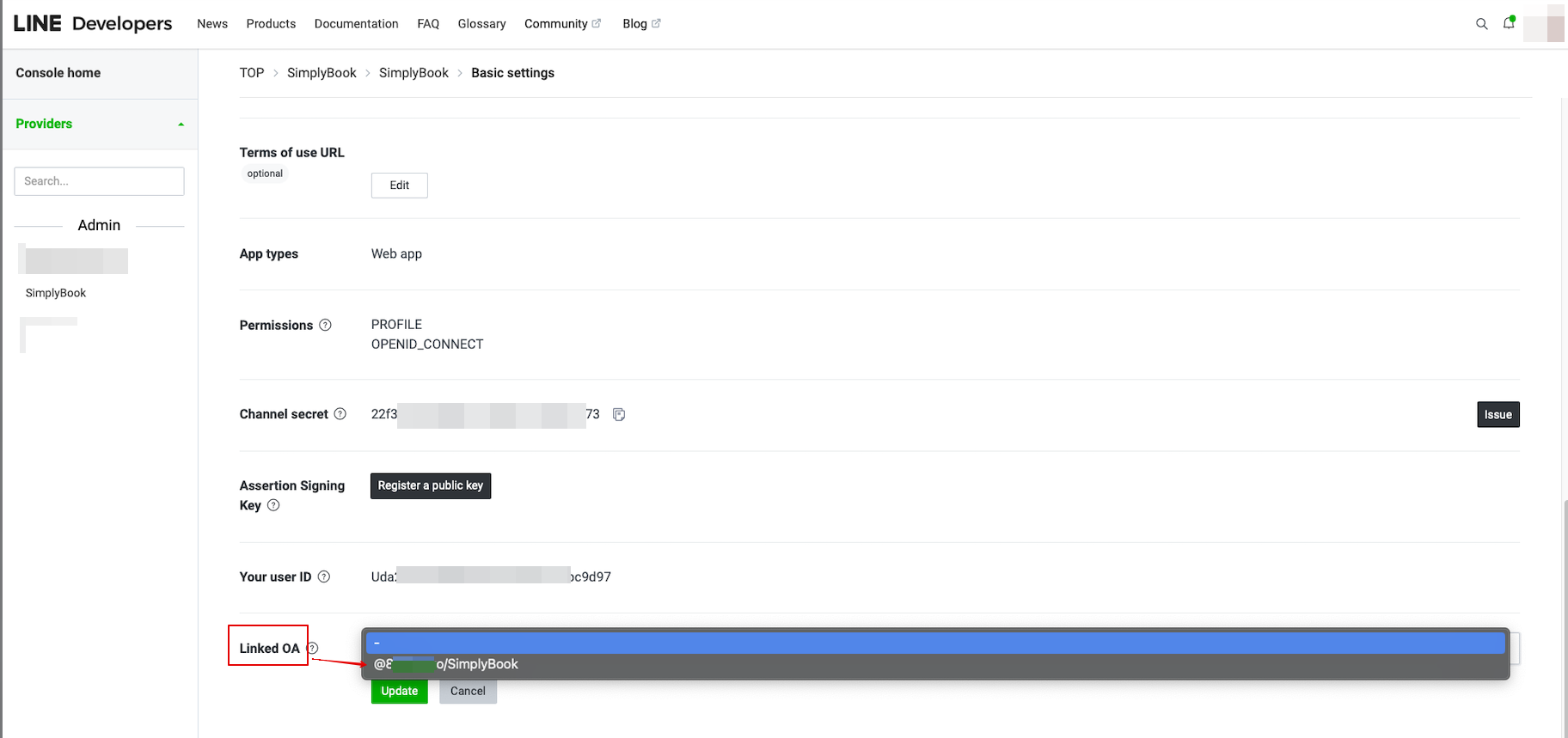
- 14. För att länka LINE Official-kontot till LINE Developers-kontot, gå till Developer Console och klicka på LINE Login-kanalen. I Linked OA måste du välja Official-kontot för att koppla ihop de båda delarna.
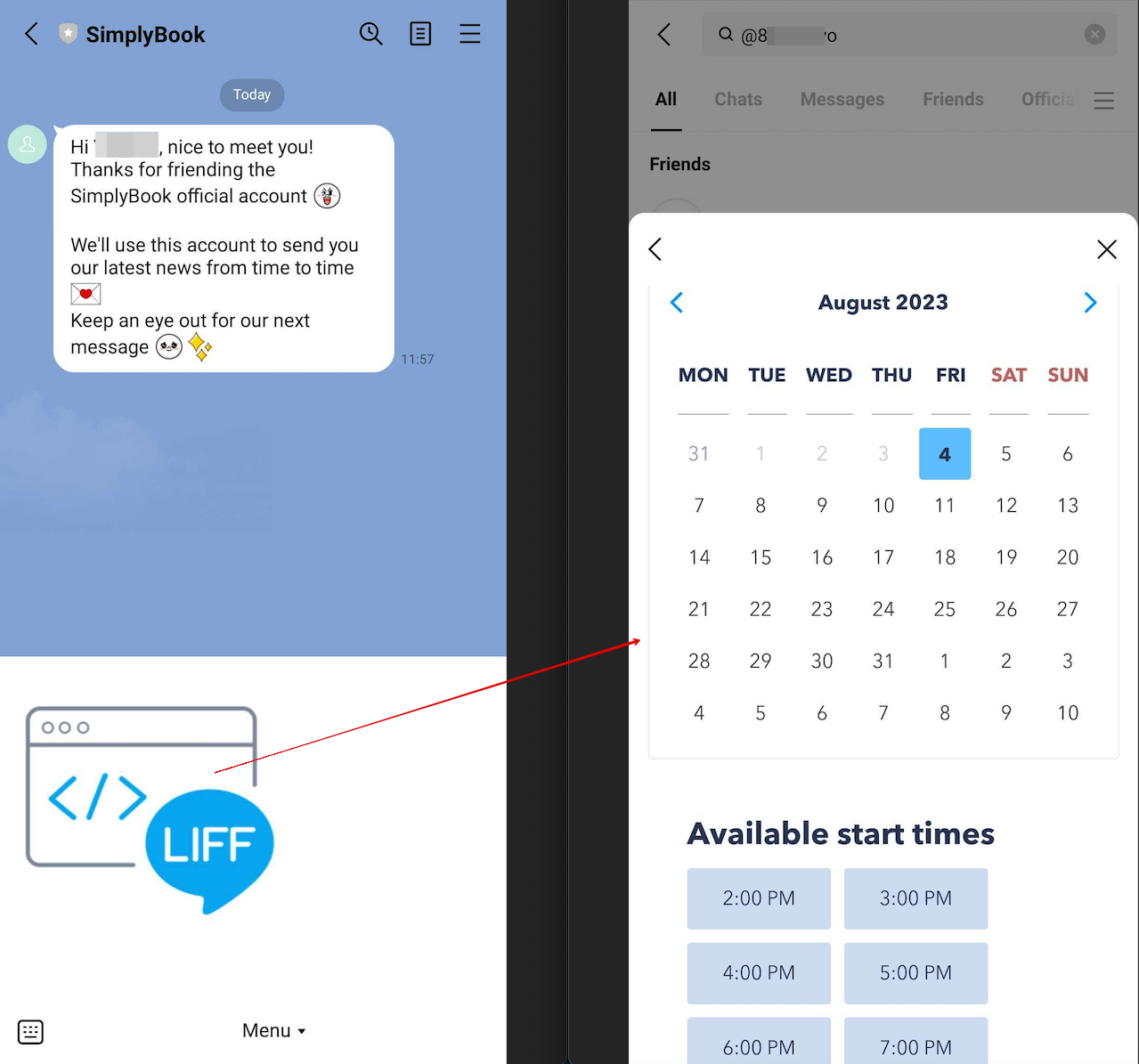
- 15. När kunderna har öppnat den officiella LINE-kontosidan i LINE-appen kan de klicka på menyn för att starta bokningsprocessen. Under processen kan de välja de tjänster, datum och tider de vill boka, logga in med sitt LINE-konto och bekräfta bokningen.
- Integrationen gör det också möjligt för kunderna att enkelt se sina bokningar i denna widget i appen.
Hur anpassar jag aviseringar från LINE Official Account?
Gå till SimplyBook.me-adminpanelen, välj Inställningar → E-post- och SMS-inställningar. Texterna i LINE-bokningsmeddelandena kommer att överensstämma med innehållet i SMS-meddelandena. Om du vill justera informationen kan du redigera motsvarande mallar där.
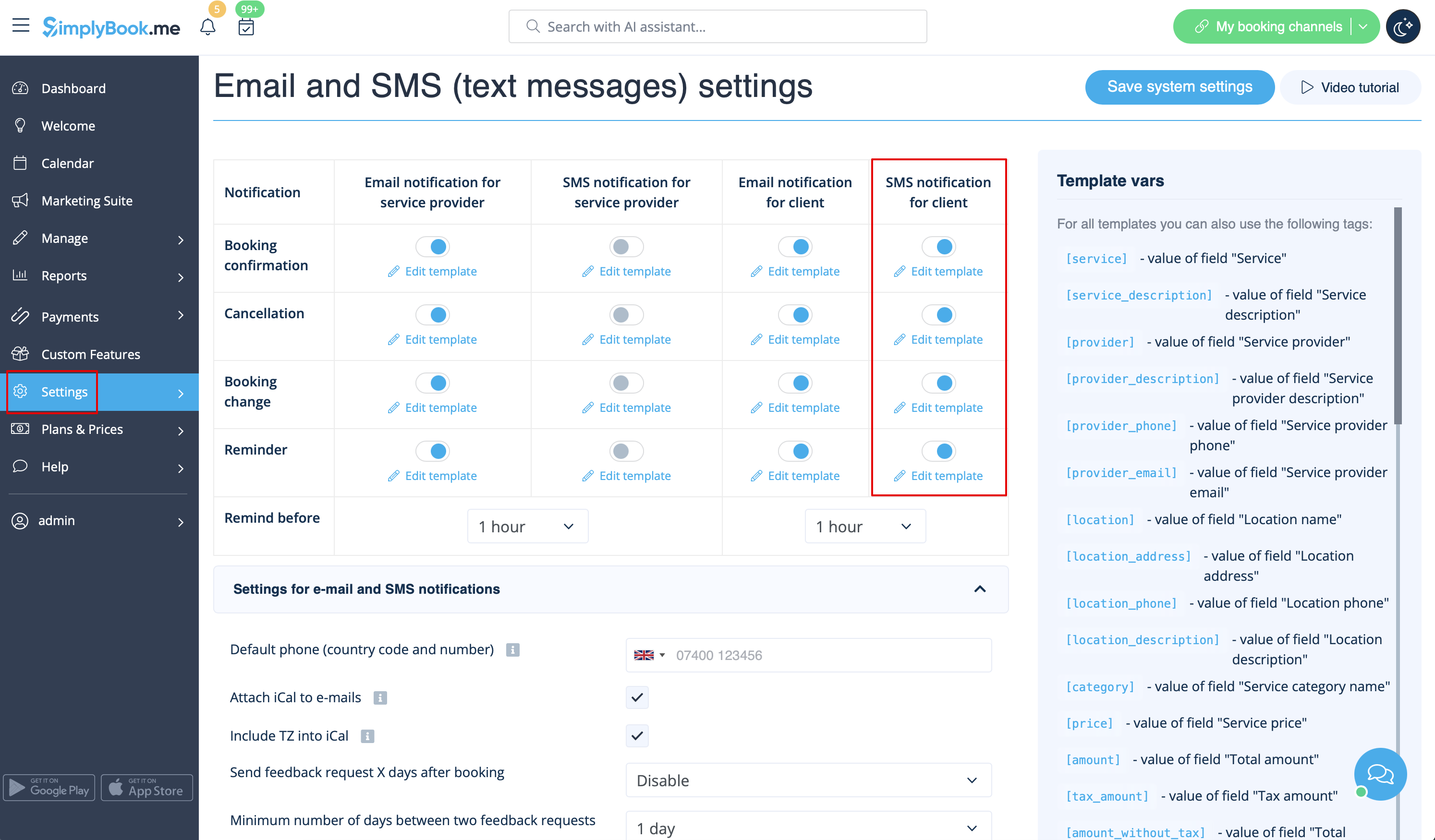
Anmärkning: Om du inte markerar rutorna för SMS-aviseringar till kunder i Inställningar → E-post- och SMS-inställningar kommer systemet ändå automatiskt att skicka påminnelser om bokningar och andra aviseringar om bokningar via LINE.


