Translations:Service Add-Ons custom feature/5/en: Difference between revisions

From SimplyBook.me
FuzzyBot (talk | contribs)
Importing a new version from external source
 
(No difference)

Latest revision as of 15:33, 19 May 2025

Information about message (contribute)
This message has no documentation. If you know where or how this message is used, you can help other translators by adding documentation to this message.
Message definition (Service Add-Ons custom feature)
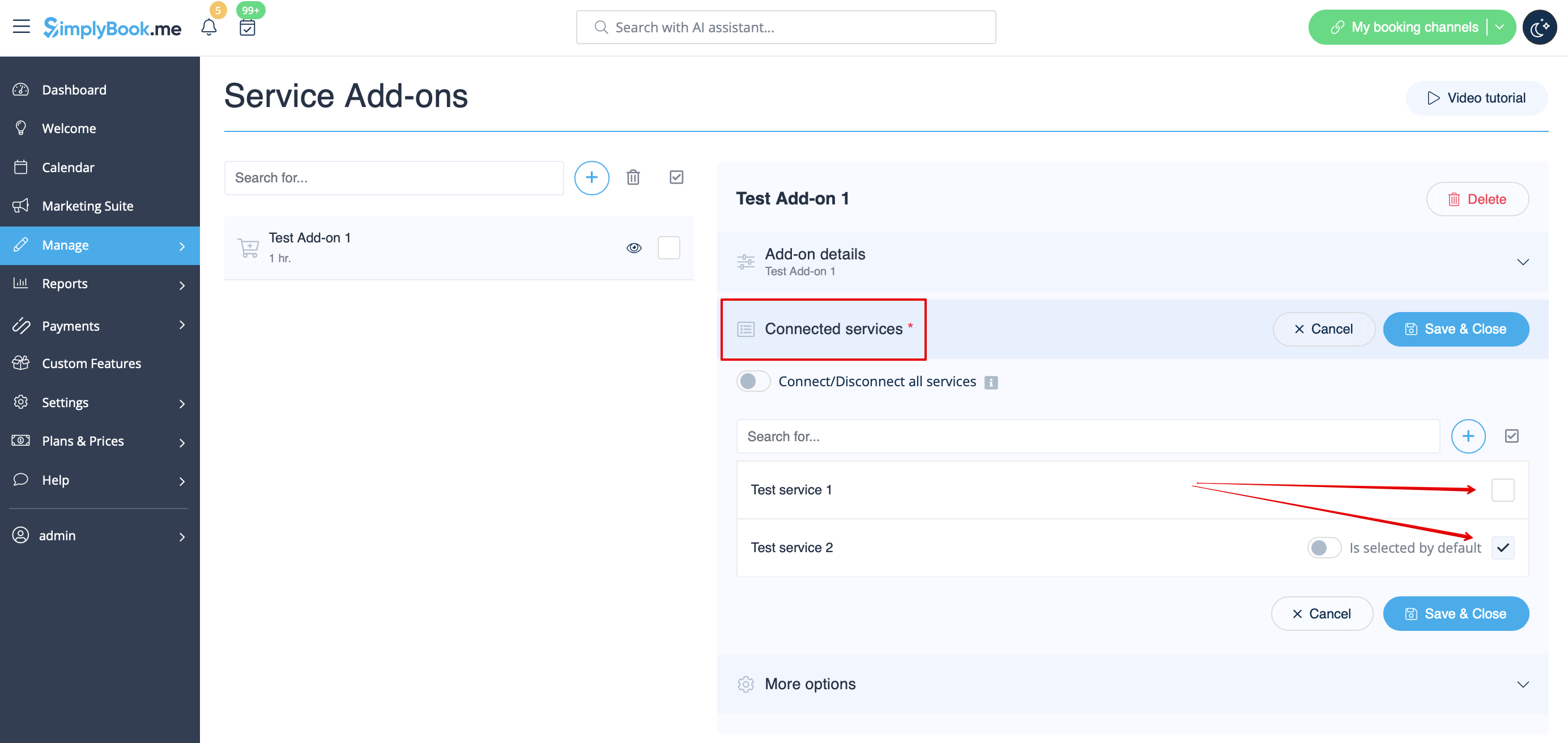
:4. To relate the add-on with particular service(s) please use “Connected services” tab and check the boxes with desired services/classes.
[[File:Service addons relation to services redesigned.png|1200px| center|link=https://help.simplybook.me/images/8/80/Service_addons_relation_to_services_redesigned.png|]]
<br><br>
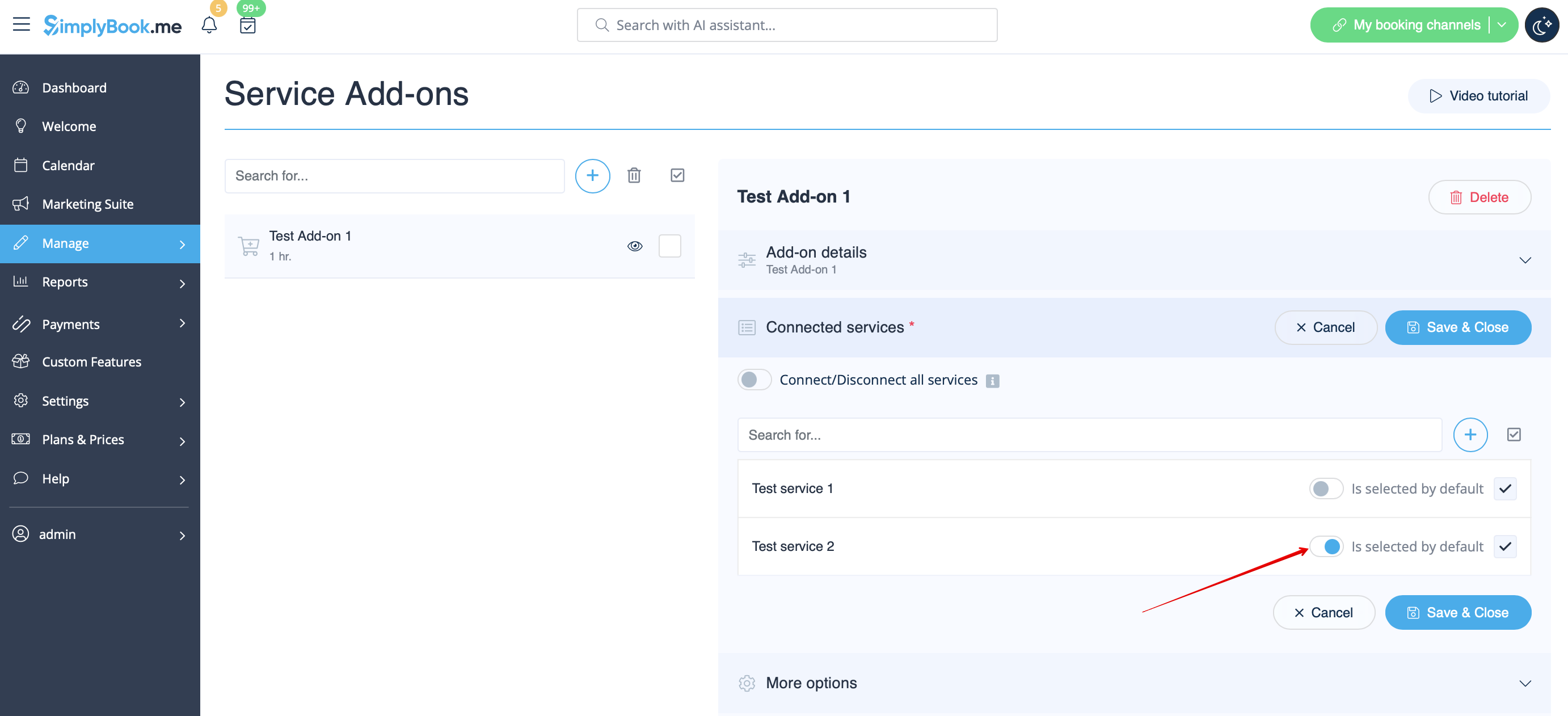
:5. You can also make add-on to be selected by default on the booking page<br>
:'''Please note!''' The clients will be able to uncheck this item if they wish to on the booking page.
[[File:Addon selected by default redesigned.png|1200px | center|link=https://help.simplybook.me/images/1/18/Addon_selected_by_default_redesigned.png]]
<br><br>
:Here you can see how the add-ons can look like on the booking page:
:'''Please note!''' We recommend using the following timelines in case you set service add-ons with duration: modern, slots weekly, flexible, flexible weekly or flexible provider.<br>
:In this case add-ons step will be shown before time step and the timeslots displayed should suit the items selected in most cases.
[[File:Service add ons with duration client side.png | border|center]]
<br><br>
:With other timelines such as:  daily classes, weekly classes и modern provider this step will be shown after time selection step and 
:if all the selections do not fit the choices the clients will get an error that the service cannot be booked.
[[File:Service add ons with duration client side unsupported timelines.png|border|center]]
4. To relate the add-on with particular service(s) please use “Connected services” tab and check the boxes with desired services/classes.


5. You can also make add-on to be selected by default on the booking page
Please note! The clients will be able to uncheck this item if they wish to on the booking page.


Here you can see how the add-ons can look like on the booking page:
Please note! We recommend using the following timelines in case you set service add-ons with duration: modern, slots weekly, flexible, flexible weekly or flexible provider.
In this case add-ons step will be shown before time step and the timeslots displayed should suit the items selected in most cases.


With other timelines such as: daily classes, weekly classes и modern provider this step will be shown after time selection step and
if all the selections do not fit the choices the clients will get an error that the service cannot be booked.