Translations:Online Video Meetings Custom Feature/14/sv: Difference between revisions

From SimplyBook.me
Created page with ":7. (valfritt) Du kan lägga till länkar till online-möten i mallarna för meddelanden till leverantörer och kunder så att båda parter får dem tillsammans med bokningsinformationen.<br>För att göra det, gå till <span style="background-color:#d4f8e5; padding:5px; border-radius:5px;">Inställningar</span> -> <span style="background-color:#d4f8e5; padding:5px; border-radius:5px;">E-post- och SMS-inställningar</span> (eller <span style="background-color:#d4f8e5;..."
(No difference)

Revision as of 15:33, 19 May 2025

Information about message (contribute)
This message has no documentation. If you know where or how this message is used, you can help other translators by adding documentation to this message.
Message definition (Online Video Meetings Custom Feature)
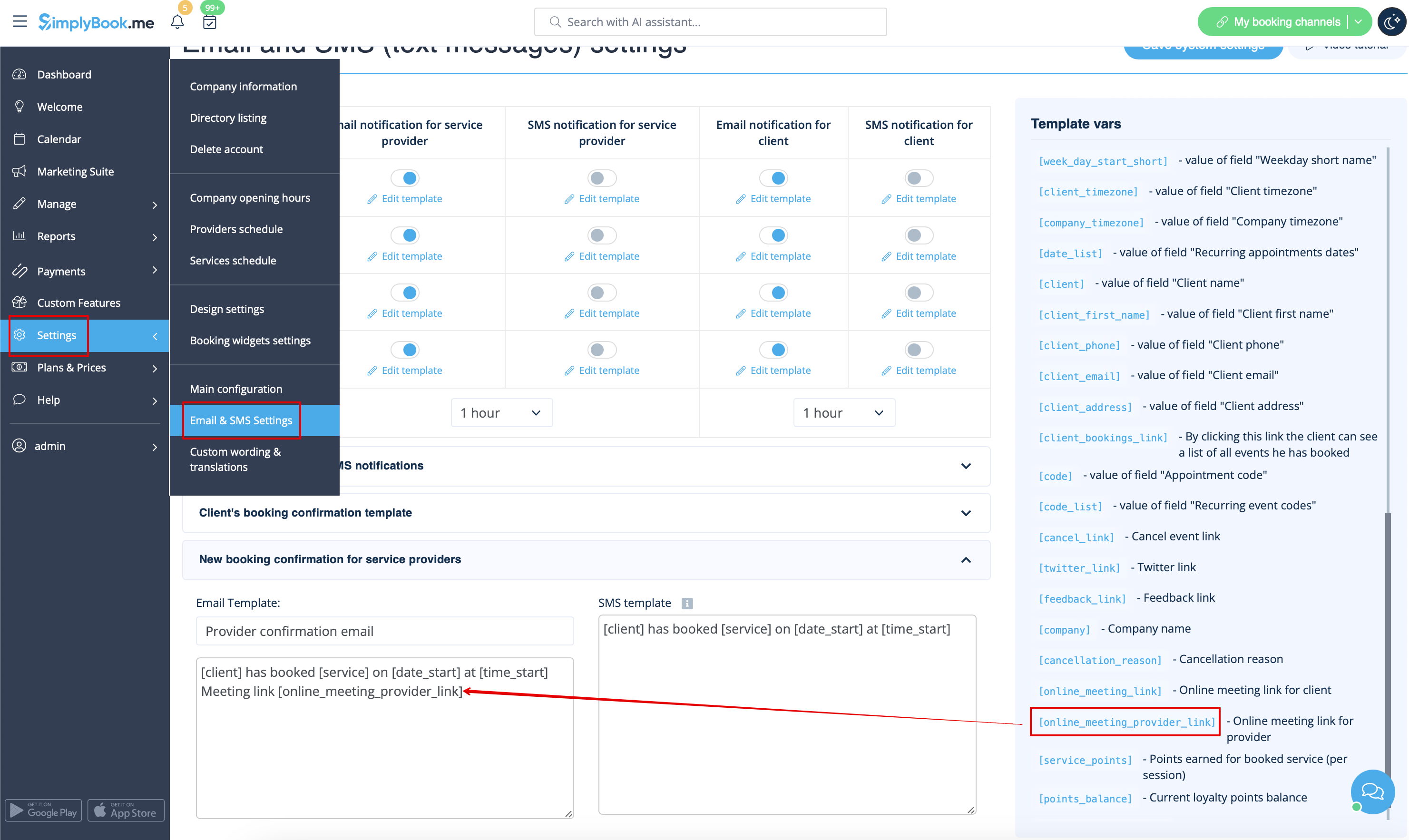
:7. (optonal) You can add online meetings link to provider and client notification templates so that both sides receive them with the booking details.<br>To do that please navigate to <span style="background-color:#d4f8e5; padding:5px; border-radius:5px;">Settings</span> -> <span style="background-color:#d4f8e5; padding:5px; border-radius:5px;">Email and sms settings</span> (or <span style="background-color:#d4f8e5; padding:5px; border-radius:5px;">Custom features</span> -> <span style="background-color:#cdeffc; padding:5px; border-radius:5px;">[[Special:MyLanguage/Flexible_Notifications_custom_feature|Flexible notifications]]</span> -> <span style="background-color:#d4f8e5; padding:5px; border-radius:5px;">Manage</span> if you have customized notifications per service and/or provider).
[[File:Add meeting link to provider confirmation redesigned.png|1200px|border|center|link=https://help.simplybook.me/images/6/6c/Add_meeting_link_to_provider_confirmation_redesigned.png]]
<br><br>
<span style="background-color:#ffe9e9; padding:5px; border-radius:5px;">'''Please note!''' If you have paid services the meeting link will be working only after the payment is made/approved.</span>
<br><br>
==Additional steps for case when you need to allow your Providers to have own MS Teams account connection==
<br><br>
:8. By default your MS Teams account that you have connected in <span style="background-color:#d4f8e5; padding:5px; border-radius:5px;">Step#6</span> will be used to generate meetings links and conduct meetings, but if you have several employees  in your company, they are added to SimplyBook.me side as providers and users and you wish them to use own MS Teams accounts for their online services/classes please make sure that you have them <span style="background-color:#cdeffc; padding:5px; border-radius:5px;">[https://docs.microsoft.com/en-us/azure/active-directory/fundamentals/add-users-azure-active-directory?context=azure/active-directory/users-groups-roles/context/ugr-context added as users]</span> in <span style="background-color:#d4f8e5; padding:5px; border-radius:5px;">MS Azure</span> with access to this application as well as <span style="background-color:#cdeffc; padding:5px; border-radius:5px;">[https://support.microsoft.com/en-us/office/add-members-to-a-team-in-teams-aff2249d-b456-4bc3-81e7-52327b6b38e9 members]</span> on <span style="background-color:#d4f8e5; padding:5px; border-radius:5px;">MS Teams side.</span>
7. (valfritt) Du kan lägga till länkar till online-möten i mallarna för meddelanden till leverantörer och kunder så att båda parter får dem tillsammans med bokningsinformationen.
För att göra det, gå till Inställningar -> E-post- och SMS-inställningar (eller Anpassade funktioner -> Flexibla aviseringar -> Hantera om du har anpassade aviseringar per tjänst och/eller leverantör).


Observera! Om du har betalda tjänster kommer möteslänken att fungera först efter att betalningen har gjorts/godkänts.

Ytterligare steg för fall där du behöver tillåta dina leverantörer att ha en egen MS Teams-kontouppkoppling


8. Som standard kommer ditt MS Teams-konto som du har anslutit i steg 6 att användas för att skapa möteslänkar och genomföra möten, men om du har flera anställda i ditt företag och de läggs till på SimplyBook.me som leverantörer och användare och du vill att de ska använda sina egna MS Teams-konton för sina onlinetjänster/kurser, se till att du har lagt till dem som användare i MS Azure med åtkomst till denna applikation samt som medlemmarMS Teams-sidan.