Translations:Online Video Meetings Custom Feature/5/nl: Difference between revisions

From SimplyBook.me
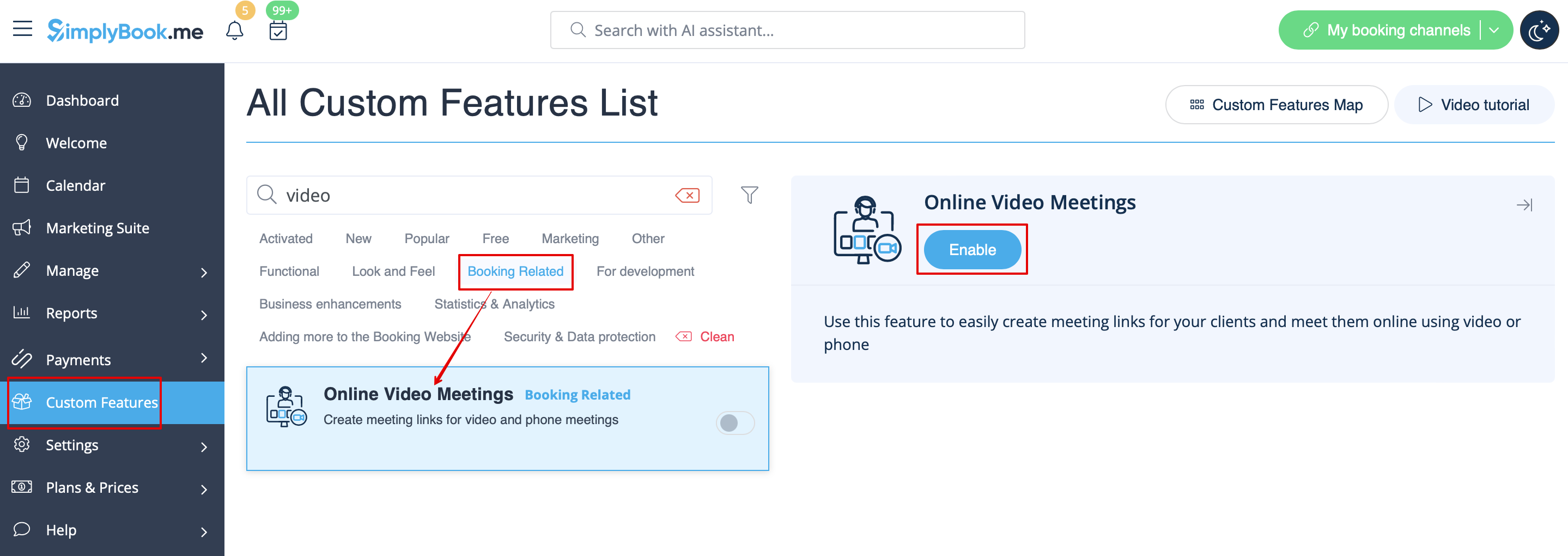
Created page with "1. Schakel de aangepaste functie <span style="background-color:#d4f8e5; padding:5px; border-radius:5px;">Online vergaderingen</span> in uw SimplyBook.me-account in door naar de pagina <span style="background-color:#d4f8e5; padding:5px; border-radius:5px;">Aangepaste functies</span> in uw Simplybook.me-beheerdersinterface te gaan en op de knop <span style="background-color:#d4f8e5; padding:5px; border-radius:5px;">Inschakelen</span> naast de aangepaste functie <span style..."
 
(No difference)

Latest revision as of 15:36, 19 May 2025

Information about message (contribute)
This message has no documentation. If you know where or how this message is used, you can help other translators by adding documentation to this message.
Message definition (Online Video Meetings Custom Feature)
1. Enable <span style="background-color:#d4f8e5; padding:5px; border-radius:5px;">Online meetings</span> custom feature in your SimplyBook.me account by navigating to the <span style="background-color:#d4f8e5; padding:5px; border-radius:5px;">Custom Features</span> page within your Simplybook.me admin interface and click on the <span style="background-color:#d4f8e5; padding:5px; border-radius:5px;">Enable</span> button next to <span style="background-color:#d4f8e5; padding:5px; border-radius:5px;">Online video meetings</span> custom feature.
[[File:Online meetings enable path redesigned.png|1200px|center|link=https://help.simplybook.me/images/a/a1/Online_meetings_enable_path_redesigned.png]]
<br><br>
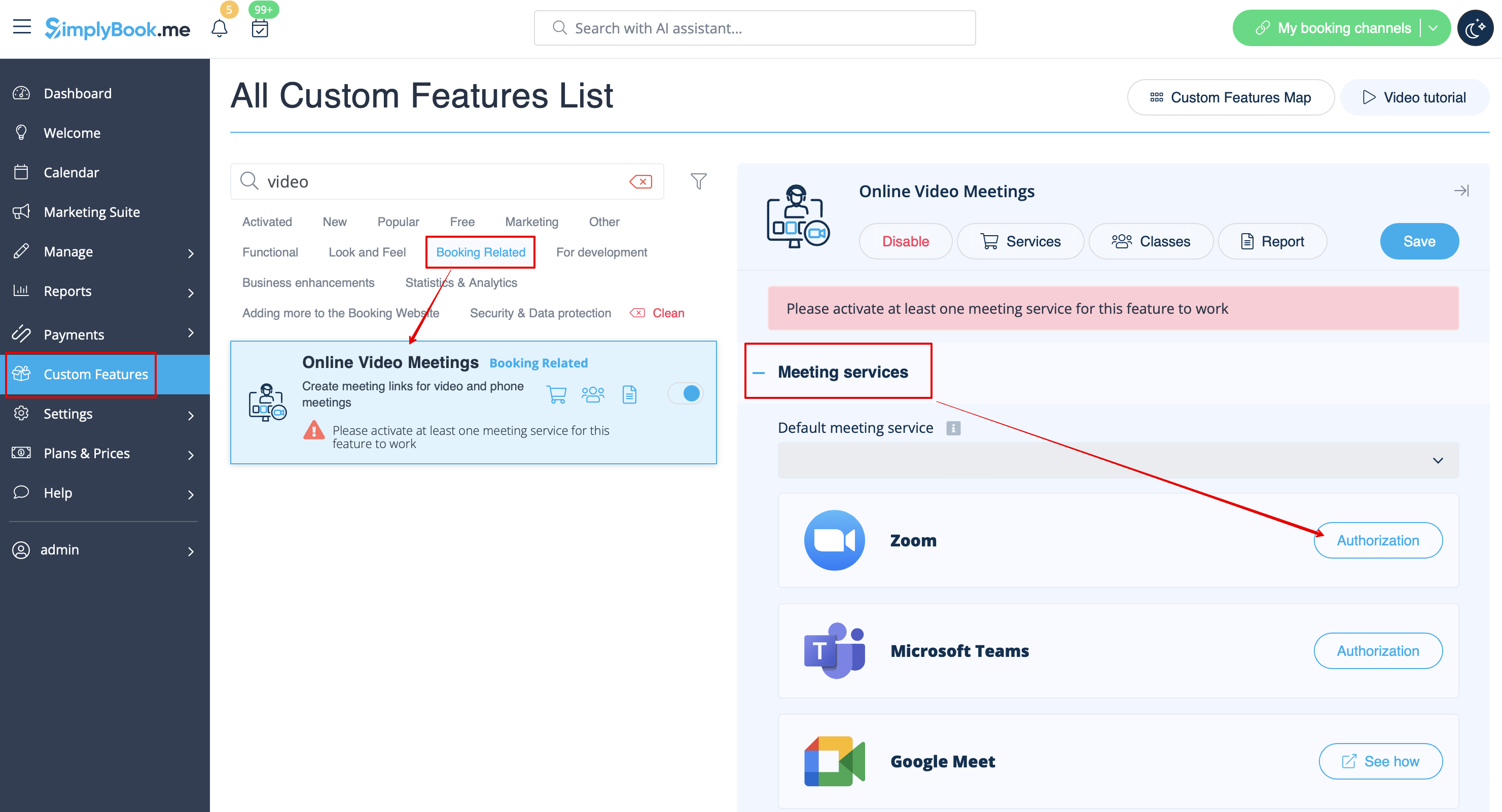
2. In the feature settings click on <span style="background-color:#d4f8e5; padding:5px; border-radius:5px;">Authorization</span> button near Zoom option to connect your Zoom account.
[[File:Online meetings zoom connect redesigned.png|1200px|center|link=https://help.simplybook.me/images/4/4c/Online_meetings_zoom_connect_redesigned.png]]
<br><br>

1. Schakel de aangepaste functie Online vergaderingen in uw SimplyBook.me-account in door naar de pagina Aangepaste functies in uw Simplybook.me-beheerdersinterface te gaan en op de knop Inschakelen naast de aangepaste functie Online videovergaderingen te klikken.


2. Klik in de functie-instellingen op de knop Autorisatie naast de optie Zoom om uw Zoom-account te koppelen.