Translations:Line bot custom feature/4/fr: Difference between revisions

From SimplyBook.me
Created page with "comment utiliser : :1. Accédez à <span style="background-color:#d4f8e5; padding:5px; border-radius:5px;">la page d'administration de SimplyBook.me, à la page</span> <span style="background-color:#d4f8e5; padding:5px; border-radius:5px;">des fonctionnalités personnalisées</span> et activez la fonctionnalité personnalisée <span style="background-color:#d4f8e5; padding:5px; border-radius:5px;">Line bot</span>. File:Line bot enable path redesigned.png|1200px| border..."
 
(No difference)

Latest revision as of 15:36, 19 May 2025

Information about message (contribute)
This message has no documentation. If you know where or how this message is used, you can help other translators by adding documentation to this message.
Message definition (Line bot custom feature)
;How to use:
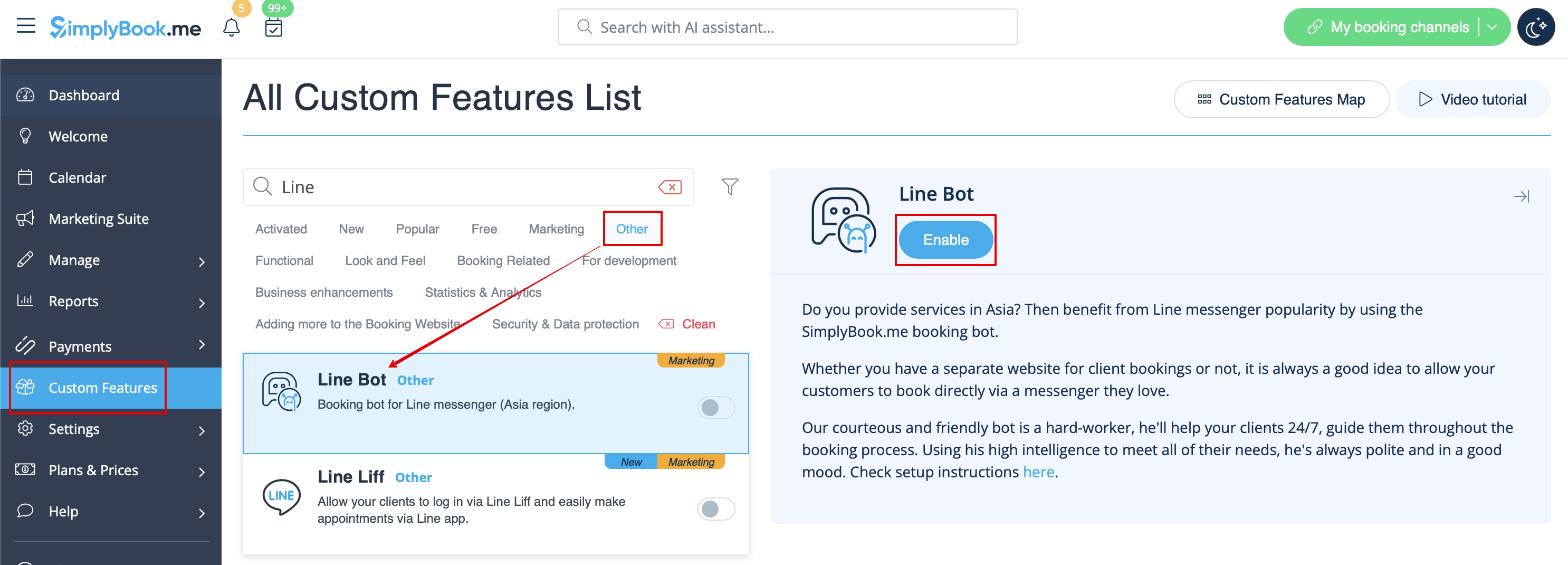
:1. Go to <span style="background-color:#d4f8e5; padding:5px; border-radius:5px;">SimplyBook.me admin side</span>, <span style="background-color:#d4f8e5; padding:5px; border-radius:5px;">custom features</span> page and enable <span style="background-color:#d4f8e5; padding:5px; border-radius:5px;">Line bot</span> custom feature.
[[File:Line bot enable path redesigned.png|1200px| border| center|link=https://help.simplybook.me/images/3/3a/Line_bot_enable_path_redesigned.png]]
<br><br>
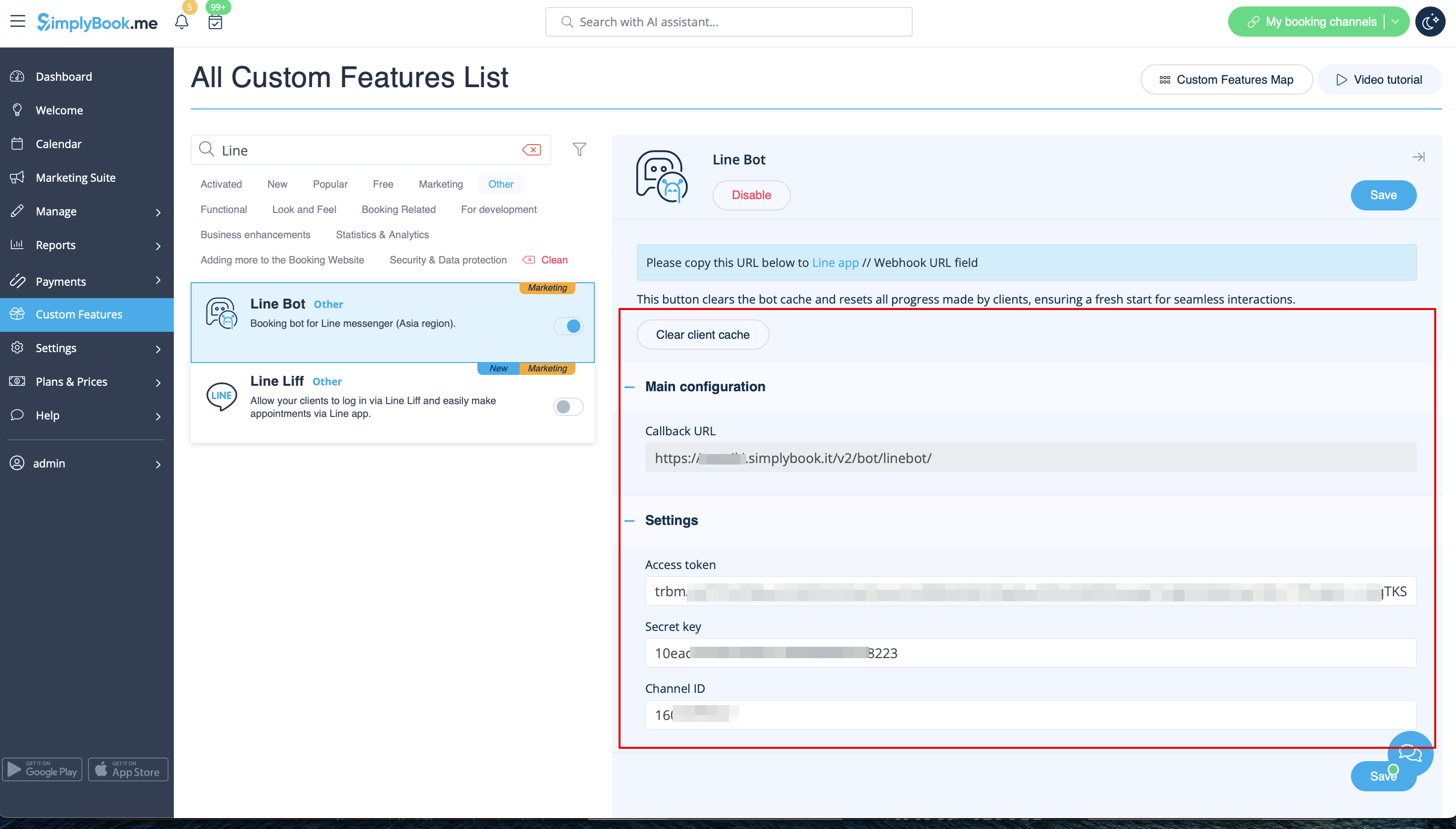
:2. Navigate to its <span style="background-color:#d4f8e5; padding:5px; border-radius:5px;">settings on the right.</span>
[[File:Line bot settings redesigned.png|1200px | border| center|link=https://help.simplybook.me/images/e/e8/Line_bot_settings_redesigned.png]]
<br><br>
:3. Log in to <span style="background-color:#d4f8e5; padding:5px; border-radius:5px;">[https://developers.line.biz/en/ LINE Developers page]</span> and create <span style="background-color:#d4f8e5; padding:5px; border-radius:5px;">Provider</span> following the instructions listed there.
[[File:Line create new provider.png | border | center]]
<br><br>
:4. Then create <span style="background-color:#d4f8e5; padding:5px; border-radius:5px;">new channel</span>, adding the necessary details, confirming them and agreeing to LINE Terms of Service and other required options.
[[File:Line creat new channel.png | border| center]]
<br><br>
[[File:Line create new channel-messaging api.png | border| center]]
<br><br>
:5. An application will be created, please click on it to get to the channel credentials.
<br><br>
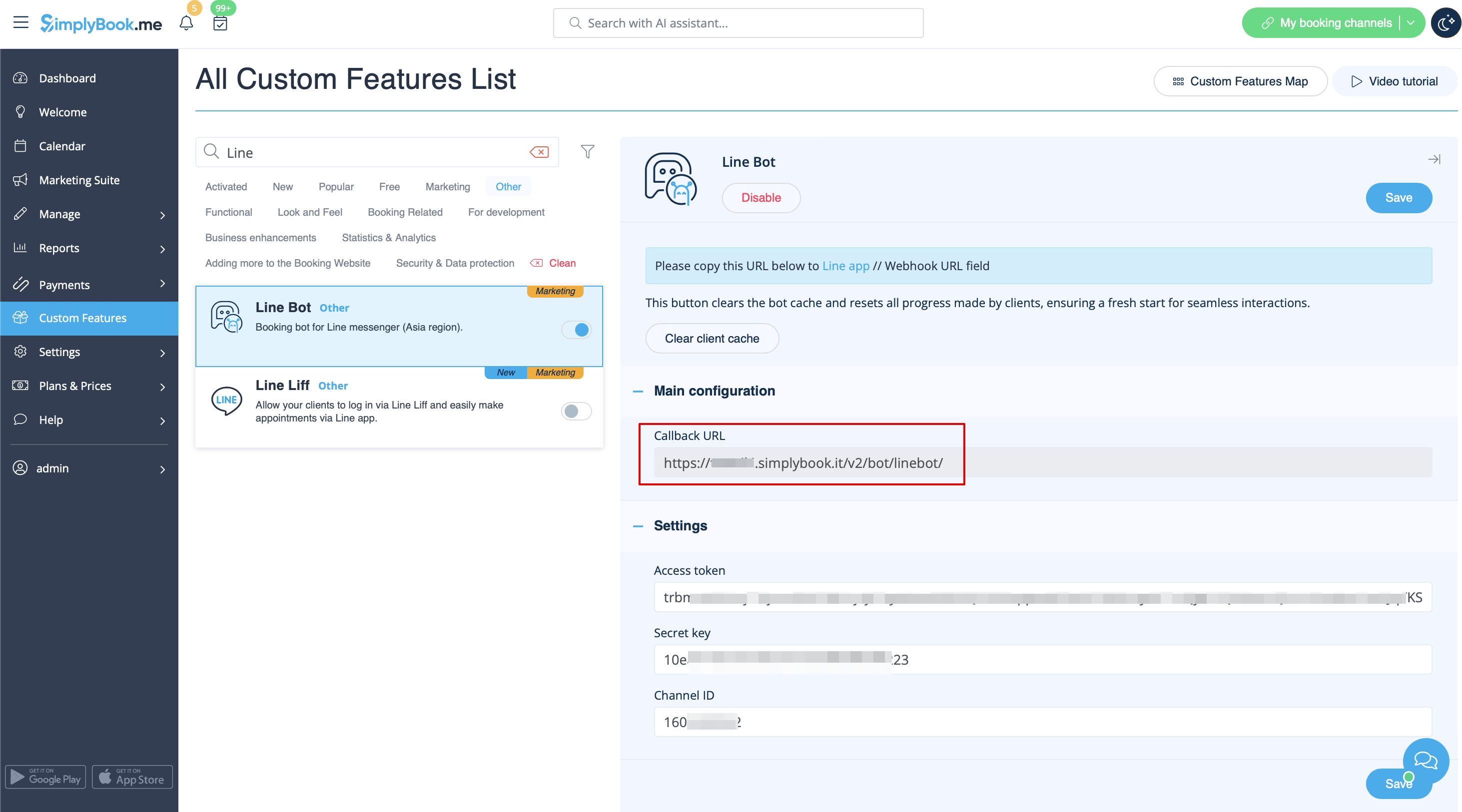
:6. Switch to <span style="background-color:#d4f8e5; padding:5px; border-radius:5px;">SimplyBook.me admin side</span> tab with Line Bot feature settings and copy <span style="background-color:#d4f8e5; padding:5px; border-radius:5px;">Callback URL</span> from there.
[[File:Line bot callback url redesigned.png|1200px | border| center|link=https://help.simplybook.me/images/9/91/Line_bot_callback_url_redesigned.png]]
<br><br>
:7. Add this url to the <span style="background-color:#d4f8e5; padding:5px; border-radius:5px;">Webhook URL</span> box in <span style="background-color:#d4f8e5; padding:5px; border-radius:5px;">Messaging settings</span> section of <span style="background-color:#d4f8e5; padding:5px; border-radius:5px;">LINE Developers channel</span> page.
[[File:Line Add calback url.png | border|center]]
<br><br>
:8. Enable <span style="background-color:#d4f8e5; padding:5px; border-radius:5px;">Use webhooks</span>.
[[File:Line enable webhooks.png |border| center]]
<br><br>
:9. Issue <span style="background-color:#d4f8e5; padding:5px; border-radius:5px;">Channel access token (long-lived)</span> and insert it to <span style="background-color:#d4f8e5; padding:5px; border-radius:5px;">Simplybook.me feature settings</span> to <span style="background-color:#d4f8e5; padding:5px; border-radius:5px;">Access token</span> box.
[[File:Line issue access token.png |border|center]]
<br><br>
:10. Proceed to <span style="background-color:#d4f8e5; padding:5px; border-radius:5px;">Using LINE@ features</span> section and disable <span style="background-color:#d4f8e5; padding:5px; border-radius:5px;">auto-replies</span> according to the following example.
[[File:Line disable automessages.png |border| center]]
<br><br>
[[File:Line autoresponse settings.png | border| center]]
<br><br>
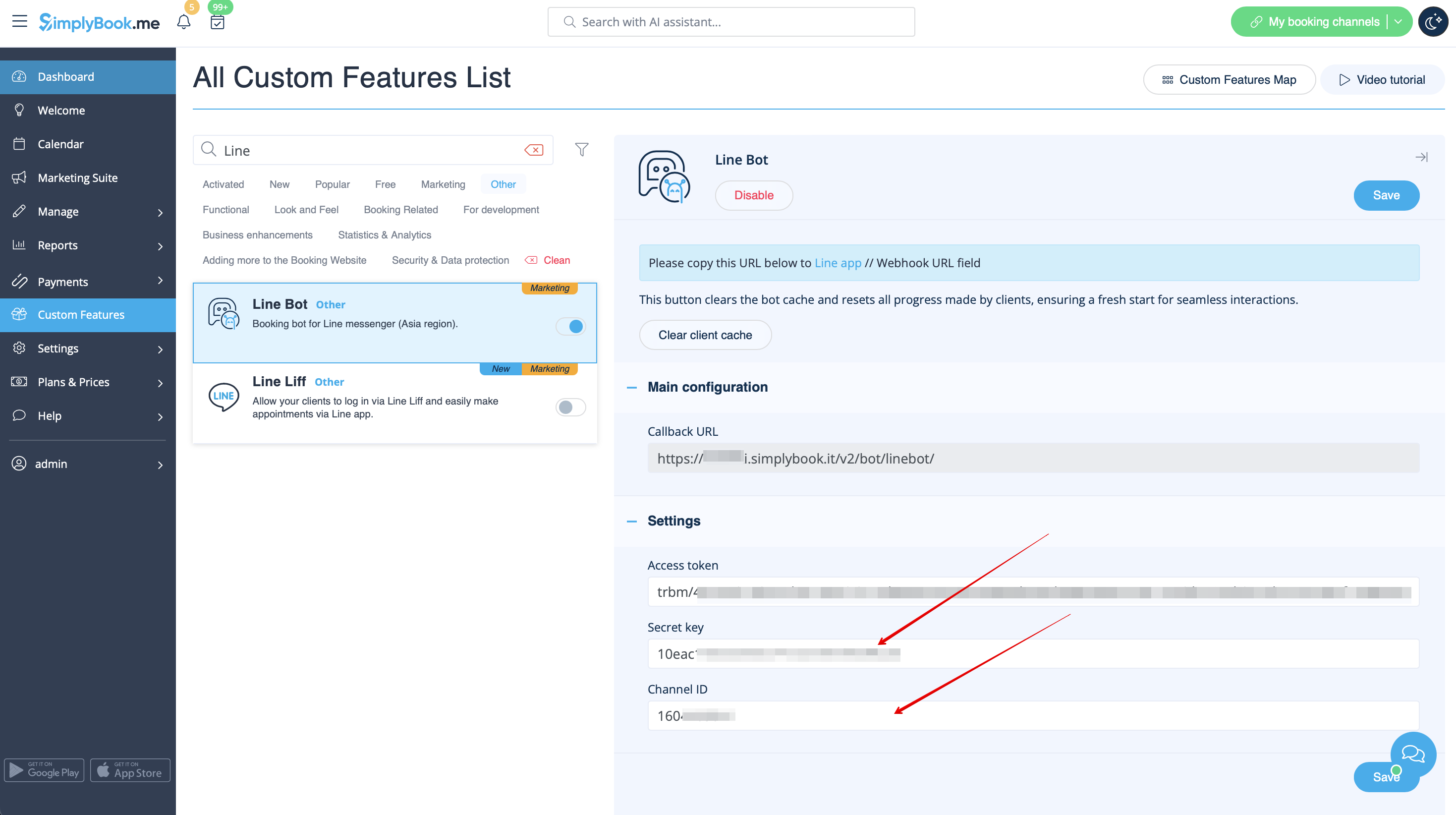
:11. Copy <span style="background-color:#d4f8e5; padding:5px; border-radius:5px;">Channel ID</span> and <span style="background-color:#d4f8e5; padding:5px; border-radius:5px;">Channel secret</span> and insert them to the <span style="background-color:#d4f8e5; padding:5px; border-radius:5px;">corresponding settings boxes on SimplyBook.me side.</span> Save settings.
[[File:Line-channel id and secret.png|border | center]]
<br><br>
[[File:Line bot secret kay and channel id redesigned.png|1200px |border| center|link=https://help.simplybook.me/images/f/f0/Line_bot_secret_kay_and_channel_id_redesigned.png]]
<br><br>
:12. After bot is approved from the LINE side your clients will be able to book using it. In the meanwhile you can add testers or try your bot using LINE mobile app.
<br><br>
<br><br>

comment utiliser :

1. Accédez à la page d'administration de SimplyBook.me, à la page des fonctionnalités personnalisées et activez la fonctionnalité personnalisée Line bot.


2. Accédez à ses paramètres sur la droite.


3. Connectez-vous à la page LINE Developers et créez un fournisseur en suivant les instructions qui y sont indiquées.


4. Créez ensuite un nouveau canal en ajoutant les informations nécessaires, en les confirmant et en acceptant les conditions d'utilisation de LINE et les autres options requises.


5. Une application sera créée, veuillez cliquer dessus pour accéder aux informations d'identification du canal.


6. Passez à l'onglet d'administration de SimplyBook.me avec les paramètres de la fonctionnalité Line Bot et copiez l'URL de rappel à partir de là.


7. Ajoutez cette URL dans le champ URL du webhook dans la section Paramètres de messagerie de la page du canal LINE Developers.


8. Activez Utiliser les webhooks.


9. Générez un jeton d'accès au canal (à longue durée de vie) et insérez-le dans les paramètres de la fonctionnalité Simplybook.me dans le champ Jeton d'accès.


10. Passez à la section Utilisation des fonctionnalités LINE@ et désactivez les réponses automatiques selon l'exemple suivant.


11. Copiez l'ID du canal et le secret du canal et insérez-les dans les champs correspondants dans SimplyBook.me. Enregistrez les paramètres.


12. Une fois que le bot a été approuvé par LINE, vos clients pourront l'utiliser pour effectuer des réservations. En attendant, vous pouvez ajouter des testeurs ou essayer votre bot à l'aide de l'application mobile LINE.