Translations:Membership custom feature/7/fr: Difference between revisions

From SimplyBook.me
Created page with ":1. Pour activer cette fonctionnalité, veuillez vous rendre dans la section <span style="background-color:#d4f8e5; padding:5px; border-radius:5px;">Fonctionnalités personnalisées</span> à l'aide du menu de gauche de votre interface d'administration, recherchez <span style="background-color:#d4f8e5; padding:5px; border-radius:5px;">Adhésion</span> et cliquez sur le bouton <span style="background-color:#d4f8e5; padding:5px; border-radius:5px;">Activer</span> ou utilis..."
 
(No difference)

Latest revision as of 15:37, 19 May 2025

Information about message (contribute)
This message has no documentation. If you know where or how this message is used, you can help other translators by adding documentation to this message.
Message definition (Membership custom feature)
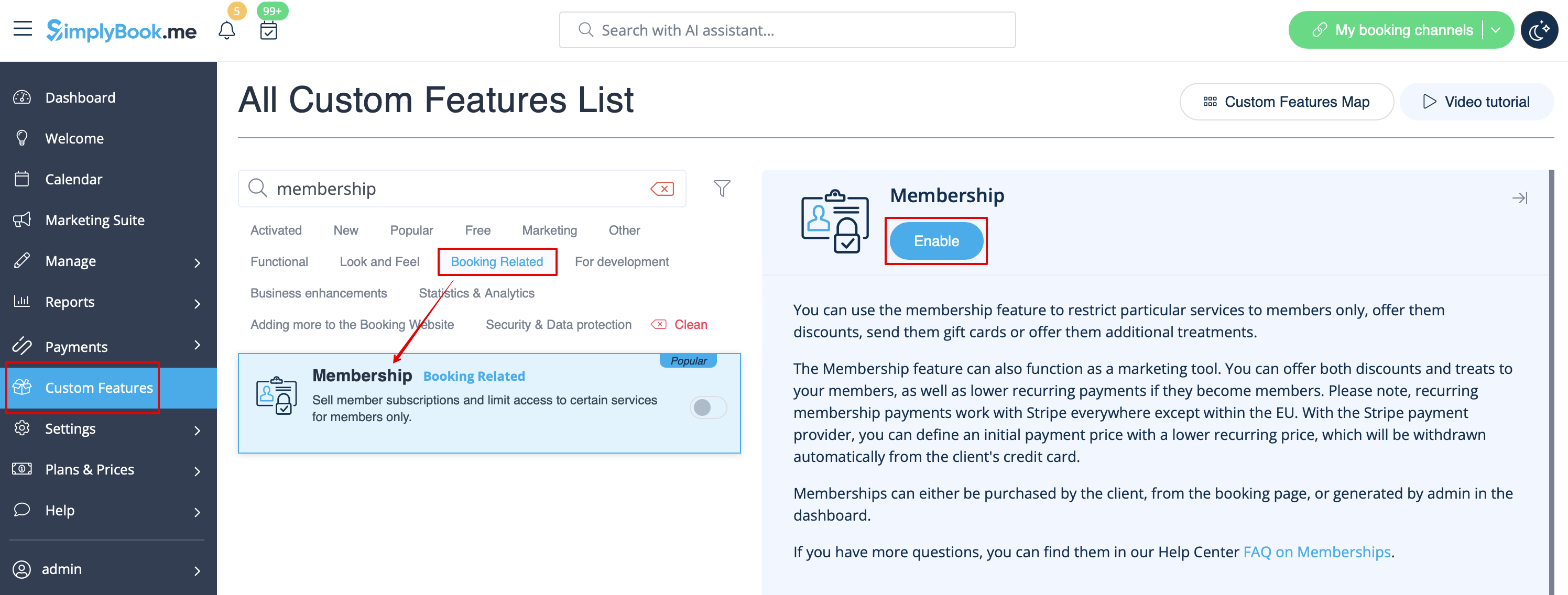
:1. To enable this feature please go to <span style="background-color:#d4f8e5; padding:5px; border-radius:5px;">Custom Features</span> section using left-side menu of your admin interface, find <span style="background-color:#d4f8e5; padding:5px; border-radius:5px;">Membership</span> and click on <span style="background-color:#d4f8e5; padding:5px; border-radius:5px;">Enable</span> button or use the <span style="background-color:#d4f8e5; padding:5px; border-radius:5px;">switcher.</span>
<br>
[[File:Membership enable path redesigned.png|1200px|border|center|link=https://help.simplybook.me/images/f/f2/Membership_enable_path_redesigned.png]]
<br><br>
:2. Navigate to <span style="background-color:#d4f8e5; padding:5px; border-radius:5px;">Manage</span> -> <span style="background-color:#d4f8e5; padding:5px; border-radius:5px;">Memberships</span> or use <span style="background-color:#d4f8e5; padding:5px; border-radius:5px;">Manage</span> button on <span style="background-color:#d4f8e5; padding:5px; border-radius:5px;">Custom features</span> page near this feature to add new Membership to your system.<br>
1. Pour activer cette fonctionnalité, veuillez vous rendre dans la section Fonctionnalités personnalisées à l'aide du menu de gauche de votre interface d'administration, recherchez Adhésion et cliquez sur le bouton Activer ou utilisez le commutateur.


2. Accédez à Gérer -> Adhésions ou utilisez le bouton Gérer sur la page Fonctionnalités personnalisées à proximité de cette fonctionnalité pour ajouter une nouvelle adhésion à votre système.