Tags : Mobile edit Mobile web edit
(No difference)
Information about message (contribute ) This message has no documentation.
If you know where or how this message is used, you can help other translators by adding documentation to this message.
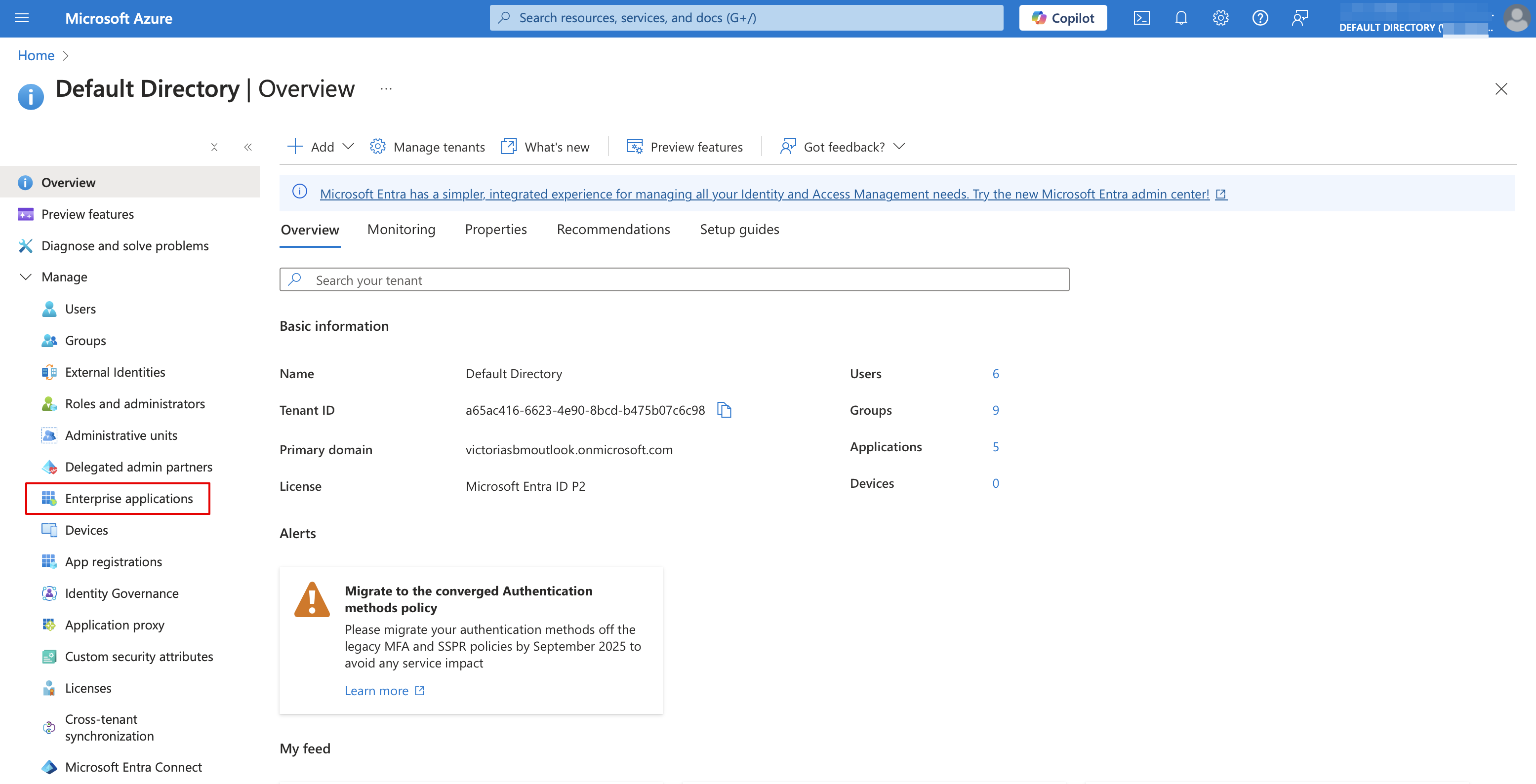
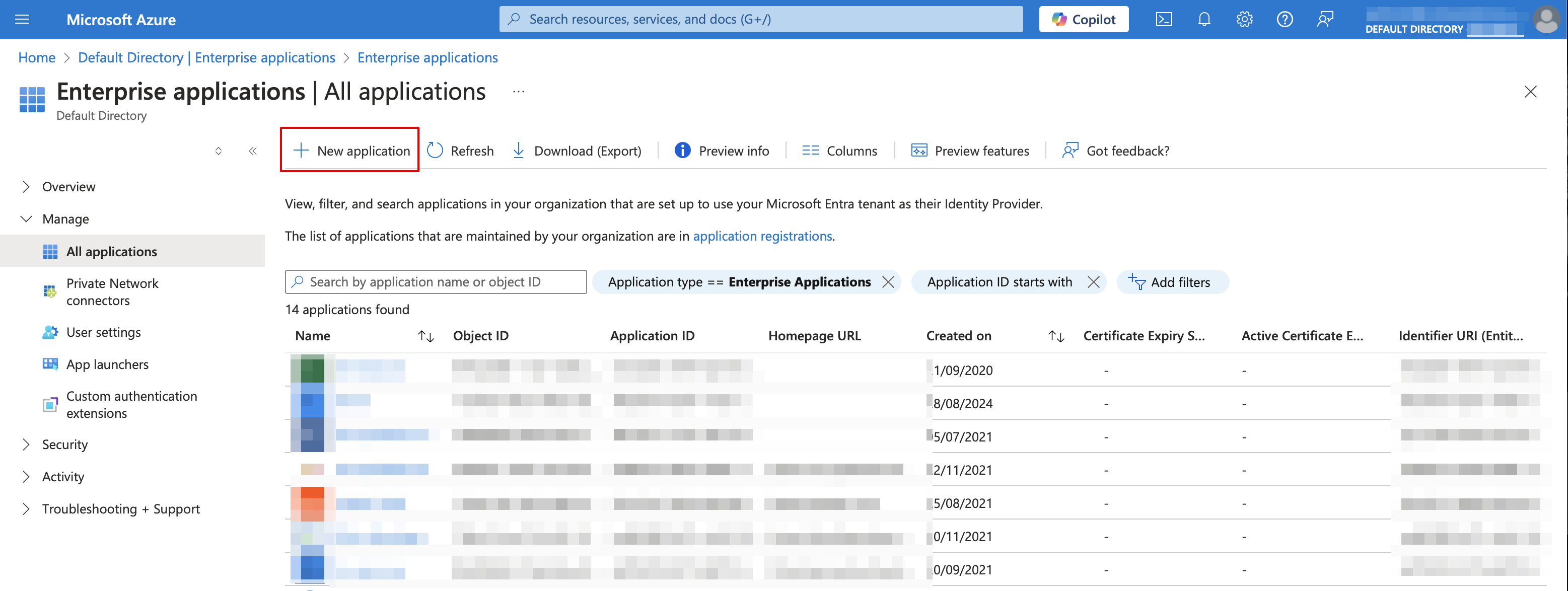
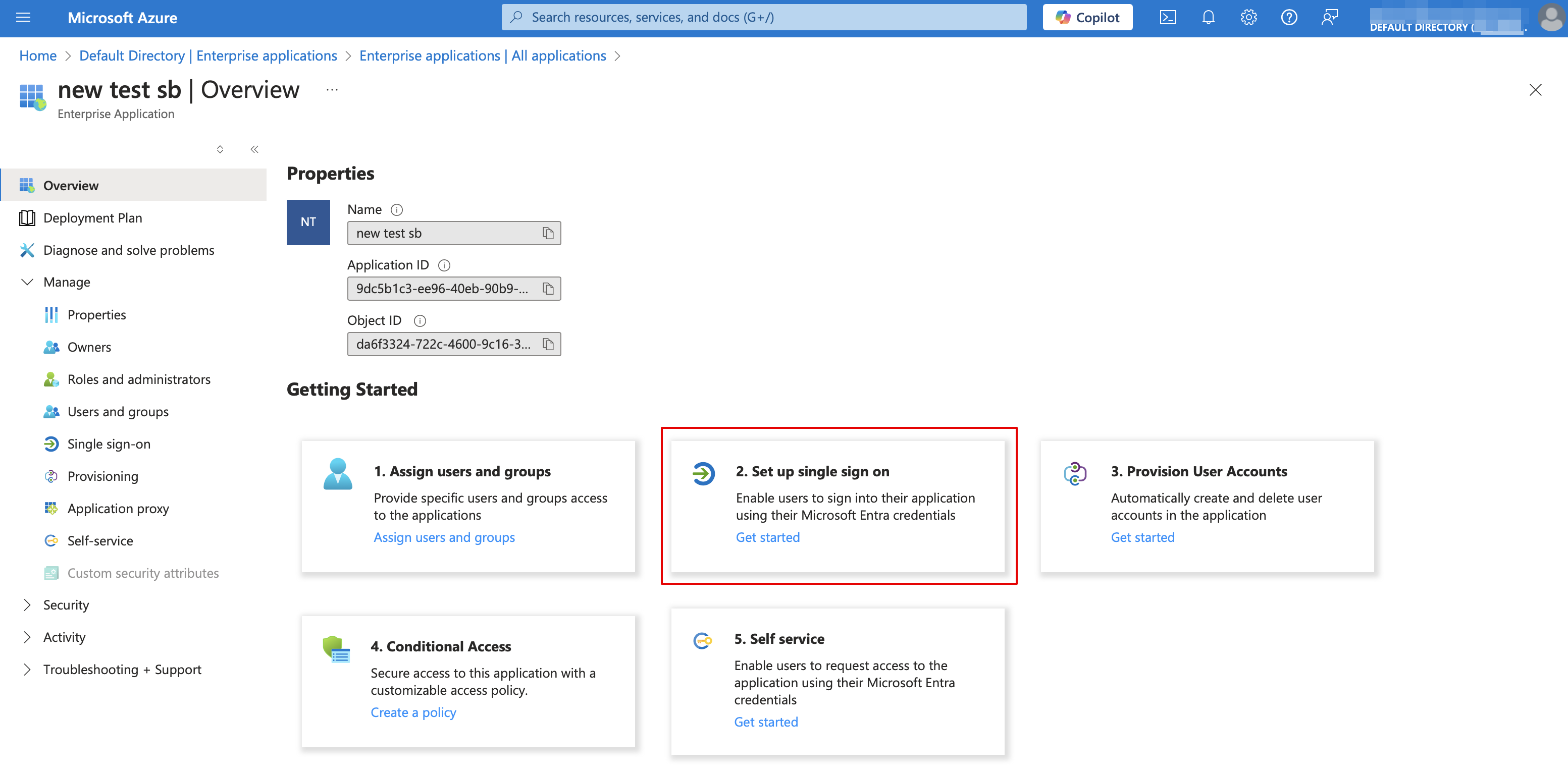
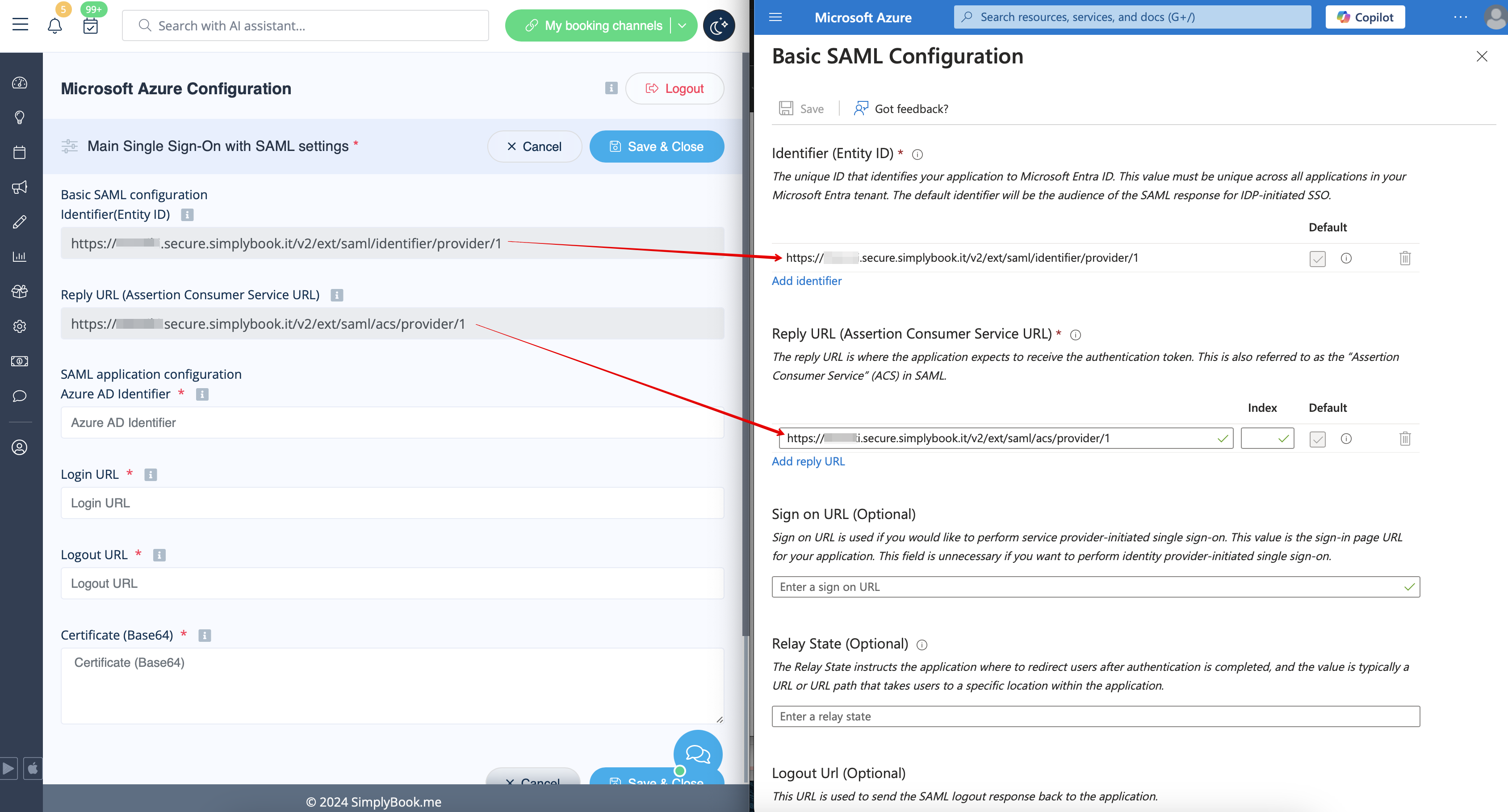
Message definition (SSO-SAML Custom Feature ) :(you may need paid MS Azure or Premium trial subscription there to add applications) [[File:Enterprise applications ms new.png|1200px|border|center|link=https://help.simplybook.me/images/8/8d/Enterprise_applications_ms_new.png]] <br><br> [[File:Azure add new application path new.png|1200px|border|center|link=https://help.simplybook.me/images/9/99/Azure_add_new_application_path_new.png]] <br><br> :8. Choose <span style="background-color:#d4f8e5; padding:5px; border-radius:5px;">non-gallery</span> type. Add its name and save. <br><br> :9. On the next page click on <span style="background-color:#d4f8e5; padding:5px; border-radius:5px;">Set up single sign on</span> and select <span style="background-color:#d4f8e5; padding:5px; border-radius:5px;">SAML.</span> [[File:Azure single sign on type.png|1200px|border|center|link=https://help.simplybook.me/images/0/01/Azure_single_sign_on_type.png]] <br><br> [[File:Ms azure select single sign on saml.png|border|center]] <br><br> :10. Use <span style="background-color:#d4f8e5; padding:5px; border-radius:5px;">Pen</span> icon in <span style="background-color:#d4f8e5; padding:5px; border-radius:5px;">Basic SAML Configuration</span> block to edit. [[File:Ms azure saml basic edit path.png|border|center]] <br><br> :11. Copy the urls from <span style="background-color:#d4f8e5; padding:5px; border-radius:5px;">SimplyBook.me SSO: SAML feature</span> to the corresponding boxes on <span style="background-color:#d4f8e5; padding:5px; border-radius:5px;">MS Azure side.</span> Save. [[File:Entity is and reply url azure copy new.png|1200px|border|center|link=https://help.simplybook.me/images/8/84/Entity_is_and_reply_url_azure_copy_new.png]] <br><br> :12. On <span style="background-color:#d4f8e5; padding:5px; border-radius:5px;">MS Azure side</span> scroll to <span style="background-color:#d4f8e5; padding:5px; border-radius:5px;">SAML Signing Certificate</span> part and download <span style="background-color:#d4f8e5; padding:5px; border-radius:5px;">Certificate(Base64).</span> Open it with notepad or similar text editor, copy the certificate code and paste it to the corresponding box into <span style="background-color:#d4f8e5; padding:5px; border-radius:5px;">SSO: SAML Custom Feature.</span> [[File:Sbm saml download cetrificate.png|border|center]] <br><br>