Translations:Online Video Meetings Custom Feature/13/fr: Difference between revisions

From SimplyBook.me
Created page with ":5. Pour les services/classes pour lesquels vous souhaitez organiser des réunions en ligne, activez l'option « <span style="background-color:#d4f8e5; padding:5px; border-radius:5px;">Activer comme service/classe de réunion en ligne</span> » dans <span style="background-color:#d4f8e5; padding:5px; border-radius:5px;">Gérer</span> -> <span style="background-color:#d4f8e5; padding:5px; border-radius:5px;">Services</span> -> <span style="background-color:#d4f8e5;..."
(No difference)

Revision as of 15:38, 19 May 2025

Information about message (contribute)
This message has no documentation. If you know where or how this message is used, you can help other translators by adding documentation to this message.
Message definition (Online Video Meetings Custom Feature)
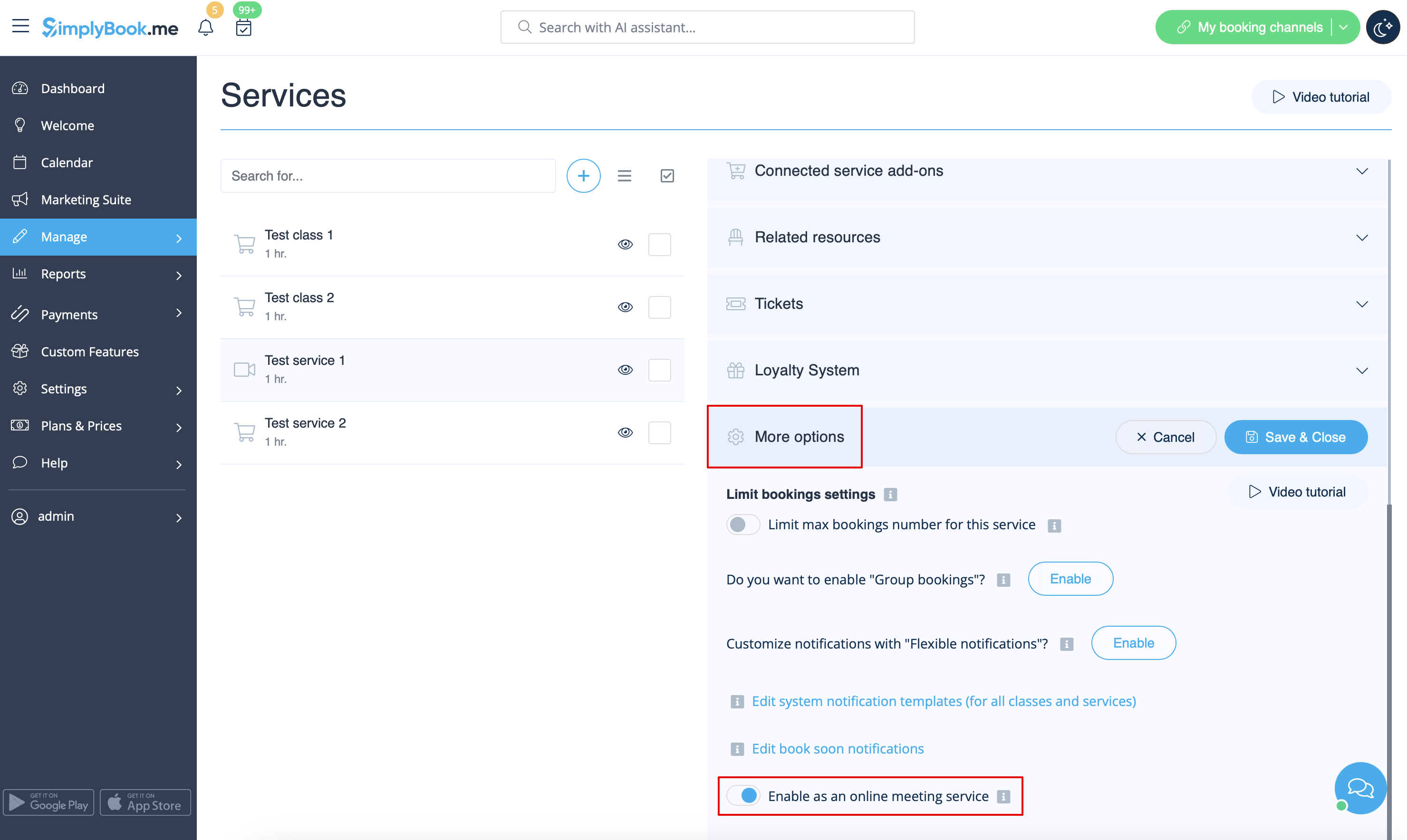
:5. For the services/classes you wish to conduct online meetings switch the option <span style="background-color:#d4f8e5; padding:5px; border-radius:5px;">Enable as online meeting service/class</span> on in <span style="background-color:#d4f8e5; padding:5px; border-radius:5px;">Manage</span> -> <span style="background-color:#d4f8e5; padding:5px; border-radius:5px;">Services</span> -> <span style="background-color:#d4f8e5; padding:5px; border-radius:5px;">click on service name</span> -> <span style="background-color:#d4f8e5; padding:5px; border-radius:5px;">More options</span><br>(in <span style="background-color:#d4f8e5; padding:5px; border-radius:5px;">Manage</span> -> <span style="background-color:#d4f8e5; padding:5px; border-radius:5px;">Classes</span> -> <span style="background-color:#d4f8e5; padding:5px; border-radius:5px;">click on class name</span> -> <span style="background-color:#d4f8e5; padding:5px; border-radius:5px;">More options</span> if you are using <span style="background-color:#cdeffc; padding:5px; border-radius:5px;">[[Special:MyLanguage/Classes_custom_feature|Classes feature]])</span>
[[File:Enable service as online meeting redesigned.png|1200px|center|link=https://help.simplybook.me/images/e/ec/Enable_service_as_online_meeting_redesigned.png]]
<br><br>
:6. When the clients book such a service/class there will be online meeting link on <span style="background-color:#d4f8e5; padding:5px; border-radius:5px;">My bookings page</span> for the associated booking. When the appointment time comes the clients will be able to follow it to access the meeting.<br>
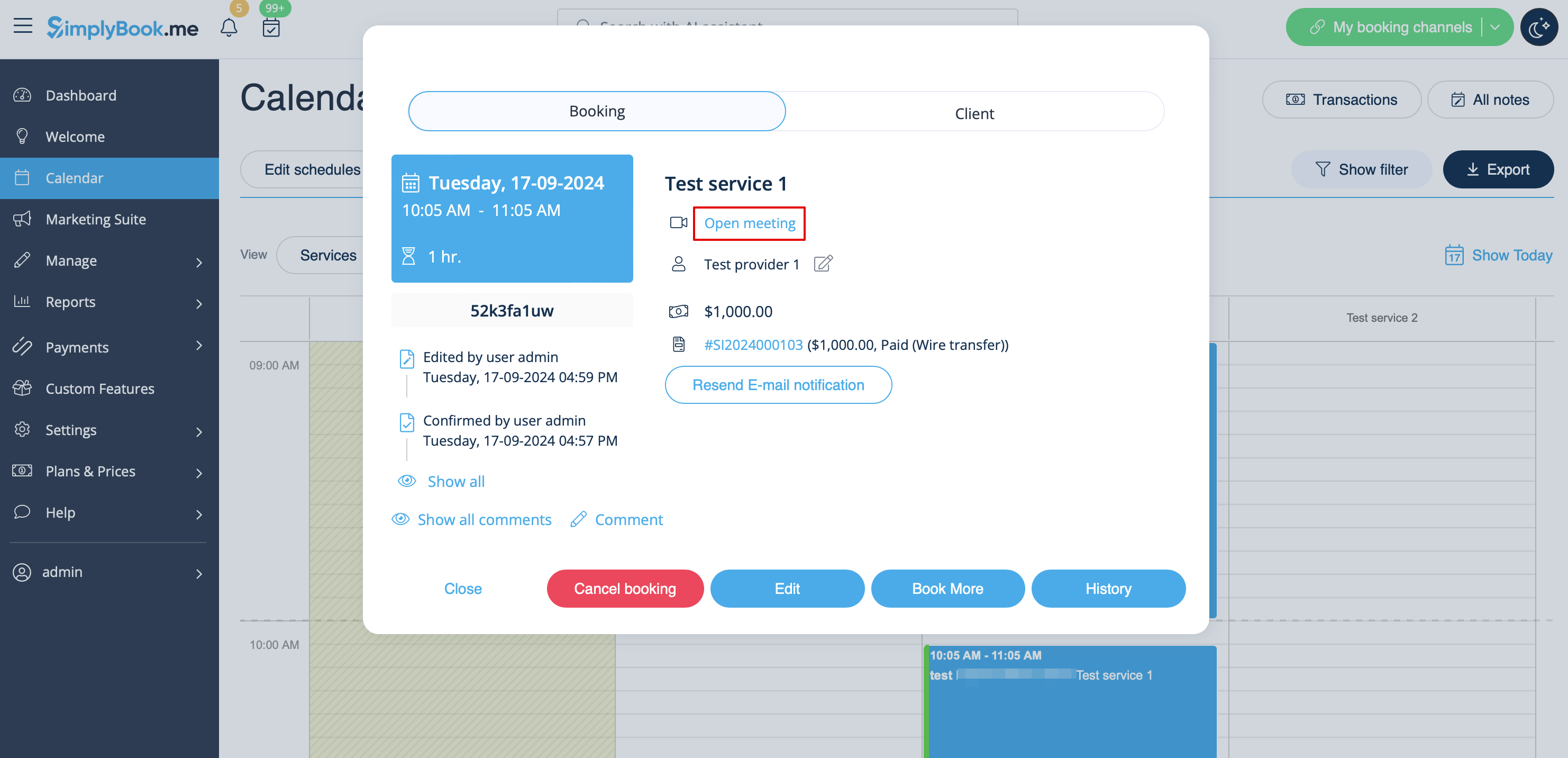
:For admin side it will be possible to follow the link from booking info popup form in <span style="background-color:#d4f8e5; padding:5px; border-radius:5px;">Calendar</span> or in <span style="background-color:#d4f8e5; padding:5px; border-radius:5px;">Reports</span> -> <span style="background-color:#d4f8e5; padding:5px; border-radius:5px;">Booking details.</span>
[[File:Ms teams client side link.png|border|center]]
[[File:Meeting link in admin calendar redesigned.png|1200px|border|center|link=https://help.simplybook.me/images/a/a6/Meeting_link_in_admin_calendar_redesigned.png]]
<br><br>
5. Pour les services/classes pour lesquels vous souhaitez organiser des réunions en ligne, activez l'option « Activer comme service/classe de réunion en ligne » dans Gérer -> Services -> cliquez sur le nom du service -> Plus d'options
(dans Gérer -> Classes -> cliquez sur le nom de la classe -> Plus d'options si vous utilisez la fonctionnalité Classes)


6. Lorsque les clients réservent un tel service/une telle classe, un lien vers la réunion en ligne apparaîtra sur la page Mes réservations pour la réservation associée. Lorsque l'heure du rendez-vous arrivera, les clients pourront le suivre pour accéder à la réunion.
Du côté de l'administrateur, il sera possible de suivre le lien à partir du formulaire contextuel d'informations sur la réservation dans le calendrier ou dans Rapports -> Détails de la réservation.