Translations:Medical test custom feature/6/de: Difference between revisions

From SimplyBook.me
Created page with ":3. Wählen Sie aus, ob Ihre Kunden über bestimmte <span style="background-color:#d4f8e5; padding:5px; border-radius:5px;">Testergebnisse</span> informiert werden sollen, und <span style="background-color:#d4f8e5; padding:5px; border-radius:5px;">passen Sie die</span> folgenden <span style="background-color:#d4f8e5; padding:5px; border-radius:5px;">Vorlagen an</span>File:Medical test notifications settings redesigned.png|border|center|1200px|link=https://help.simplybo..."
 
(No difference)

Latest revision as of 15:39, 19 May 2025

Information about message (contribute)
This message has no documentation. If you know where or how this message is used, you can help other translators by adding documentation to this message.
Message definition (Medical test custom feature)
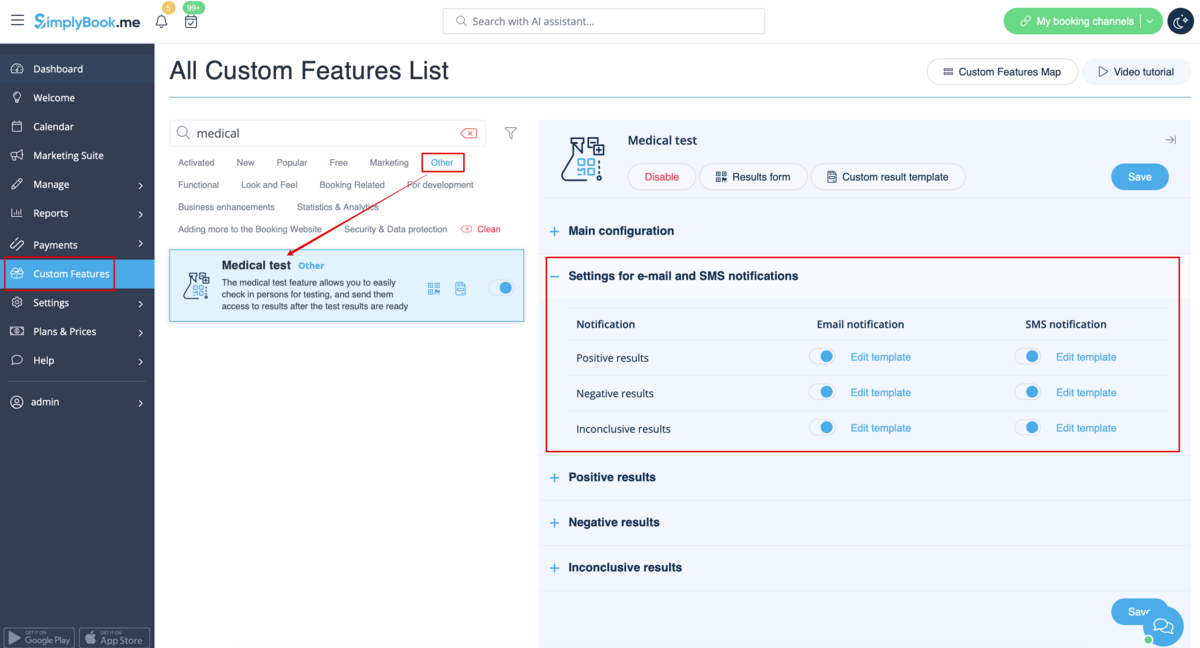
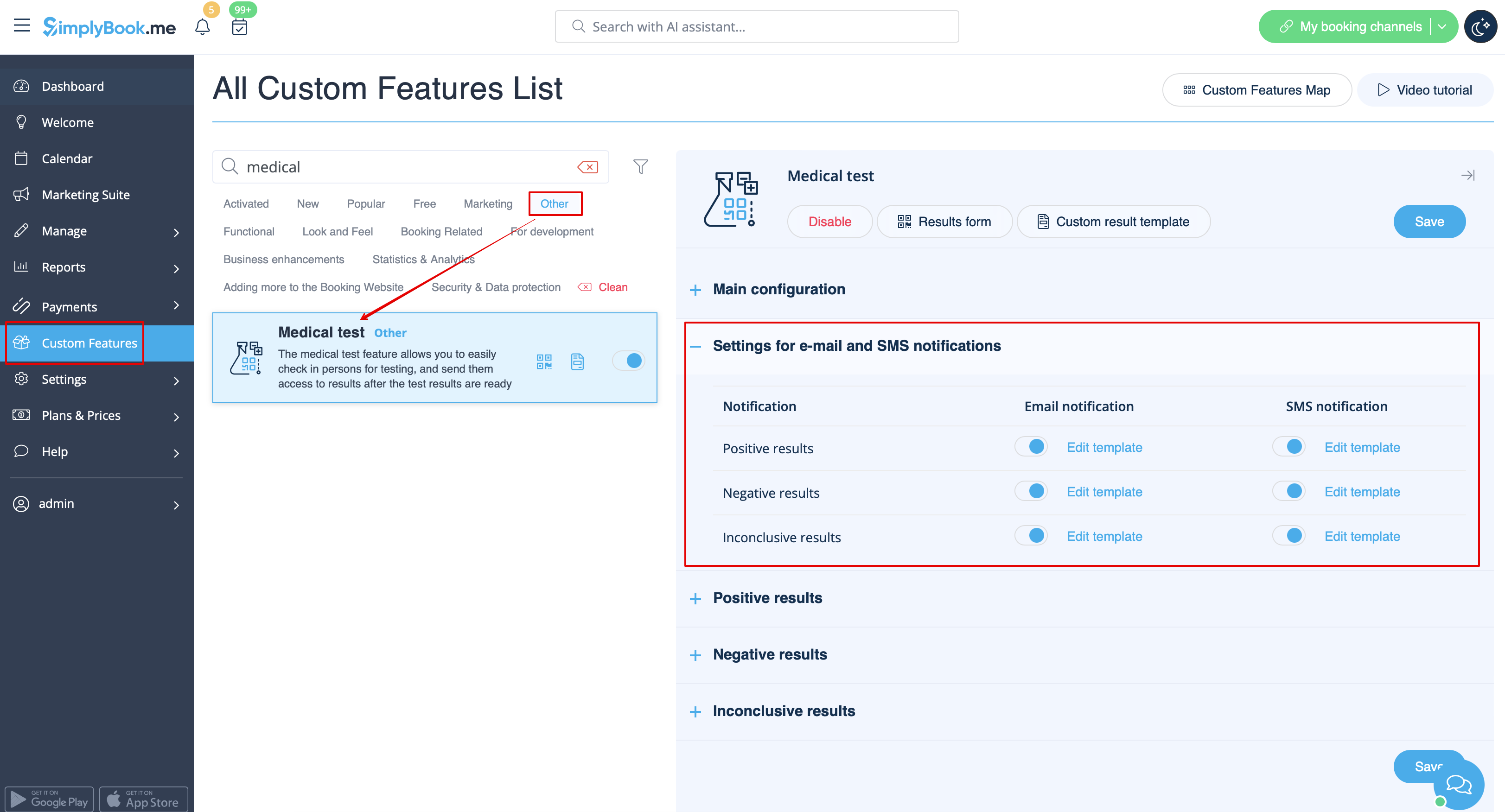
:3. Select whether you would like your clients to be informed about certain <span style="background-color:#d4f8e5; padding:5px; border-radius:5px;">test result</span> and <span style="background-color:#d4f8e5; padding:5px; border-radius:5px;">adjust the templates</span> below.
[[File:Medical test notifications settings redesigned.png|border|center|1200px|link=https://help.simplybook.me/images/3/34/Medical_test_notifications_settings_redesigned.png]]
<br><br>
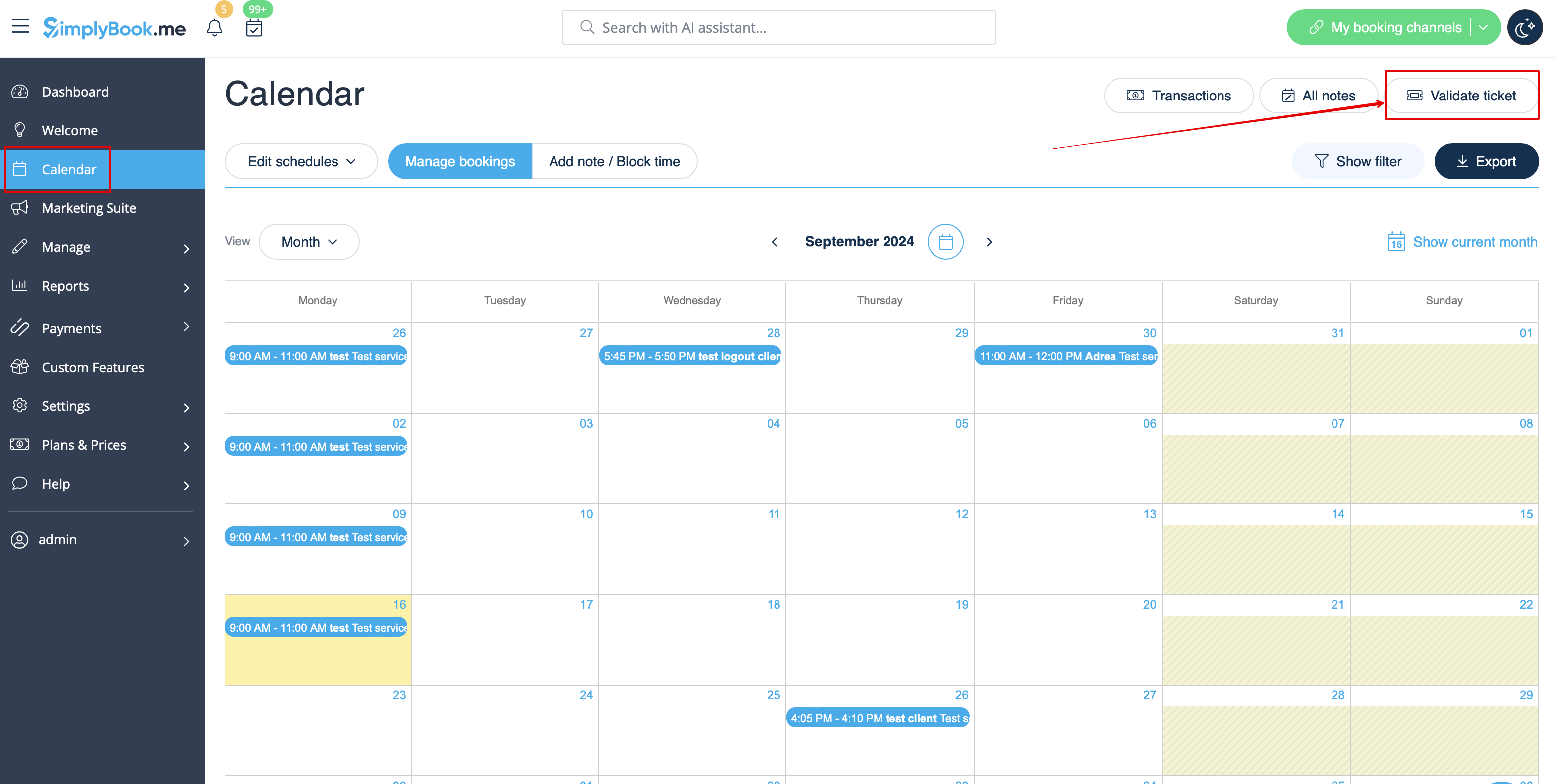
:4. Navigate to <span style="background-color:#d4f8e5; padding:5px; border-radius:5px;">Results form</span> to start working with the testing process by clicking on <span style="background-color:#cdeffc; padding:5px; border-radius:5px;">Validate ticket</span> button on the <span style="background-color:#cdeffc; padding:5px; border-radius:5px;">Calendar</span> page or by selecting <span style="background-color:#cdeffc; padding:5px; border-radius:5px;">Results form</span> near this feature in the <span style="background-color:#cdeffc; padding:5px; border-radius:5px;">Custom features</span> interface.<br>
[[File:Validate ticket path from calendar redesigned.png|1200px|border|center|link=https://help.simplybook.me/images/2/21/Validate_ticket_path_from_calendar_redesigned.png]]
<br><br>
3. Wählen Sie aus, ob Ihre Kunden über bestimmte Testergebnisse informiert werden sollen, und passen Sie die folgenden Vorlagen an

4. Navigieren Sie zum Formular "Ergebnisse", um mit dem Testprozess zu beginnen, indem Sie auf der Seite "Kalender " auf die Schaltfläche " Ticket validieren " klicken oder in der Benutzeroberfläche "Benutzerdefinierte Funktionen" neben dieser Funktion die Option "Formular "Ergebnisse" auswählen.