Translations:Ticket's QR Code/6/uk: Difference between revisions

From SimplyBook.me
Created page with ":4. Налаштуйте шаблон відповідно до своїх потреб за допомогою <span style="background-color:#d4f8e5; padding:5px; border-radius:5px;">редактора</span> та доступних <span style="background-color:#d4f8e5; padding:5px; border-radius:5px;">змінних</span> праворуч. File:Tickets qr template variables redesigned.png|1200px|border|center|link=https://help.simplybook.me/images/1/18/Tickets_qr_t..."
 
(No difference)

Latest revision as of 15:48, 19 May 2025

Information about message (contribute)
This message has no documentation. If you know where or how this message is used, you can help other translators by adding documentation to this message.
Message definition (Ticket's QR Code)
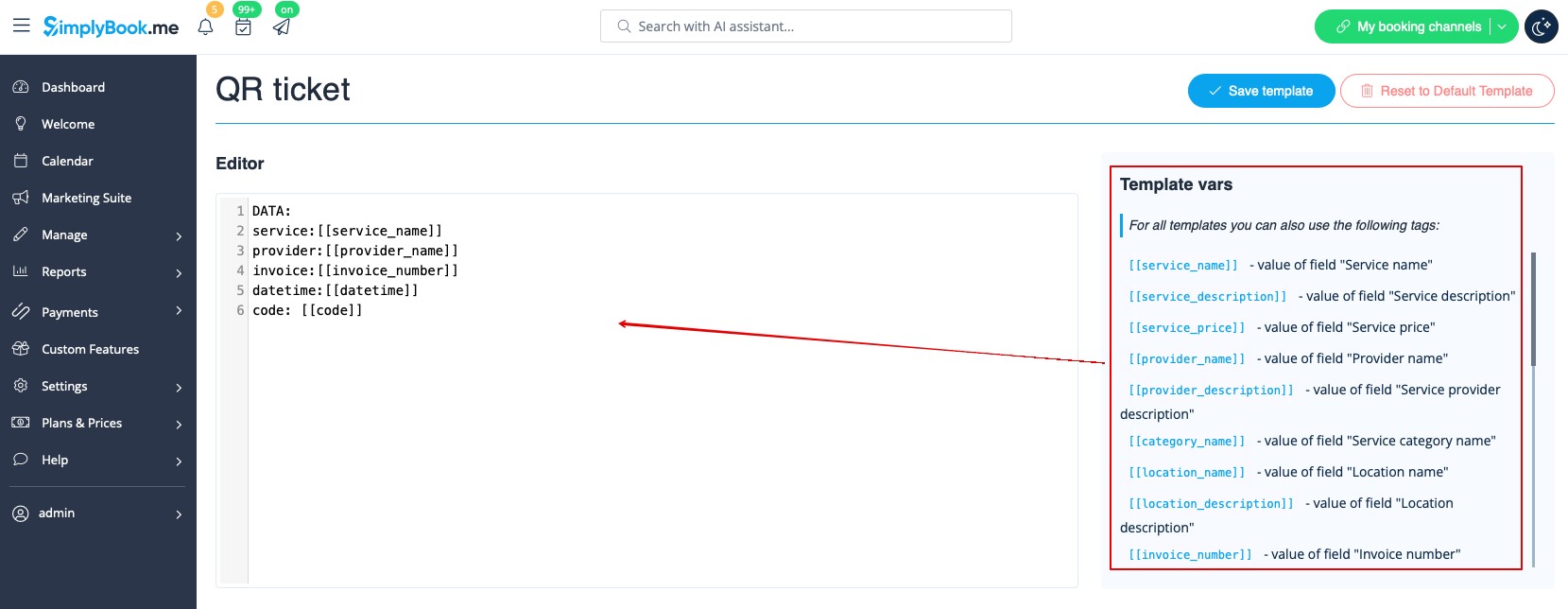
:4. Adjust the template to your needs using the <span style="background-color:#d4f8e5; padding:5px; border-radius:5px;">Editor</span> and the available <span style="background-color:#d4f8e5; padding:5px; border-radius:5px;">variables</span> on the right.
[[File:Tickets qr template variables redesigned.png|1200px|border|center|link=https://help.simplybook.me/images/1/18/Tickets_qr_template_variables_redesigned.png]]
<br><br>
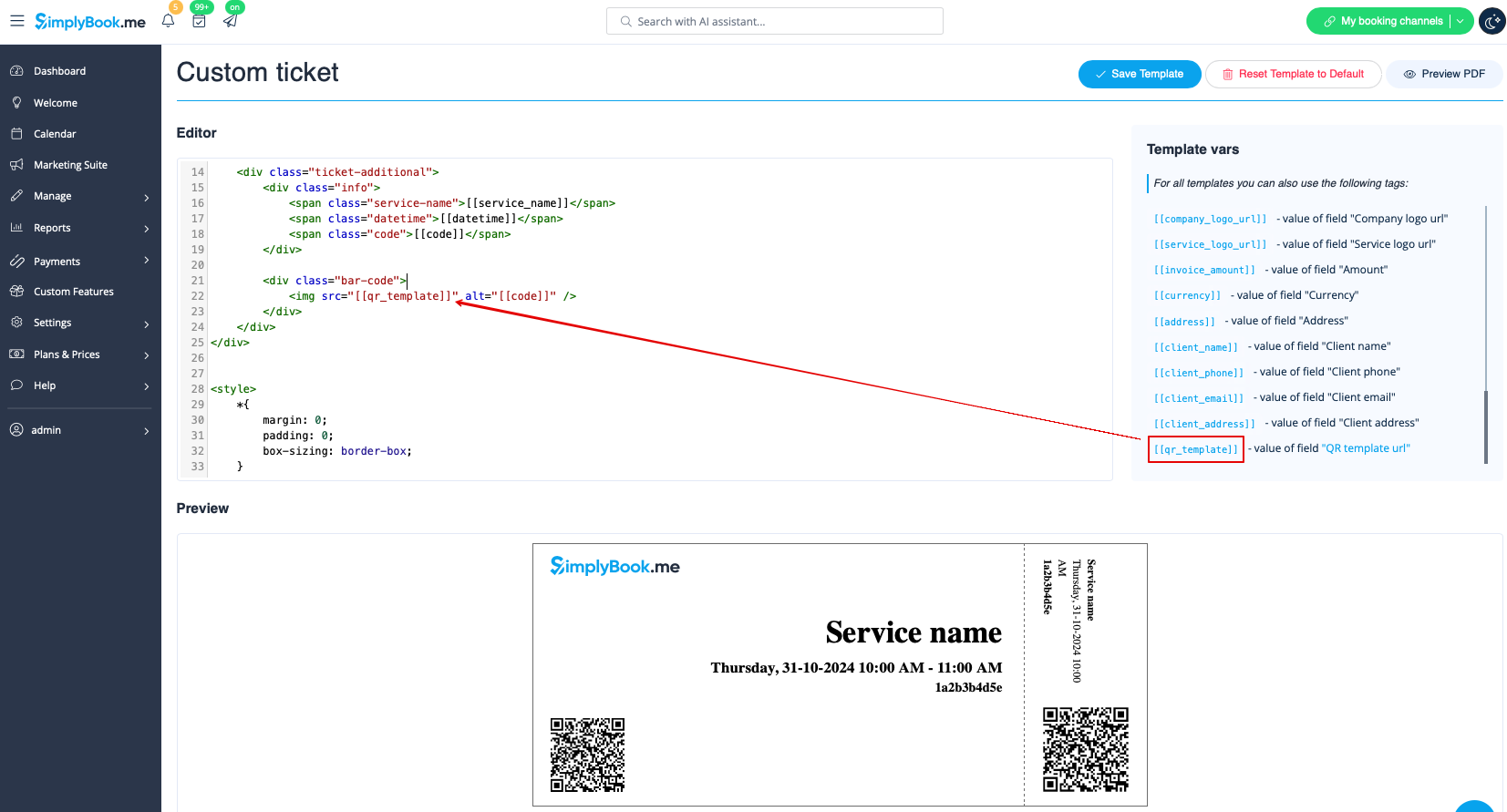
:5. Add <span style="background-color:#d4f8e5; padding:5px; border-radius:5px;">QR template url</span> variable to the ticket template in <span style="background-color:#d4f8e5; padding:5px; border-radius:5px;">Custom features</span> -> <span style="background-color:#d4f8e5; padding:5px; border-radius:5px;">Tickets</span> -> <span style="background-color:#d4f8e5; padding:5px; border-radius:5px;">Custom ticket.</span>
:(please also make sure that you have custom ticket attached to necessary services in <span style="background-color:#d4f8e5; padding:5px; border-radius:5px;">Manage</span> -> <span style="background-color:#d4f8e5; padding:5px; border-radius:5px;">Services</span> -> select the necessary service -> <span style="background-color:#d4f8e5; padding:5px; border-radius:5px;">Tickets</span>)
[[File:Add qr to the custom ticket redesigned.png|1200px|border|center|link=https://help.simplybook.me/images/4/44/Add_qr_to_the_custom_ticket_redesigned.png]]
<br><br>
<br><br>
4. Налаштуйте шаблон відповідно до своїх потреб за допомогою редактора та доступних змінних праворуч.


5. Додайте змінну URL-адреси шаблону QR-квитка до шаблону квитка в розділі «Налаштування» -> «Квитки» -> «Налаштування квитка».
(переконайтеся, що ви додали налаштований квиток до необхідних послуг у розділі «Управління» -> «Послуги» -> виберіть необхідну послугу -> «Квитки»)