Translations:Telegram Notifications custom feature/6/da: Difference between revisions

From SimplyBook.me
Created page with "1. Aktivér <span style="background-color:#d4f8e5; padding:5px; border-radius:5px;">Telegram-notifikationer</span> på din side <span style="background-color:#d4f8e5; padding:5px; border-radius:5px;">med tilpassede funktioner</span> -> afsnittet <span style="background-color:#d4f8e5; padding:5px; border-radius:5px;">Andet</span>. File:Telegram notifications enable path redesigned.png|1200px|center|link=https://help.simplybook.me/images/2/2e/Telegram_notifications_en..."
 
(No difference)

Latest revision as of 15:49, 19 May 2025

Information about message (contribute)
This message has no documentation. If you know where or how this message is used, you can help other translators by adding documentation to this message.
Message definition (Telegram Notifications custom feature)
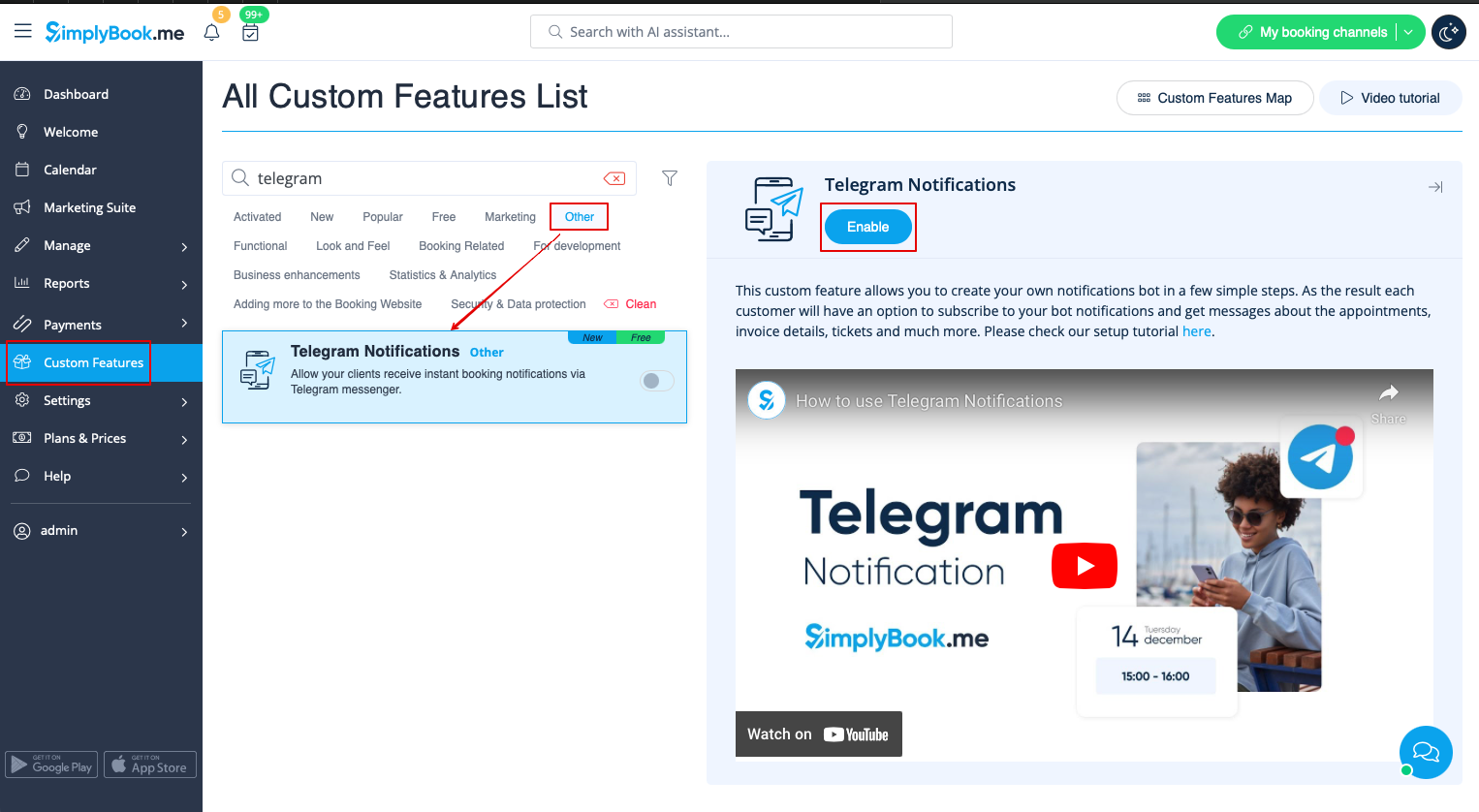
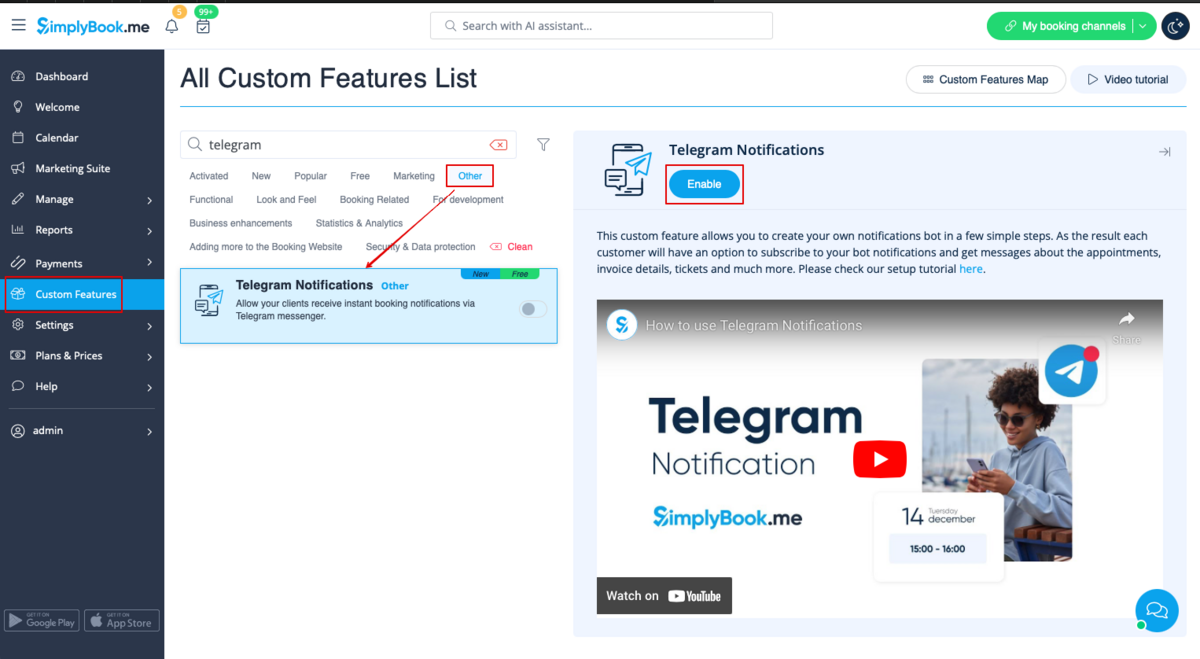
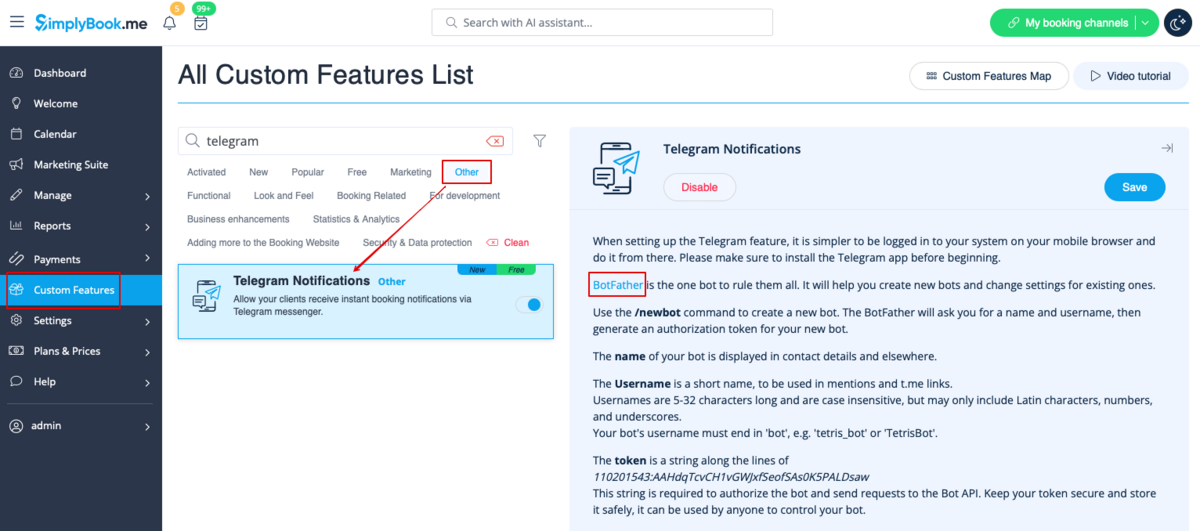
1. Enable <span style="background-color:#d4f8e5; padding:5px; border-radius:5px;">Telegram Notifications</span> on your <span style="background-color:#d4f8e5; padding:5px; border-radius:5px;">Custom features</span> page -> <span style="background-color:#d4f8e5; padding:5px; border-radius:5px;">Other</span> section.
[[File:Telegram notifications enable path redesigned.png|1200px|center|link=https://help.simplybook.me/images/2/2e/Telegram_notifications_enable_path_redesigned.png]]
<br><br>
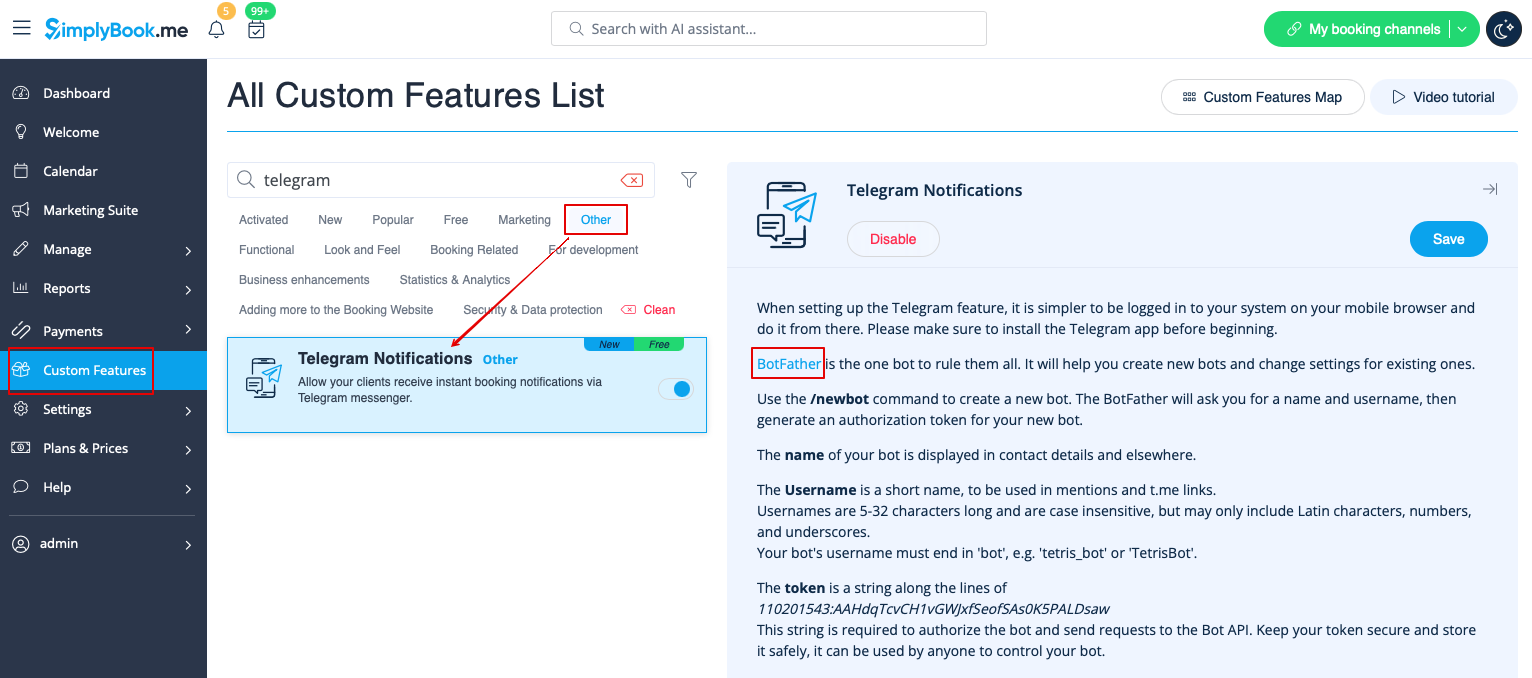
2. Navigate to helper bot <span style="background-color:#d4f8e5; padding:5px; border-radius:5px;">BotFather</span> using the link in the instructions on the right side of the SimplyBook.me page.
[[File:Telegram notifications botfather link redesigned.png|1200px|center|link=https://help.simplybook.me/images/d/d7/Telegram_notifications_botfather_link_redesigned.png]]
<br><br>
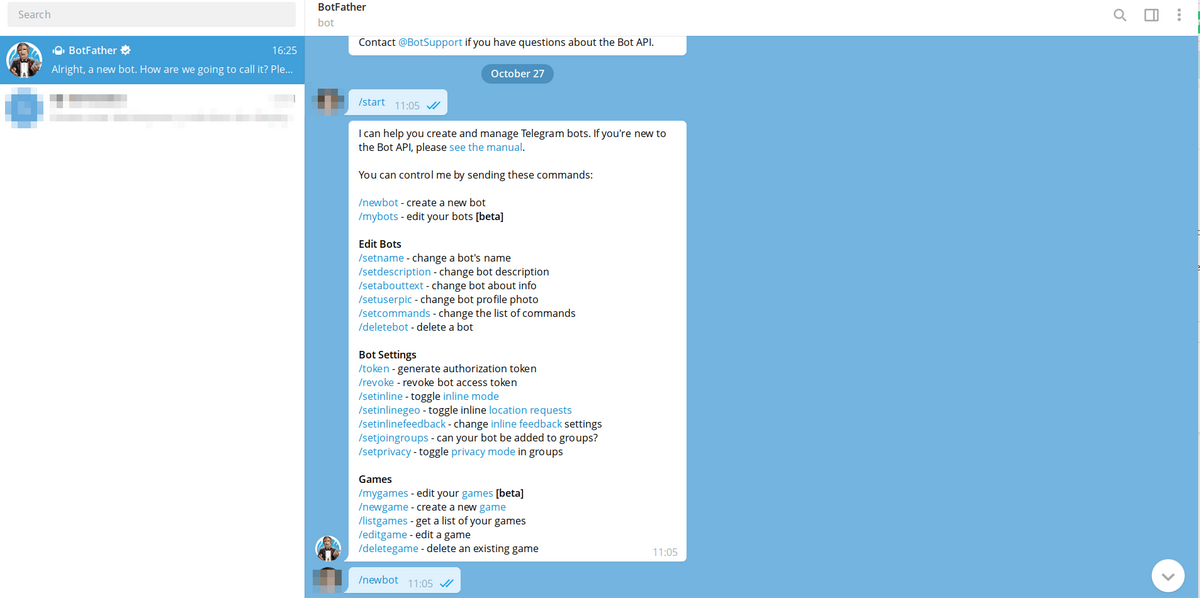
3. Start the setup process in the BotFather bot and select <span style="background-color:#d4f8e5; padding:5px; border-radius:5px;">/newbot</span> option, follow the hints there: add the desirable name and username. 
[[File:Telegram notifications create new bot.png|1200px|center]]
<br><br>
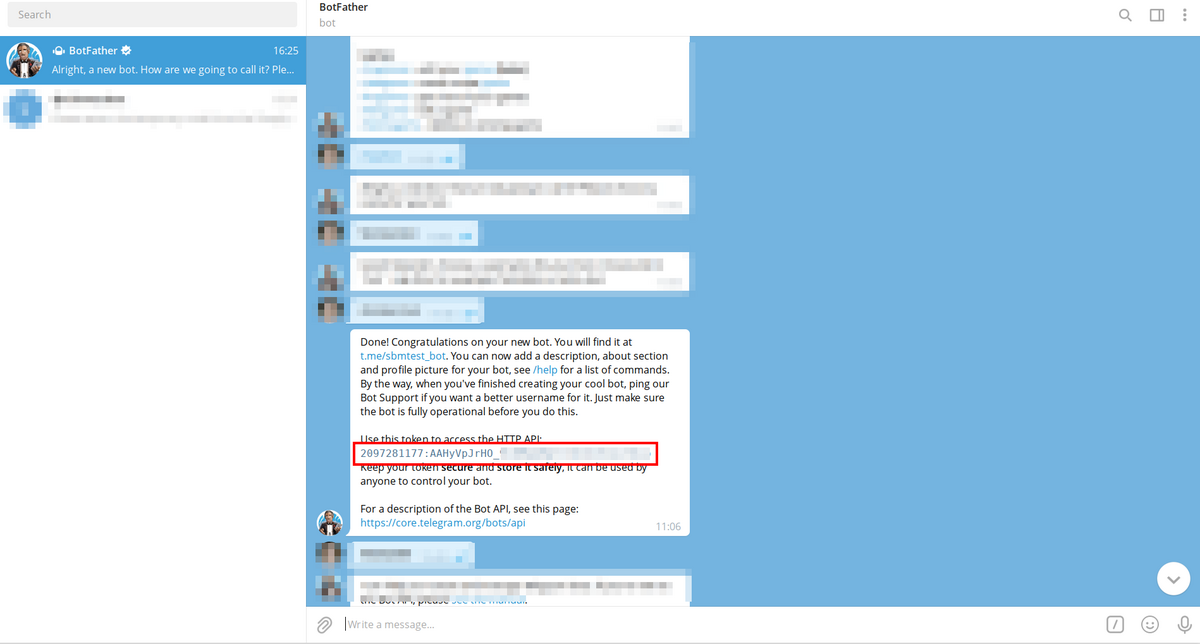
4. Copy <span style="background-color:#d4f8e5; padding:5px; border-radius:5px;">the token</span> from the result message.
[[File:Telegram notifications copy token.png|1200px|center]]
<br><br>

1. Aktivér Telegram-notifikationer på din side med tilpassede funktioner -> afsnittet Andet.


2. Naviger til hjælperbotten BotFather ved hjælp af linket i instruktionerne til højre på SimplyBook.me-siden.


3. Start opsætningsprocessen i BotFather-botten, og vælg /newbot-indstillingen. Følg vejledningen der: tilføj det ønskede navn og brugernavn.


4. Kopier token fra resultatmeddelelsen.