Translations:Waiting List custom feature/7/sv: Difference between revisions

From SimplyBook.me
Created page with ":1. Aktivera den anpassade funktionen "Väntelista" på sidan "Anpassade funktioner" i avsnittet "Funktioner". 1200px|center|link=https://help.simplybook.me/images/d/dd/Waiting_list_enable_path_redesigned.png <br><br> :2. I inställningarna till höger på sidan, i blocket "Huvudkonfiguration", väljer du antalet försök att skicka e-postmeddelanden om lediga tider.<br> :Välj önskat tidsintervall mellan dessa försök i..."
 
(No difference)

Latest revision as of 15:51, 19 May 2025

Information about message (contribute)
This message has no documentation. If you know where or how this message is used, you can help other translators by adding documentation to this message.
Message definition (Waiting List custom feature)
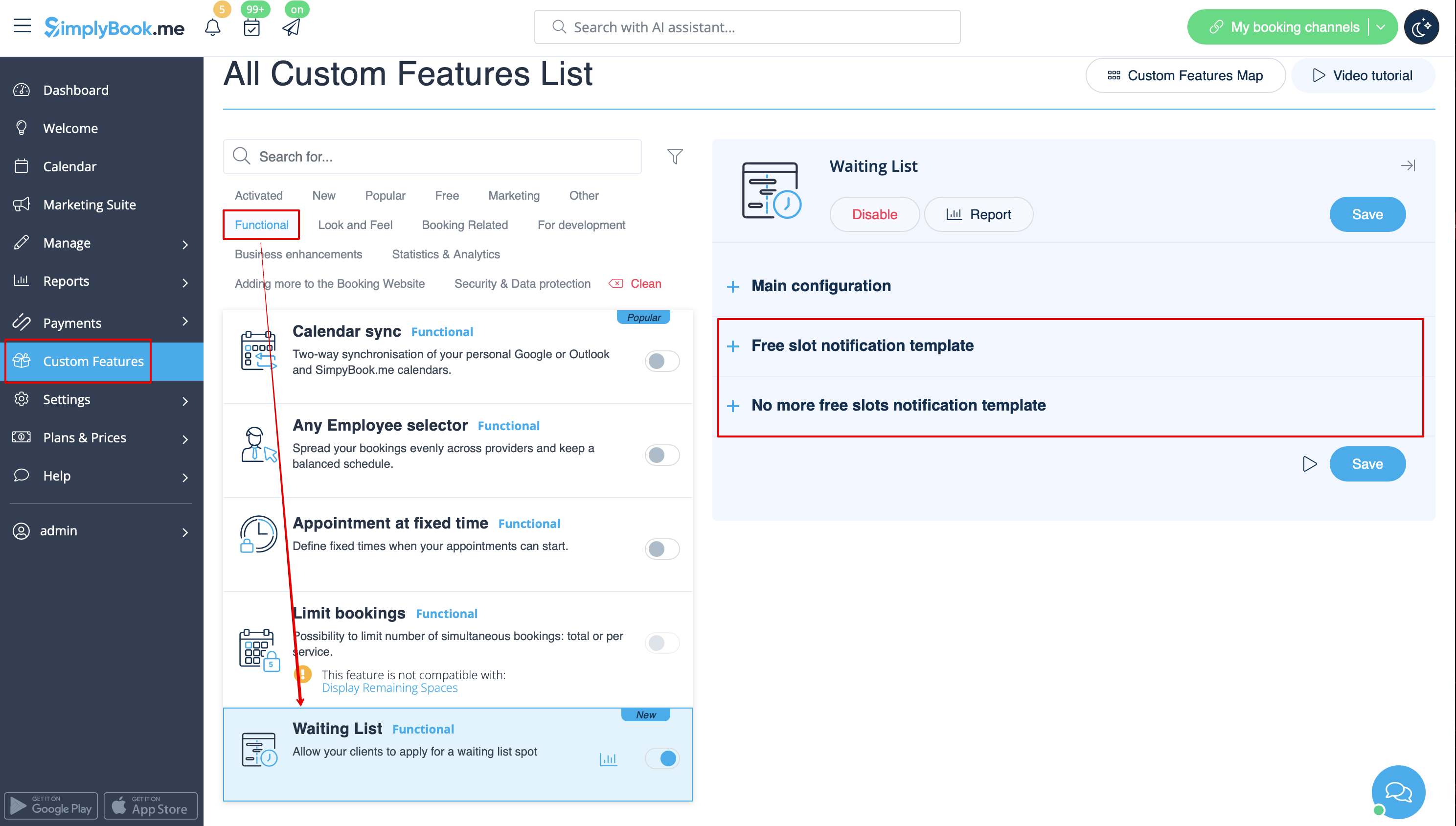
:1. Enable "Waiting list" custom feature on your "Custom features" page, "Functional" section.
[[File:Waiting list enable path redesigned.png|1200px|center|link=https://help.simplybook.me/images/d/dd/Waiting_list_enable_path_redesigned.png]]
<br><br>
:2. In its settings on the right side of the page, "Main configuration" block, please select the number of email notification attempts about the free time slot appearance.<br>
:Choose the desired time interval between these attempts in "Notifications interval".
:Set the time period when the waiting list bookings should be automatically cancelled in case the free spaces do not appear using "Waiting list slot auto cancellation" setting.
[[File:Waiting list main configurations redesigned.png|1200px|center|link=https://help.simplybook.me/images/0/05/Waiting_list_main_configurations_redesigned.png]]
<br><br>
:3. Adjust the email templates for the free slot notification and no free slots email to your needs. Use the variables if needed.<br>
:Save settings.
[[File:Waiting list templates redesigned.png|1200px|center|link=https://help.simplybook.me/images/7/7b/Waiting_list_templates_redesigned.png]]
<br>
1. Aktivera den anpassade funktionen "Väntelista" på sidan "Anpassade funktioner" i avsnittet "Funktioner".
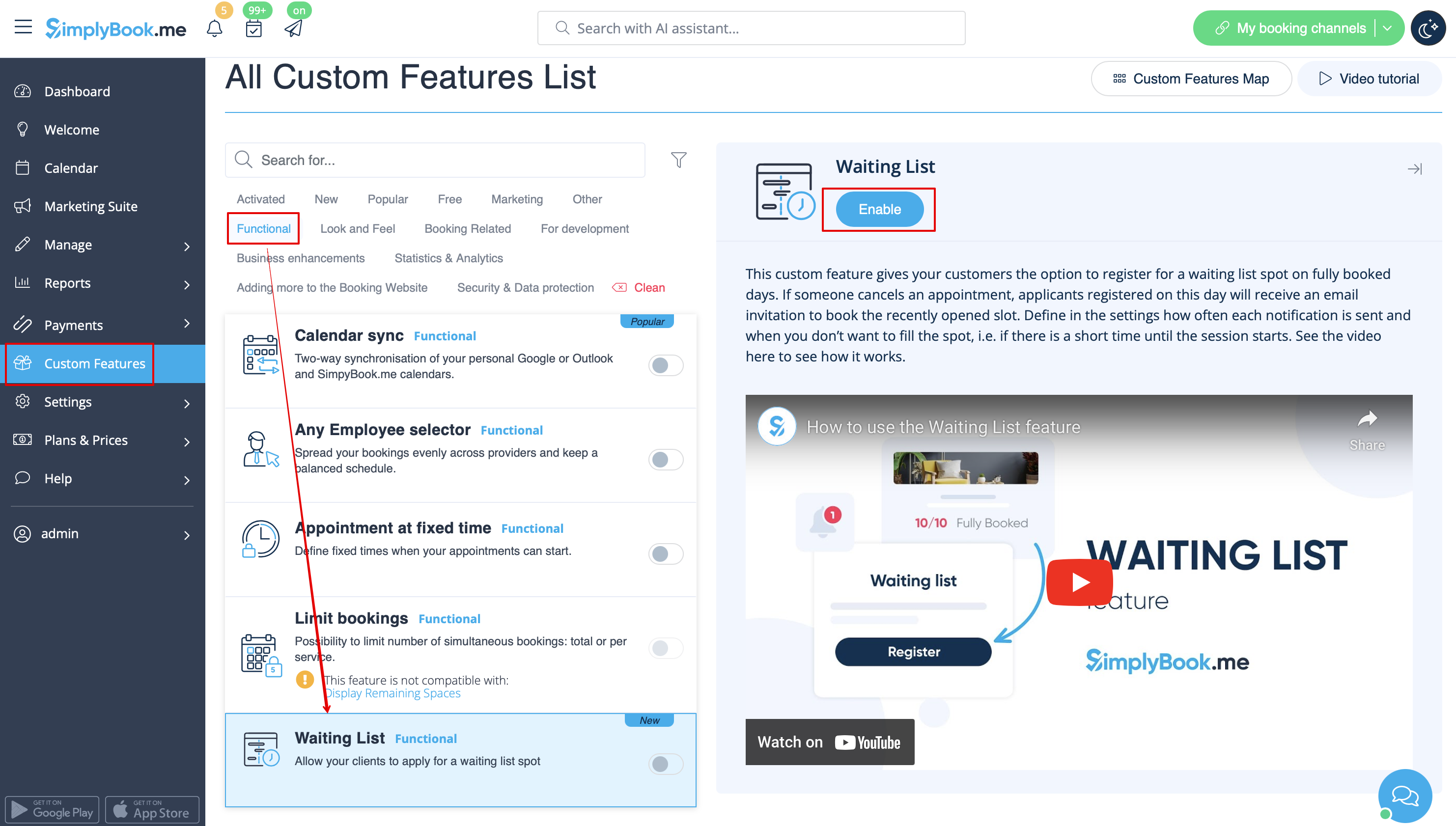


2. I inställningarna till höger på sidan, i blocket "Huvudkonfiguration", väljer du antalet försök att skicka e-postmeddelanden om lediga tider.
Välj önskat tidsintervall mellan dessa försök i "Meddelandeintervall".
Ställ in tidsperioden när bokningar på väntelistan ska avbokas automatiskt om inga lediga tider dyker upp med inställningen "Automatisk avbokning av väntelistplatser".
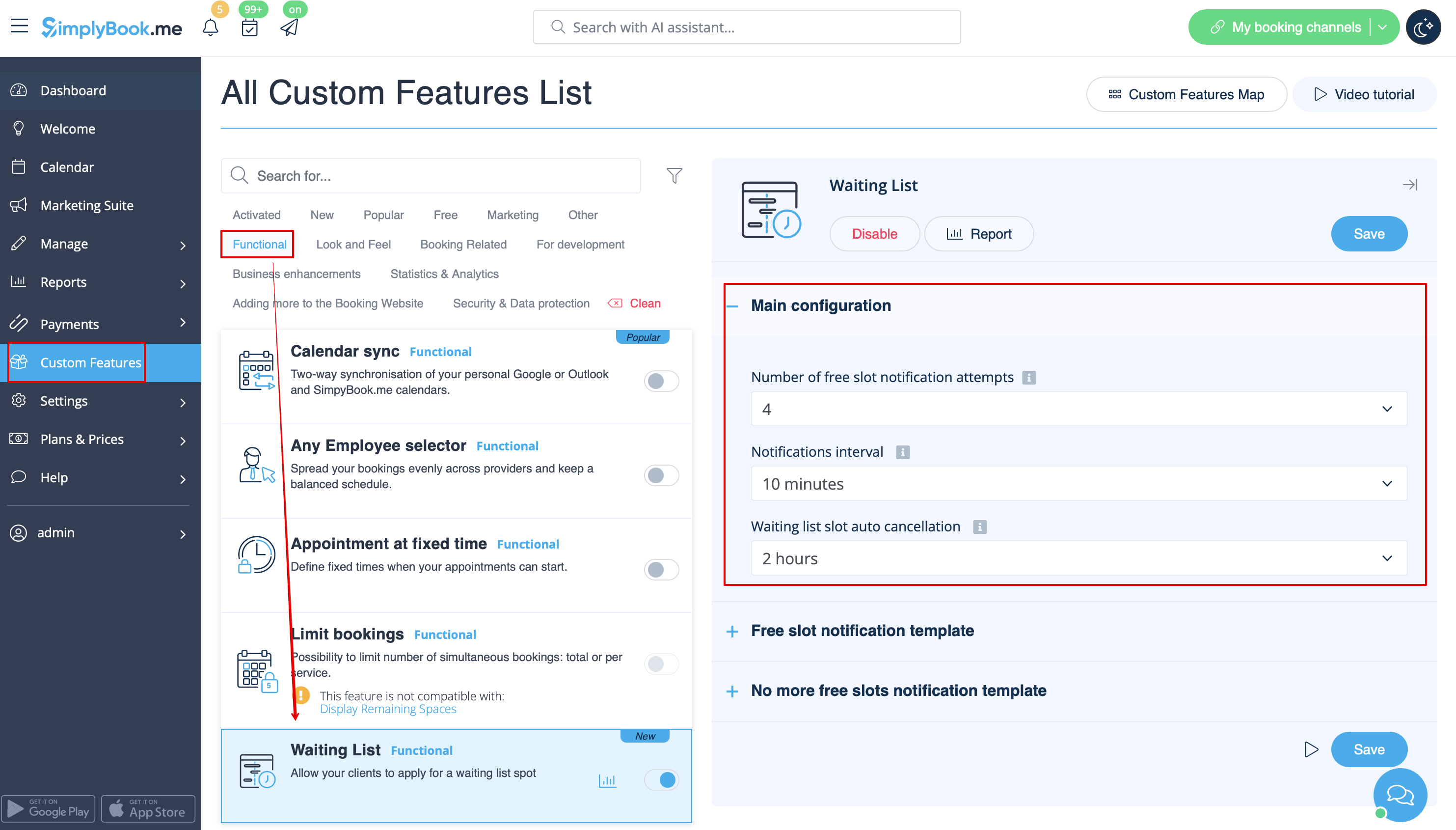


3. Anpassa e-postmallarna för meddelanden om lediga tider och e-postmeddelanden om inga lediga tider efter dina behov. Använd variablerna om det behövs.
Spara inställningarna.