Translations:Telegram Notifications custom feature/7/nl: Difference between revisions

From SimplyBook.me
Created page with "5. Plak de token in het overeenkomstige veld in uw <span style="background-color:#d4f8e5; padding:5px; border-radius:5px;">SimplyBook.me-account</span> -> <span style="background-color:#d4f8e5; padding:5px; border-radius:5px;">Aangepaste functies</span> -> <span style="background-color:#d4f8e5; padding:5px; border-radius:5px;">Telegram-meldingen.</span> Sla de instellingen op. Op de pagina wordt weergegeven dat de bot is verbonden met uw account. File:Telegram no..."
 
(No difference)

Latest revision as of 15:55, 19 May 2025

Information about message (contribute)
This message has no documentation. If you know where or how this message is used, you can help other translators by adding documentation to this message.
Message definition (Telegram Notifications custom feature)
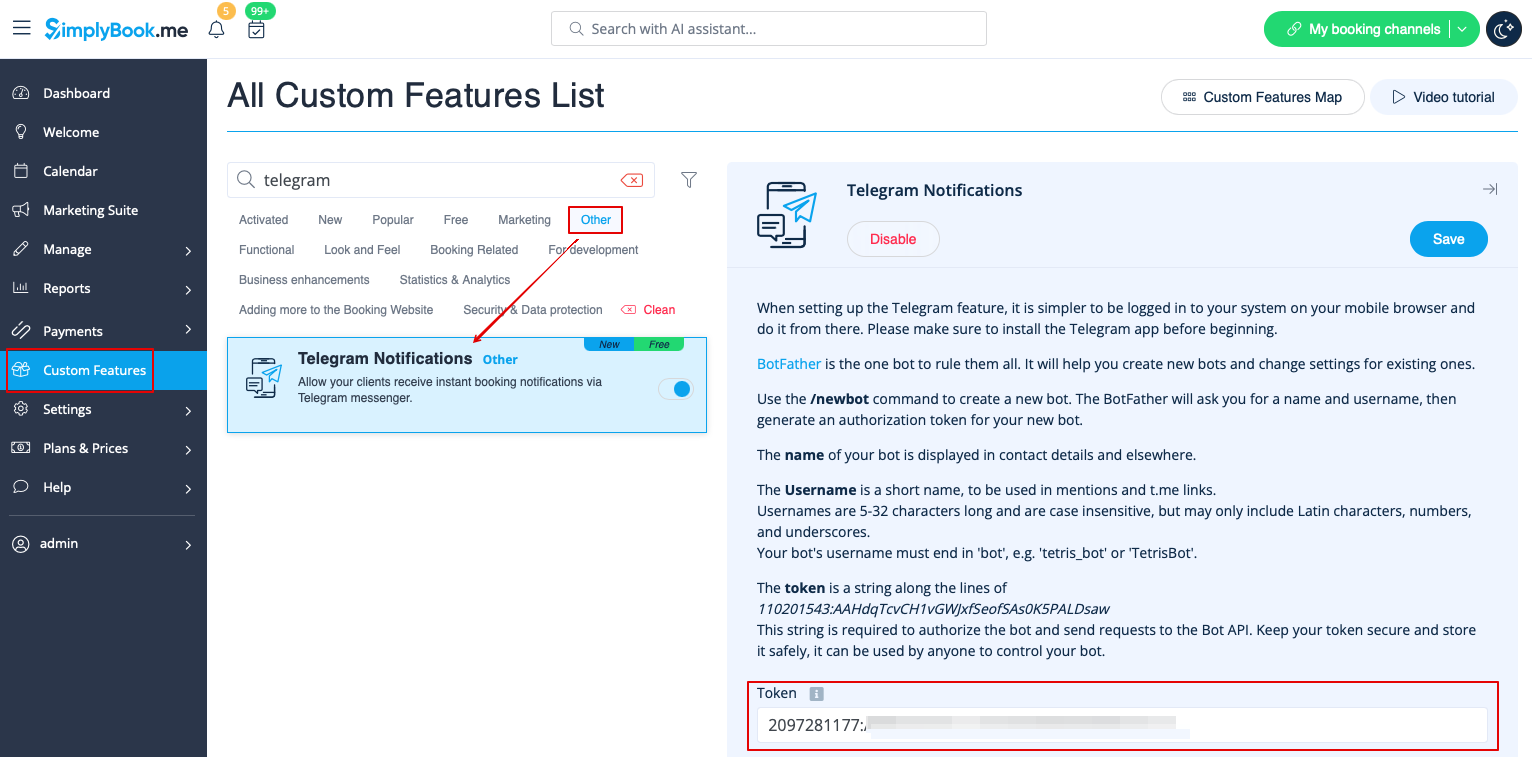
5. Paste the token to the corresponding field in your <span style="background-color:#d4f8e5; padding:5px; border-radius:5px;">SimplyBook.me account</span> -> <span style="background-color:#d4f8e5; padding:5px; border-radius:5px;">Custom features</span> -> <span style="background-color:#d4f8e5; padding:5px; border-radius:5px;">Telegram notifications.</span> Save settings.
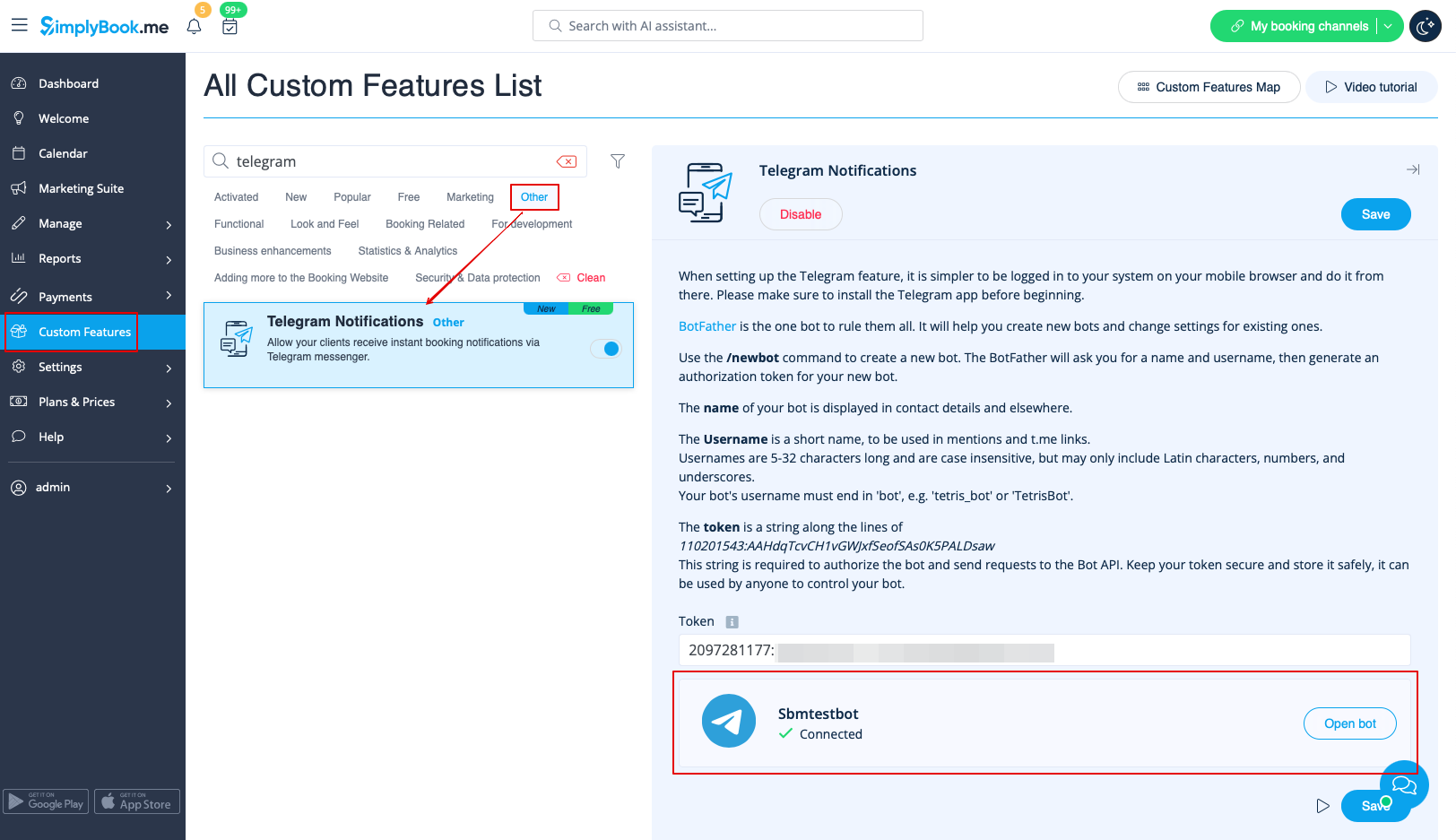
The page will show that the bot is connected to your account.
[[File:Telegram notifocations token redesigned.png|1200px|center|link=https://help.simplybook.me/images/2/2e/Telegram_notifocations_token_redesigned.png]]
[[File:Telegram notifications bot connected redesigned.png|1200px|center|link=https://help.simplybook.me/images/8/88/Telegram_notifications_bot_connected_redesigned.png]]
<br><br>
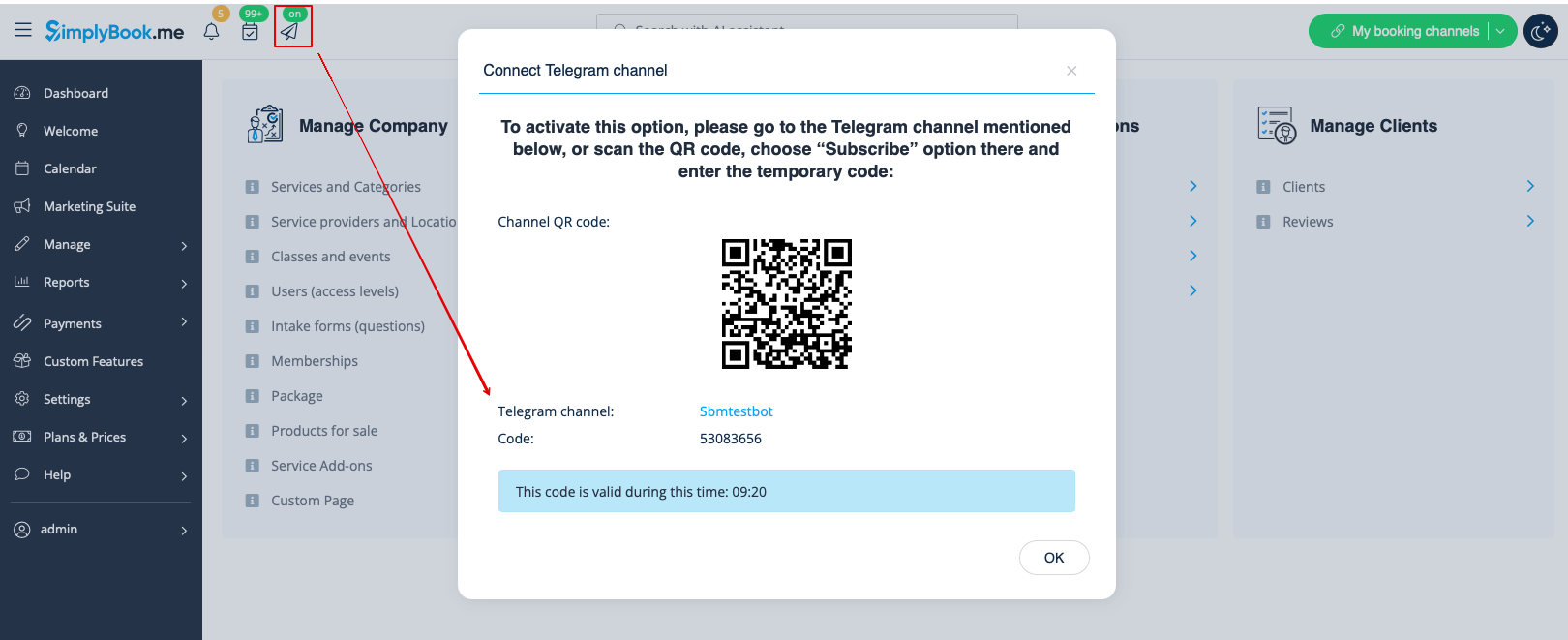
6. To enable the notifications for you as a user please use <span style="background-color:#d4f8e5; padding:5px; border-radius:5px;">top left notifications bar,</span> click on the <span style="background-color:#d4f8e5; padding:5px; border-radius:5px;">Telegram icon</span> and <span style="background-color:#d4f8e5; padding:5px; border-radius:5px;">follow the steps</span> from the popup:
you will need to navigate to the bot, choose "Subscribe" option from the menu and insert the security code.
[[File:Teleram notifications enable for user redesigned.png|1200px|center|link=https://help.simplybook.me/images/9/99/Teleram_notifications_enable_for_user_redesigned.png]]
<br><br>
7. The clients will see the invitation to subscribe to the notifications on the booking confirmation or payment page and will be able to follow <span style="background-color:#d4f8e5; padding:5px; border-radius:5px;">the similar steps.</span>
[[File:Telegram notifications subscribe as client.png|1200px|center]]
<br><br>
With the help of this notification bot it is also possible to see the information about the company and the list of upcoming bookings(their number is limited to 21).
[[File:Telegram notifications bot options.png|1200px|center]]
<br><br>

5. Plak de token in het overeenkomstige veld in uw SimplyBook.me-account -> Aangepaste functies -> Telegram-meldingen. Sla de instellingen op. Op de pagina wordt weergegeven dat de bot is verbonden met uw account.


6. Om de meldingen voor u als gebruiker in te schakelen , gebruikt u de meldingenbalk linksboven, klikt u op het Telegram-pictogram en volgt u de stappen in het pop-upvenster: U moet naar de bot navigeren, de optie "Abonneren" in het menu kiezen en de beveiligingscode invoeren.


7. De klanten zien de uitnodiging om zich te abonneren op de meldingen op de boekingsbevestiging of de betaalpagina en kunnen dezelfde stappen volgen .


Met behulp van deze meldingsbot is het ook mogelijk om informatie over het bedrijf en de lijst met aankomende boekingen te zien (het aantal is beperkt tot 21).