Translations:Waiting List custom feature/7/nl: Difference between revisions

From SimplyBook.me
Created page with ":1. Schakel de aangepaste functie "Wachtlijst" in op de pagina "Aangepaste functies", sectie "Functioneel". 1200px|center|link=https://help.simplybook.me/images/d/dd/Waiting_list_enable_path_redesigned.png <br><br> :2. Selecteer in de instellingen aan de rechterkant van de pagina, in het blok "Hoofdconfiguratie", het aantal pogingen voor e-mailmeldingen over het verschijnen van een vrij tijdvak.<br> :Kies de gewenste tijds..."
 
(No difference)

Latest revision as of 15:56, 19 May 2025

Information about message (contribute)
This message has no documentation. If you know where or how this message is used, you can help other translators by adding documentation to this message.
Message definition (Waiting List custom feature)
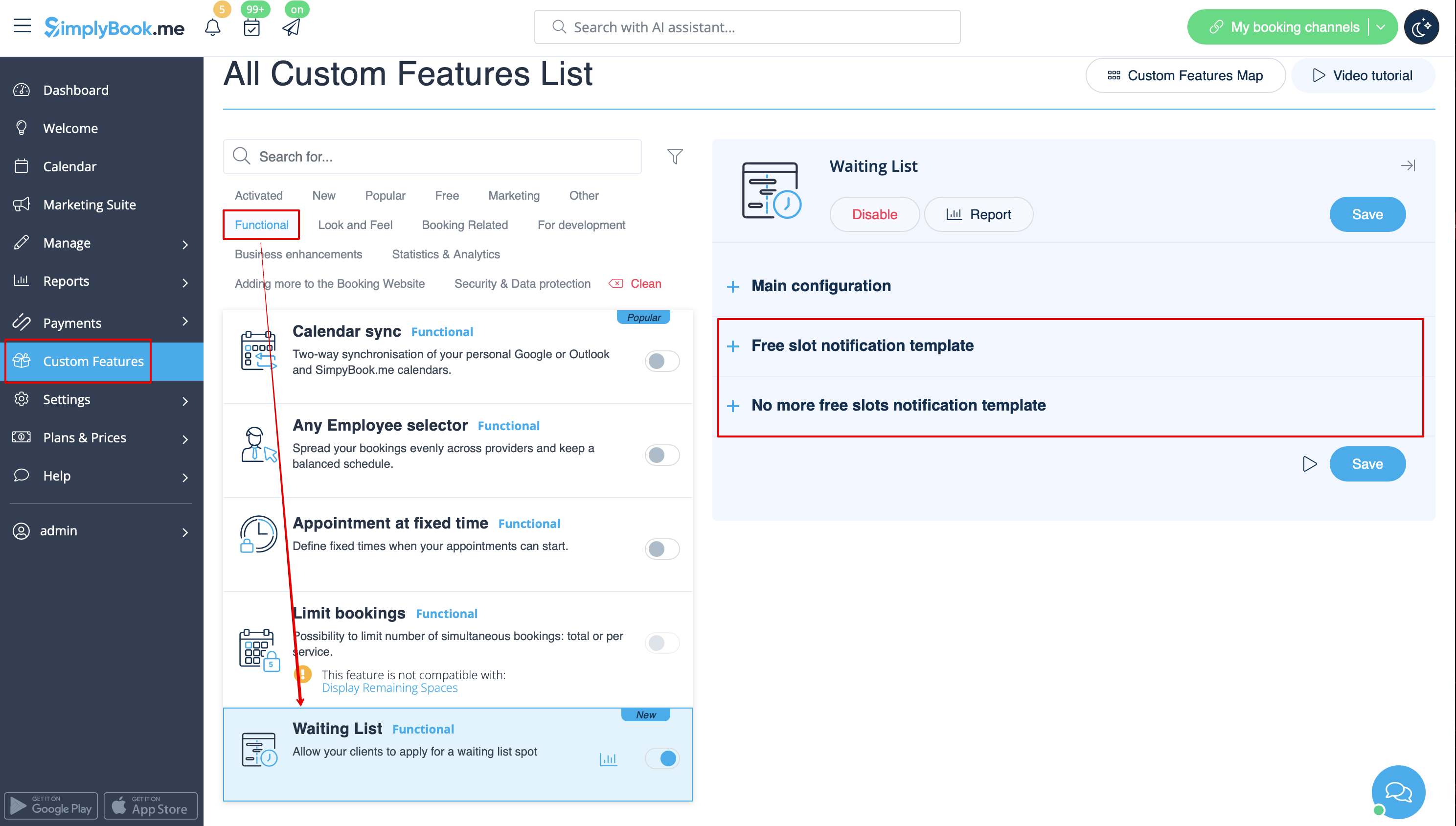
:1. Enable "Waiting list" custom feature on your "Custom features" page, "Functional" section.
[[File:Waiting list enable path redesigned.png|1200px|center|link=https://help.simplybook.me/images/d/dd/Waiting_list_enable_path_redesigned.png]]
<br><br>
:2. In its settings on the right side of the page, "Main configuration" block, please select the number of email notification attempts about the free time slot appearance.<br>
:Choose the desired time interval between these attempts in "Notifications interval".
:Set the time period when the waiting list bookings should be automatically cancelled in case the free spaces do not appear using "Waiting list slot auto cancellation" setting.
[[File:Waiting list main configurations redesigned.png|1200px|center|link=https://help.simplybook.me/images/0/05/Waiting_list_main_configurations_redesigned.png]]
<br><br>
:3. Adjust the email templates for the free slot notification and no free slots email to your needs. Use the variables if needed.<br>
:Save settings.
[[File:Waiting list templates redesigned.png|1200px|center|link=https://help.simplybook.me/images/7/7b/Waiting_list_templates_redesigned.png]]
<br>
1. Schakel de aangepaste functie "Wachtlijst" in op de pagina "Aangepaste functies", sectie "Functioneel".
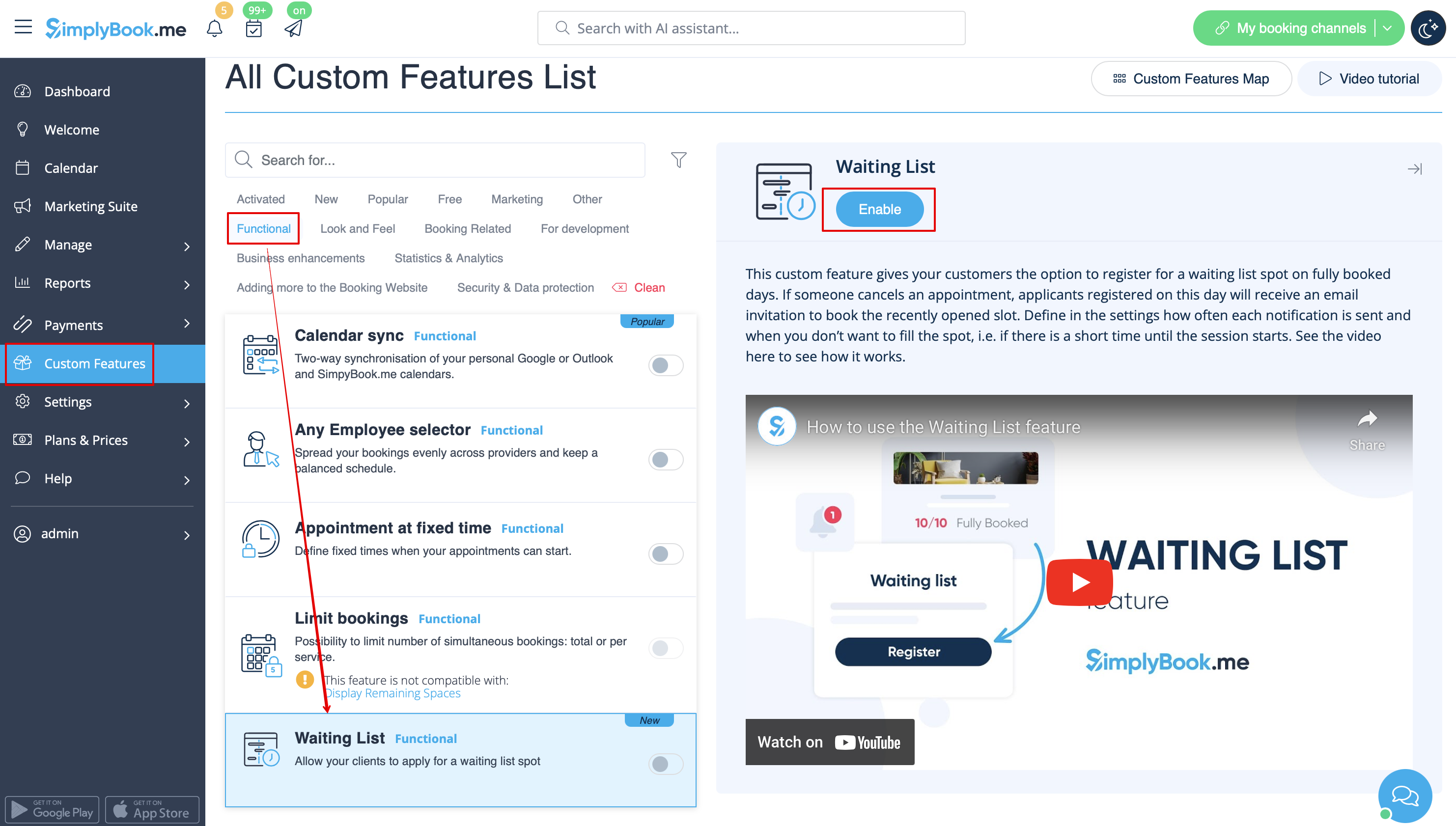


2. Selecteer in de instellingen aan de rechterkant van de pagina, in het blok "Hoofdconfiguratie", het aantal pogingen voor e-mailmeldingen over het verschijnen van een vrij tijdvak.
Kies de gewenste tijdsinterval tussen deze pogingen in "Notificatie-interval".
Stel de periode in waarin de wachtlijstboekingen automatisch moeten worden geannuleerd als er geen vrije plaatsen verschijnen met de instelling "Wachtlijstplaats automatisch annuleren".
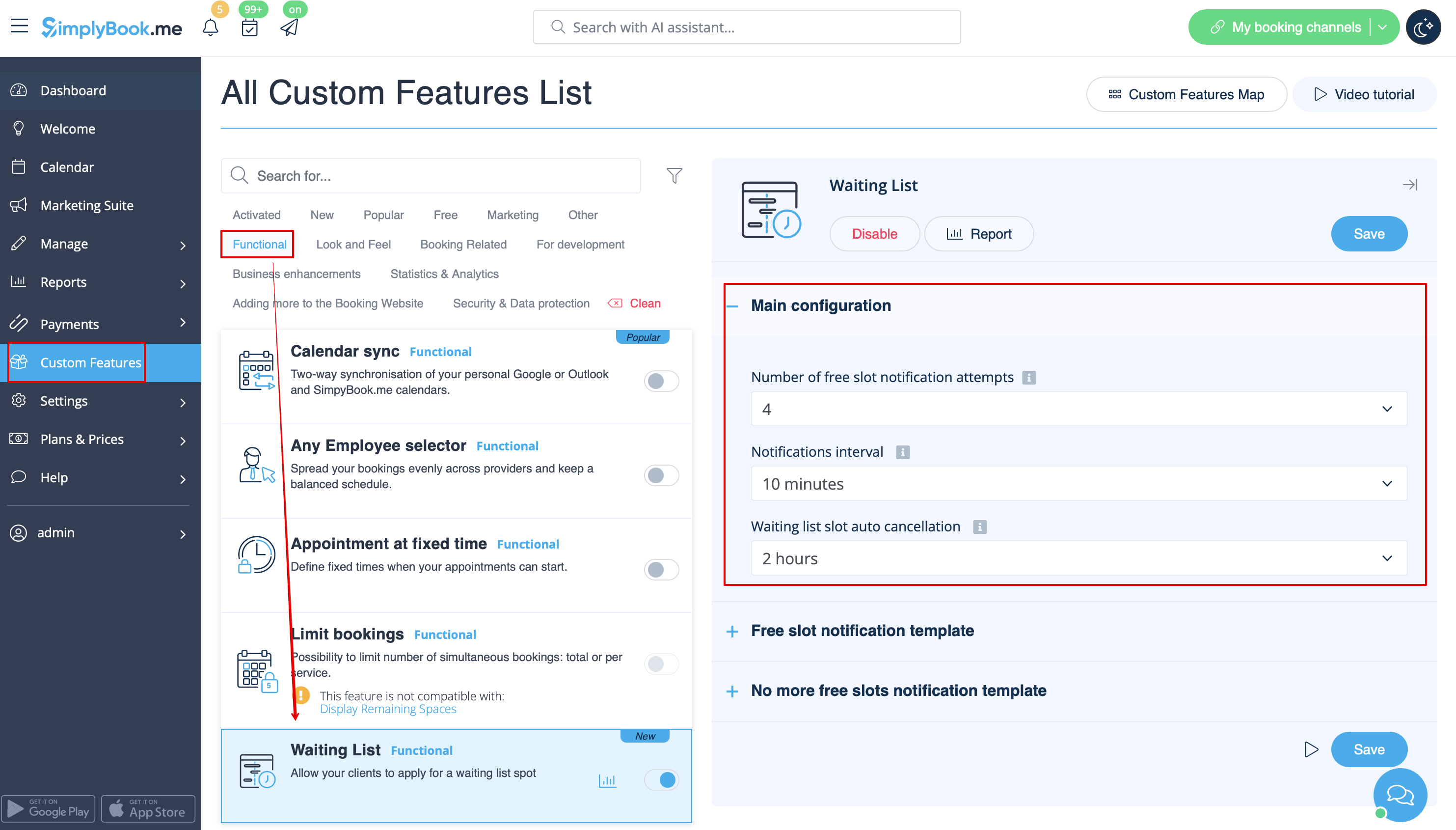


3. Pas de e-mailsjablonen voor de melding van vrije plaatsen en het e-mailbericht dat er geen vrije plaatsen zijn aan uw behoeften aan. Gebruik indien nodig de variabelen.
Sla de instellingen op.