Translations:SSO-SAML Custom Feature/7/sv: Difference between revisions

From SimplyBook.me
Created page with ":(Du kan behöva betala för MS Azure eller en premiumtestversion för att lägga till applikationer) 1200px|border|center|link=https://help.simplybook.me/images/8/8d/Enterprise_applications_ms_new.png <br><br> 1200px|border|center|link=https://help.simplybook.me/images/9/99/Azure_add_new_application_path_new.png <br><br> :8. Välj typ <span style="background-color:#d4f8e5; paddin..."
 
(No difference)

Latest revision as of 16:13, 19 May 2025

Information about message (contribute)
This message has no documentation. If you know where or how this message is used, you can help other translators by adding documentation to this message.
Message definition (SSO-SAML Custom Feature)
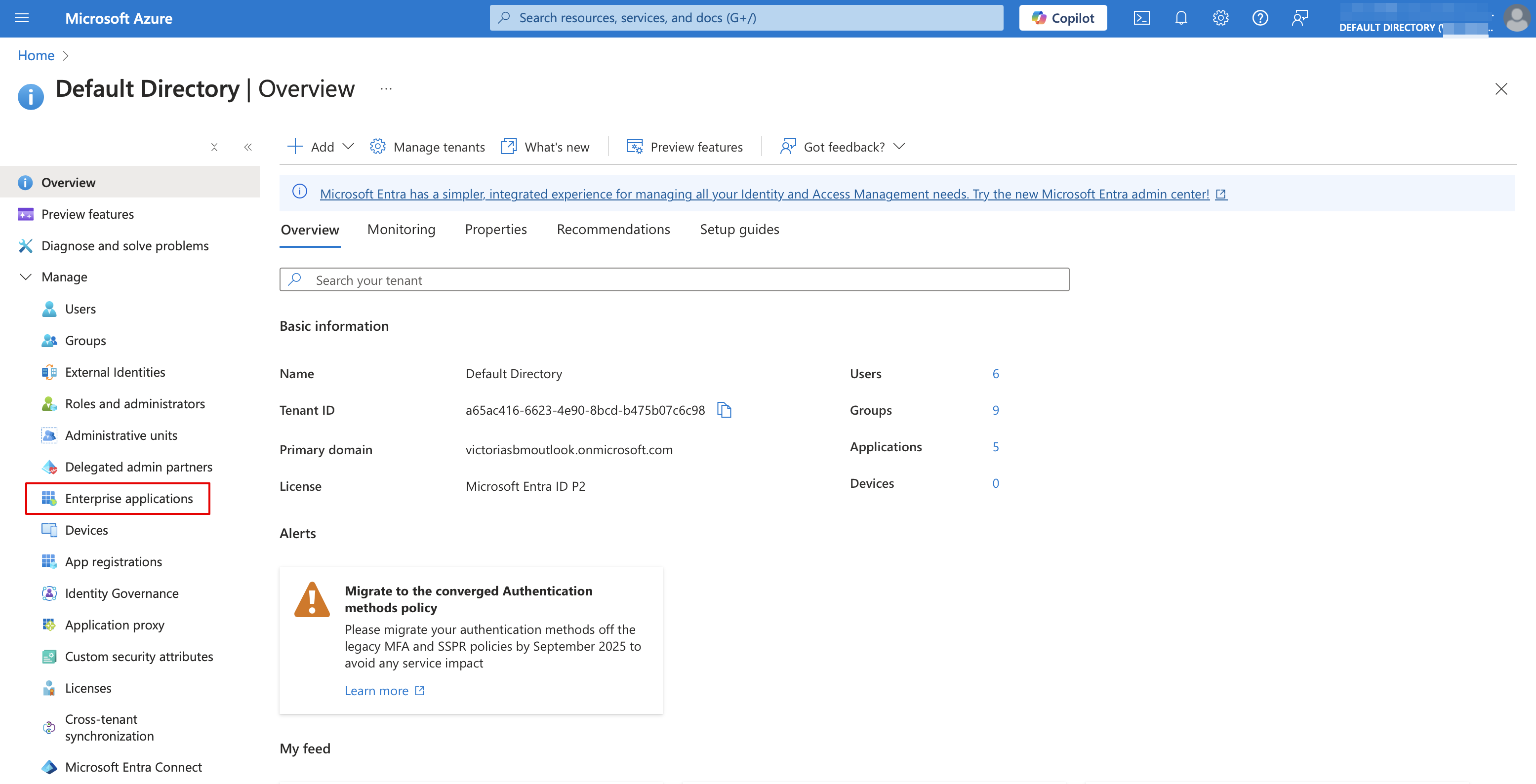
:(you may need paid MS Azure or Premium trial subscription there to add applications)
[[File:Enterprise applications ms new.png|1200px|border|center|link=https://help.simplybook.me/images/8/8d/Enterprise_applications_ms_new.png]]
<br><br>
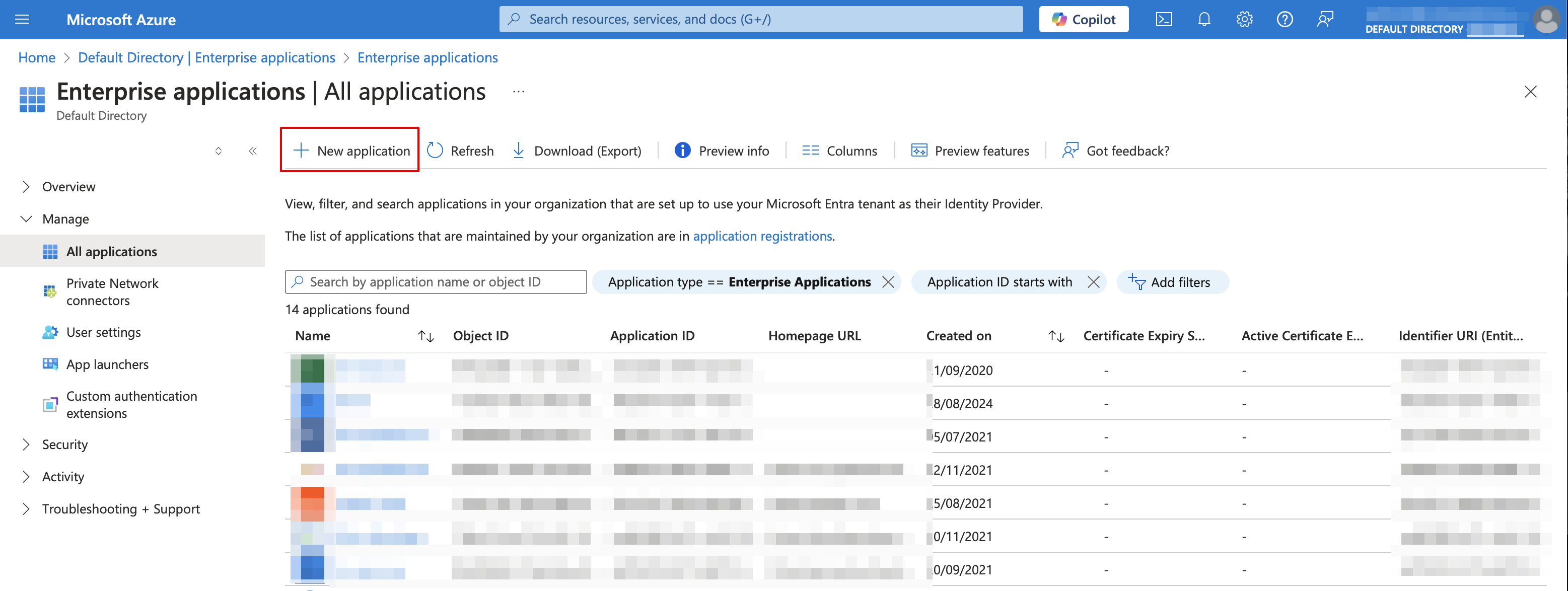
[[File:Azure add new application path new.png|1200px|border|center|link=https://help.simplybook.me/images/9/99/Azure_add_new_application_path_new.png]]
<br><br>
:8. Choose <span style="background-color:#d4f8e5; padding:5px; border-radius:5px;">non-gallery</span> type. Add its name and save.
<br><br>
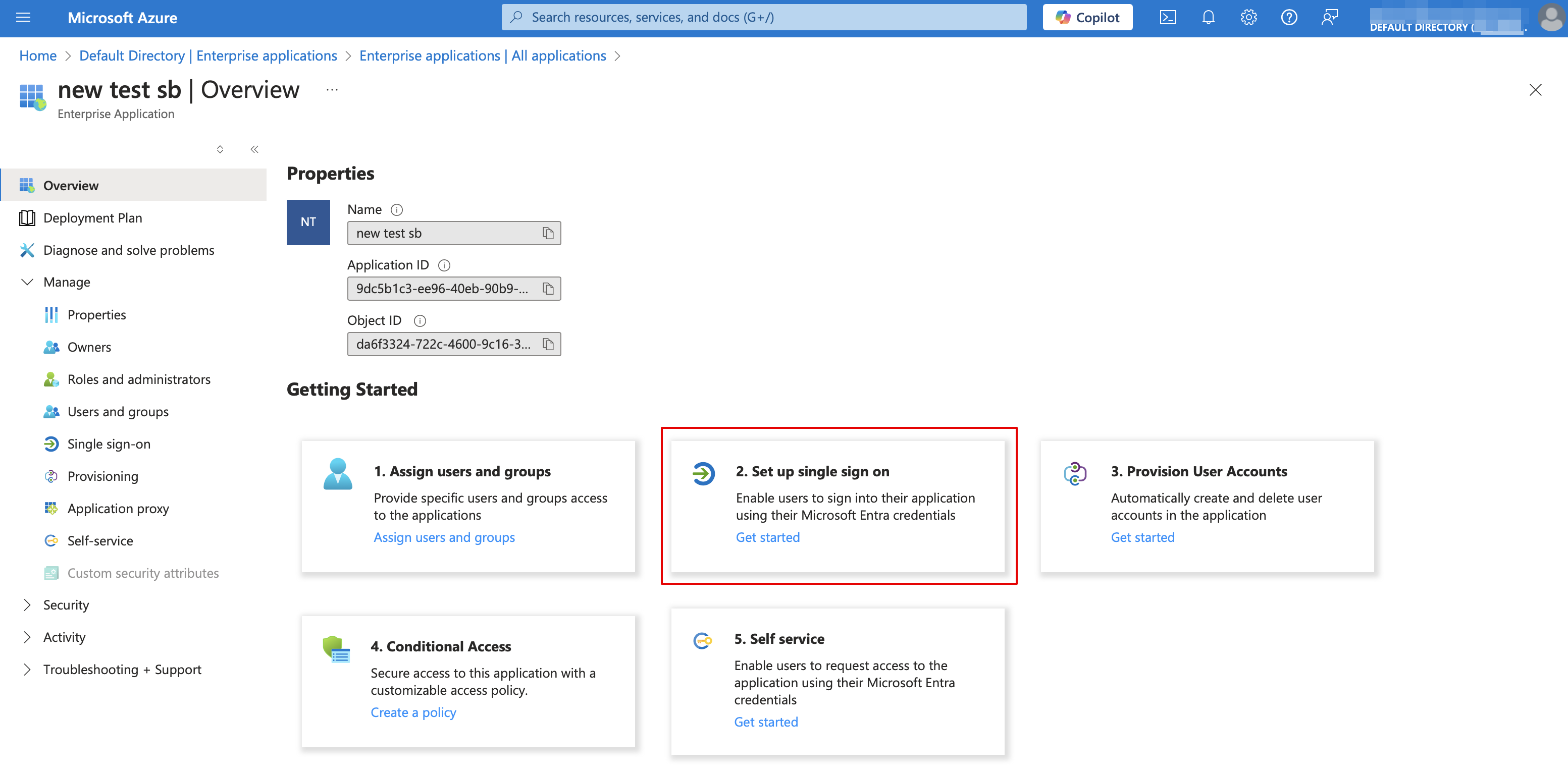
:9. On the next page click on <span style="background-color:#d4f8e5; padding:5px; border-radius:5px;">Set up single sign on</span> and select <span style="background-color:#d4f8e5; padding:5px; border-radius:5px;">SAML.</span>
[[File:Azure single sign on type.png|1200px|border|center|link=https://help.simplybook.me/images/0/01/Azure_single_sign_on_type.png]]
<br><br>
[[File:Ms azure select single sign on saml.png|border|center]]
<br><br>
:10. Use <span style="background-color:#d4f8e5; padding:5px; border-radius:5px;">Pen</span> icon in <span style="background-color:#d4f8e5; padding:5px; border-radius:5px;">Basic SAML Configuration</span> block to edit.
[[File:Ms azure saml basic edit path.png|border|center]]
<br><br>
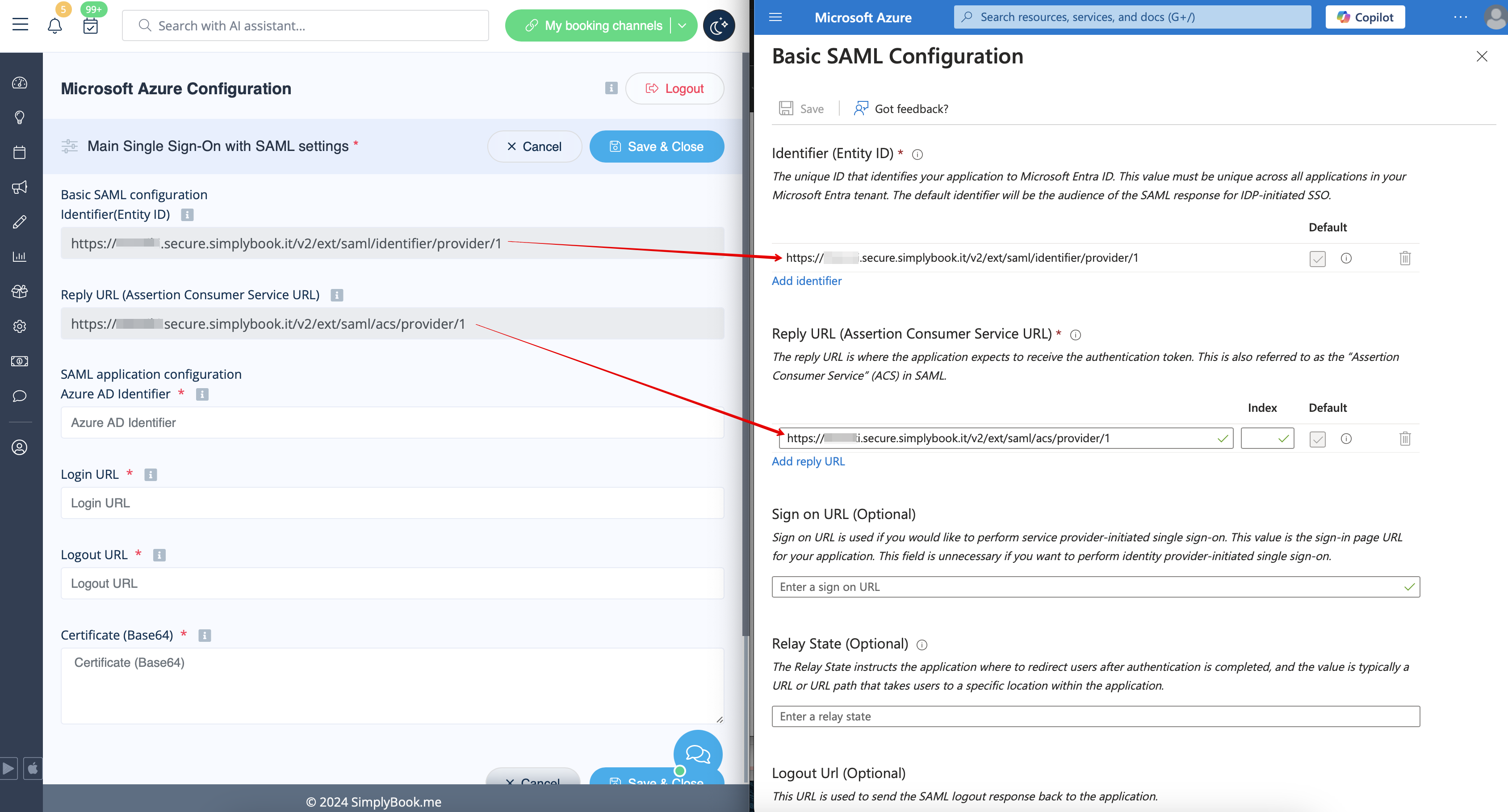
:11. Copy the urls from <span style="background-color:#d4f8e5; padding:5px; border-radius:5px;">SimplyBook.me SSO: SAML feature</span> to the corresponding boxes on <span style="background-color:#d4f8e5; padding:5px; border-radius:5px;">MS Azure side.</span> Save.
[[File:Entity is and reply url azure copy new.png|1200px|border|center|link=https://help.simplybook.me/images/8/84/Entity_is_and_reply_url_azure_copy_new.png]]
<br><br>
:12. On <span style="background-color:#d4f8e5; padding:5px; border-radius:5px;">MS Azure side</span> scroll to <span style="background-color:#d4f8e5; padding:5px; border-radius:5px;">SAML Signing Certificate</span> part and download <span style="background-color:#d4f8e5; padding:5px; border-radius:5px;">Certificate(Base64).</span> Open it with notepad or similar text editor, copy the certificate code and paste it to the corresponding box into <span style="background-color:#d4f8e5; padding:5px; border-radius:5px;">SSO: SAML Custom Feature.</span>
[[File:Sbm saml download cetrificate.png|border|center]]
<br><br>
(Du kan behöva betala för MS Azure eller en premiumtestversion för att lägga till applikationer)


8. Välj typ som inte finns i galleriet. Lägg till namnet och spara.


9. På nästa sida klickar du på Konfigurera enkel inloggning och väljer SAML.


10. Använd pennikonen i blocket Grundläggande SAML-konfiguration för att redigera.


11. Kopiera webbadresserna från SimplyBook.me SSO: SAML-funktionen till motsvarande rutor på MS Azure-sidan. Spara.


12. På MS Azure-sidan bläddrar du till SAML Signing Certificate och laddar ner Certificate(Base64). Öppna det med anteckningsblocket eller en liknande textredigerare, kopiera certifikatkoden och klistra in den i motsvarande ruta i SSO: SAML Custom Feature.