Translations:SSO-SAML Custom Feature/8/sv: Difference between revisions

From SimplyBook.me
Created page with "1200px|border|center|link=https://help.simplybook.me/images/e/e6/Base64_certificate_paste_new.png <br><br> :13. Bläddra <span style="background-color:#d4f8e5; padding:5px; border-radius:5px;">till sidan MS Azure och</span> gå till avsnittet <span style="background-color:#d4f8e5; padding:5px; border-radius:5px;">Set up</span> (Konfigurera) och leta reda på alternativen <span style="background-color:#d4f8e5; padding:5px; border-..."
 
(No difference)

Latest revision as of 16:13, 19 May 2025
Information about message (contribute)
This message has no documentation. If you know where or how this message is used, you can help other translators by adding documentation to this message.
Message definition (SSO-SAML Custom Feature)
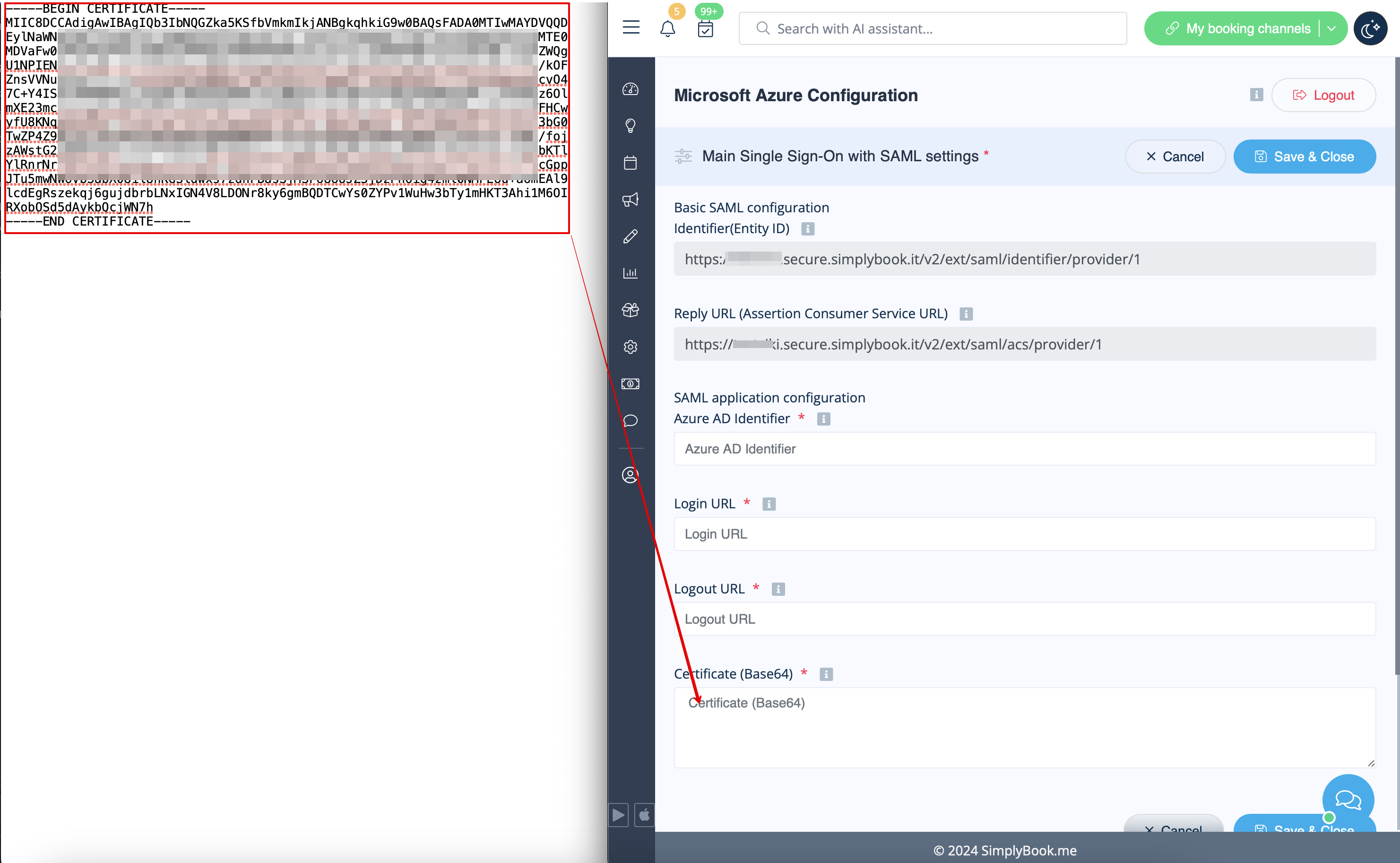
[[File:Base64 certificate paste new.png|1200px|border|center|link=https://help.simplybook.me/images/e/e6/Base64_certificate_paste_new.png]]
<br><br>
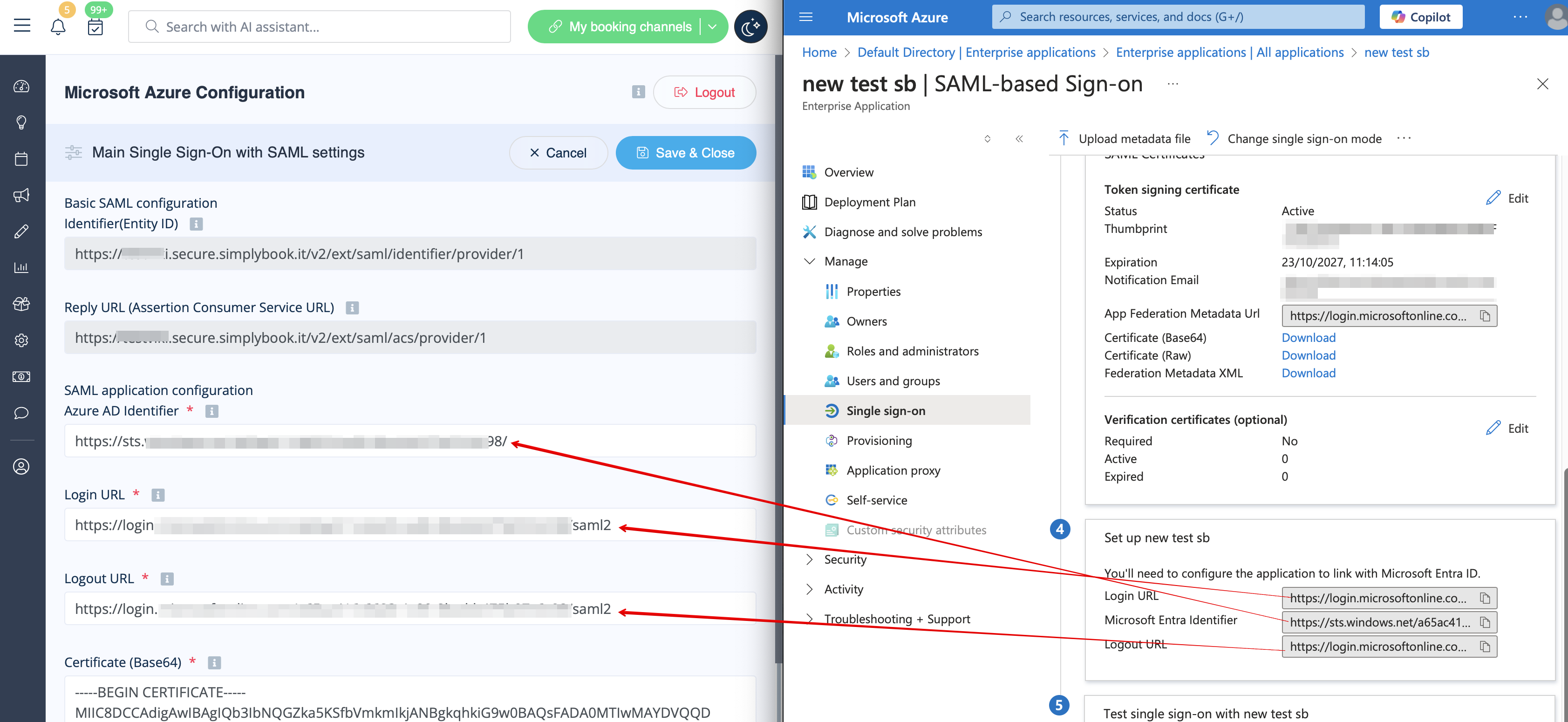
:13. Scroll <span style="background-color:#d4f8e5; padding:5px; border-radius:5px;">MS Azure side</span> page to <span style="background-color:#d4f8e5; padding:5px; border-radius:5px;">Set up</span> block and find <span style="background-color:#d4f8e5; padding:5px; border-radius:5px;">Login URL,</span> <span style="background-color:#d4f8e5; padding:5px; border-radius:5px;">Azure AD/Microsoft Entra Identifier</span> and <span style="background-color:#d4f8e5; padding:5px; border-radius:5px;">Logout URL</span> options, Copy each of them and paste to the corresponding boxes on SimplyBook.me side.
[[File:Login logout and azure id new.png|1200px|border|center|link=https://help.simplybook.me/images/4/4c/Login_logout_and_azure_id_new.png]]
<br><br>
:14. Go to <span style="background-color:#d4f8e5; padding:5px; border-radius:5px;">User attributes and claims</span> block on MS Azure side and click on <span style="background-color:#d4f8e5; padding:5px; border-radius:5px;">Pen</span> icon to edit it.
[[File:Ms azure user attributes and claims.png|border|center]]
<br><br>
:15. For <span style="background-color:#d4f8e5; padding:5px; border-radius:5px;">Unique User Identifier</span>(click on it to edit) please set <span style="background-color:#d4f8e5; padding:5px; border-radius:5px;">user.mail</span> variable as <span style="background-color:#d4f8e5; padding:5px; border-radius:5px;">Source Attribute.</span> It is the parameter that will allow us to differentiate between different user logins.
[[File:Ms azure user attributes and claims identifier.png|border|center]]
<br><br>
[[File:Ms azure user attributes and claims identifier mail.png|border|center]]
<br><br>
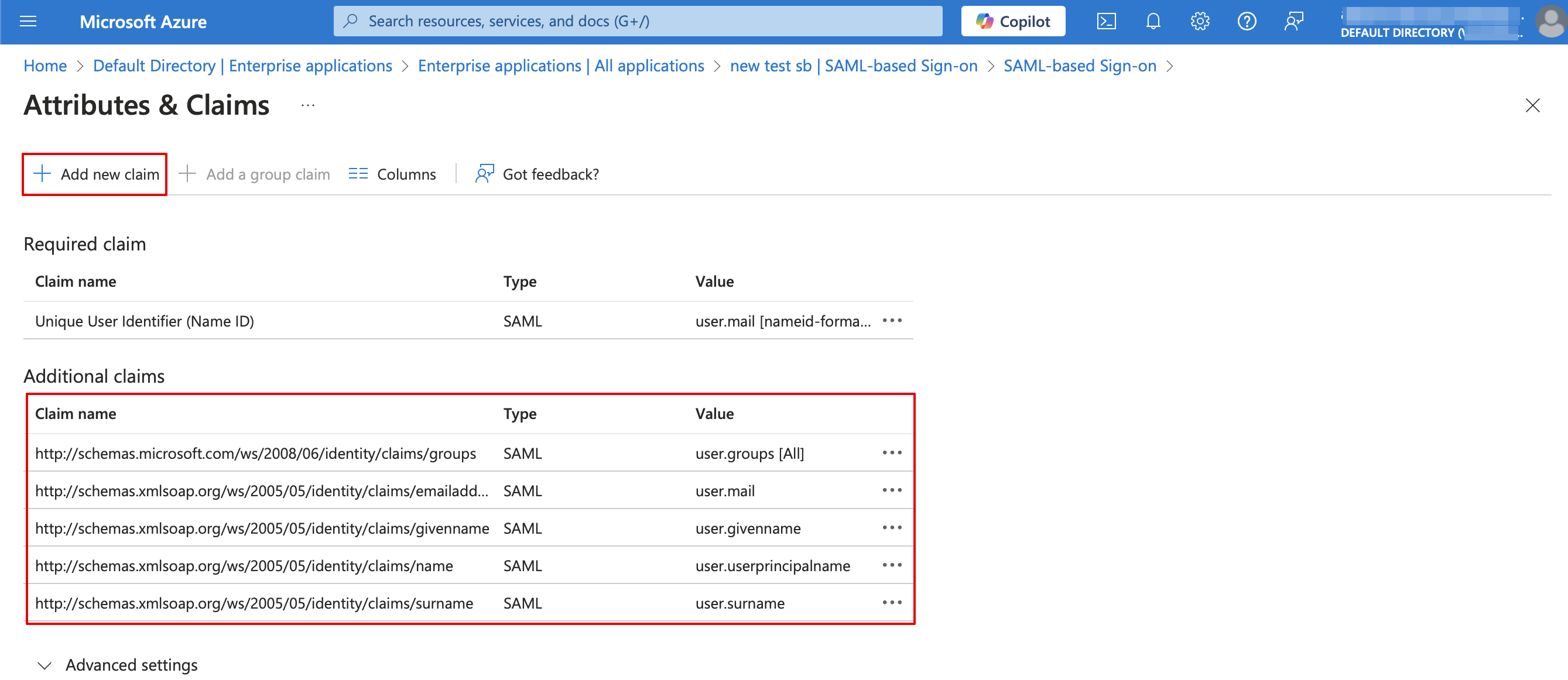
:16. For additional claims please add <span style="background-color:#d4f8e5; padding:5px; border-radius:5px;">Groups</span> option using <span style="background-color:#d4f8e5; padding:5px; border-radius:5px;">Add group claim</span> and <span style="background-color:#d4f8e5; padding:5px; border-radius:5px;">Email</span> and <span style="background-color:#d4f8e5; padding:5px; border-radius:5px;">Name</span> with <span style="background-color:#d4f8e5; padding:5px; border-radius:5px;">Add new claim</span> buttons correspondingly.<br>
:You can also add phone and last name if you need. See claims setup example below.
[[File:Setup claims new.png|1200px|border|center|link=https://help.simplybook.me/images/8/81/Setup_claims_new.png]]
<br><br>


13. Bläddra till sidan MS Azure och gå till avsnittet Set up (Konfigurera) och leta reda på alternativen Login URL (Inloggnings-URL), Azure AD/Microsoft Entra Identifier (Azure AD/Microsoft Ent ra -identifierare ) och Logout URL (Ut loggnings -URL ). Kopiera var och en av dem och klistra in dem i motsvarande rutor på SimplyBook.me.


14. Gå till blocket Användarattribut och anspråk på MS Azure-sidan och klicka på pennikonen för att redigera det.


15. För Unikt användar-ID(klicka på det för att redigera) ställer du in variabeln user.mail som källattribut. Det är parametern som gör att vi kan skilja mellan olika användarinloggningar.


16. För ytterligare anspråk, lägg till alternativet Grupper med knappen Lägg till gruppanspråk och E-post och Namn med knappen Lägg till nytt anspråk.
Du kan också lägga till telefonnummer och efternamn om det behövs. Se exemplet på konfiguration av anspråk nedan.