Translations:SSO-SAML Custom Feature/7/nl: Difference between revisions

From SimplyBook.me
Created page with ":(mogelijk hebt u een betaald MS Azure- of Premium-proefabonnement nodig om applicaties toe te voegen) 1200px|border|center|link=https://help.simplybook.me/images/8/8d/Enterprise_applications_ms_new.png <br><br> 1200px|border|center|link=https://help.simplybook.me/images/9/99/Azure_add_new_application_path_new.png <br><br> :8. Kies <span style="background-color:#d4f8e5; padding:5p..."
 
(No difference)

Latest revision as of 16:13, 19 May 2025

Information about message (contribute)
This message has no documentation. If you know where or how this message is used, you can help other translators by adding documentation to this message.
Message definition (SSO-SAML Custom Feature)
:(you may need paid MS Azure or Premium trial subscription there to add applications)
[[File:Enterprise applications ms new.png|1200px|border|center|link=https://help.simplybook.me/images/8/8d/Enterprise_applications_ms_new.png]]
<br><br>
[[File:Azure add new application path new.png|1200px|border|center|link=https://help.simplybook.me/images/9/99/Azure_add_new_application_path_new.png]]
<br><br>
:8. Choose <span style="background-color:#d4f8e5; padding:5px; border-radius:5px;">non-gallery</span> type. Add its name and save.
<br><br>
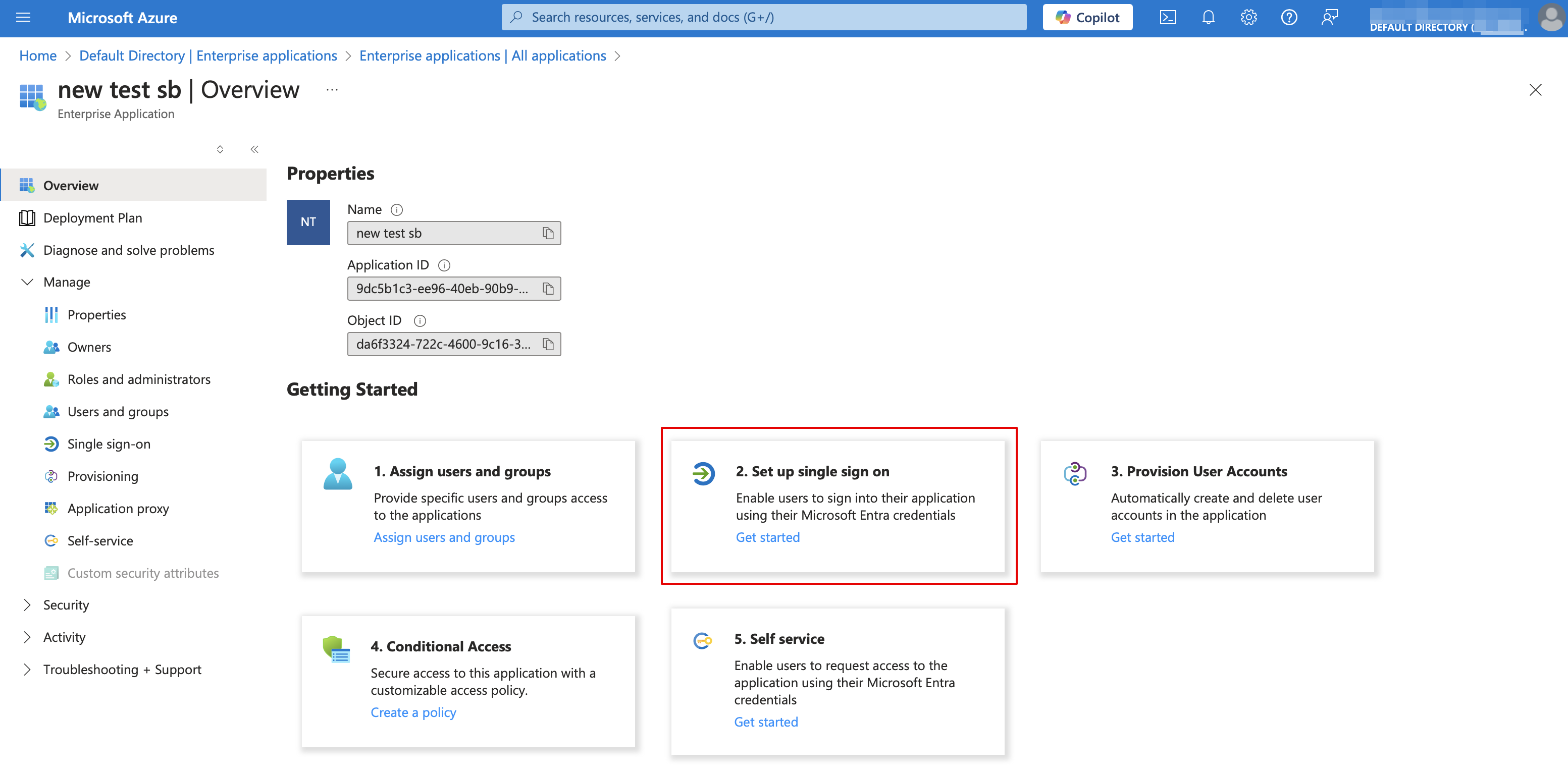
:9. On the next page click on <span style="background-color:#d4f8e5; padding:5px; border-radius:5px;">Set up single sign on</span> and select <span style="background-color:#d4f8e5; padding:5px; border-radius:5px;">SAML.</span>
[[File:Azure single sign on type.png|1200px|border|center|link=https://help.simplybook.me/images/0/01/Azure_single_sign_on_type.png]]
<br><br>
[[File:Ms azure select single sign on saml.png|border|center]]
<br><br>
:10. Use <span style="background-color:#d4f8e5; padding:5px; border-radius:5px;">Pen</span> icon in <span style="background-color:#d4f8e5; padding:5px; border-radius:5px;">Basic SAML Configuration</span> block to edit.
[[File:Ms azure saml basic edit path.png|border|center]]
<br><br>
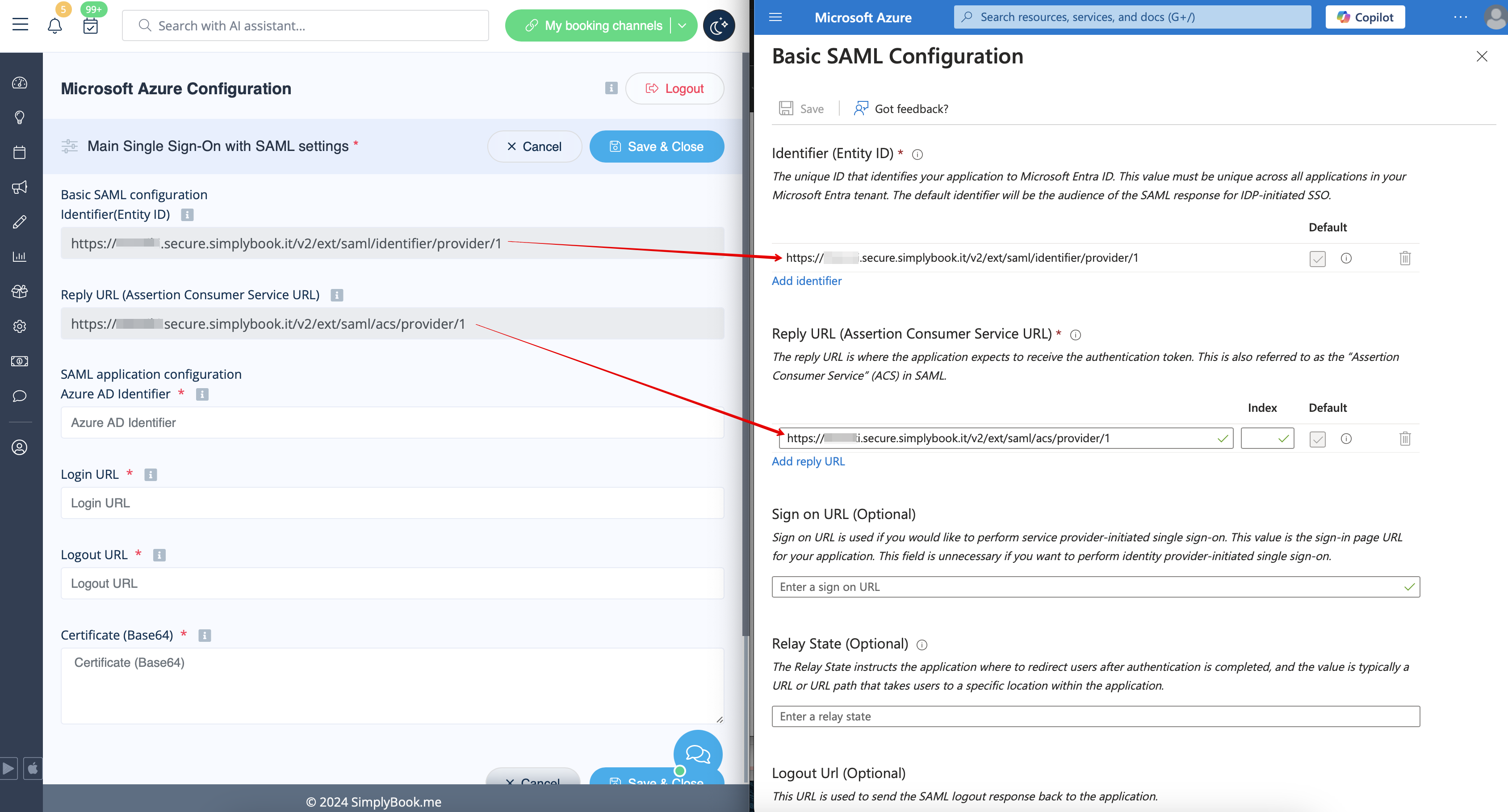
:11. Copy the urls from <span style="background-color:#d4f8e5; padding:5px; border-radius:5px;">SimplyBook.me SSO: SAML feature</span> to the corresponding boxes on <span style="background-color:#d4f8e5; padding:5px; border-radius:5px;">MS Azure side.</span> Save.
[[File:Entity is and reply url azure copy new.png|1200px|border|center|link=https://help.simplybook.me/images/8/84/Entity_is_and_reply_url_azure_copy_new.png]]
<br><br>
:12. On <span style="background-color:#d4f8e5; padding:5px; border-radius:5px;">MS Azure side</span> scroll to <span style="background-color:#d4f8e5; padding:5px; border-radius:5px;">SAML Signing Certificate</span> part and download <span style="background-color:#d4f8e5; padding:5px; border-radius:5px;">Certificate(Base64).</span> Open it with notepad or similar text editor, copy the certificate code and paste it to the corresponding box into <span style="background-color:#d4f8e5; padding:5px; border-radius:5px;">SSO: SAML Custom Feature.</span>
[[File:Sbm saml download cetrificate.png|border|center]]
<br><br>
(mogelijk hebt u een betaald MS Azure- of Premium-proefabonnement nodig om applicaties toe te voegen)
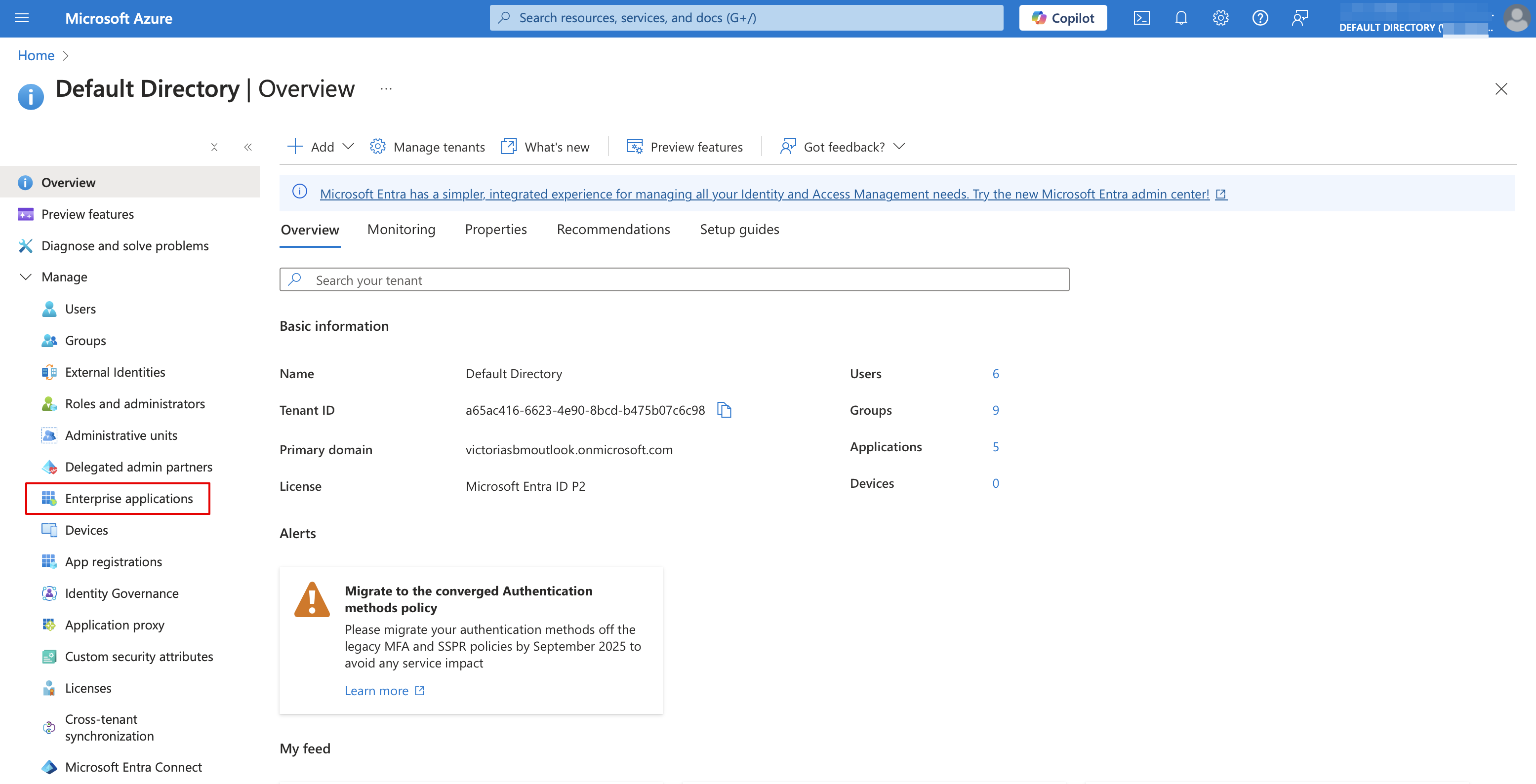
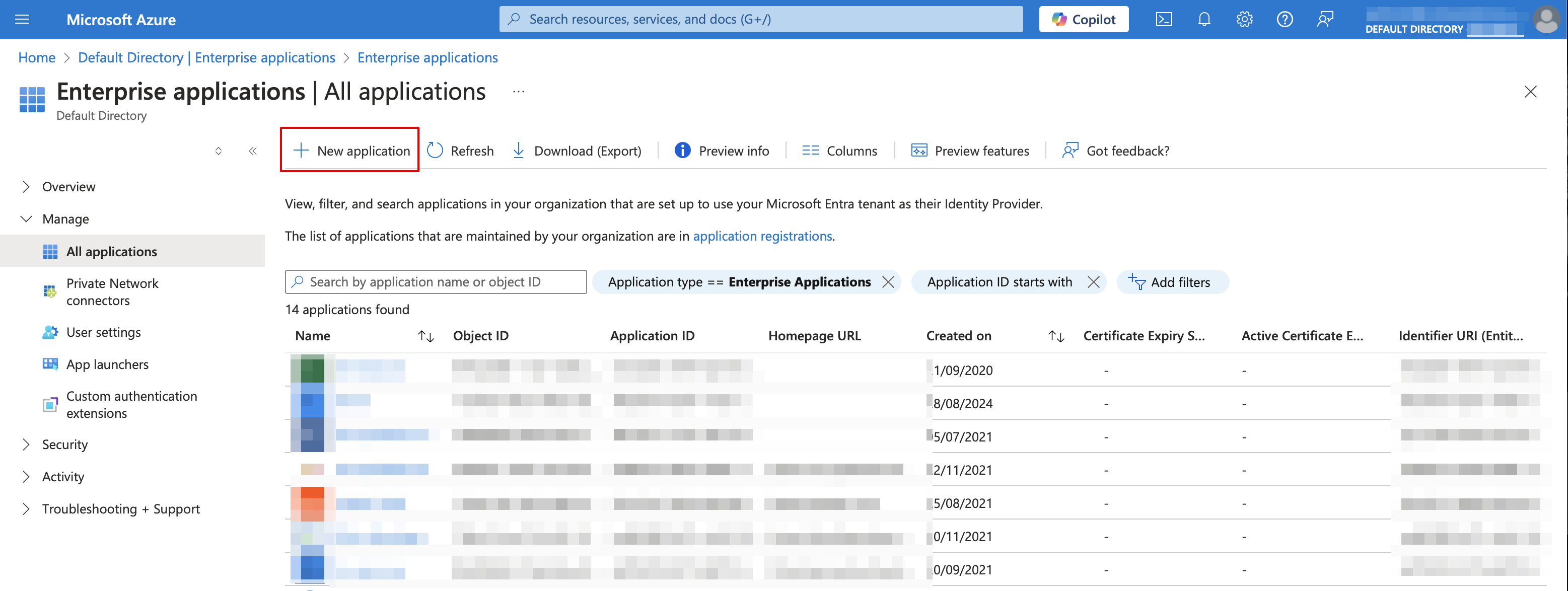


8. Kies niet-galerijtype. Voeg de naam toe en sla op.


9. Klik op de volgende pagina op 'Set up single sign on' (En kel voudige aanmelding instellen) en selecteer SAML.


10. Gebruik het penpictogram in het blok 'Basic SAML Configuration' (Basisconfiguratie SAML) om te bewerken.


11. Kopieer de URL's van SimplyBook.me SSO: SAML-functie naar de overeenkomstige vakjes aan de MS Azure-kant. Sla op.


12. Ga aan de MS Azure-kant naar het gedeelte SAML-ondertekeningscertificaat en download Certificaat (Base64). Open het met Kladblok of een vergelijkbare teksteditor, kopieer de certificaatcode en plak deze in het overeenkomstige vak in SSO: SAML-aangepaste functie.