Translations:SSO-SAML Custom Feature/7/fr: Difference between revisions

From SimplyBook.me
Created page with ":(vous aurez peut-être besoin d'un abonnement payant à MS Azure ou d'un essai Premium pour ajouter des applications) 1200px|border|center|link=https://help.simplybook.me/images/8/8d/Enterprise_applications_ms_new.png <br><br> 1200px|border|center|link=https://help.simplybook.me/images/9/99/Azure_add_new_application_path_new.png <br><br> :8. Choisissez le type <span style="backgr..."
 
(No difference)

Latest revision as of 16:14, 19 May 2025

Information about message (contribute)
This message has no documentation. If you know where or how this message is used, you can help other translators by adding documentation to this message.
Message definition (SSO-SAML Custom Feature)
:(you may need paid MS Azure or Premium trial subscription there to add applications)
[[File:Enterprise applications ms new.png|1200px|border|center|link=https://help.simplybook.me/images/8/8d/Enterprise_applications_ms_new.png]]
<br><br>
[[File:Azure add new application path new.png|1200px|border|center|link=https://help.simplybook.me/images/9/99/Azure_add_new_application_path_new.png]]
<br><br>
:8. Choose <span style="background-color:#d4f8e5; padding:5px; border-radius:5px;">non-gallery</span> type. Add its name and save.
<br><br>
:9. On the next page click on <span style="background-color:#d4f8e5; padding:5px; border-radius:5px;">Set up single sign on</span> and select <span style="background-color:#d4f8e5; padding:5px; border-radius:5px;">SAML.</span>
[[File:Azure single sign on type.png|1200px|border|center|link=https://help.simplybook.me/images/0/01/Azure_single_sign_on_type.png]]
<br><br>
[[File:Ms azure select single sign on saml.png|border|center]]
<br><br>
:10. Use <span style="background-color:#d4f8e5; padding:5px; border-radius:5px;">Pen</span> icon in <span style="background-color:#d4f8e5; padding:5px; border-radius:5px;">Basic SAML Configuration</span> block to edit.
[[File:Ms azure saml basic edit path.png|border|center]]
<br><br>
:11. Copy the urls from <span style="background-color:#d4f8e5; padding:5px; border-radius:5px;">SimplyBook.me SSO: SAML feature</span> to the corresponding boxes on <span style="background-color:#d4f8e5; padding:5px; border-radius:5px;">MS Azure side.</span> Save.
[[File:Entity is and reply url azure copy new.png|1200px|border|center|link=https://help.simplybook.me/images/8/84/Entity_is_and_reply_url_azure_copy_new.png]]
<br><br>
:12. On <span style="background-color:#d4f8e5; padding:5px; border-radius:5px;">MS Azure side</span> scroll to <span style="background-color:#d4f8e5; padding:5px; border-radius:5px;">SAML Signing Certificate</span> part and download <span style="background-color:#d4f8e5; padding:5px; border-radius:5px;">Certificate(Base64).</span> Open it with notepad or similar text editor, copy the certificate code and paste it to the corresponding box into <span style="background-color:#d4f8e5; padding:5px; border-radius:5px;">SSO: SAML Custom Feature.</span>
[[File:Sbm saml download cetrificate.png|border|center]]
<br><br>
(vous aurez peut-être besoin d'un abonnement payant à MS Azure ou d'un essai Premium pour ajouter des applications)
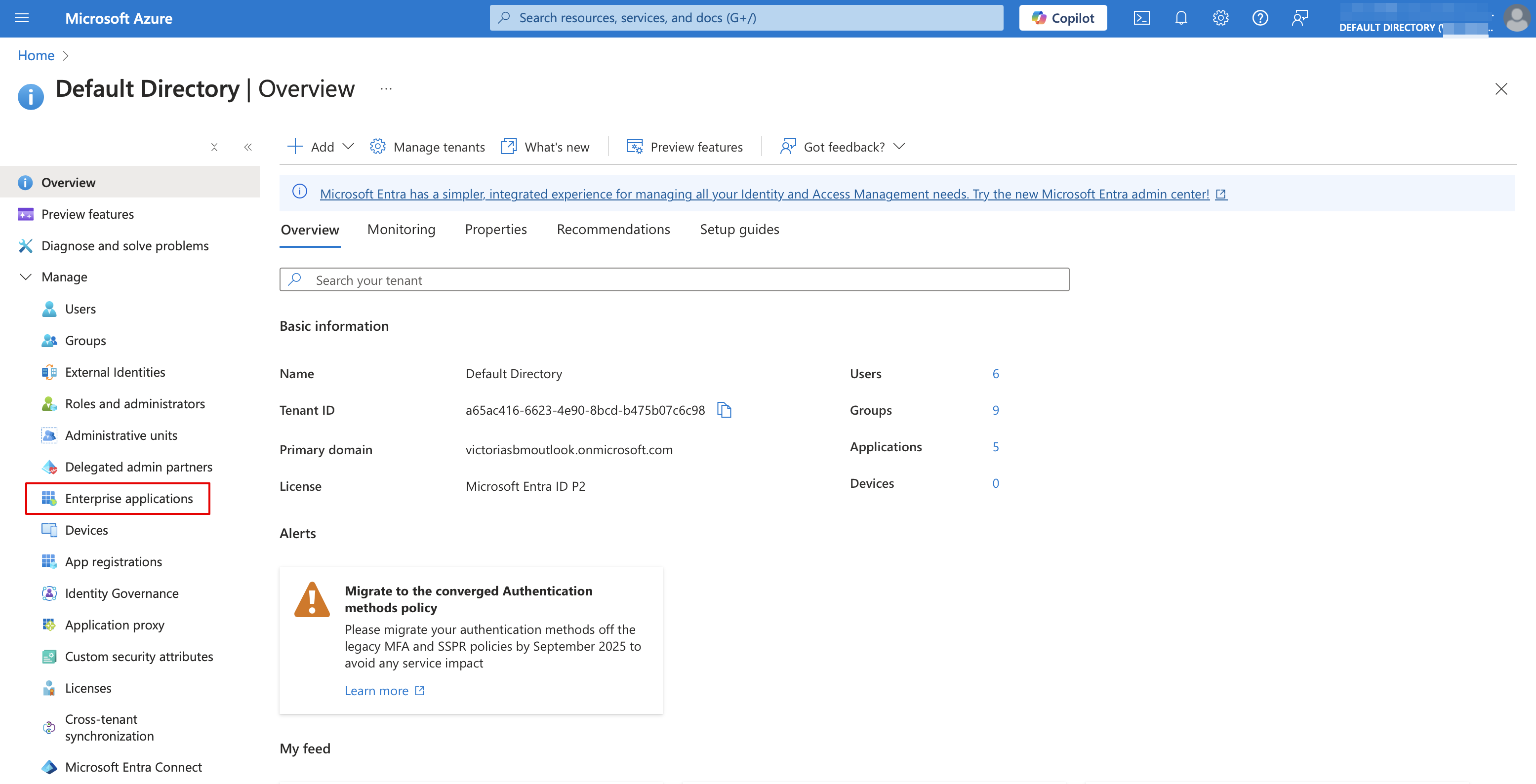
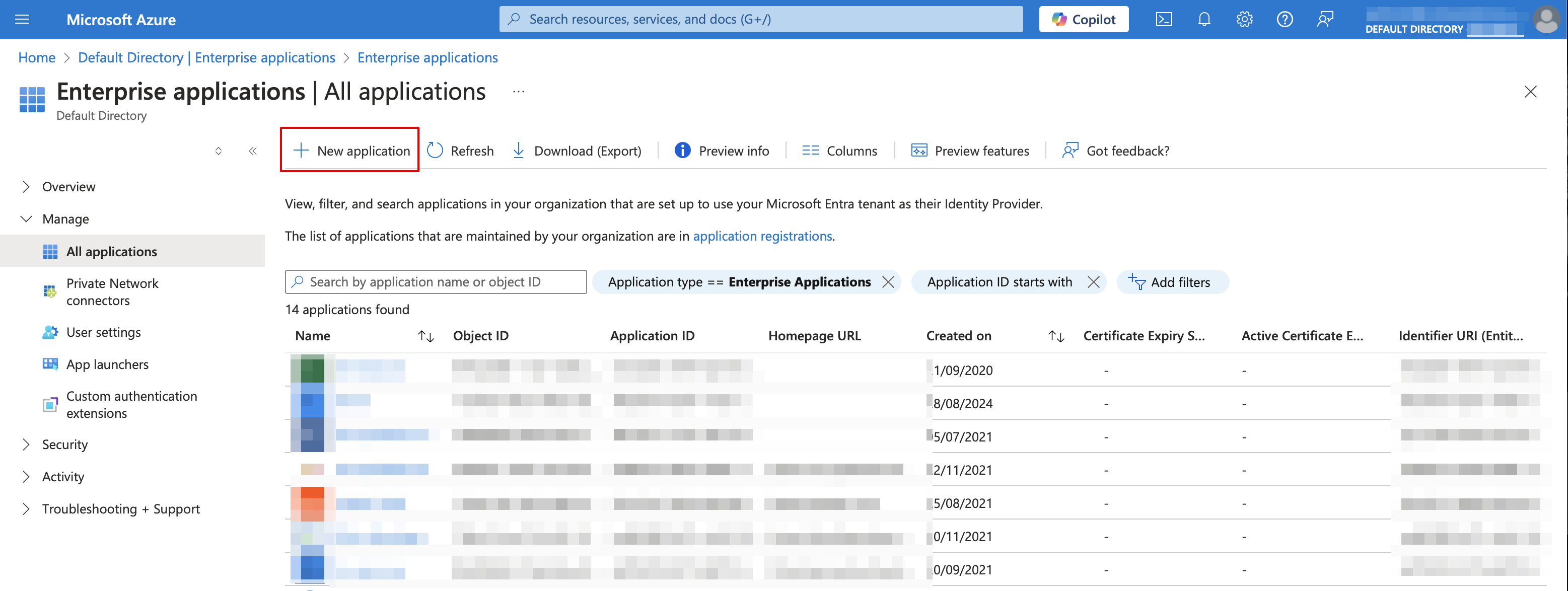


8. Choisissez le type « non issu de la galerie ». Ajoutez son nom et enregistrez.


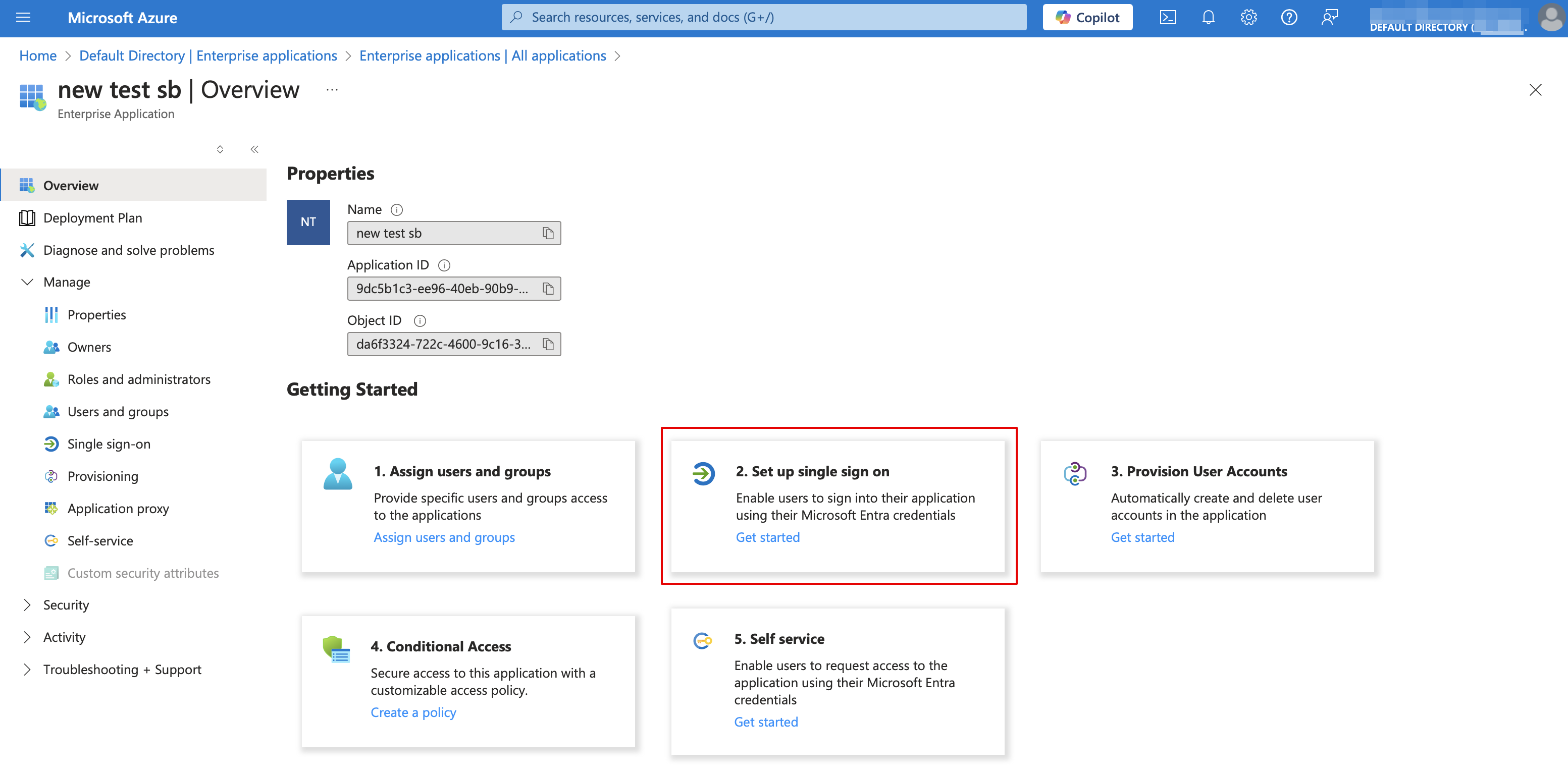
9. Sur la page suivante, cliquez sur « Configurer l'authentification unique » et sélectionnez SAML.


10. Utilisez l'icône en forme de stylo dans le bloc « Configuration SAML de base » pour modifier.


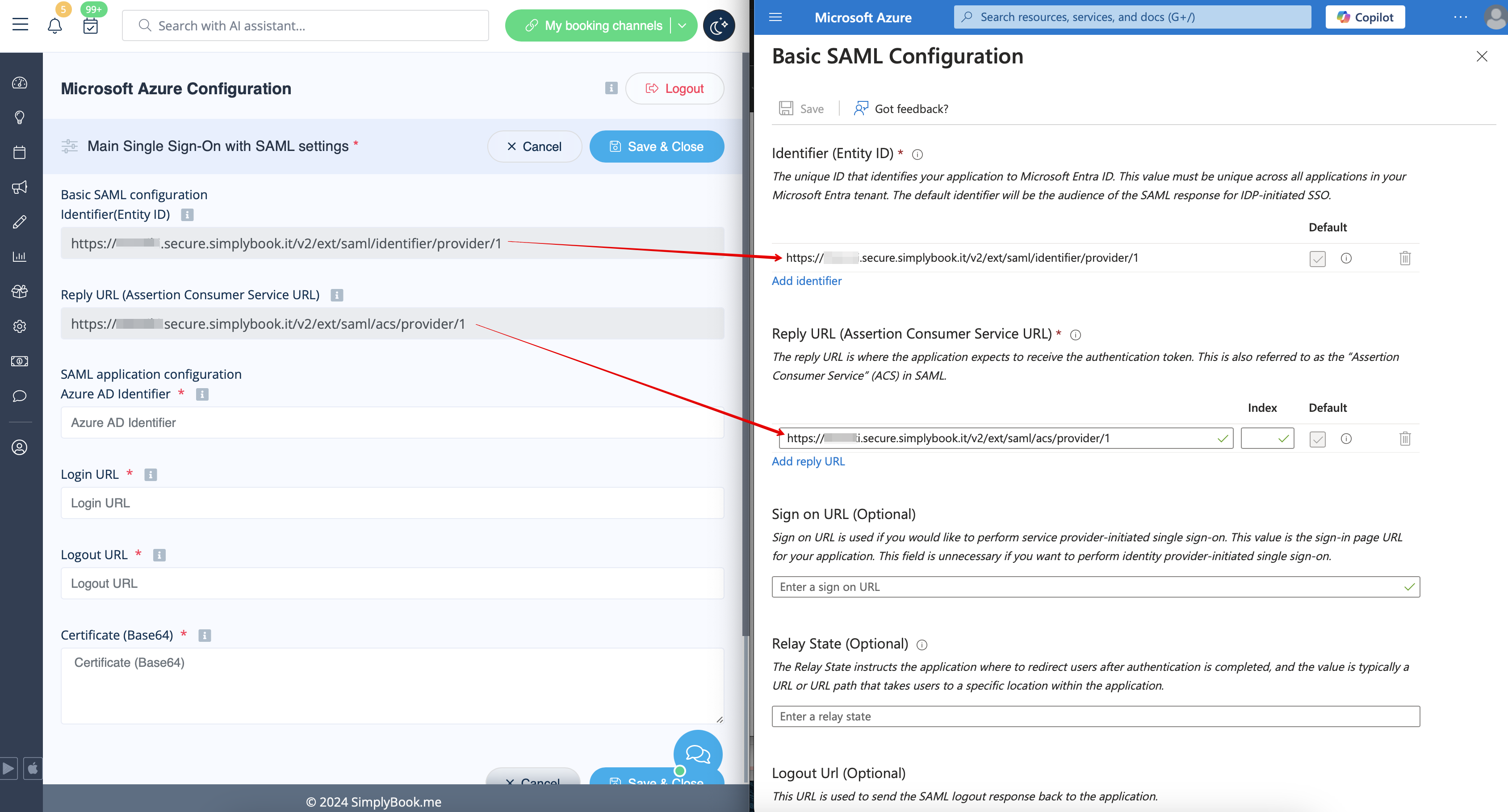
11. Copiez les URL de SimplyBook.me SSO : fonctionnalité SAML dans les cases correspondantes du côté MS Azure. Enregistrez.


12. Du côté MS Azure, faites défiler jusqu'à la partie SAML Signing Certificate et téléchargez Certificate(Base64). Ouvrez-le avec le bloc-notes ou un éditeur de texte similaire, copiez le code du certificat et collez-le dans la case correspondante dans SSO : SAML Custom Feature.