Translations:Client mobile app/3/fr: Difference between revisions

From SimplyBook.me
Created page with ":<span style="background-color:#ffe9e9; padding:5px; border-radius:5px;">'''Veuillez noter que... '''</span> *Lorsque<span style="background-color:#ffe9e9; padding:5px; border-radius:5px;">vous activez cette fonction, la fonction personnalisée de <span style="background-color:#cdeffc; padding:5px; border-radius:5px;">connexion du client</span> sera également activée ;</span> *Cela<span style="background-color:#ffe9e9;..."
 
No edit summary
Line 8: Line 8:
:*Comment utiliser l'application mobile Client [[File:Youtube-Logo.png|link=https://youtu.be/SElfM29hWOo]]
<br><br>
<br><br>
''';Comment l'utiliser'''
'''Comment l'utiliser'''
:1. Activez l'<span style="background-color:#d4f8e5; padding:5px; border-radius:5px;">application mobile</span> du <span style="background-color:#d4f8e5; padding:5px; border-radius:5px;">client</span> sur votre page <span style="background-color:#d4f8e5; padding:5px; border-radius:5px;">Fonctions personnalisées</span> dans la section <span style="background-color:#d4f8e5; padding:5px; border-radius:5px;">Améliorations de l'entreprise</span>.
[[File:Client app enable path redesigned.png|1200px|border|center|link=https://help.simplybook.me/images/c/cb/Client_app_enable_path_redesigned.png]]
[[File:Client app enable path redesigned.png|1200px|border|center|link=https://help.simplybook.me/images/c/cb/Client_app_enable_path_redesigned.png]]
Line 28: Line 28:
[[File:Start page client app upd.jpg|border|center]]
[[File:Start page client app upd.jpg|border|center]]
<br><br><br><br>
<br><br><br><br>
''';Notifications push'''
'''Notifications push'''
*Les utilisateurs peuvent également recevoir des notifications push concernant les nouvelles réservations ou les annulations sur leurs appareils.
:Pour cela, il sera uniquement nécessaire d'activer les notifications dans l'application après l'inscription/la connexion et dans une boîte de dialogue standard du système.

Revision as of 11:56, 3 June 2025

Information about message (contribute)
This message has no documentation. If you know where or how this message is used, you can help other translators by adding documentation to this message.
Message definition (Client mobile app)
:<span style="background-color:#ffe9e9; padding:5px; border-radius:5px;">'''Please note! '''</span>
*<span style="background-color:#ffe9e9; padding:5px; border-radius:5px;">When you turn this feature on <span style="background-color:#cdeffc; padding:5px; border-radius:5px;">[[Special:MyLanguage/Client_Login_custom_feature|Client Login]]</span> custom feature will be enabled as well;</span>
*<span style="background-color:#ffe9e9; padding:5px; border-radius:5px;">It currently works with weekly classes, modern and flexible <span style="background-color:#cdeffc; padding:5px; border-radius:5px;">[[Special:MyLanguage/How_to_change_the_way_time_slots_are_shown|calendar layouts]]</span> only;</span>
*<span style="background-color:#ffe9e9; padding:5px; border-radius:5px;">The following functionality is not currently present in the client application: <span style="background-color:#cdeffc; padding:5px; border-radius:5px;">[[Special:MyLanguage/News_custom_feature |News]],</span> <span style="background-color:#cdeffc; padding:5px; border-radius:5px;">[[Special:MyLanguage/Photo_Gallery_custom_feature|Photo gallery]],</span>, Reviews, <span style="background-color:#cdeffc; padding:5px; border-radius:5px;">[[Special:MyLanguage/Custom_Page_custom_feature|Custom page]],</span> <span style="background-color:#cdeffc; padding:5px; border-radius:5px;">[[Special:MyLanguage/Google_Translate_custom_feature|Google translate]],</span> main page mode change, <span style="background-color:#cdeffc; padding:5px; border-radius:5px;">[[Special:MyLanguage/How_to_change_the_way_time_slots_are_shown#End_Time_Display|end time display]],</span> hiding images on booking steps, RTL orientation, <span style="background-color:#cdeffc; padding:5px; border-radius:5px;">[[Special:MyLanguage/Contact_Widget_custom_feature|Contact widget]],</span> <span style="background-color:#cdeffc; padding:5px; border-radius:5px;">[[Special:MyLanguage/How_to_change_the_way_time_slots_are_shown#Slots_Colors|busy and available slots color adjustments]].</span></span>
<br><br><br><br>
:'''Video tutorials available '''
:*How to set up the Client mobile app <p><youtube>_3pW171iAjA</youtube></p>
:*How to use the Client mobile app <p><youtube>SElfM29hWOo</youtube></p>
<br><br>
;'''How to use'''
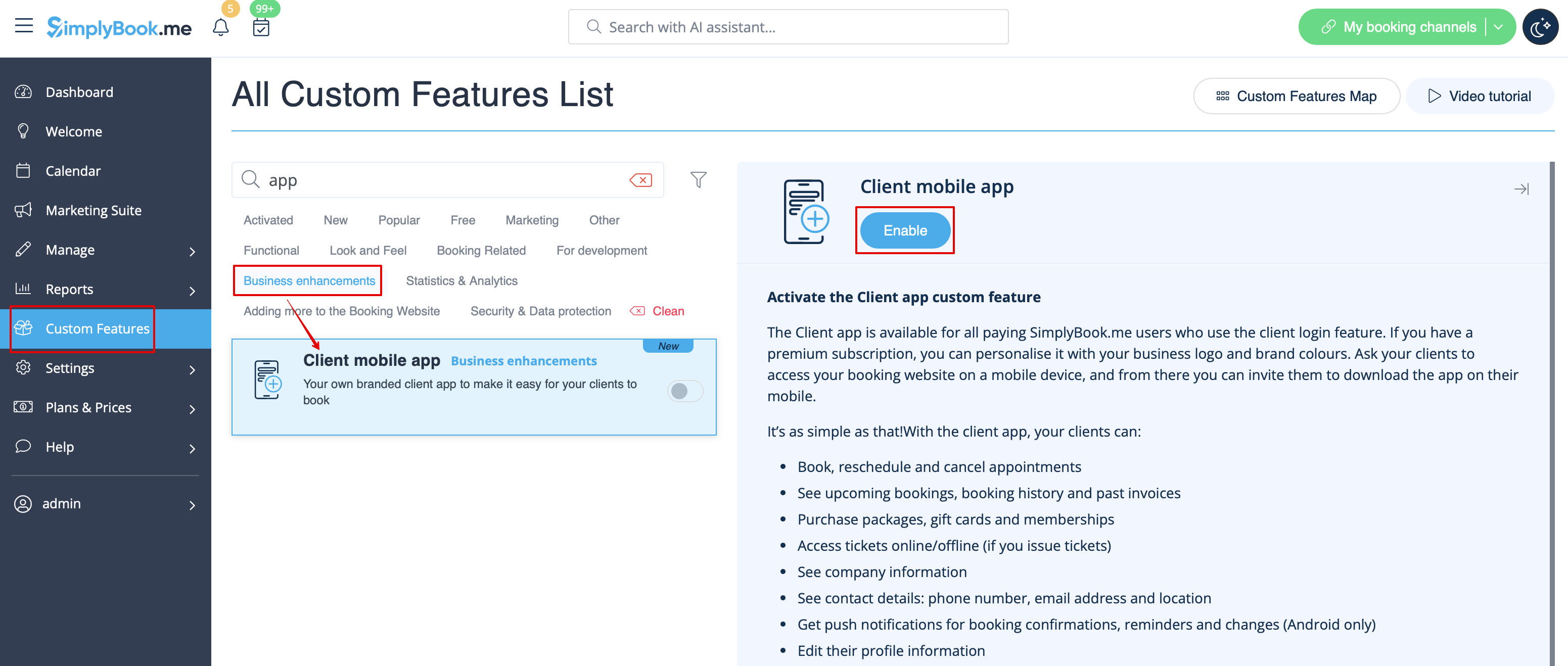
:1. Enable <span style="background-color:#d4f8e5; padding:5px; border-radius:5px;">Client mobile app</span> feature on your <span style="background-color:#d4f8e5; padding:5px; border-radius:5px;">Custom features</span> page in <span style="background-color:#d4f8e5; padding:5px; border-radius:5px;">Business enhancements</span> section.
[[File:Client app enable path redesigned.png|1200px|border|center|link=https://help.simplybook.me/images/c/cb/Client_app_enable_path_redesigned.png]]
<br><br>
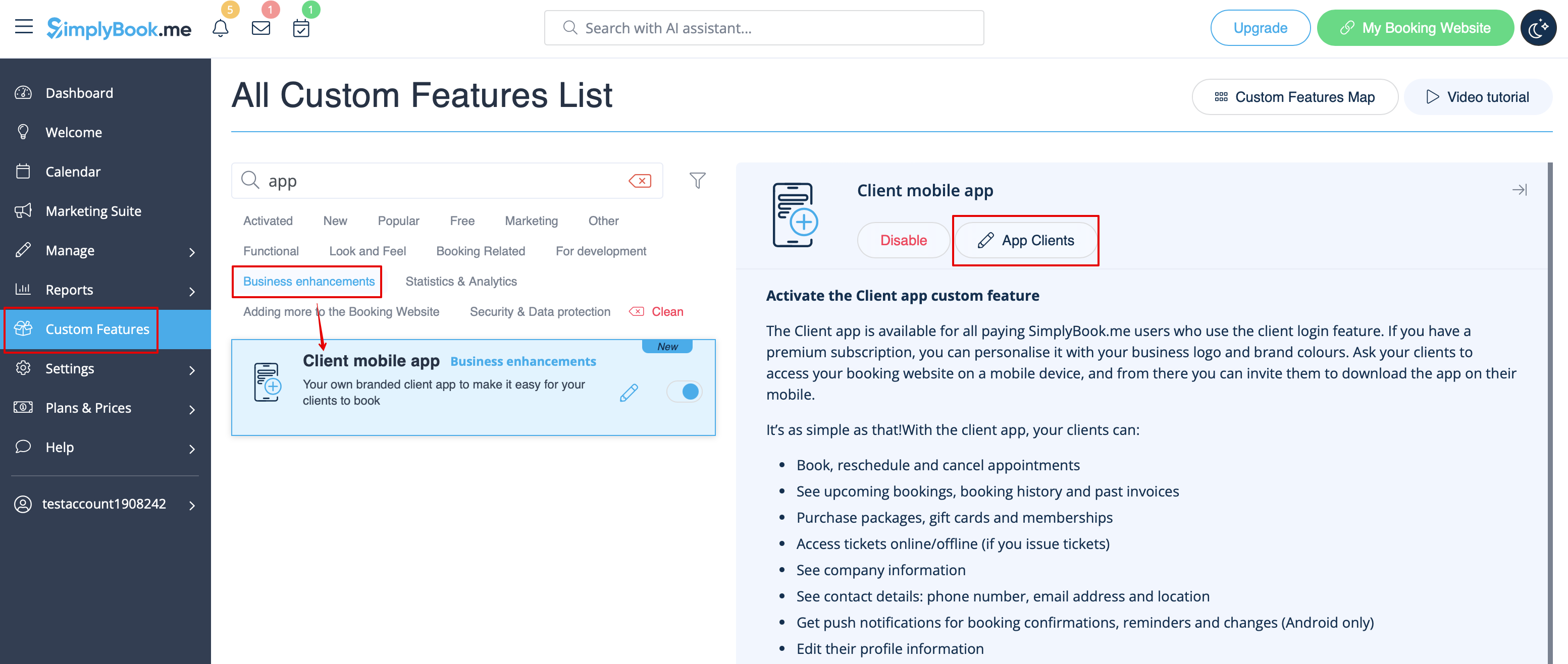
:2. And it is ready to use. Some reports options become available to you.
[[File:Client app free verion redesigned.png|1200px|border|center|link=https://help.simplybook.me/images/e/ef/Client_app_free_verion_redesigned.png]]
<br><br>
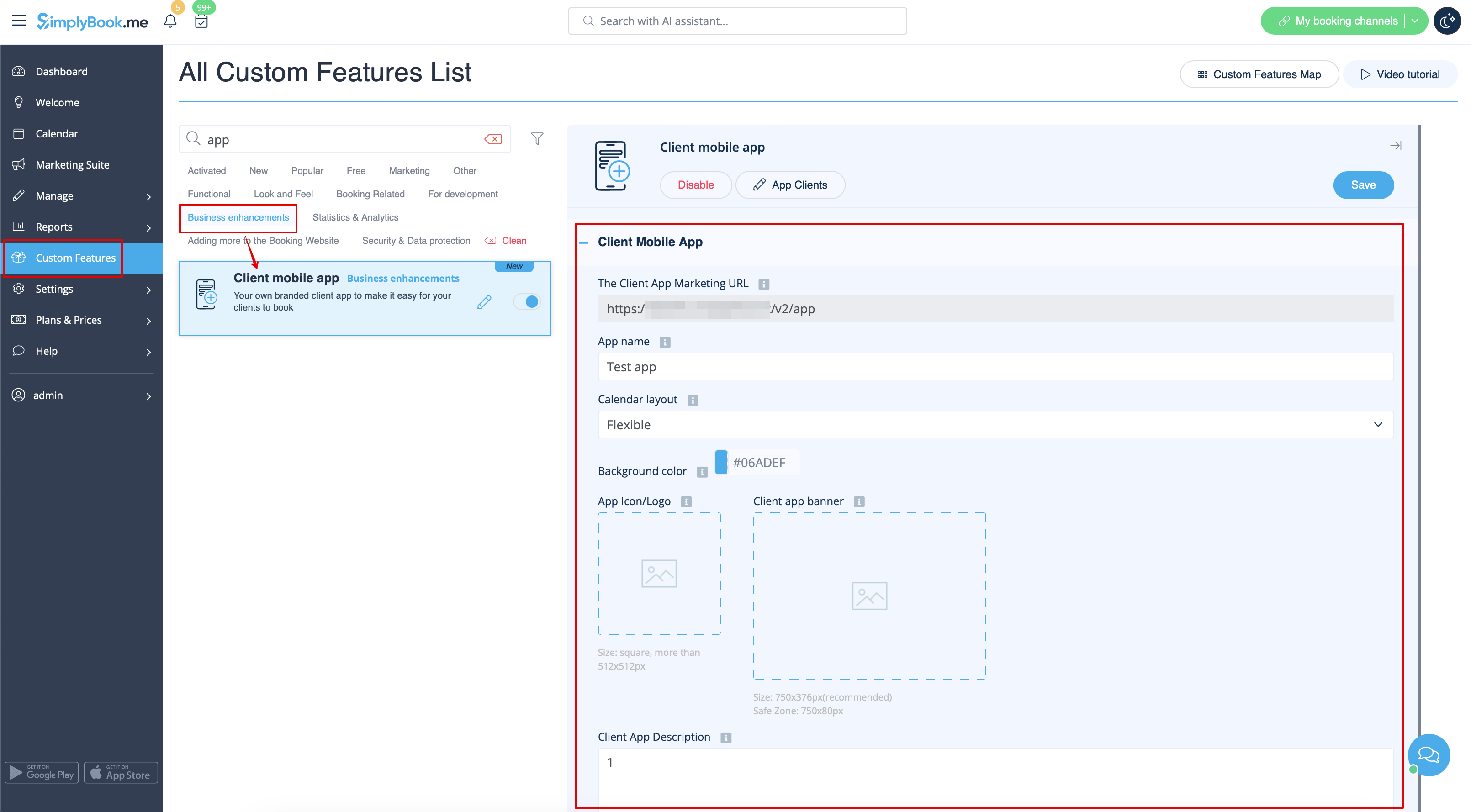
:3.'''(available for Premium subscriptions only)''' Add own application name, set brand color, select the preferable <span style="background-color:#cdeffc; padding:5px; border-radius:5px;">[[Special:MyLanguage/How_to_change_the_way_time_slots_are_shown|calendar layout]]</span>, upload the logo and banner images.
:It is important to use square image for the logo, different dimensions will not be saved.
:As well we recommend using brighter and/or darker colors for background for better customer experience.
[[File:Client app options paid redesigned.png|1200px|border|center|link=https://help.simplybook.me/images/8/8d/Client_app_options_paid_redesigned.png]]
<br><br>
:4. Send your booking website URL(banner is not shown on widgets) to your clients so that they will be able to install the application on their phones by clicking on the corresponding <span style="background-color:#d4f8e5; padding:5px; border-radius:5px;">banner.</span>
:(Invitation installation banner may not be displayed in built-in mobile browsers, it is recommended to use Chrome instead)<br>
:<span style="background-color:#ffe9e9; padding:5px; border-radius:5px;">'''Please note!''' IOS devices users will need to open your booking website in full Safari version to have the installation invitation banner and then simply use <span style="background-color:#d4f8e5; padding:5px; border-radius:5px;">Add to home screen</span> option.</span>
[[File:Installation client app upd.jpg|border|center]]
<br><br>
:5. As the result they will be able to book online, see their appointments(this option is available even in offline mode), <span style="background-color:#cdeffc; padding:5px; border-radius:5px;">[[Special:MyLanguage/Client_Rescheduling_custom_feature|reschedule]]</span> or cancel them,  buy <span style="background-color:#cdeffc; padding:5px; border-radius:5px;">[[Special:MyLanguage/Coupons_and_Gift_Cards_custom_feature|gift cards]]</span>, <span style="background-color:#cdeffc; padding:5px; border-radius:5px;">[[Special:MyLanguage/Membership_custom_feature|memberships]]</span> and <span style="background-color:#cdeffc; padding:5px; border-radius:5px;">[[Special:MyLanguage/Packages_custom_feature|packages]],</span> view <span style="background-color:#cdeffc; padding:5px; border-radius:5px;">[[Special:MyLanguage/Accept_payments_custom_feature|invoices]]</span> and update own details if necessary.
[[File:Start page client app upd.jpg|border|center]]
<br><br><br><br>
;'''Push notifications'''
*Users can also get push notifications about new bookings or cancellations on their devices.
:For that it will only be necessary to enable notifications in the application after sign up/sign in and in a standard system dialogue.
[[File:Notifications client app upd.jpg|border|center]]
<br><br>
:In case the notifications are turned on, but the push messages do not come it is necessary to check if Chrome system notifications(Android) or Safari(IOS) are enabled inside the <span style="background-color:#d4f8e5; padding:5px; border-radius:5px;">device settings.</span>
[[File:Client app notifications system.png|border|center]]
<br><br>
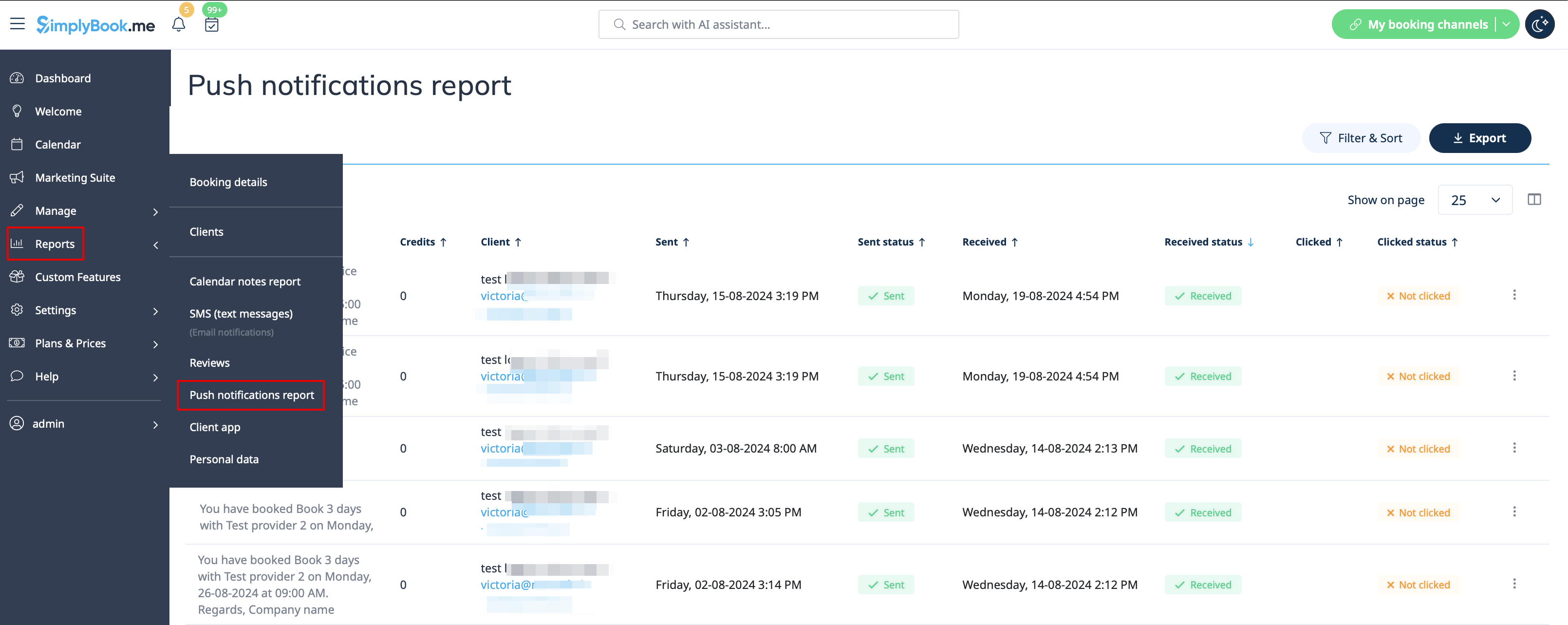
*From '''admin side''' it is possible to see all push notifications sent to customers in <span style="background-color:#d4f8e5; padding:5px; border-radius:5px;">Reports</span> -> <span style="background-color:#d4f8e5; padding:5px; border-radius:5px;">Push notifications</span> as well as whether they were received and clicked by client.
[[File:Client app push notifications report redesigned.png|1200px|border|center|link=https://help.simplybook.me/images/c/cc/Client_app_push_notifications_report_redesigned.png]]
<br><br><br><br>
Veuillez noter que...


Tutoriels vidéo disponibles
  • Comment configurer l'application mobile Client
  • Comment utiliser l'application mobile Client


Comment l'utiliser

1. Activez l'application mobile du client sur votre page Fonctions personnalisées dans la section Améliorations de l'entreprise.


2. L'application est prête à être utilisée. Certaines options de rapport sont disponibles.


3.(disponible uniquement pour les abonnements Premium) Ajoutez votre propre nom d'application, définissez la couleur de la marque, sélectionnez la disposition préférée du calendrier, téléchargez le logo et les images de la bannière.
Il est important d'utiliser une image carrée pour le logo, les dimensions différentes ne seront pas enregistrées.
Nous recommandons également d'utiliser des couleurs plus claires et/ou plus sombres pour l'arrière-plan afin d'améliorer l'expérience du client.


4. Envoyez l'URL de votre site de réservation (la bannière ne s'affiche pas sur les widgets) à vos clients afin qu'ils puissent installer l'application sur leur téléphone en cliquant sur la bannière correspondante .
(La bannière d'installation de l'invitation peut ne pas s'afficher dans les navigateurs mobiles intégrés, il est recommandé d'utiliser Chrome à la place).
Attention ! Les utilisateurs d'appareils IOS devront ouvrir votre site web de réservation dans la version complète de Safari pour obtenir la bannière d'invitation à l'installation, puis utiliser simplement l'option Ajouter à l'écran d'accueil.


5. Ils pourront ainsi réserver en ligne, consulter leurs rendez-vous (cette option est disponible même en mode hors ligne), les reprogrammer ou les annuler, acheter des cartes-cadeaux, des abonnements et des forfaits, consulter les factures et mettre à jour leurs propres coordonnées si nécessaire.


Notifications push

  • Les utilisateurs peuvent également recevoir des notifications push concernant les nouvelles réservations ou les annulations sur leurs appareils.
Pour cela, il sera uniquement nécessaire d'activer les notifications dans l'application après l'inscription/la connexion et dans une boîte de dialogue standard du système.

Notifications


Dans le cas où les notifications sont activées, mais que les messages push ne viennent pas, il est nécessaire de vérifier si les notifications du système Chrome (Android) ou Safari (IOS) sont activées dans les paramètres de l'appareil.


  • Depuis le côté administrateur, il est possible de voir toutes les notifications push envoyées aux clients dans Rapports -> Notifications push ainsi que si elles ont été reçues et cliquées par le client.