From SimplyBook.me
Marked this version for translation |
No edit summary |
||
| Line 8: | Line 8: | ||
|keywords=faq, frequently asked questions, booking software, appointment system questions, appointments online, calendar software, booking system, booking calendar, scheduling software, online appointment scheduling, online scheduling, widget, widgets | |keywords=faq, frequently asked questions, booking software, appointment system questions, appointments online, calendar software, booking system, booking calendar, scheduling software, online appointment scheduling, online scheduling, widget, widgets | ||
}} | }} | ||
</translate> | </translate><translate> | ||
__FORCETOC__ | __FORCETOC__ | ||
| Line 24: | Line 24: | ||
<br><br> | <br><br> | ||
:3. Save settings and publish the page. | :3. Save settings and publish the page. | ||
<br><br> | <br><br></translate><translate> | ||
==Widget with predefined service, provider, category or location== | ==Widget with predefined service, provider, category or location== | ||
<br> | <br> | ||
| Line 32: | Line 32: | ||
[[File:Widget predefined values redesigned.png|1200px | center|link=https://help.simplybook.me/images/e/ed/Widget_predefined_values_redesigned.png]] | [[File:Widget predefined values redesigned.png|1200px | center|link=https://help.simplybook.me/images/e/ed/Widget_predefined_values_redesigned.png]] | ||
<br><br> | <br><br> | ||
</translate> | |||
Revision as of 08:51, 18 June 2025
iFrame Widget
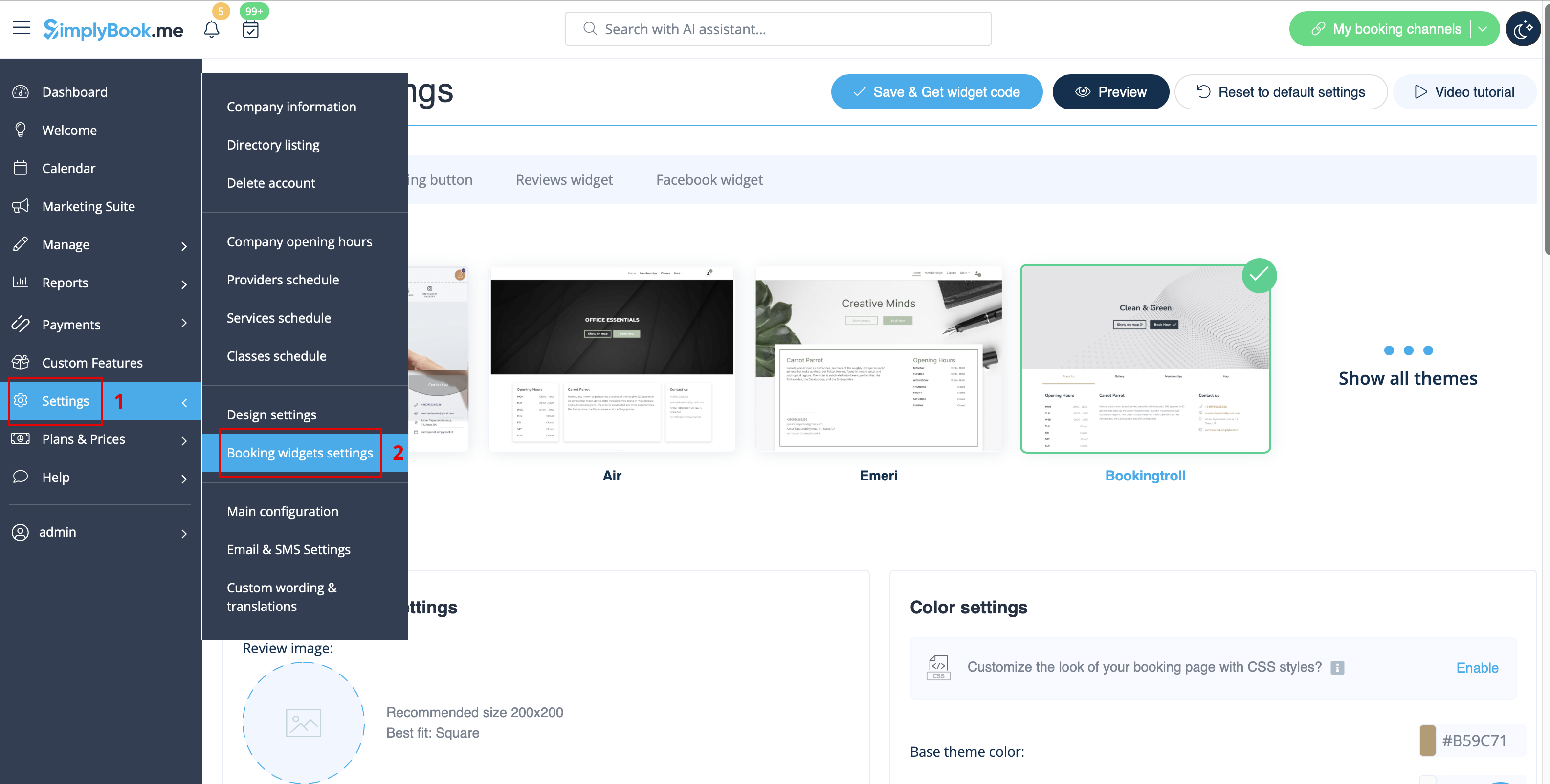
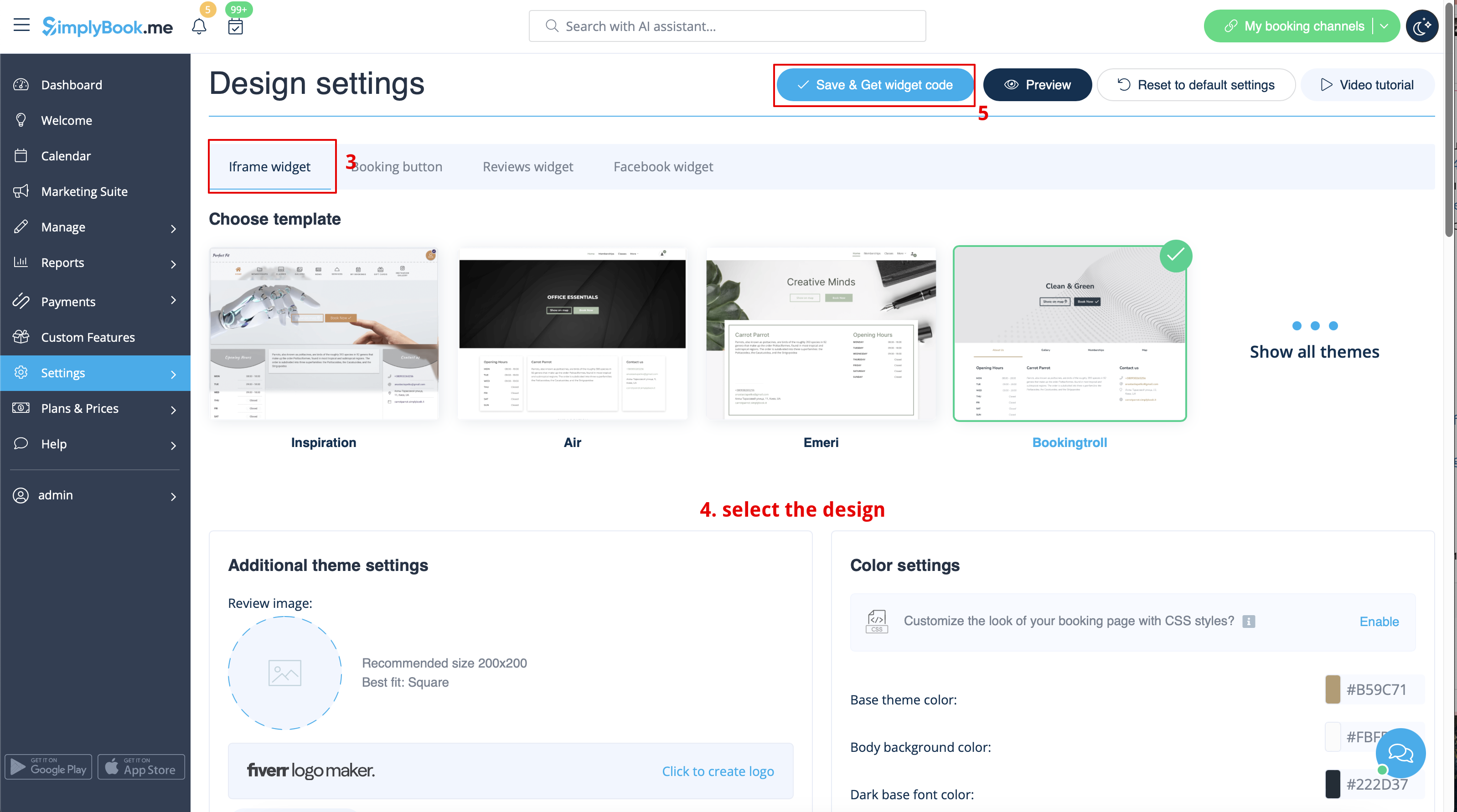
- 1. Take the iFrame code of your booking page in Settings//Booking widgets settings//iFrame widget//Get widget code.
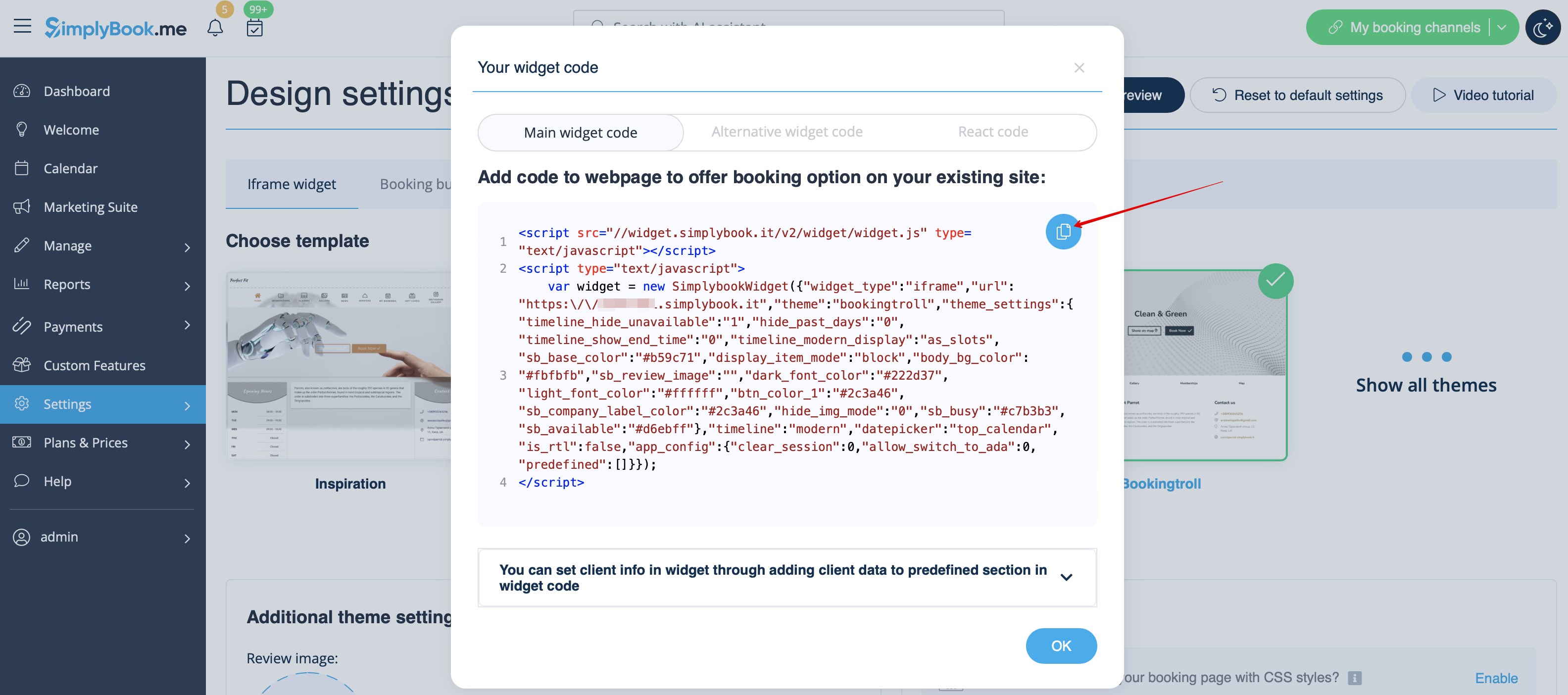
- 2. Now go to Content>Articles check the box of the entry you want to insert the booking functionality into and click 'edit'. Then insert the widget code to the HTML code <body> of your website on the page where you need to display the booking functionality.

- 3. Save settings and publish the page.
==Widget with predefined service, provider, category or location==
This option allows you to generate iframe code specifically for service, provider, category or location you have. For example, if you have 2 services A and B and you choose service A as predefined, the widget will open on that service, skipping the step of choosing the service. This feature may be useful if you need to display only certain services on specific page on your website. The steps to generate the code are the same as above, only in the settings of the widget, choose the item you need to predefine.