Translations:Go Daddy/3/da: Difference between revisions

From SimplyBook.me
Created page with ":1. På din [https://simplybook.me/ Simplybook-administrationsside] finder du koden under <span style="background-color:#d4f8e5; padding:5px; border-radius:5px;">Indstillinger</span> -> <span style="background-color:#d4f8e5; padding:5px; border-radius:5px;">Indstillinger for bookingwidgets</span> -> <span style="background-color:#d4f8e5; padding:5px; border-radius:5px;">iFrame-widget</span> -> <span style="background-color:#d4f8e5; padding:5px; border-radius:5px..."
 
(No difference)

Latest revision as of 08:54, 18 June 2025

Information about message (contribute)
This message has no documentation. If you know where or how this message is used, you can help other translators by adding documentation to this message.
Message definition (Go Daddy)
:1. In your [https://simplybook.me/ Simplybook] admin page get the code in <span style="background-color:#d4f8e5; padding:5px; border-radius:5px;">Settings</span> -> <span style="background-color:#d4f8e5; padding:5px; border-radius:5px;">Booking widgets settings</span> -> <span style="background-color:#d4f8e5; padding:5px; border-radius:5px;">iFrame widget</span> -> <span style="background-color:#d4f8e5; padding:5px; border-radius:5px;">Get widget code.</span>
[[File:Get iframe widget code redesigned.png|1200px|border|center|link=https://help.simplybook.me/images/d/de/Get_iframe_widget_code_redesigned.png]]
<br><br>
:2. In <span style="background-color:#d4f8e5; padding:5px; border-radius:5px;">GoDaddy</span> system, Log in to your account and go to website editing.
:3. Click on <span style="background-color:#d4f8e5; padding:5px; border-radius:5px;">Pages&Sections.</span>
[[File:Go daddy pages new.png|border|center]]
<br><br>
:4. Select <span style="background-color:#d4f8e5; padding:5px; border-radius:5px;">Manage Pages</span> option.
[[File:Go daddy manage pages.png|border|center]]
<br><br>
:5. From the pages menu, select the page you want to modify or add a new one.
[[File:Go daddy add page new.png |border|center]]
<br><br>
:6. On page details add page title, set appearance options to your taste and create the page.
[[File:Go daddy page details.png|border|center]]
<br><br>
:7. Proceed to <span style="background-color:#d4f8e5; padding:5px; border-radius:5px;">adding a section.</span>
[[File:Go daddy add section.png|border|center]]
<br><br>
:8. Select to add <span style="background-color:#d4f8e5; padding:5px; border-radius:5px;">HTML</span> block from the side menu.
[[File:Go daddy add html.png|border|center]]
<br><br>
:9. Paste the code that you have previously copied from SimplyBook.me interface to the corresponding box.
[[File:Go daddy paste code.png|border|center]]
<br><br>
:10. Check the preview and publish the changes.
[[File:Go daddy preview.png|border|center]]
<br><br><br><br>
1. På din Simplybook-administrationsside finder du koden under Indstillinger -> Indstillinger for bookingwidgets -> iFrame-widget -> Hent widgetkode.
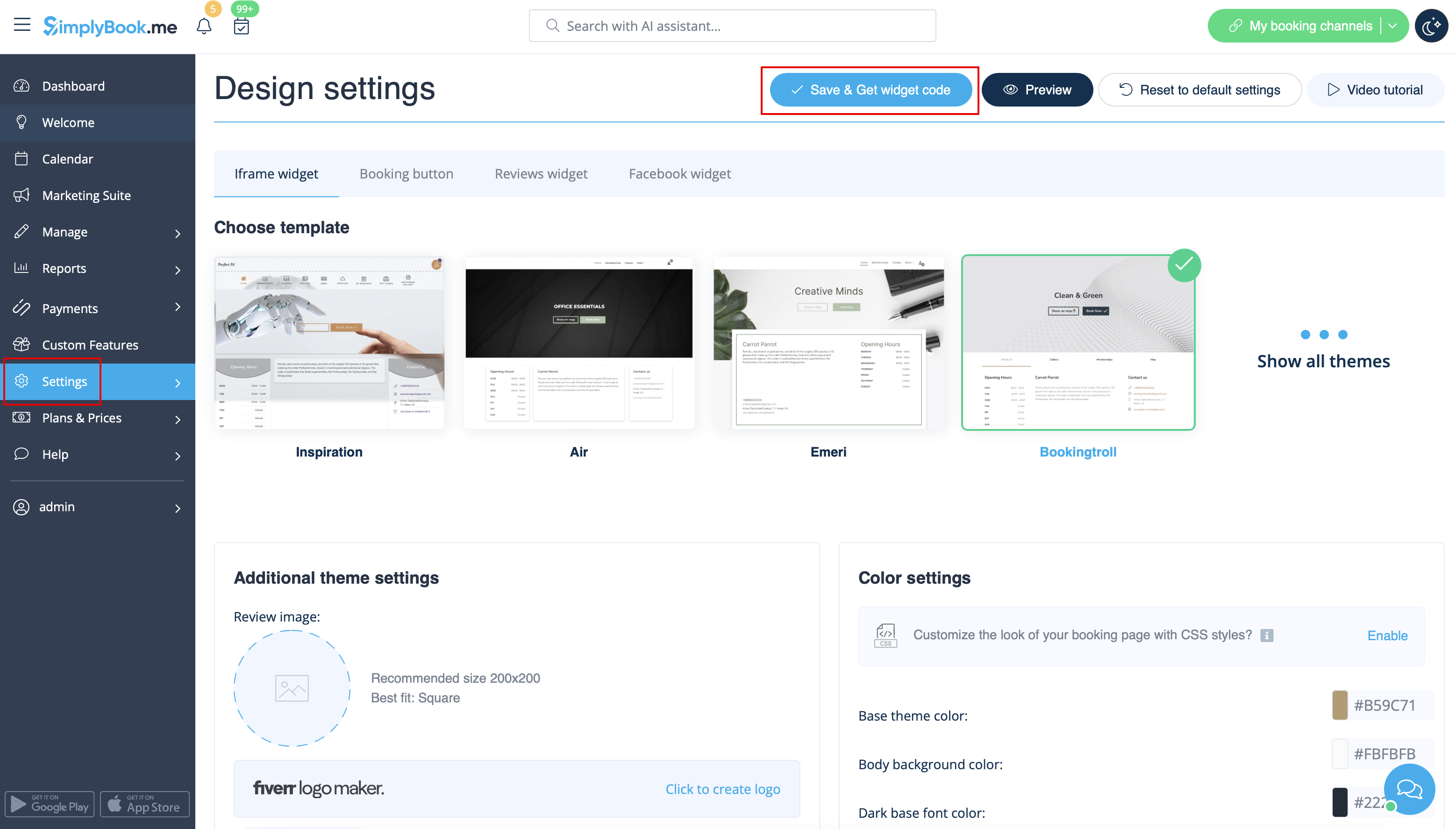


2. I GoDaddy- systemet skal du logge ind på din konto og gå til redigering af hjemmesiden.
3. Klik på Sider og sektioner.


4. Vælg Administrer sider.


5. Vælg den side, du vil ændre, eller tilføj en ny side i sidemenuen.


6. Tilføj sidetitel på sideoplysningerne, indstil udseende efter din smag, og opret siden.


7. Fortsæt med at tilføje et afsnit.


8. Vælg at tilføje HTML-blok fra sidemenuen.


9. Indsæt den kode, du tidligere har kopieret fra SimplyBook.me-grænsefladen, i det tilsvarende felt.


10. Kontroller forhåndsvisningen og offentliggør ændringerne.