Translations:Squarespace/4/fr: Difference between revisions

From SimplyBook.me
Created page with "= Widget du bouton de réservation = :1. Dans votre page d'administration [https://simplybook.me/ Simplybook], récupérez le code dans <span style="background-color:#d4f8e5; padding:5px; border-radius:5px;">Paramètres</span> -> <span style="background-color:#d4f8e5; padding:5px; border-radius:5px;">Paramètres des widgets de réservation</span> -> <span style="background-color:#d4f8e5; padding:5px; border-radius:5px;">Bouton de réservation</span> File:Booking..."
 
(No difference)

Latest revision as of 08:59, 18 June 2025

Information about message (contribute)
This message has no documentation. If you know where or how this message is used, you can help other translators by adding documentation to this message.
Message definition (Squarespace)
=Booking button widget=
:1.  In your [https://simplybook.me/ Simplybook] admin page get the code in <span style="background-color:#d4f8e5; padding:5px; border-radius:5px;">Settings</span> -> <span style="background-color:#d4f8e5; padding:5px; border-radius:5px;">Booking widgets settings</span> -> <span style="background-color:#d4f8e5; padding:5px; border-radius:5px;">Booking button</span>
[[File:Booking widget path redesigned.png|1200px | center|link=https://help.simplybook.me/images/6/68/Booking_widget_path_redesigned.png]]
<br><br>
:2. In your Squarespace account go to the page you wish to add the code to, switch to editing mode and select to add "Code" block.
[[File:Squarespace add new block.png | center]]
<br><br>
[[File:Squarespace select code block.png | center]]
<br><br>
:3. Insert the code received in [https://simplybook.me/ Simplybook] admin page, to your Squarespace page.
[[File:Squarespace add code.png | center]]
<br><br>
:4. Save the page and check the look.
[[File:Squarespace booking button widget new.png | center]]
<br><br>

Widget du bouton de réservation

1. Dans votre page d'administration Simplybook, récupérez le code dans Paramètres -> Paramètres des widgets de réservation -> Bouton de réservation
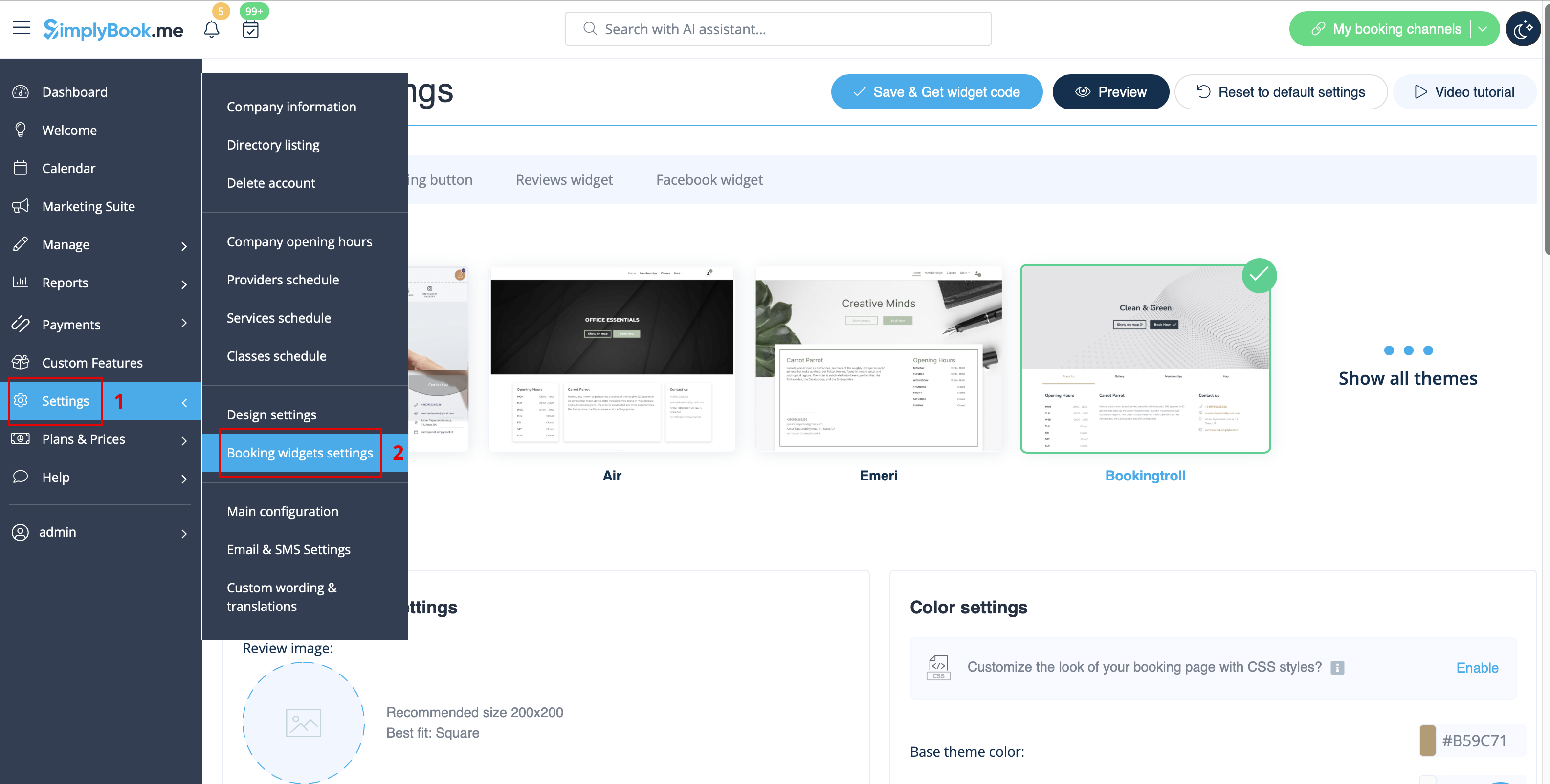


2. Dans votre compte Squarespace, accédez à la page à laquelle vous souhaitez ajouter le code, passez en mode édition et sélectionnez « Ajouter un bloc » > « Code ».


3. Insérez le code reçu dans la page d'administration Simplybook dans votre page Squarespace.


4. Enregistrez la page et vérifiez le résultat.