Translations:How to cancel booking/1/da: Difference between revisions

From SimplyBook.me
Created page with "<br><br> ;*For administratorer eller bruger I <span style="background-color:#d4f8e5; padding:5px; border-radius:5px;">Kalenderen</span> (menuen til venstre) eller i i <span style="background-color:#d4f8e5; padding:5px; border-radius:5px;">Rapporter</span> -> <span style="background-color:#d4f8e5; padding:5px; border-radius:5px;">Bookingsdetaljer.</span> Klik på bookingen for at åbne detaljerne, eller brug <span style="background-color:#d4f8e5; padding:5px; border-r..."
 
(No difference)

Latest revision as of 07:36, 1 July 2025

Information about message (contribute)
This message has no documentation. If you know where or how this message is used, you can help other translators by adding documentation to this message.
Message definition (How to cancel booking)
<br><br>
;*For admin or user
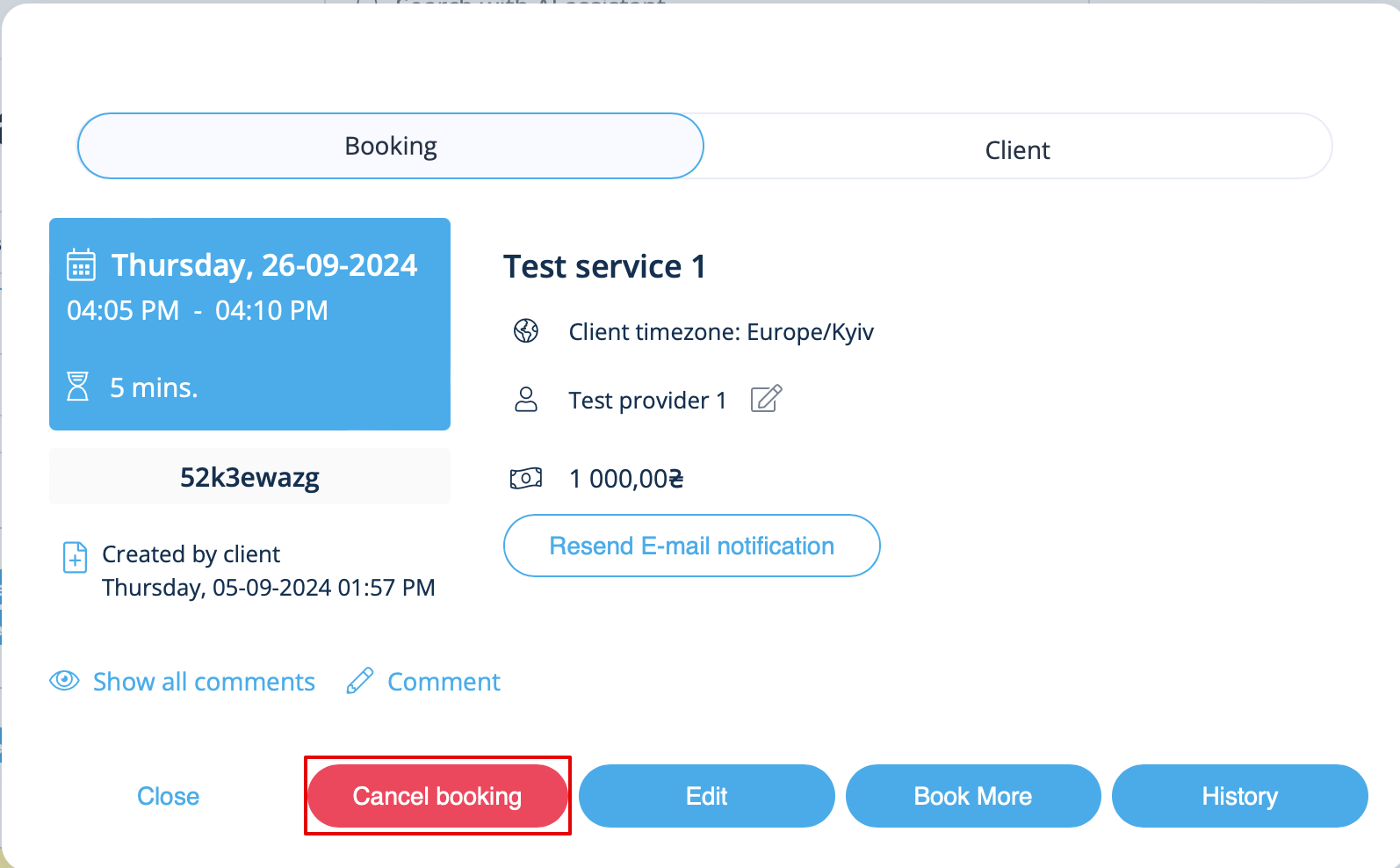
In <span style="background-color:#d4f8e5; padding:5px; border-radius:5px;">Calendar</span> (left-side menu) or in  in <span style="background-color:#d4f8e5; padding:5px; border-radius:5px;">Reports</span> -> <span style="background-color:#d4f8e5; padding:5px; border-radius:5px;">Booking details.</span> Click on the booking to open the details or use <span style="background-color:#d4f8e5; padding:5px; border-radius:5px;">View</span> option if in <span style="background-color:#d4f8e5; padding:5px; border-radius:5px;">Reports</span> and then press <span style="background-color:#d4f8e5; padding:5px; border-radius:5px;">Cancel booking</span> button. <br/>
[[File:Cancel booking in the booking info form.png|600px| center |link=https://help.simplybook.me/images/9/95/Cancel_booking_in_the_booking_info_form.png]]
<br/><br/>
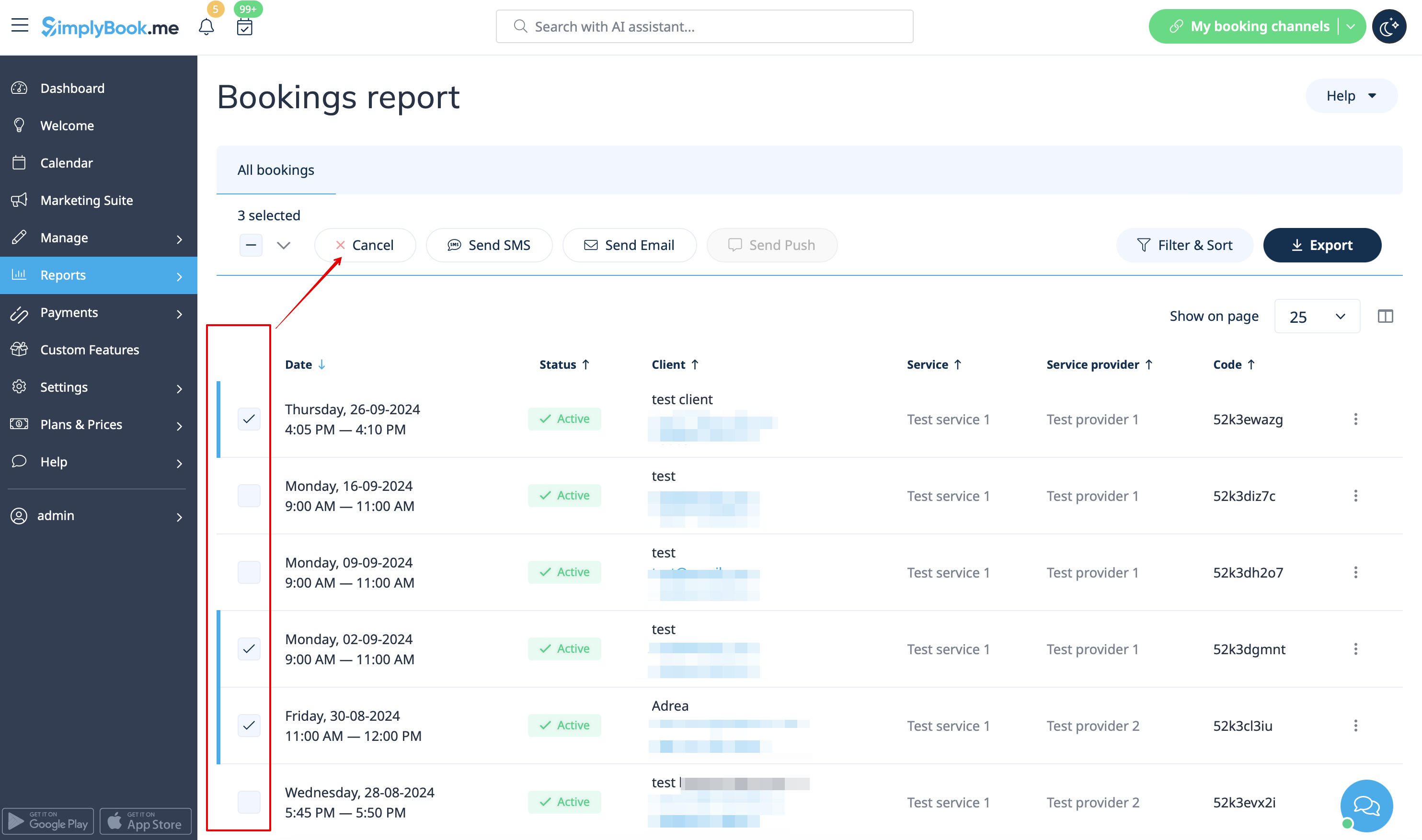
In case you need to cancel many bookings at once you can do that in <span style="background-color:#d4f8e5; padding:5px; border-radius:5px;">Reports</span> -> <span style="background-color:#d4f8e5; padding:5px; border-radius:5px;">Booking details.</span><br>
You can use the <span style="background-color:#d4f8e5; padding:5px; border-radius:5px;">filter</span> if necessary, <span style="background-color:#d4f8e5; padding:5px; border-radius:5px;">check the boxes</span> with the bookings to cancel and click on <span style="background-color:#d4f8e5; padding:5px; border-radius:5px;">Cancel selected</span> button at the top.<br>
<span style="background-color:#ffe9e9; padding:5px; border-radius:5px;">'''Please note!''' It is possible to cancel the appointments from one report page at a time.</span>
[[File:Cancel several bookings from report redesigned.png|1200px|border|center|link=https://help.simplybook.me/images/a/ac/Cancel_several_bookings_from_report_redesigned.png]]
<br/><br/>
;*For client
To cancel their bookings, clients can click <span style="background-color:#d4f8e5; padding:5px; border-radius:5px;">cancel link</span> in their confirmation emails.
[[File:CancelBookingLink750.png | center ]]
<br/><br/>
Or use <span style="background-color:#d4f8e5; padding:5px; border-radius:5px;">Cancel</span> button on the booking website, <span style="background-color:#d4f8e5; padding:5px; border-radius:5px;">My bookings</span> tab.<br>
(If you want to prohibit clients from cancelling the appointments, you may need <span style="background-color:#d4f8e5; padding:5px; border-radius:5px;">[[Custom_Features#Cancellation_Policy| Cancellation Policy Custom Feature]]</span>.</span>)
<br><br>
<br><br>


  • For administratorer eller bruger

I Kalenderen (menuen til venstre) eller i i Rapporter -> Bookingsdetaljer. Klik på bookingen for at åbne detaljerne, eller brug Vis-indstillingen, hvis du er i Rapporter, og tryk derefter på Annuller booking-knappen.


Hvis du har brug for at annullere mange bookinger på én gang, kan du gøre det i Rapporter -> Bookingsdetaljer.
Du kan bruge filteret, hvis det er nødvendigt, markere de bokse med de bookinger, du vil annullere, og klikke på knappen Annuller valgt øverst.
Bemærk! Det er muligt at annullere aftaler fra én rapportside ad gangen.


  • For kunder

For at annullere deres bookinger kan kunderne klikke på linket Annuller i deres bekræftelses-e-mails.


Eller brug knappen Annuller på bookingwebstedet under fanen Mine bookinger.
(Hvis du vil forhindre kunder i at annullere aftaler, skal du muligvis bruge den tilpassede funktion "Annulleringspolitik".)