Translations:How to cancel booking/1/fr: Difference between revisions

From SimplyBook.me
Created page with "<br><br> ;*Pour l' de l'administrateur ou de l'utilisateur Dans <span style="background-color:#d4f8e5; padding:5px; border-radius:5px;">le calendrier</span> (menu de gauche) ou dans dans <span style="background-color:#d4f8e5; padding:5px; border-radius:5px;">Rapports</span> -> <span style="background-color:#d4f8e5; padding:5px; border-radius:5px;">Détails de la réservation.</span> Cliquez sur la réservation pour ouvrir les détails ou utilisez l'option <span style..."
 
(No difference)

Latest revision as of 07:46, 1 July 2025

Information about message (contribute)
This message has no documentation. If you know where or how this message is used, you can help other translators by adding documentation to this message.
Message definition (How to cancel booking)
<br><br>
;*For admin or user
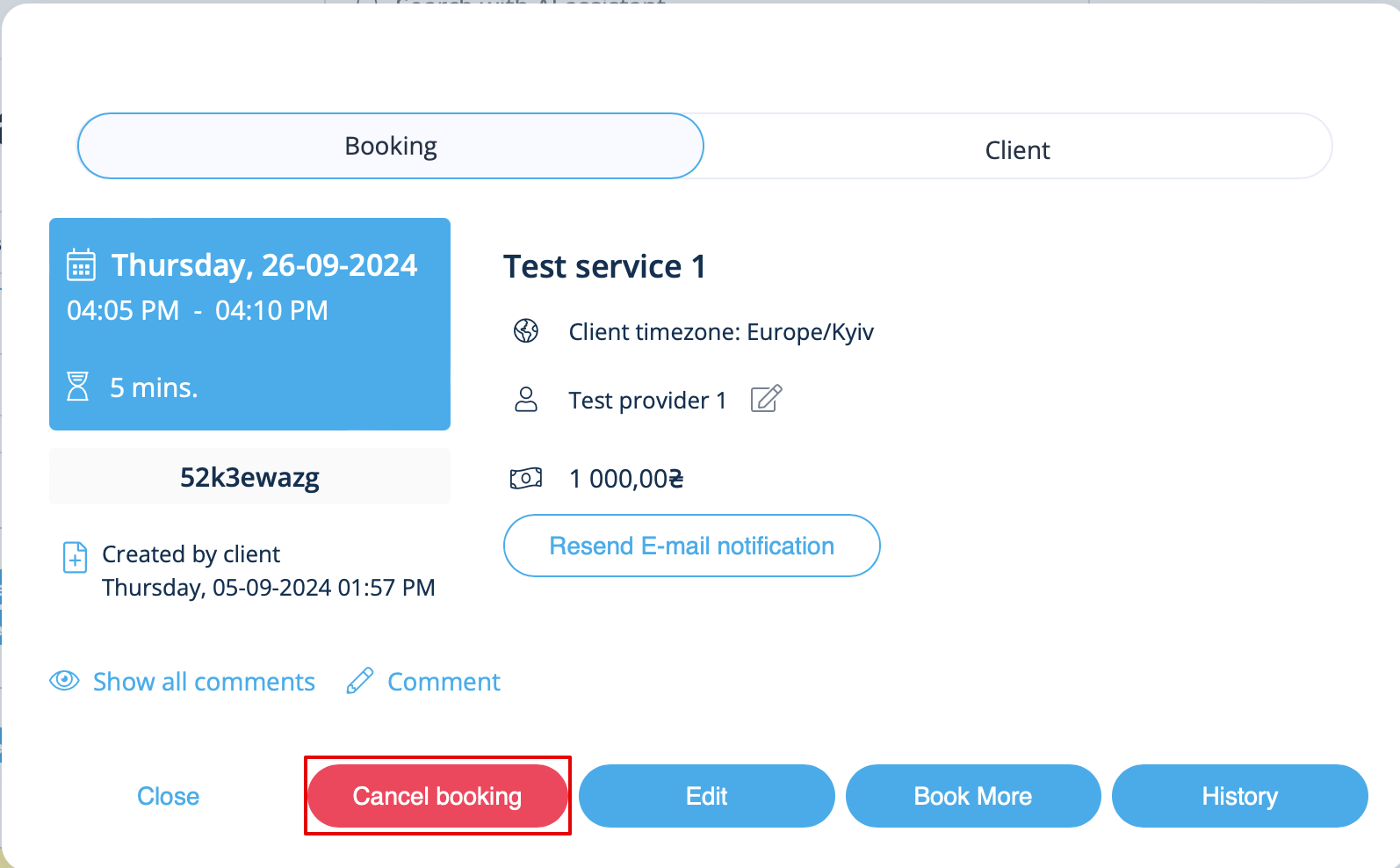
In <span style="background-color:#d4f8e5; padding:5px; border-radius:5px;">Calendar</span> (left-side menu) or in  in <span style="background-color:#d4f8e5; padding:5px; border-radius:5px;">Reports</span> -> <span style="background-color:#d4f8e5; padding:5px; border-radius:5px;">Booking details.</span> Click on the booking to open the details or use <span style="background-color:#d4f8e5; padding:5px; border-radius:5px;">View</span> option if in <span style="background-color:#d4f8e5; padding:5px; border-radius:5px;">Reports</span> and then press <span style="background-color:#d4f8e5; padding:5px; border-radius:5px;">Cancel booking</span> button. <br/>
[[File:Cancel booking in the booking info form.png|600px| center |link=https://help.simplybook.me/images/9/95/Cancel_booking_in_the_booking_info_form.png]]
<br/><br/>
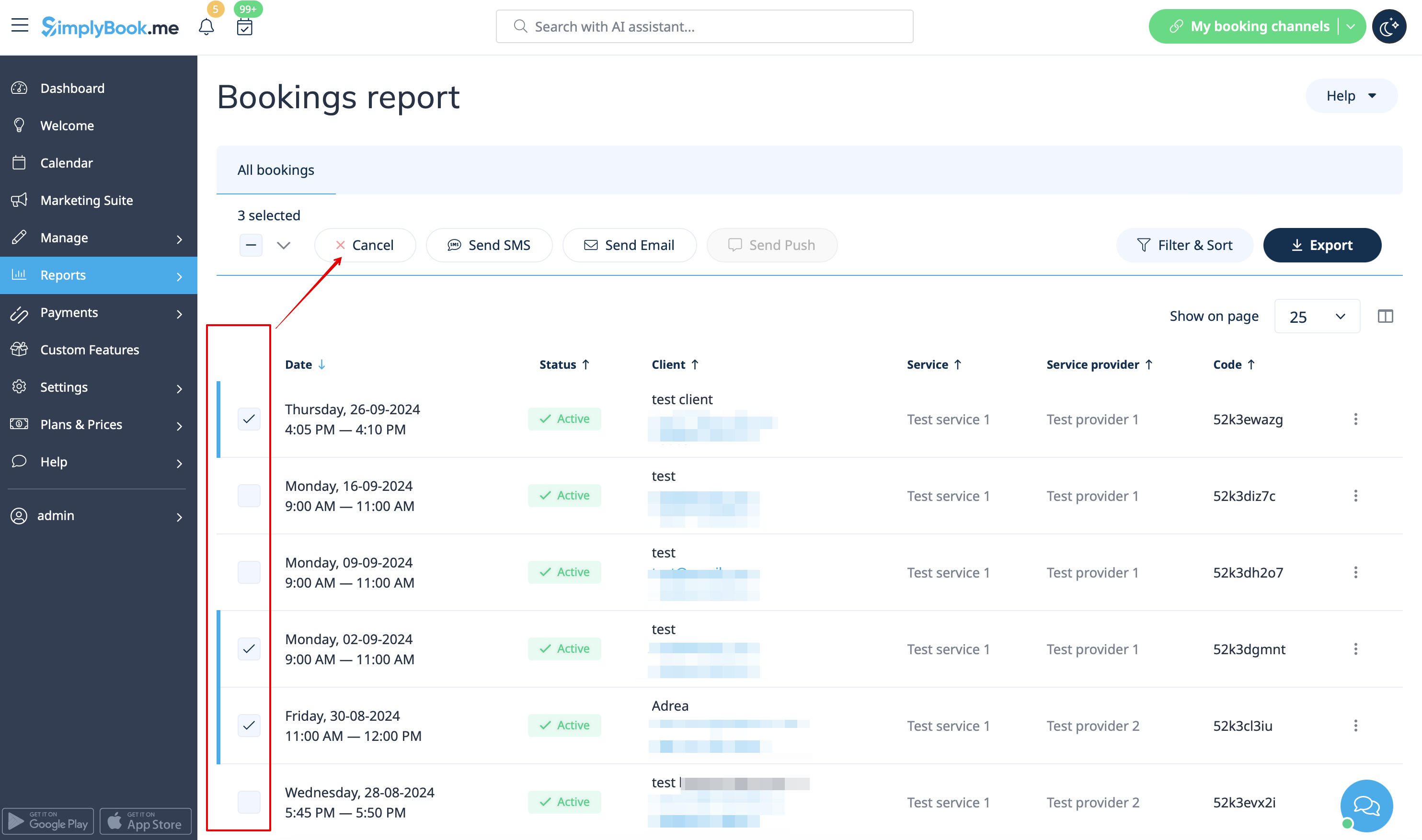
In case you need to cancel many bookings at once you can do that in <span style="background-color:#d4f8e5; padding:5px; border-radius:5px;">Reports</span> -> <span style="background-color:#d4f8e5; padding:5px; border-radius:5px;">Booking details.</span><br>
You can use the <span style="background-color:#d4f8e5; padding:5px; border-radius:5px;">filter</span> if necessary, <span style="background-color:#d4f8e5; padding:5px; border-radius:5px;">check the boxes</span> with the bookings to cancel and click on <span style="background-color:#d4f8e5; padding:5px; border-radius:5px;">Cancel selected</span> button at the top.<br>
<span style="background-color:#ffe9e9; padding:5px; border-radius:5px;">'''Please note!''' It is possible to cancel the appointments from one report page at a time.</span>
[[File:Cancel several bookings from report redesigned.png|1200px|border|center|link=https://help.simplybook.me/images/a/ac/Cancel_several_bookings_from_report_redesigned.png]]
<br/><br/>
;*For client
To cancel their bookings, clients can click <span style="background-color:#d4f8e5; padding:5px; border-radius:5px;">cancel link</span> in their confirmation emails.
[[File:CancelBookingLink750.png | center ]]
<br/><br/>
Or use <span style="background-color:#d4f8e5; padding:5px; border-radius:5px;">Cancel</span> button on the booking website, <span style="background-color:#d4f8e5; padding:5px; border-radius:5px;">My bookings</span> tab.<br>
(If you want to prohibit clients from cancelling the appointments, you may need <span style="background-color:#d4f8e5; padding:5px; border-radius:5px;">[[Custom_Features#Cancellation_Policy| Cancellation Policy Custom Feature]]</span>.</span>)
<br><br>
<br><br>


  • Pour l'

de l'administrateur ou de l'utilisateur Dans le calendrier (menu de gauche) ou dans dans Rapports -> Détails de la réservation. Cliquez sur la réservation pour ouvrir les détails ou utilisez l'option Afficher si vous êtes dans Rapports, puis appuyez sur le bouton Annuler la réservation.


Si vous devez annuler plusieurs réservations à la fois, vous pouvez le faire dans Rapports -> Détails de la réservation.
Vous pouvez utiliser le filtre si nécessaire, cocher les cases correspondant aux réservations à annuler et cliquer sur le bouton Annuler la sélection en haut.
Remarque : il est possible d'annuler les rendez-vous à partir d'une seule page de rapport à la fois.


  • Pour les clients

Pour annuler leurs réservations, les clients peuvent cliquer sur le lien « Annuler » dans leurs e-mails de confirmation.


Ou utiliser le bouton « Annuler » sur le site web de réservation, dans l'onglet « Mes réservations ».
(Si vous souhaitez empêcher les clients d'annuler leurs rendez-vous, vous aurez peut-être besoin de la fonctionnalité personnalisée « Politique d'annulation ».)