No edit summary |
Marked this version for translation |
||
| (3 intermediate revisions by the same user not shown) | |||
| Line 1: | Line 1: | ||
<languages/> | |||
<translate> | |||
<!--T:1--> | |||
{{#seo: | {{#seo: | ||
|title=Online Video Meetings via Zoom -- SimplyBook.me | |title=Online Video Meetings via Zoom -- SimplyBook.me | ||
| Line 4: | Line 7: | ||
|keywords=faq, frequently asked questions, booking software, appointment system questions, appointments online, calendar software, booking system, booking calendar, scheduling software, online appointment scheduling, online scheduling, setup, setup help, support, help content, video meetings, online video meetings, online services, online consultations, zoom online video meetings, online video calls | |keywords=faq, frequently asked questions, booking software, appointment system questions, appointments online, calendar software, booking system, booking calendar, scheduling software, online appointment scheduling, online scheduling, setup, setup help, support, help content, video meetings, online video meetings, online services, online consultations, zoom online video meetings, online video calls | ||
}} | }} | ||
</translate> | |||
<translate> | |||
<!--T:2--> | |||
To connect to Zoom, you need a [https://zoom.us Zoom] account. Any contributor with Scheduling Administrator permissions can connect Simplybook.me to Zoom.<br> | To connect to Zoom, you need a [https://zoom.us Zoom] account. Any contributor with Scheduling Administrator permissions can connect Simplybook.me to Zoom.<br> | ||
SimplyBook.me can only connect to a single Zoom account. | SimplyBook.me can only connect to a single Zoom account. | ||
| Line 13: | Line 17: | ||
* <span style="background-color:#ffe9e9; padding:5px; border-radius:5px;">Even after Zoom account is connected, new services have video conferencing disabled by default. To add video conferencing to a new service, in Manage -> Services/[[Classes custom feature|Classes]], go to More options per service/[[Classes custom feature|class]] and enable it as an online meeting service.</span> | * <span style="background-color:#ffe9e9; padding:5px; border-radius:5px;">Even after Zoom account is connected, new services have video conferencing disabled by default. To add video conferencing to a new service, in Manage -> Services/[[Classes custom feature|Classes]], go to More options per service/[[Classes custom feature|class]] and enable it as an online meeting service.</span> | ||
* <span style="background-color:#ffe9e9; padding:5px; border-radius:5px;">Clients attending a group class will receive unique Zoom links, but these links will all lead to the same Zoom meeting.</span> | * <span style="background-color:#ffe9e9; padding:5px; border-radius:5px;">Clients attending a group class will receive unique Zoom links, but these links will all lead to the same Zoom meeting.</span> | ||
<br><br> | <br><br></translate> | ||
<translate> | |||
<!--T:5--> | |||
;How to set | ;How to set | ||
<!--T:3--> | |||
1. Enable <span style="background-color:#d4f8e5; padding:5px; border-radius:5px;">Online meetings</span> custom feature in your SimplyBook.me account by navigating to the <span style="background-color:#d4f8e5; padding:5px; border-radius:5px;">Custom Features</span> page within your Simplybook.me admin interface and click on the <span style="background-color:#d4f8e5; padding:5px; border-radius:5px;">Enable</span> button next to <span style="background-color:#d4f8e5; padding:5px; border-radius:5px;">Online video meetings</span> custom feature. | 1. Enable <span style="background-color:#d4f8e5; padding:5px; border-radius:5px;">Online meetings</span> custom feature in your SimplyBook.me account by navigating to the <span style="background-color:#d4f8e5; padding:5px; border-radius:5px;">Custom Features</span> page within your Simplybook.me admin interface and click on the <span style="background-color:#d4f8e5; padding:5px; border-radius:5px;">Enable</span> button next to <span style="background-color:#d4f8e5; padding:5px; border-radius:5px;">Online video meetings</span> custom feature. | ||
[[File:Online meetings enable path redesigned.png|1200px|center|link=https://help.simplybook.me/images/a/a1/Online_meetings_enable_path_redesigned.png]] | [[File:Online meetings enable path redesigned.png|1200px|center|link=https://help.simplybook.me/images/a/a1/Online_meetings_enable_path_redesigned.png]] | ||
<br><br> | <br><br></translate> | ||
<translate> | |||
<!--T:6--> | |||
2. In the feature settings click on <span style="background-color:#d4f8e5; padding:5px; border-radius:5px;">Authorization</span> button near Zoom option to connect your Zoom account. | 2. In the feature settings click on <span style="background-color:#d4f8e5; padding:5px; border-radius:5px;">Authorization</span> button near Zoom option to connect your Zoom account. | ||
[[File:Online meetings zoom connect redesigned.png|1200px|center|link=https://help.simplybook.me/images/4/4c/Online_meetings_zoom_connect_redesigned.png]] | [[File:Online meetings zoom connect redesigned.png|1200px|center|link=https://help.simplybook.me/images/4/4c/Online_meetings_zoom_connect_redesigned.png]] | ||
| Line 28: | Line 37: | ||
4. After Zoom is authorized, click on <span style="background-color:#d4f8e5; padding:5px; border-radius:5px;">Meeting Providers and Meeting Services</span> and choose providers that should be connected to Zoom by selecting Zoom option from the respective drop down. In the next drop-down please select Zoom user (if you have several users under your Zoom account) that should be connected to that provider. | 4. After Zoom is authorized, click on <span style="background-color:#d4f8e5; padding:5px; border-radius:5px;">Meeting Providers and Meeting Services</span> and choose providers that should be connected to Zoom by selecting Zoom option from the respective drop down. In the next drop-down please select Zoom user (if you have several users under your Zoom account) that should be connected to that provider. | ||
[[File:Zoom select account per provider redesigned.png|1200px|center|link=https://help.simplybook.me/images/3/36/Zoom_select_account_per_provider_redesigned.png]] | [[File:Zoom select account per provider redesigned.png|1200px|center|link=https://help.simplybook.me/images/3/36/Zoom_select_account_per_provider_redesigned.png]] | ||
<br><br> | <br><br></translate> | ||
<translate> | |||
<!--T:7--> | |||
5. After your Zoom connection is set, the last thing you need to do is enable online meeting option for your services. To do that please navigate to <span style="background-color:#d4f8e5; padding:5px; border-radius:5px;">Manage</span> -> <span style="background-color:#d4f8e5; padding:5px; border-radius:5px;">Services</span> -> click on needed Service name -> scroll down to <span style="background-color:#d4f8e5; padding:5px; border-radius:5px;">More options.</span> | 5. After your Zoom connection is set, the last thing you need to do is enable online meeting option for your services. To do that please navigate to <span style="background-color:#d4f8e5; padding:5px; border-radius:5px;">Manage</span> -> <span style="background-color:#d4f8e5; padding:5px; border-radius:5px;">Services</span> -> click on needed Service name -> scroll down to <span style="background-color:#d4f8e5; padding:5px; border-radius:5px;">More options.</span> | ||
(in <span style="background-color:#d4f8e5; padding:5px; border-radius:5px;">Manage</span> -> <span style="background-color:#d4f8e5; padding:5px; border-radius:5px;">[[Classes custom feature|Classes]]</span> -> click on Class name -> <span style="background-color:#d4f8e5; padding:5px; border-radius:5px;">More options</span> if you are using [[Classes custom feature|Classes]] feature) and switch on the option Enable as online meeting service/[[Classes custom feature|class]]. | (in <span style="background-color:#d4f8e5; padding:5px; border-radius:5px;">Manage</span> -> <span style="background-color:#d4f8e5; padding:5px; border-radius:5px;">[[Classes custom feature|Classes]]</span> -> click on Class name -> <span style="background-color:#d4f8e5; padding:5px; border-radius:5px;">More options</span> if you are using [[Classes custom feature|Classes]] feature) and switch on the option Enable as online meeting service/[[Classes custom feature|class]]. | ||
[[File:Enable service as online meeting redesigned.png|1200px|center|link=https://help.simplybook.me/images/e/ec/Enable_service_as_online_meeting_redesigned.png]] | [[File:Enable service as online meeting redesigned.png|1200px|center|link=https://help.simplybook.me/images/e/ec/Enable_service_as_online_meeting_redesigned.png]] | ||
<br><br> | <br><br></translate> | ||
<translate> | |||
<!--T:8--> | |||
6. When the clients book such a service/[[Classes custom feature|class]] there will be online meeting link on My bookings page for the associated booking. When the appointment time comes the clients will be able to follow it to access the meeting. | 6. When the clients book such a service/[[Classes custom feature|class]] there will be online meeting link on My bookings page for the associated booking. When the appointment time comes the clients will be able to follow it to access the meeting. | ||
For admin side it will be possible to follow the link from booking info popup form in <span style="background-color:#d4f8e5; padding:5px; border-radius:5px;">Calendar</span> or in <span style="background-color:#d4f8e5; padding:5px; border-radius:5px;">Reports</span> -> <span style="background-color:#d4f8e5; padding:5px; border-radius:5px;">Booking details</span>, or in <span style="background-color:#d4f8e5; padding:5px; border-radius:5px;">Reports</span> -> <span style="background-color:#d4f8e5; padding:5px; border-radius:5px;">Online video meetings</span>. | For admin side it will be possible to follow the link from booking info popup form in <span style="background-color:#d4f8e5; padding:5px; border-radius:5px;">Calendar</span> or in <span style="background-color:#d4f8e5; padding:5px; border-radius:5px;">Reports</span> -> <span style="background-color:#d4f8e5; padding:5px; border-radius:5px;">Booking details</span>, or in <span style="background-color:#d4f8e5; padding:5px; border-radius:5px;">Reports</span> -> <span style="background-color:#d4f8e5; padding:5px; border-radius:5px;">Online video meetings</span>. | ||
<br><br> | <br><br></translate> | ||
<translate> | |||
<!--T:9--> | |||
7. (optional) As well you can add online meetings link to provider and client notification templates so that both sides receive them with the booking details. | 7. (optional) As well you can add online meetings link to provider and client notification templates so that both sides receive them with the booking details. | ||
* To do that for your client notifications please navigate to <span style="background-color:#d4f8e5; padding:5px; border-radius:5px;">Settings</span> -> <span style="background-color:#d4f8e5; padding:5px; border-radius:5px;">Email and SMS settings</span> (or <span style="background-color:#d4f8e5; padding:5px; border-radius:5px;">Custom features</span> -> <span style="background-color:#d4f8e5; padding:5px; border-radius:5px;">[[Flexible Notifications custom feature|Flexible notifications]]</span> -> <span style="background-color:#d4f8e5; padding:5px; border-radius:5px;">Manage</span> if you have customized notifications per service and/or provider) and edit your <span style="background-color:#d4f8e5; padding:5px; border-radius:5px;">Client's booking confirmation</span> template to add ''[online_meeting_link]'' variable to send Zoom links to your clients. | * To do that for your client notifications please navigate to <span style="background-color:#d4f8e5; padding:5px; border-radius:5px;">Settings</span> -> <span style="background-color:#d4f8e5; padding:5px; border-radius:5px;">Email and SMS settings</span> (or <span style="background-color:#d4f8e5; padding:5px; border-radius:5px;">Custom features</span> -> <span style="background-color:#d4f8e5; padding:5px; border-radius:5px;">[[Flexible Notifications custom feature|Flexible notifications]]</span> -> <span style="background-color:#d4f8e5; padding:5px; border-radius:5px;">Manage</span> if you have customized notifications per service and/or provider) and edit your <span style="background-color:#d4f8e5; padding:5px; border-radius:5px;">Client's booking confirmation</span> template to add ''[online_meeting_link]'' variable to send Zoom links to your clients. | ||
| Line 42: | Line 57: | ||
* To let your service providers receive Zoom links in their confirmations please add ''[online_meeting_provider_link]'' variable to your <span style="background-color:#d4f8e5; padding:5px; border-radius:5px;">New booking confirmation for service providers</span> in <span style="background-color:#d4f8e5; padding:5px; border-radius:5px;">Settings</span> -> <span style="background-color:#d4f8e5; padding:5px; border-radius:5px;">Email and sms settings</span> (or <span style="background-color:#d4f8e5; padding:5px; border-radius:5px;">Custom features</span> -> <span style="background-color:#d4f8e5; padding:5px; border-radius:5px;">[[Flexible Notifications custom feature|Flexible notifications]]</span> -> <span style="background-color:#d4f8e5; padding:5px; border-radius:5px;">Manage</span> if you have customized notifications per service and/or provider). | * To let your service providers receive Zoom links in their confirmations please add ''[online_meeting_provider_link]'' variable to your <span style="background-color:#d4f8e5; padding:5px; border-radius:5px;">New booking confirmation for service providers</span> in <span style="background-color:#d4f8e5; padding:5px; border-radius:5px;">Settings</span> -> <span style="background-color:#d4f8e5; padding:5px; border-radius:5px;">Email and sms settings</span> (or <span style="background-color:#d4f8e5; padding:5px; border-radius:5px;">Custom features</span> -> <span style="background-color:#d4f8e5; padding:5px; border-radius:5px;">[[Flexible Notifications custom feature|Flexible notifications]]</span> -> <span style="background-color:#d4f8e5; padding:5px; border-radius:5px;">Manage</span> if you have customized notifications per service and/or provider). | ||
[[File:Add meeting link to provider confirmation redesigned.png|1200px|border|center|link=https://help.simplybook.me/images/6/6c/Add_meeting_link_to_provider_confirmation_redesigned.png]] | [[File:Add meeting link to provider confirmation redesigned.png|1200px|border|center|link=https://help.simplybook.me/images/6/6c/Add_meeting_link_to_provider_confirmation_redesigned.png]] | ||
</translate> | |||
<translate> | |||
<!--T:4--> | |||
<br><br> | <br><br> | ||
;How the meeting process works | ;How the meeting process works | ||
| Line 53: | Line 70: | ||
[[File:Meeting link client side on my bookings.png|800px|center|link=https://help.simplybook.me/images/1/12/Meeting_link_client_side_on_my_bookings.png]] | [[File:Meeting link client side on my bookings.png|800px|center|link=https://help.simplybook.me/images/1/12/Meeting_link_client_side_on_my_bookings.png]] | ||
<br><br> | <br><br> | ||
4. After that, when the meeting time comes, both provider and client will be redirected to the Zoom online meeting page. | 4. After that, when the meeting time comes, both provider and client will be redirected to the Zoom online meeting page.</translate> | ||
<translate> | |||
<!--T:10--> | |||
<br><br> | <br><br> | ||
;How to remove integration | ;How to remove integration | ||
| Line 64: | Line 83: | ||
''From the Zoom side''<br> | ''From the Zoom side''<br> | ||
<span style="background-color:#ffe9e9; padding:5px; border-radius:5px;">'''Please note!''' If you did not check the box “Allow this app to use my shared access permissions” OR you want to switch connected Zoom account to another one - there will be no option to do that from Simplybook.me side due to technical restrictions.</span><br> | <span style="background-color:#ffe9e9; padding:5px; border-radius:5px;">'''Please note!''' If you did not check the box “Allow this app to use my shared access permissions” OR you want to switch connected Zoom account to another one - there will be no option to do that from Simplybook.me side due to technical restrictions.</span><br> | ||
<span style="background-color:#ffe9e9; padding:5px; border-radius:5px;">In order to do that you will need to disconnect Simplybook.me directly from Zoom and after that you will be able to connect new account on the Simplybook.me side.</span> | <span style="background-color:#ffe9e9; padding:5px; border-radius:5px;">In order to do that you will need to disconnect Simplybook.me directly from Zoom and after that you will be able to connect new account on the Simplybook.me side.</span></translate> | ||
<translate> | |||
<!--T:11--> | |||
<br><br> | <br><br> | ||
* To disconnect the integration from the Zoom side please follow [https://marketplace.zoom.us/user/installed this link].<br> | * To disconnect the integration from the Zoom side please follow [https://marketplace.zoom.us/user/installed this link].<br> | ||
| Line 72: | Line 93: | ||
[[File:Zoom disconnect from zoom side.png|1200px|center|link=https://help.simplybook.me/images/a/a4/Zoom_disconnect_from_zoom_side.png]] | [[File:Zoom disconnect from zoom side.png|1200px|center|link=https://help.simplybook.me/images/a/a4/Zoom_disconnect_from_zoom_side.png]] | ||
<br><br><br><br> | <br><br><br><br> | ||
</translate> | |||
Latest revision as of 08:01, 1 July 2025
To connect to Zoom, you need a Zoom account. Any contributor with Scheduling Administrator permissions can connect Simplybook.me to Zoom.
SimplyBook.me can only connect to a single Zoom account.
Please note:
- Zoom bookings will not be added to your Zoom meetings page at the Zoom end. To check online meetings please use filters per service in the Simplybook.me admin calendar to see bookings for the necessary service only.
- Even after Zoom account is connected, new services have video conferencing disabled by default. To add video conferencing to a new service, in Manage -> Services/Classes, go to More options per service/class and enable it as an online meeting service.
- Clients attending a group class will receive unique Zoom links, but these links will all lead to the same Zoom meeting.
- How to set
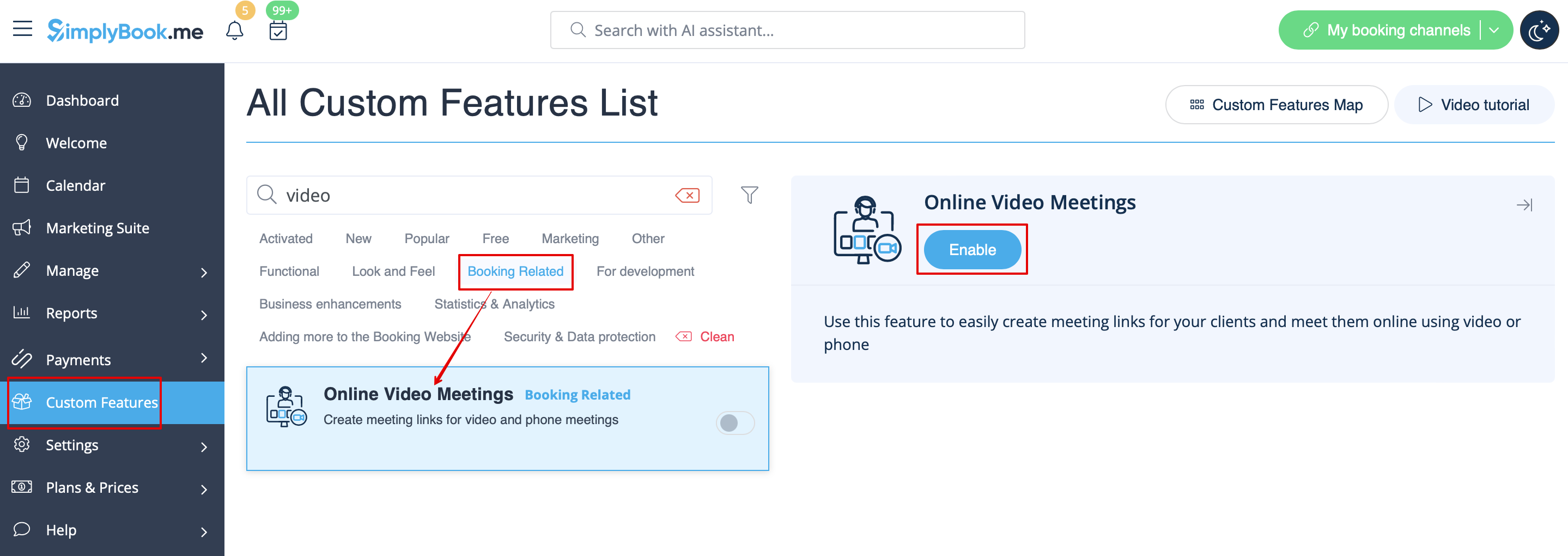
1. Enable Online meetings custom feature in your SimplyBook.me account by navigating to the Custom Features page within your Simplybook.me admin interface and click on the Enable button next to Online video meetings custom feature.
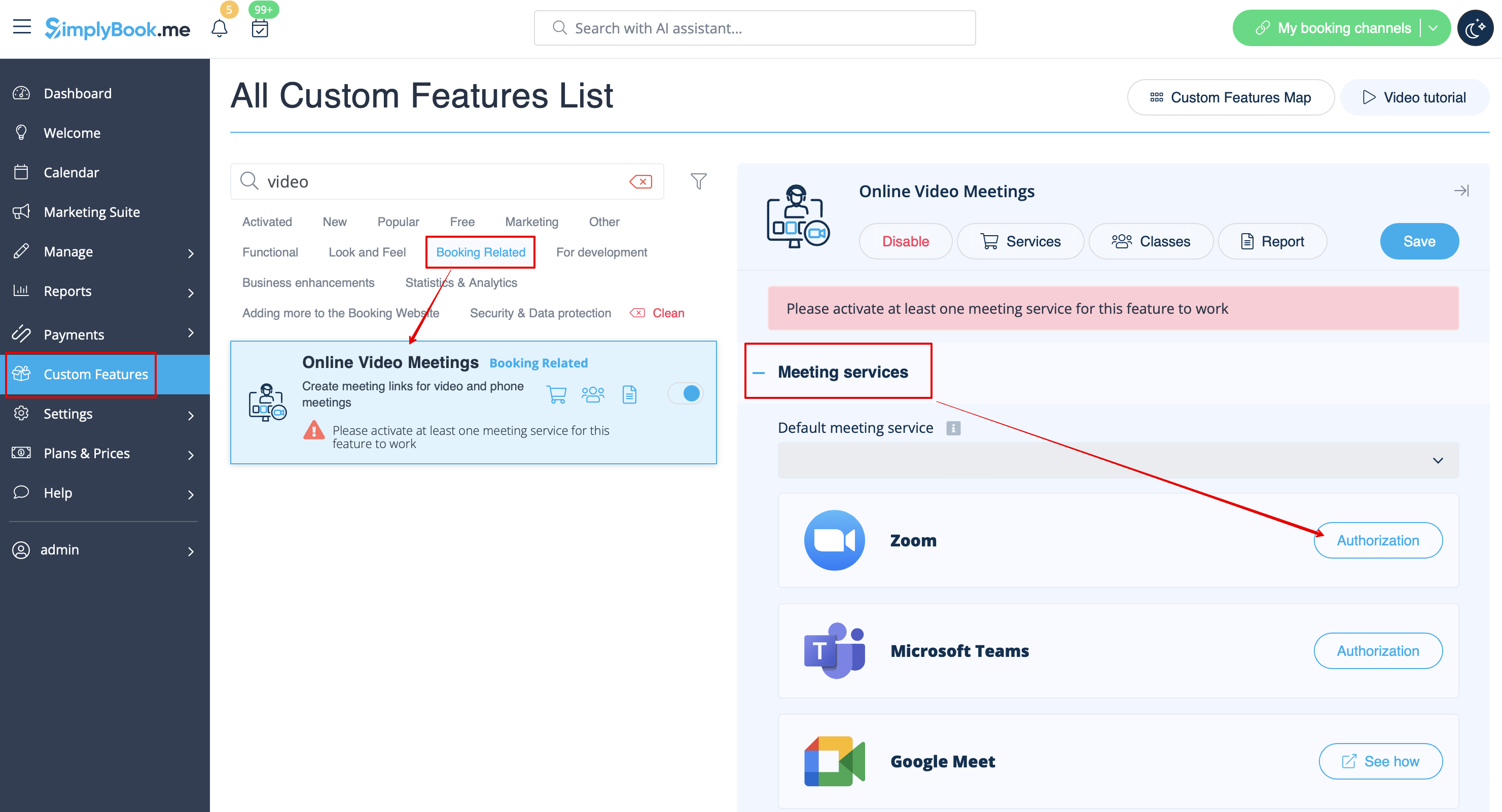
2. In the feature settings click on Authorization button near Zoom option to connect your Zoom account.
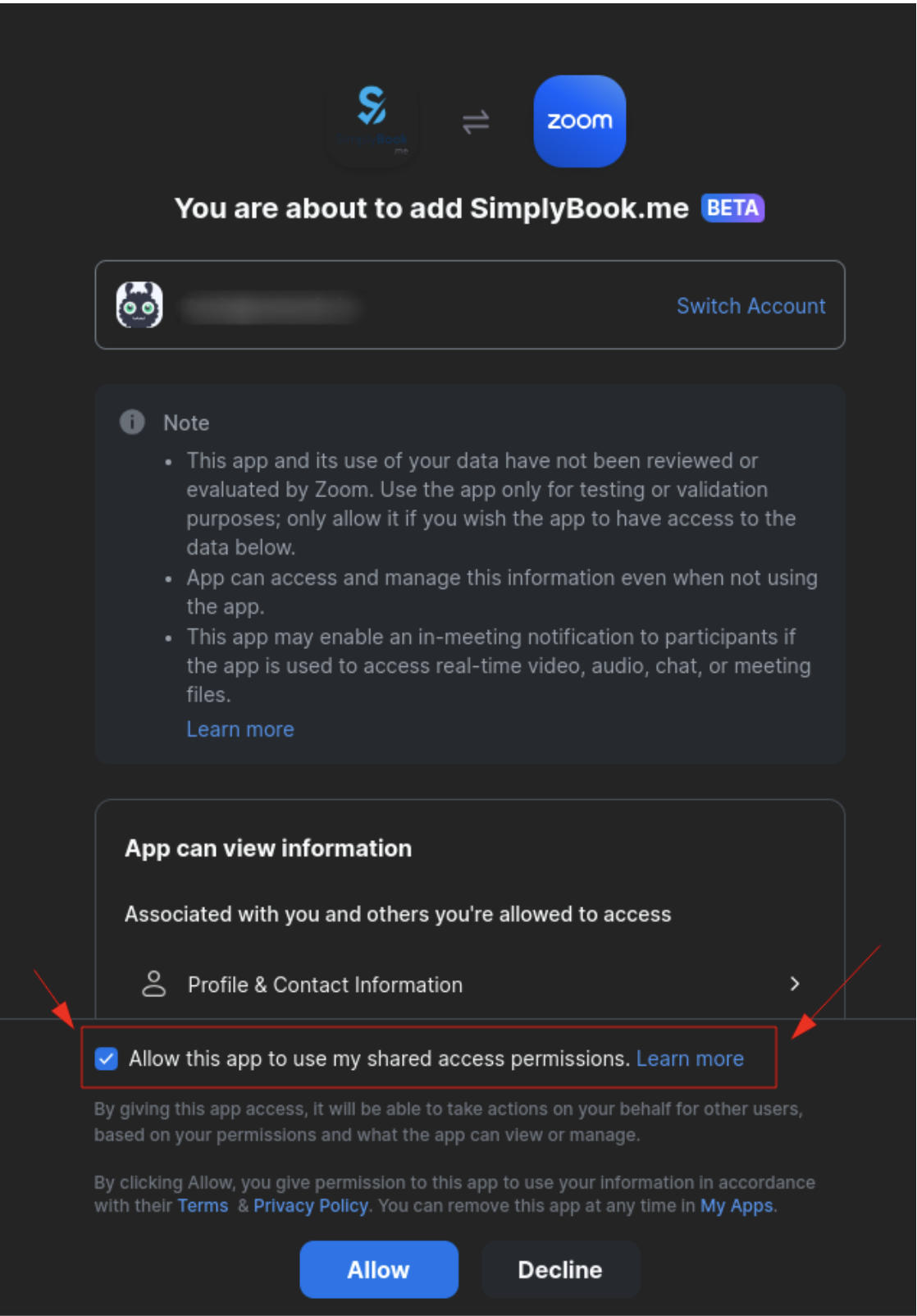
3. Enter your credentials to log into Zoom, or click SSO, Google, or Facebook to log in through those services.
You can connect one zoom account per company OR connect all zoom users added to your account by checking the checkbox Allow this app to use my shared access permissions
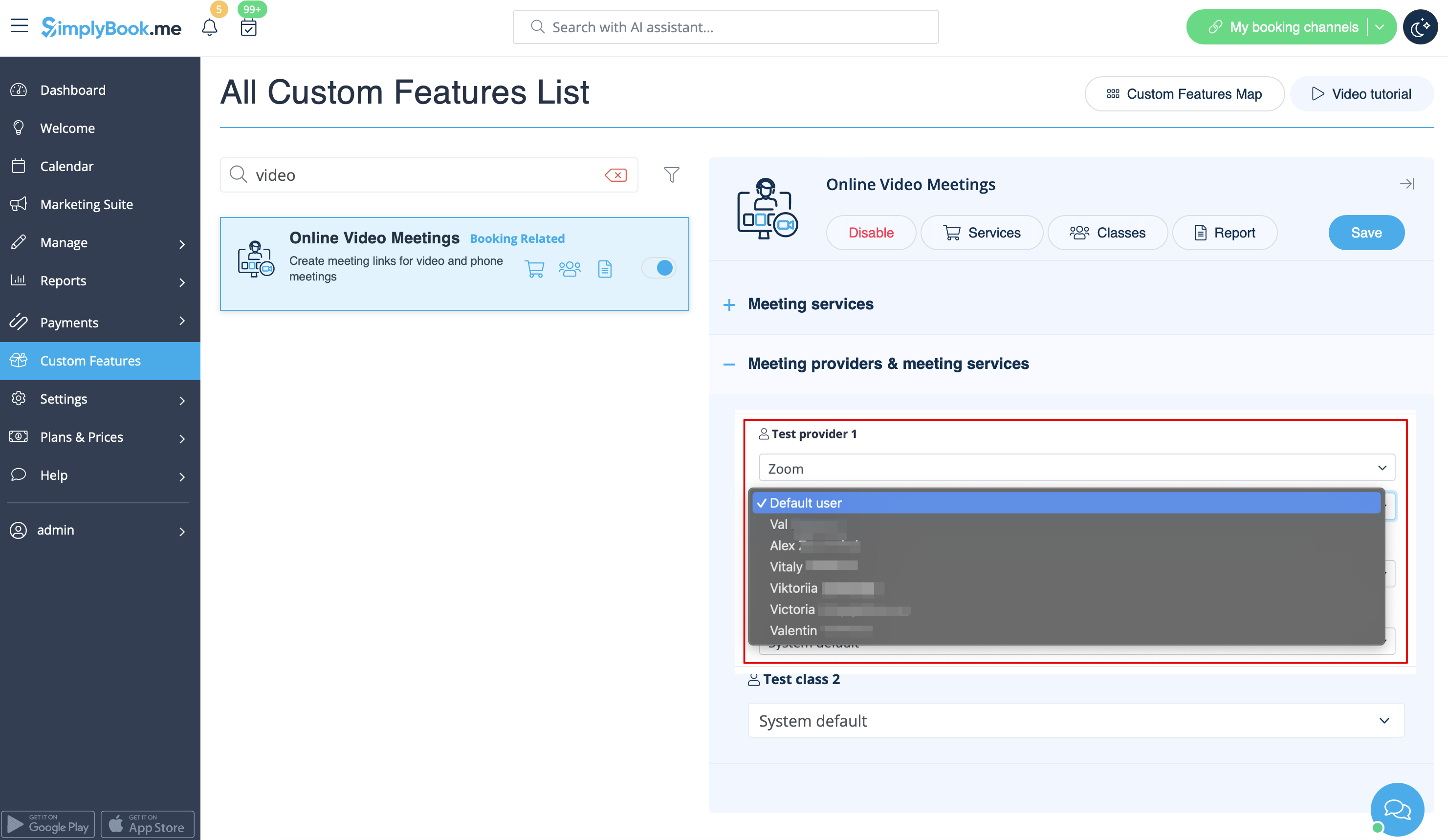
4. After Zoom is authorized, click on Meeting Providers and Meeting Services and choose providers that should be connected to Zoom by selecting Zoom option from the respective drop down. In the next drop-down please select Zoom user (if you have several users under your Zoom account) that should be connected to that provider.
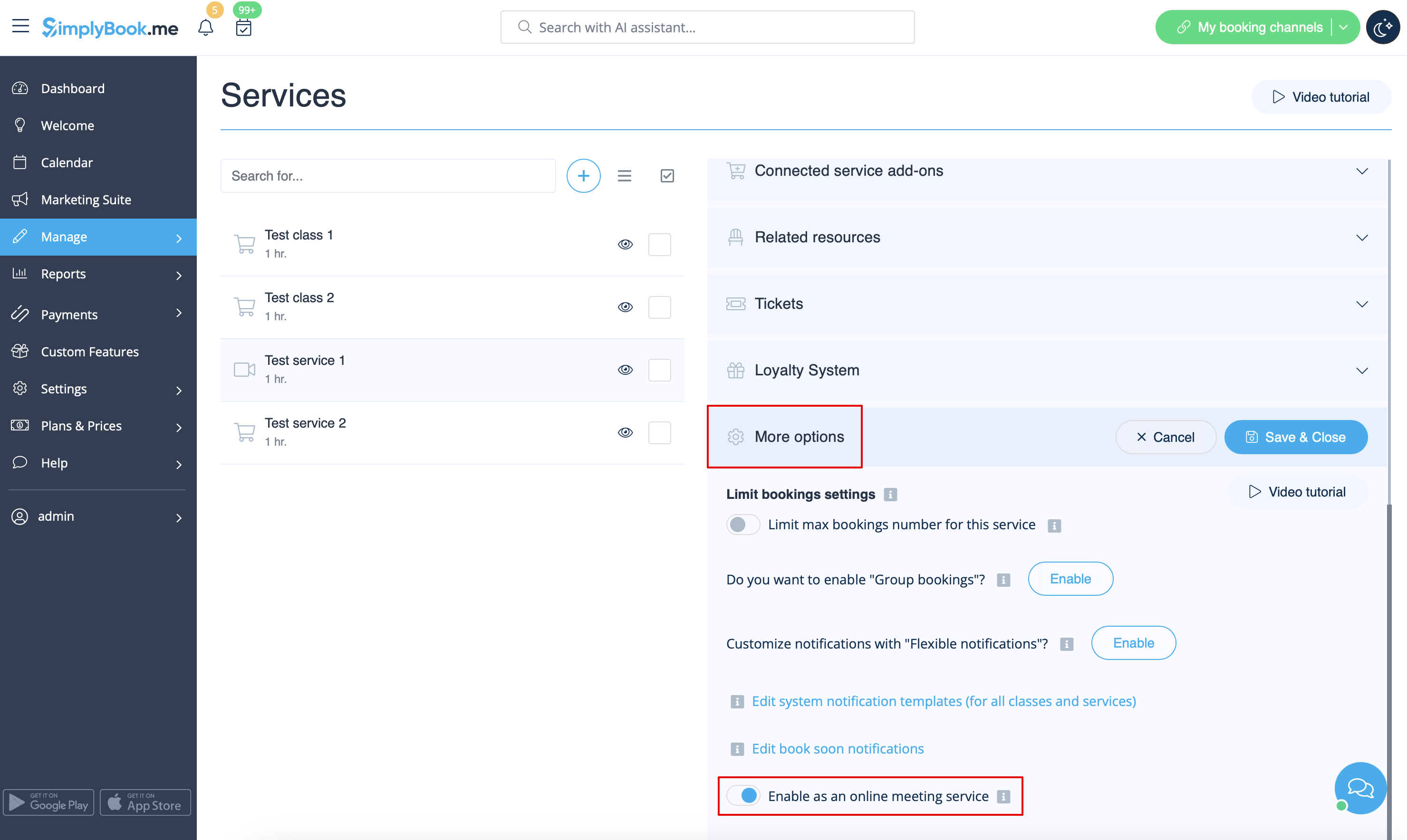
5. After your Zoom connection is set, the last thing you need to do is enable online meeting option for your services. To do that please navigate to Manage -> Services -> click on needed Service name -> scroll down to More options.
(in Manage -> Classes -> click on Class name -> More options if you are using Classes feature) and switch on the option Enable as online meeting service/class.
6. When the clients book such a service/class there will be online meeting link on My bookings page for the associated booking. When the appointment time comes the clients will be able to follow it to access the meeting.
For admin side it will be possible to follow the link from booking info popup form in Calendar or in Reports -> Booking details, or in Reports -> Online video meetings.
7. (optional) As well you can add online meetings link to provider and client notification templates so that both sides receive them with the booking details.
- To do that for your client notifications please navigate to Settings -> Email and SMS settings (or Custom features -> Flexible notifications -> Manage if you have customized notifications per service and/or provider) and edit your Client's booking confirmation template to add [online_meeting_link] variable to send Zoom links to your clients.
To make everything work simply paste [online_meeting_link] variable to the desired place in your "Client's booking confirmation template" so when a client books a service, a Zoom meeting link will be automatically generated at the place of a variable.
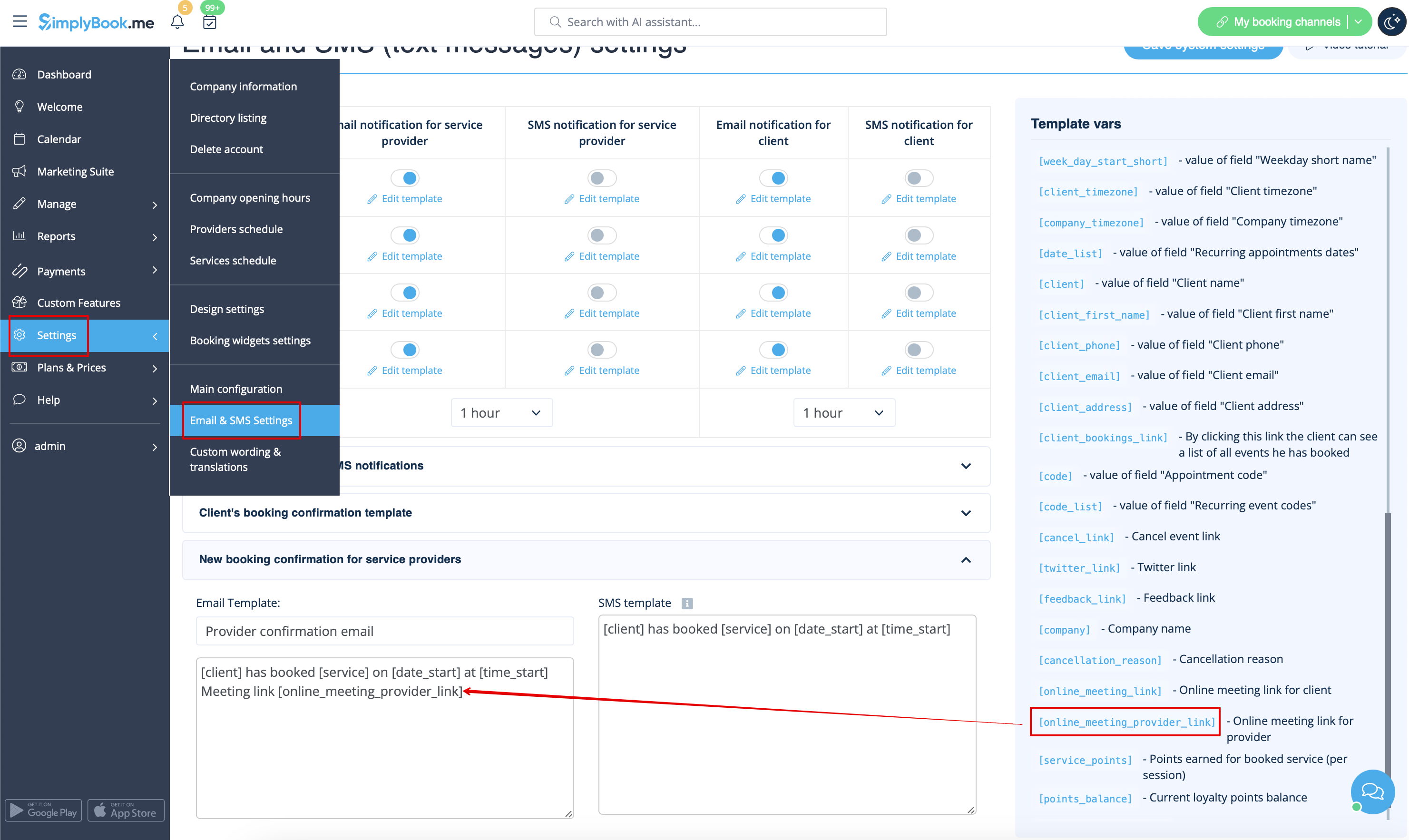
- To let your service providers receive Zoom links in their confirmations please add [online_meeting_provider_link] variable to your New booking confirmation for service providers in Settings -> Email and sms settings (or Custom features -> Flexible notifications -> Manage if you have customized notifications per service and/or provider).
- How the meeting process works
1. After everything is set up and the client books the online meetings related service/class both the client and the provider (or company, depending on your settings) will get the links to the meeting.
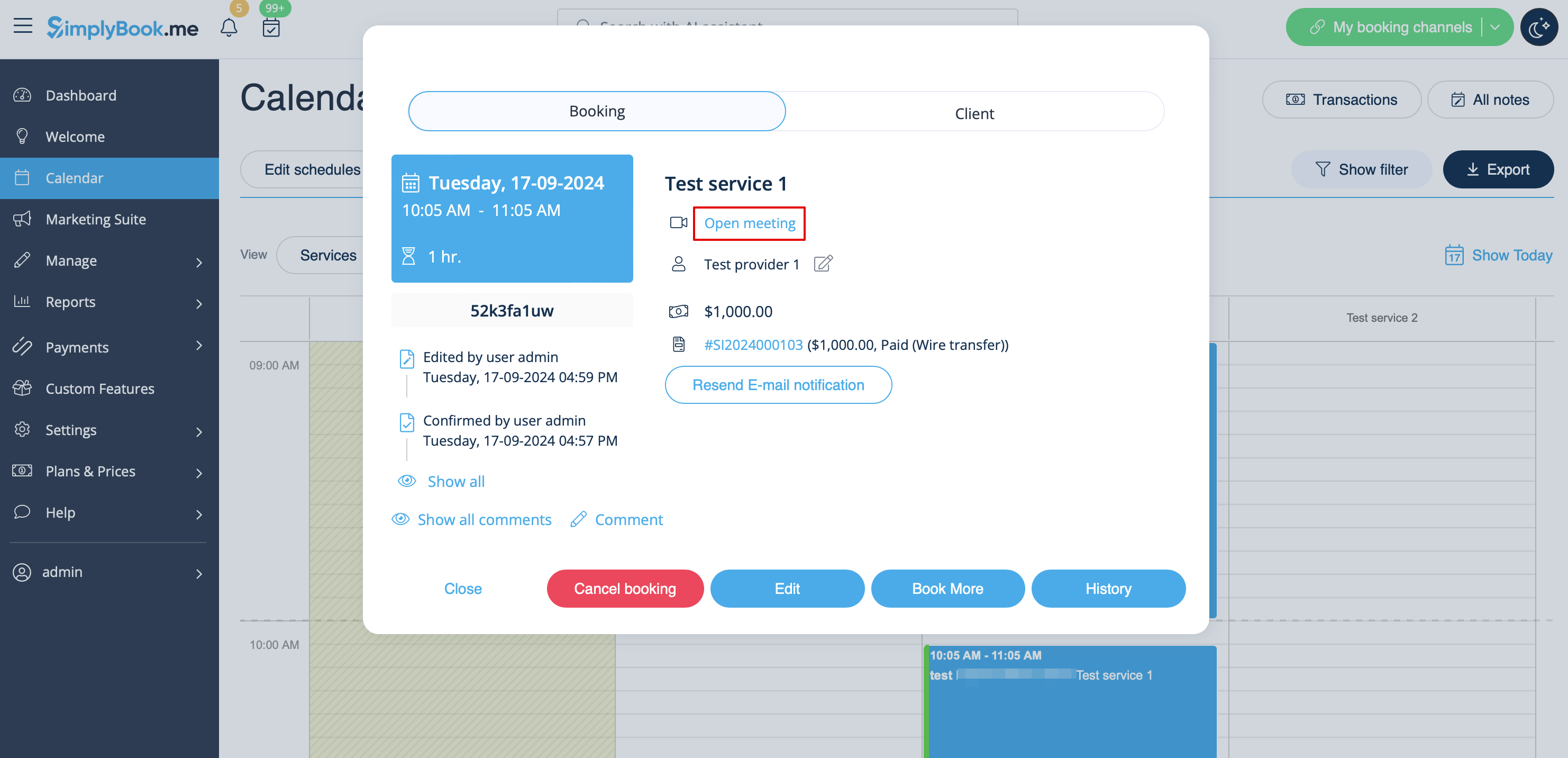
2. On the admin end provider can get to the meeting page right from the booking on "Calendar" by clicking on "Open meeting" link in the booking details popup.
3. Clients can open meeting link from booking details on "My bookings" page of the booking site.
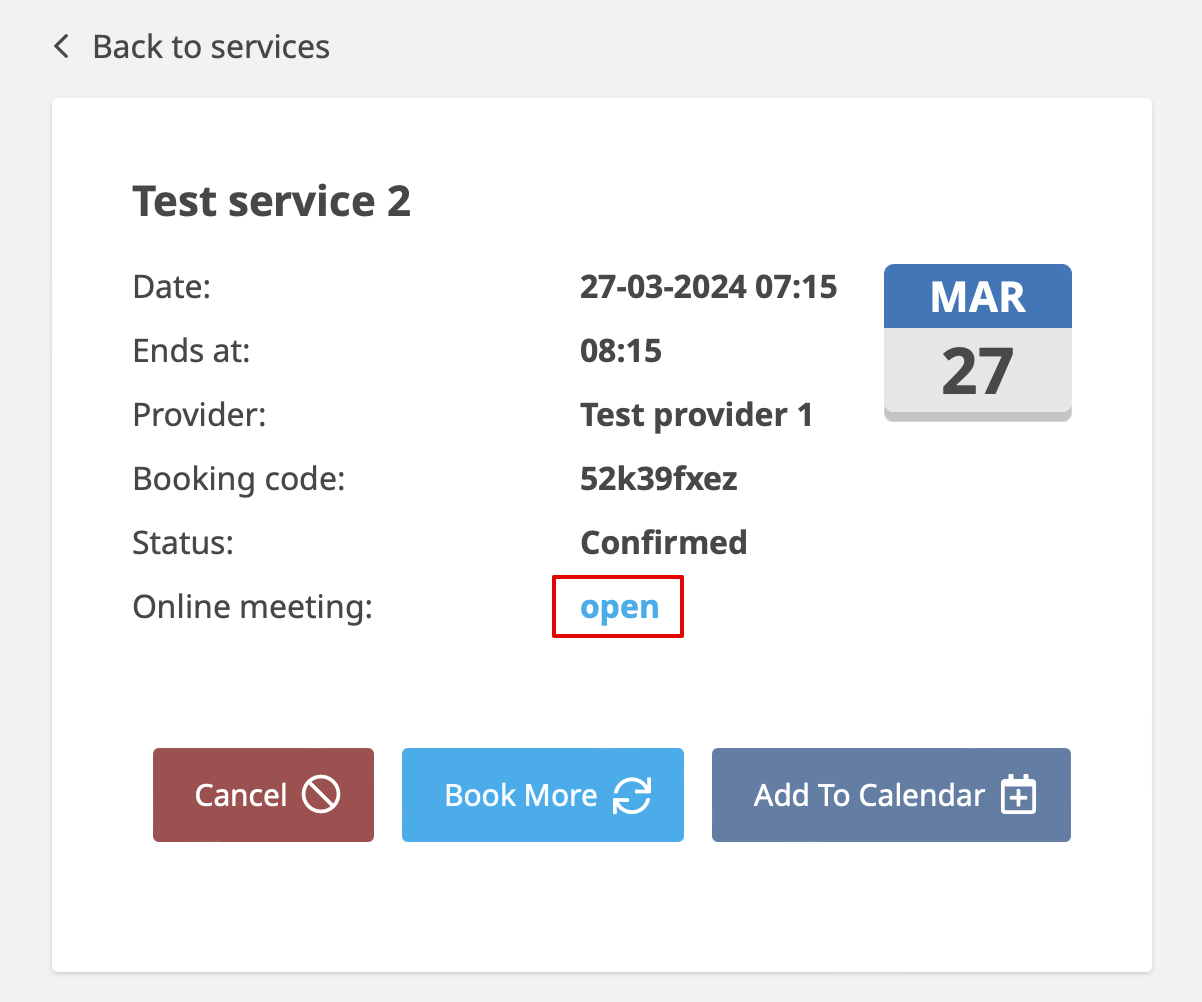
4. After that, when the meeting time comes, both provider and client will be redirected to the Zoom online meeting page.
- How to remove integration
From the Simplybook.me side
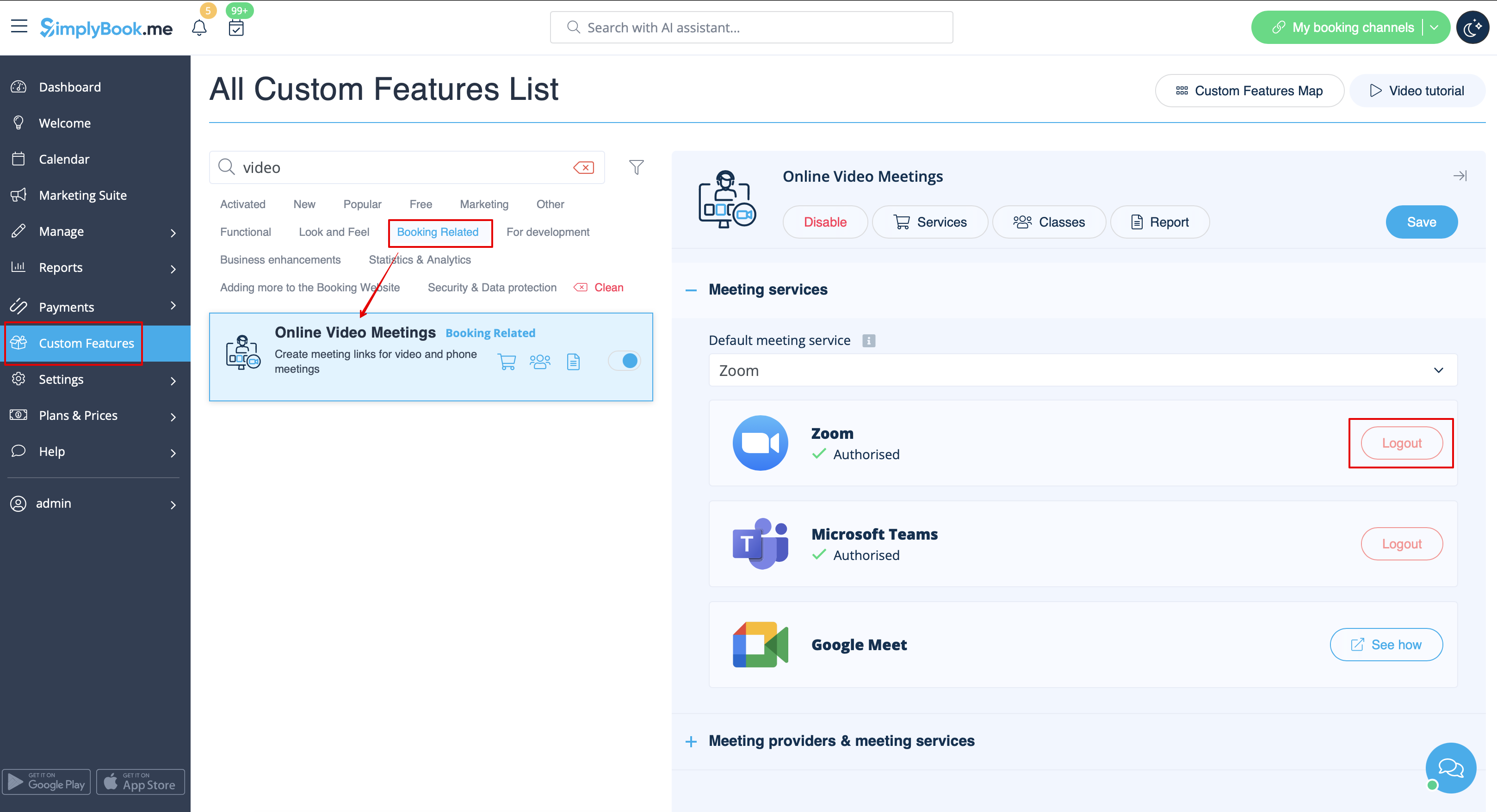
- Navigate to the Custom Features page within your Simplybook.me admin interface and click on Online video meetings custom feature to open its settings.
- In the feature settings locate Zoom and click Logout.
- After that Zoom integration will be removed from your Simplybook.me account.
From the Zoom side
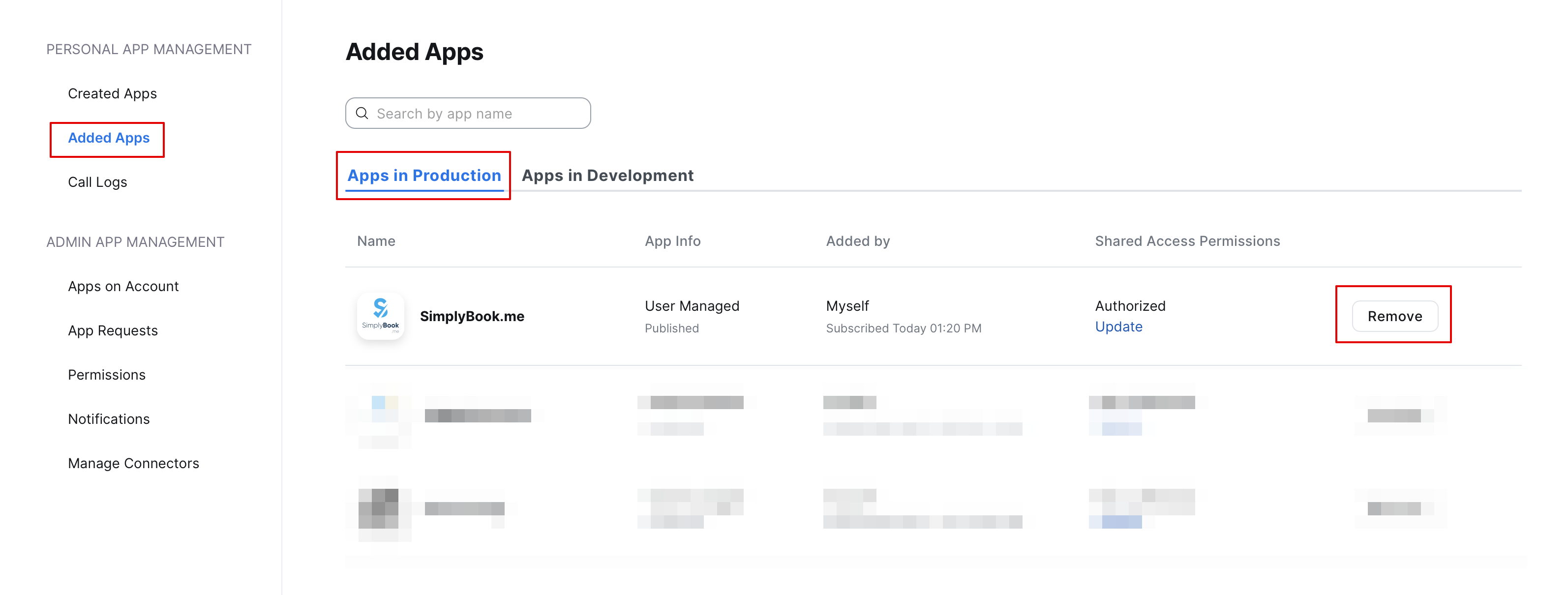
Please note! If you did not check the box “Allow this app to use my shared access permissions” OR you want to switch connected Zoom account to another one - there will be no option to do that from Simplybook.me side due to technical restrictions.
In order to do that you will need to disconnect Simplybook.me directly from Zoom and after that you will be able to connect new account on the Simplybook.me side.
- To disconnect the integration from the Zoom side please follow this link.
- Locate Simplybook.me in the list of connected apps (you can use search if needed).
- Click on Remove button to disconnect.
- Now the integration is removed and you can connect different account if needed.