Translations:Online Video Meetings via Zoom/6/en: Difference between revisions

From SimplyBook.me
FuzzyBot (talk | contribs)
Importing a new version from external source
 
(No difference)

Latest revision as of 08:01, 1 July 2025

Information about message (contribute)
This message has no documentation. If you know where or how this message is used, you can help other translators by adding documentation to this message.
Message definition (Online Video Meetings via Zoom)
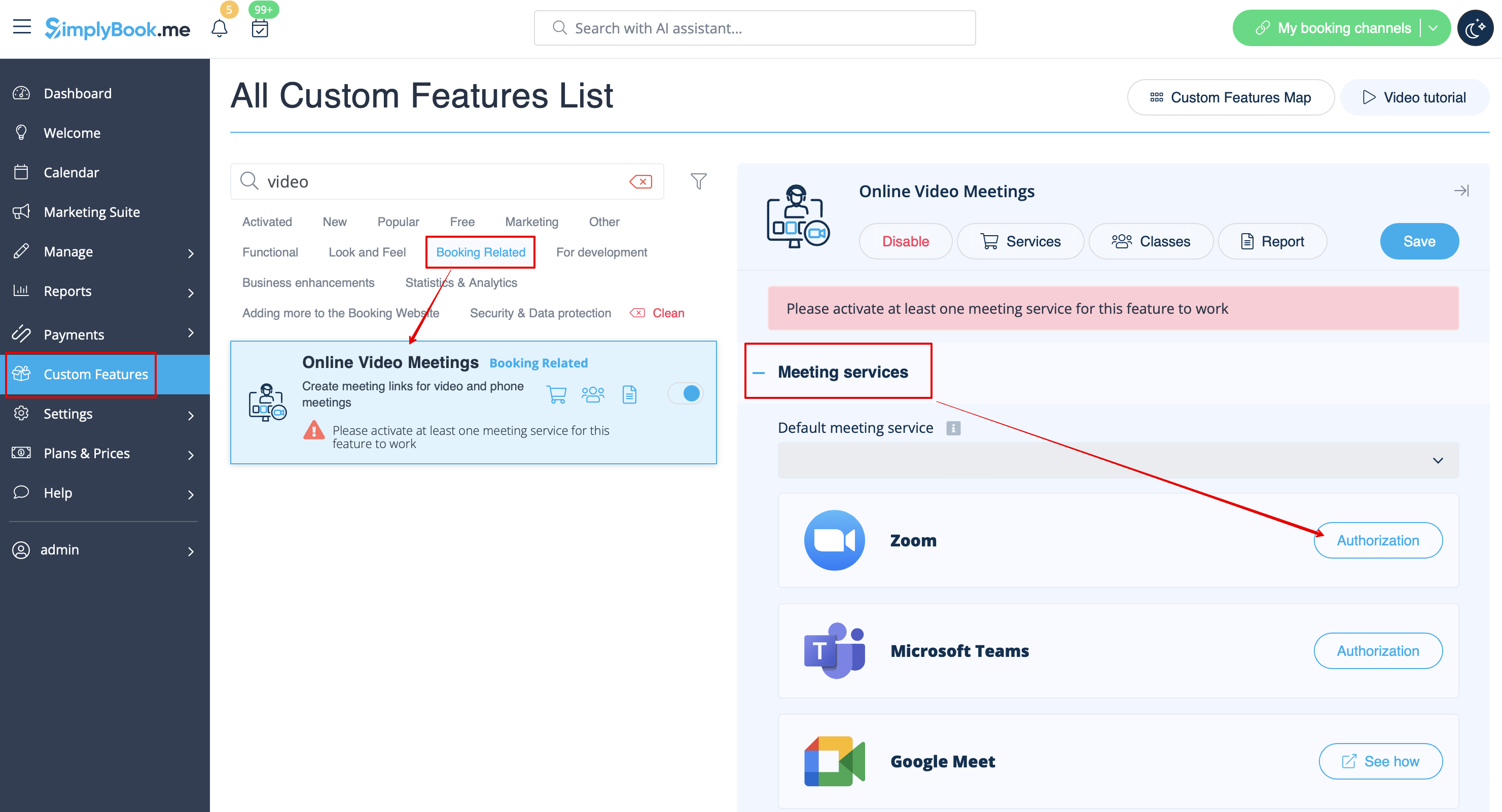
2. In the feature settings click on <span style="background-color:#d4f8e5; padding:5px; border-radius:5px;">Authorization</span> button near Zoom option to connect your Zoom account.
[[File:Online meetings zoom connect redesigned.png|1200px|center|link=https://help.simplybook.me/images/4/4c/Online_meetings_zoom_connect_redesigned.png]]
<br><br>
3. Enter your credentials to log into Zoom, or click SSO, Google, or Facebook to log in through those services.<br>
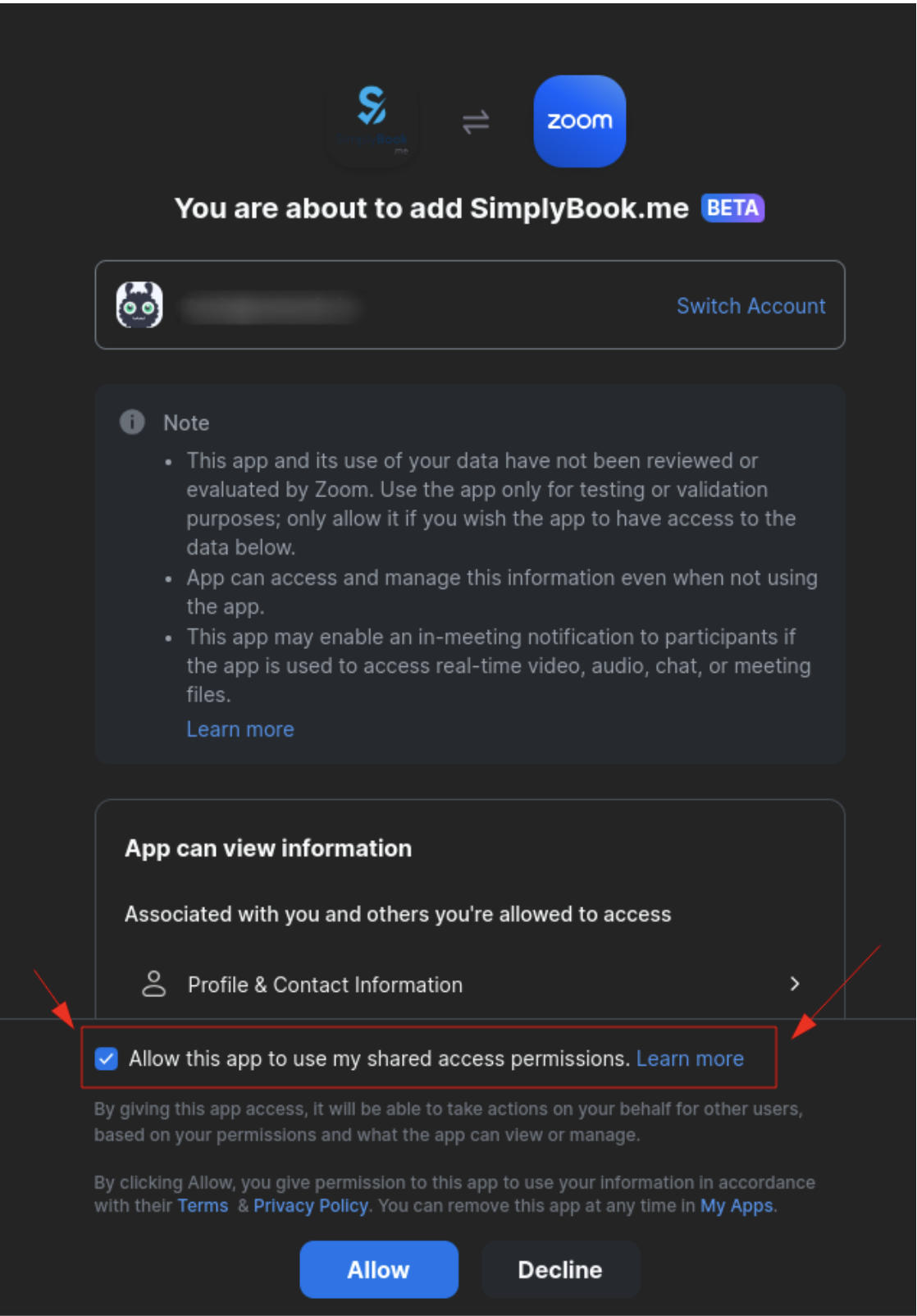
You can connect one zoom account per company OR connect all zoom users added to your account by checking the checkbox <span style="background-color:#d4f8e5; padding:5px; border-radius:5px;">Allow this app to use my shared access permissions</span>
[[File:Zoom permissions step.png|500px|center|link=https://help.simplybook.me/images/d/d8/Zoom_permissions_step.png]]
<br><br>
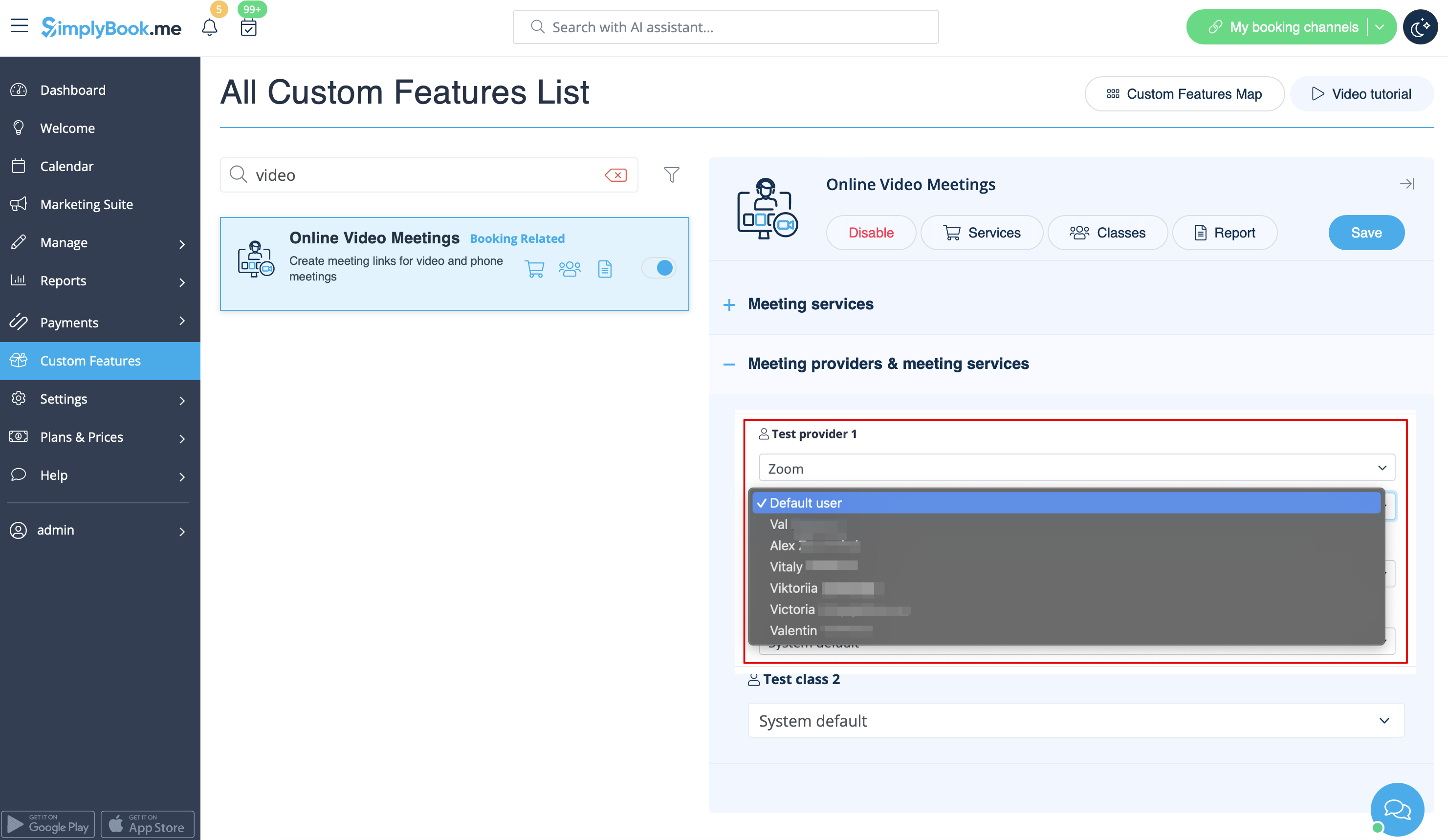
4. After Zoom is authorized, click on <span style="background-color:#d4f8e5; padding:5px; border-radius:5px;">Meeting Providers and Meeting Services</span> and choose providers that should be connected to Zoom by selecting Zoom option from the respective drop down. In the next drop-down please select Zoom user (if you have several users under your Zoom account) that should be connected to that provider.
[[File:Zoom select account per provider redesigned.png|1200px|center|link=https://help.simplybook.me/images/3/36/Zoom_select_account_per_provider_redesigned.png]]
<br><br>

2. In the feature settings click on Authorization button near Zoom option to connect your Zoom account.


3. Enter your credentials to log into Zoom, or click SSO, Google, or Facebook to log in through those services.
You can connect one zoom account per company OR connect all zoom users added to your account by checking the checkbox Allow this app to use my shared access permissions


4. After Zoom is authorized, click on Meeting Providers and Meeting Services and choose providers that should be connected to Zoom by selecting Zoom option from the respective drop down. In the next drop-down please select Zoom user (if you have several users under your Zoom account) that should be connected to that provider.