[[File:Sbpay registration form redesigned.png|1200px|center|link=https://help.simplybook.me/images/d/dd/Sbpay_registration_form_redesigned.png]]
[[File:Sbpay registration form redesigned.png|1200px|center|link=https://help.simplybook.me/images/d/dd/Sbpay_registration_form_redesigned.png]]
<br><br>
==SimplyMeet.me==
If you are a SimplyMeet.me user, you can simply go to your [https://secure.simplymeet.me/integrations Integrations] page and enable SBPay.me option there on user and/or organisation(for paid subscriptions) level.<br>
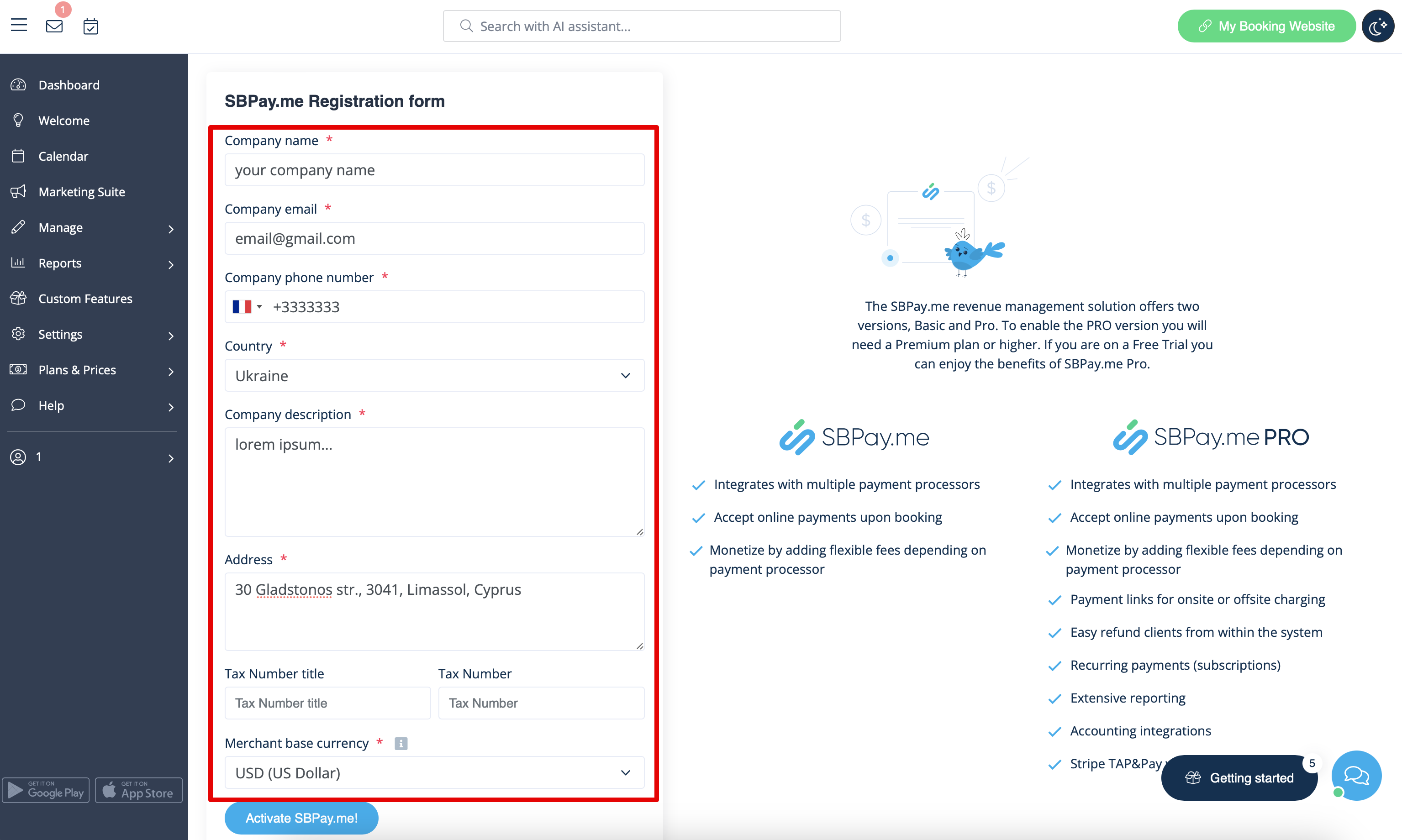
Fill in the form about the company and just in a few steps SBPay.me account is ready.
[[File:Sbpay registration form sm.png|1200px|center|link=https://help.simplybook.me/images/a/a7/Sbpay_registration_form_sm.png]]
<br><br>
<br><br>
Latest revision as of 08:03, 1 July 2025
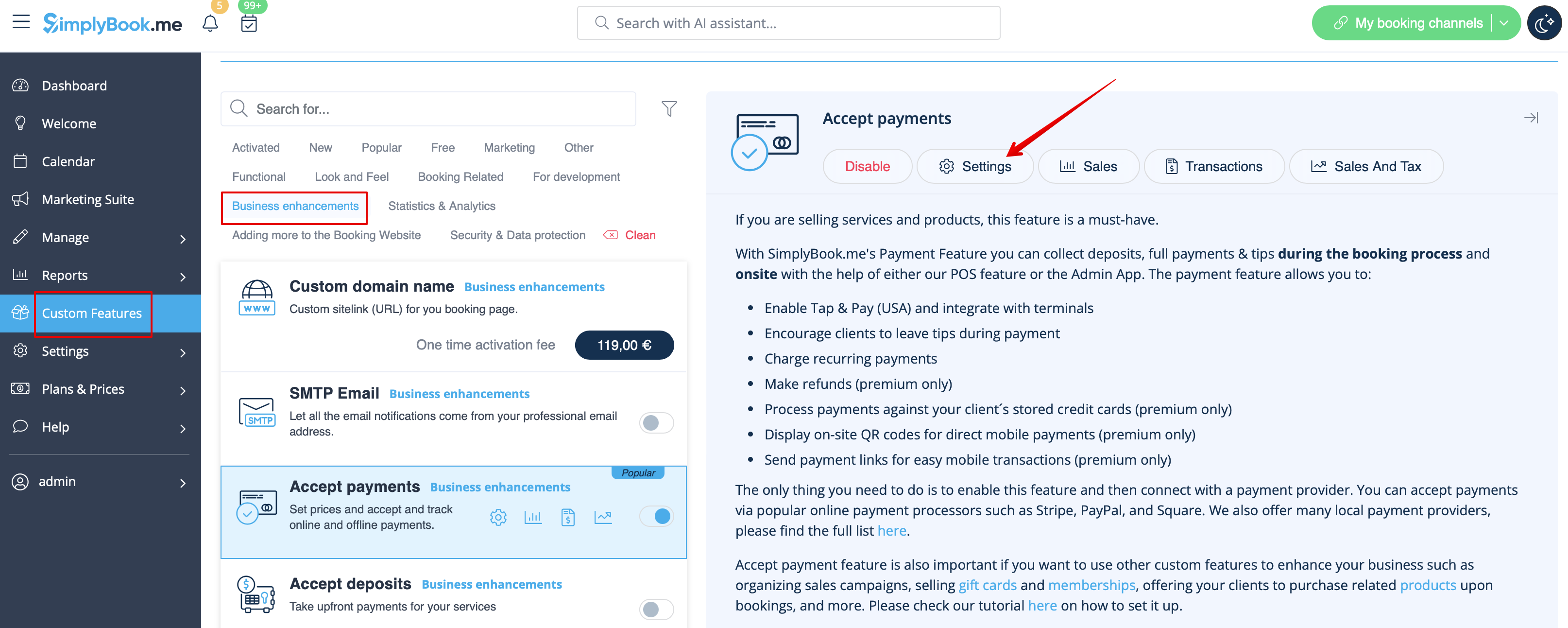
If you want to enable online payments for the already existing SimplyBook.me account, after enabling Accept payments custom feature you will have to fill in the form about your company and select the base currency.
After it is submitted, just in a few seconds the account will be created for you.