Translations:Email notifications with Zapier/6/da: Difference between revisions

From SimplyBook.me
Created page with ":4.'''Nu''' skal du konfigurere handlingstrin, og da det vedrører e-mails, skal du finde Gmail-indstillingen ved hjælp af søgefeltet. 1200px|center|link=https://help.simplybook.me/images/0/01/Zapier_redesigned_gmail_as_action_app.png <br><br> :'''5.''' Vælg "Send e-mail"'''fra''' listen over tilgængelige handlinger, og forbind den Gmail-konto, der skal bruges til at sende meddelelser. File:Zapier redesigned send e..."
 
(No difference)

Latest revision as of 08:04, 1 July 2025

Information about message (contribute)
This message has no documentation. If you know where or how this message is used, you can help other translators by adding documentation to this message.
Message definition (Email notifications with Zapier)
:'''4'''. Now you will be setting up actions step and as it is related to emails please find Gmail option using searchbox.
[[File:Zapier redesigned gmail as action app.png|1200px|center|link=https://help.simplybook.me/images/0/01/Zapier_redesigned_gmail_as_action_app.png]]
<br><br>
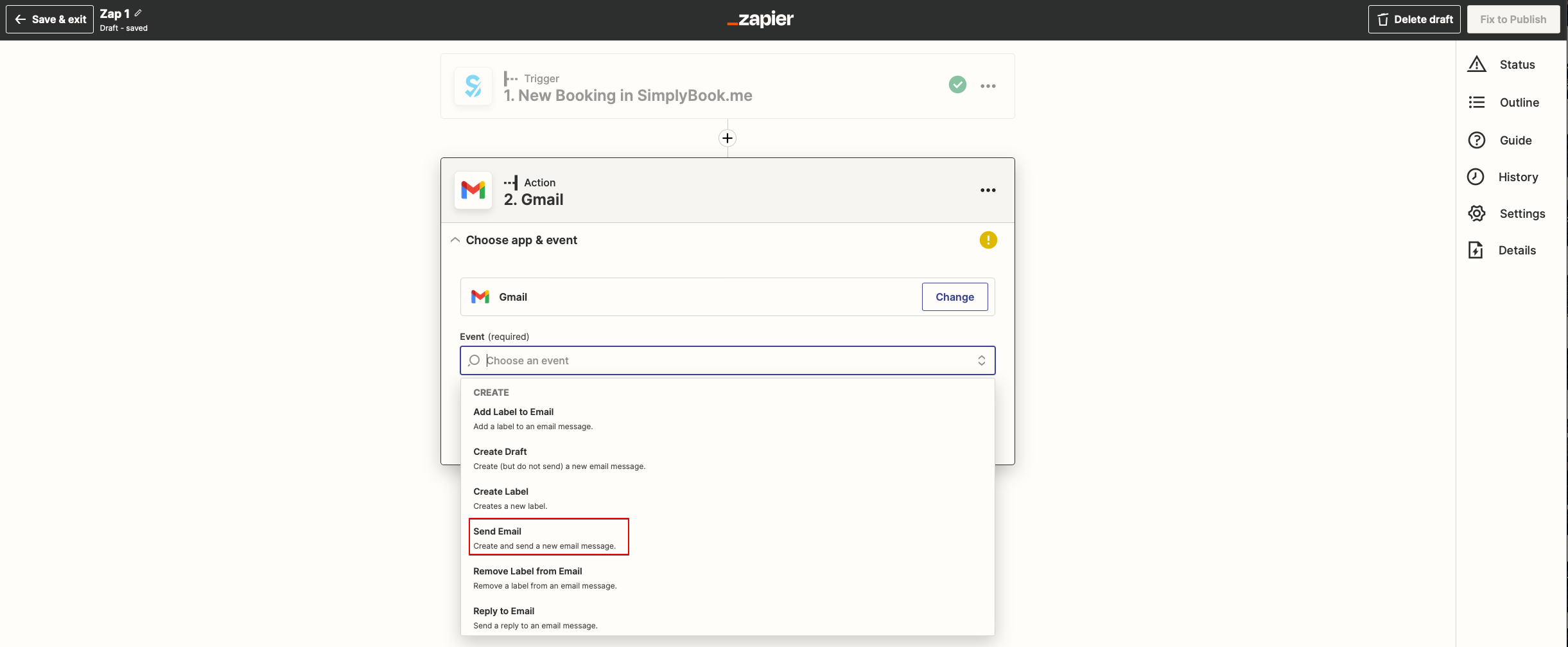
:'''5'''. From the list of available actions please choose "Send email" and connect Gmail account that will be used for sending notifications.
[[File:Zapier redesigned send email action.png|1200px |center|link=https://help.simplybook.me/images/a/ac/Zapier_redesigned_send_email_action.png]]
<br><br>
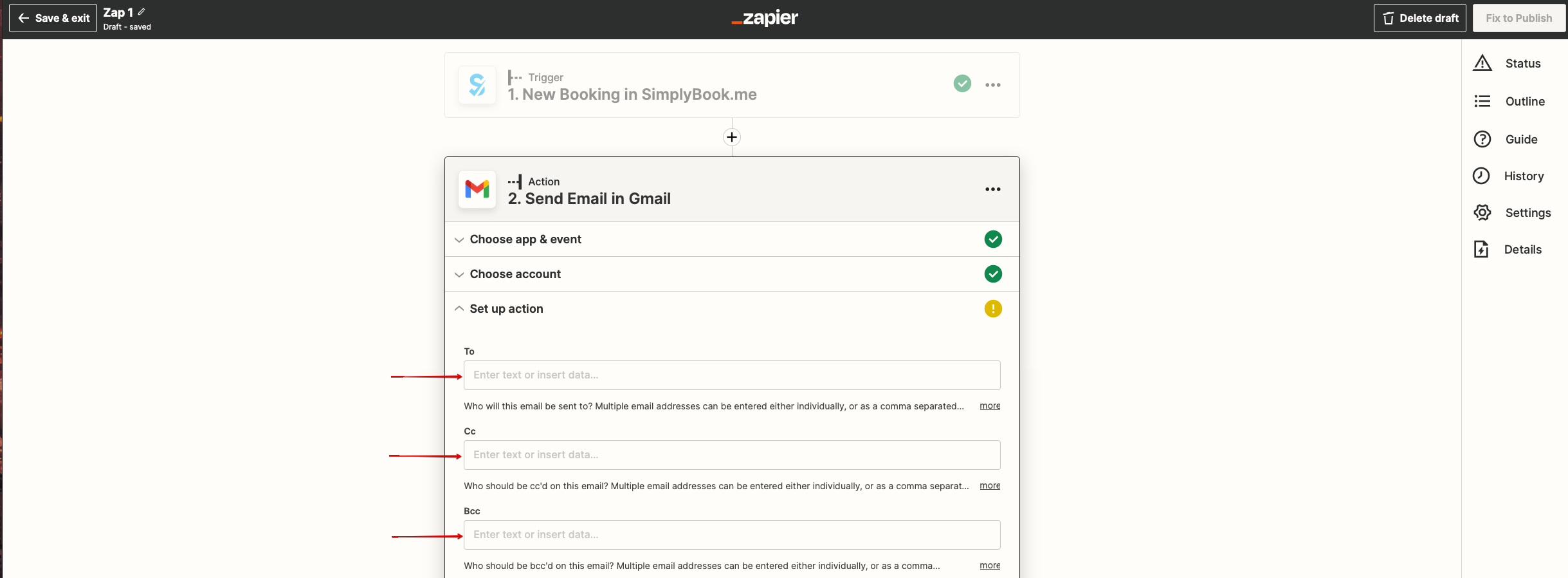
:'''6'''.  On the next step please add email address(es) that you wish notification to be sent to. You may add only one address in "To(required)" email box or add some more addresses with the help of "Cc" and "Bcc" options or by clicking on "+" icon to add another email box.
[[File:Zapier redesigned setup the email addresses.png|1200px |center|link=https://help.simplybook.me/images/5/5a/Zapier_redesigned_setup_the_email_addresses.png]]
<br><br>
4.Nu skal du konfigurere handlingstrin, og da det vedrører e-mails, skal du finde Gmail-indstillingen ved hjælp af søgefeltet.
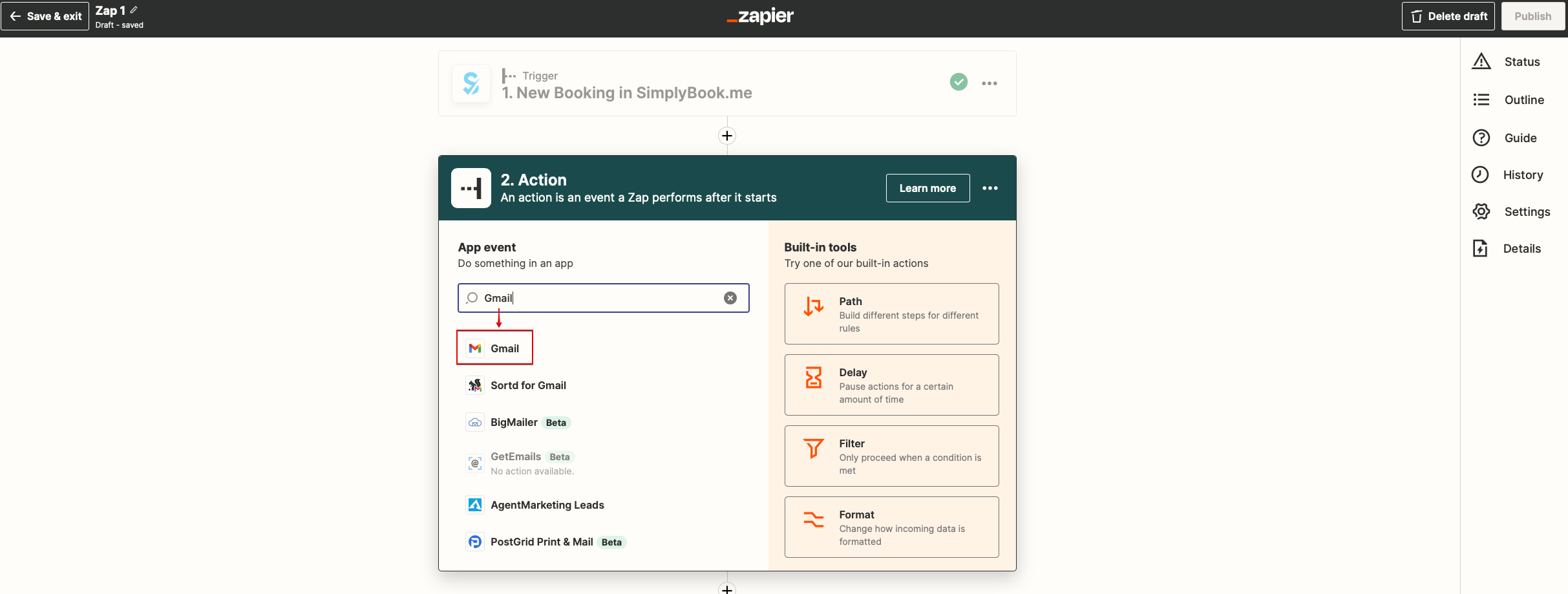


5. Vælg "Send e-mail"fra listen over tilgængelige handlinger, og forbind den Gmail-konto, der skal bruges til at sende meddelelser.


6. I det næste trin skal du tilføje den eller de e-mailadresser, som du ønsker, at meddelelsen skal sendes til. Du kan kun tilføje én adresse i feltet "Til (påkrævet)" eller tilføje flere adresser ved hjælp af "Cc" og "Bcc" eller ved at klikke på "+" for at tilføje et nyt e-mailfelt.