No edit summary |
Marked this version for translation |
||
| (4 intermediate revisions by the same user not shown) | |||
| Line 1: | Line 1: | ||
<languages/> | |||
<translate> | |||
<!--T:1--> | |||
{{#seo: | {{#seo: | ||
|title=Frequently Asked Questions about the Popular Appointment Booking System Scheduler SimplyBook.me | |title=Frequently Asked Questions about the Popular Appointment Booking System Scheduler SimplyBook.me | ||
| Line 4: | Line 7: | ||
|keywords=faq, frequently asked questions, booking software, appointment system questions, appointments online, calendar software, booking system, booking calendar, scheduling software, online appointment scheduling, online scheduling, setup, setup help, support, help content, connect social networks, manage business page on socials, manage socials, all socials in one place | |keywords=faq, frequently asked questions, booking software, appointment system questions, appointments online, calendar software, booking system, booking calendar, scheduling software, online appointment scheduling, online scheduling, setup, setup help, support, help content, connect social networks, manage business page on socials, manage socials, all socials in one place | ||
}} | }} | ||
</translate> | |||
<translate> | |||
<!--T:2--> | |||
A single tool for all social media tasks: for everyone, whatever your skills, knowledge, and | A single tool for all social media tasks: for everyone, whatever your skills, knowledge, and | ||
resources | resources | ||
| Line 16: | Line 21: | ||
* Analytics: Track your social media performance with real-time data and insights. | * Analytics: Track your social media performance with real-time data and insights. | ||
<br><br> | <br><br> | ||
'''How to Schedule, Advertise and Analyse Your Social Media With Simplybook.me''' | '''How to Schedule, Advertise and Analyse Your Social Media With Simplybook.me''' <p><youtube>FgReH4v36rY</youtube></p> | ||
< | |||
<br><br> | <br><br> | ||
'''How to create Ad Campaigns'''<p><youtube>ezfkvueaTn0</youtube></p> | |||
<br><br></translate> | |||
<translate> | |||
<!--T:3--> | |||
; How to use | ; How to use | ||
1. Navigate to Social & Ads tab within your Simplybook.me admin interface.<br> | 1. Navigate to Social & Ads tab within your Simplybook.me admin interface.<br> | ||
| Line 31: | Line 38: | ||
5. Connect your business social networks there to see all the details within one interface and manage everything even more effectively. | 5. Connect your business social networks there to see all the details within one interface and manage everything even more effectively. | ||
<br><br> | <br><br> | ||
</translate> | |||
Latest revision as of 08:05, 1 July 2025
A single tool for all social media tasks: for everyone, whatever your skills, knowledge, and
resources
- Content Planner: Schedule posts, optimize timing, and manage content easily.
- Smart links: Create custom links to drive traffic and track results.
- Comments & Messages: Manage all social interactions from one dashboard.
- Competitor Analysis: Monitor your competitors' strategies and stay ahead.
- Custom Reports: Create simple, visual reports to showcase your results quickly.
- Ad Management: Run and optimize ad campaigns in Google Ads, TikTok Ads, Facebook & Instagram Ads.
- Analytics: Track your social media performance with real-time data and insights.
How to Schedule, Advertise and Analyse Your Social Media With Simplybook.me
How to create Ad Campaigns
- How to use
1. Navigate to Social & Ads tab within your Simplybook.me admin interface.
2. Click on "Enable" button and proceed to payment step to add "Social and Ads" tool to your subscription.
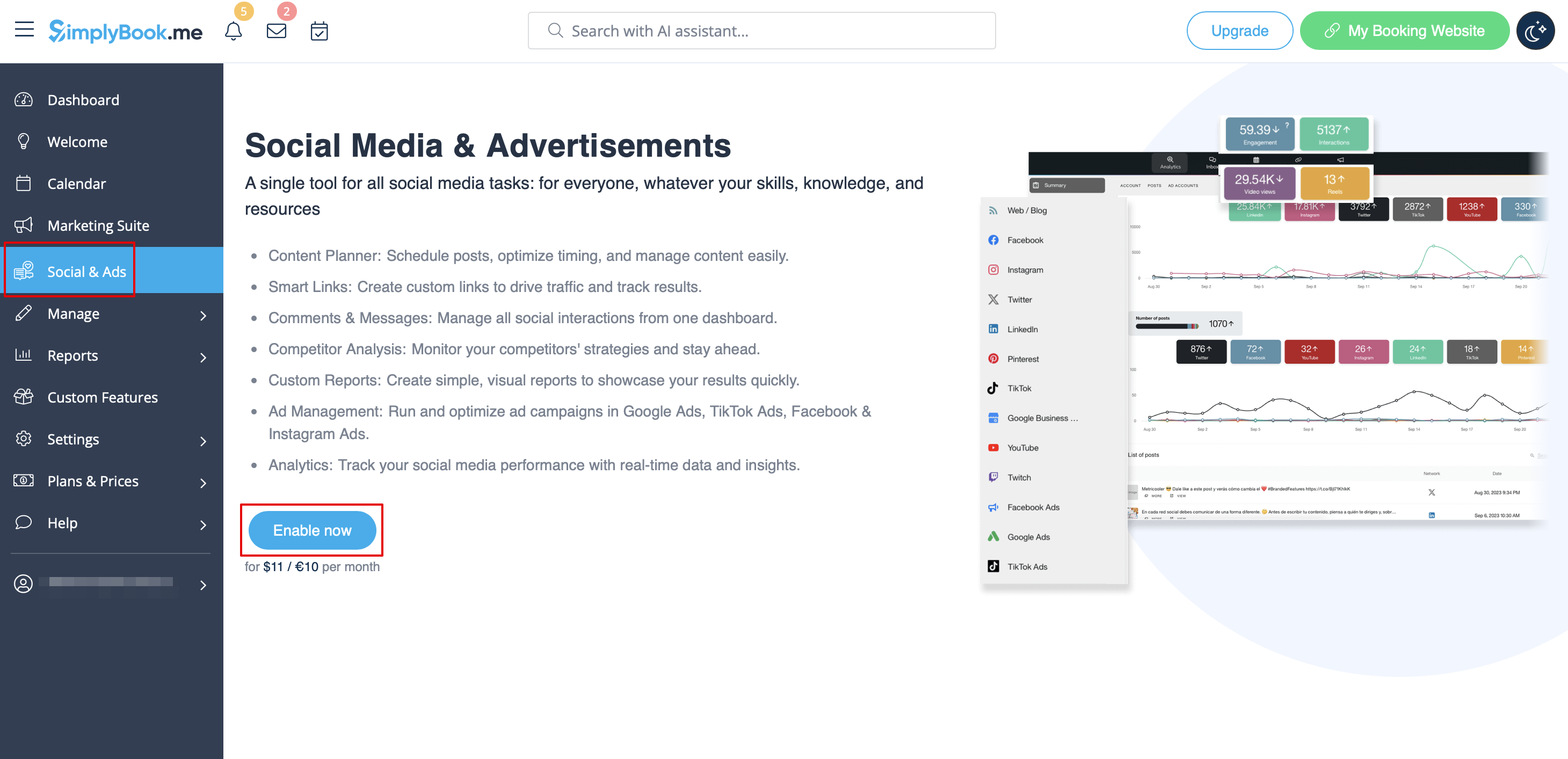
3. Once the payment is confirmed go back to the Social & Ads tab.
4. The integration is already enabled for you, your booking website activity is already being tracked and you will be able to see the statistics on visits.
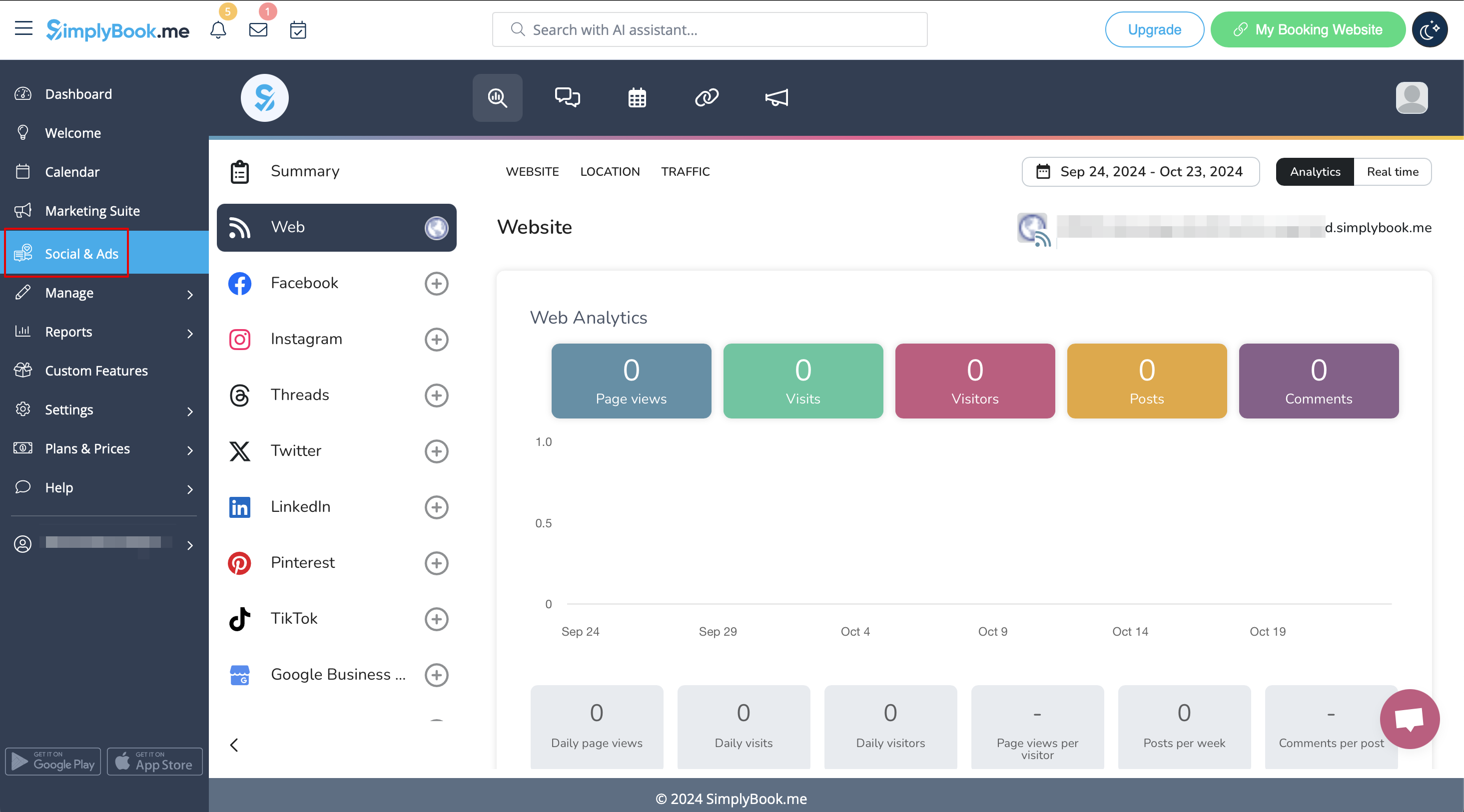
5. Connect your business social networks there to see all the details within one interface and manage everything even more effectively.
