Translations:Email notifications with Zapier/6/nl: Difference between revisions

From SimplyBook.me
Created page with ":4.'''Nu''' gaat u de actiestappen instellen. Aangezien dit betrekking heeft op e-mails, zoekt u de Gmail-optie met behulp van het zoekvak. 1200px|center|link=https://help.simplybook.me/images/0/01/Zapier_redesigned_gmail_as_action_app.png <br><br> :'''5.''' Kies'''uit''' de lijst met beschikbare acties "E-mail verzenden" en koppel het Gmail-account dat zal worden gebruikt voor het verzenden van meldingen. File:Zapier..."
 
(No difference)

Latest revision as of 08:07, 1 July 2025

Information about message (contribute)
This message has no documentation. If you know where or how this message is used, you can help other translators by adding documentation to this message.
Message definition (Email notifications with Zapier)
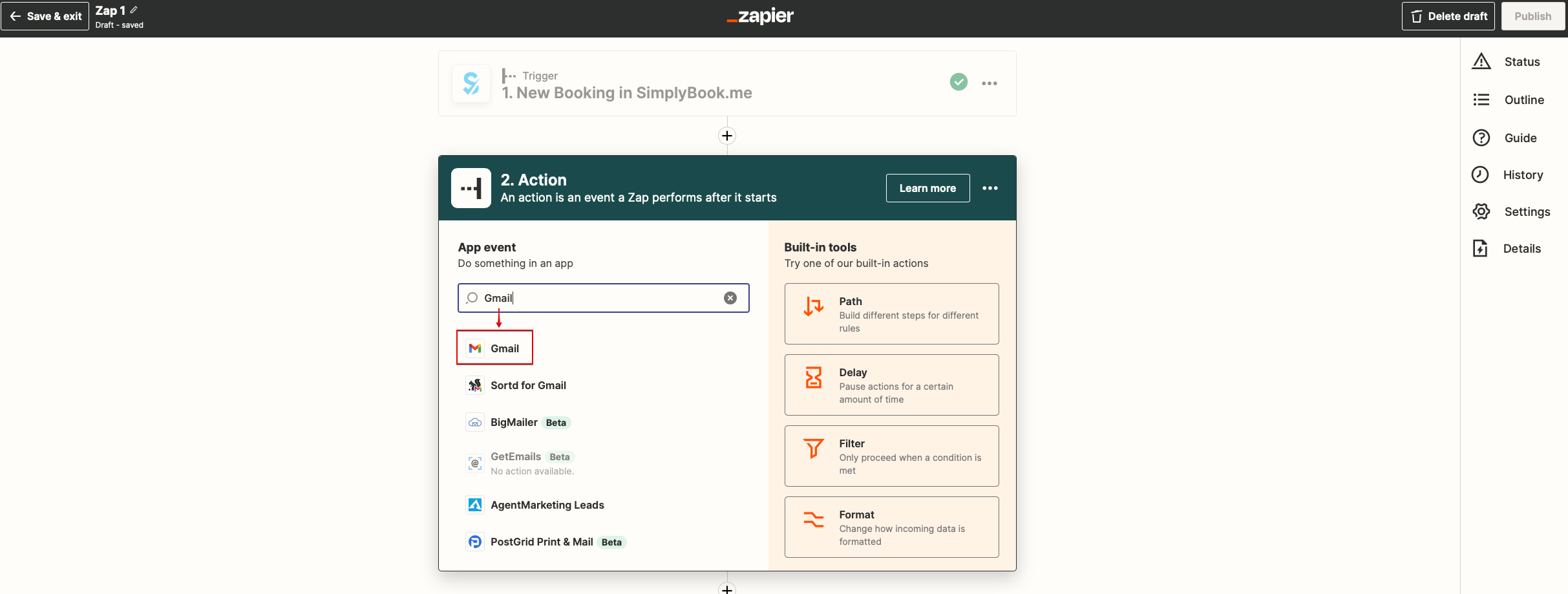
:'''4'''. Now you will be setting up actions step and as it is related to emails please find Gmail option using searchbox.
[[File:Zapier redesigned gmail as action app.png|1200px|center|link=https://help.simplybook.me/images/0/01/Zapier_redesigned_gmail_as_action_app.png]]
<br><br>
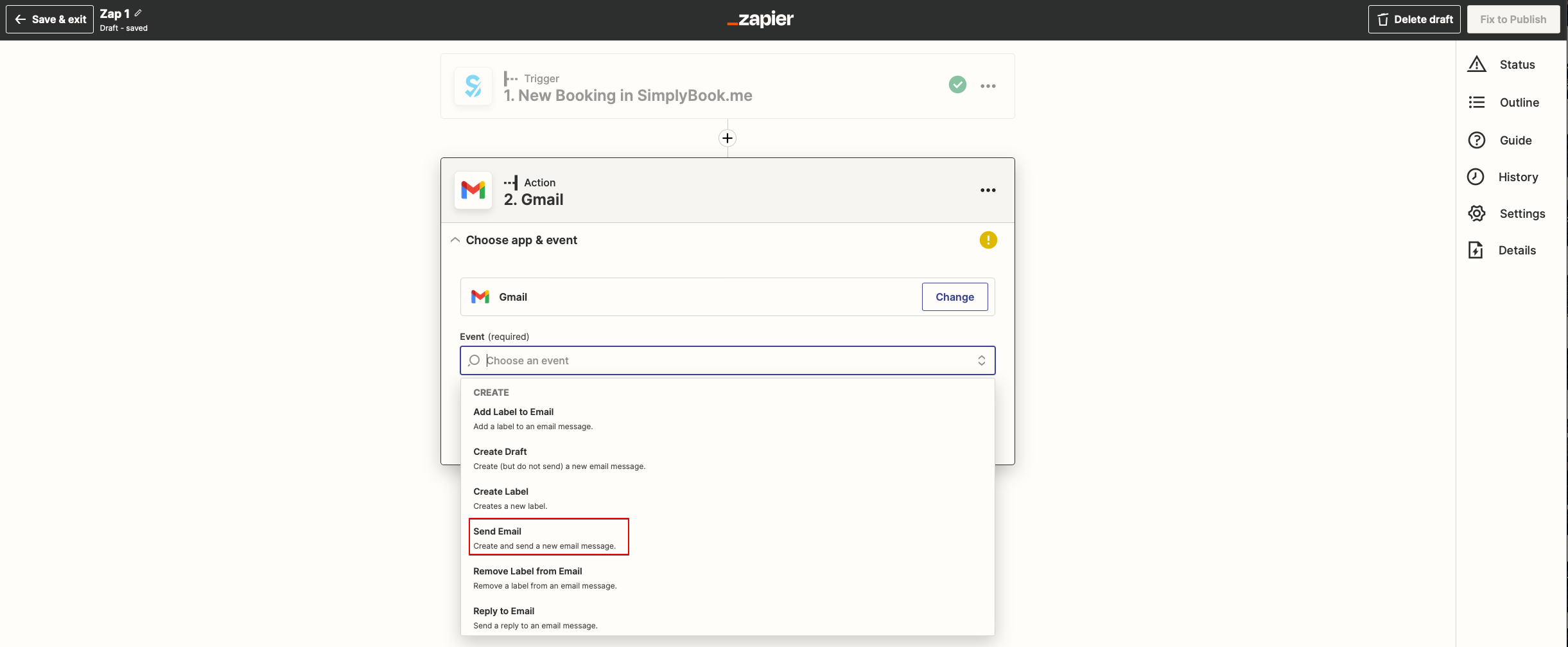
:'''5'''. From the list of available actions please choose "Send email" and connect Gmail account that will be used for sending notifications.
[[File:Zapier redesigned send email action.png|1200px |center|link=https://help.simplybook.me/images/a/ac/Zapier_redesigned_send_email_action.png]]
<br><br>
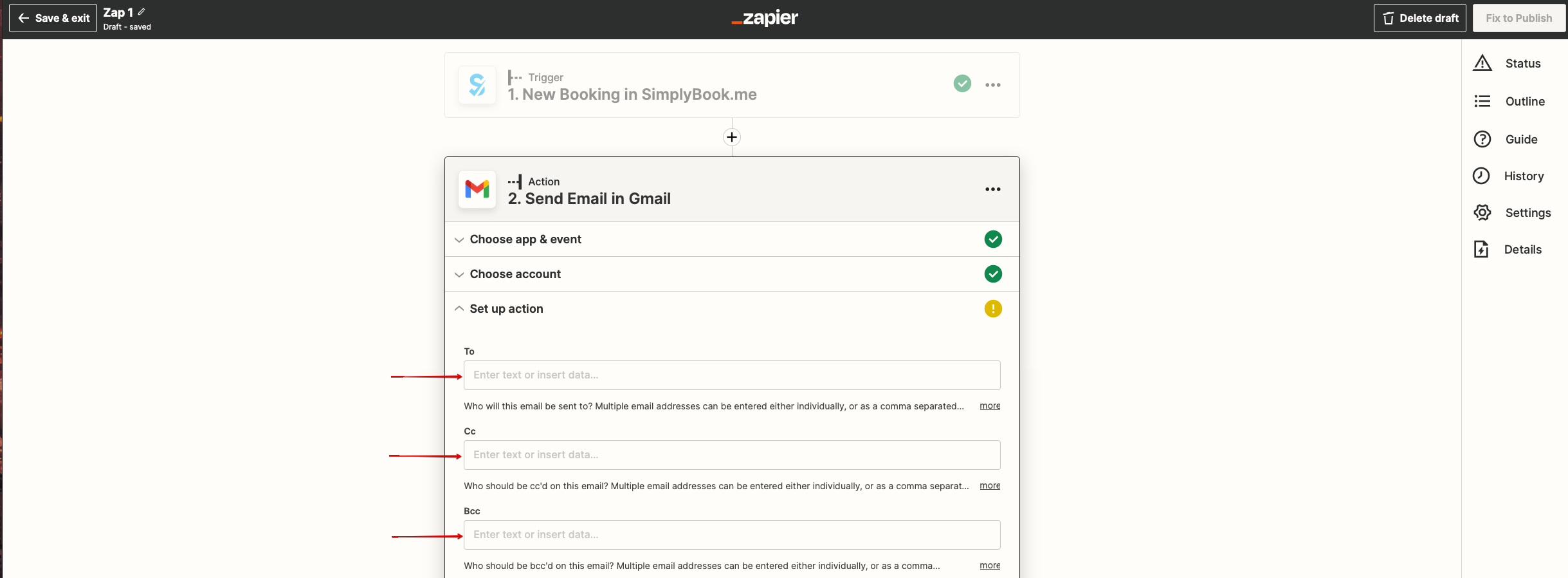
:'''6'''.  On the next step please add email address(es) that you wish notification to be sent to. You may add only one address in "To(required)" email box or add some more addresses with the help of "Cc" and "Bcc" options or by clicking on "+" icon to add another email box.
[[File:Zapier redesigned setup the email addresses.png|1200px |center|link=https://help.simplybook.me/images/5/5a/Zapier_redesigned_setup_the_email_addresses.png]]
<br><br>
4.Nu gaat u de actiestappen instellen. Aangezien dit betrekking heeft op e-mails, zoekt u de Gmail-optie met behulp van het zoekvak.


5. Kiesuit de lijst met beschikbare acties "E-mail verzenden" en koppel het Gmail-account dat zal worden gebruikt voor het verzenden van meldingen.


6. Voegin de volgende stap het e-mailadres of de e-mailadressen toe waarnaar u de meldingen wilt verzenden. U kunt slechts één adres toevoegen in het e-mailvak 'Aan (verplicht)', of meerdere adressen toevoegen met behulp van de opties 'Cc' en 'Bcc' of door op het pictogram '+' te klikken om een ander e-mailvak toe te voegen.