Translations:Online Video Meetings via Zoom/9/fr: Difference between revisions

From SimplyBook.me
Created page with "7. (facultatif) Vous pouvez également ajouter un lien vers les réunions en ligne aux modèles de notification destinés aux prestataires et aux clients afin que les deux parties les reçoivent avec les détails de la réservation. *Pour ce faire, accédez à <span style="background-color:#d4f8e5; padding:5px; border-radius:5px;">Paramètres</span> -> <span style="background-color:#d4f8e5; padding:5px; border-radius:5px;">Paramètres e-mail et SMS</span> (ou <span st..."
 
(No difference)

Latest revision as of 08:08, 1 July 2025

Information about message (contribute)
This message has no documentation. If you know where or how this message is used, you can help other translators by adding documentation to this message.
Message definition (Online Video Meetings via Zoom)
7. (optional) As well you can add online meetings link to provider and client notification templates so that both sides receive them with the booking details.
* To do that for your client notifications please navigate to <span style="background-color:#d4f8e5; padding:5px; border-radius:5px;">Settings</span> -> <span style="background-color:#d4f8e5; padding:5px; border-radius:5px;">Email and SMS settings</span> (or <span style="background-color:#d4f8e5; padding:5px; border-radius:5px;">Custom features</span> -> <span style="background-color:#d4f8e5; padding:5px; border-radius:5px;">[[Flexible Notifications custom feature|Flexible notifications]]</span> -> <span style="background-color:#d4f8e5; padding:5px; border-radius:5px;">Manage</span> if you have customized notifications per service and/or provider) and edit your <span style="background-color:#d4f8e5; padding:5px; border-radius:5px;">Client's booking confirmation</span> template to add ''[online_meeting_link]'' variable to send Zoom links to your clients. 
To make everything work simply paste ''[online_meeting_link]'' variable to the desired place in your "Client's booking confirmation template" so when a client books a service, a Zoom meeting link will be automatically generated at the place of a variable. 
<br><br>
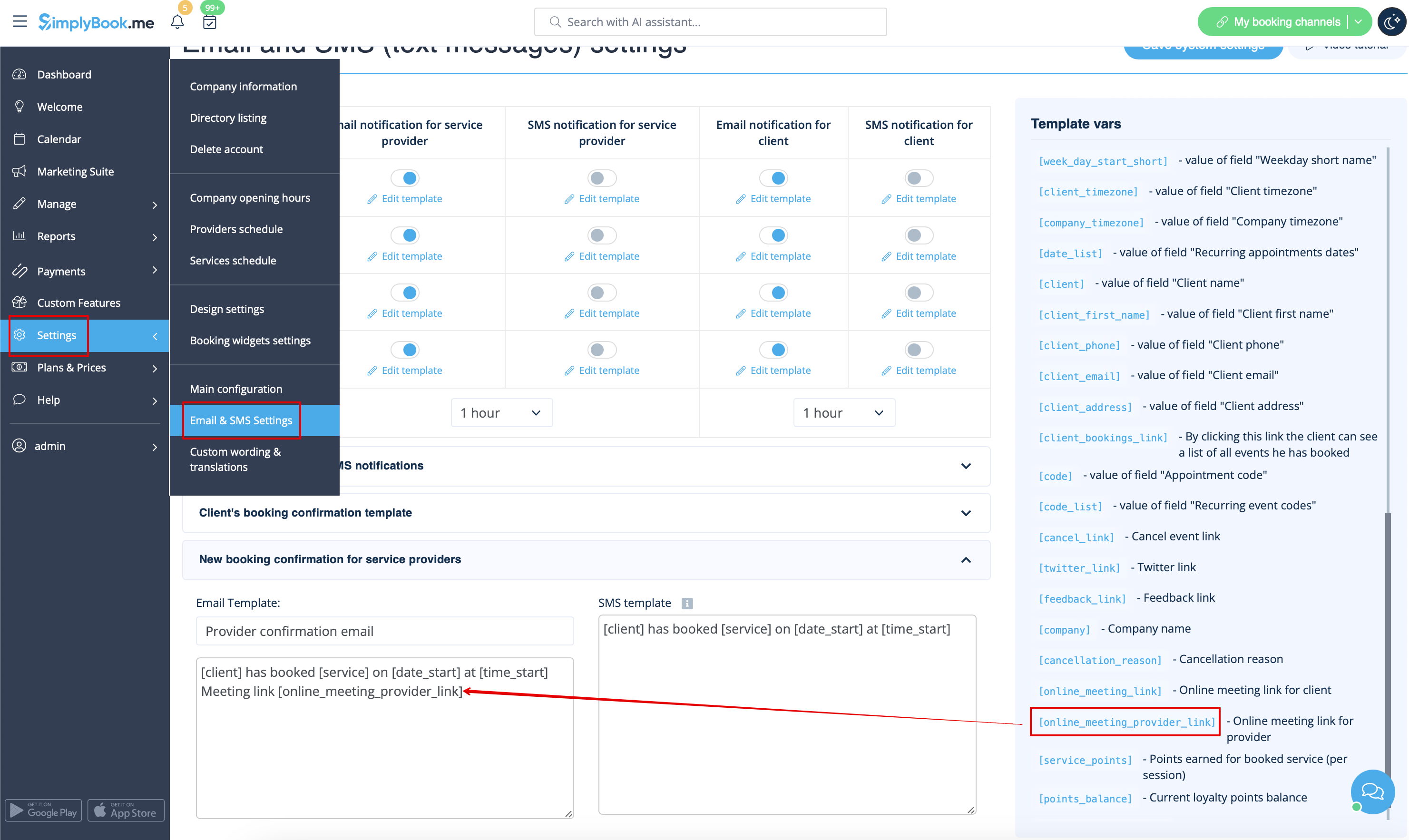
* To let your service providers receive Zoom links in their confirmations please add ''[online_meeting_provider_link]'' variable to your <span style="background-color:#d4f8e5; padding:5px; border-radius:5px;">New booking confirmation for service providers</span> in <span style="background-color:#d4f8e5; padding:5px; border-radius:5px;">Settings</span> -> <span style="background-color:#d4f8e5; padding:5px; border-radius:5px;">Email and sms settings</span> (or <span style="background-color:#d4f8e5; padding:5px; border-radius:5px;">Custom features</span> -> <span style="background-color:#d4f8e5; padding:5px; border-radius:5px;">[[Flexible Notifications custom feature|Flexible notifications]]</span> -> <span style="background-color:#d4f8e5; padding:5px; border-radius:5px;">Manage</span> if you have customized notifications per service and/or provider).
[[File:Add meeting link to provider confirmation redesigned.png|1200px|border|center|link=https://help.simplybook.me/images/6/6c/Add_meeting_link_to_provider_confirmation_redesigned.png]]

7. (facultatif) Vous pouvez également ajouter un lien vers les réunions en ligne aux modèles de notification destinés aux prestataires et aux clients afin que les deux parties les reçoivent avec les détails de la réservation.

  • Pour ce faire, accédez à Paramètres -> Paramètres e-mail et SMS (ou Fonctionnalités personnalisées -> Notifications flexibles -> Gérer si vous avez personnalisé les notifications par service et/ou prestataire) et modifiez le modèle de confirmation de réservation de votre client afin d'ajouter la variable [online_meeting_link] pour envoyer les liens Zoom à vos clients.

Pour que tout fonctionne, il suffit de coller la variable [online_meeting_link] à l'endroit souhaité dans votre « Modèle de confirmation de réservation du client ». Ainsi, lorsqu'un client réserve un service, un lien vers la réunion Zoom sera automatiquement généré à la place de la variable.

  • Pour que vos prestataires de services reçoivent les liens Zoom dans leurs confirmations, veuillez ajouter la variable [online_meeting_provider_link] à votre confirmation de nouvelle réservation pour les prestataires de services dans Paramètres -> Paramètres e-mail et SMS (ou Fonctionnalités personnalisées -> Notifications flexibles -> Gérer si vous avez personnalisé les notifications par service et/ou prestataire).