Translations:Duda integration/3/de: Difference between revisions

From SimplyBook.me
Created page with ";So richtest du es ein 1. Melde dich in deinem [https://my.duda.co/ Duda-Dashboard] an.<br> 2. Erstelle eine neue Website oder öffne die bestehende, in die du das Buchungs-Widget einbetten möchtest.<br> 3. Klicke im Menü auf der linken Seite auf '''Widgets'''.<br> 4. Suche nach ''''SimplyBook''' und installiere es. 1200px|center|link=https://help.simplybook.me/images/5/57/Duda_widget_sb_path.png File:Duda sb widget install.png|1200px..."
 
(No difference)

Latest revision as of 14:21, 16 July 2025

Information about message (contribute)
This message has no documentation. If you know where or how this message is used, you can help other translators by adding documentation to this message.
Message definition (Duda integration)
;How to set
1. Log into your [https://my.duda.co/ Duda dashboard].<br>
2. Create a new website or open the existing one where you want to embed the booking widget.<br>
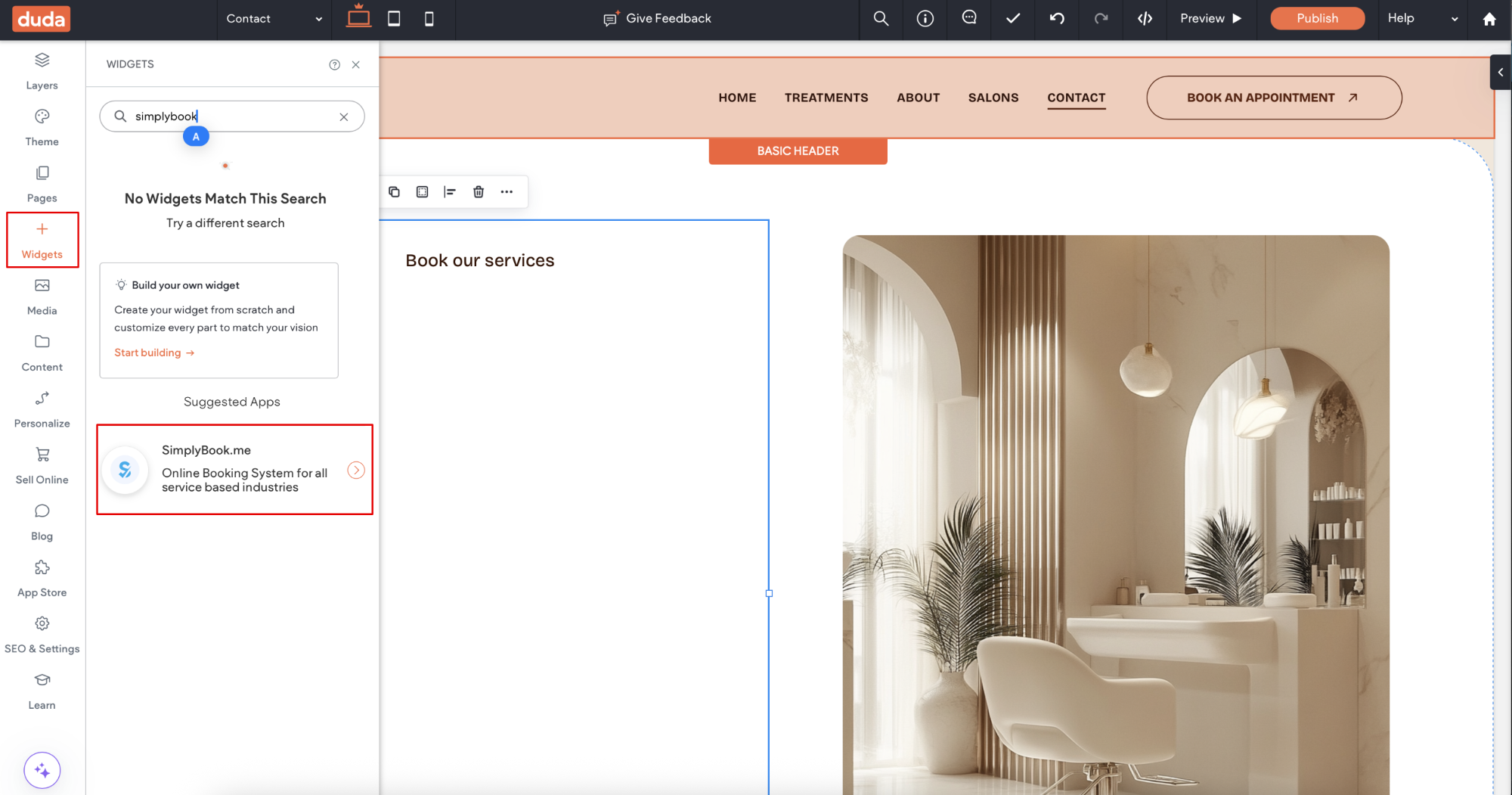
3. Click on '''Widgets''' in the left-side menu.<br>
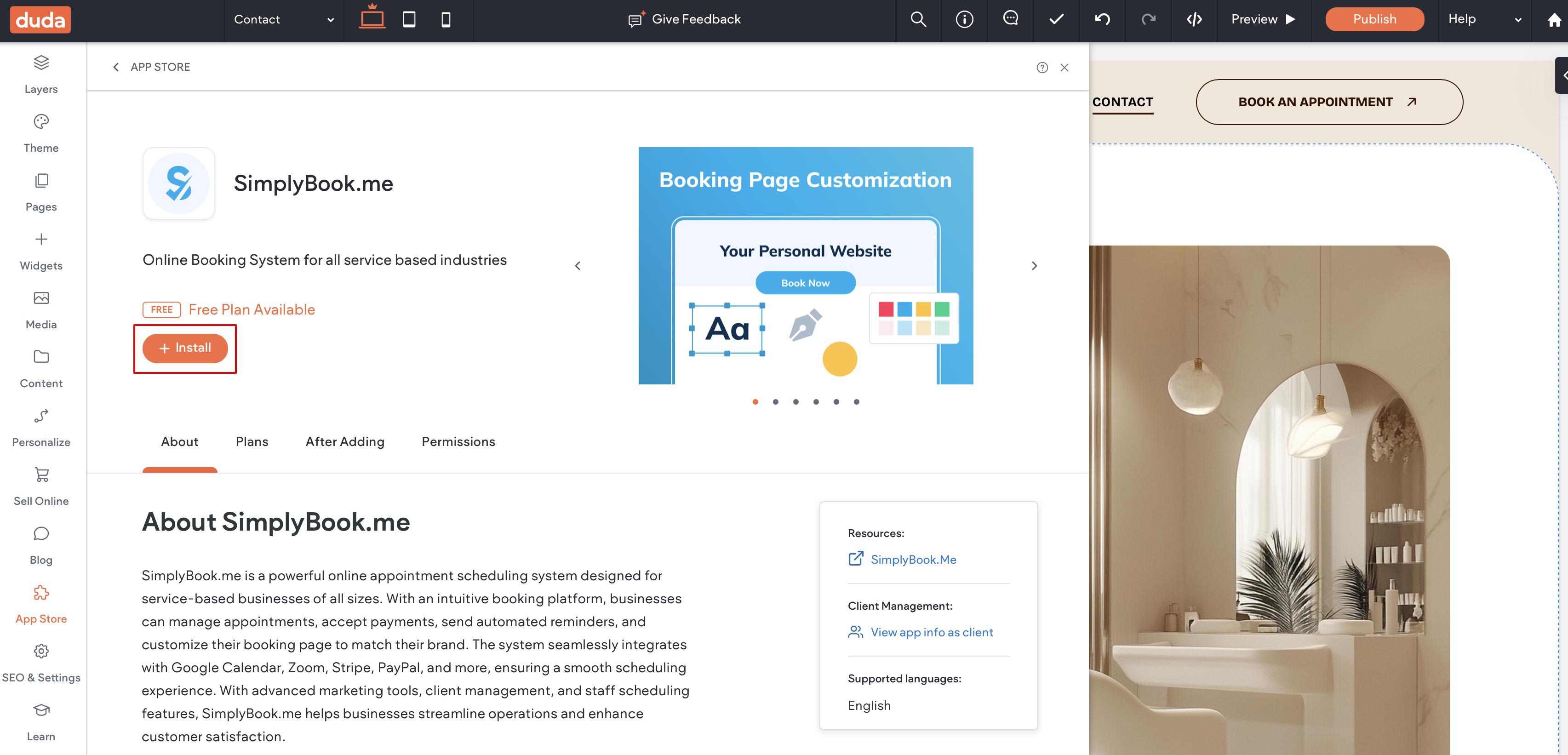
4. Search for ''''SimplyBook''' and install it.
[[File:Duda widget sb path.png|1200px|center|link=https://help.simplybook.me/images/5/57/Duda_widget_sb_path.png]]
[[File:Duda sb widget install.png|1200px|center|link=https://help.simplybook.me/images/9/9c/Duda_sb_widget_install.png]]
<br><br>
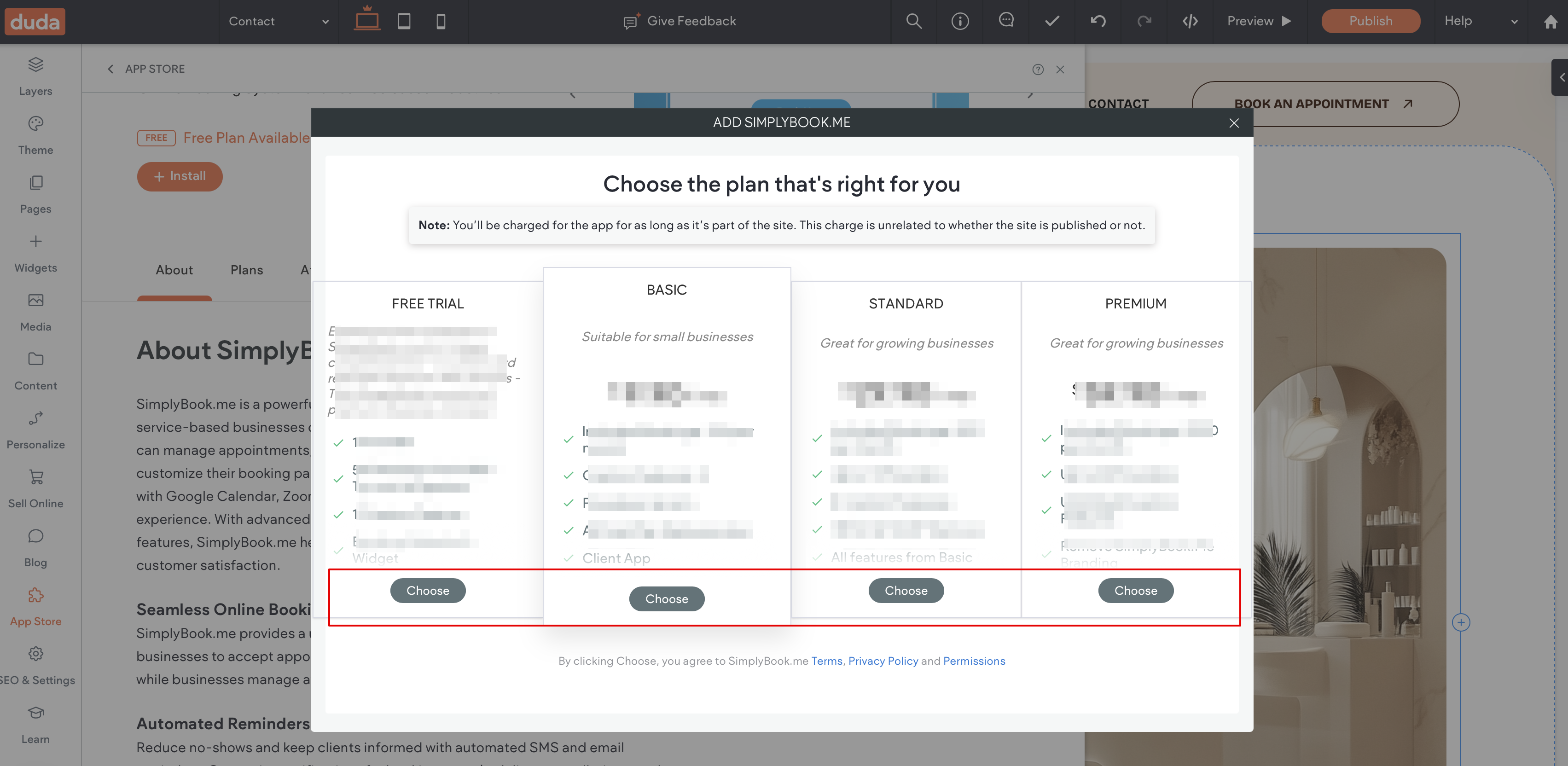
5. Choose the applicable subscription to be applied to your system.
[[File:Duda sb widget select the plan.png|1200px|center|link=https://help.simplybook.me/images/6/6e/Duda_sb_widget_select_the_plan.png]]
<br><br>
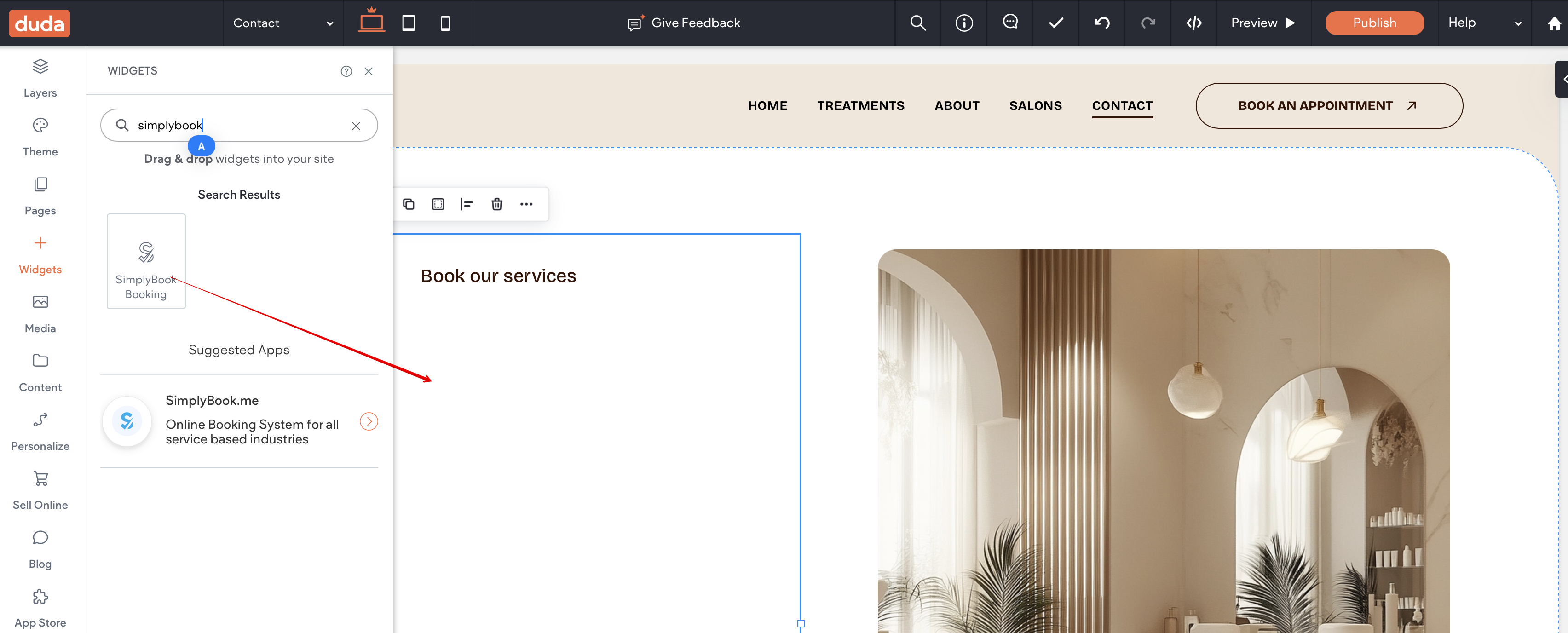
6. Choose a place on the page where the booking tool should appear.<br>
7. Click on '''Widgets''' again and select the ''''Simplybook booking''' to drag it to the page.<br>
That's it, the widget is added.
[[File:Duda sb add widget to page.png|1200px|center|link=https://help.simplybook.me/images/5/50/Duda_sb_add_widget_to_page.png]]
<br><br>
8. To adjust the design please use the built-in editing options, the widget will adjust to your website styles.
So richtest du es ein

1. Melde dich in deinem Duda-Dashboard an.
2. Erstelle eine neue Website oder öffne die bestehende, in die du das Buchungs-Widget einbetten möchtest.
3. Klicke im Menü auf der linken Seite auf Widgets.
4. Suche nach 'SimplyBook und installiere es.

5. Wähle das passende Abo aus, das auf dein System angewendet werden soll.


6. Wähle eine Stelle auf der Seite, an der das Buchungs-Tool erscheinen soll.
7. Klicke erneut auf Widgets und ziehe das Widget 'Simplybook booking auf die Seite.
Das war’s – das Widget ist jetzt hinzugefügt.


8. Um das Design anzupassen, verwende die integrierten Bearbeitungsoptionen – das Widget passt sich automatisch an den Stil deiner Website an