Translations:Limit Bookings custom feature/4/nl: Difference between revisions

From SimplyBook.me
Created page with ";Hoe te gebruiken :1. Schakel deze aangepaste functie in op uw pagina met Aangepaste Functies. 1200px| center|link=https://help.simplybook.me/images/a/a4/Limit_bookings_enable_path_redesigned.png <br><br> :2. Ga aan de rechterzijde naar de instellingen als u het aantal boekingen voor het gehele systeem wilt beperken. :3. Als u het limiet per tijdslot voor het gehele systeem wilt instellen, vouw dan het eerste blok "Algem..."
 
(No difference)

Latest revision as of 13:27, 31 July 2025

Information about message (contribute)
This message has no documentation. If you know where or how this message is used, you can help other translators by adding documentation to this message.
Message definition (Limit Bookings custom feature)
<br><br>
;How to use
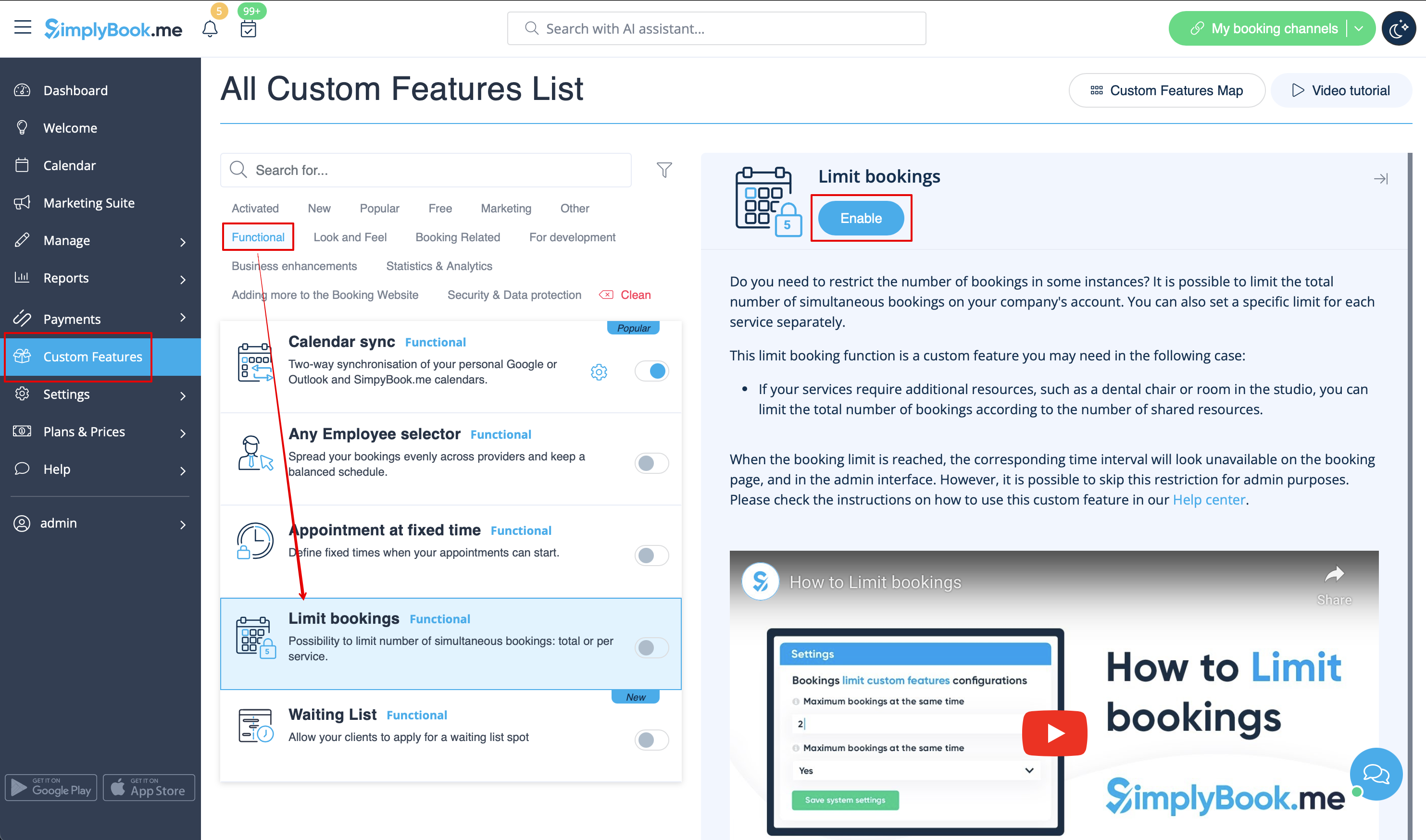
:1. Enable this custom feature on your Custom Features page.
[[File:Limit bookings enable path redesigned.png|1200px| center|link=https://help.simplybook.me/images/a/a4/Limit_bookings_enable_path_redesigned.png]]
<br><br>
:2. Go to its settings on the right if you need to limit number of bookings for the whole system.
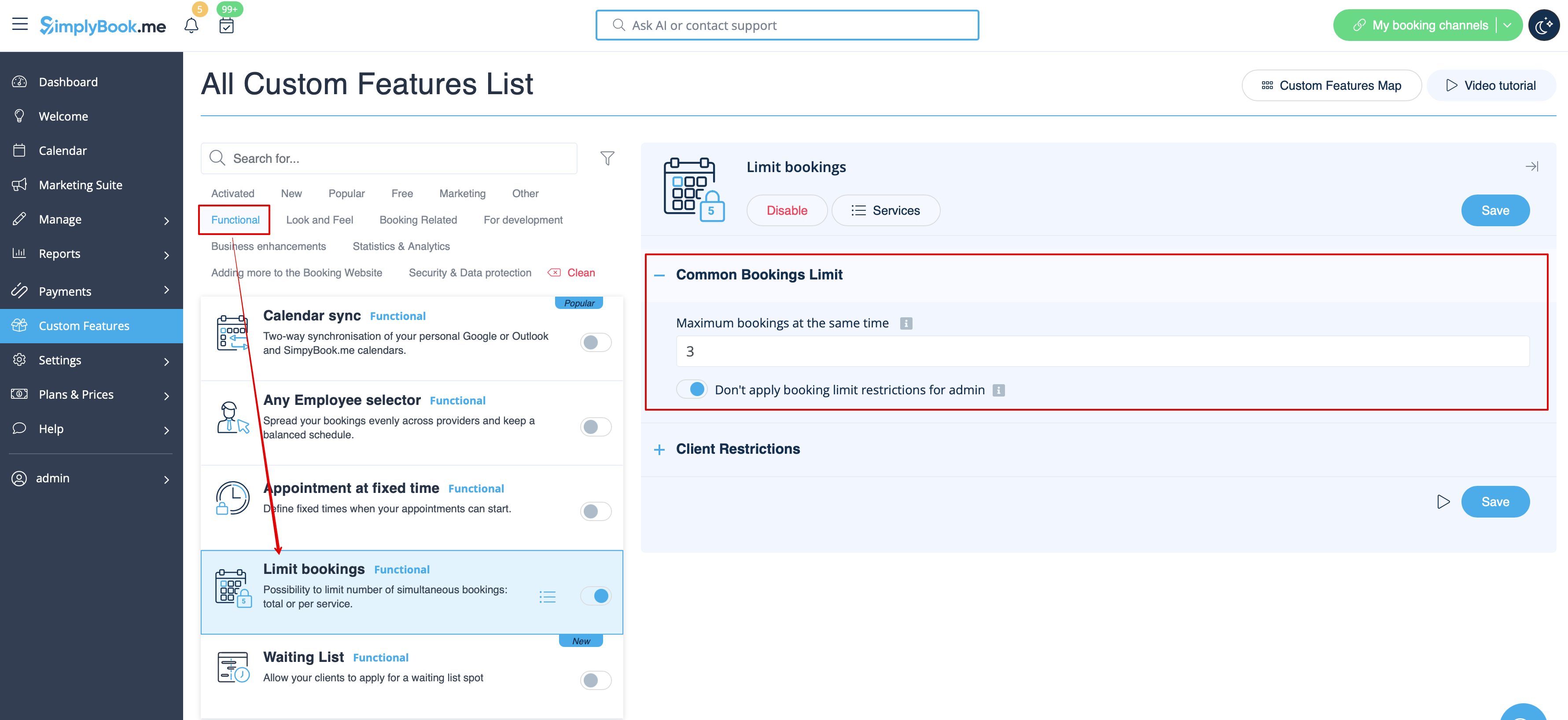
:3. If you need to set the limit per timeslot for the whole system please expand the first "Common bookings limit" block and indicate the desired number. As the result the bookings will be limited to this amount for all the services and classes you have.
[[File:Limit bookings common limit per system.png|1200px | center|link=https://help.simplybook.me/images/6/68/Limit_bookings_common_limit_per_system.png]]
<br><br>
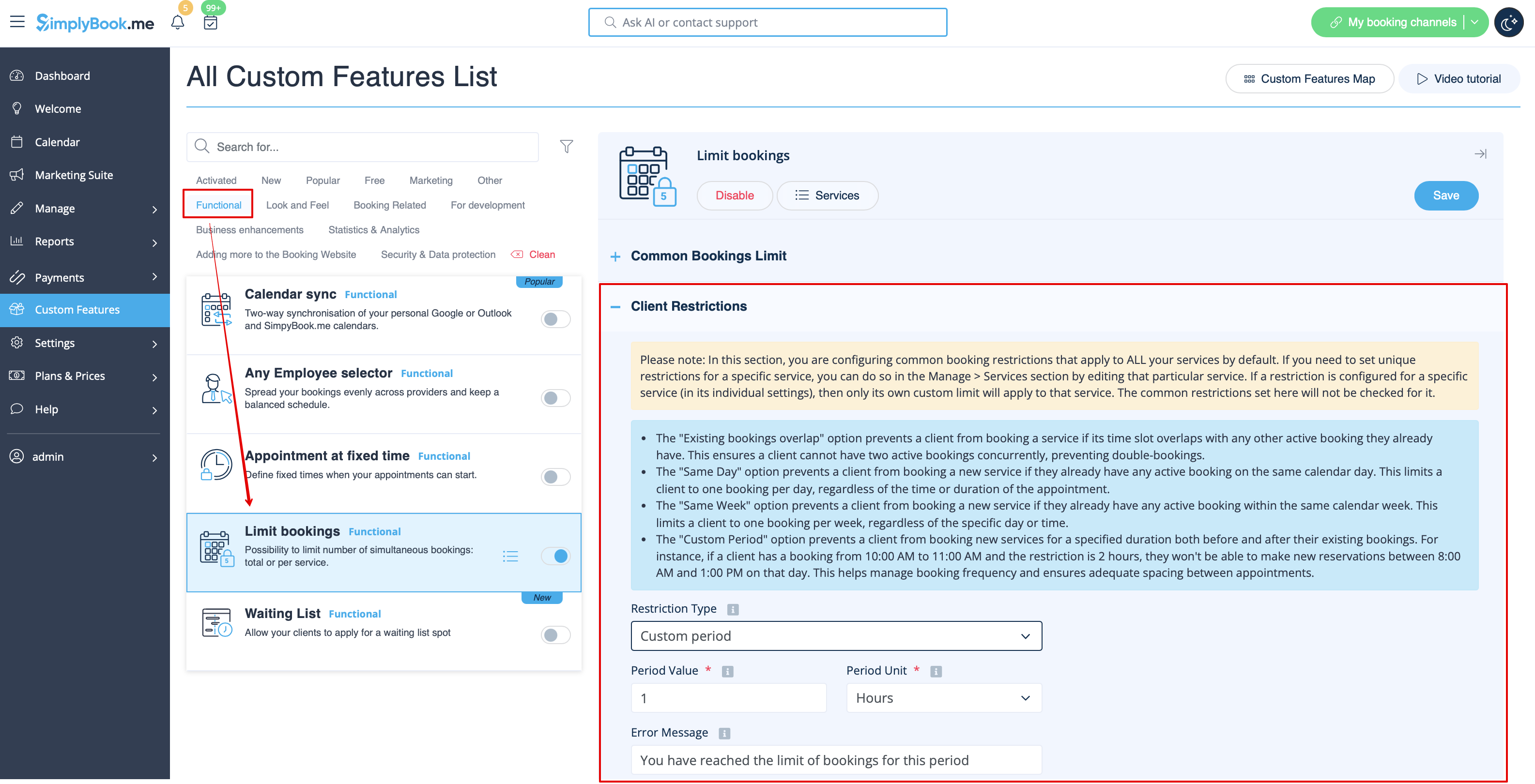
:4. In case you would like to add client limitations please use the second block there "Client Restrictions" and set the desired pattern.
[[File:Limit bookings client restrictions per system.png|1200px | center|link=https://help.simplybook.me/images/4/48/Limit_bookings_client_restrictions_per_system.png]]
<br><br>
The available options:
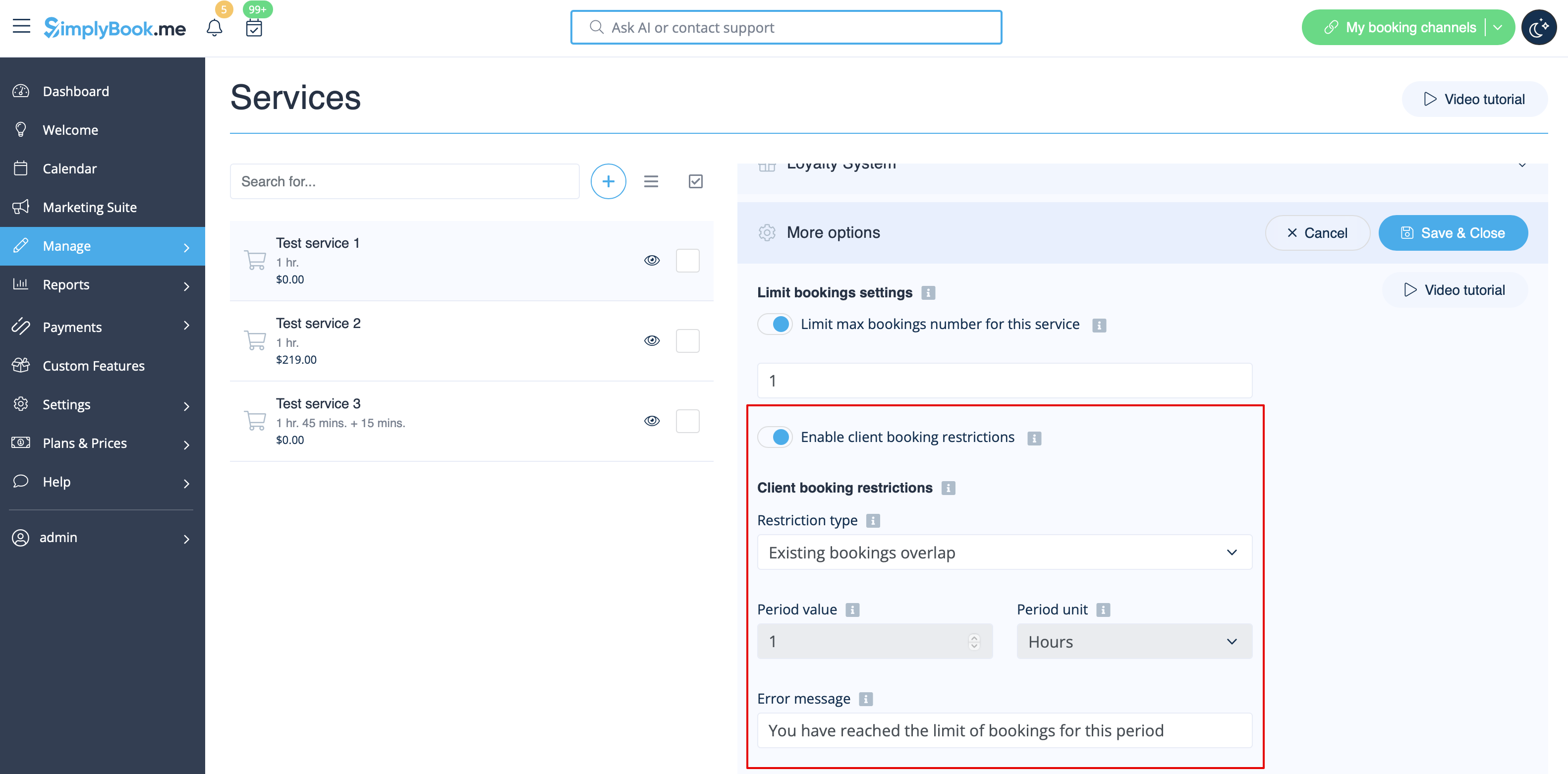
* The '''Existing bookings overlap''' option prevents a client from booking a service if its time slot overlaps with any other active booking they already have. This ensures a client cannot have two active bookings concurrently, preventing double-bookings.
* The '''Same Day''' option prevents a client from booking a new service if they already have any active booking on the same calendar day. This limits a client to one booking per day, regardless of the time or duration of the appointment.
* The '''Same Week''' option prevents a client from booking a new service if they already have any active booking within the same calendar week. This limits a client to one booking per week, regardless of the specific day or time.
* The '''Custom Period''' option prevents a client from booking new services for a specified duration both before and after their existing bookings. For instance, if a client has a booking from 10:00 AM to 11:00 AM and the restriction is 2 hours, they won't be able to make new reservations between 8:00 AM and 1:00 PM on that day. This helps manage booking frequency and ensures adequate spacing between appointments.
<br><br>
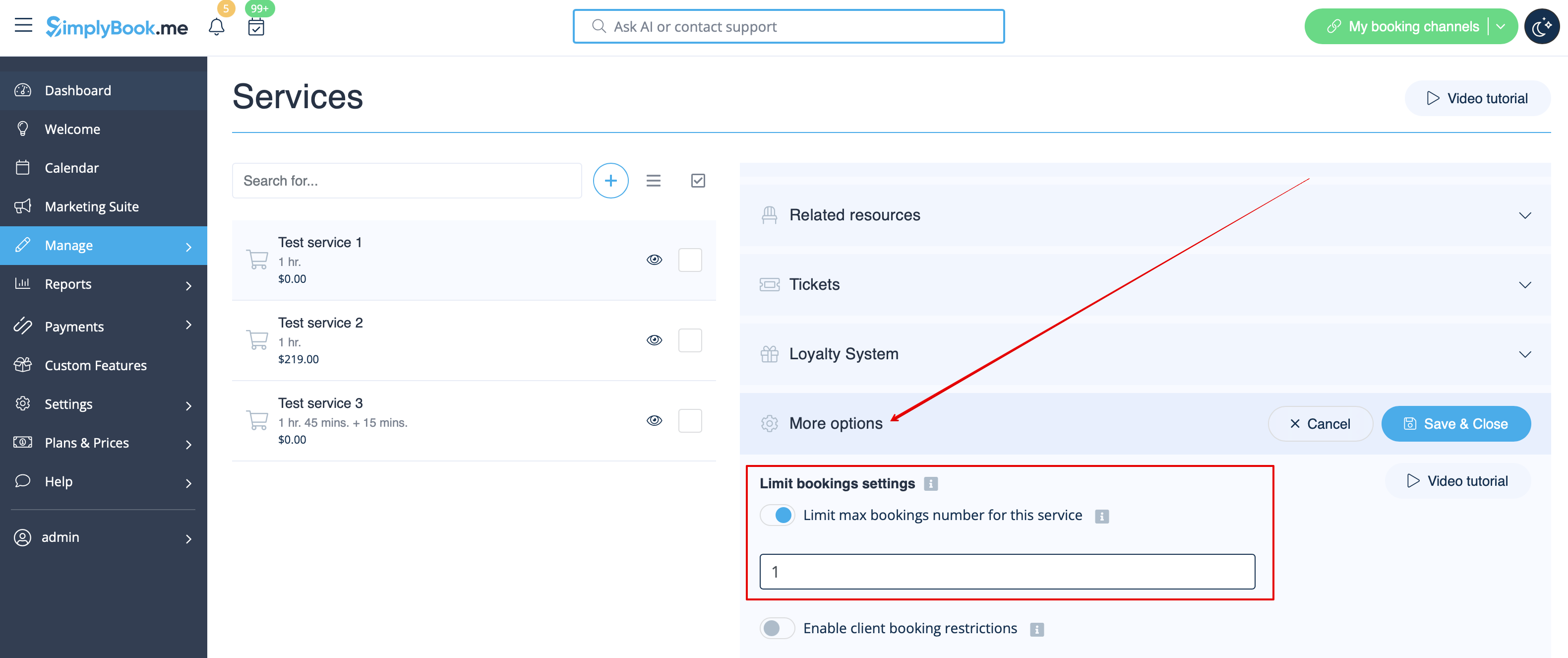
:5. If you need to set the limit for certain service please navigate to Manage//Services(Classes) page, choose "More options" tab and set the desired number per service/class. You fill find both options there: per timeslot and per client
[[File:Limit bookings per service new.png|1200px | center|link=https://help.simplybook.me/images/a/aa/Limit_bookings_per_service_new.png]]
[[File:Limit bookings per client per service.png|1200px | center|link=https://help.simplybook.me/images/0/06/Limit_bookings_per_client_per_service.png]]
<br><br>
Hoe te gebruiken
1. Schakel deze aangepaste functie in op uw pagina met Aangepaste Functies.


2. Ga aan de rechterzijde naar de instellingen als u het aantal boekingen voor het gehele systeem wilt beperken.
3. Als u het limiet per tijdslot voor het gehele systeem wilt instellen, vouw dan het eerste blok "Algemeen boekingslimiet" uit en geef het gewenste aantal op. Als resultaat worden boekingen voor alle diensten en lessen beperkt tot dit aantal.


4. Als u beperkingen voor klanten wilt instellen, gebruik dan het tweede blok "Klantenbeperkingen" en geef het gewenste patroon aan.


Beschikbare opties:

  • De optie Bestaande boekingen overlappen voorkomt dat een klant een dienst kan boeken als het tijdslot overlapt met een andere actieve boeking die hij of zij al heeft. Dit voorkomt dubbele boekingen.
  • De optie Zelfde dag voorkomt dat een klant een nieuwe dienst boekt als hij of zij al een actieve boeking op dezelfde kalenderdag heeft. Dit beperkt de klant tot één boeking per dag, ongeacht de tijd of duur.
  • De optie Zelfde week voorkomt dat een klant een nieuwe dienst boekt als hij of zij al een actieve boeking in dezelfde kalenderweek heeft. Zo wordt beperkt tot één boeking per week.
  • De optie Aangepaste periode voorkomt dat een klant nieuwe boekingen maakt gedurende een opgegeven tijdsduur vóór en na bestaande boekingen. Bijvoorbeeld: als een klant een boeking heeft van 10:00 tot 11:00 uur en de beperking is ingesteld op 2 uur, dan kan hij of zij geen nieuwe reservering maken tussen 8:00 en 13:00 uur die dag. Dit helpt bij het reguleren van de boekingsfrequentie en zorgt voor voldoende tijd tussen afspraken.


5. Als u een limiet voor een specifieke dienst wilt instellen, ga dan naar de pagina Beheer // Diensten (Lessen), kies het tabblad "Meer opties" en geef daar het gewenste aantal aan per dienst/les. U vindt daar beide opties: per tijdslot en per klant.