From SimplyBook.me
Importing a new version from external source |
Importing a new version from external source |
||
| Line 13: | Line 13: | ||
<li>unique booking code;</li> | <li>unique booking code;</li> | ||
<li>status (all bookings, cancelled bookings, non-cancelled bookings);</li> | <li>status (all bookings, cancelled bookings, non-cancelled bookings);</li> | ||
<li>payment status (if [[Accept payments custom feature|accept payments]] feature is enabled);</li> | <li>payment status (if [[Special:MyLanguage/Accept payments custom feature|accept payments]] feature is enabled);</li> | ||
<li>client promotion status (to see only subscribed of unsubscribed ones).</li> | <li>client promotion status (to see only subscribed of unsubscribed ones).</li> | ||
</ol> | </ol> | ||
*export bookings to Excel or .csv (use the filters to export only some date range or provider related bookings, choose which columns to export, etc. if necessary). | *export bookings to Excel or .csv (use the filters to export only some date range or provider related bookings, choose which columns to export, etc. if necessary). | ||
[[File:Booking details report new.png|1200px | center|link=https://help.simplybook.me/images/4/43/Booking_details_report_new.png]] | [[File:Booking details report new.png|1200px | center|link=https://help.simplybook.me/images/4/43/Booking_details_report_new.png]] | ||
Latest revision as of 12:02, 13 August 2025
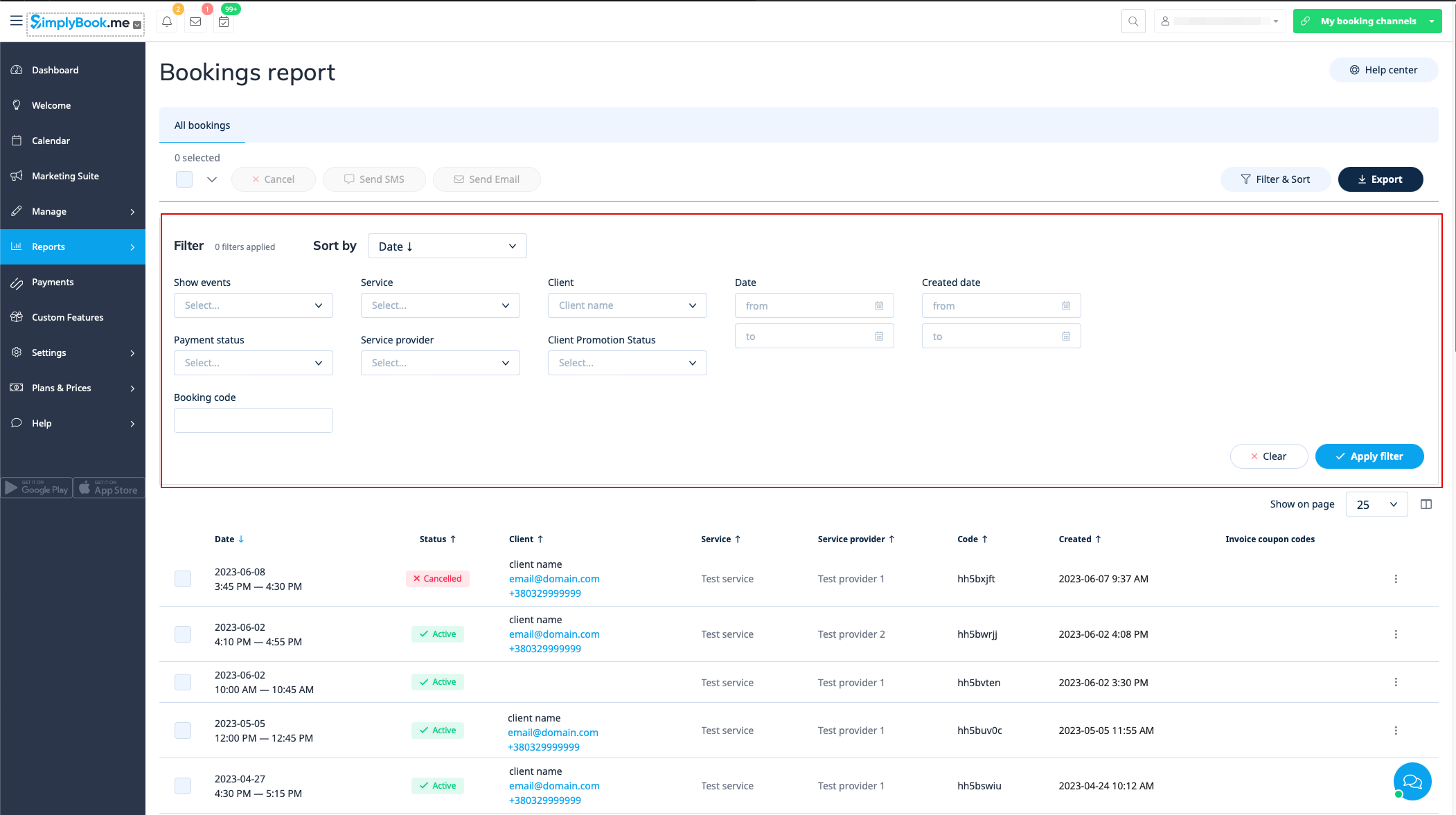
You can find the list of all your bookings in Reports // Booking details.
In this report you can:
- click on “view booking” from the actions menu per each row to see particular booking details;
- send email/sms to your client(s) (you can even use some variables mentioned there);
- go to the specific client report by selecting "View client's report" option in each row;
- filter bookings by:
- date of the booking;
- date when the booking was made;
- service;
- service provider;
- client;
- unique booking code;
- status (all bookings, cancelled bookings, non-cancelled bookings);
- payment status (if accept payments feature is enabled);
- client promotion status (to see only subscribed of unsubscribed ones).
- export bookings to Excel or .csv (use the filters to export only some date range or provider related bookings, choose which columns to export, etc. if necessary).