From SimplyBook.me
Created page with "<br><br> :Nu hebben we de mogelijkheid om online vergaderingen via Google Meet af te handelen.<br> :In slechts drie eenvoudige stappen bent u klaar. <br> ;Hoe stel ik ' :' in? 1. Schakel de aangepaste functie <span style="background-color:#d4f8e5; padding:5px; border-radius:5px;">'Agendasynchronisatie' in</span> op de pagina <span style="background-color:#d4f8e5; padding:5px; border-radius:5px;">'Aangepaste functies'</span>, onder <span s..." |
No edit summary |
||
| Line 4: | Line 4: | ||
<br> | <br> | ||
;Hoe stel ik ' | ;Hoe stel ik ' | ||
:' in? 1. Schakel de aangepaste functie <span style="background-color:#d4f8e5; padding:5px; border-radius:5px;">[[Calendar_Sync_custom_feature|'Agendasynchronisatie' in]]</span> op de pagina <span style="background-color:#d4f8e5; padding:5px; border-radius:5px;">'Aangepaste functies'</span>, onder <span style="background-color:#d4f8e5; padding:5px; border-radius:5px;">'Functioneel</span> '. | :' in? 1. Schakel de aangepaste functie <span style="background-color:#d4f8e5; padding:5px; border-radius:5px;">[[Special:MyLanguage/Calendar_Sync_custom_feature|'Agendasynchronisatie' in]]</span> op de pagina <span style="background-color:#d4f8e5; padding:5px; border-radius:5px;">'Aangepaste functies'</span>, onder <span style="background-color:#d4f8e5; padding:5px; border-radius:5px;">'Functioneel</span> '. | ||
[[File:Calendar sync enable path redesigned.png|1200px|border|center|link=https://help.simplybook.me/images/8/8a/Calendar_sync_enable_path_redesigned.png]] | [[File:Calendar sync enable path redesigned.png|1200px|border|center|link=https://help.simplybook.me/images/8/8a/Calendar_sync_enable_path_redesigned.png]] | ||
<br><br> | <br><br> | ||
Latest revision as of 13:10, 15 August 2025
- Nu hebben we de mogelijkheid om online vergaderingen via Google Meet af te handelen.
- In slechts drie eenvoudige stappen bent u klaar.
- Hoe stel ik '
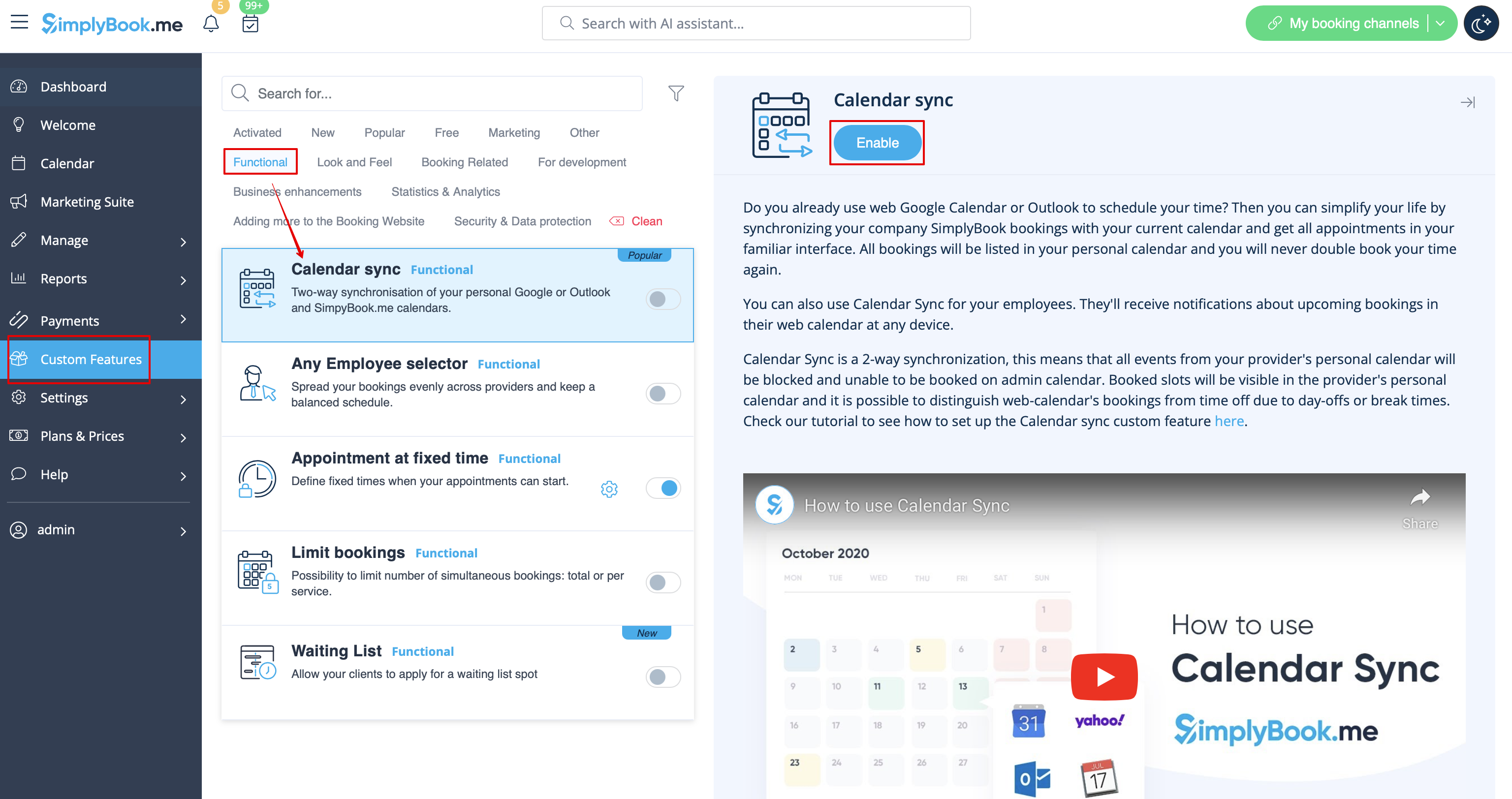
- ' in? 1. Schakel de aangepaste functie 'Agendasynchronisatie' in op de pagina 'Aangepaste functies', onder 'Functioneel '.
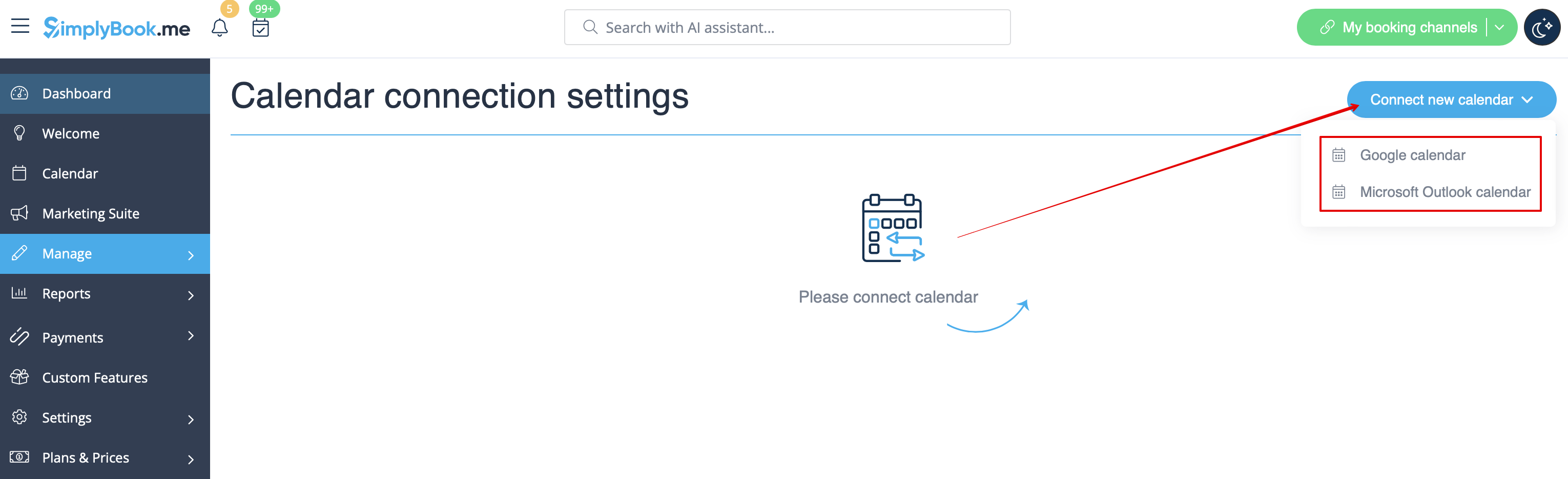
- 2. Koppel Google Agenda en koppel vervolgens de gewenste provider(s) hieraan in de instellingen van deze functie.
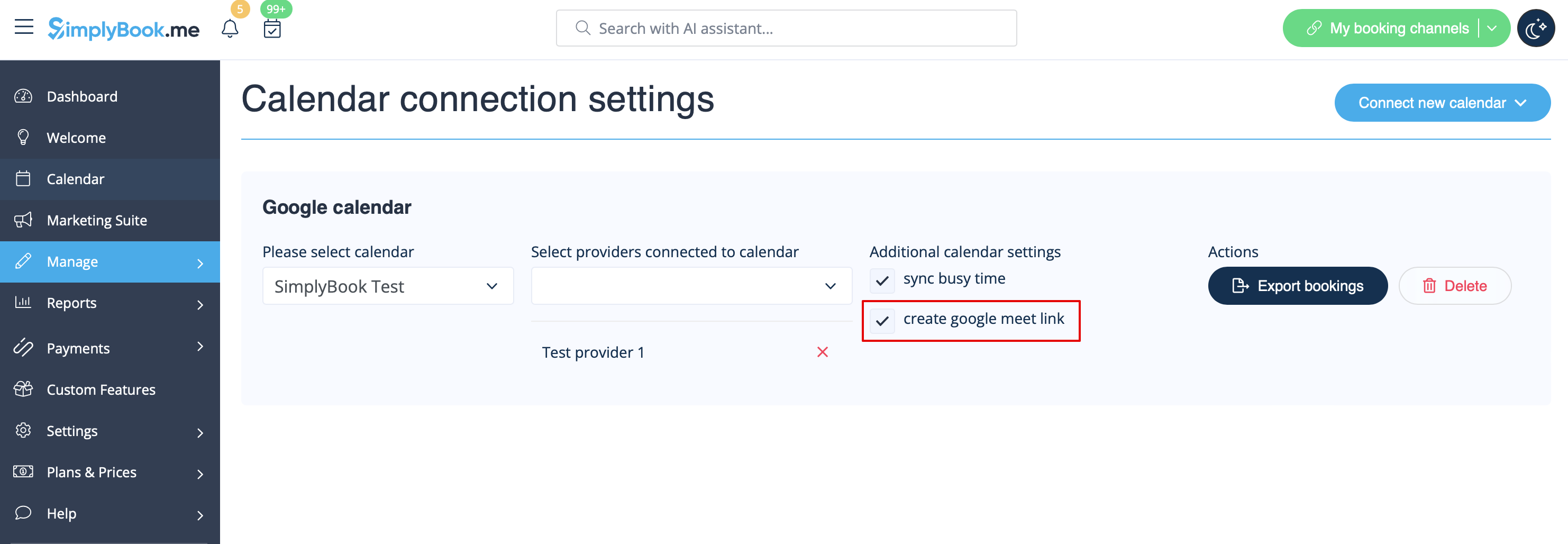
- 3. Schakel het selectievakje 'Google Meet-link maken' in en sla de instellingen op.