From SimplyBook.me
Importing a new version from external source Tags: Mobile edit Mobile web edit |
Importing a new version from external source |
||
| Line 23: | Line 23: | ||
:<span style="background-color:#ffe9e9; padding:5px; border-radius:5px;">'''Please note!'''</span><br> | :<span style="background-color:#ffe9e9; padding:5px; border-radius:5px;">'''Please note!'''</span><br> | ||
*<span style="background-color:#ffe9e9; padding:5px; border-radius:5px;">It is not possible to connect existing SimplyBook.me side users to MS Azure users.</span> | *<span style="background-color:#ffe9e9; padding:5px; border-radius:5px;">It is not possible to connect existing SimplyBook.me side users to MS Azure users.</span> | ||
*<span style="background-color:#ffe9e9; padding:5px; border-radius:5px;">For such users it is not possible to reset SimplyBook.me passwords, edit access level, username | *<span style="background-color:#ffe9e9; padding:5px; border-radius:5px;">For such users it is not possible to reset SimplyBook.me passwords, edit access level, username.</span><br> | ||
:<span style="background-color:#ffe9e9; padding:5px; border-radius:5px;">They need to contact MS Azure administrator if they loose access to applications page or contact SimplyBook.me default admin to request personal data report.</span><br> | :<span style="background-color:#ffe9e9; padding:5px; border-radius:5px;">They need to contact MS Azure administrator if they loose access to applications page or contact SimplyBook.me default admin to request personal data report.</span><br> | ||
*<span style="background-color:#ffe9e9; padding:5px; border-radius:5px;">If you need to restrict access for such users you can remove or block them on MS Azure side.</span><br> | *<span style="background-color:#ffe9e9; padding:5px; border-radius:5px;">If you need to restrict access for such users you can remove or block them on MS Azure side.</span><br> | ||
*<span style="background-color:#ffe9e9; padding:5px; border-radius:5px;">If you change the group the user is included to on MS Azure side or remove the user there the access level will be updated on SimplyBook.me side within several minutes or the user will be logged out.</span> | *<span style="background-color:#ffe9e9; padding:5px; border-radius:5px;">If you change the group the user is included to on MS Azure side or remove the user there the access level will be updated on SimplyBook.me side within several minutes or the user will be logged out.</span> | ||
<br><br><br><br> | <br><br><br><br> | ||
Latest revision as of 14:06, 25 August 2025
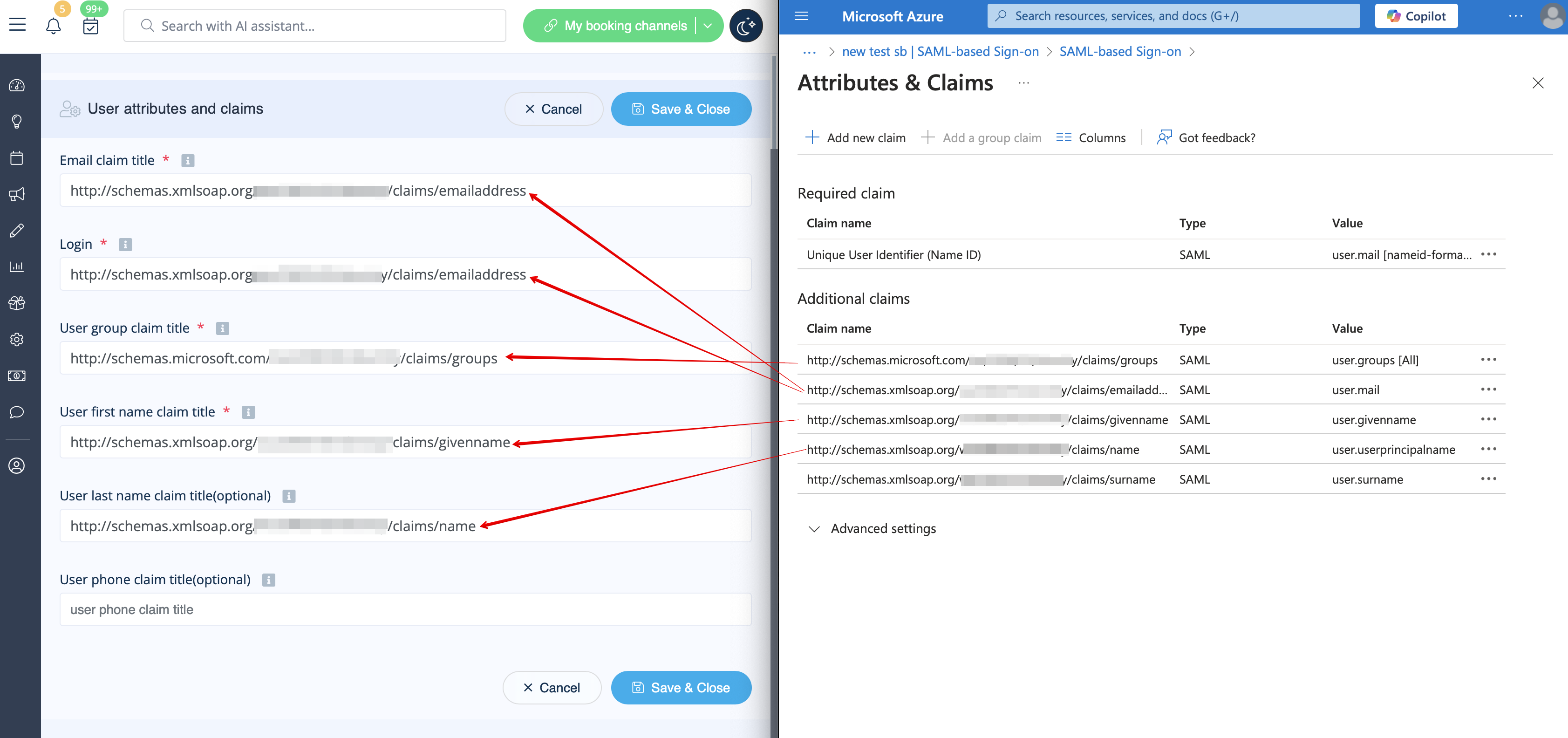
- 17. Copy the claims titles to the corresponding boxes on SimplyBook.me side.
- 18. Navigate to Azure Active Directory/Entra ID homepage and go to Users section, create all users that you would like to access the system if they are not created yet.

- 19. In Groups create groups that will correspond to SimplyBook.me user types. For example, Admins for admin level users, Senior Employees for Senior Employee access, etc.
- You can create only one group if all your users have admin access, for example.

- 20. Add users to the corresponding groups.

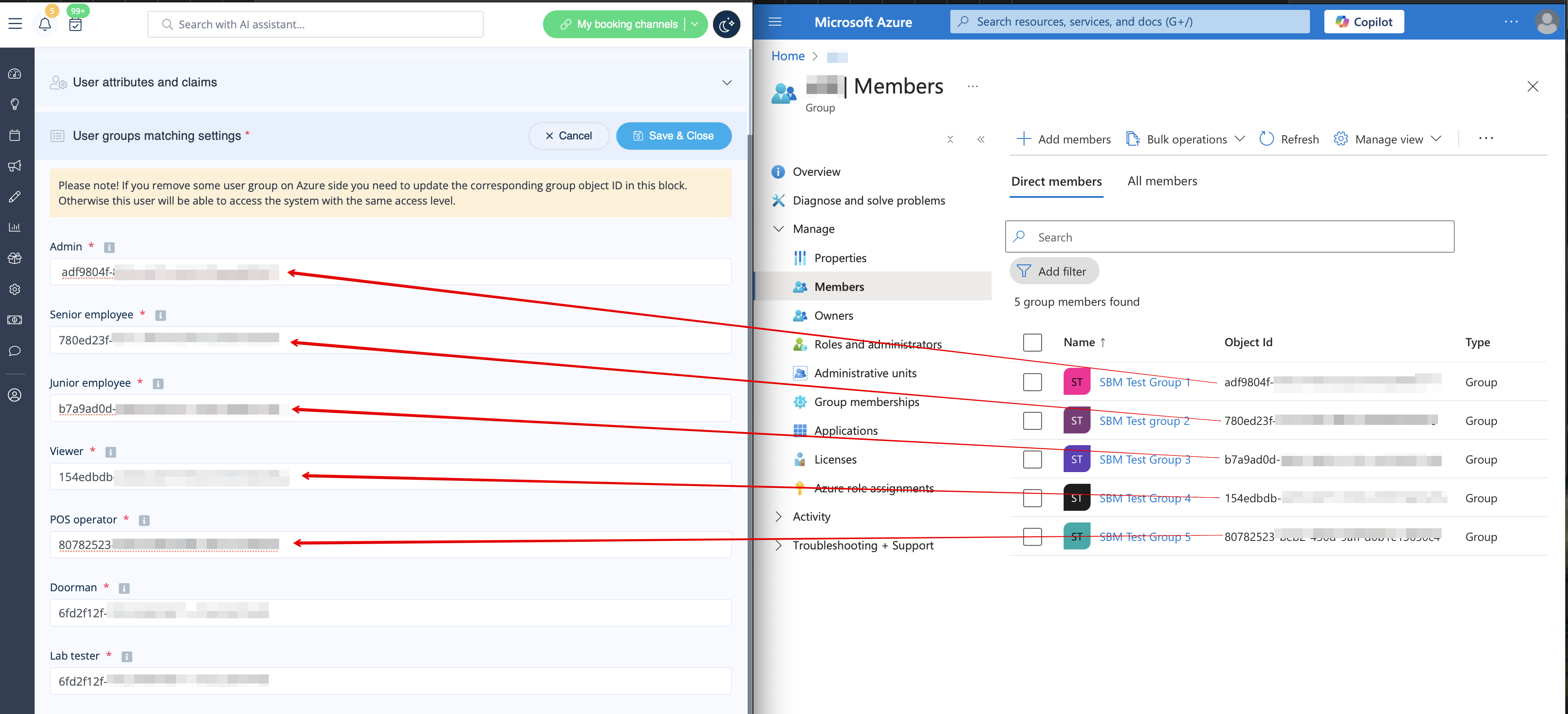
- 21. Copy each group Object ID to the corresponding box in User Group matching settings on SimplyBook.me side.
- (If you have only one group for admins insert same object ID everywhere in that block). Save settings.
- 22. Once the users are given the access to Applications dashboard they can log in to SimplyBook.me with their access level by a click on the SimplyBook.me application icon.

- The corresponding user types will be added automatically to your SimplyBook.me account with the data passed according to your settings.
- Please note!
- It is not possible to connect existing SimplyBook.me side users to MS Azure users.
- For such users it is not possible to reset SimplyBook.me passwords, edit access level, username.
- They need to contact MS Azure administrator if they loose access to applications page or contact SimplyBook.me default admin to request personal data report.
- If you need to restrict access for such users you can remove or block them on MS Azure side.
- If you change the group the user is included to on MS Azure side or remove the user there the access level will be updated on SimplyBook.me side within several minutes or the user will be logged out.
