Translations:SBPay.me integration/17/nl: Difference between revisions

From SimplyBook.me
No edit summary
No edit summary
 
Line 1: Line 1:
== SBPay.me-facturen ==
U kunt nu eenvoudig de factuurinstellingen aanpassen aan uw behoeften en deze na elke aankoop naar uw klanten sturen.
;Hoe gebruikt u
;Hoe gebruikt u

Latest revision as of 08:46, 18 September 2025

Information about message (contribute)
This message has no documentation. If you know where or how this message is used, you can help other translators by adding documentation to this message.
Message definition (SBPay.me integration)
You can now easily adjust the invoices settings to your needs and send them to your customers after any purchase.
;How to use
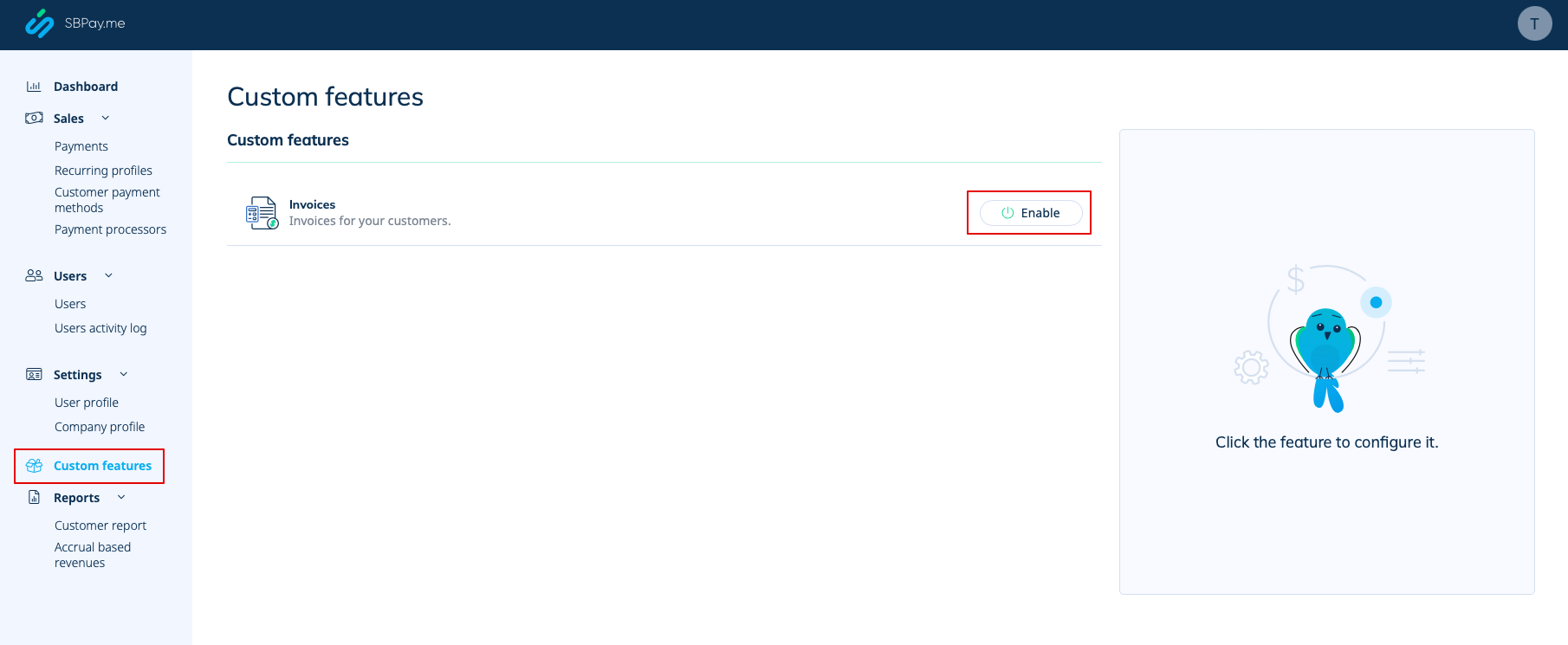
:1. Enable the corresponding option on your "Custom features" page.
[[File:Sbpay invoices enable path.png|1200px|border|center|link=https://help.simplybook.me/images/3/3c/Sbpay_invoices_enable_path.png]]
<br><br>
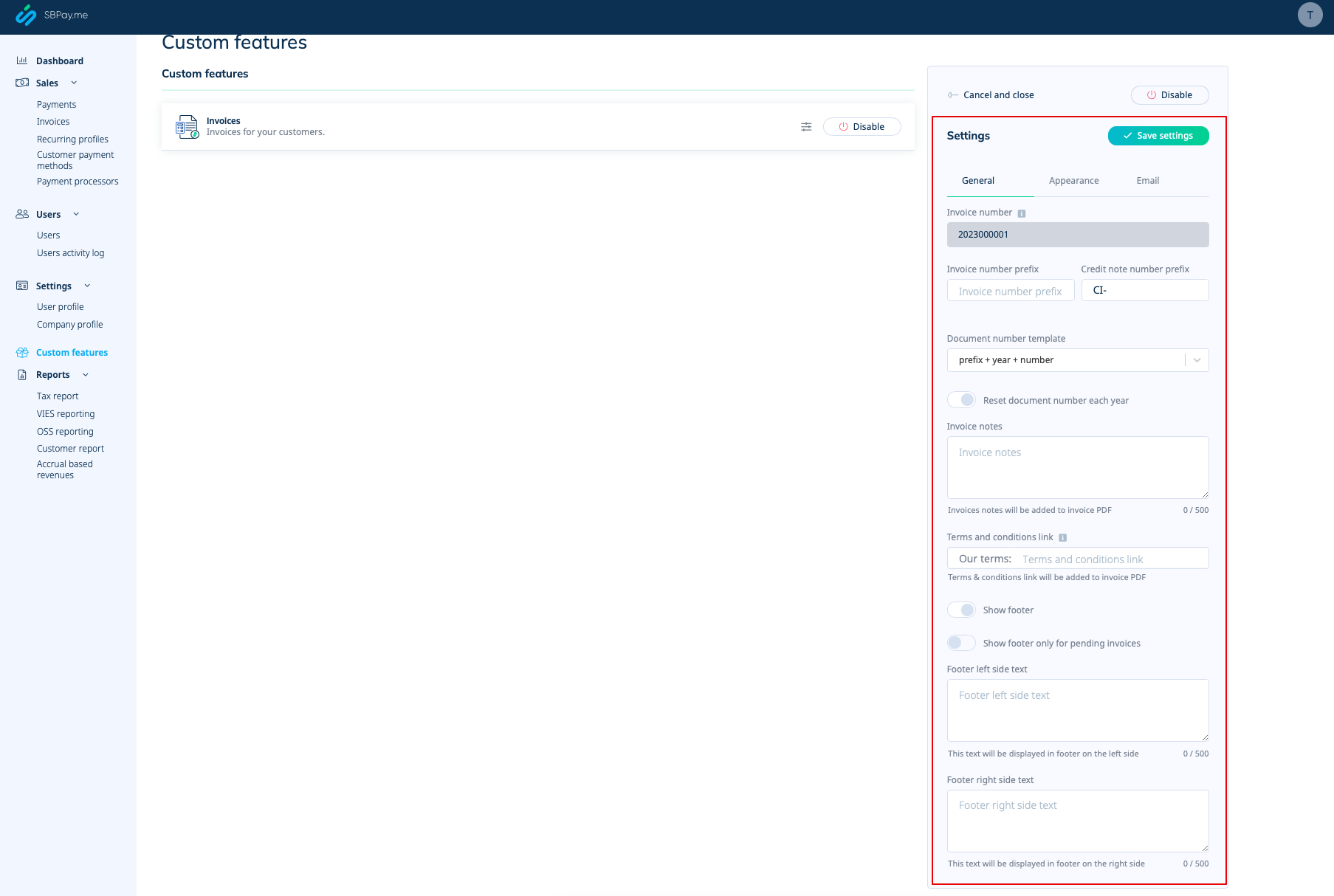
:2. Adjust the general settings to your needs: the invoice and credit note numbering format, add notes, link to your Terms and Conditions and footer information if necessary.
[[File:Sbpay invoices settings.png|1200px|border|center|link=https://help.simplybook.me/images/5/54/Sbpay_invoices_settings.png]]
<br><br>
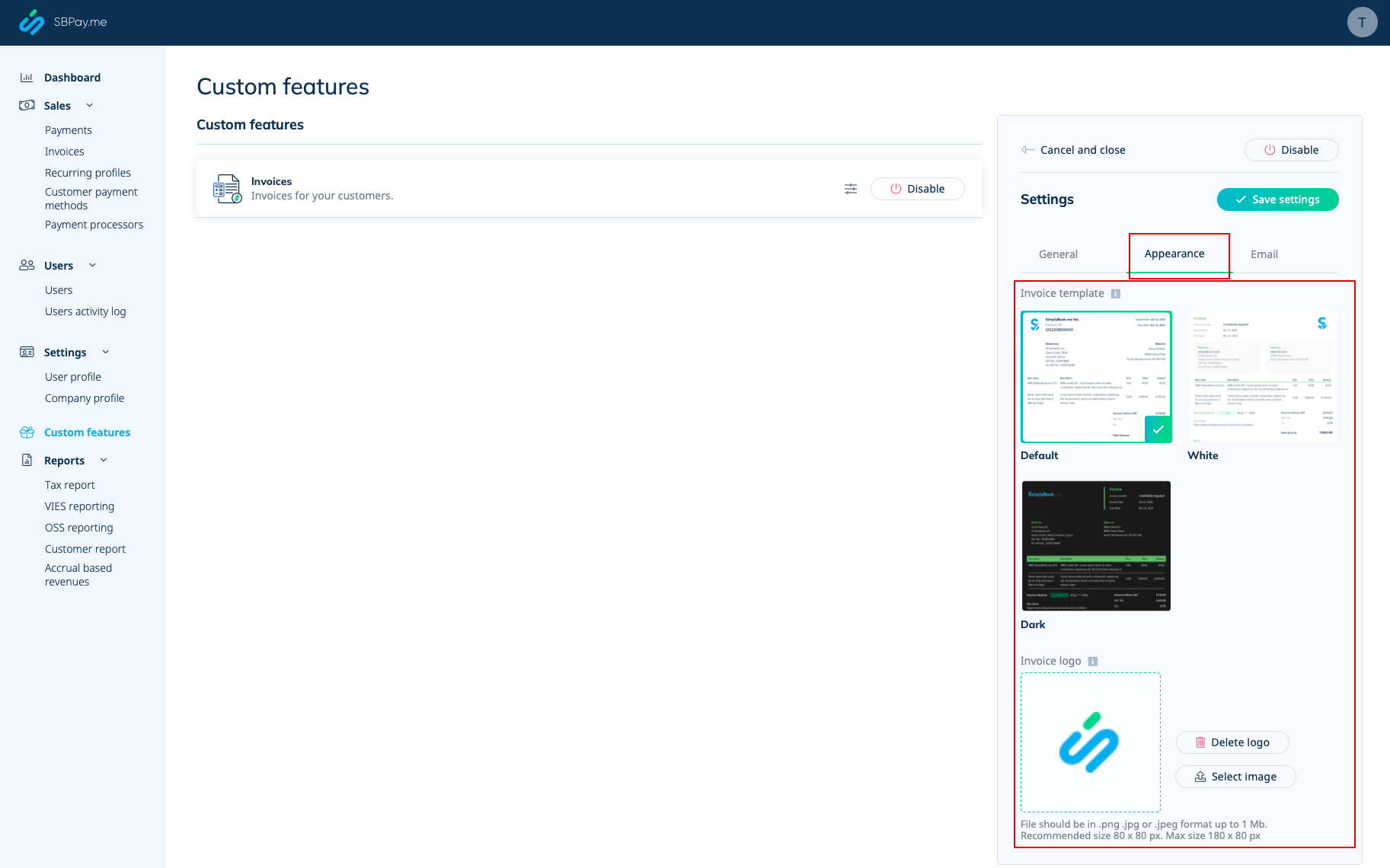
:3. Set the desired look in "Appearance" tab, upload your company logo.
[[File:Sbpay invoice appearance settings.png|1200px|border|center|link=https://help.simplybook.me/images/f/f3/Sbpay_invoice_appearance_settings.png]]
<br><br>
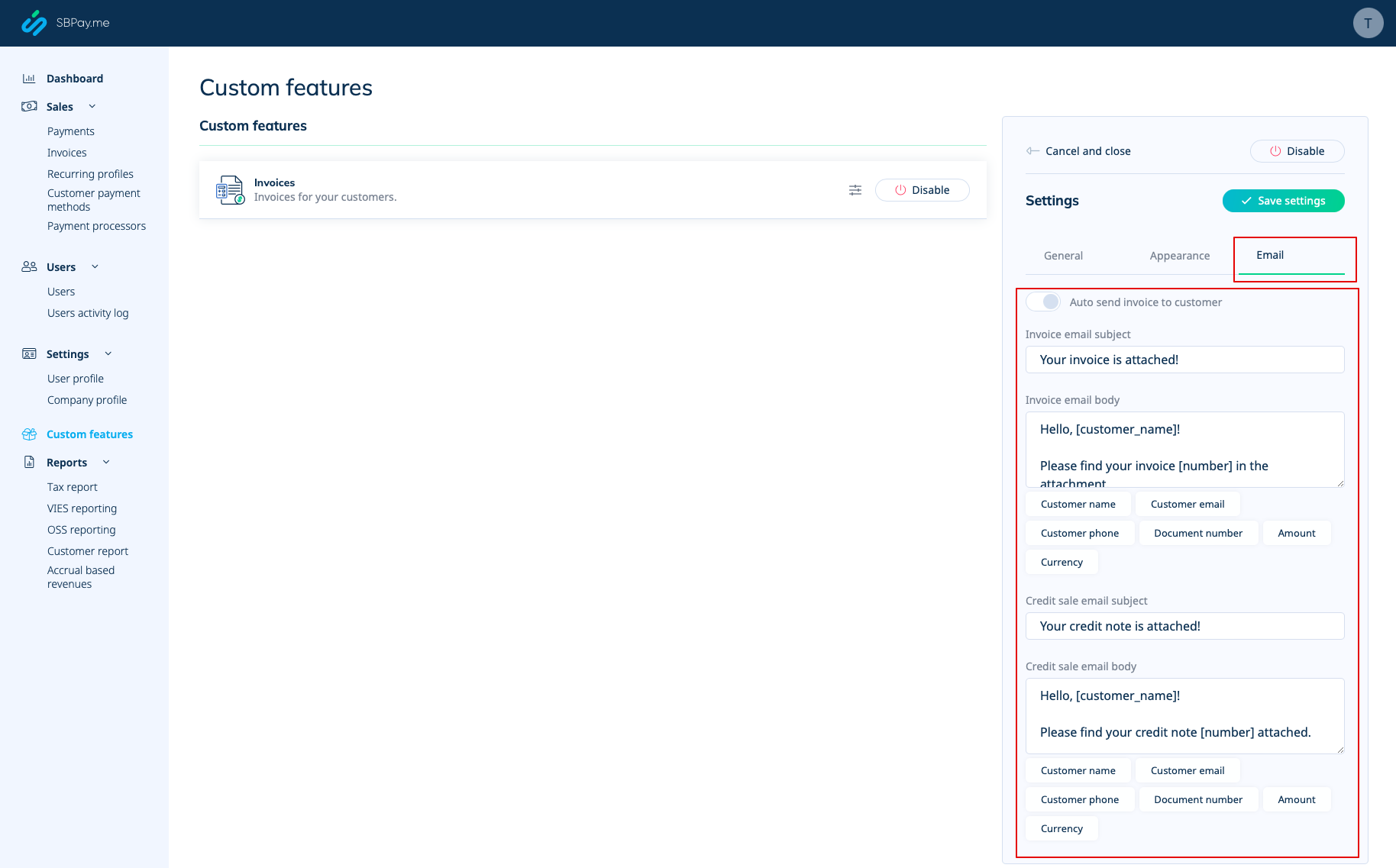
:4. Switch to the third, "Email", tab and set the notifications templates. You can use several variables mentioned below the form. save your settings.
[[File:Sbpay invooices emails settings.png|1200px|border|center|link=https://help.simplybook.me/images/9/91/Sbpay_invooices_emails_settings.png]]
<br><br>
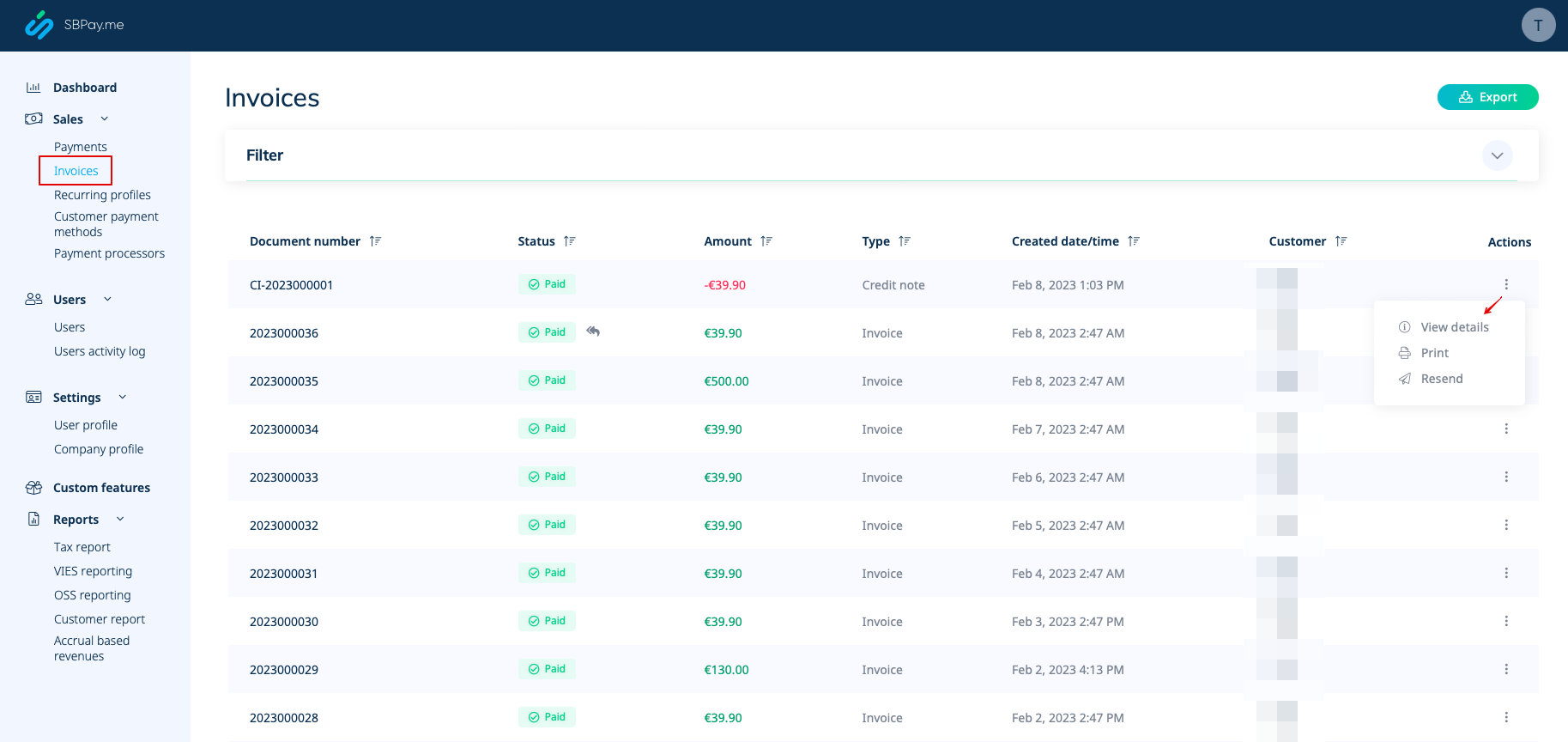
:5. In the Sales -> Invoices you can see the list of created invoices and credits notes. You can resend them to the clients when needed, issue credit notes, print or simply view the details.
[[File:Sbpay invoices report overview.png|1200px|border|center|link=https://help.simplybook.me/images/d/d6/Sbpay_invoices_report_overview.png]]
<br><br>
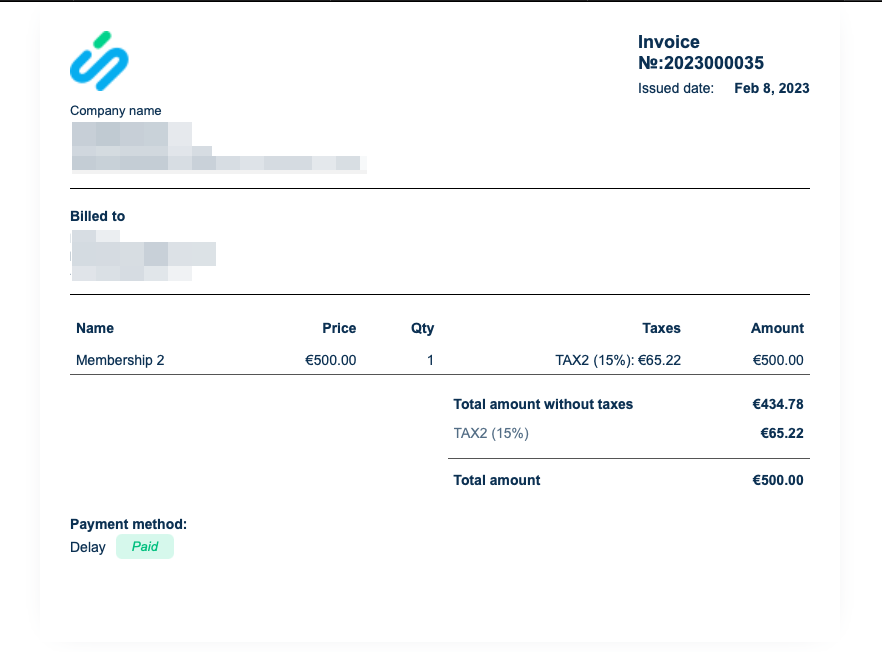
:6. Here is the example of how print invoice version can look like.
[[File:Sbpay invoice example.png|800px|border|center|link=https://help.simplybook.me/images/7/77/Sbpay_invoice_example.png]]
<br><br>
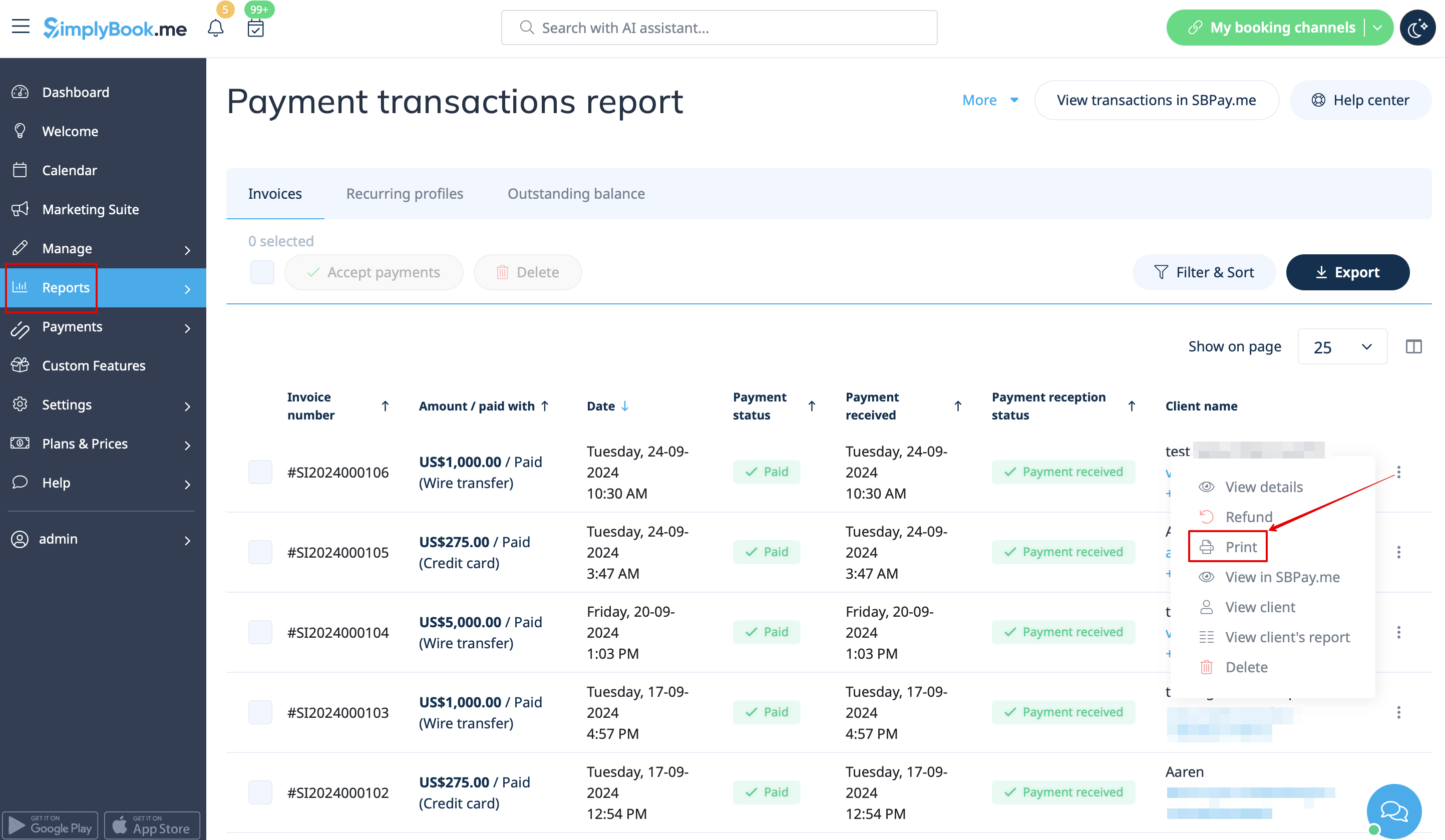
:7. You can also print the invoices directly from the SimplyBook.me system, Reports -> Payment transactions, by selecting the corresponding action per record.
[[File:Print invoice path redesigned.png|1200px|border|center|link=https://help.simplybook.me/images/5/5a/Print_invoice_path_redesigned.png]]
<br><br>
<span style="background-color:#ffe9e9; padding:5px; border-radius:5px;">'''Please note!''' Importing invoices from external platforms directly into the system is not supported. However, SimplyBook.me offers integration options with various accounting software, including [[Special:MyLanguage/Xero_integration| Xero]], [[Special:MyLanguage/QuickBooks_integration| QuickBooks]], and [[Special:MyLanguage/FreshBooks_integration| FreshBooks]]. You can efficiently manage your invoices within your preferred accounting system.</span>
<br><br>

U kunt nu eenvoudig de factuurinstellingen aanpassen aan uw behoeften en deze na elke aankoop naar uw klanten sturen.

Hoe gebruikt u
1. Schakel de overeenkomstige optie in op uw pagina "Aangepaste functies".


2. Pas de algemene instellingen aan uw behoeften aan: het nummeringsformaat voor facturen en creditnota's, voeg opmerkingen toe, koppel indien nodig naar uw Algemene voorwaarden en voettekstinformatie.


3. Stel het gewenste uiterlijk in op het tabblad 'Uiterlijk' en upload uw bedrijfslogo.


4. Ga naar het derde tabblad, 'E-mail', en stel de meldingssjablonen in. U kunt verschillende variabelen gebruiken die onder het formulier worden vermeld. Sla uw instellingen op.


5. In Verkoop -> Facturen ziet u de lijst met aangemaakte facturen en creditnota's. U kunt ze indien nodig opnieuw naar de klanten sturen, creditnota's uitgeven, afdrukken of gewoon de details bekijken.


6. Hier is een voorbeeld van hoe een afgedrukte factuur eruit kan zien.


7. U kunt de facturen ook rechtstreeks vanuit het SimplyBook.me-systeem afdrukken via Rapporten -> Betalingstransacties, door de overeenkomstige actie per record te selecteren.


Let op! Het rechtstreeks importeren van facturen uit externe platforms in het systeem wordt niet ondersteund. SimplyBook.me biedt echter integratiemogelijkheden met verschillende boekhoudsoftware, waaronder Xero, QuickBooks en FreshBooks. U kunt uw facturen efficiënt beheren binnen uw favoriete boekhoudsysteem.