From SimplyBook.me
No edit summary Tag: Reverted |
No edit summary |
||
| (One intermediate revision by the same user not shown) | |||
| Line 2: | Line 2: | ||
[[File:Tickets qr template variables redesigned.png|1200px|border|center|link=https://help.simplybook.me/images/1/18/Tickets_qr_template_variables_redesigned.png]] | [[File:Tickets qr template variables redesigned.png|1200px|border|center|link=https://help.simplybook.me/images/1/18/Tickets_qr_template_variables_redesigned.png]] | ||
<br><br> | <br><br> | ||
:5. Fügen Sie <span style="background-color:#d4f8e5; padding:5px; border-radius:5px;">die QR-Vorlagen-URL-Variable</span> zur Ticketvorlage unter <span style="background-color:#d4f8e5; padding:5px; border-radius:5px;">„Benutzerdefinierte | :5. Fügen Sie <span style="background-color:#d4f8e5; padding:5px; border-radius:5px;">die QR-Vorlagen-URL-Variable</span> zur Ticketvorlage unter <span style="background-color:#d4f8e5; padding:5px; border-radius:5px;">„Benutzerdefinierte Funktionen“</span> -> <span style="background-color:#d4f8e5; padding:5px; border-radius:5px;">„Tickets“</span> -> <span style="background-color:#d4f8e5; padding:5px; border-radius:5px;">„Benutzerdefiniertes Ticket“</span> hinzu <span style="background-color:#d4f8e5; padding:5px; border-radius:5px;">.</span> | ||
:(Bitte stellen Sie auch sicher, dass Sie benutzerdefinierte Tickets an die erforderlichen Dienste unter <span style="background-color:#d4f8e5; padding:5px; border-radius:5px;"> | :(Bitte stellen Sie auch sicher, dass Sie benutzerdefinierte Tickets an die erforderlichen Dienste unter <span style="background-color:#d4f8e5; padding:5px; border-radius:5px;">„Verwalten“</span> -> <span style="background-color:#d4f8e5; padding:5px; border-radius:5px;">„Dienste“</span> -> „Erforderlichen Dienst auswählen“ -> <span style="background-color:#d4f8e5; padding:5px; border-radius:5px;">„Tickets“</span> angehängt haben)[[File:Add qr to the custom ticket redesigned.png|1200px|border|center|link=https://help.simplybook.me/images/4/44/Add_qr_to_the_custom_ticket_redesigned.png]] | ||
[[File:Add qr to the custom ticket redesigned.png|1200px|border|center|link=https://help.simplybook.me/images/4/44/Add_qr_to_the_custom_ticket_redesigned.png]] | [[File:Add qr to the custom ticket redesigned.png|1200px|border|center|link=https://help.simplybook.me/images/4/44/Add_qr_to_the_custom_ticket_redesigned.png]] | ||
<br><br> | <br><br> | ||
<br><br> | <br><br> | ||
Latest revision as of 13:11, 19 September 2025
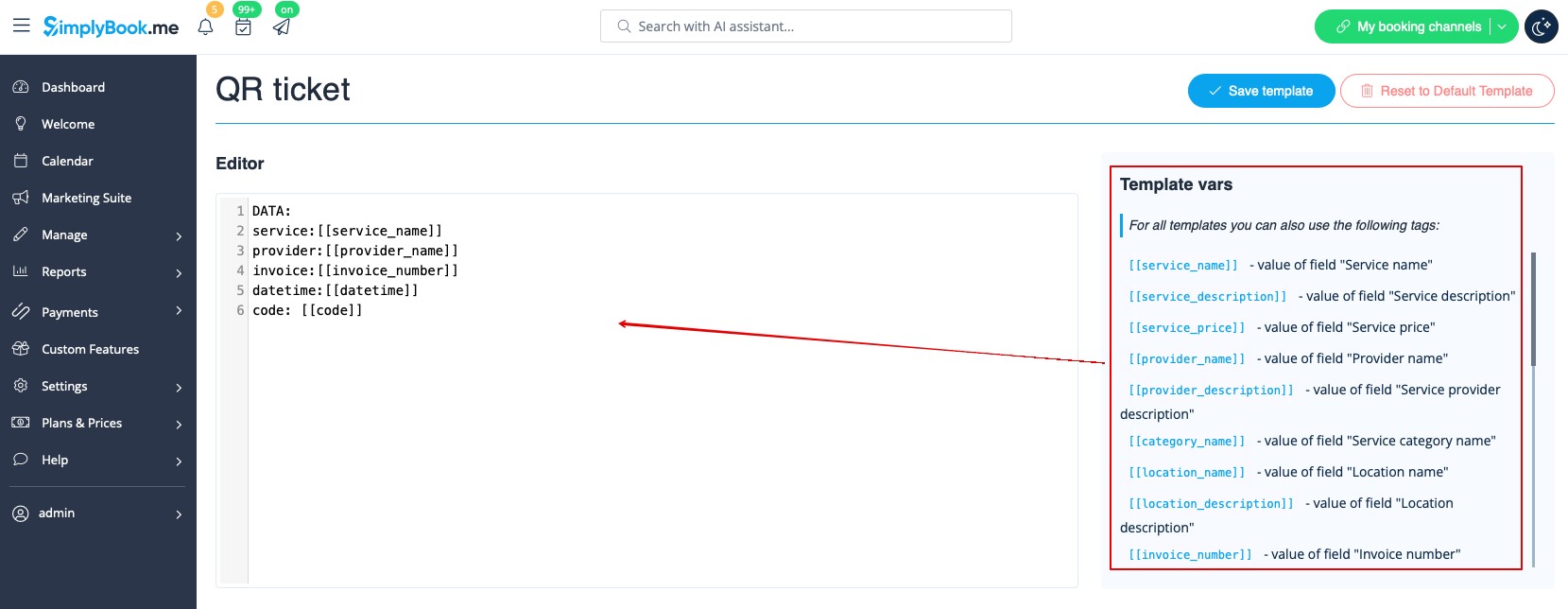
- 4. Passen Sie die Vorlage mit dem Editor und den verfügbaren Variablen auf der rechten Seite an Ihre Bedürfnisse an.
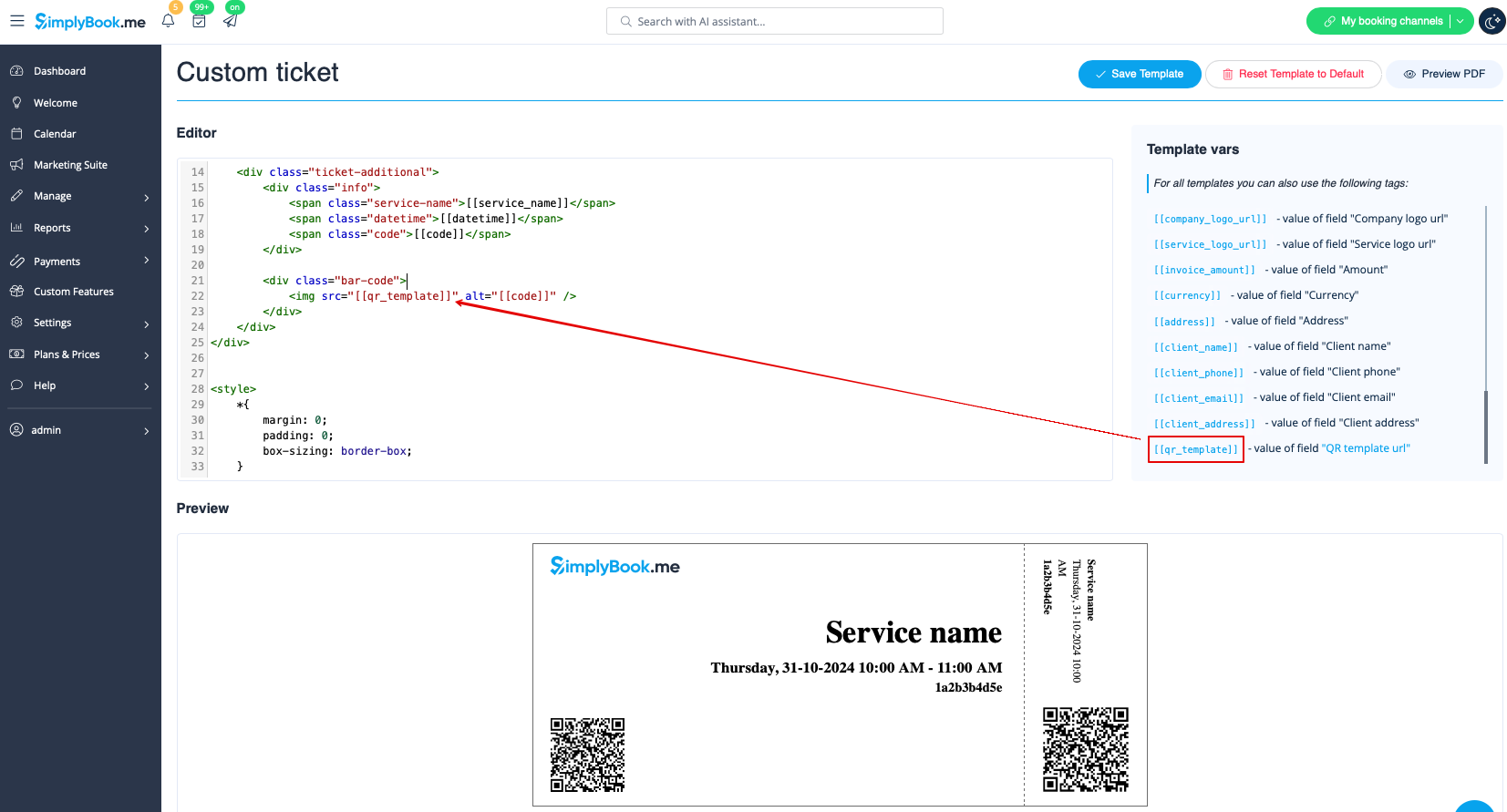
- 5. Fügen Sie die QR-Vorlagen-URL-Variable zur Ticketvorlage unter „Benutzerdefinierte Funktionen“ -> „Tickets“ -> „Benutzerdefiniertes Ticket“ hinzu .
- (Bitte stellen Sie auch sicher, dass Sie benutzerdefinierte Tickets an die erforderlichen Dienste unter „Verwalten“ -> „Dienste“ -> „Erforderlichen Dienst auswählen“ -> „Tickets“ angehängt haben)