No edit summary |
No edit summary |
||
| (22 intermediate revisions by the same user not shown) | |||
| Line 1: | Line 1: | ||
<languages/> | |||
{{#seo: | |||
|title=Book days - SimplyBook.me | |||
|description=Set booking days to match your schedule. Control availability and optimize client appointments. Adjust settings here! | |||
|titlemode=append | |||
|keywords=faq, frequently asked questions, booking software, appointment system questions, appointments online, calendar software, booking system, booking calendar, scheduling software, online appointment scheduling, online scheduling, setup, setup help, support, help content | |||
}} | |||
1. | <translate> | ||
[[File: | <!--T:1--> | ||
2. In Manage / | <br/><br/> | ||
[[File: | [https://simplybook.me/ SimplyBook.me] has no option of booking days, however, there is a workaround, please check if these options are suitable for your business. | ||
3. In the | <br/> | ||
[[File: | <p><youtube>https://www.youtube.com/watch?v=a-VfZaTE7HQ&feature=youtu.be</p></youtube> | ||
</translate> | |||
<translate> | |||
<!--T:3--> | |||
<br/><br/> | |||
__TOC__ | |||
==Multiple services== <!--T:4--> | |||
<!--T:5--> | |||
1. In <span style="background-color:#d4f8e5; padding:5px; border-radius:5px;">Settings</span> -> <span style="background-color:#d4f8e5; padding:5px; border-radius:5px;">Main configuration</span> -> set both <span style="background-color:#d4f8e5; padding:5px; border-radius:5px;">Allow service to extend over breaktime</span> and <span style="background-color:#d4f8e5; padding:5px; border-radius:5px;">Allow service to extend over closing hours.</span> to <span style="background-color:#d4f8e5; padding:5px; border-radius:5px;">Yes</span> and save.<br/> | |||
</translate> | |||
[[File:Allow to extend over settings redesigned.png|1200px | center|link=https://help.simplybook.me/images/1/1a/Allow_to_extend_over_settings_redesigned.png]] | |||
<!--T:6--> | |||
<translate> | |||
<!--T:7--> | |||
<br/><br/> | |||
2. In <span style="background-color:#d4f8e5; padding:5px; border-radius:5px;">Manage</span> -> <span style="background-color:#d4f8e5; padding:5px; border-radius:5px;">Services</span> -> <span style="background-color:#d4f8e5; padding:5px; border-radius:5px;">+</span> button create service with the duration corresponding to the amount of days your service will be offered for (3 days=3 hours, 7 days=7 hours).<br/><br/> | |||
</translate> | |||
[[File:3 days service duration redesigned.png|1200px |center| link=https://help.simplybook.me/images/a/a4/3_days_service_duration_redesigned.png]] | |||
<translate> | |||
<!--T:9--> | |||
<br/> <br/> | |||
3. In the <span style="background-color:#d4f8e5; padding:5px; border-radius:5px;">Settings</span> -> <span style="background-color:#d4f8e5; padding:5px; border-radius:5px;">Company opening hours</span> (when you have only 1 service) or in the working hours of this service (<span style="background-color:#d4f8e5; padding:5px; border-radius:5px;">Settings</span> -> <span style="background-color:#d4f8e5; padding:5px; border-radius:5px;">Services schedule</span> or <span style="background-color:#d4f8e5; padding:5px; border-radius:5px;">Manage</span> -> <span style="background-color:#d4f8e5; padding:5px; border-radius:5px;">Services</span> -> select the service -> <span style="background-color:#d4f8e5; padding:5px; border-radius:5px;">Services schedule</span>) open only 1 hour each day. | |||
</translate> | |||
[[File:Book days service schedule redesigned.png|1200px| center |<translate><!--T:10--> link=https://help.simplybook.me/images/3/30/Book_days_service_schedule_redesigned.png</translate>]] | |||
<translate> | |||
<!--T:11--> | |||
<br/><br/> | |||
4. The system will then book the number of hours indicated in service duration as the number of days.<br/> | 4. The system will then book the number of hours indicated in service duration as the number of days.<br/> | ||
[[File: | </translate> | ||
[[File:Booked days calendar view redesigned.png|1200px | center|<translate><!--T:12--> link=https://help.simplybook.me/images/6/69/Booked_days_calendar_view_redesigned.png</translate>]] | |||
<translate> | |||
<!--T:13--> | |||
<br/><br/> | |||
5. For your clients this setup will look in the following way: | |||
</translate> | |||
[[File:Book days client side view option 1.png|1200px|border|<translate><!--T:14--> center</translate>]] | |||
<translate> | |||
<!--T:15--> | |||
<br/><br/> | |||
==Single service with the use of [[Special:MyLanguage/Service Add-Ons custom feature |Add-ons]]== <!--T:16--> | |||
<!--T:17--> | |||
1. In <span style="background-color:#d4f8e5; padding:5px; border-radius:5px;">Settings</span> -> <span style="background-color:#d4f8e5; padding:5px; border-radius:5px;">Main configuration</span> -> set both <span style="background-color:#d4f8e5; padding:5px; border-radius:5px;">Allow service to extend over breaktime</span> and <span style="background-color:#d4f8e5; padding:5px; border-radius:5px;">Allow service to extend over closing hours.</span> to <span style="background-color:#d4f8e5; padding:5px; border-radius:5px;">Yes</span> and save.<br/> | |||
</translate> | |||
[[File:Allow to extend over settings redesigned.png|1200px | center|<translate><!--T:18--> link=https://help.simplybook.me/images/1/1a/Allow_to_extend_over_settings_redesigned.png</translate>]] | |||
<translate> | |||
<!--T:19--> | |||
<br/><br/> | |||
2. In <span style="background-color:#d4f8e5; padding:5px; border-radius:5px;">Manage</span> -> <span style="background-color:#d4f8e5; padding:5px; border-radius:5px;">Services</span> -> <span style="background-color:#d4f8e5; padding:5px; border-radius:5px;">+</span> button create service with the duration corresponding to the amount of days your service will initially be offered for (3 days=3 hours, 7 days=7 hours).<br/><br/> | |||
</translate> | |||
[[File:3 days service duration redesigned.png|1200px |center|<translate><!--T:20--> link=https://help.simplybook.me/images/a/a4/3_days_service_duration_redesigned.png</translate>]] | |||
<translate> | |||
<!--T:21--> | |||
<br/> <br/> | |||
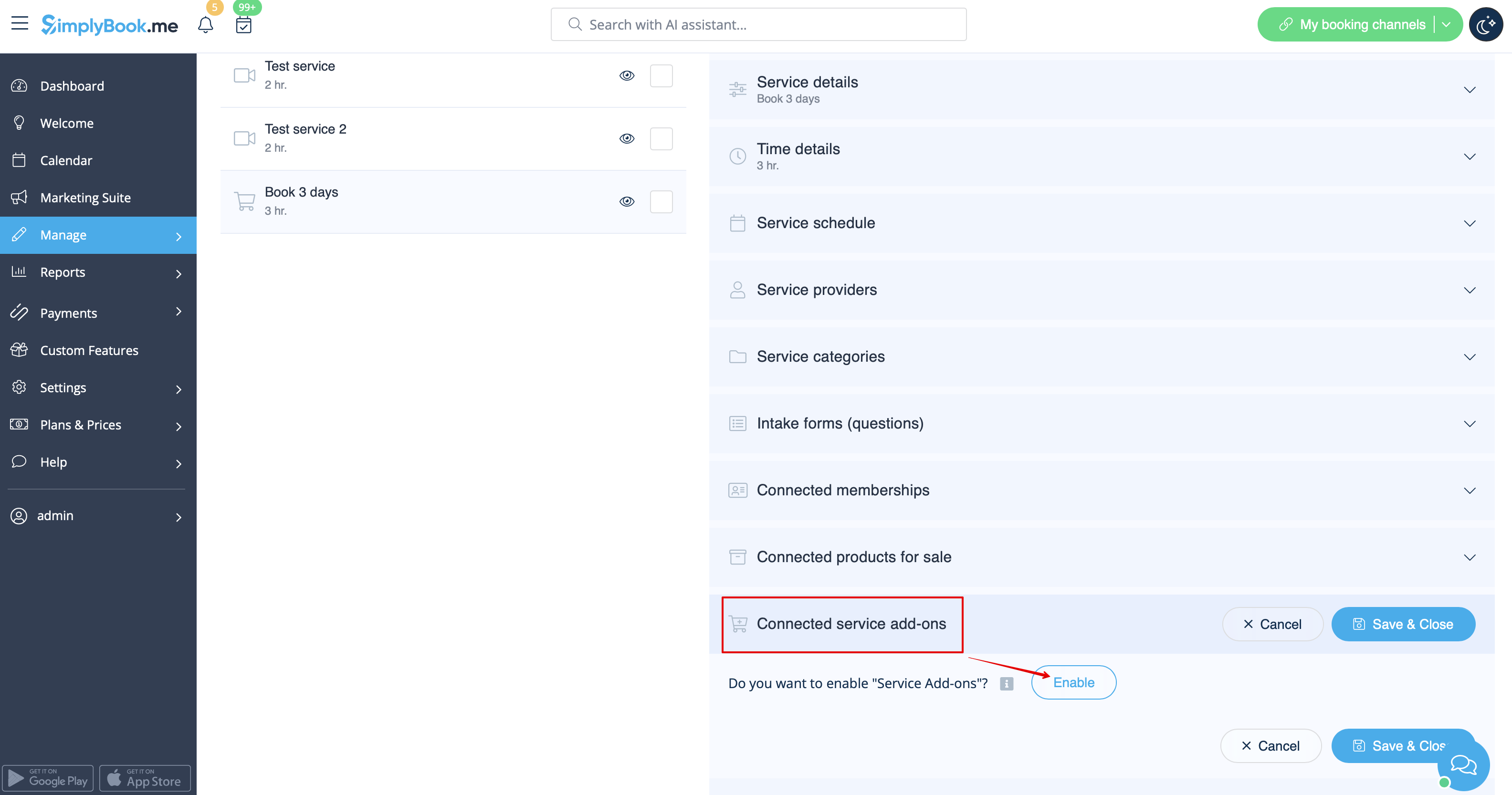
3. Enable <span style="background-color:#cdeffc; padding:5px; border-radius:5px;">[[Special:MyLanguage/Custom_Features#Service_Add-ons |Service add-ons]]</span> custom feature inside the tab on the <span style="background-color:#d4f8e5; padding:5px; border-radius:5px;">Services</span> page or in <span style="background-color:#d4f8e5; padding:5px; border-radius:5px;">Custom features</span> section. | |||
</translate> | |||
[[File:Enable service addons from service management redesigned.png|1200px|border|center|<translate><!--T:22--> link=https://help.simplybook.me/images/e/ed/Enable_service_addons_from_service_management_redesigned.png</translate>]] | |||
<translate> | |||
<!--T:23--> | |||
<br/> <br/> | |||
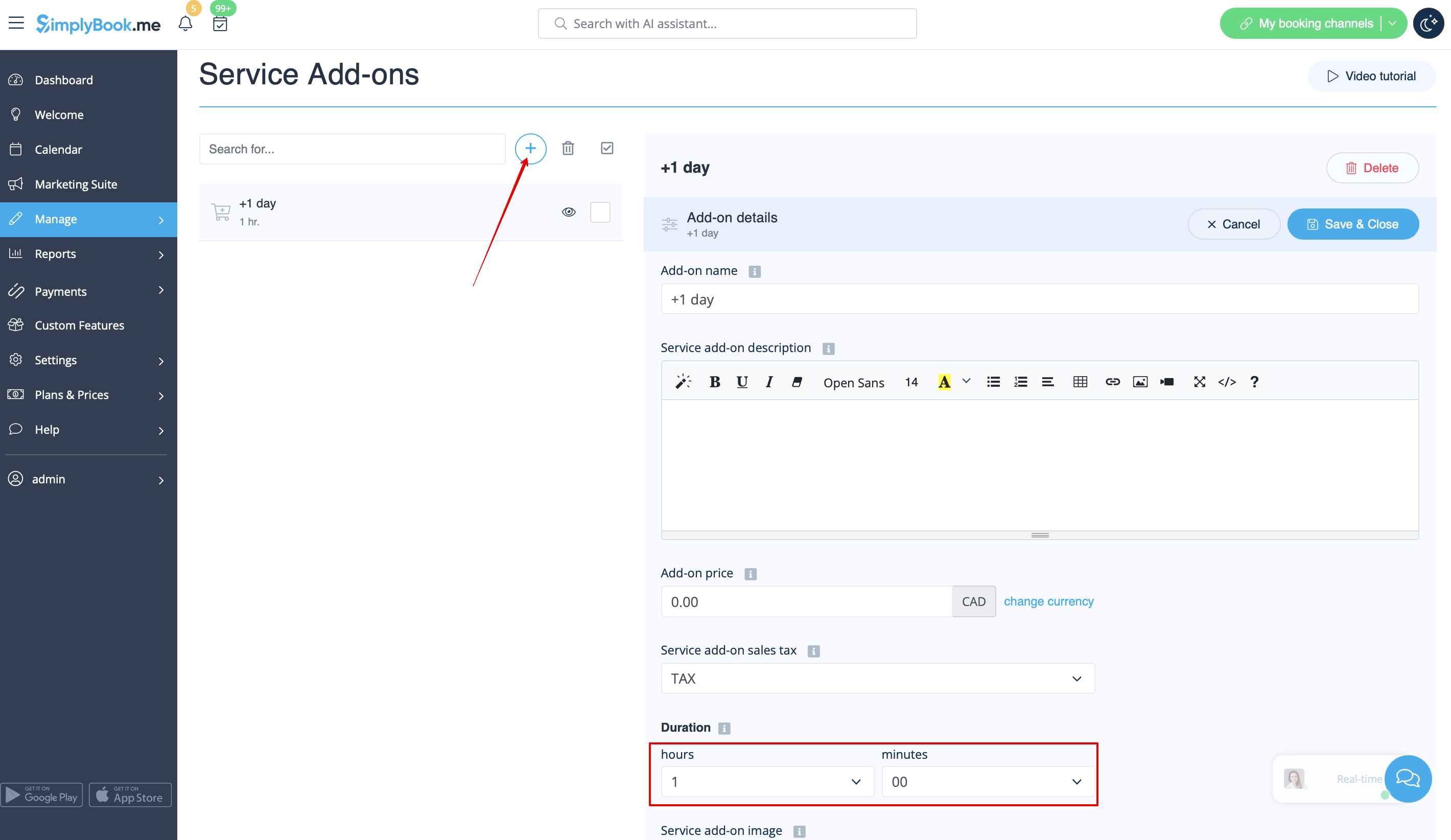
4. In <span style="background-color:#d4f8e5; padding:5px; border-radius:5px;">Manage</span> -> <span style="background-color:#d4f8e5; padding:5px; border-radius:5px;">Service add-ons</span> create all the desired additional duration options. | |||
</translate> | |||
[[File:Addon duration+1 day redesigned.png|1200px|border|center|<translate><!--T:24--> link=https://help.simplybook.me/images/1/1d/Addon_duration%2B1_day_redesigned.png</translate>]] | |||
<translate> | |||
<!--T:25--> | |||
<br/> <br/> | |||
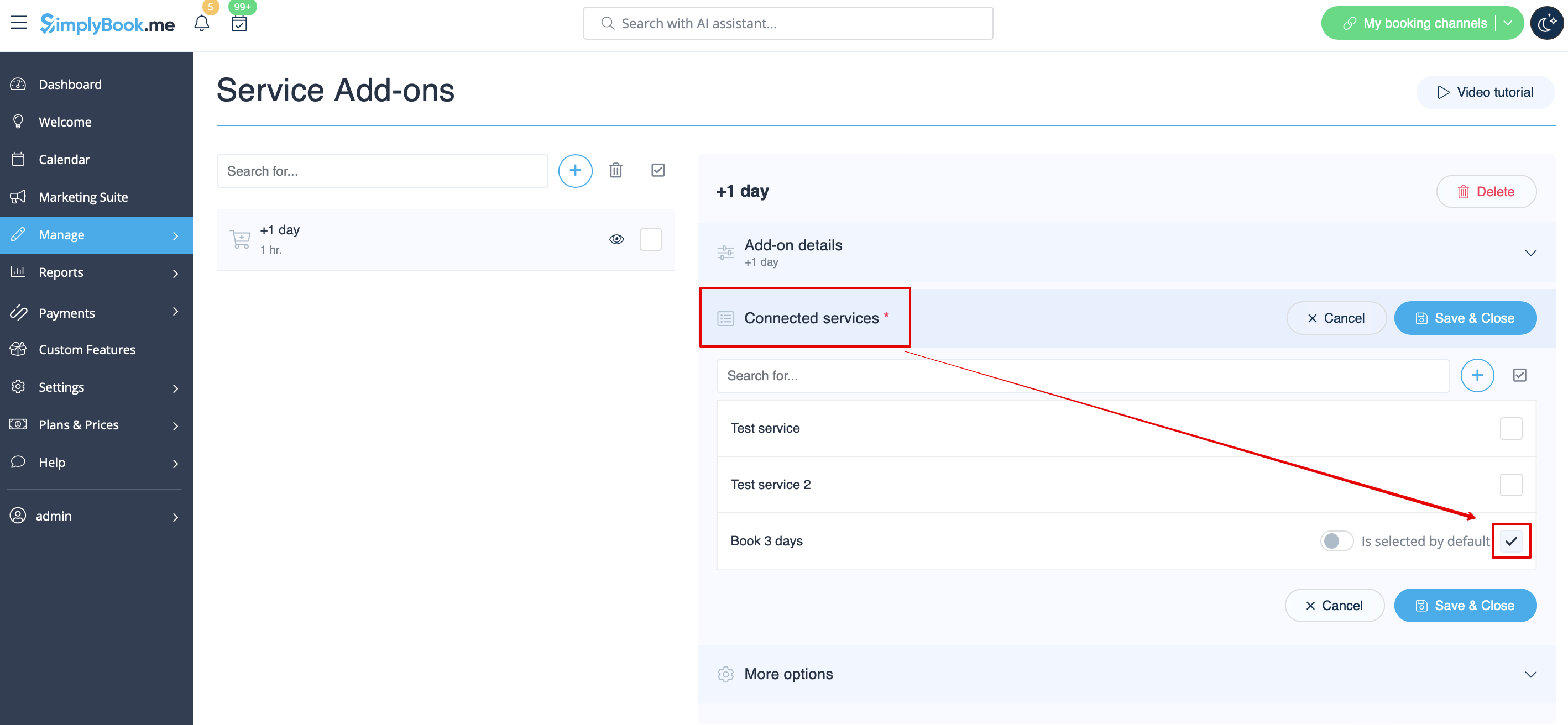
5. (optional) Relate the Add-ons to the desired services if necessary and you have some specific additional duration options per service. | |||
</translate> | |||
[[File:Relate addon to service days redesigned.png|1200px|border|center|<translate><!--T:26--> link=https://help.simplybook.me/images/f/fd/Relate_addon_to_service_days_redesigned.png</translate>]] | |||
<translate> | |||
<!--T:27--> | |||
<br/> <br/> | |||
6. In <span style="background-color:#d4f8e5; padding:5px; border-radius:5px;">Settings</span> -> <span style="background-color:#d4f8e5; padding:5px; border-radius:5px;">Company opening hours</span> (when you have only 1 service) or in the working hours of this service (<span style="background-color:#d4f8e5; padding:5px; border-radius:5px;">Settings</span> -> <span style="background-color:#d4f8e5; padding:5px; border-radius:5px;">Services schedule</span> or <span style="background-color:#d4f8e5; padding:5px; border-radius:5px;">Manage</span> -> <span style="background-color:#d4f8e5; padding:5px; border-radius:5px;">Services</span> -> select the service -> <span style="background-color:#d4f8e5; padding:5px; border-radius:5px;">Services schedule</span>) open only 1 hour each day. | |||
</translate> | |||
[[File:Book days service schedule redesigned.png|1200px | center|<translate><!--T:28--> link=https://help.simplybook.me/images/3/30/Book_days_service_schedule_redesigned.png </translate>]] | |||
<translate> | |||
<!--T:29--> | |||
<br/><br/> | |||
7. Here you can see how this way will look like on the client side | |||
(they will select the main service first and then choose the additional duration if they need to): | |||
</translate> | |||
[[File:Book days client side view option 2.png|1200px|border|<translate><!--T:30--> center</translate>]] | |||
<translate> | |||
<!--T:31--> | |||
<br/><br/><br/><br/> | |||
</translate> | |||
Latest revision as of 12:01, 22 September 2025
SimplyBook.me has no option of booking days, however, there is a workaround, please check if these options are suitable for your business.
Multiple services
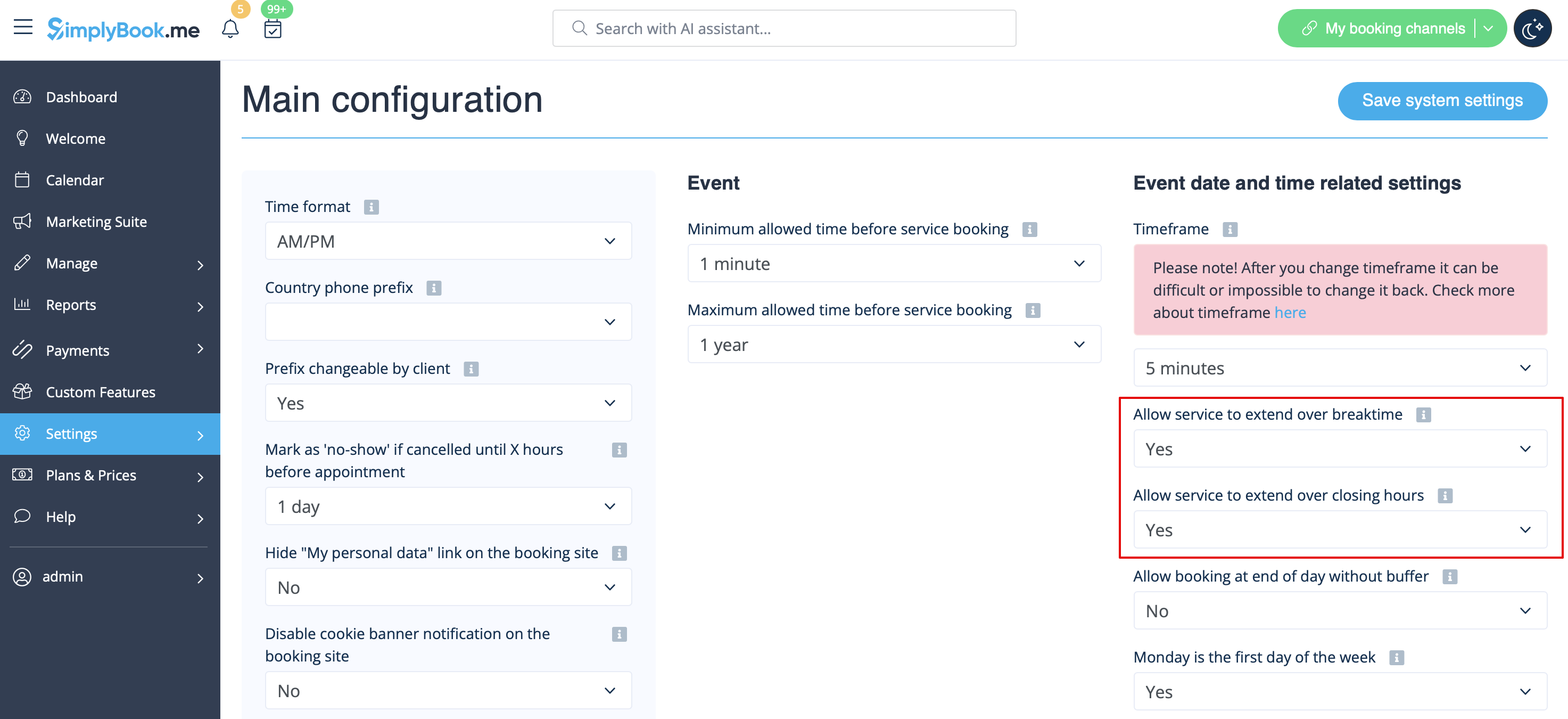
1. In Settings -> Main configuration -> set both Allow service to extend over breaktime and Allow service to extend over closing hours. to Yes and save.
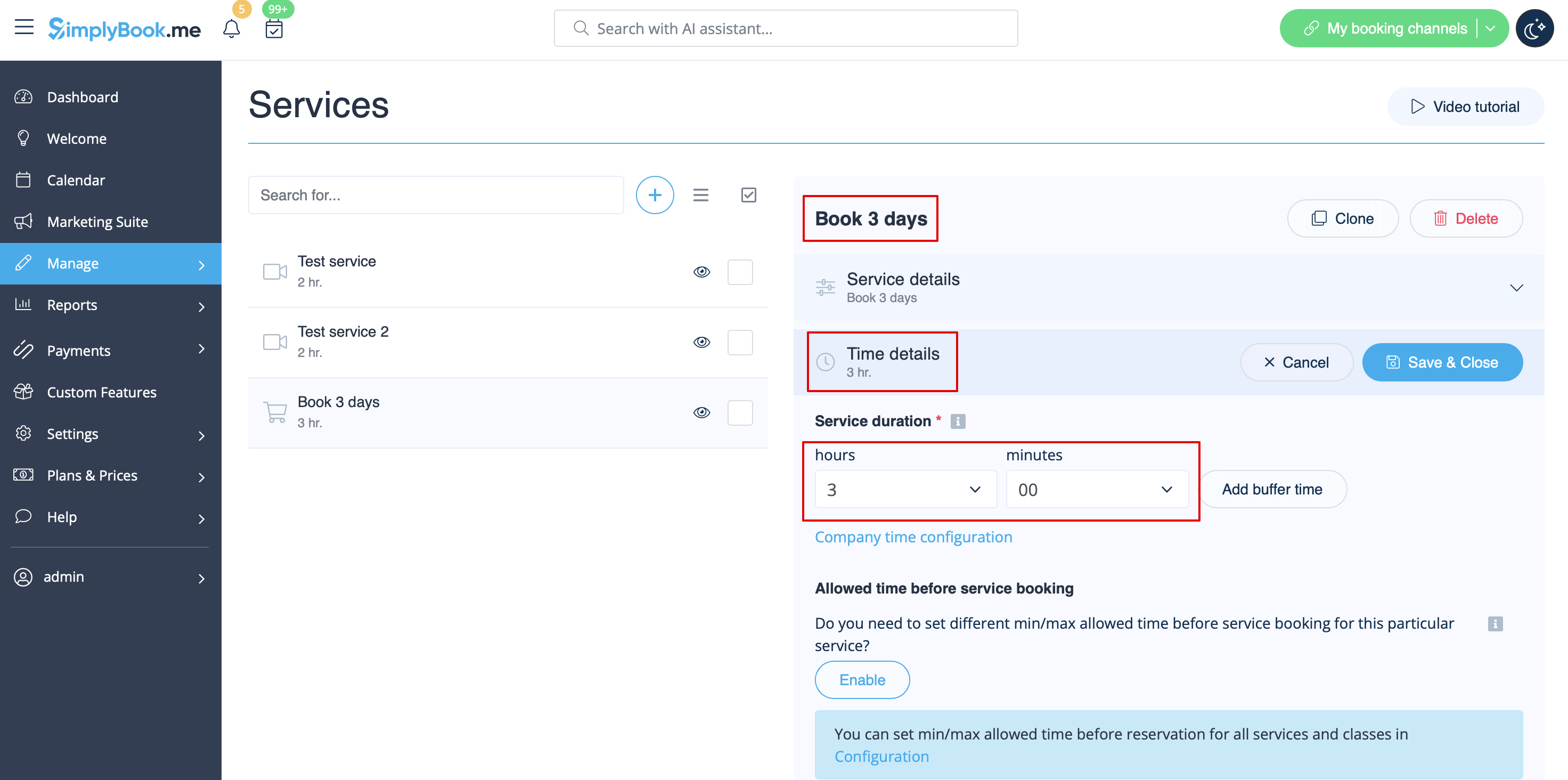
2. In Manage -> Services -> + button create service with the duration corresponding to the amount of days your service will be offered for (3 days=3 hours, 7 days=7 hours).
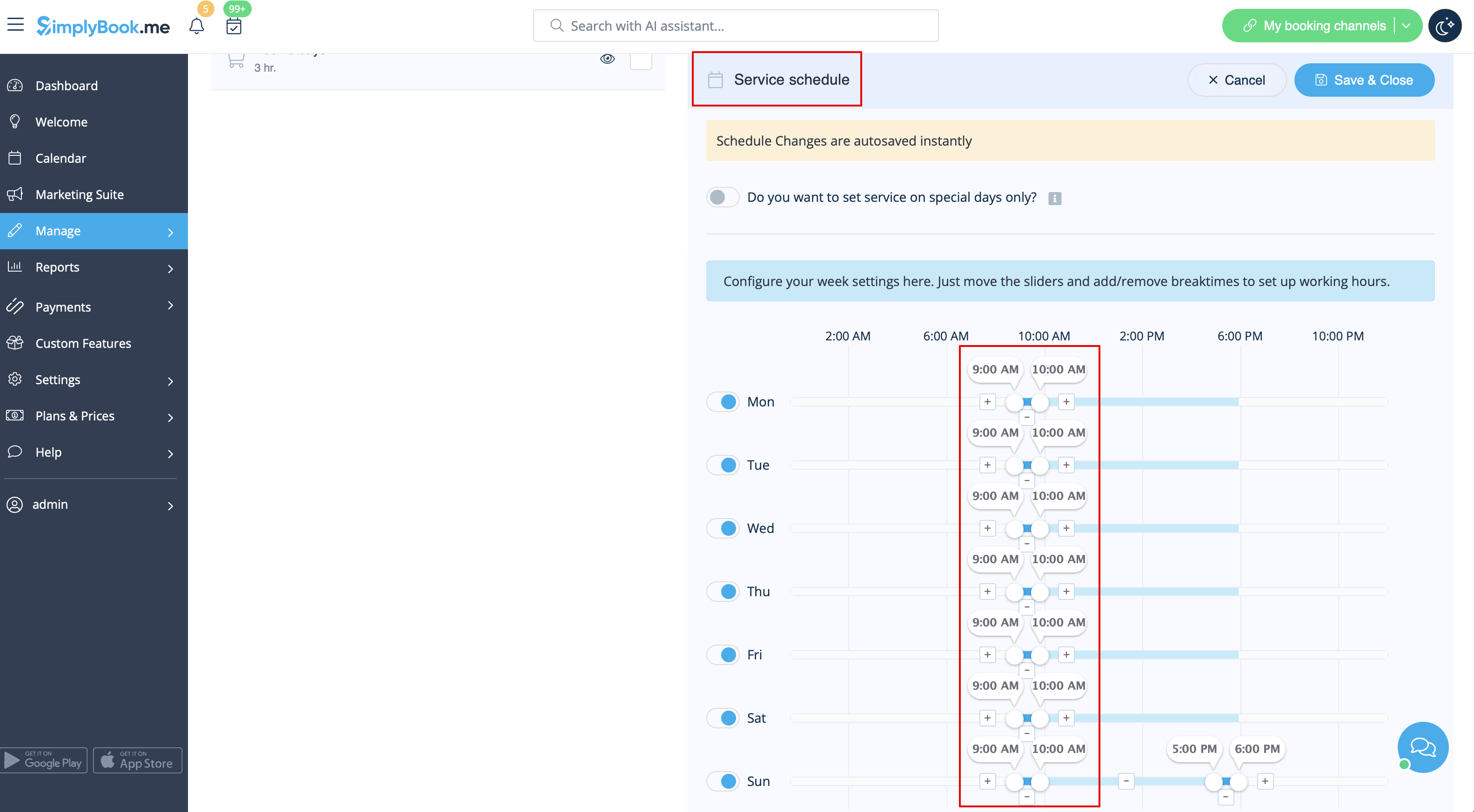
3. In the Settings -> Company opening hours (when you have only 1 service) or in the working hours of this service (Settings -> Services schedule or Manage -> Services -> select the service -> Services schedule) open only 1 hour each day.
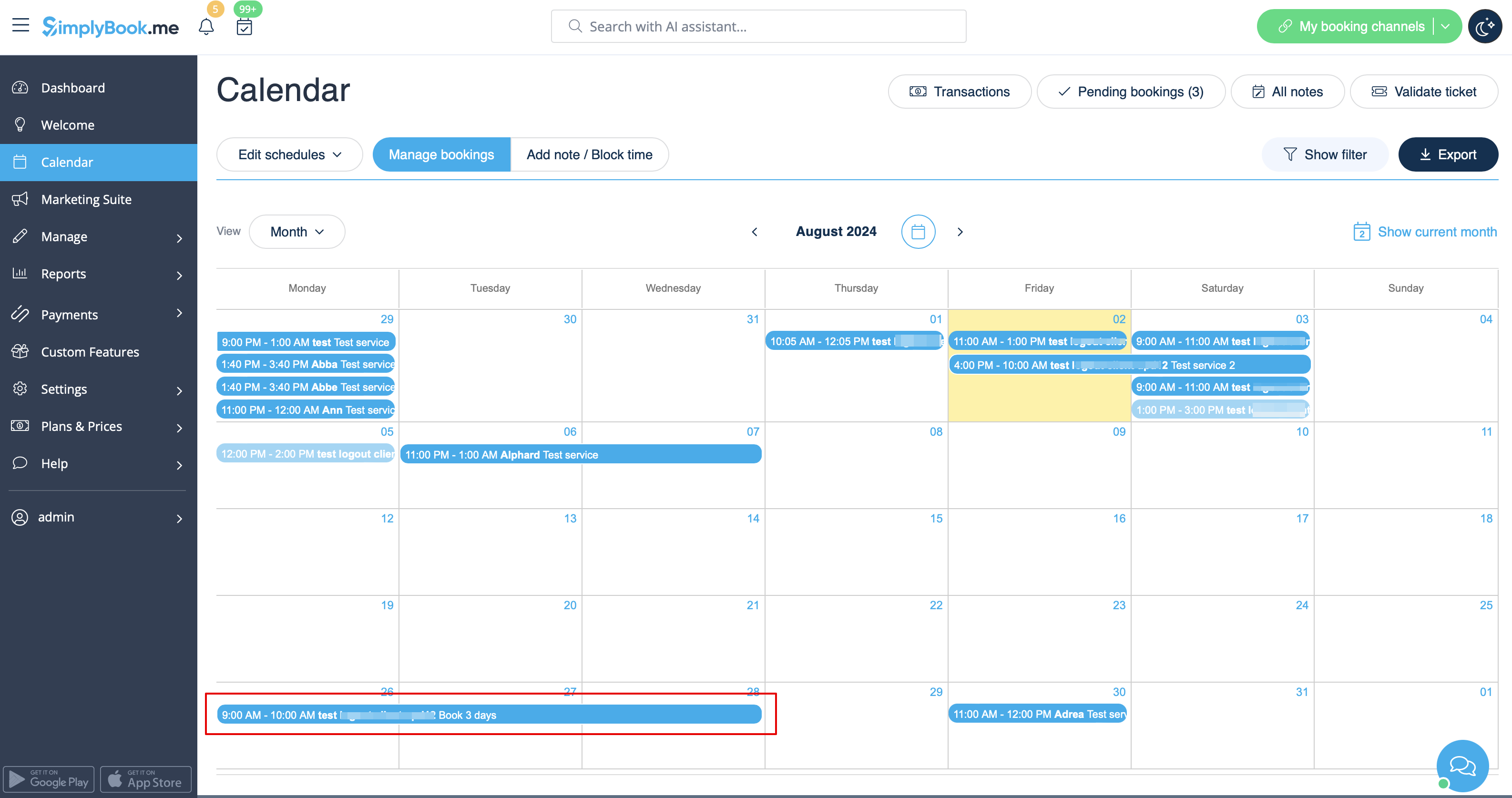
4. The system will then book the number of hours indicated in service duration as the number of days.
5. For your clients this setup will look in the following way:

Single service with the use of Add-ons
1. In Settings -> Main configuration -> set both Allow service to extend over breaktime and Allow service to extend over closing hours. to Yes and save.
2. In Manage -> Services -> + button create service with the duration corresponding to the amount of days your service will initially be offered for (3 days=3 hours, 7 days=7 hours).
3. Enable Service add-ons custom feature inside the tab on the Services page or in Custom features section.
4. In Manage -> Service add-ons create all the desired additional duration options.
5. (optional) Relate the Add-ons to the desired services if necessary and you have some specific additional duration options per service.
6. In Settings -> Company opening hours (when you have only 1 service) or in the working hours of this service (Settings -> Services schedule or Manage -> Services -> select the service -> Services schedule) open only 1 hour each day.
7. Here you can see how this way will look like on the client side
(they will select the main service first and then choose the additional duration if they need to):

