From SimplyBook.me
Importing a new version from external source |
Importing a new version from external source |
||
| Line 1: | Line 1: | ||
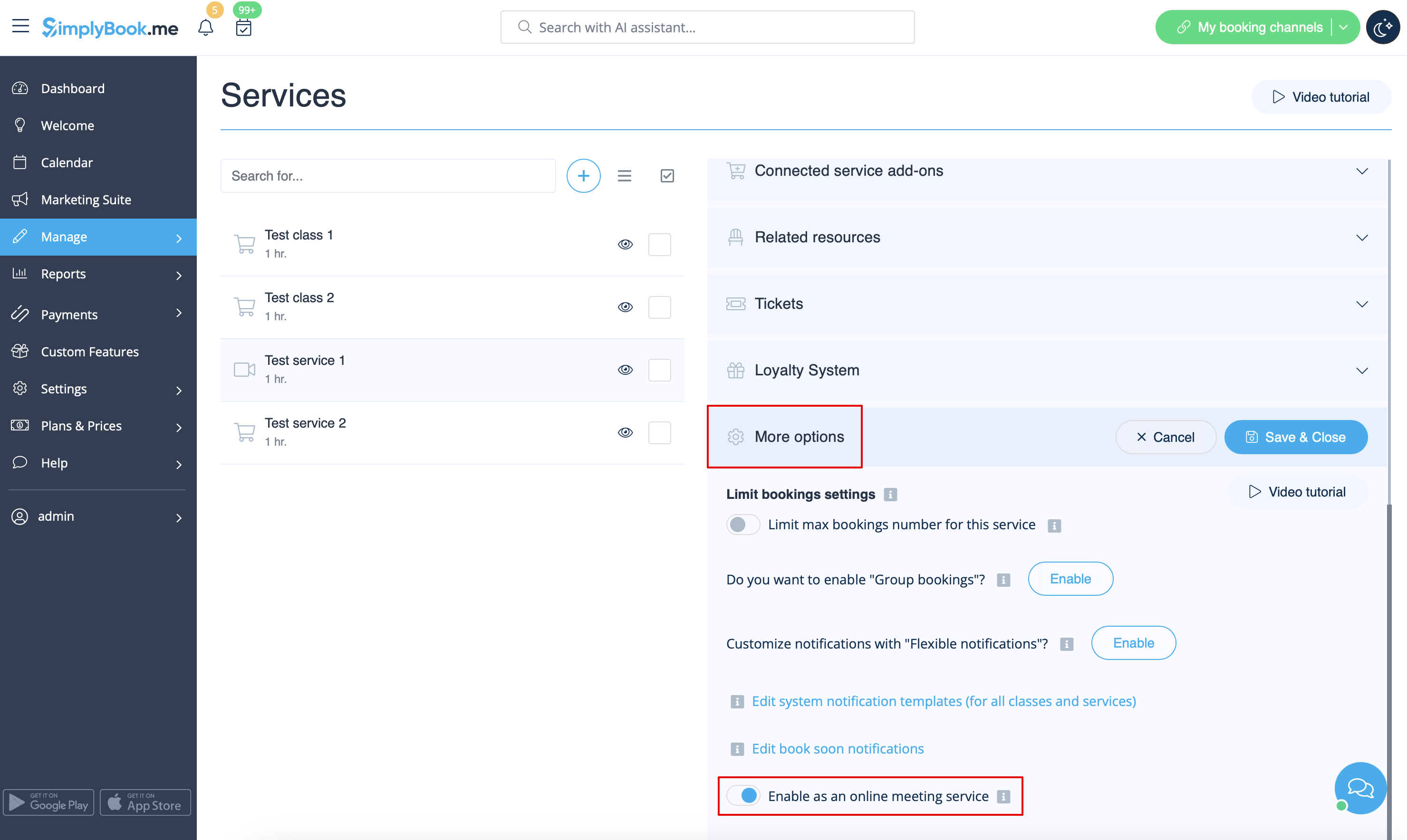
:5. For the services/classes you wish to conduct online meetings switch the option <span style="background-color:#d4f8e5; padding:5px; border-radius:5px;">Enable as online meeting service/class</span> on in <span style="background-color:#d4f8e5; padding:5px; border-radius:5px;">Manage</span> -> <span style="background-color:#d4f8e5; padding:5px; border-radius:5px;">Services</span> -> <span style="background-color:#d4f8e5; padding:5px; border-radius:5px;">click on service name</span> -> <span style="background-color:#d4f8e5; padding:5px; border-radius:5px;">More options</span><br>(in <span style="background-color:#d4f8e5; padding:5px; border-radius:5px;">Manage</span> -> <span style="background-color:#d4f8e5; padding:5px; border-radius:5px;">Classes</span> -> <span style="background-color:#d4f8e5; padding:5px; border-radius:5px;">click on class name</span> -> <span style="background-color:#d4f8e5; padding:5px; border-radius:5px;">More options</span> if you are using <span style="background-color:#cdeffc; padding:5px; border-radius:5px;">[[Classes_custom_feature|Classes feature]])</span> | :5. For the services/classes you wish to conduct online meetings switch the option <span style="background-color:#d4f8e5; padding:5px; border-radius:5px;">Enable as online meeting service/class</span> on in <span style="background-color:#d4f8e5; padding:5px; border-radius:5px;">Manage</span> -> <span style="background-color:#d4f8e5; padding:5px; border-radius:5px;">Services</span> -> <span style="background-color:#d4f8e5; padding:5px; border-radius:5px;">click on service name</span> -> <span style="background-color:#d4f8e5; padding:5px; border-radius:5px;">More options</span><br>(in <span style="background-color:#d4f8e5; padding:5px; border-radius:5px;">Manage</span> -> <span style="background-color:#d4f8e5; padding:5px; border-radius:5px;">Classes</span> -> <span style="background-color:#d4f8e5; padding:5px; border-radius:5px;">click on class name</span> -> <span style="background-color:#d4f8e5; padding:5px; border-radius:5px;">More options</span> if you are using <span style="background-color:#cdeffc; padding:5px; border-radius:5px;">[[Special:MyLanguage/Classes_custom_feature|Classes feature]])</span> | ||
[[File:Enable service as online meeting redesigned.png|1200px|center|link=https://help.simplybook.me/images/e/ec/Enable_service_as_online_meeting_redesigned.png]] | [[File:Enable service as online meeting redesigned.png|1200px|center|link=https://help.simplybook.me/images/e/ec/Enable_service_as_online_meeting_redesigned.png]] | ||
<br><br> | <br><br> | ||
Latest revision as of 07:41, 24 September 2025
- 5. For the services/classes you wish to conduct online meetings switch the option Enable as online meeting service/class on in Manage -> Services -> click on service name -> More options
(in Manage -> Classes -> click on class name -> More options if you are using Classes feature)
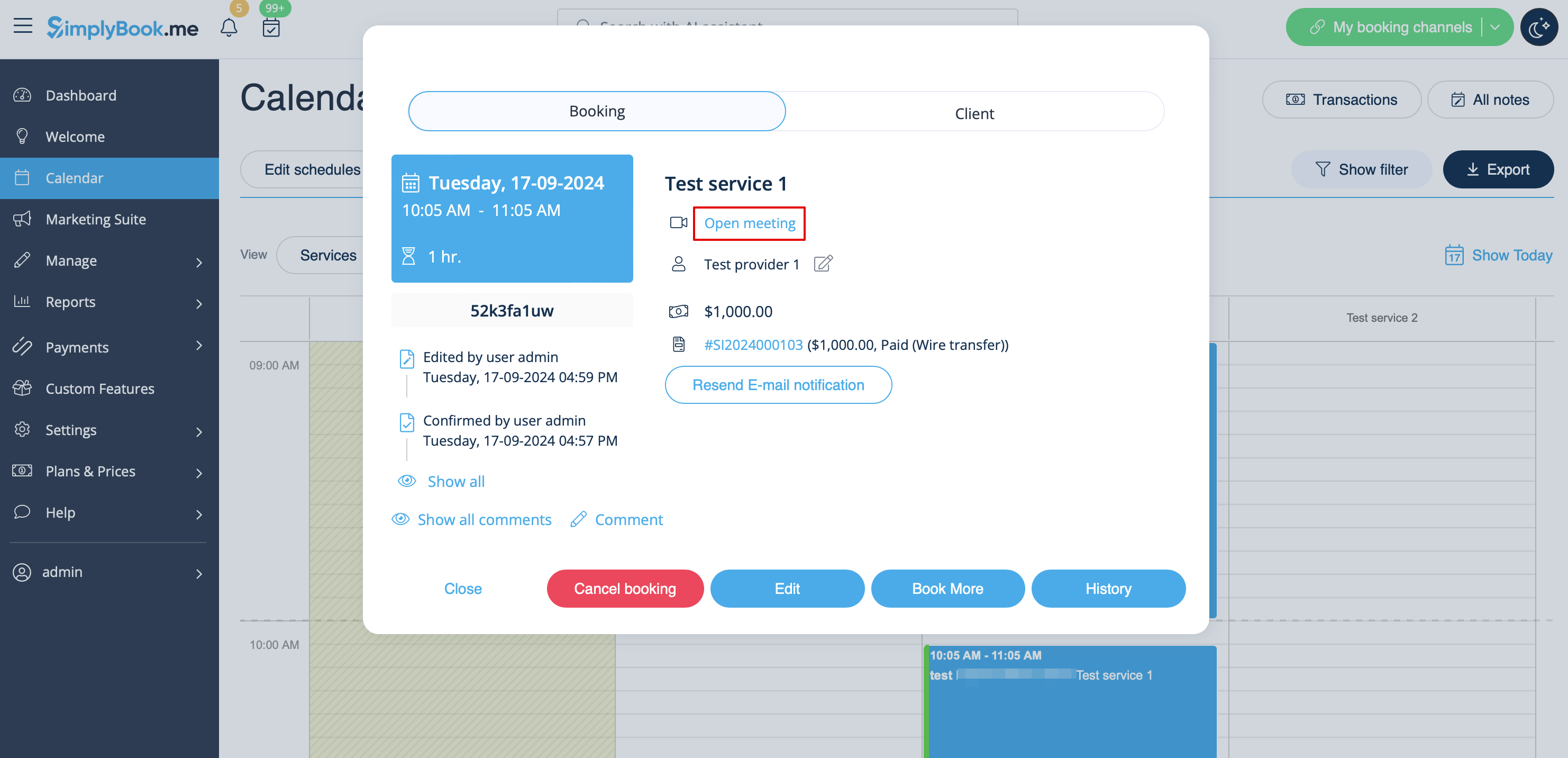
- 6. When the clients book such a service/class there will be online meeting link on My bookings page for the associated booking. When the appointment time comes the clients will be able to follow it to access the meeting.
- For admin side it will be possible to follow the link from booking info popup form in Calendar or in Reports -> Booking details.