From SimplyBook.me
Importing a new version from external source |
Importing a new version from external source |
||
| Line 1: | Line 1: | ||
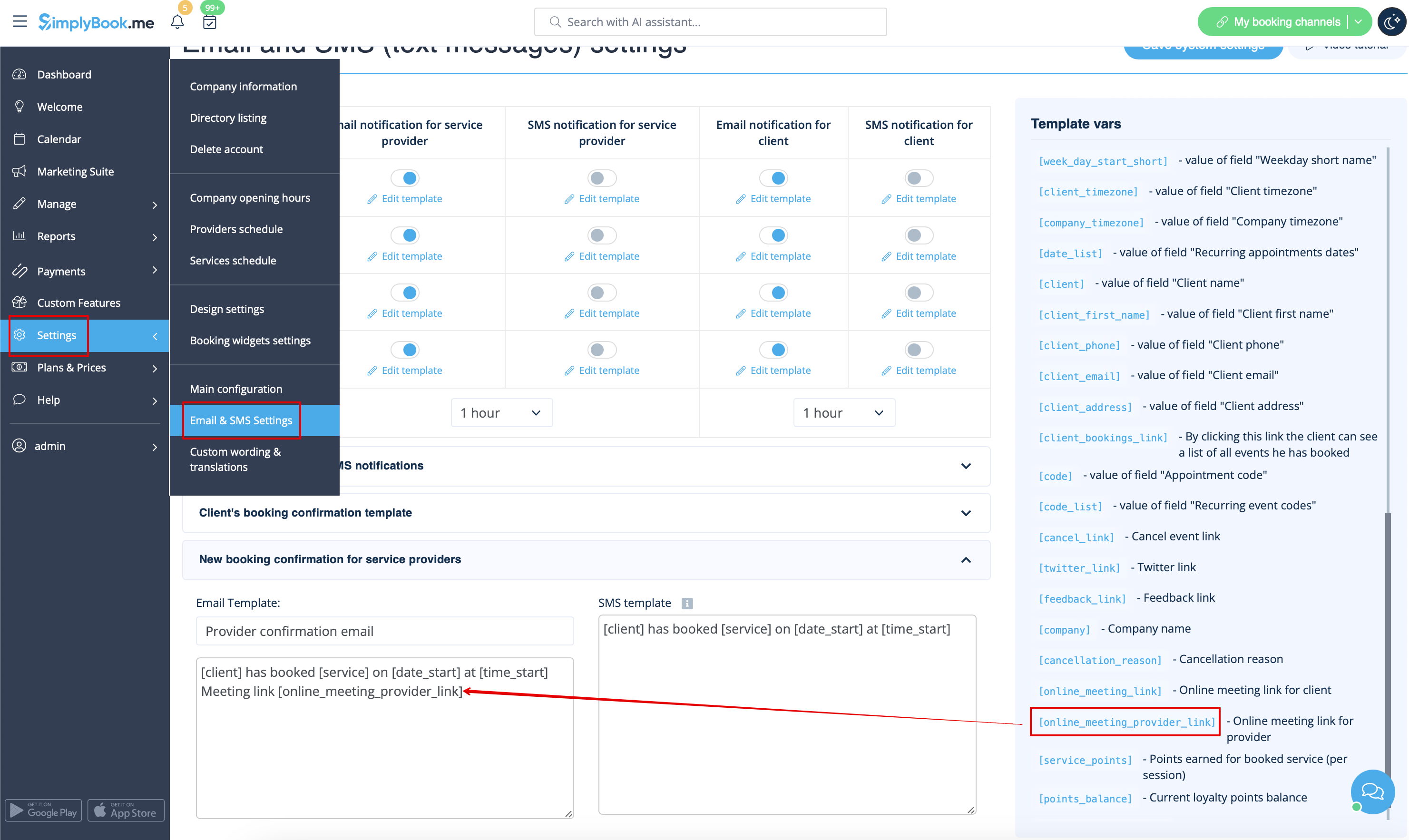
:7. (optonal) You can add online meetings link to provider and client notification templates so that both sides receive them with the booking details.<br>To do that please navigate to <span style="background-color:#d4f8e5; padding:5px; border-radius:5px;">Settings</span> -> <span style="background-color:#d4f8e5; padding:5px; border-radius:5px;">Email and sms settings</span> (or <span style="background-color:#d4f8e5; padding:5px; border-radius:5px;">Custom features</span> -> <span style="background-color:#cdeffc; padding:5px; border-radius:5px;">[[Flexible_Notifications_custom_feature|Flexible notifications]]</span> -> <span style="background-color:#d4f8e5; padding:5px; border-radius:5px;">Manage</span> if you have customized notifications per service and/or provider). | :7. (optonal) You can add online meetings link to provider and client notification templates so that both sides receive them with the booking details.<br>To do that please navigate to <span style="background-color:#d4f8e5; padding:5px; border-radius:5px;">Settings</span> -> <span style="background-color:#d4f8e5; padding:5px; border-radius:5px;">Email and sms settings</span> (or <span style="background-color:#d4f8e5; padding:5px; border-radius:5px;">Custom features</span> -> <span style="background-color:#cdeffc; padding:5px; border-radius:5px;">[[Special:MyLanguage/Flexible_Notifications_custom_feature|Flexible notifications]]</span> -> <span style="background-color:#d4f8e5; padding:5px; border-radius:5px;">Manage</span> if you have customized notifications per service and/or provider). | ||
[[File:Add meeting link to provider confirmation redesigned.png|1200px|border|center|link=https://help.simplybook.me/images/6/6c/Add_meeting_link_to_provider_confirmation_redesigned.png]] | [[File:Add meeting link to provider confirmation redesigned.png|1200px|border|center|link=https://help.simplybook.me/images/6/6c/Add_meeting_link_to_provider_confirmation_redesigned.png]] | ||
<br><br> | <br><br> | ||
Latest revision as of 07:41, 24 September 2025
- 7. (optonal) You can add online meetings link to provider and client notification templates so that both sides receive them with the booking details.
To do that please navigate to Settings -> Email and sms settings (or Custom features -> Flexible notifications -> Manage if you have customized notifications per service and/or provider).
Please note! If you have paid services the meeting link will be working only after the payment is made/approved.
Additional steps for case when you need to allow your Providers to have own MS Teams account connection
- 8. By default your MS Teams account that you have connected in Step#6 will be used to generate meetings links and conduct meetings, but if you have several employees in your company, they are added to SimplyBook.me side as providers and users and you wish them to use own MS Teams accounts for their online services/classes please make sure that you have them added as users in MS Azure with access to this application as well as members on MS Teams side.
