Translations:Packages custom feature/4/sv: Difference between revisions

From SimplyBook.me
Created page with "Videohandledning tillgänglig link=https://www.youtube.com/watch?v=PV-NcGv8kj4 <br><br> = Hur = :1. För att aktivera den här anpassade funktionen, gå till sidan Anpassade funktioner, gå till avsnittet "Bokningsrelaterat" och klicka på "Aktivera". 1200px | center|link=https://help.simplybook.me/images/7/78/Packages_enable_path_redesigned.png <br><br> :2. Välj sedan alternativet "Hantera" antingen..."
 
No edit summary
 
Line 1: Line 1:
Videohandledning tillgänglig [[File:Youtube-Logo.png|link=https://www.youtube.com/watch?v=PV-NcGv8kj4]]
Videohandledning tillgänglig <p><youtube>PV-NcGv8kj4</youtube></p>
<br><br>
<br><br>
= Hur =
= Hur =
Line 30: Line 30:
[[File:Add services to package redesigned.png|1200px | center|link=https://help.simplybook.me/images/1/1c/Add_services_to_package_redesigned.png]]
[[File:Add services to package redesigned.png|1200px | center|link=https://help.simplybook.me/images/1/1c/Add_services_to_package_redesigned.png]]
<br><br>
<br><br>
:8. Om du använder funktionerna [[Special:MyLanguage/Custom_Features#Products_for_Sale |Produkter till salu]] och/eller [[Special:MyLanguage/Custom_Features#Service_Add-ons |Tilläggstjänster]] väljer du bara motsvarande flikar och lägger till element på samma sätt.  
:8. Om du använder funktionerna [[Special:MyLanguage/Products for Sale custom feature |Produkter till salu]] och/eller [[Special:MyLanguage/Service Add-Ons custom feature |Tilläggstjänster]] väljer du bara motsvarande flikar och lägger till element på samma sätt.  
[[File:Add products to package redesigned.png|1200px | center|link=https://help.simplybook.me/images/0/0f/Add_products_to_package_redesigned.png]]
[[File:Add products to package redesigned.png|1200px | center|link=https://help.simplybook.me/images/0/0f/Add_products_to_package_redesigned.png]]
<br><br>
<br><br>

Latest revision as of 11:18, 24 September 2025

Information about message (contribute)
This message has no documentation. If you know where or how this message is used, you can help other translators by adding documentation to this message.
Message definition (Packages custom feature)
Video tutorial available <p><youtube>PV-NcGv8kj4</youtube></p>
<br><br>
=How to use=
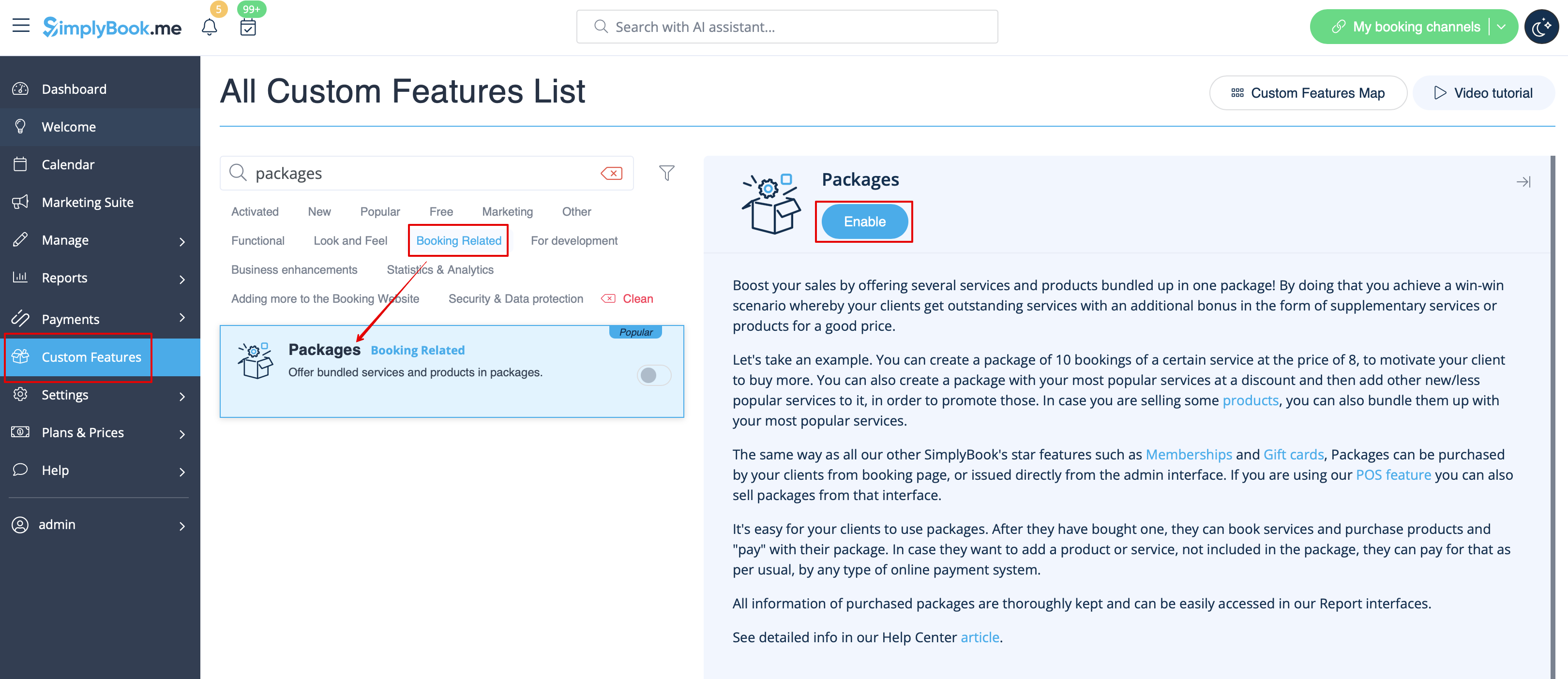
:1. To switch this custom feature on, please navigate to your Custom Features page, go to “Booking related” section and click on “Enable”
[[File:Packages enable path redesigned.png|1200px | center|link=https://help.simplybook.me/images/7/78/Packages_enable_path_redesigned.png]]
<br><br>
:2. Then choose “Manage” option either near the custom feature or navigate to Packages in Manage section of the left-side menu.
[[File:Packages settings path redesigned.png|1200px | center|link=https://help.simplybook.me/images/2/2a/Packages_settings_path_redesigned.png]]
<br><br>
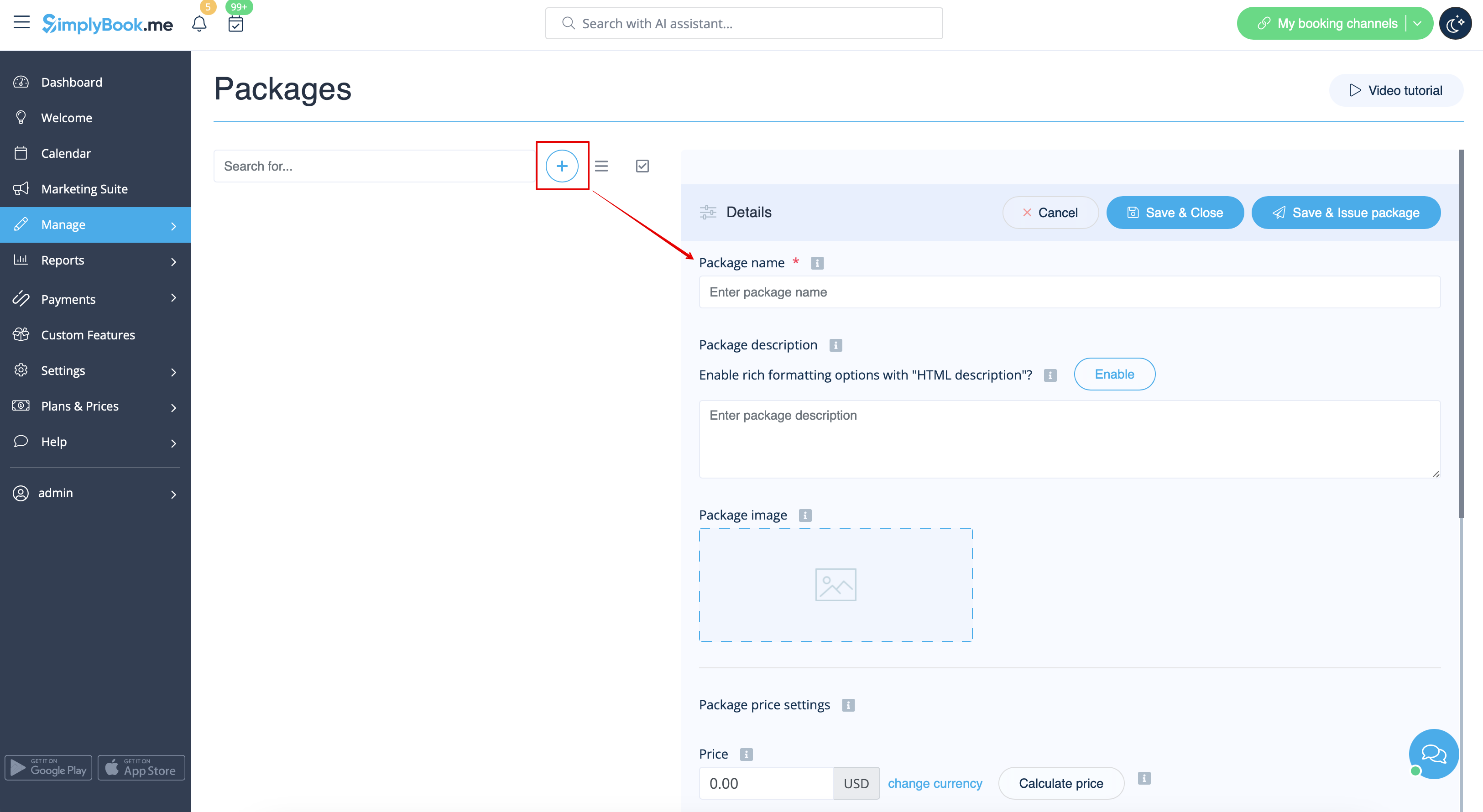
:3. Just click on “+” button to create a new package. The form will appear on the right side of the page.
[[File:Create new package form redesigned.png|1200px | center|link=https://help.simplybook.me/images/0/0e/Create_new_package_form_redesigned.png]]
<br><br>
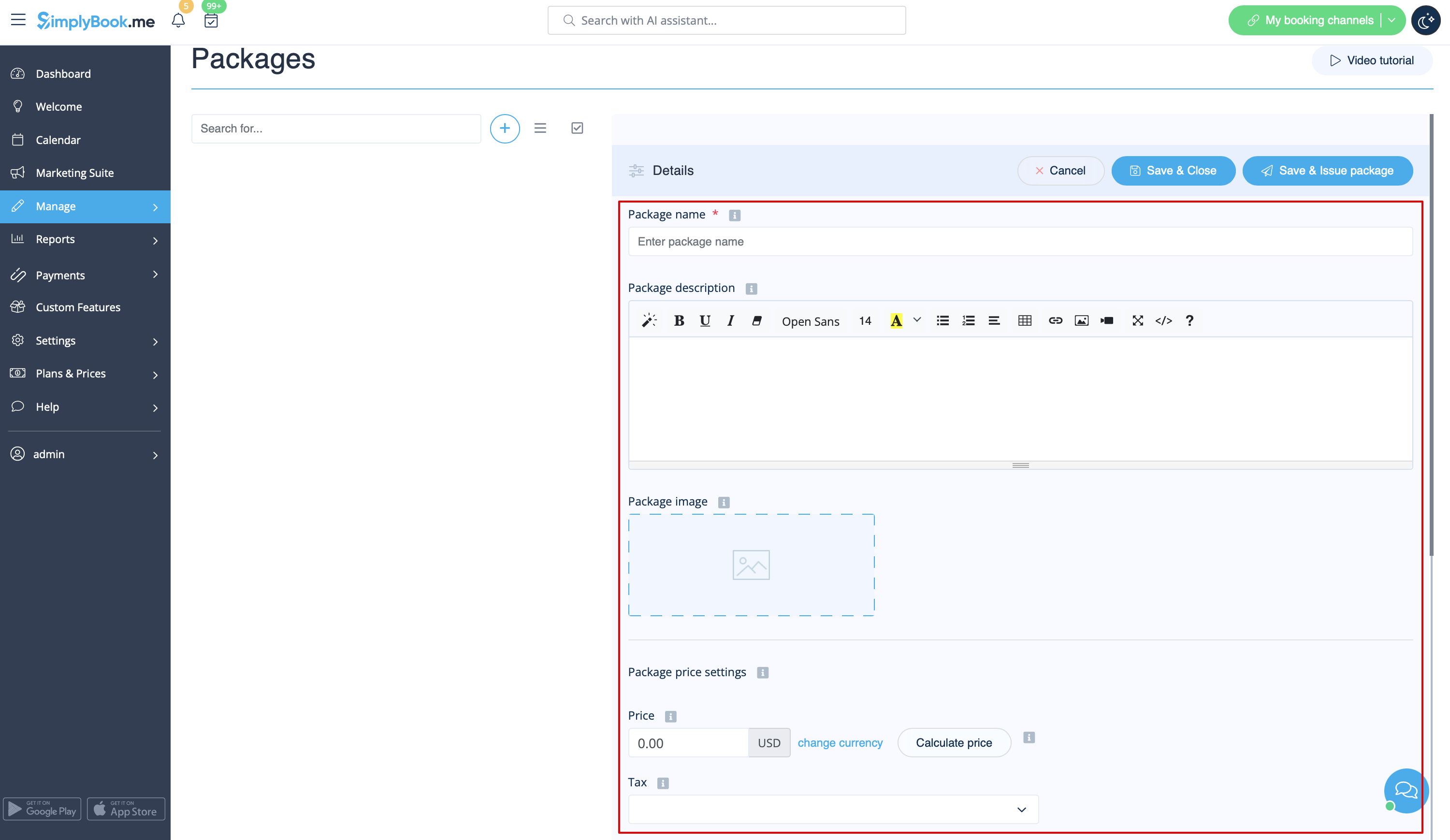
:4. Insert package name, add a description (you can even use HTML formatting for a better look) and image. 
:At this point you can also set the package price: you can specify the defined pack cost (if you want to make a discount, for example) or 
:skip price box to later calculate the total amount of all the elements included into the package. 
:'''Please note,''' it is not possible to create a package without a price.
[[File:Package details overview redesigned.png|1200px | center|link=https://help.simplybook.me/images/e/e0/Package_details_overview_redesigned.png]]
<br><br>
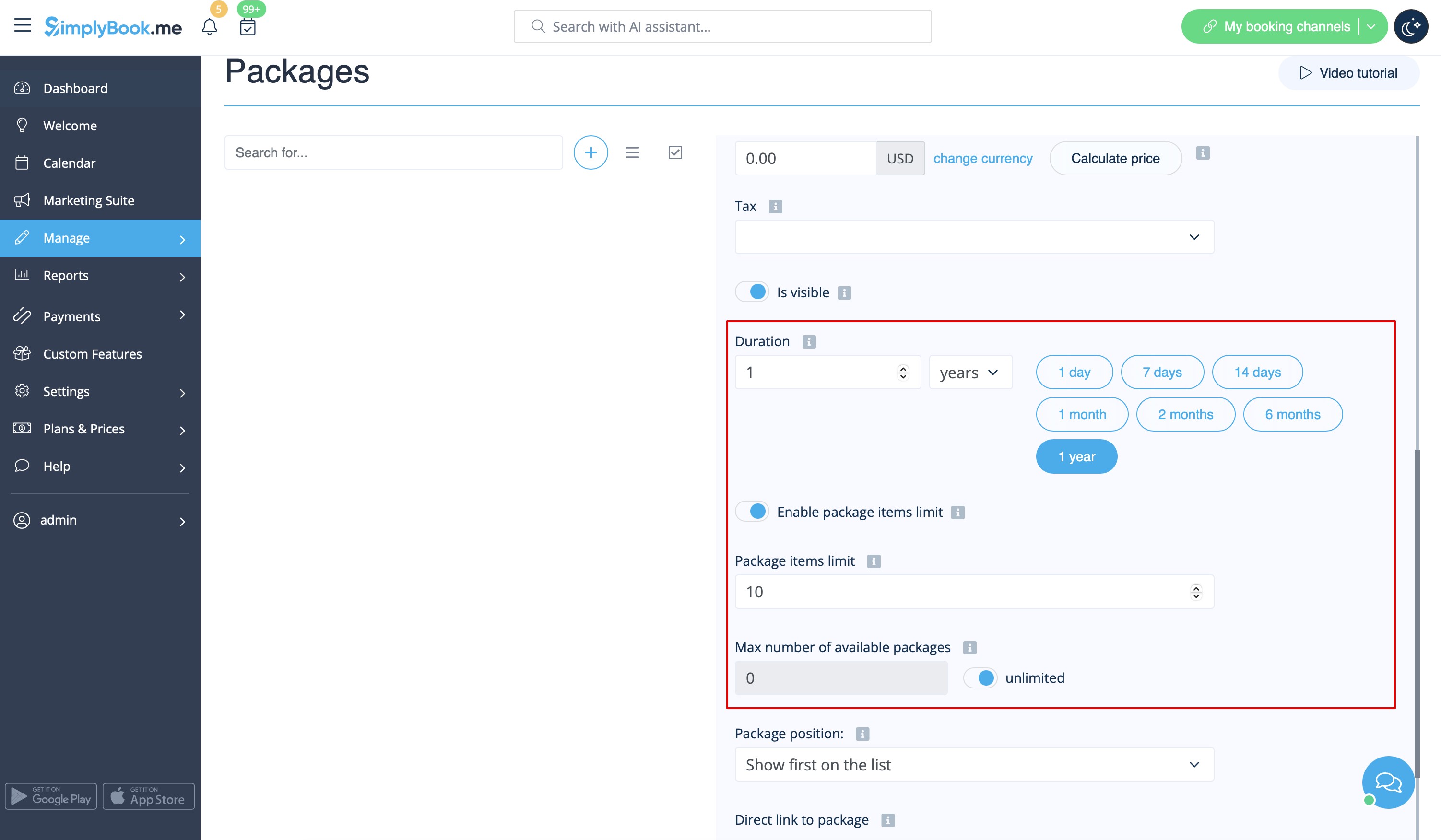
:5. Define the validity period of the package,<br>
:enable and set the general limit for the included items(optional, will be applied to services, add-ons and products connected to the package) 
:and set the number of sets available for sale (unlimited by default).
[[File:Package duration and general limits redesigned.png|1200px |border| center|link=https://help.simplybook.me/images/2/26/Package_duration_and_general_limits_redesigned.png]]
<br><br>
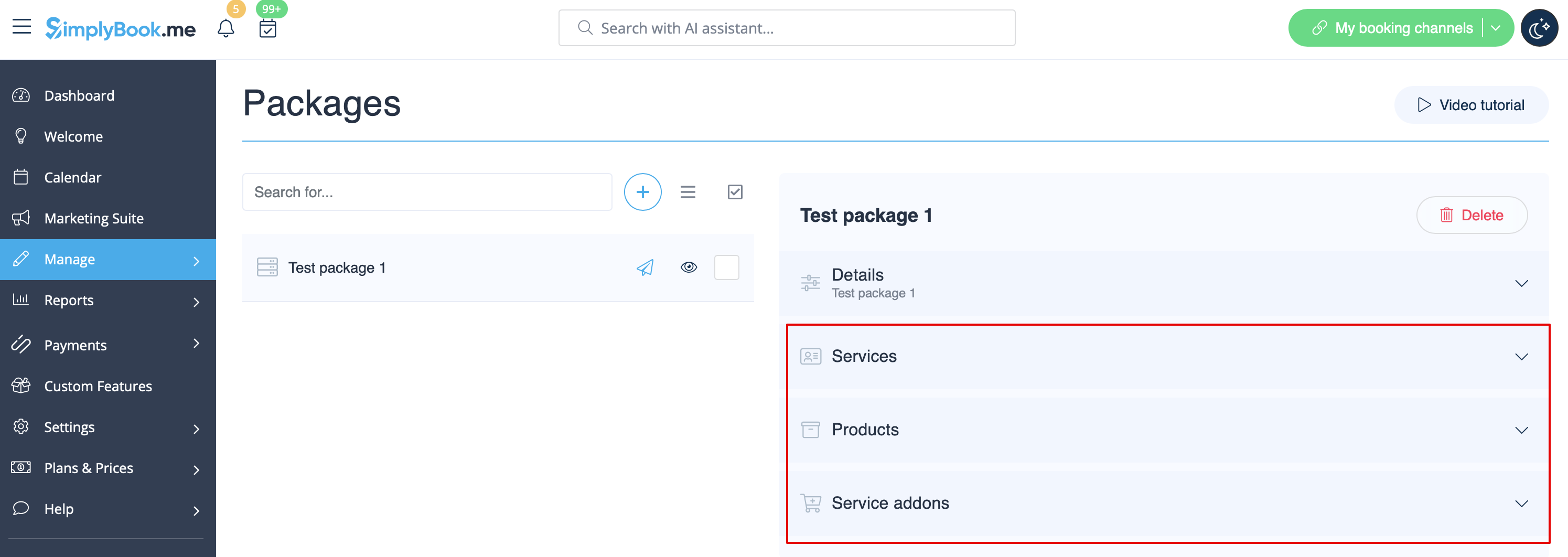
:6. Proceed to adding services, products and add-ons to the package<br>
:(you still need to set them in addition to the general limit if you use it to include the desired items into the pack, otherwise it will not be possible to use the package during the service/class booking process). 
:You will see three corresponding sections below. 
[[File:Package items options redesigned.png|1200px | center|link=https://help.simplybook.me/images/2/25/Package_items_options_redesigned.png]]
<br><br>
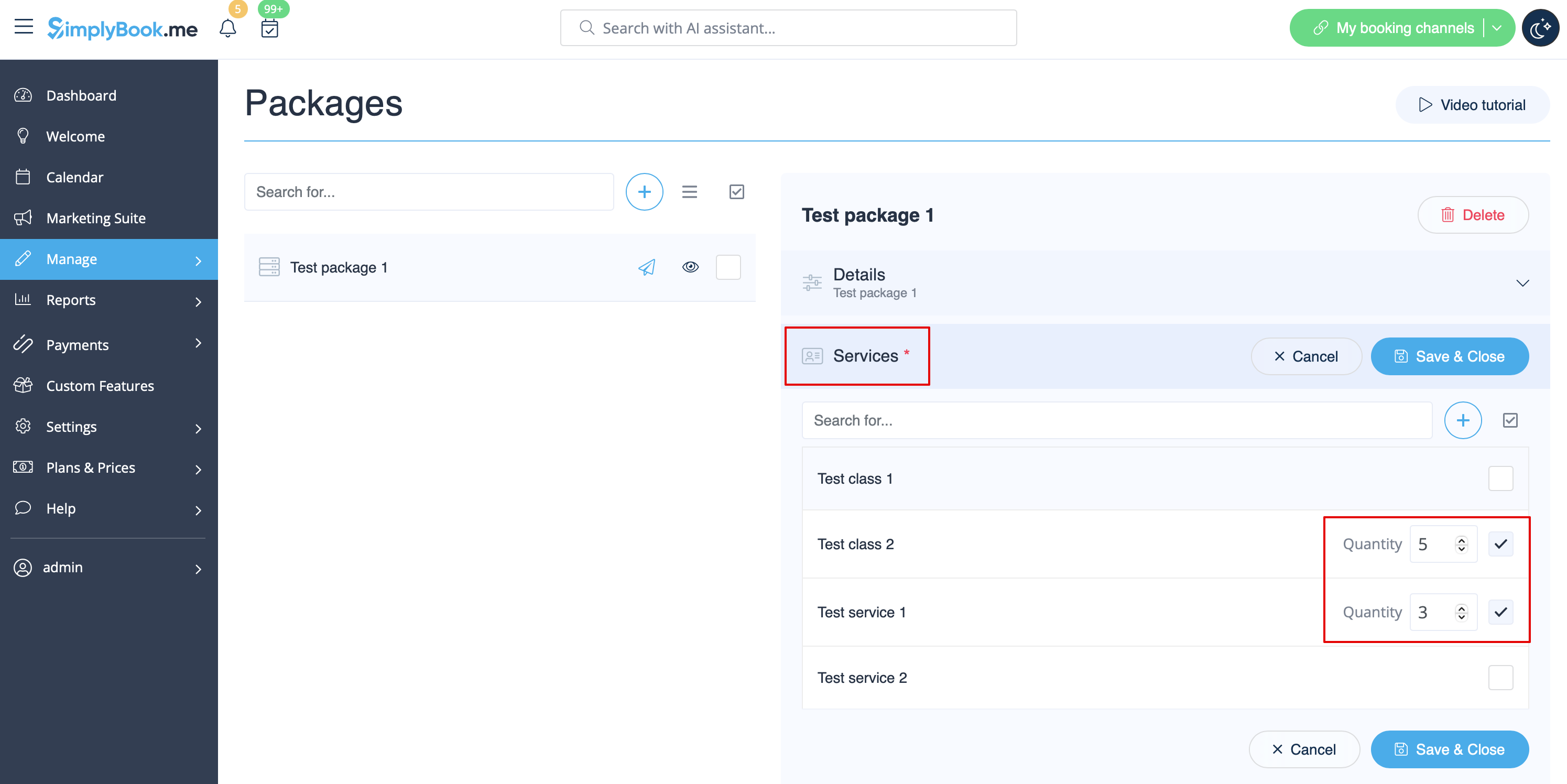
:7. Please select “Services” section, check the boxes with the necessary items and set the quantity that will be available for booking within the package. 
[[File:Add services to package redesigned.png|1200px | center|link=https://help.simplybook.me/images/1/1c/Add_services_to_package_redesigned.png]]
<br><br>
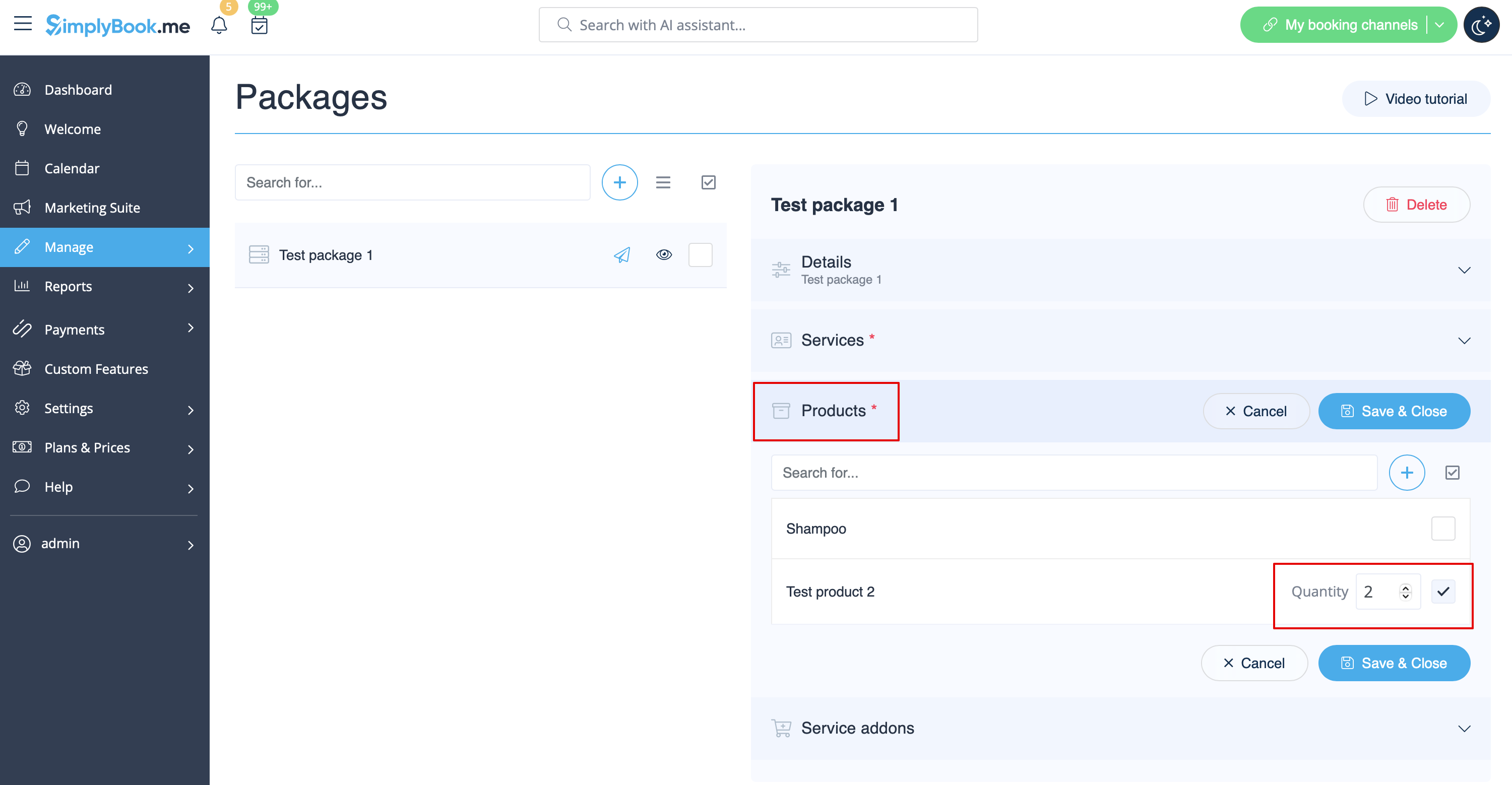
:8. If you are using [[Special:MyLanguage/Products for Sale custom feature |Products for sale]] and/or [[Special:MyLanguage/Service Add-Ons custom feature |Service Add-ons]] features simply select the corresponding tabs and add elements the same way. 
[[File:Add products to package redesigned.png|1200px | center|link=https://help.simplybook.me/images/0/0f/Add_products_to_package_redesigned.png]]
<br><br>
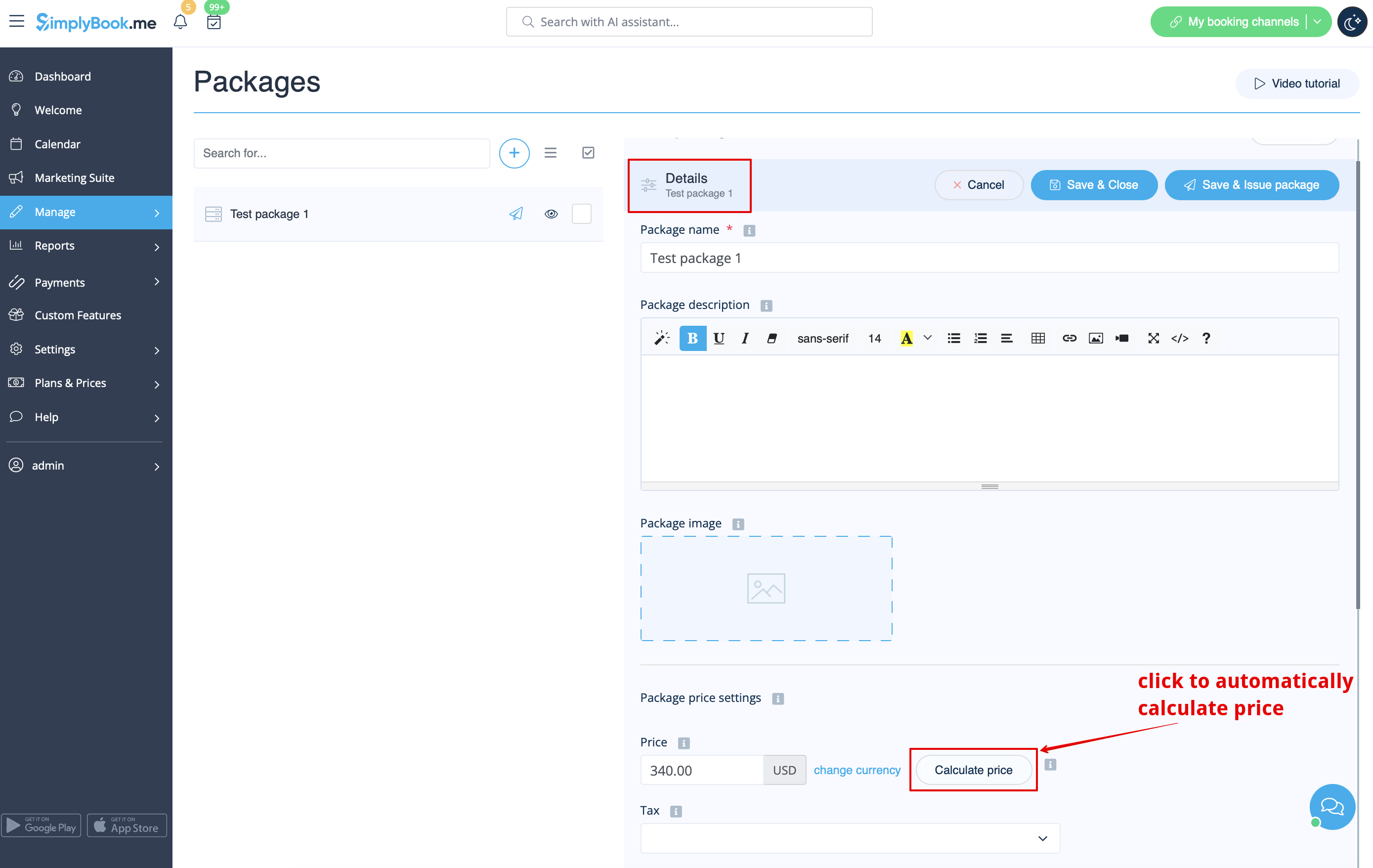
:9. After you have added all the options and if you have not set a package price yet, get back to the “Details” tab and use “Calculate price” button to make the system automatically sum up all the elements prices for you. 
[[File:Calculate price for package redesigned.png|1200px | center|link=https://help.simplybook.me/images/4/4e/Calculate_price_for_package_redesigned.png]]
<br><br>
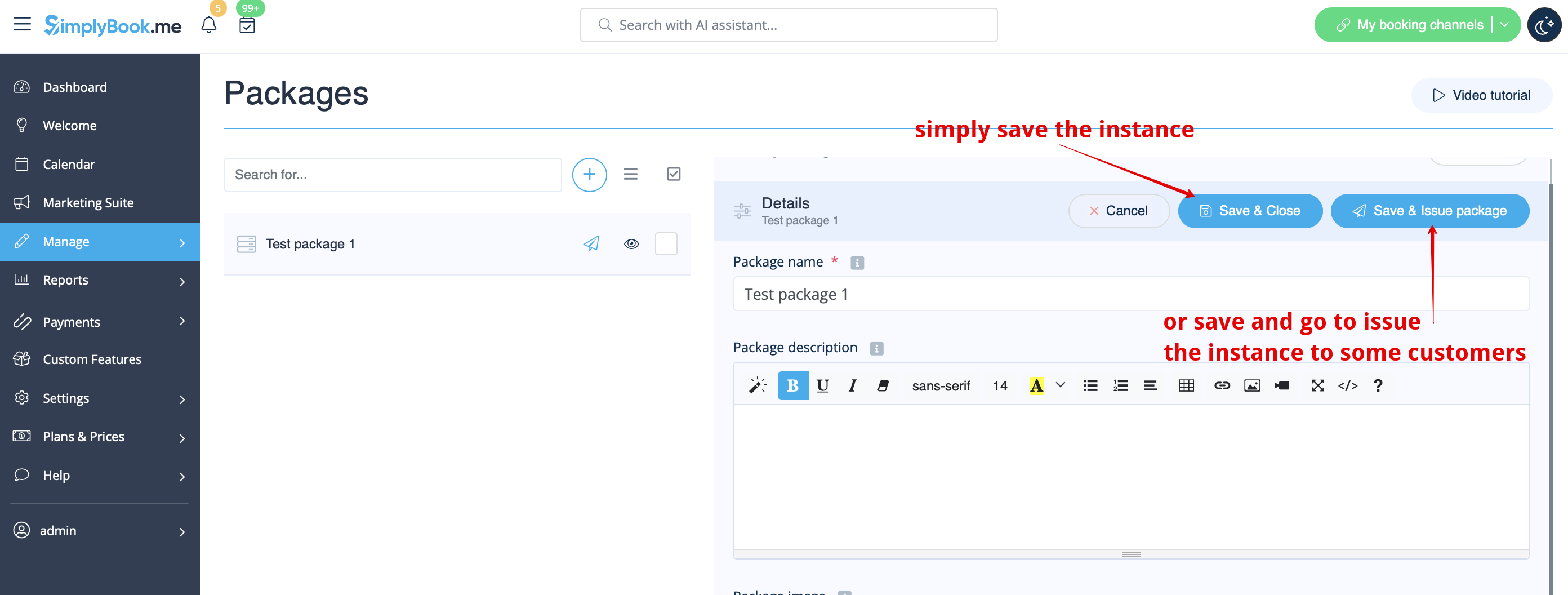
:10. Now you can click on “Save and issue package” to issue it to certain customers or simply save everything and allow your clients to buy this package on your booking site. 
[[File:Save and issue the package redesigned.png|1200px| center|link=https://help.simplybook.me/images/c/c9/Save_and_issue_the_package_redesigned.png]]
<br><br>
:If you assign a package from admin side or the client buys a package on the booking site he/she will receive package activation notification 
:The invoice will be sent only in the case of the purchase and payment made from the client side.
<br><br>
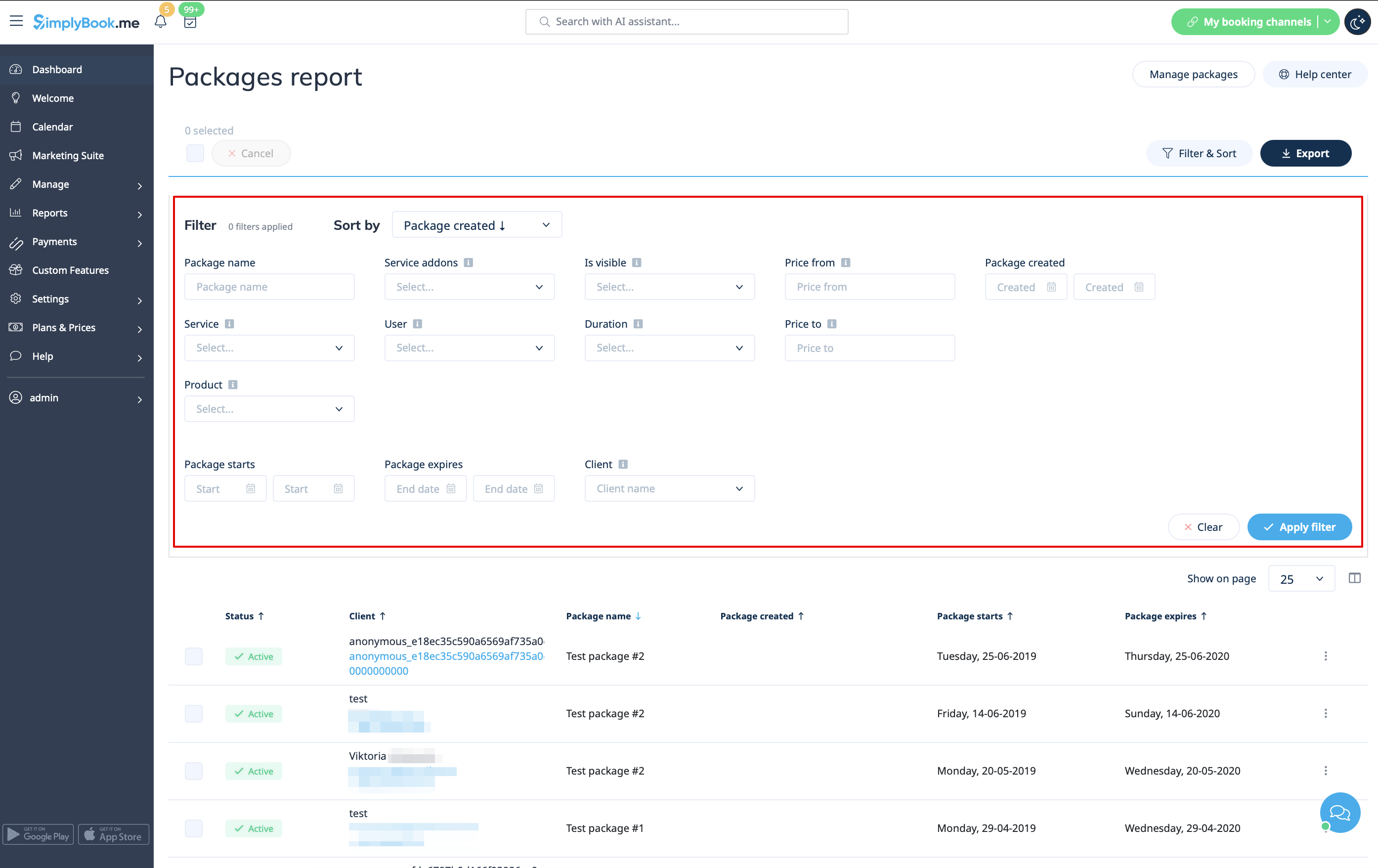
:11. Go to Reports//Issued packages to check packages order history, customer data, as well as the number of remaining items. 
:Use filters for more extensive analysis.
:Here you can also cancel the package for the specific client if needed.
[[File:Packages report with filter overview redesigned.png|1200px| center|link=https://help.simplybook.me/images/4/4a/Packages_report_with_filter_overview_redesigned.png]]
<br><br>

Videohandledning tillgänglig


Hur

1. För att aktivera den här anpassade funktionen, gå till sidan Anpassade funktioner, gå till avsnittet "Bokningsrelaterat" och klicka på "Aktivera".


2. Välj sedan alternativet "Hantera" antingen bredvid den anpassade funktionen eller gå till Paket i avsnittet Hantera i menyn till vänster.


3. Klicka bara på knappen "+" för att skapa ett nytt paket. Formuläret visas på höger sida av sidan.


4. Ange paketets namn, lägg till en beskrivning (du kan även använda HTML-formatering för ett snyggare utseende) och en bild.
Nu kan du även ange paketets pris: du kan ange det definierade paketpriset (om du till exempel vill ge rabatt) eller
hoppa över prisrutan för att senare beräkna det totala beloppet för alla element som ingår i paketet.
Observera att det inte går att skapa ett paket utan pris.


5. Ange paketets giltighetstid,
aktivera och ange den allmänna begränsningen för de inkluderade artiklarna (valfritt, kommer att tillämpas på tjänster, tillägg och produkter som är kopplade till paketet)
och ange antalet set som är tillgängliga för försäljning (obegränsat som standard).


6. Fortsätt med att lägga till tjänster, produkter och tillägg till paketet
(du måste fortfarande ställa in dem utöver den allmänna begränsningen om du använder den för att inkludera önskade artiklar i paketet, annars kommer det inte att vara möjligt att använda paketet under bokningsprocessen för tjänsten/klassen).
Du kommer att se tre motsvarande avsnitt nedan.


7. Välj avsnittet "Tjänster", markera rutorna med nödvändiga artiklar och ange den kvantitet som kommer att vara tillgänglig för bokning inom paketet.


8. Om du använder funktionerna Produkter till salu och/eller Tilläggstjänster väljer du bara motsvarande flikar och lägger till element på samma sätt.


9. När du har lagt till alla alternativ och om du ännu inte har angett ett paketpris går du tillbaka till fliken "Detaljer" och använder knappen "Beräkna pris" så att systemet automatiskt summerar alla elementpriser åt dig.


10. Nu kan du klicka på "Spara och utfärda paket" för att utfärda det till vissa kunder eller helt enkelt spara allt och låta dina kunder köpa detta paket på din bokningssida.


Om du tilldelar ett paket från administratörssidan eller om kunden köper ett paket på bokningssidan kommer han/hon att få ett meddelande om att paketet har aktiverats.
Fakturan skickas endast om köpet och betalningen har gjorts från kundens sida.


11. Gå till Rapporter//Utfärdade paket för att kontrollera paketens orderhistorik, kunddata samt antalet återstående artiklar.
Använd filter för mer omfattande analys.
Här kan du också avbryta paketet för en specifik kund om det behövs.