No edit summary |
No edit summary |
||
| (2 intermediate revisions by the same user not shown) | |||
| Line 1: | Line 1: | ||
<languages/> | <languages/> | ||
<translate> | <translate> | ||
<!--T:1--> | |||
{{#seo: | {{#seo: | ||
|title=Service Add-Ons custom feature - SimplyBook.me | |title=Service Add-Ons custom feature - SimplyBook.me | ||
| Line 14: | Line 15: | ||
<!--T:2--> | |||
[[File:Paid attributes.png | left]]<br> | [[File:Paid attributes.png | left]]<br> | ||
You can create add-ons for selected services. These add-ons can be set to influence service duration or not, but the service anyway becomes more expensive. <br> | You can create add-ons for selected services. These add-ons can be set to influence service duration or not, but the service anyway becomes more expensive. <br> | ||
An example may be a massage, whereas the client could choose to add the luxury oil that costs more during massage.<br> | An example may be a massage, whereas the client could choose to add the luxury oil that costs more during massage.<br> | ||
Use this to your advantage to sell more!<br><br> | Use this to your advantage to sell more!<br><br> | ||
:'''Please note!''' This custom feature cannot be used without [[ | :'''Please note!''' This custom feature cannot be used without [[Special:MyLanguage/Accept payments custom feature | Accept Payments]] custom feature, that is why this option will be automatically enabled as soon as you enable "Service Add-ons". | ||
<br><br> | <br><br> | ||
:'''Video tutorial available ''' | :'''Video tutorial available '''<p><youtube>3eF7QMk-BoA</youtube></p> | ||
<br><br> | <br><br> | ||
</translate> | </translate> | ||
<translate> | <translate> | ||
<!--T:3--> | |||
'''How to use:''' | '''How to use:''' | ||
<!--T:4--> | |||
:1. To enable this option please go to your Custom Features page and click on “Enable” near “Service Add-ons” option. | :1. To enable this option please go to your Custom Features page and click on “Enable” near “Service Add-ons” option. | ||
[[File:Service addons enable path redesigned.png|1200px|border| center|link=https://help.simplybook.me/images/8/87/Service_addons_enable_path_redesigned.png]] | [[File:Service addons enable path redesigned.png|1200px|border| center|link=https://help.simplybook.me/images/8/87/Service_addons_enable_path_redesigned.png]] | ||
| Line 41: | Line 45: | ||
</translate> | </translate> | ||
<translate> | <translate> | ||
<!--T:5--> | |||
:4. To relate the add-on with particular service(s) please use “Connected services” tab and check the boxes with desired services/classes. | :4. To relate the add-on with particular service(s) please use “Connected services” tab and check the boxes with desired services/classes. | ||
[[File:Service addons relation to services redesigned.png|1200px| center|link=https://help.simplybook.me/images/8/80/Service_addons_relation_to_services_redesigned.png|]] | [[File:Service addons relation to services redesigned.png|1200px| center|link=https://help.simplybook.me/images/8/80/Service_addons_relation_to_services_redesigned.png|]] | ||
| Line 57: | Line 62: | ||
[[File:Service add ons with duration client side unsupported timelines.png|border|center]] | [[File:Service add ons with duration client side unsupported timelines.png|border|center]] | ||
<!--T:6--> | |||
<br><br> | <br><br> | ||
</translate> | </translate> | ||
<translate> | <translate> | ||
<!--T:7--> | |||
'''Correlation with other custom features:'''<br> | '''Correlation with other custom features:'''<br> | ||
1- [[ | 1- [[Special:MyLanguage/Group Bookings custom feature | Group Bookings]]. Number of items is multiplied to number of participants selected.<br> | ||
2- [[ | 2- [[Special:MyLanguage/Multiple Bookings custom feature| Multiple bookings]]. Add-ons are selected separately for each booking. | ||
<br><br> | <br><br> | ||
'''Can I add the items that clients has selected to notification templates?'''<br> | '''Can I add the items that clients has selected to notification templates?'''<br> | ||
Latest revision as of 11:44, 24 September 2025

You can create add-ons for selected services. These add-ons can be set to influence service duration or not, but the service anyway becomes more expensive.
An example may be a massage, whereas the client could choose to add the luxury oil that costs more during massage.
Use this to your advantage to sell more!
- Please note! This custom feature cannot be used without Accept Payments custom feature, that is why this option will be automatically enabled as soon as you enable "Service Add-ons".
- Video tutorial available
How to use:
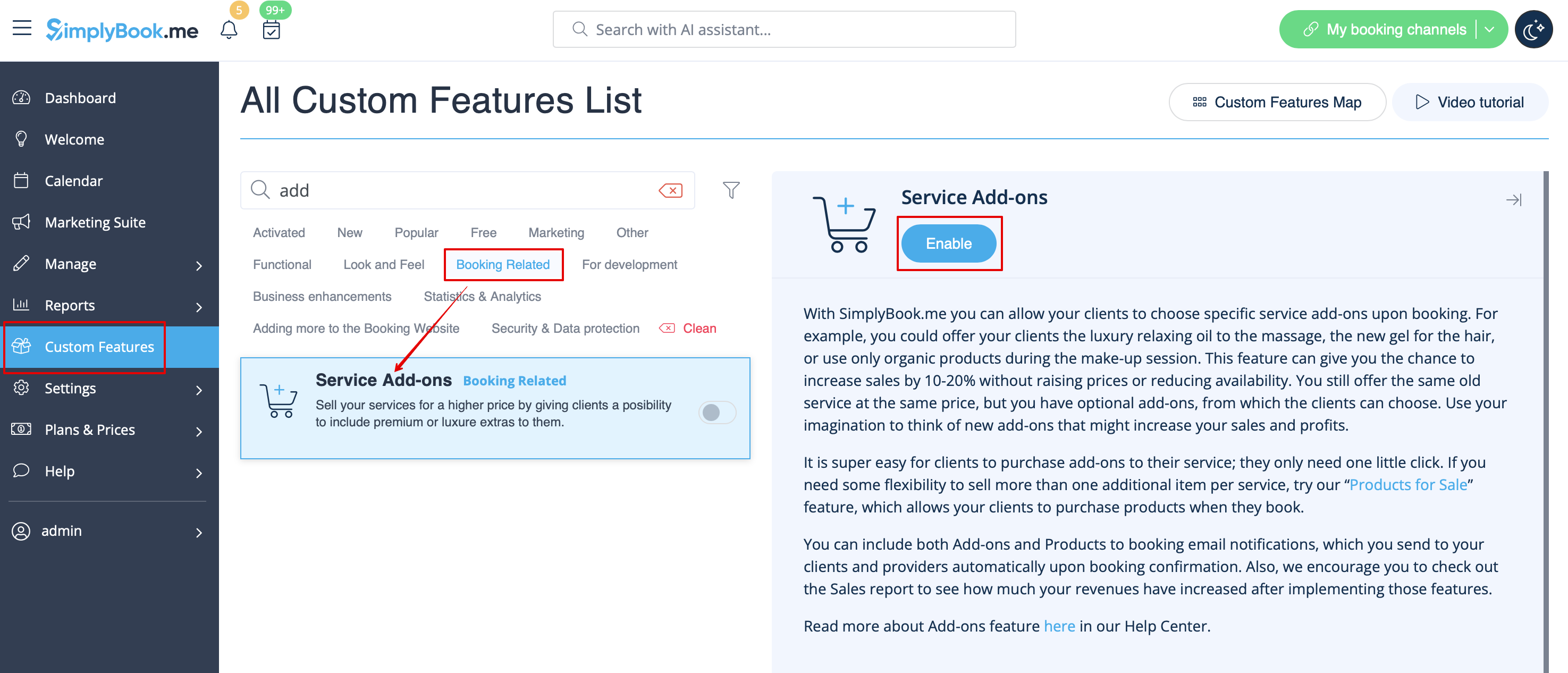
- 1. To enable this option please go to your Custom Features page and click on “Enable” near “Service Add-ons” option.
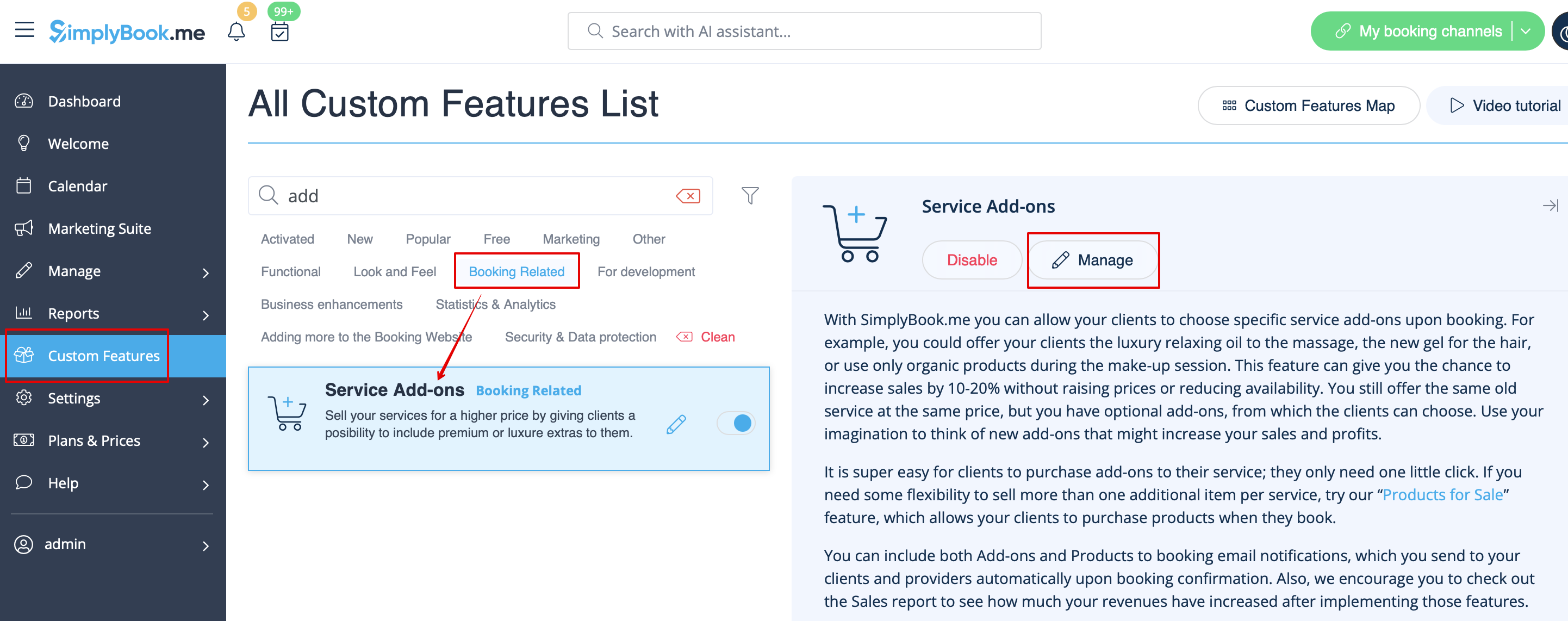
- 2. Click on “Manage” button that will appear there or go to Manage -> Service Add-ons section and you will get to a page where you will be able to create all necessary items.
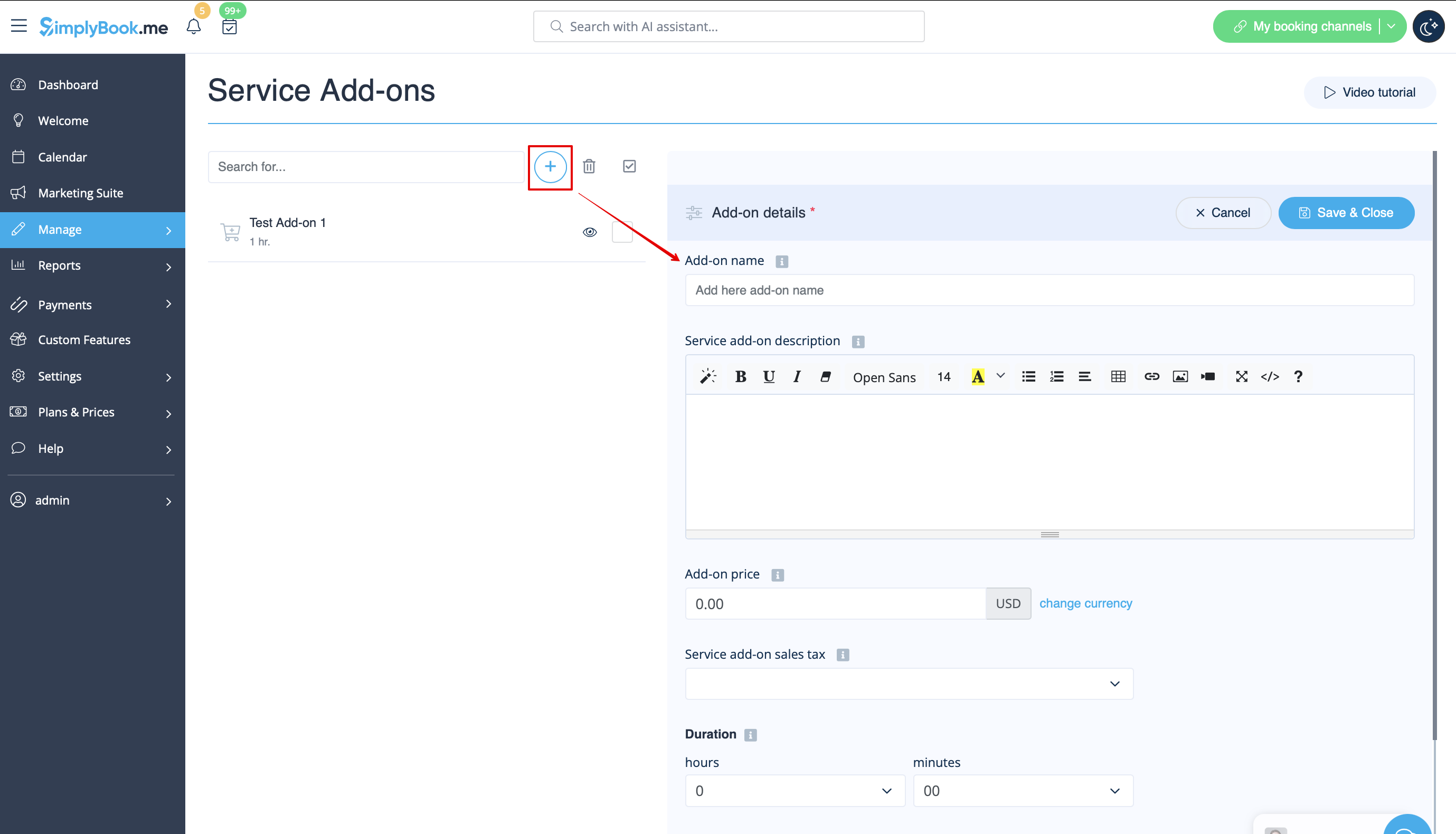
- 3. Click on “+” icon to create new add-on, set its name and price.
- Add the desired duration if you need it to influence the overall appointment time.
- Upload the image and set description is necessary.
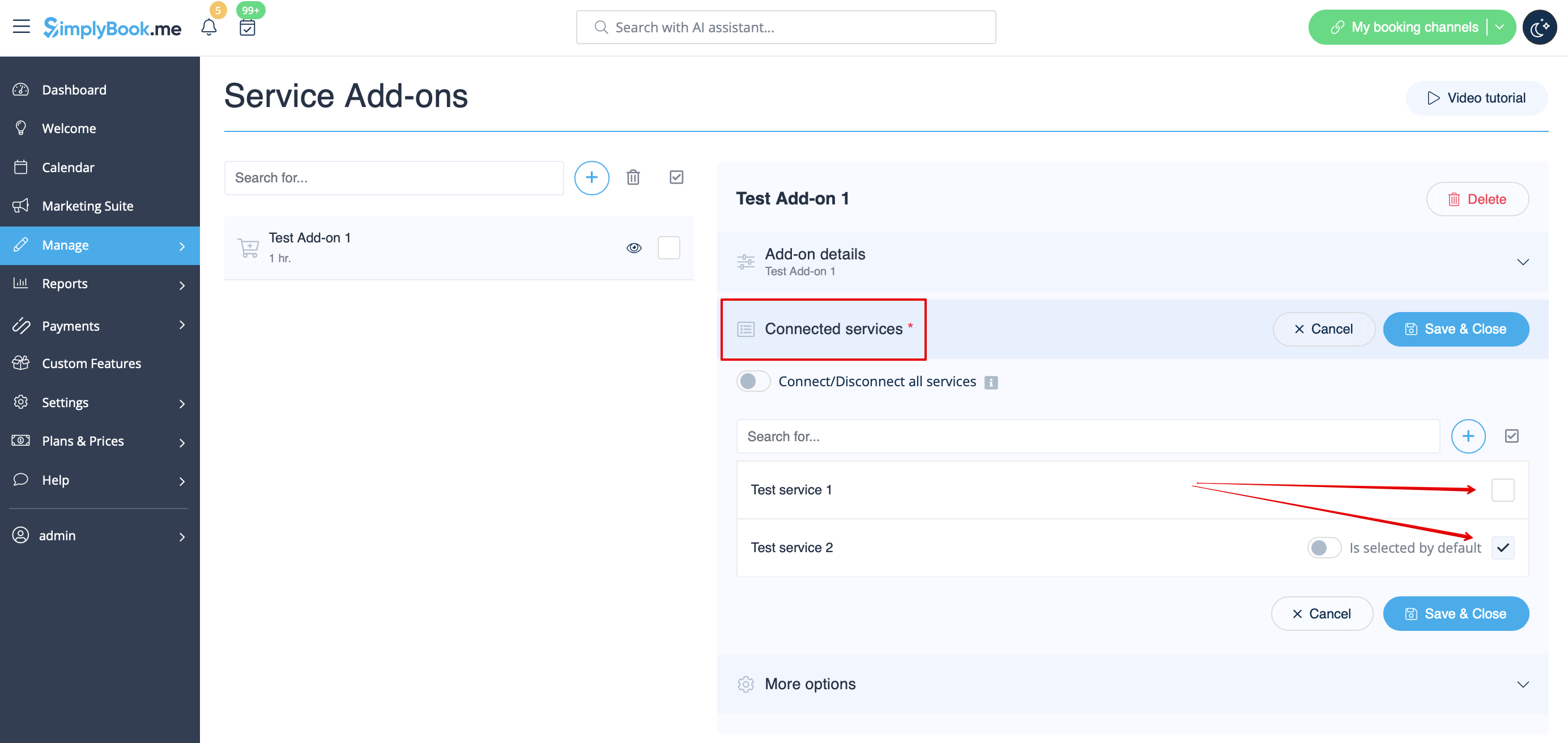
- 4. To relate the add-on with particular service(s) please use “Connected services” tab and check the boxes with desired services/classes.
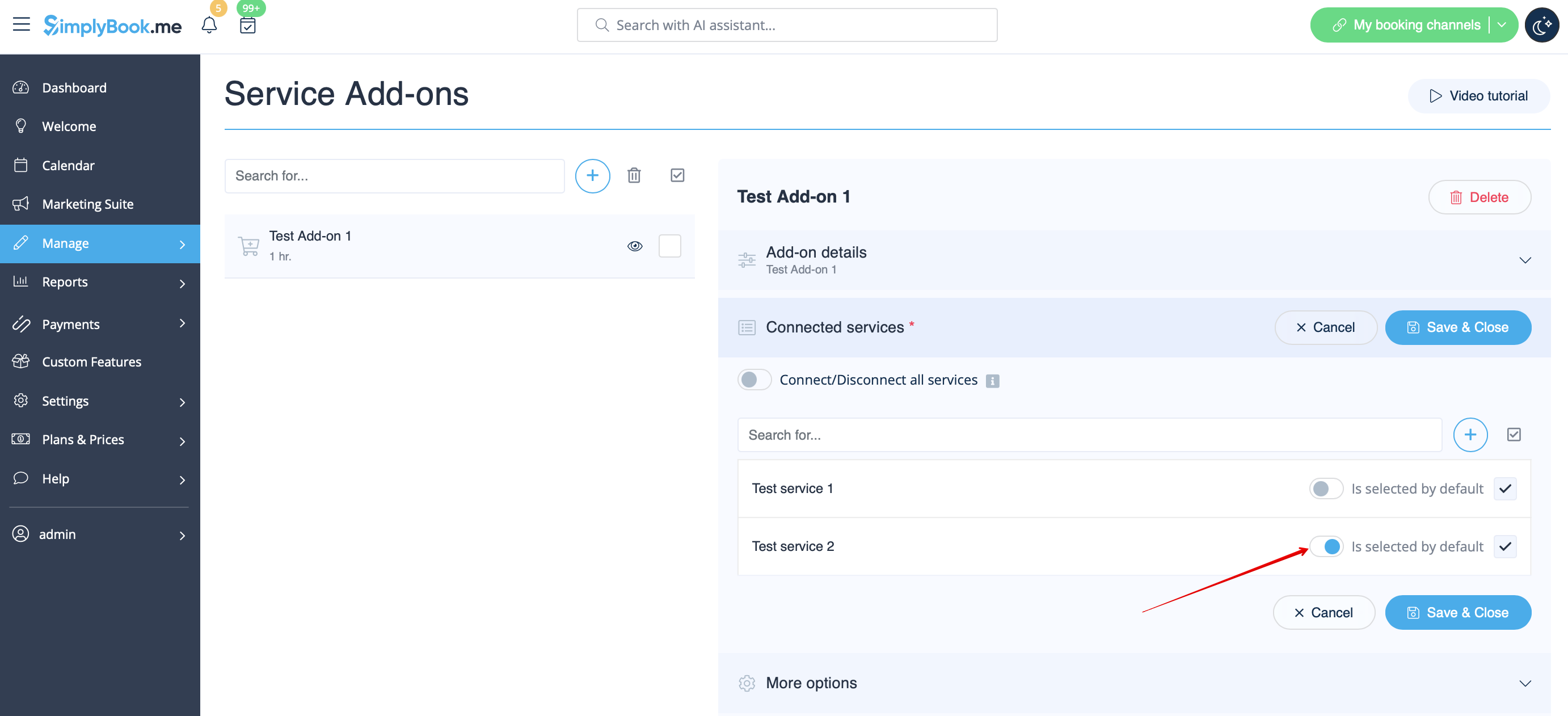
- 5. You can also make add-on to be selected by default on the booking page
- Please note! The clients will be able to uncheck this item if they wish to on the booking page.
- Here you can see how the add-ons can look like on the booking page:
- Please note! We recommend using the following timelines in case you set service add-ons with duration: modern, slots weekly, flexible, flexible weekly or flexible provider.
- In this case add-ons step will be shown before time step and the timeslots displayed should suit the items selected in most cases.

- With other timelines such as: daily classes, weekly classes и modern provider this step will be shown after time selection step and
- if all the selections do not fit the choices the clients will get an error that the service cannot be booked.

Correlation with other custom features:
1- Group Bookings. Number of items is multiplied to number of participants selected.
2- Multiple bookings. Add-ons are selected separately for each booking.
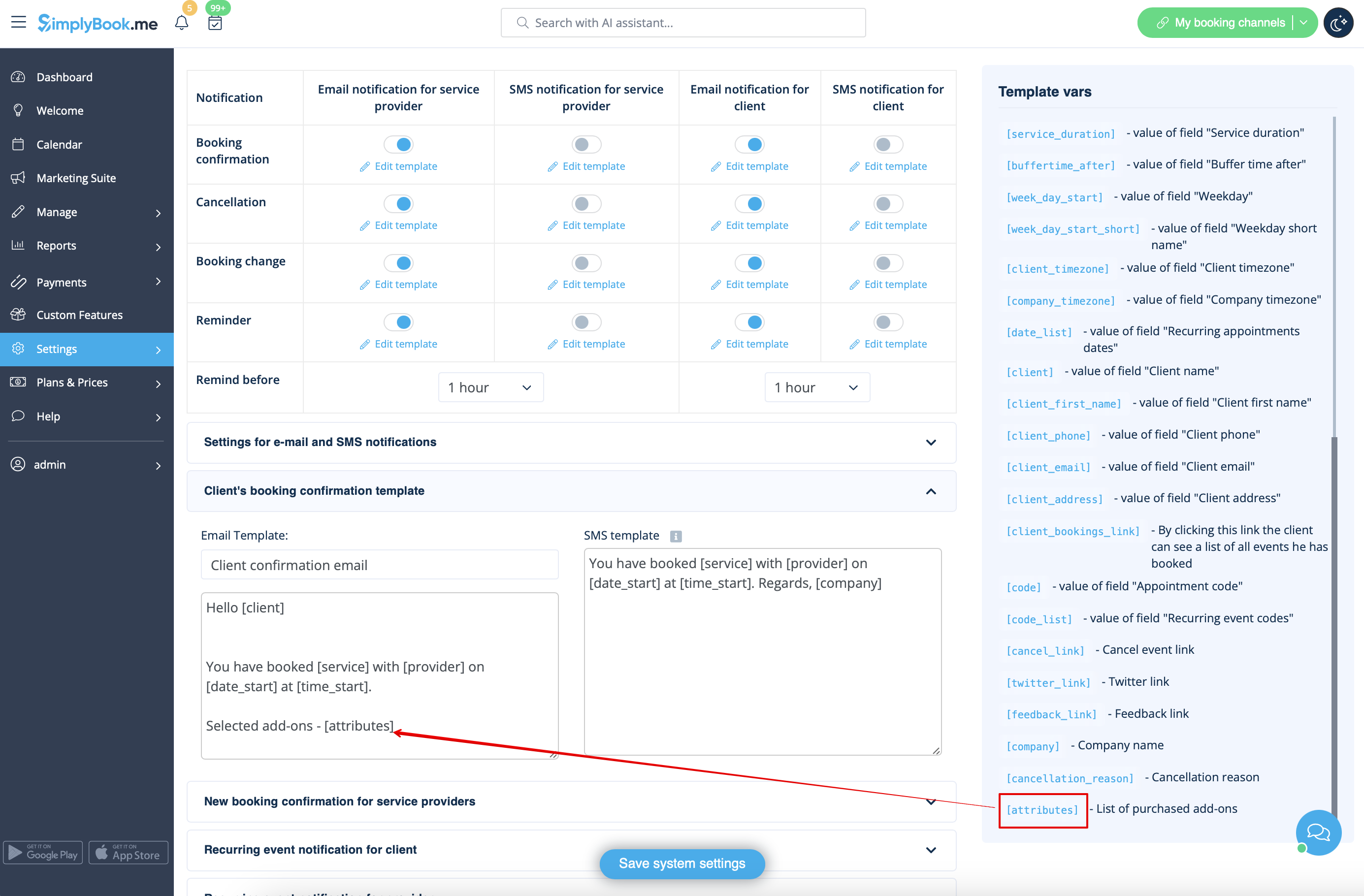
Can I add the items that clients has selected to notification templates?
Sure, just add [attributes] variable to all necessary templates in Settings//Email and SMS settings and the list of products will be included to corresponding notifications