No edit summary |
No edit summary |
||
| (5 intermediate revisions by the same user not shown) | |||
| Line 1: | Line 1: | ||
<languages/> | |||
<translate> | |||
<!--T:1--> | |||
{{#seo: | {{#seo: | ||
|title=Tips Custom Feature - SimplyBook.me | |title=Tips Custom Feature - SimplyBook.me | ||
|description=Access tips to optimize SimplyBook.me features for your business. Discover best practices to improve bookings today! | |||
|titlemode=append | |titlemode=append | ||
|keywords=faq, frequently asked questions, booking software, appointment system questions, appointments online, calendar software, booking system, booking calendar, scheduling software, online appointment scheduling, online scheduling, plugins, custom features, additional functionality, tips, payments | |keywords=faq, frequently asked questions, booking software, appointment system questions, appointments online, calendar software, booking system, booking calendar, scheduling software, online appointment scheduling, online scheduling, plugins, custom features, additional functionality, tips, payments | ||
}} | }} | ||
</translate> | |||
<translate> | |||
<!--T:2--> | |||
[[File:Tips icon.png|left]] | [[File:Tips icon.png|left]] | ||
<!--T:3--> | |||
With Tips Custom Feature, your clients can now enjoy the flexibility and convenience of showing their appreciation for your services through tipping. The feature is designed to enhance your clients' booking experience. Your customers can leave tips during the booking process or after the appointment is finished. | With Tips Custom Feature, your clients can now enjoy the flexibility and convenience of showing their appreciation for your services through tipping. The feature is designed to enhance your clients' booking experience. Your customers can leave tips during the booking process or after the appointment is finished. | ||
:'''Why you should use our Tips custom feature | <!--T:4--> | ||
:'''Why you should use our Tips custom feature''' <p><youtube>T5hnPZVCeJ4</youtube></p> | |||
<span style="background-color:#ffe9e9; padding:5px; border-radius:5px;">'''Please note!''' <span style="background-color:#cdeffc; padding:5px; border-radius:5px;">[[Accept_payments_custom_feature|Accept payments]]</span> custom feature will be automatically enabled as well.</span> | <!--T:5--> | ||
<span style="background-color:#ffe9e9; padding:5px; border-radius:5px;">'''Please note!''' <span style="background-color:#cdeffc; padding:5px; border-radius:5px;">[[Special:MyLanguage/Accept_payments_custom_feature|Accept payments]]</span> custom feature will be automatically enabled as well.</span> | |||
</translate> | |||
<translate> | |||
<!--T:6--> | |||
;How to use | ;How to use | ||
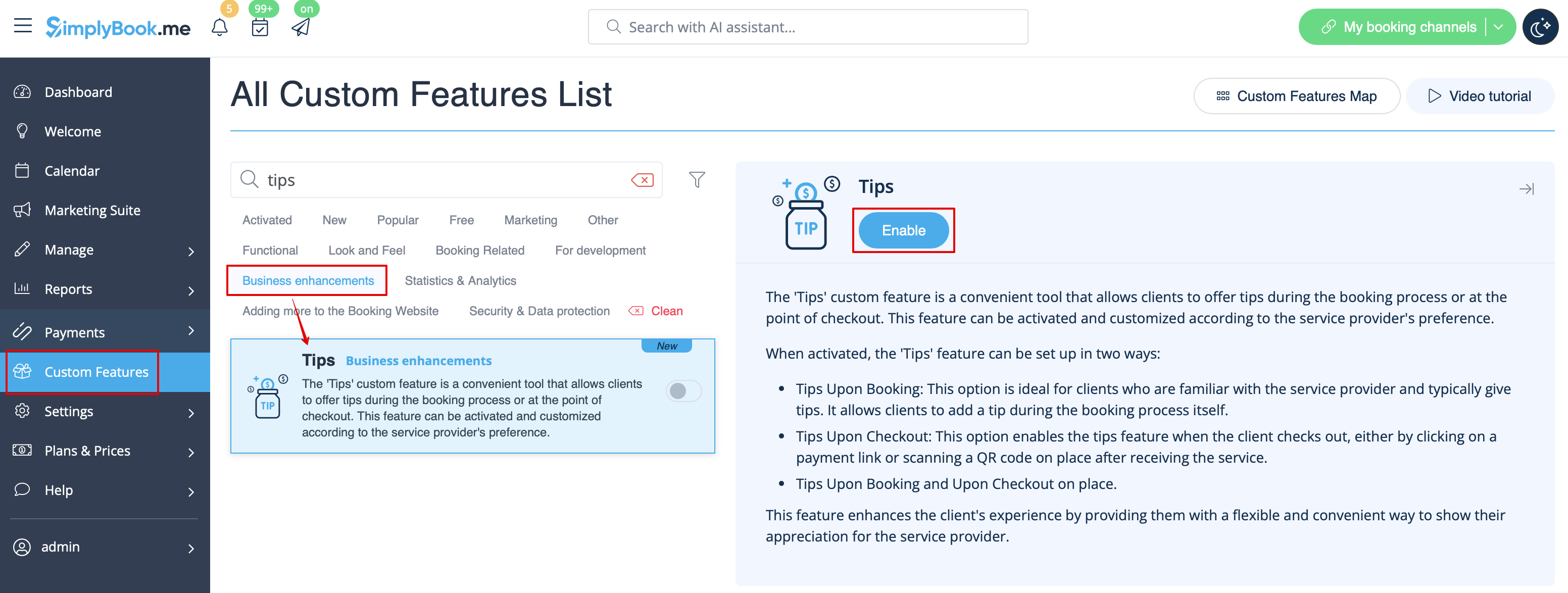
1. To enable this feature, go to the <span style="background-color:#d4f8e5; padding:5px; border-radius:5px;">Custom Features</span> section using the left-side menu of your admin interface, find <span style="background-color:#d4f8e5; padding:5px; border-radius:5px;">Tips</span>, and click on <span style="background-color:#d4f8e5; padding:5px; border-radius:5px;">Enable</span> button or use the switcher. | 1. To enable this feature, go to the <span style="background-color:#d4f8e5; padding:5px; border-radius:5px;">Custom Features</span> section using the left-side menu of your admin interface, find <span style="background-color:#d4f8e5; padding:5px; border-radius:5px;">Tips</span>, and click on <span style="background-color:#d4f8e5; padding:5px; border-radius:5px;">Enable</span> button or use the switcher. | ||
[[File:Tips enable path.png|1200px|border|center|link=https://help.simplybook.me/images/ | [[File:Tips enable path redesigned.png|1200px|border|center|link=https://help.simplybook.me/images/6/6e/Tips_enable_path_redesigned.png]] | ||
<br><br> | <br><br> | ||
2. Once enabled, you can select if some tax should be added to tips or not. Use the drop-down menu to choose from the previously created sales taxes or leave it with “No tax” if taxes should not be applied. | 2. Once enabled, you can select if some tax should be added to tips or not. Use the drop-down menu to choose from the previously created sales taxes or leave it with “No tax” if taxes should not be applied. | ||
[[File: | [[File:Taxes on tips redesigned.png|1200px|border|center|link=https://help.simplybook.me/images/9/99/Taxes_on_tips_redesigned.png]] | ||
<br><br> | <br><br> | ||
3. There are 2 tipping options for your clients:<br> | 3. There are 2 tipping options for your clients:<br> | ||
| Line 44: | Line 57: | ||
;How to use Tips Custom Feature with Accept Deposits Custom Feature | ;How to use Tips Custom Feature with Accept Deposits Custom Feature | ||
<br> | <br> | ||
</translate> | |||
<translate> | |||
<!--T:7--> | |||
When clients choose to pay the Deposit instead of the full amount upon booking, the tipping option will still correspond to the full price of the service. For example, if the deposit price is $20 and the full price is $100, the tipping options would be $5,$10, $15, and “Custom” amount, which is equal to 5%, 10%, and 15% of the full price.<br> | When clients choose to pay the Deposit instead of the full amount upon booking, the tipping option will still correspond to the full price of the service. For example, if the deposit price is $20 and the full price is $100, the tipping options would be $5,$10, $15, and “Custom” amount, which is equal to 5%, 10%, and 15% of the full price.<br> | ||
If a client does not leave Tip when paying the Deposit, there will still be an option for tipping if you send your client payment links for the remaining amount after the Deposit is paid.<br> | If a client does not leave Tip when paying the Deposit, there will still be an option for tipping if you send your client payment links for the remaining amount after the Deposit is paid.<br> | ||
| Line 49: | Line 65: | ||
You will need to go to <span style="background-color:#d4f8e5; padding:5px; border-radius:5px;">Reports</span> -> <span style="background-color:#d4f8e5; padding:5px; border-radius:5px;">Payment Transactions</span> -> <span style="background-color:#d4f8e5; padding:5px; border-radius:5px;">3 dots menu</span> per necessary row -> <span style="background-color:#d4f8e5; padding:5px; border-radius:5px;">Receive payment</span> -> <span style="background-color:#d4f8e5; padding:5px; border-radius:5px;">Send Email/SMS.</span><br> | You will need to go to <span style="background-color:#d4f8e5; padding:5px; border-radius:5px;">Reports</span> -> <span style="background-color:#d4f8e5; padding:5px; border-radius:5px;">Payment Transactions</span> -> <span style="background-color:#d4f8e5; padding:5px; border-radius:5px;">3 dots menu</span> per necessary row -> <span style="background-color:#d4f8e5; padding:5px; border-radius:5px;">Receive payment</span> -> <span style="background-color:#d4f8e5; padding:5px; border-radius:5px;">Send Email/SMS.</span><br> | ||
The tipping options for your client will correspond to the remaining amount. For example, if the full price was $100 and the client paid a $20 deposit, the tipping options will be equal to 5%, 10%, and 15% of $80. It will give your client the following tipping options: $4, $8, $12, and a “Custom“amount. | The tipping options for your client will correspond to the remaining amount. For example, if the full price was $100 and the client paid a $20 deposit, the tipping options will be equal to 5%, 10%, and 15% of $80. It will give your client the following tipping options: $4, $8, $12, and a “Custom“amount. | ||
</translate> | |||
Latest revision as of 12:49, 24 September 2025

With Tips Custom Feature, your clients can now enjoy the flexibility and convenience of showing their appreciation for your services through tipping. The feature is designed to enhance your clients' booking experience. Your customers can leave tips during the booking process or after the appointment is finished.
- Why you should use our Tips custom feature
Please note! Accept payments custom feature will be automatically enabled as well.
- How to use
1. To enable this feature, go to the Custom Features section using the left-side menu of your admin interface, find Tips, and click on Enable button or use the switcher.
2. Once enabled, you can select if some tax should be added to tips or not. Use the drop-down menu to choose from the previously created sales taxes or leave it with “No tax” if taxes should not be applied.

3. There are 2 tipping options for your clients:
- Option A: Tipping when making payment upon booking.
When clients make a booking, they will see 4 tipping options at the Payment step. The amount of the tip depends on the price of your service and is equal to 5%, 10%, and 15% of the service price. The 4th option is “Custom” - the clients can choose to enter the custom amount of their tip.
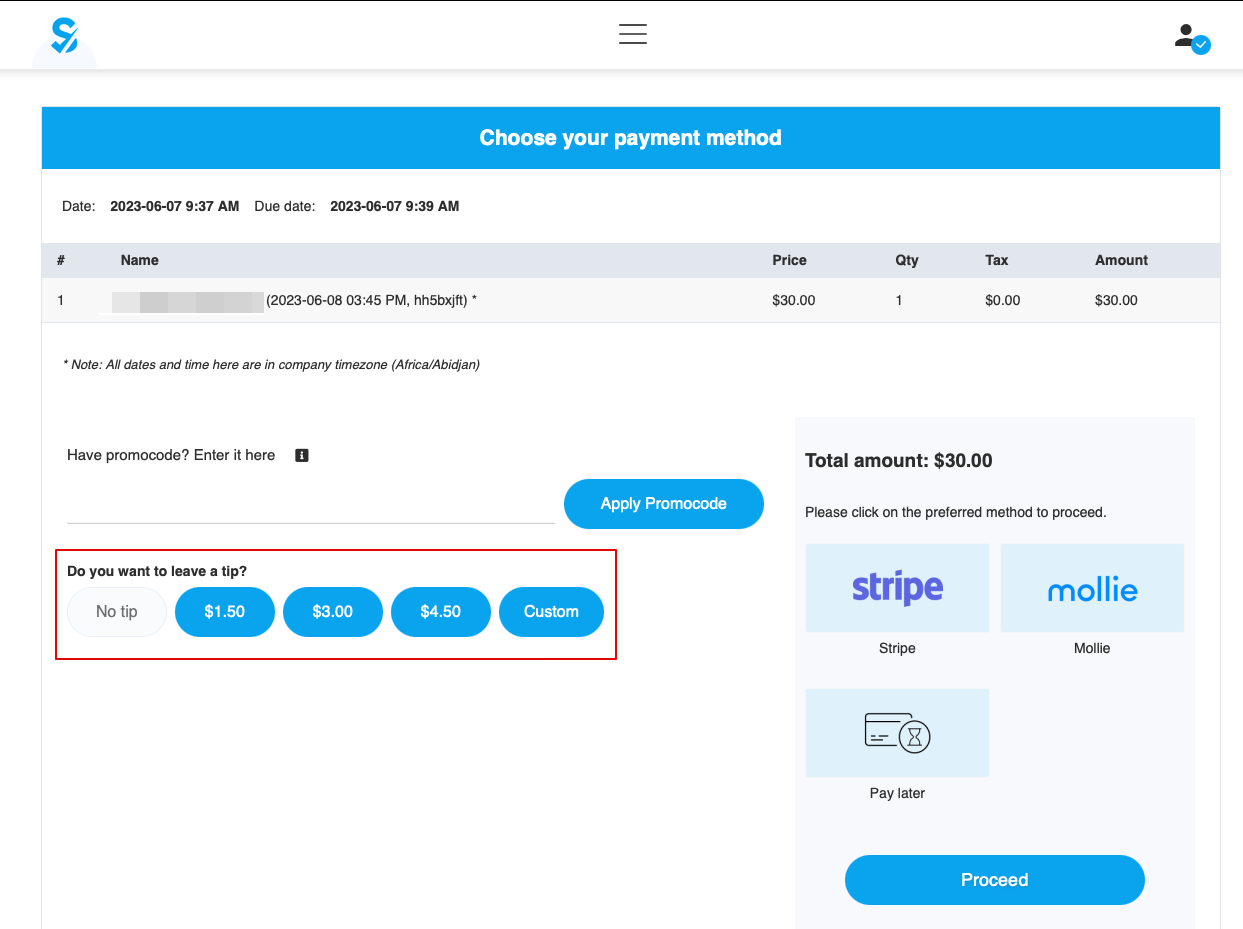
Please note!: If the service price is set to 0 (service is provided for free), the option of adding a tip will not be available.
- Option B: Tipping after the appointment is finished. (Pay Later chosen upon booking)
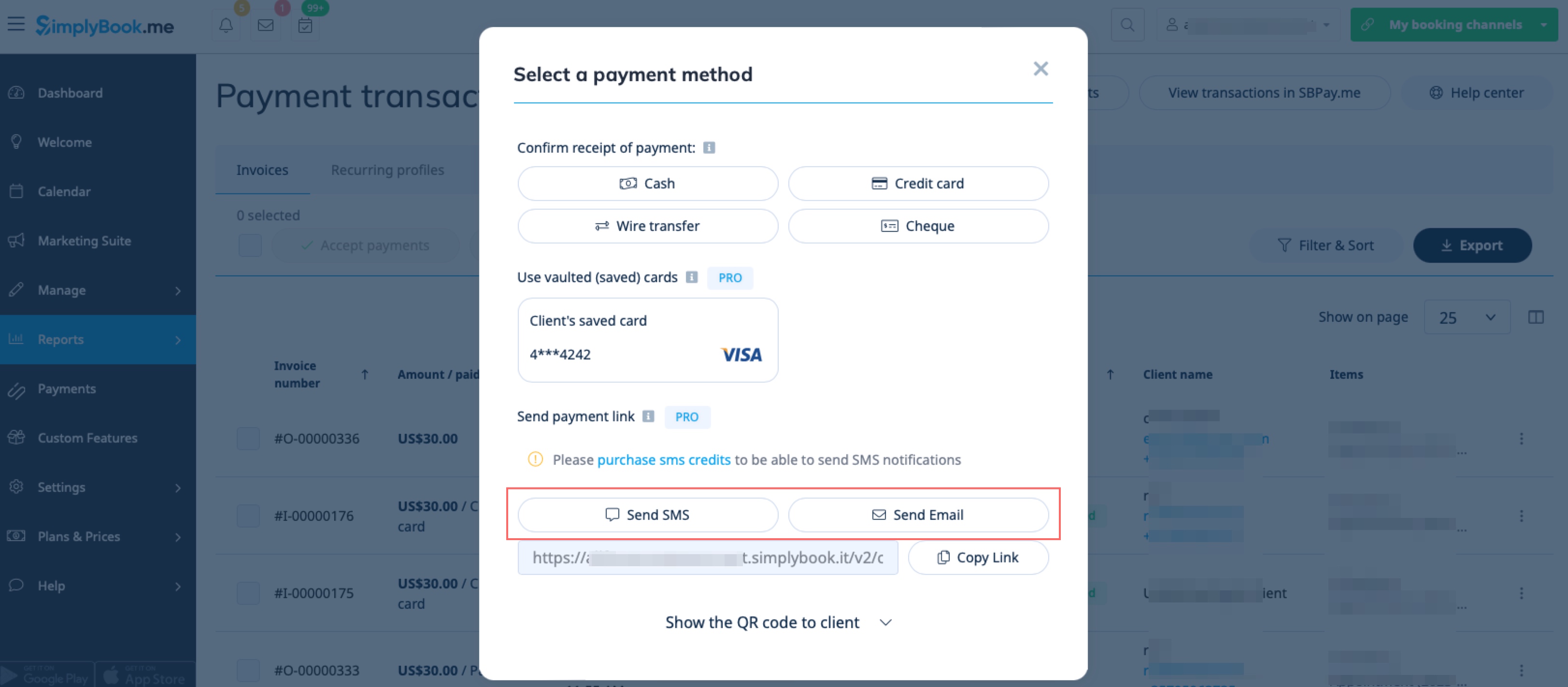
If you are using the Pay Later payment option you can send the payment links from the admin side to your customers.
It can be done in Reports -> Payment Transactions -> 3 dots menu per necessary row -> Receive payment -> Send Email/SMS.
Please note! Sending payment links is available only with SBPay.me PRO integration.
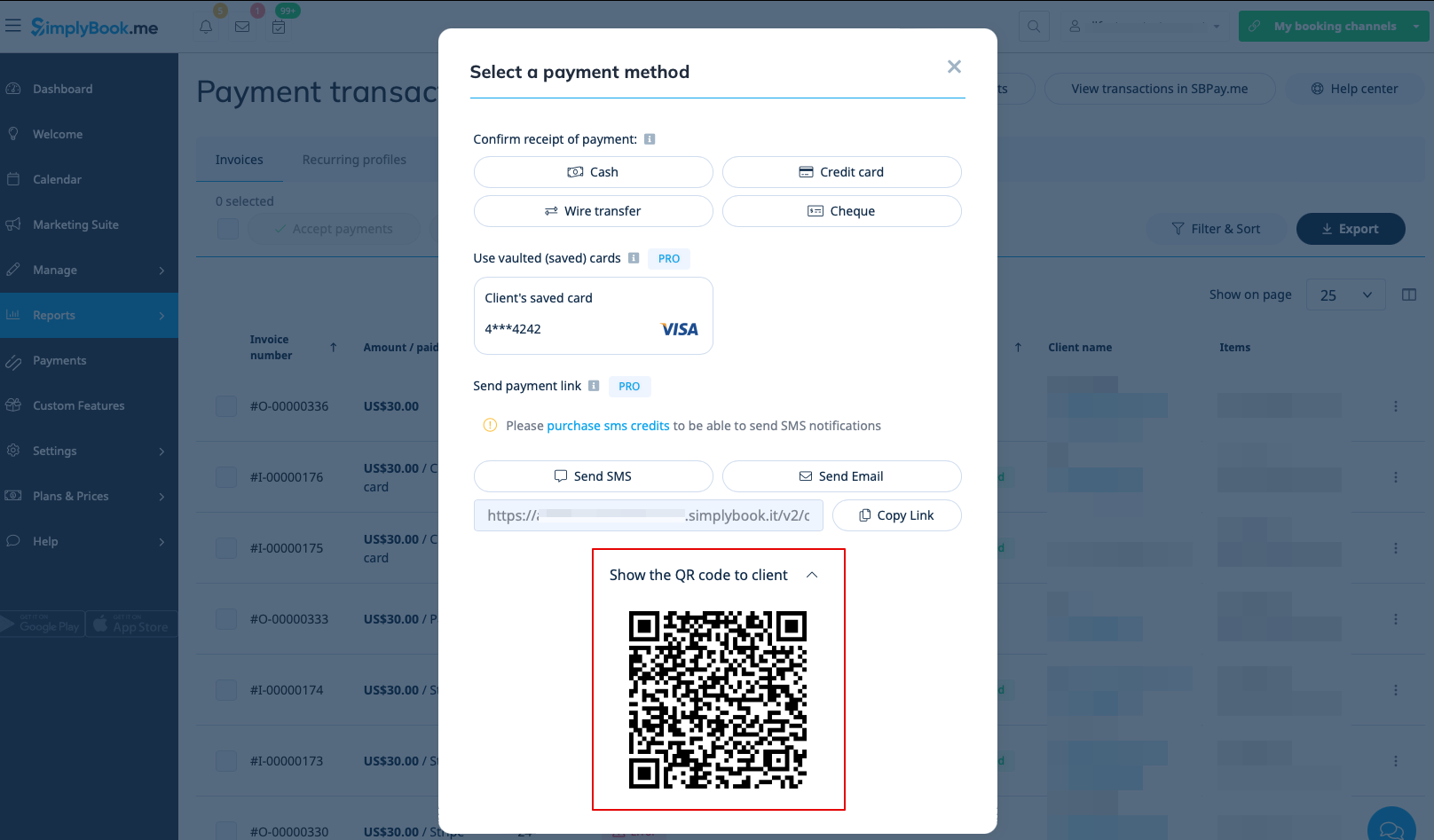
Your clients can also scan the QR code and will be redirected to the payment step where they can leave tip.
- How to use Tips Custom Feature with Accept Deposits Custom Feature
When clients choose to pay the Deposit instead of the full amount upon booking, the tipping option will still correspond to the full price of the service. For example, if the deposit price is $20 and the full price is $100, the tipping options would be $5,$10, $15, and “Custom” amount, which is equal to 5%, 10%, and 15% of the full price.
If a client does not leave Tip when paying the Deposit, there will still be an option for tipping if you send your client payment links for the remaining amount after the Deposit is paid.
Please note that this option is available only with SBPay.me PRO integration.
You will need to go to Reports -> Payment Transactions -> 3 dots menu per necessary row -> Receive payment -> Send Email/SMS.
The tipping options for your client will correspond to the remaining amount. For example, if the full price was $100 and the client paid a $20 deposit, the tipping options will be equal to 5%, 10%, and 15% of $80. It will give your client the following tipping options: $4, $8, $12, and a “Custom“amount.
