From SimplyBook.me
Importing a new version from external source |
Importing a new version from external source Tags: Mobile edit Mobile web edit |
||
| Line 15: | Line 15: | ||
:5. Rename the word "Employee" on the booking page to "Room" or "Game" in Settings // Custom wording & translations. | :5. Rename the word "Employee" on the booking page to "Room" or "Game" in Settings // Custom wording & translations. | ||
[[File:Quest rooms booking page view v3.png | center ]]<br><br> | [[File:Quest rooms booking page view v3.png | center ]]<br><br> | ||
:6. If each room has different price and you plan to accept payments online with our [[ | :6. If each room has different price and you plan to accept payments online with our [[Special:MyLanguage/Accept payments custom feature| Accept Payments]] custom feature, create more services in Manage // Services // Add service, set price for those services and relate with rooms by checking correponding boxes in "Service providers" tab.<br> | ||
Latest revision as of 11:26, 14 October 2025
Simplybook is a perfect online booking system for quest and escape rooms of various types. It allows clients to choose the room and book specific time when the game will take place. Clients can leave feedback on the company booking page after the follow up email.
In order to use Simplybook.me efficiently we recommend the following setup:
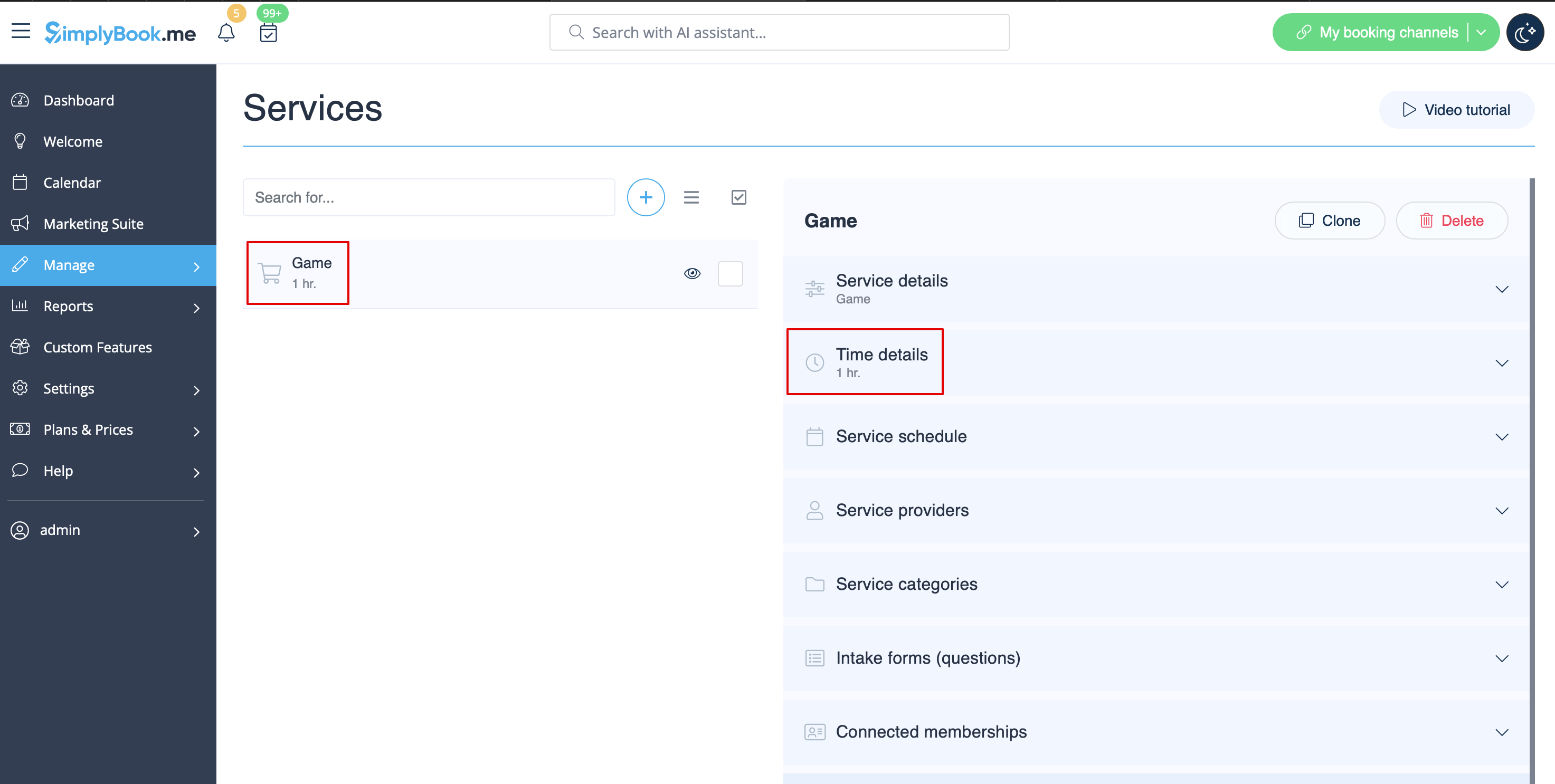
- 1. Create service as game with corresponding duration in Manage // Services // "+". Use Manage // Services // Time details to edit service duration.
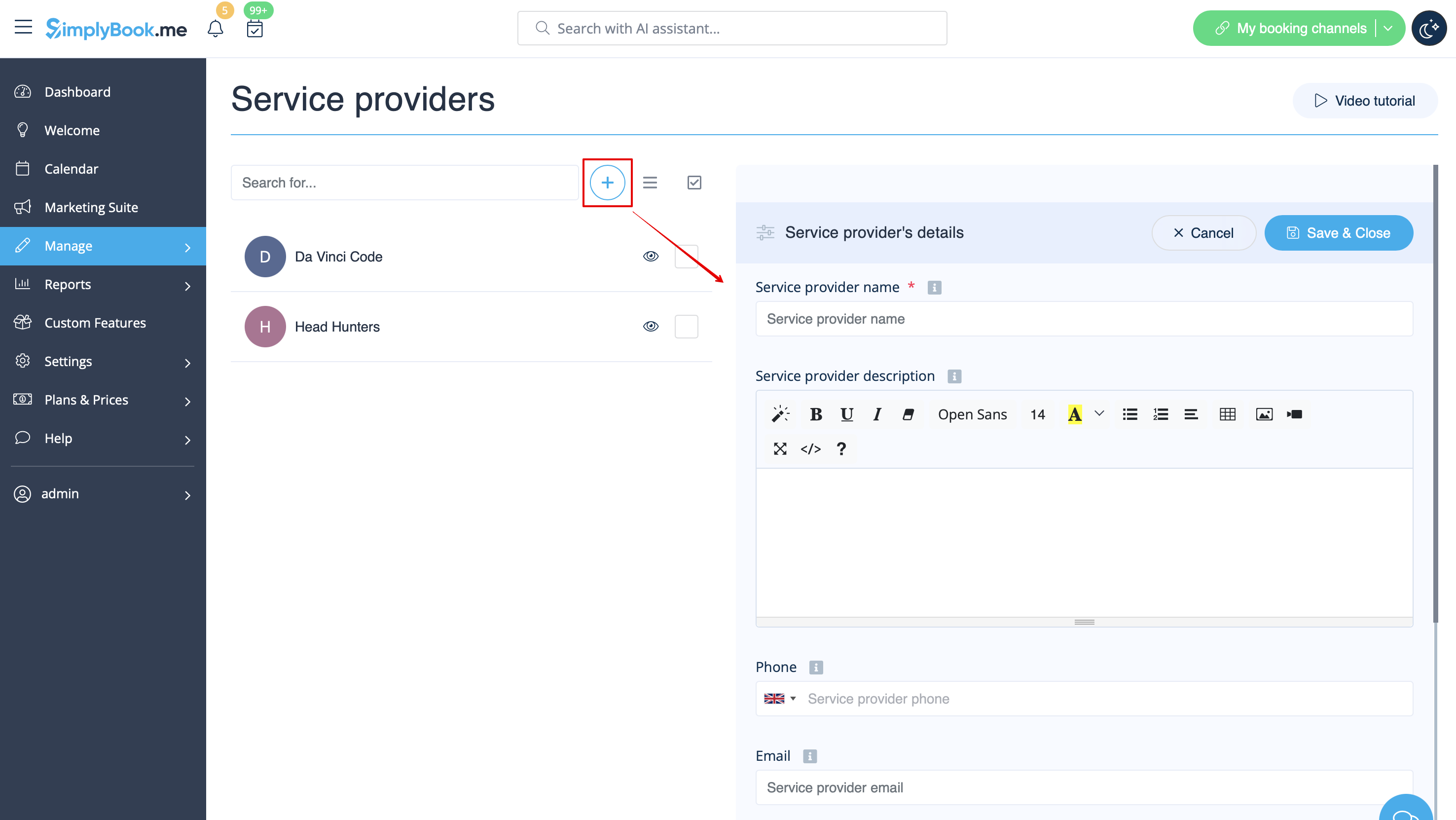
- 2. Make providers as rooms. In Manage // Service Providers // "+" to add new service provider - create the number of providers equal to the rooms you have.
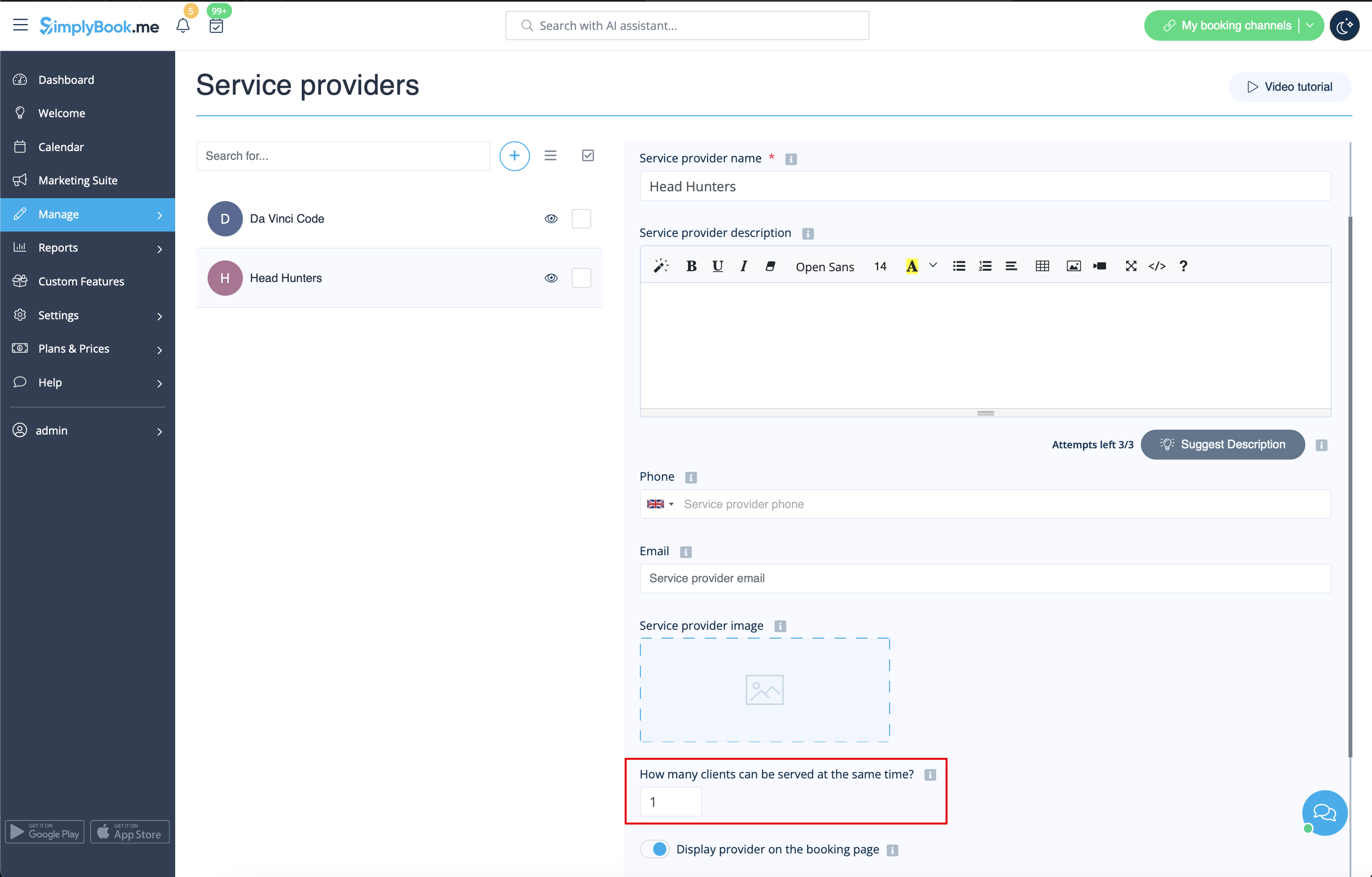
- 3. Make sure that each provider can serve 1 client at a time.
- 4. You can also set specific availability for that room by clicking on "Customize time settings for this provider" on "Service provider schedule" tab in Manage // Service Providers.
- 5. Rename the word "Employee" on the booking page to "Room" or "Game" in Settings // Custom wording & translations.

- 6. If each room has different price and you plan to accept payments online with our Accept Payments custom feature, create more services in Manage // Services // Add service, set price for those services and relate with rooms by checking correponding boxes in "Service providers" tab.
