Translations:WordPress integration/5/sv: Difference between revisions

From SimplyBook.me
No edit summary
Marked translation unit as no longer outdated with no changes
 
(No difference)

Latest revision as of 13:02, 17 October 2025

Information about message (contribute)
This message has no documentation. If you know where or how this message is used, you can help other translators by adding documentation to this message.
Message definition (WordPress integration)
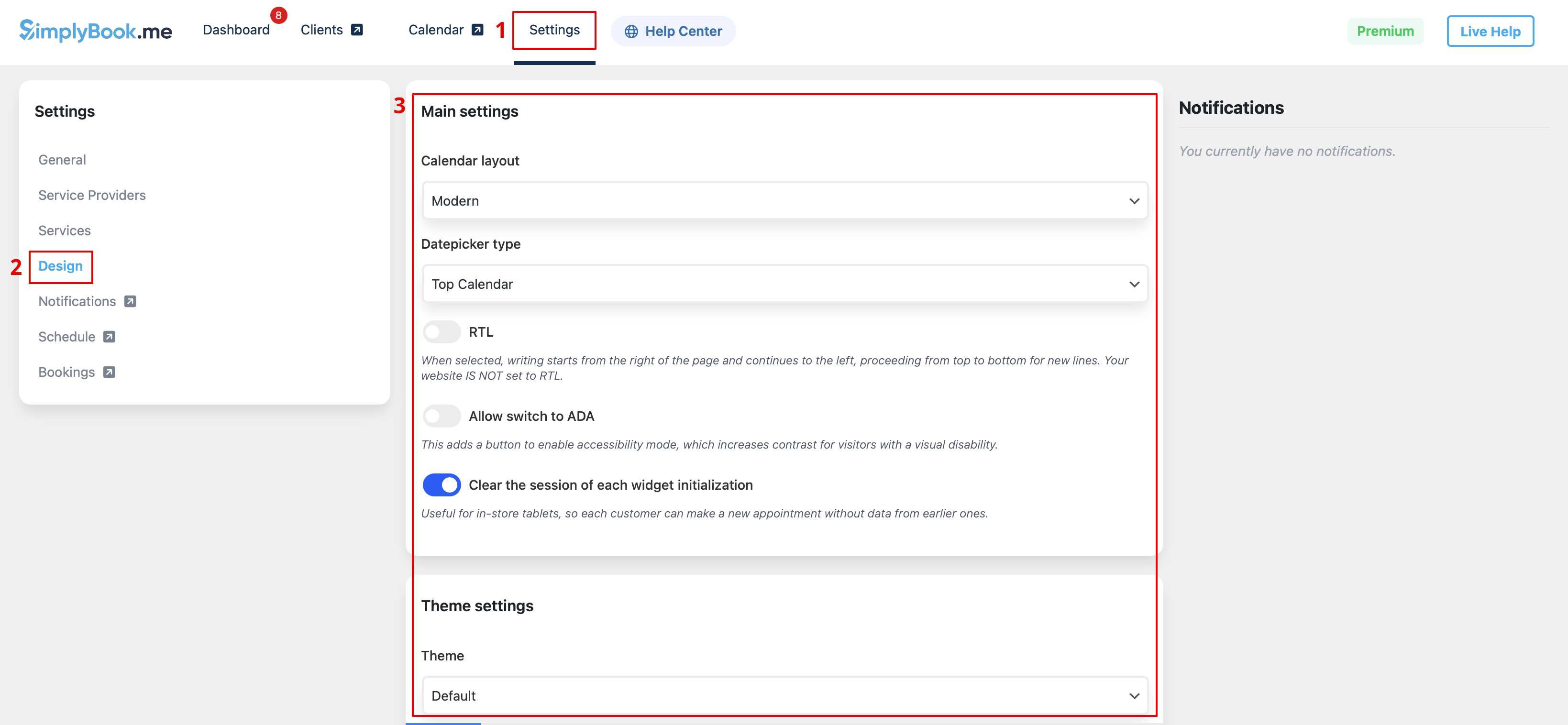
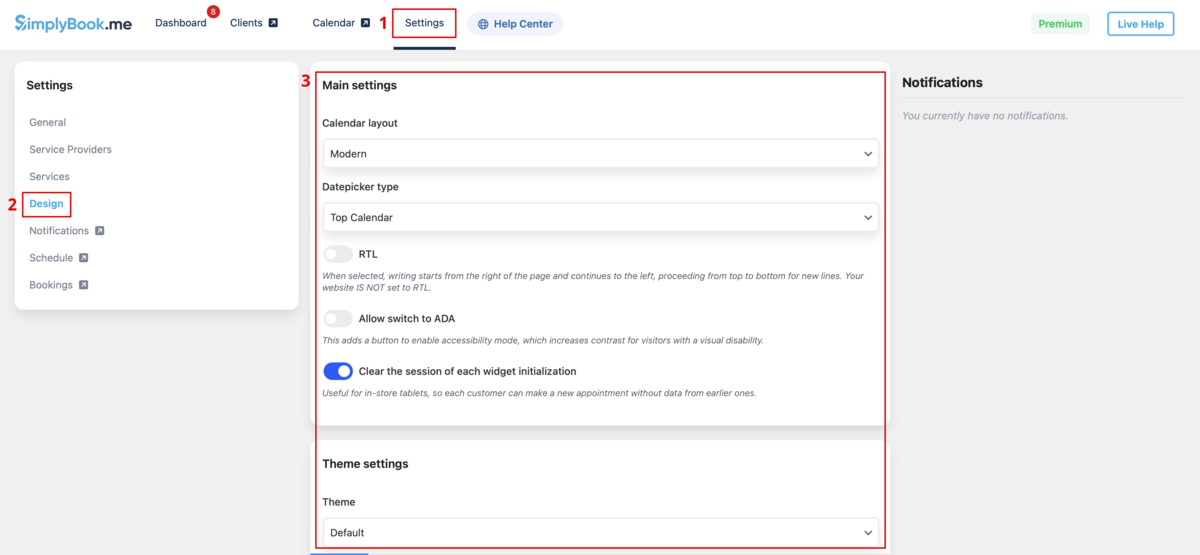
:6. Switch to <span style="background-color:#d4f8e5; padding:5px; border-radius:5px;">Design</span> tab.<br>
:Adjust the look for your widget.<br>
:You can select the preferable calendar layout, adjust the colors and much more.
[[File:Wp new design settings path.png|1200px|center|link=https://help.simplybook.me/images/b/ba/Wp_new_design_settings_path.png]]
<br><br>
:7. Save your settings and navigate to <span style="background-color:#d4f8e5; padding:5px; border-radius:5px;">Pages</span> tab of the WordPress interface.<br>
:Open the page you would like to add the booking functionality to or add a new one.
:Click on "+" button there and look for '''Simplybook''' option. Click on it to add to the page. Save the page.
:After the website is published the clients will be able to book your services.
[[File:Wp new add plugin to page.png|1200px|center|link=https://help.simplybook.me/images/7/7e/Wp_new_add_plugin_to_page.png]]
<br><br>
6. Växla till fliken Design.
Justera utseendet på din widget.
Du kan välja önskat kalenderlayout, justera färgerna och mycket mer.

7. Spara dina inställningar och gå till fliken Sidor i WordPress-gränssnittet.
Öppna sidan du vill lägga till bokningsfunktionen på, eller skapa en ny. :Klicka på "+"-knappen och leta efter alternativet Simplybook. Klicka på det för att lägga till det på sidan. Spara sidan.
När webbplatsen är publicerad kommer kunder att kunna boka dina tjänster.