From SimplyBook.me
Created page with "<span style="background-color: #26dd7d; padding:5px; border-radius:5px;">Безкоштовна спеціальна функція!</span> <br><br> Відеоінструкція link=https://youtu.be/ltT1F1jBfKk <br><br> = Google Business =" |
No edit summary |
||
| (8 intermediate revisions by 2 users not shown) | |||
| Line 16: | Line 16: | ||
<span style="background-color: #26dd7d; padding:5px; border-radius:5px;">Безкоштовна спеціальна функція!</span> | <span style="background-color: #26dd7d; padding:5px; border-radius:5px;">Безкоштовна спеціальна функція!</span> | ||
<br><br> | <br><br> | ||
Відеоінструкція | Відеоінструкція <p><youtube>ltT1F1jBfKk</youtube></p> | ||
<br><br> | <br><br> | ||
= Google Business = | = Google Business = | ||
| Line 23: | Line 23: | ||
;Як використовувати: | ;Як використовувати: | ||
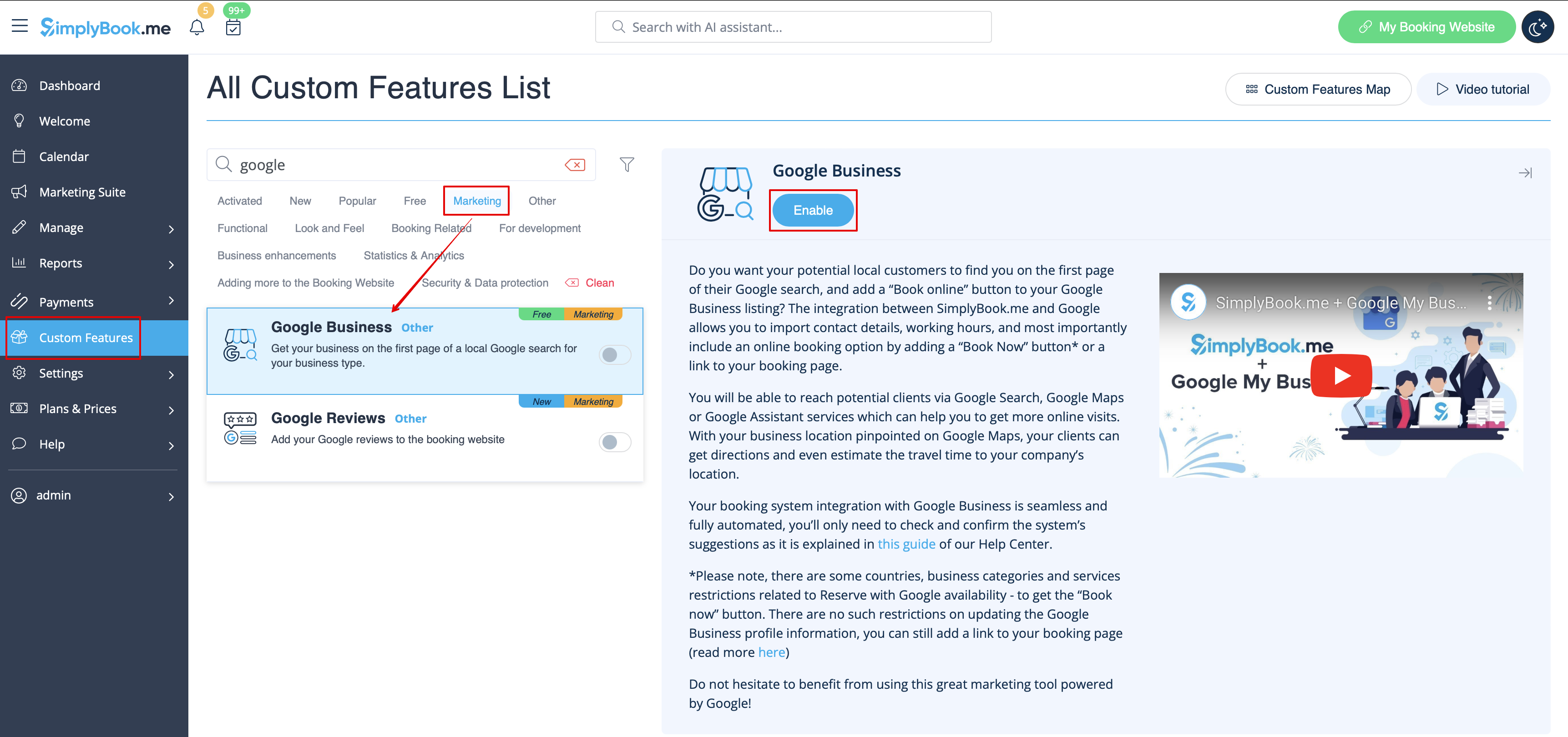
:1. Увімкніть цю спеціальну функцію на сторінці <span style="background-color:#d4f8e5; padding:5px; border-radius:5px;">«Спеціальні функції</span> ». | |||
:1. | |||
[[File:Google business enable path redesigned.png|1200px | border| center|link=https://help.simplybook.me/images/6/66/Google_business_enable_path_redesigned.png]] | [[File:Google business enable path redesigned.png|1200px | border| center|link=https://help.simplybook.me/images/6/66/Google_business_enable_path_redesigned.png]] | ||
<br><br> | <br><br> | ||
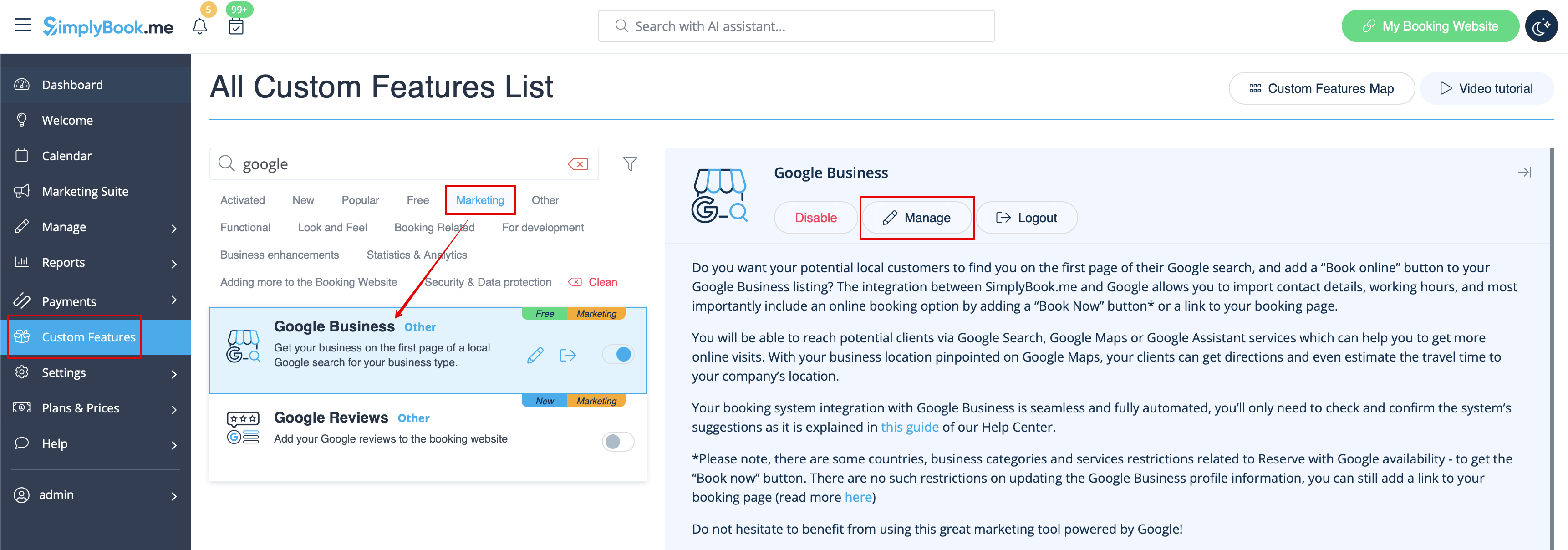
:2. | :2. Перейдіть до <span style="background-color:#d4f8e5; padding:5px; border-radius:5px;">«Налаштування»</span>, щоб створити обліковий запис Google Business, якщо ви ще не маєте його, або підключіть вже існуючий обліковий запис Google Business. | ||
[[File:Google business settings path redesigned.png|1200px | border| center|link=https://help.simplybook.me/images/7/79/Google_business_settings_path_redesigned.png]] | [[File:Google business settings path redesigned.png|1200px | border| center|link=https://help.simplybook.me/images/7/79/Google_business_settings_path_redesigned.png]] | ||
<br><br> | <br><br> | ||
[[File:Google business account.png|border| center]] | [[File:Google business account.png|border| center]] | ||
<br><br> | <br><br> | ||
:3. | :3. Надайте необхідні дозволи, щоб можна було переглядати та редагувати ваші місця розташування в SimplyBook.me. | ||
<br><br> | <br><br> | ||
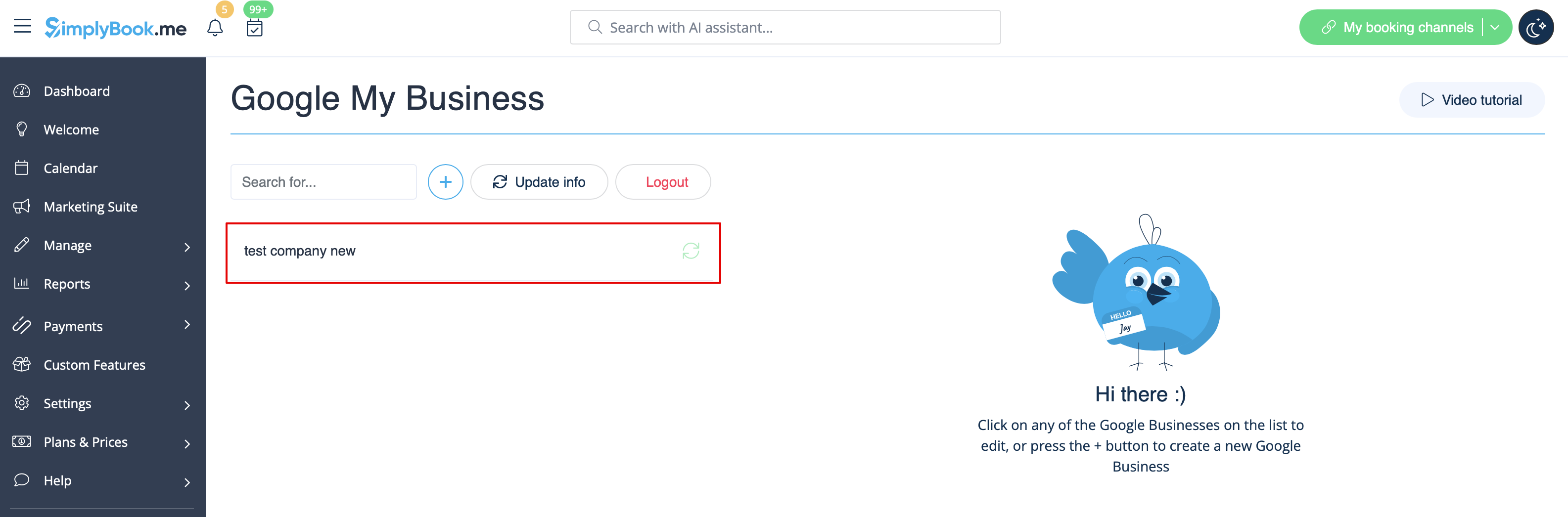
:4. | :4. Якщо ви вже маєте кілька місць у Google Business, ви зможете побачити їх у лівій частині сторінки. | ||
[[File:Google business existing locations redesigned.png|1200px | center|link=https://help.simplybook.me/images/7/71/Google_business_existing_locations_redesigned.png]] | [[File:Google business existing locations redesigned.png|1200px | center|link=https://help.simplybook.me/images/7/71/Google_business_existing_locations_redesigned.png]] | ||
<br><br> | <br><br> | ||
:5. | :5. Просто натисніть на одне з них, якщо потрібно внести зміни, і ввімкніть опцію <span style="background-color:#d4f8e5; padding:5px; border-radius:5px;">«Оновити адресу в профілі»</span>, внесіть необхідні зміни та збережіть місце розташування, щоб інформація була оновлена в Google[[File:Existing google business location info redesigned.png|1200px | center|link=https://help.simplybook.me/images/d/d7/Existing_google_business_location_info_redesigned.png]] | ||
[[File:Existing google business location info redesigned.png|1200px | center|link=https://help.simplybook.me/images/d/d7/Existing_google_business_location_info_redesigned.png]] | [[File:Existing google business location info redesigned.png|1200px | center|link=https://help.simplybook.me/images/d/d7/Existing_google_business_location_info_redesigned.png]] | ||
<br><br> | <br><br> | ||
: | :або виберіть опцію <span style="background-color:#d4f8e5; padding:5px; border-radius:5px;"> «+»</span>, щоб додати нову адресу бізнесу. | ||
[[File:Add new google business location redesigned.png|1200px | border| center|link=https://help.simplybook.me/images/0/0d/Add_new_google_business_location_redesigned.png]] | [[File:Add new google business location redesigned.png|1200px | border| center|link=https://help.simplybook.me/images/0/0d/Add_new_google_business_location_redesigned.png]] | ||
<br><br> | <br><br> | ||
:6. | :6. Після додавання адреси натисніть <span style="background-color:#d4f8e5; padding:5px; border-radius:5px;">«Зберегти та закрити»</span>, і ви зможете перейти до підтвердження місцезнаходження бізнесу в Google (це може зайняти деякий час). <br> | ||
: | :Ви також можете закрити спливаюче вікно і повернутися до кроку підтвердження пізніше (для кожної збереженої та синхронізованої адреси компанії буде кнопка <span style="background-color:#d4f8e5; padding:5px; border-radius:5px;">«Підтвердити зараз»</span> ). <br> | ||
: | :Як тільки ваша локація буде підтверджена Google (ви побачите кроки процесу підтвердження, слідуючи інструкціям Google), ваша компанія з'явиться в пошуку та на Google Maps. | ||
[[File:Verification link google business redesined.png|1200px| border| center|link=https://help.simplybook.me/images/4/44/Verification_link_google_business_redesined.png]] | [[File:Verification link google business redesined.png|1200px| border| center|link=https://help.simplybook.me/images/4/44/Verification_link_google_business_redesined.png]] | ||
<br><br> | <br><br> | ||
:7. | :7. Коли ви зберігаєте локацію, до Google передається така інформація про вашу компанію: | ||
:* | :*назва локації компанії; | ||
:* | :*робочі години компанії; | ||
:* | :*номер телефону компанії; | ||
:* | :*посилання на сайт для бронювання; | ||
:* | :*категорія бізнесу (оскільки категорії Google відрізняються, буде знайдено найбільш відповідну). | ||
[[File:Google business location info.png |border| center]] | [[File:Google business location info.png|border| center]] | ||
<br><br> | <br><br> | ||
:<span style="background-color:#ffe9e9; padding:5px; border-radius:5px;">''' | :<span style="background-color:#ffe9e9; padding:5px; border-radius:5px;">'''Зверніть увагу''','''що''' якщо ви змінили деякі з цих даних у своєму обліковому записі SimplyBook.me, вам потрібно буде повторно зберегти місцезнаходження компанії в налаштуваннях функції Google Business, щоб дані були оновлені в Google.</span> | ||
<br><br> | <br><br> | ||
:8. | :8. Ви також можете редагувати дані про місцезнаходження компанії в Google, якщо це необхідно. Просто натисніть кнопку <span style="background-color:#d4f8e5; padding:5px; border-radius:5px;">«Редагувати в GMB»</span> у верхній частині (з'являється для збережених і синхронізованих місць). | ||
[[File:Google business edit on google path redesigned.png|1200px |border| center|link=https://help.simplybook.me/images/8/8a/Google_business_edit_on_google_path_redesigned.png]] | [[File:Google business edit on google path redesigned.png|1200px |border| center|link=https://help.simplybook.me/images/8/8a/Google_business_edit_on_google_path_redesigned.png]] | ||
<br><br> | <br><br> | ||
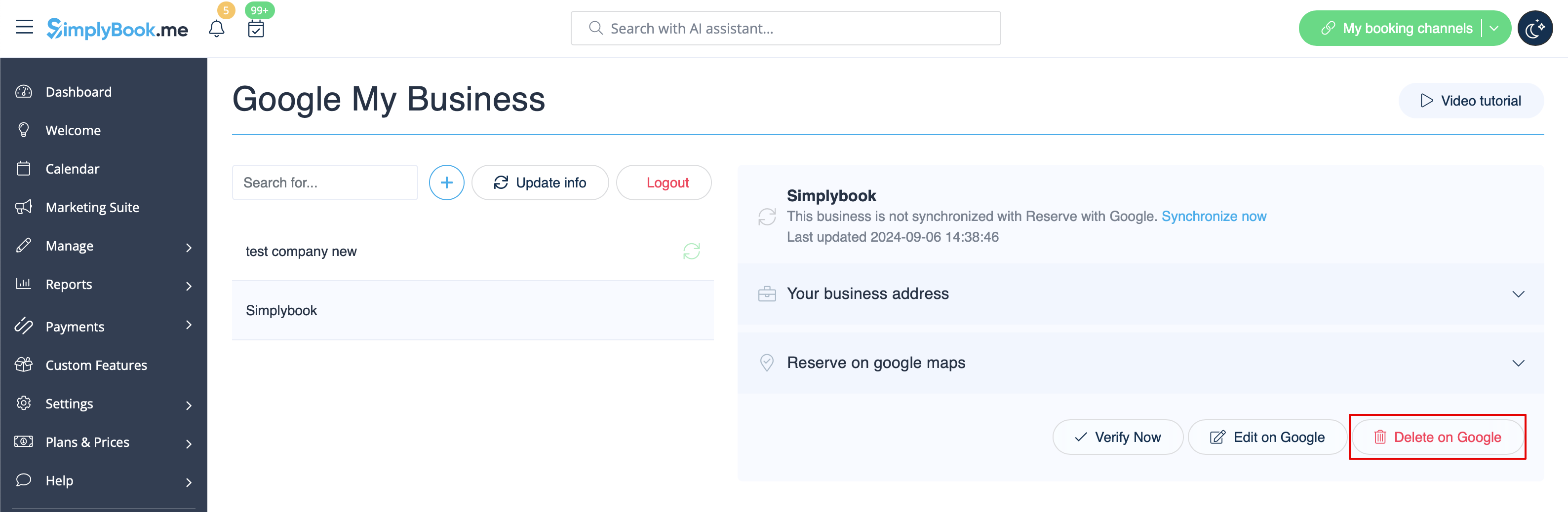
:9. | :9. Якщо деякі місця більше не відповідають вашому бізнесу, ви можете легко видалити їх у налаштуваннях цієї функції. Просто натисніть опцію <span style="background-color:#d4f8e5; padding:5px; border-radius:5px;">«Видалити в GMB</span> ». | ||
[[File:Google business delete on google redesigned.png|1200px |border|center|link=https://help.simplybook.me/images/5/55/Google_business_delete_on_google_redesigned.png]] | [[File:Google business delete on google redesigned.png|1200px |border|center|link=https://help.simplybook.me/images/5/55/Google_business_delete_on_google_redesigned.png]] | ||
<br><br> | <br><br> | ||
= | = Забронювати через Google = | ||
<br><br> | <br><br> | ||
Додайте опцію <span style="background-color:#d4f8e5; padding:5px; border-radius:5px;">Бронювати онлайн</span> у вашій бізнес-картці Google. Дозвольте вашим клієнтам легко знаходити вас у Google та бронювати ваші послуги прямо через Google Пошук, Google Maps або Google Assistant, за підтримки системи бронювання SimplyBook.me. | |||
:'''<span style="background-color:#ffe9e9; padding:5px; border-radius:5px;">Зверніть увагу!:</span>''' | |||
:'''<span style="background-color:#ffe9e9; padding:5px; border-radius:5px;"> | *<span style="background-color:#ffe9e9; padding:5px; border-radius:5px;">Reserve with Google наразі доступний лише для підтримуваних країн, перелічених <span style="background-color:#cdeffc; padding:5px; border-radius:5px;">[https://developers.google.com/maps-booking/policies/criteria тут]</span>:</span> | ||
*<span style="background-color:#ffe9e9; padding:5px; border-radius:5px;">Reserve with Google | *<span style="background-color:#ffe9e9; padding:5px; border-radius:5px;">Наразі неможливо використовувати цю опцію для таких категорій бізнесу: медичний центр, навчальний заклад, державна установа, інженер, медична клініка, стоматолог, медичний кабінет, освітній центр, компанія з організації заходів, міська адміністрація, посольство, адвокат загальної практики, агентство з догляду за дітьми, університет, коледж, школа, бібліотека, фінансова установа.</span> | ||
*<span style="background-color:#ffe9e9; padding:5px; border-radius:5px;"> | *<span style="background-color:#ffe9e9; padding:5px; border-radius:5px;">Необхідно увімкнути спеціальну функцію <span style="background-color:#cdeffc; padding:5px; border-radius:5px;">[[Special:MyLanguage/Accept payments custom feature|«Приймати платежі»]]</span> (опція<span style="background-color:#d4f8e5; padding:5px; border-radius:5px;">«Оплатити пізніше (дозволити відстрочку платежу)»</span> завжди має бути <span style="background-color:#d4f8e5; padding:5px; border-radius:5px;">увімкнена</span>) та додати ціни для всіх послуг/класів, які ви хочете відображати та робити доступними для бронювання через Google Maps;</span> | ||
*<span style="background-color:#ffe9e9; padding:5px; border-radius:5px;"> | *<span style="background-color:#ffe9e9; padding:5px; border-radius:5px;">Усі послуги/класи повинні мати описи, які будуть відображатися на стороні Google;</span> | ||
*<span style="background-color:#ffe9e9; padding:5px; border-radius:5px;"> | *<span style="background-color:#ffe9e9; padding:5px; border-radius:5px;">Якщо ви використовуєте <span style="background-color:#cdeffc; padding:5px; border-radius:5px;">[[Special:MyLanguage/Intake Forms custom feature|функцію «Форми для прийому»]]</span>, до послуг, які ви хочете зробити доступними для бронювання, не слід додавати обов'язкові форми;</span> | ||
*<span style="background-color:#ffe9e9; padding:5px; border-radius:5px;"> | *<span style="background-color:#ffe9e9; padding:5px; border-radius:5px;">Якщо послуга є <span style="background-color:#d4f8e5; padding:5px; border-radius:5px;">[[Special:MyLanguage/Recurring_services(packs)|повторюваною]]</span> або пов'язаною з <span style="background-color:#cdeffc; padding:5px; border-radius:5px;">[[Special:MyLanguage/Membership custom feature|членством]]</span>, вона не буде відображатися в Reserve with Google;</span> | ||
*<span style="background-color:#ffe9e9; padding:5px; border-radius:5px;"> | *<span style="background-color:#ffe9e9; padding:5px; border-radius:5px;">Якщо ви використовуєте застарілу налаштовану функцію Google Calendar Sync, ви не зможете використовувати Reserve with Google.</span> | ||
*<span style="background-color:#ffe9e9; padding:5px; border-radius:5px;"> | *<span style="background-color:#ffe9e9; padding:5px; border-radius:5px;">Щоб синхронізуватися з Google і щоб ця опція працювала, необхідно опублікувати адресу компанії на вебсайті бронювання.</span> | ||
</ | |||
<br><br> | <br><br> | ||
; | ;Як користуватися: | ||
:1. | :1. Додайте та підтвердьте свої локації Google Business через <span style="background-color:#d4f8e5; padding:5px; border-radius:5px;">платформу SimplyBook.me (попередня частина цього посібника)</span> або за допомогою <span style="background-color:#d4f8e5; padding:5px; border-radius:5px;">інтерфейсу Google Business</span> і збережіть їх у <span style="background-color:#d4f8e5; padding:5px; border-radius:5px;">налаштуваннях користувацьких функцій Google Business.</span> | ||
[[File:Google business existing locations redesigned.png|1200px|border|center|link=https://help.simplybook.me/images/7/71/Google_business_existing_locations_redesigned.png]] | [[File:Google business existing locations redesigned.png|1200px|border|center|link=https://help.simplybook.me/images/7/71/Google_business_existing_locations_redesigned.png]] | ||
<br><br> | <br><br> | ||
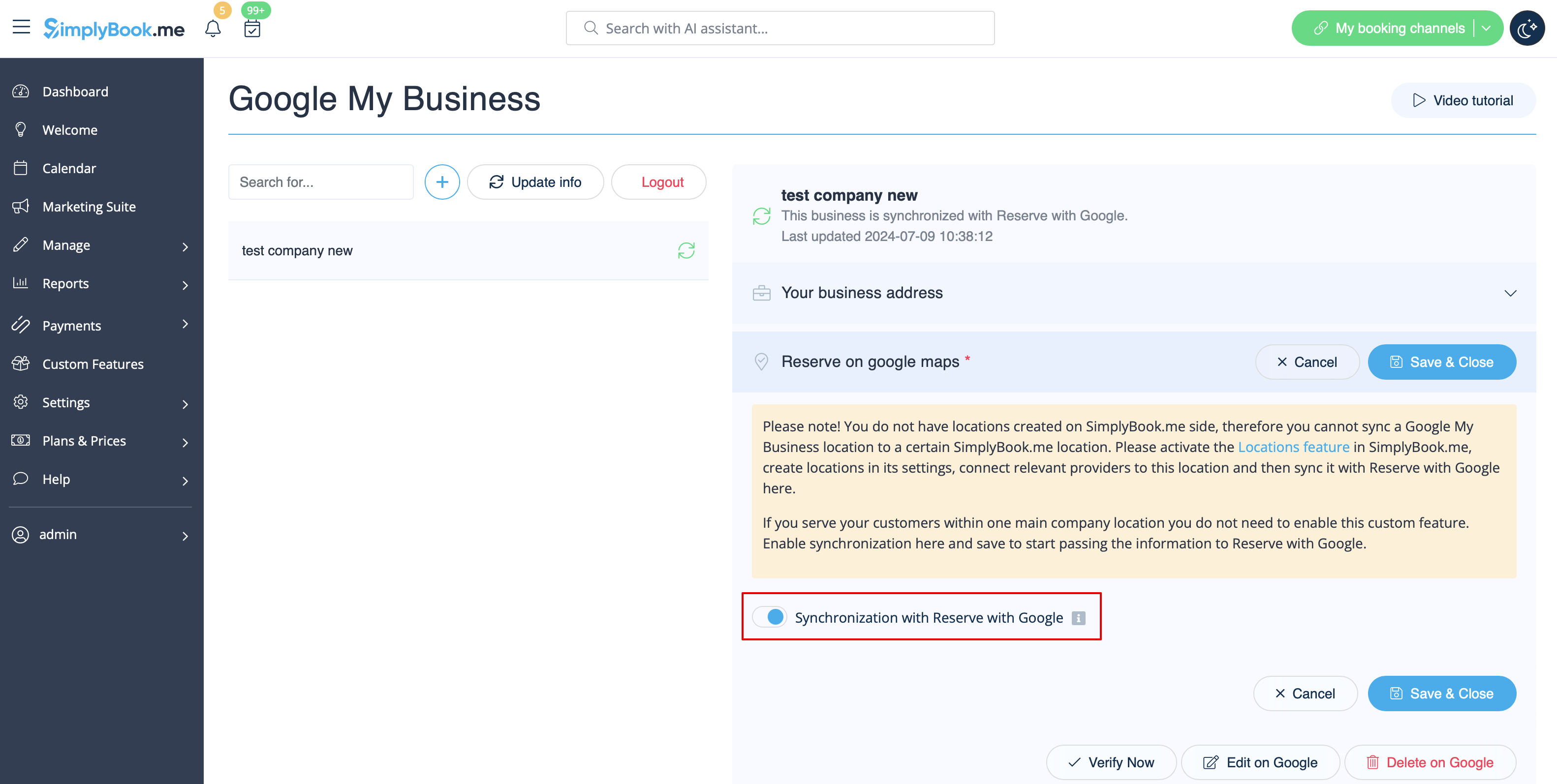
:2. | :2. Перейдіть на вкладку <span style="background-color:#d4f8e5; padding:5px; border-radius:5px;">«Забронювати на Google Maps»</span> і переведіть перемикач <span style="background-color:#d4f8e5; padding:5px; border-radius:5px;">«Синхронізація з Reserve with Google»</span> в активне положення. | ||
[[File:Reserve with google enable path redesigned.png|1200px|border|center|link=https://help.simplybook.me/images/8/80/Reserve_with_google_enable_path_redesigned.png]] | [[File:Reserve with google enable path redesigned.png|1200px|border|center|link=https://help.simplybook.me/images/8/80/Reserve_with_google_enable_path_redesigned.png]] | ||
<br><br> | <br><br> | ||
:3. ( | :3. (опціонально) Якщо ви використовуєте налаштовану функцію <span style="background-color:#cdeffc; padding:5px; border-radius:5px;">[[Special:MyLanguage/Custom_Features#Multiple_Locations|«Кілька місць»]]</span>, підключіть свої <span style="background-color:#d4f8e5; padding:5px; border-radius:5px;">Google Businesses</span> до потрібних <span style="background-color:#d4f8e5; padding:5px; border-radius:5px;">місць SimplyBook.me.</span> | ||
:<span style="background-color:#ffe9e9; padding:5px; border-radius:5px;">''' | :<span style="background-color:#ffe9e9; padding:5px; border-radius:5px;">'''Зверніть увагу!''' Одне місце SimplyBook.me можна підключити до одного Google Business.</span> | ||
:<span style="background-color:#ffe9e9; padding:5px; border-radius:5px;"> | :<span style="background-color:#ffe9e9; padding:5px; border-radius:5px;">Якщо ви не використовуєте <span style="background-color:#cdeffc; padding:5px; border-radius:5px;">[[Special:MyLanguage/Multiple Locations custom feature|кілька місць]]</span>, основне місце <span style="background-color:#cdeffc; padding:5px; border-radius:5px;">[[Special:MyLanguage/Multiple Locations custom feature|вашої]]</span> компанії можна підключити до одного Google Business.</span> | ||
[[File:Reserve with google select location redesigned.png|1200px|border|center|link=https://help.simplybook.me/images/1/14/Reserve_with_google_select_location_redesigned.png]] | [[File:Reserve with google select location redesigned.png|1200px|border|center|link=https://help.simplybook.me/images/1/14/Reserve_with_google_select_location_redesigned.png]] | ||
<br><br> | <br><br> | ||
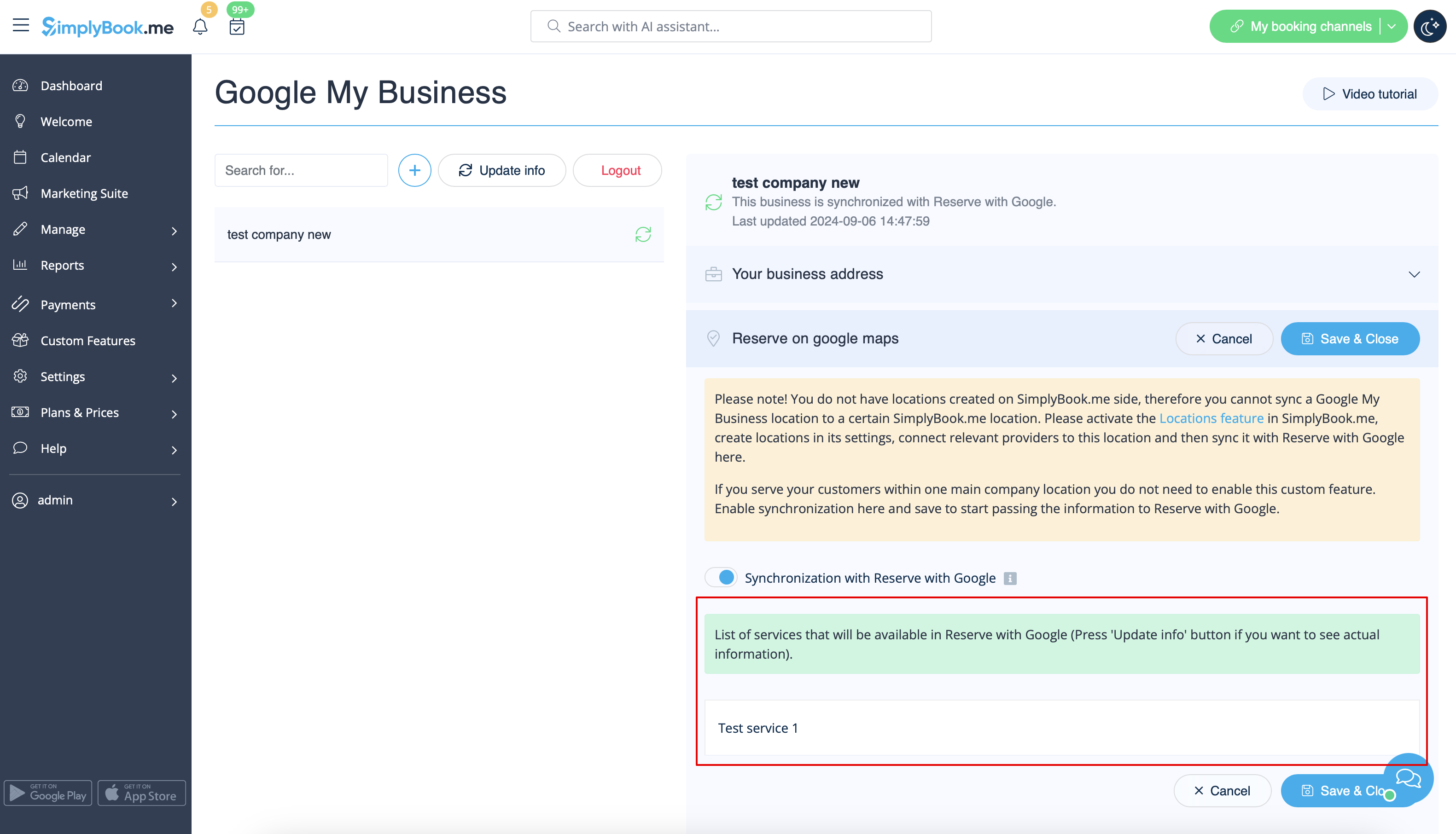
:4. <span style="background-color:#d4f8e5; padding:5px; border-radius:5px;"> | :4. <span style="background-color:#d4f8e5; padding:5px; border-radius:5px;">Збережіть налаштування</span>. Тепер відбудеться синхронізація, і після <span style="background-color:#d4f8e5; padding:5px; border-radius:5px;">перезавантаження сторінки</span> ви зможете побачити список послуг, які будуть передані до «Забронювати через Google» для бронювання. | ||
: | :За замовчуванням ми збираємо всю інформацію та передаємо оновлення до Google один раз на день, але ви можете використовувати кнопку <span style="background-color:#d4f8e5; padding:5px; border-radius:5px;">«Оновити інформацію»</span>, щоб підготувати інформацію для передачі вручну, якщо в вашому обліковому записі були змінені налаштування (наприклад, якщо ви створили нову послугу). | ||
[[File:Reserve with google list of services redesigned.png|1200px|border|center|link=https://help.simplybook.me/images/d/dd/Reserve_with_google_list_of_services_redesigned.png]] | [[File:Reserve with google list of services redesigned.png|1200px|border|center|link=https://help.simplybook.me/images/d/dd/Reserve_with_google_list_of_services_redesigned.png]] | ||
<br><br> | <br><br> | ||
<br><br> | <br><br> | ||
Latest revision as of 11:41, 13 November 2025

png
Легко підвищіть видимість вашого бізнесу в Інтернеті за допомогою функції Google My Business. Це нічого не коштує, але підвищує видимість у пошуку, а також робить ваш бізнес видимим на картах Google.
Безкоштовна спеціальна функція!
Відеоінструкція
Google Business
- Як використовувати
- 1. Увімкніть цю спеціальну функцію на сторінці «Спеціальні функції ».
- 2. Перейдіть до «Налаштування», щоб створити обліковий запис Google Business, якщо ви ще не маєте його, або підключіть вже існуючий обліковий запис Google Business.

- 3. Надайте необхідні дозволи, щоб можна було переглядати та редагувати ваші місця розташування в SimplyBook.me.
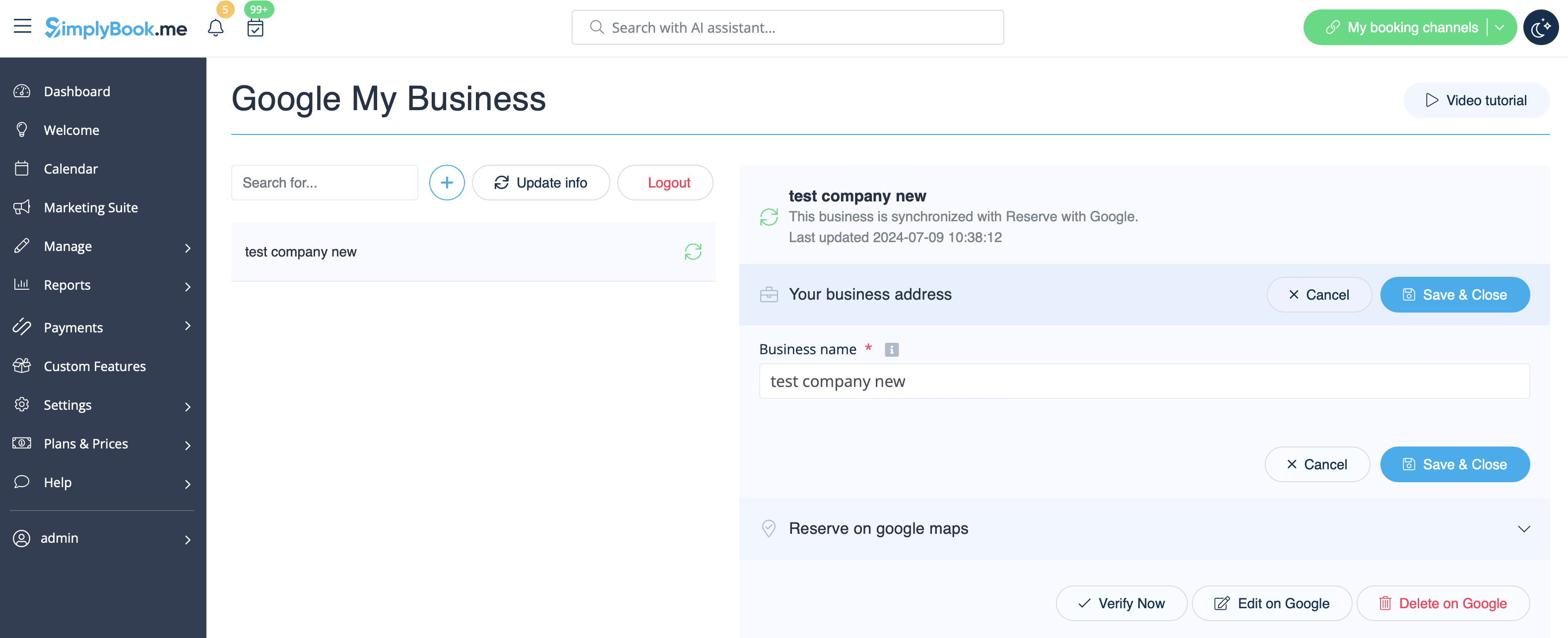
- 4. Якщо ви вже маєте кілька місць у Google Business, ви зможете побачити їх у лівій частині сторінки.
- 5. Просто натисніть на одне з них, якщо потрібно внести зміни, і ввімкніть опцію «Оновити адресу в профілі», внесіть необхідні зміни та збережіть місце розташування, щоб інформація була оновлена в Google

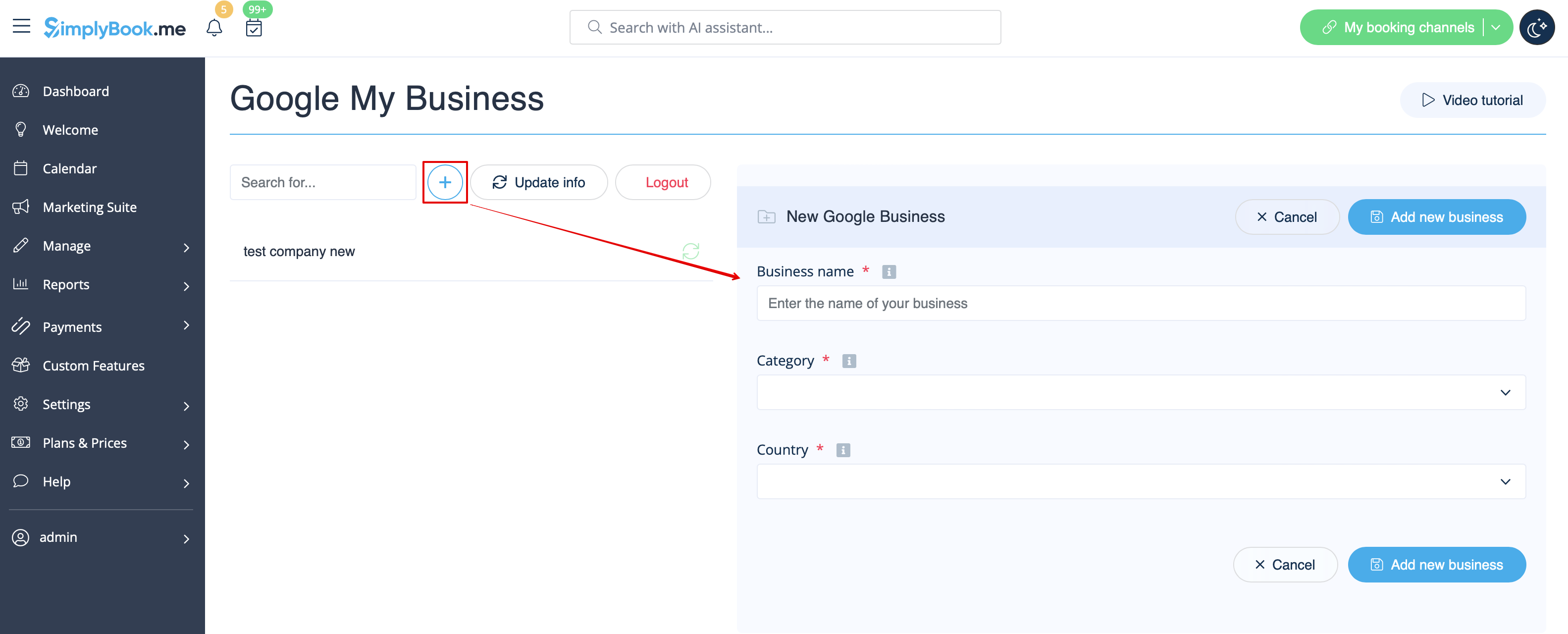
- або виберіть опцію «+», щоб додати нову адресу бізнесу.
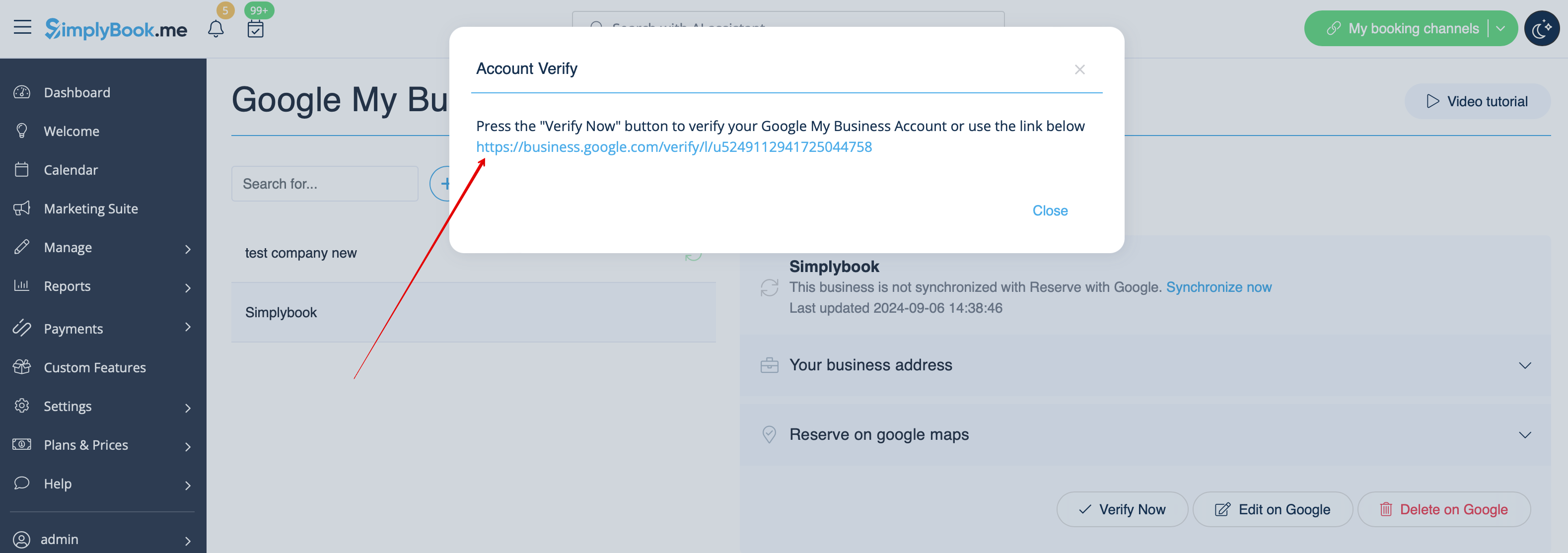
- 6. Після додавання адреси натисніть «Зберегти та закрити», і ви зможете перейти до підтвердження місцезнаходження бізнесу в Google (це може зайняти деякий час).
- Ви також можете закрити спливаюче вікно і повернутися до кроку підтвердження пізніше (для кожної збереженої та синхронізованої адреси компанії буде кнопка «Підтвердити зараз» ).
- Як тільки ваша локація буде підтверджена Google (ви побачите кроки процесу підтвердження, слідуючи інструкціям Google), ваша компанія з'явиться в пошуку та на Google Maps.
- 7. Коли ви зберігаєте локацію, до Google передається така інформація про вашу компанію:
- назва локації компанії;
- робочі години компанії;
- номер телефону компанії;
- посилання на сайт для бронювання;
- категорія бізнесу (оскільки категорії Google відрізняються, буде знайдено найбільш відповідну).

- Зверніть увагу,що якщо ви змінили деякі з цих даних у своєму обліковому записі SimplyBook.me, вам потрібно буде повторно зберегти місцезнаходження компанії в налаштуваннях функції Google Business, щоб дані були оновлені в Google.
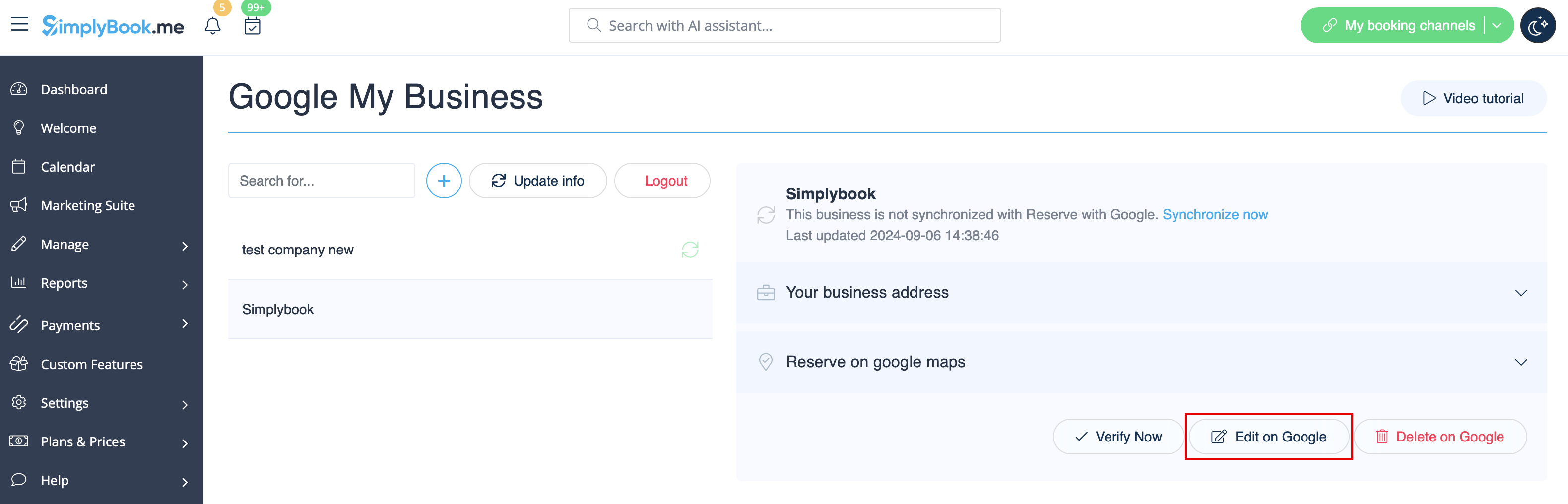
- 8. Ви також можете редагувати дані про місцезнаходження компанії в Google, якщо це необхідно. Просто натисніть кнопку «Редагувати в GMB» у верхній частині (з'являється для збережених і синхронізованих місць).
- 9. Якщо деякі місця більше не відповідають вашому бізнесу, ви можете легко видалити їх у налаштуваннях цієї функції. Просто натисніть опцію «Видалити в GMB ».
Забронювати через Google
Додайте опцію Бронювати онлайн у вашій бізнес-картці Google. Дозвольте вашим клієнтам легко знаходити вас у Google та бронювати ваші послуги прямо через Google Пошук, Google Maps або Google Assistant, за підтримки системи бронювання SimplyBook.me.
- Зверніть увагу!:
- Reserve with Google наразі доступний лише для підтримуваних країн, перелічених тут:
- Наразі неможливо використовувати цю опцію для таких категорій бізнесу: медичний центр, навчальний заклад, державна установа, інженер, медична клініка, стоматолог, медичний кабінет, освітній центр, компанія з організації заходів, міська адміністрація, посольство, адвокат загальної практики, агентство з догляду за дітьми, університет, коледж, школа, бібліотека, фінансова установа.
- Необхідно увімкнути спеціальну функцію «Приймати платежі» (опція«Оплатити пізніше (дозволити відстрочку платежу)» завжди має бути увімкнена) та додати ціни для всіх послуг/класів, які ви хочете відображати та робити доступними для бронювання через Google Maps;
- Усі послуги/класи повинні мати описи, які будуть відображатися на стороні Google;
- Якщо ви використовуєте функцію «Форми для прийому», до послуг, які ви хочете зробити доступними для бронювання, не слід додавати обов'язкові форми;
- Якщо послуга є повторюваною або пов'язаною з членством, вона не буде відображатися в Reserve with Google;
- Якщо ви використовуєте застарілу налаштовану функцію Google Calendar Sync, ви не зможете використовувати Reserve with Google.
- Щоб синхронізуватися з Google і щоб ця опція працювала, необхідно опублікувати адресу компанії на вебсайті бронювання.
- Як користуватися
- 1. Додайте та підтвердьте свої локації Google Business через платформу SimplyBook.me (попередня частина цього посібника) або за допомогою інтерфейсу Google Business і збережіть їх у налаштуваннях користувацьких функцій Google Business.
- 2. Перейдіть на вкладку «Забронювати на Google Maps» і переведіть перемикач «Синхронізація з Reserve with Google» в активне положення.
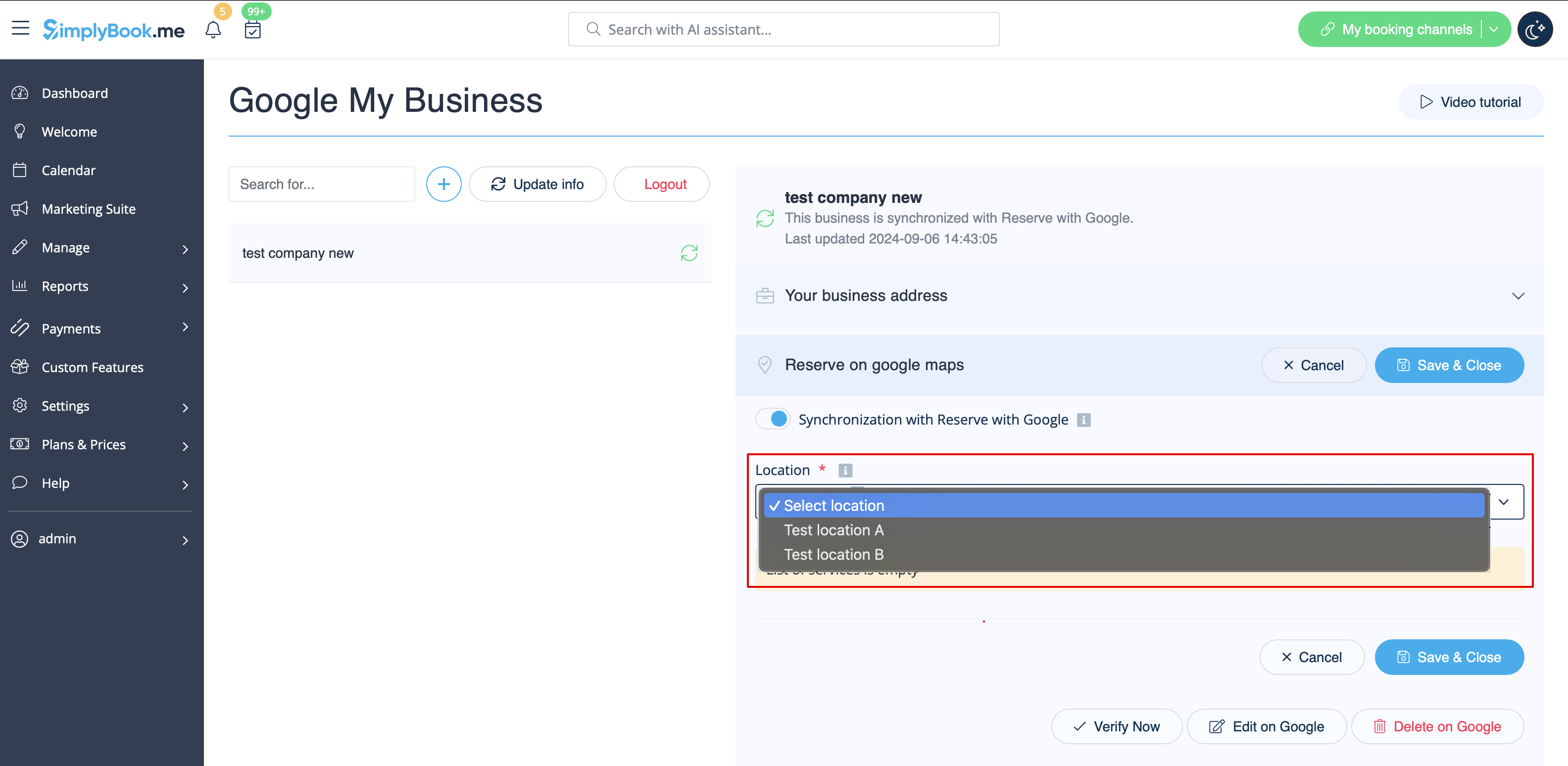
- 3. (опціонально) Якщо ви використовуєте налаштовану функцію «Кілька місць», підключіть свої Google Businesses до потрібних місць SimplyBook.me.
- Зверніть увагу! Одне місце SimplyBook.me можна підключити до одного Google Business.
- Якщо ви не використовуєте кілька місць, основне місце вашої компанії можна підключити до одного Google Business.
- 4. Збережіть налаштування. Тепер відбудеться синхронізація, і після перезавантаження сторінки ви зможете побачити список послуг, які будуть передані до «Забронювати через Google» для бронювання.
- За замовчуванням ми збираємо всю інформацію та передаємо оновлення до Google один раз на день, але ви можете використовувати кнопку «Оновити інформацію», щоб підготувати інформацію для передачі вручну, якщо в вашому обліковому записі були змінені налаштування (наприклад, якщо ви створили нову послугу).