No edit summary |
No edit summary |
||
| Line 27: | Line 27: | ||
<br><br> | <br><br> | ||
<span style="background-color:#ffe9e9; padding:5px; border-radius:5px;">'''Please note!''' Helcim may take up to 24 hours to verify and activate your new account. Payments cannot be processed until verification is complete.</span> | <span style="background-color:#ffe9e9; padding:5px; border-radius:5px;">'''Please note!''' Helcim may take up to 24 hours to verify and activate your new account. Payments cannot be processed until verification is complete.</span> | ||
<br><br><br><br> | |||
=HitPay= | |||
1. Activate '''Accept Payments/SBPay.me''' in your SimplyBook.me account following [[SBPay.me_integration#How_to_set_and_use_it_with_SimplyBook.me| these simple steps]].<br> | |||
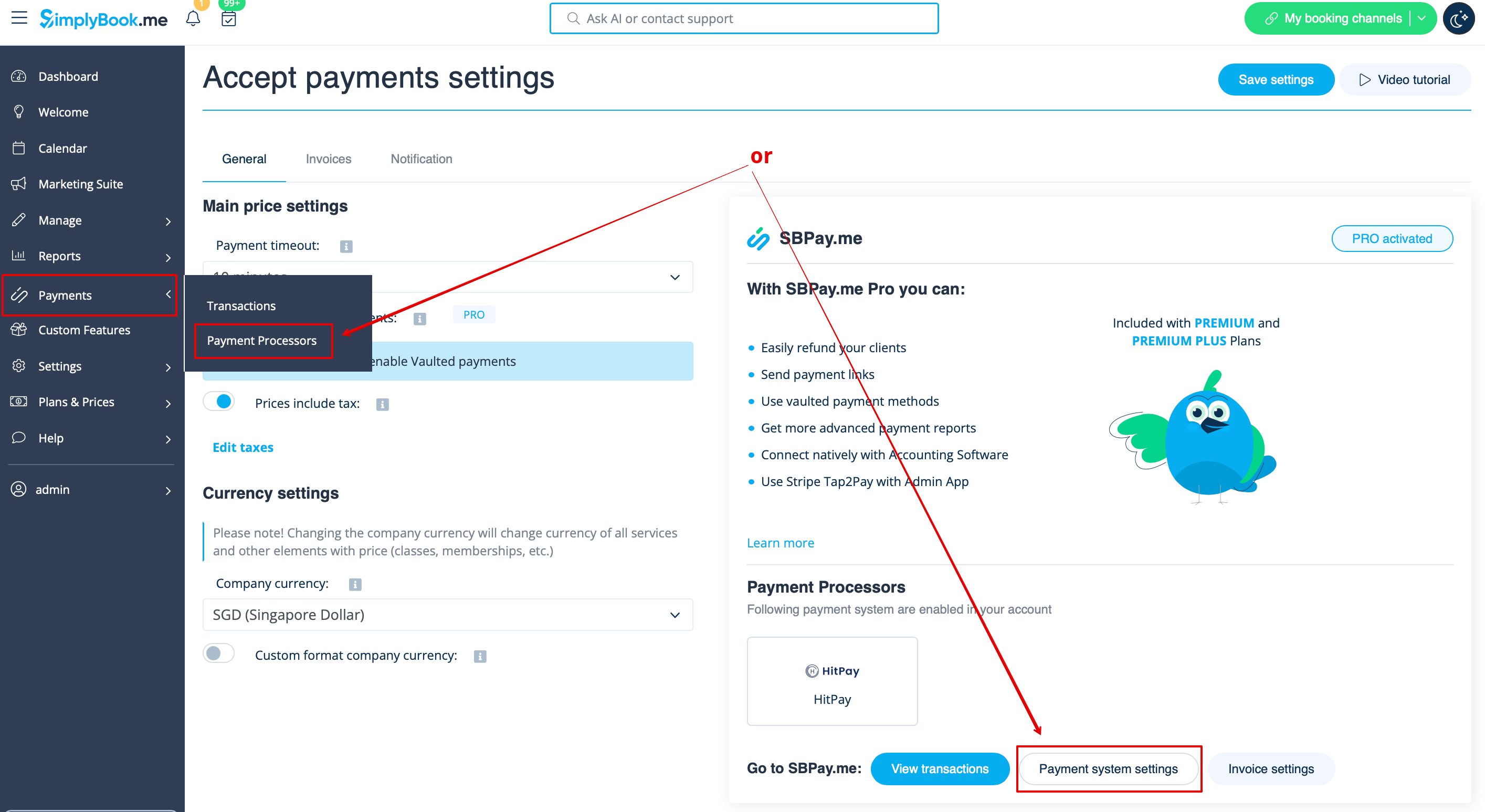
2. Go to SBPay.me payment system settings either from '''Accept payments''' feature settings or from the left-side navigation menu | |||
[[File:Payment processors settings path h.png|1200px|center|link=https://help.simplybook.me/images/f/fe/Payment_processors_settings_path_h.png]] | |||
<br><br> | <br><br> | ||
3. You’ll be redirected to your SBPay.me merchant portal.<br> | |||
<br><br> | |||
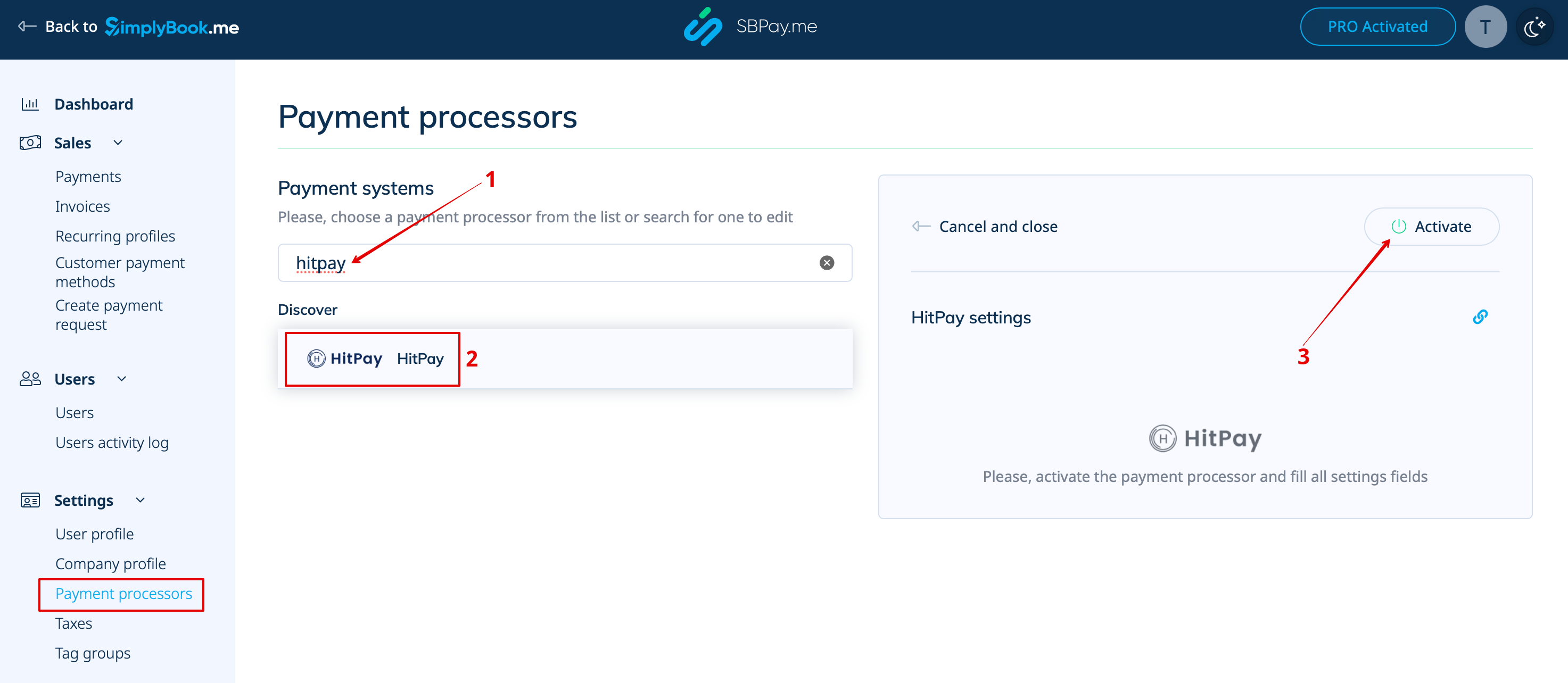
4. In SBPay.me search for '''HitPay''' in the payment processors list and click '''Activate''' next to it.<br> | |||
[[File:Hitpay enable path.png|1200px|center|link=https://help.simplybook.me/images/d/dc/Hitpay_enable_path.png]] | |||
<br><br> | |||
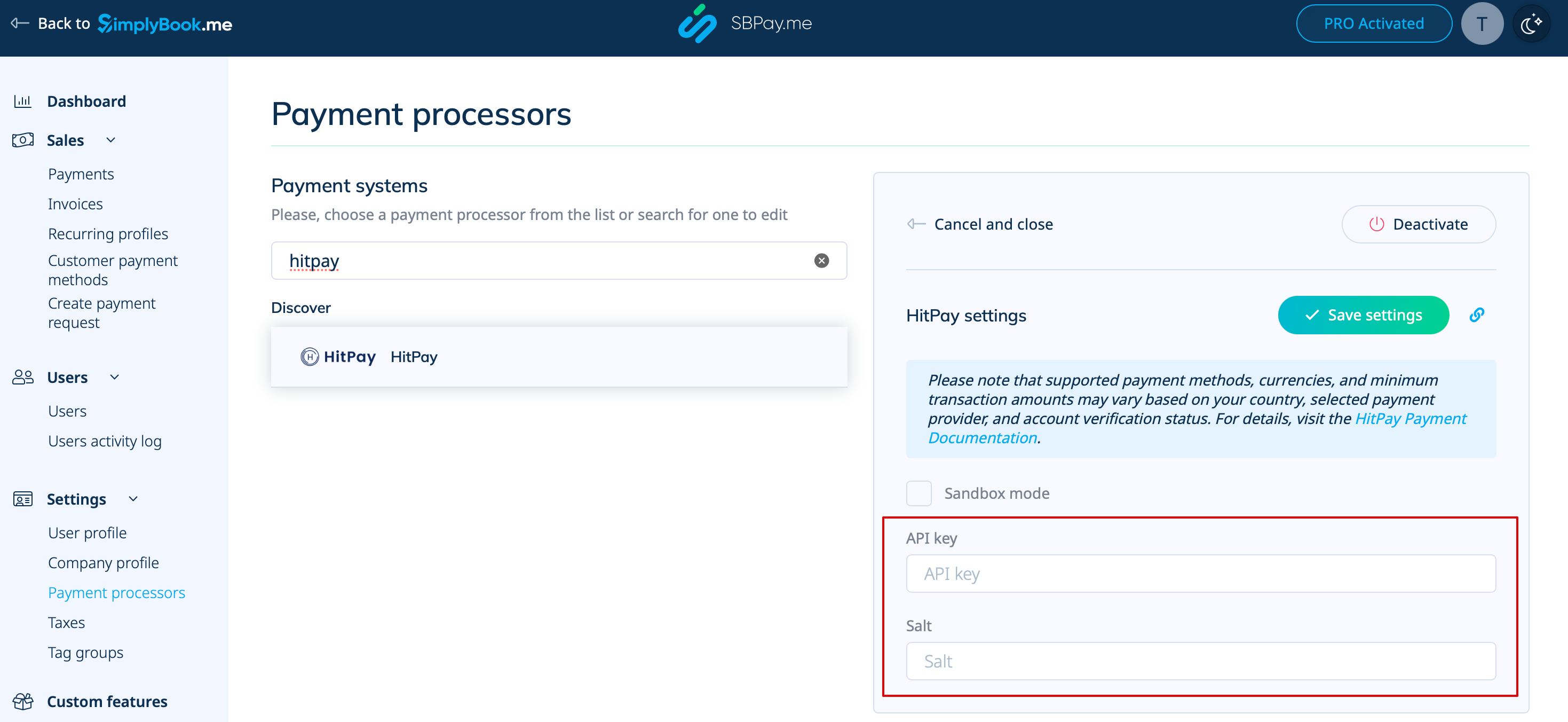
5. If you already have a HitPay account, copy your API credentials and paste them into SBPay.me. | |||
[[File:Hitpay add settings.png|1200px|center|link=https://help.simplybook.me/images/e/e1/Hitpay_add_settings.png]] | |||
<br><br> | |||
6. If you don’t have an account yet, click link to be redirected to HitPay, complete the onboarding. Once verified you'll have access to the API credentials to copy and get ready to accept the payments online. | |||
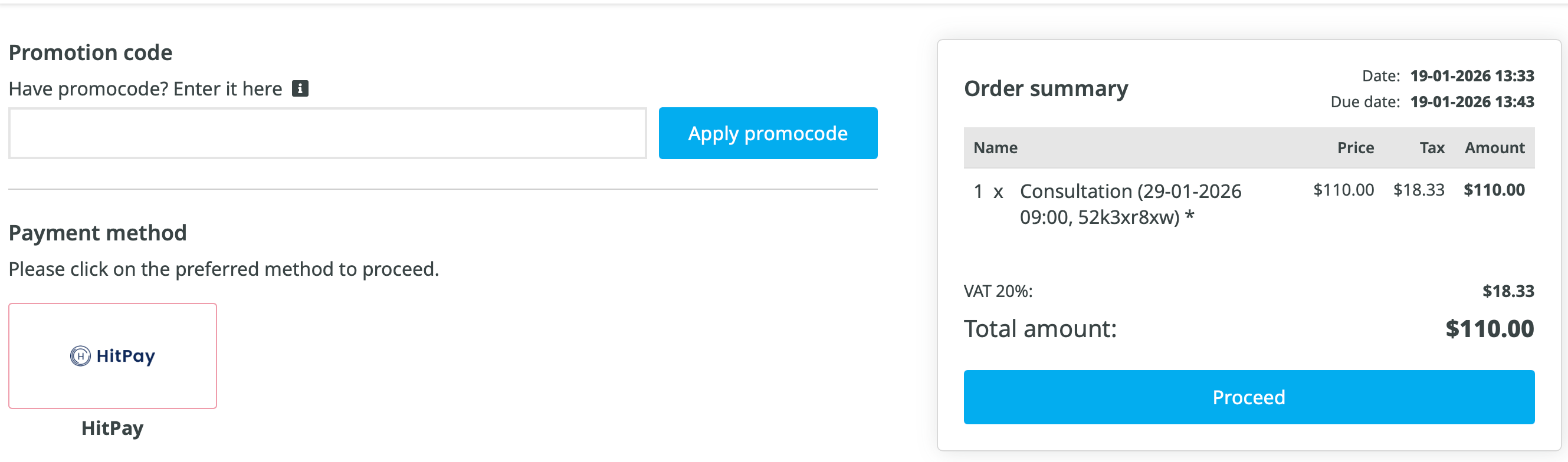
[[File:Hitpay at the client side.png|1200px|center|link=https://help.simplybook.me/images/b/b6/Hitpay_at_the_client_side.png]] | |||
<br><br><br><br> | |||
Revision as of 11:55, 19 January 2026
Helcim
1. Activate Accept Payments/SBPay.me in your SimplyBook.me account following these simple steps.
2. Go to SBPay.me payment system settings either from Accept payments feature settings or from the left-side navigation menu
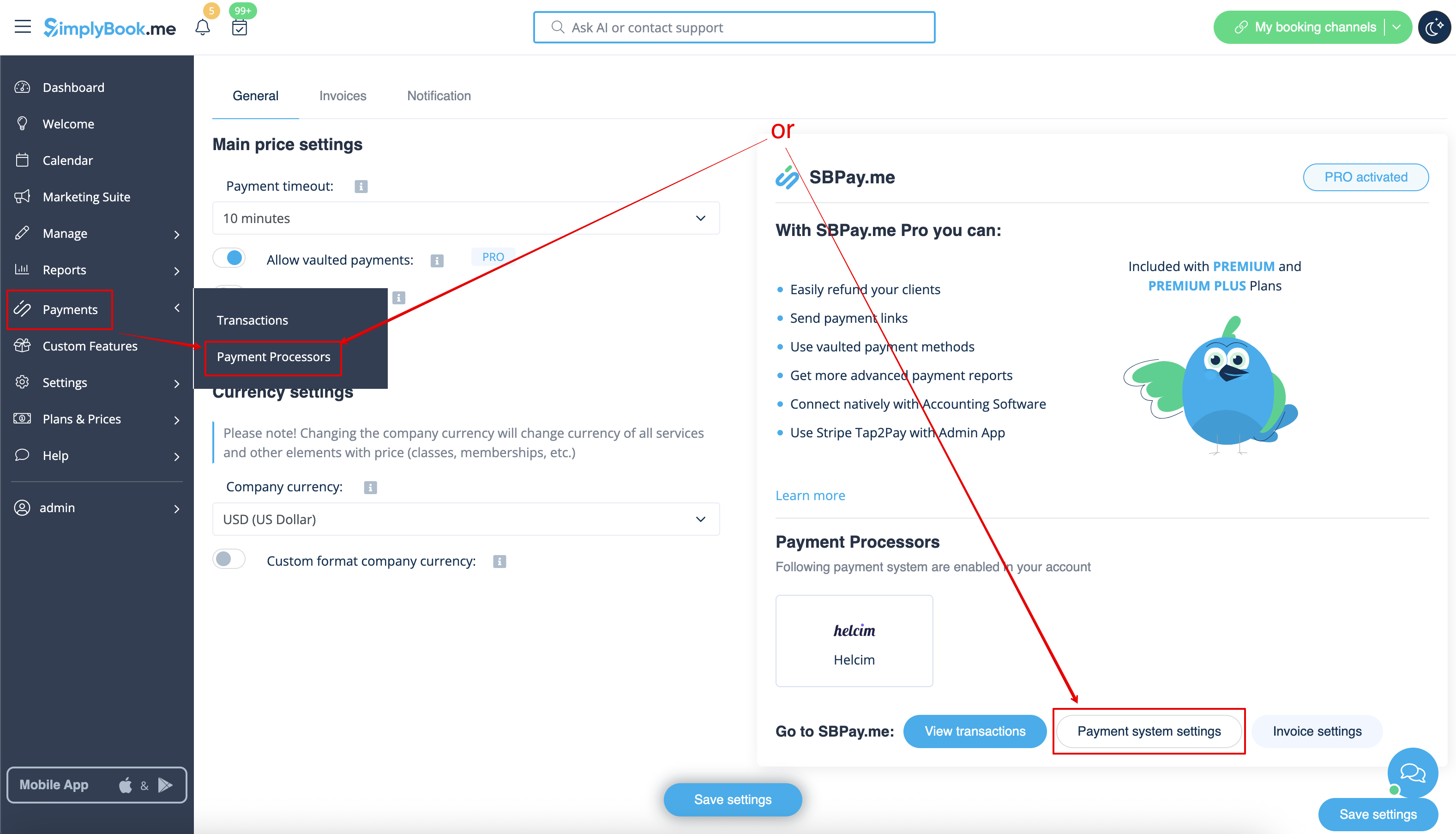
3. You’ll be redirected to your SBPay.me merchant portal.
4. In SBPay.me search for Helcim in the payment processors list and click Activate next to it.
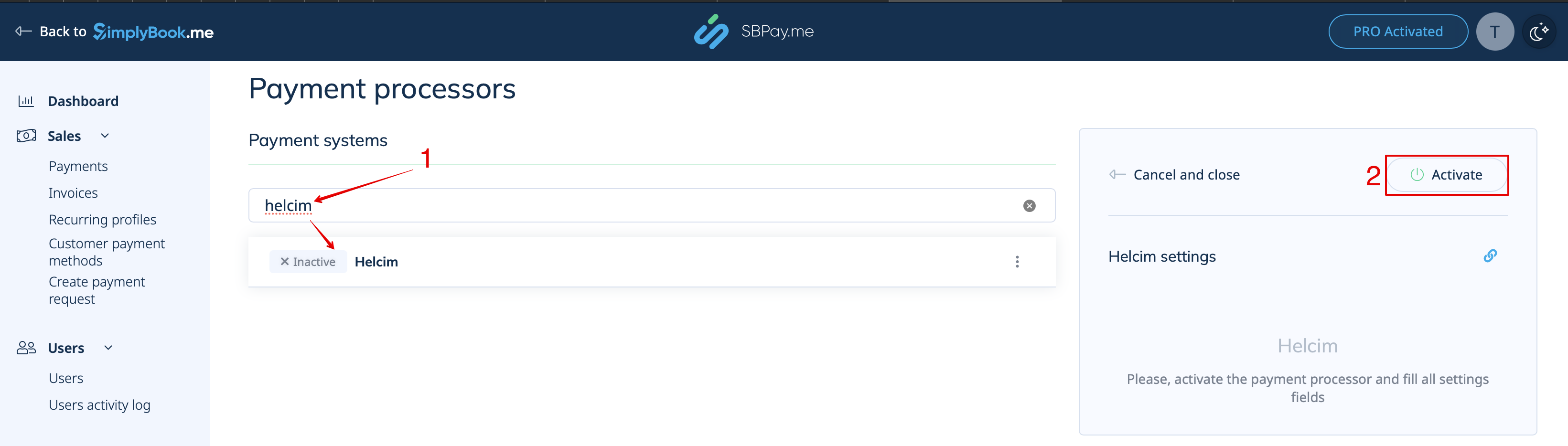
5. If you already have the account with Helcim please copy the API token from there and paste it to the corresponding field on the SBPay.me side.
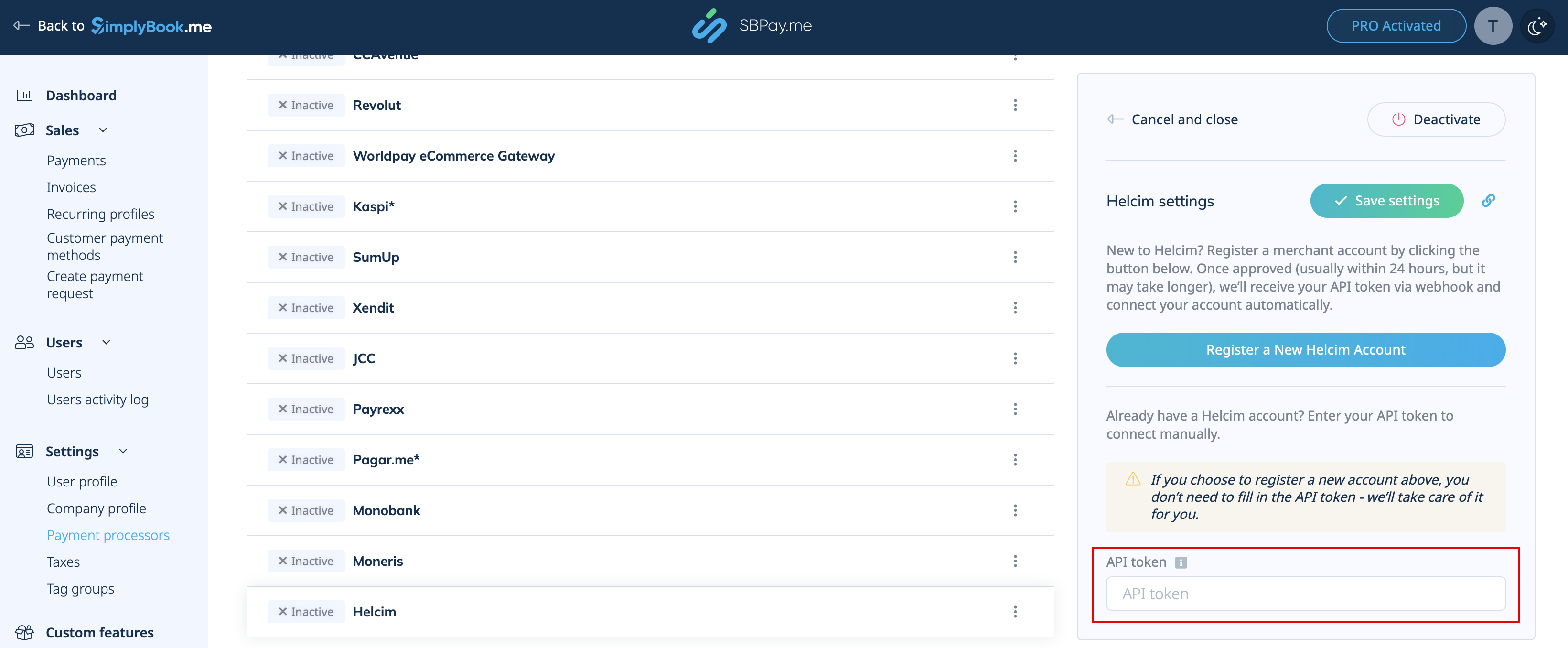
6. If you don't have an account yet, simply click on Register a New Helcim Account right on that SBPay.me page.
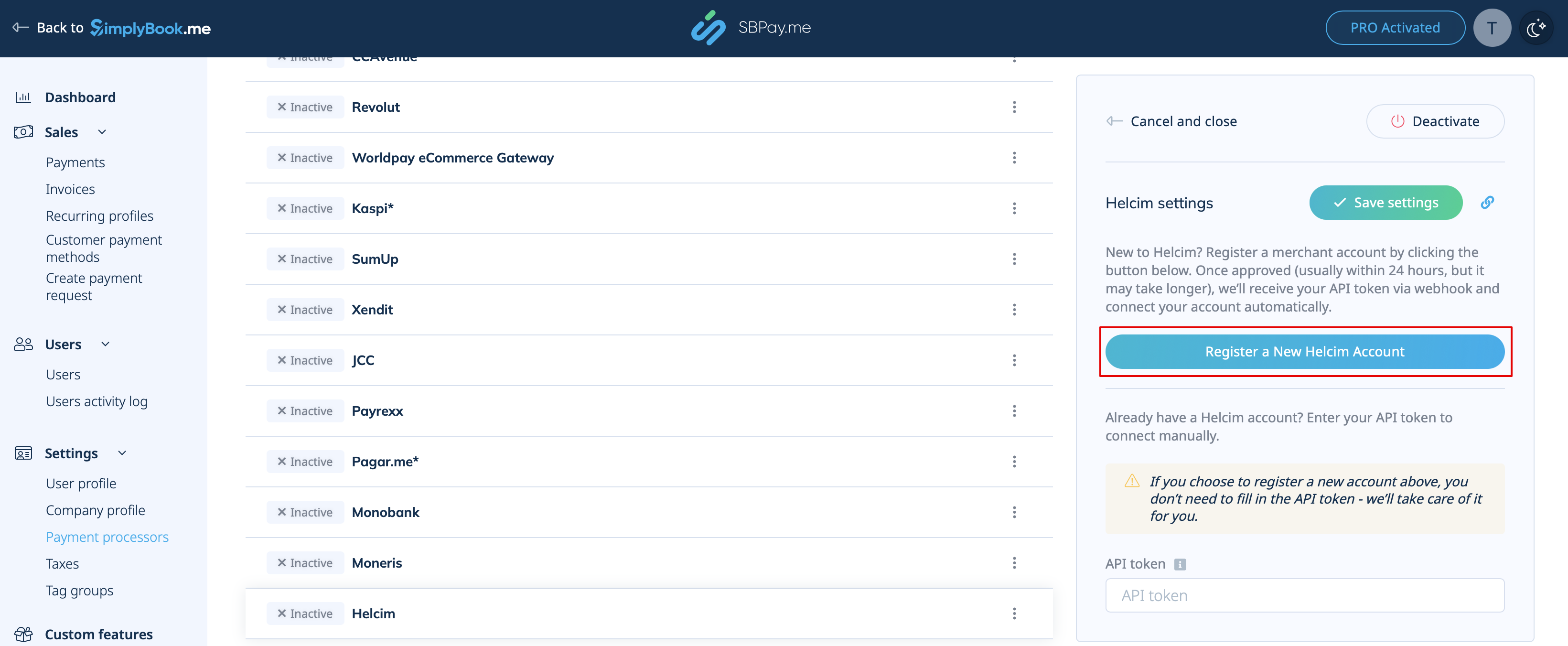
7. Fill out the Helcim sign-up form & onboarding.
Once verified, you can begin accepting secure card payments through SimplyBook.me.
Please note! Helcim may take up to 24 hours to verify and activate your new account. Payments cannot be processed until verification is complete.
HitPay
1. Activate Accept Payments/SBPay.me in your SimplyBook.me account following these simple steps.
2. Go to SBPay.me payment system settings either from Accept payments feature settings or from the left-side navigation menu
3. You’ll be redirected to your SBPay.me merchant portal.
4. In SBPay.me search for HitPay in the payment processors list and click Activate next to it.
5. If you already have a HitPay account, copy your API credentials and paste them into SBPay.me.
6. If you don’t have an account yet, click link to be redirected to HitPay, complete the onboarding. Once verified you'll have access to the API credentials to copy and get ready to accept the payments online.